
Control charts are a way to monitor how a measurement behaves over time so you can quickly spot when a process or instrument drifts out of its expected range.
They are especially useful for running controls to confirm that a machine or instrument is still reading correctly (e.g., it should consistently read 1.0) and monitoring repetitive manufacturing processes (e.g., ensuring soda cans contain 20 ounces within acceptable limits).
Key Features
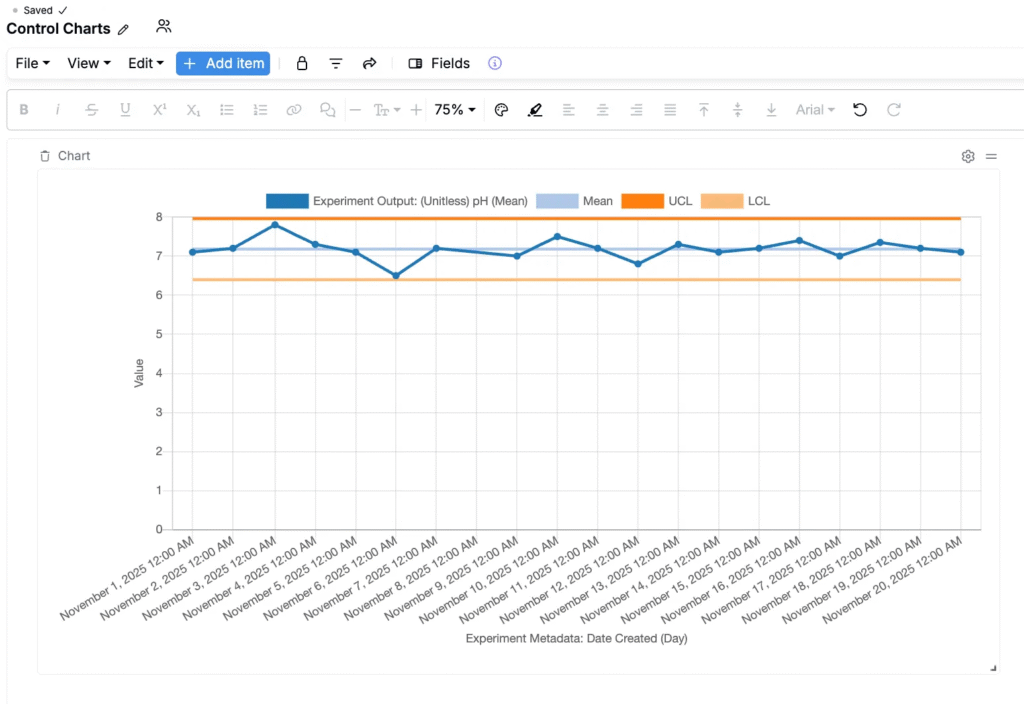
A typical control chart in Uncountable shows:
- Your measurements over time
- The mean value
- An Upper Control Limit (UCL), typically:
- UCL = mean + (3 × standard deviation)
- A Lower Control Limit (LCL), typically:
- LCL = mean − (3 × standard deviation)
When a point falls outside the control limits, it is a strong indication that something in your process, environment, or measurement system has changed and may need investigation.
Creating a Control Chart
Control charts are usually built on dashboard notebooks. To create a control chart on a dashboard:
Step 1 — Add a chart to your dashboard
- Open the relevant dashboard notebook.
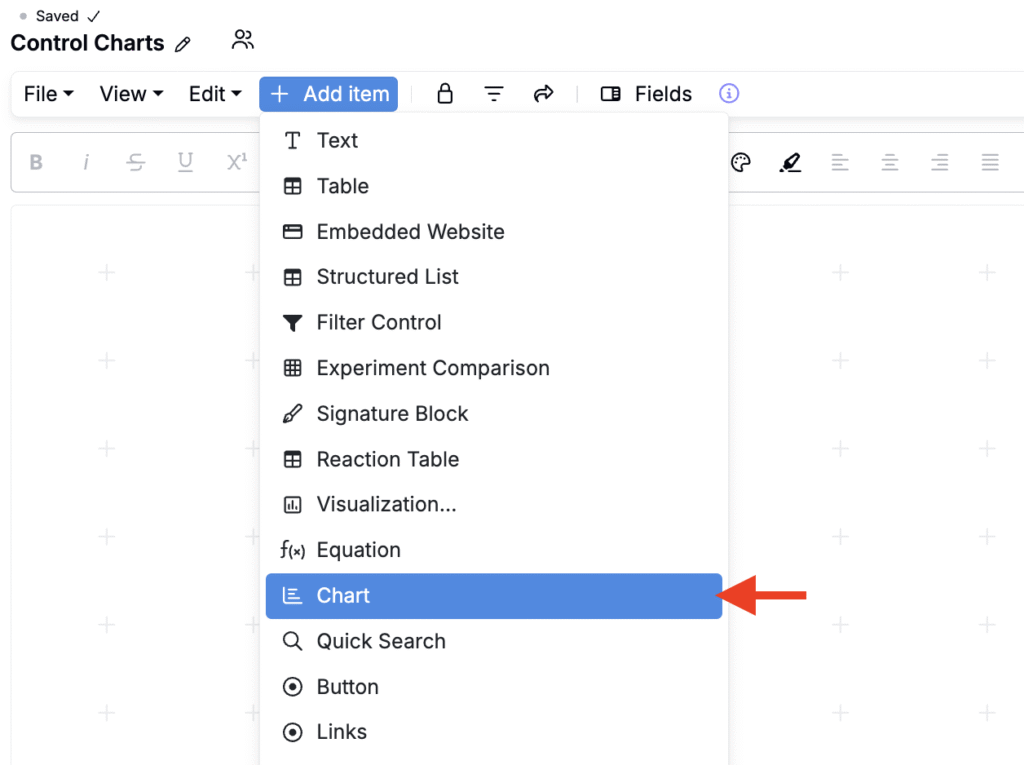
- Click Add item and select Chart.
Step 2 — Choose experiments and the parameter to plot
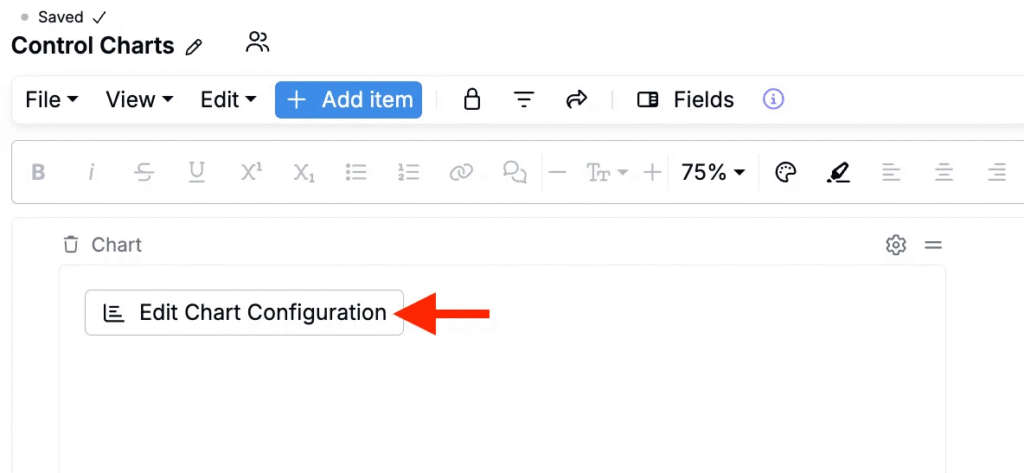
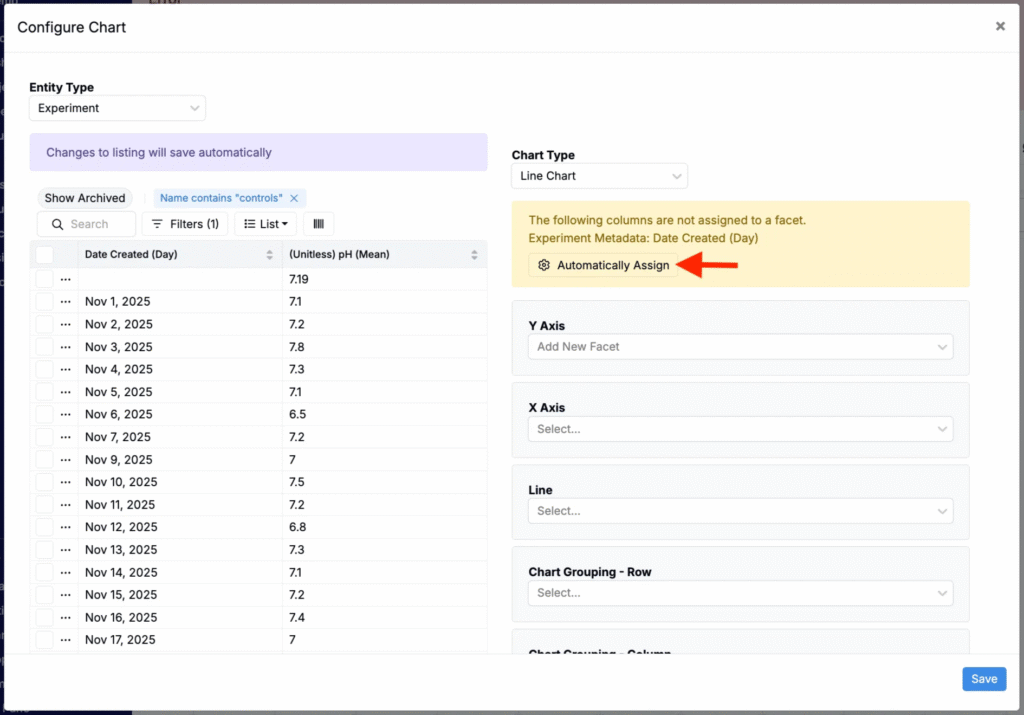
- Click Edit Chart Configuration.
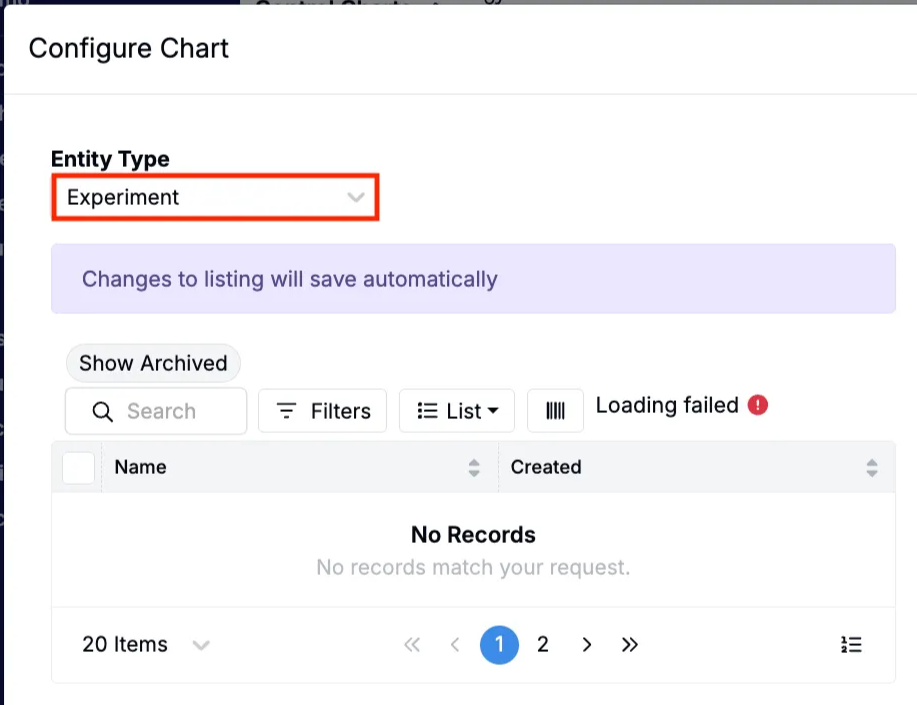
- Set Entity Type to Experiments.
- On the experiments listing, access the Select Columns modal (List > Set Columns).
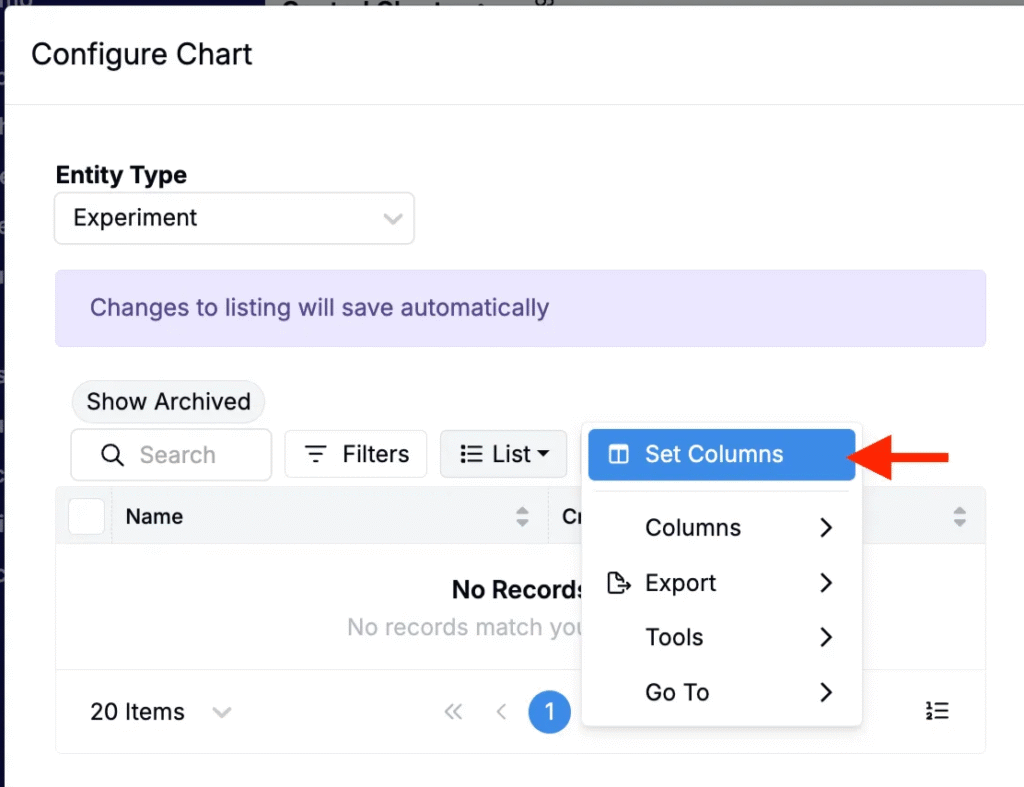
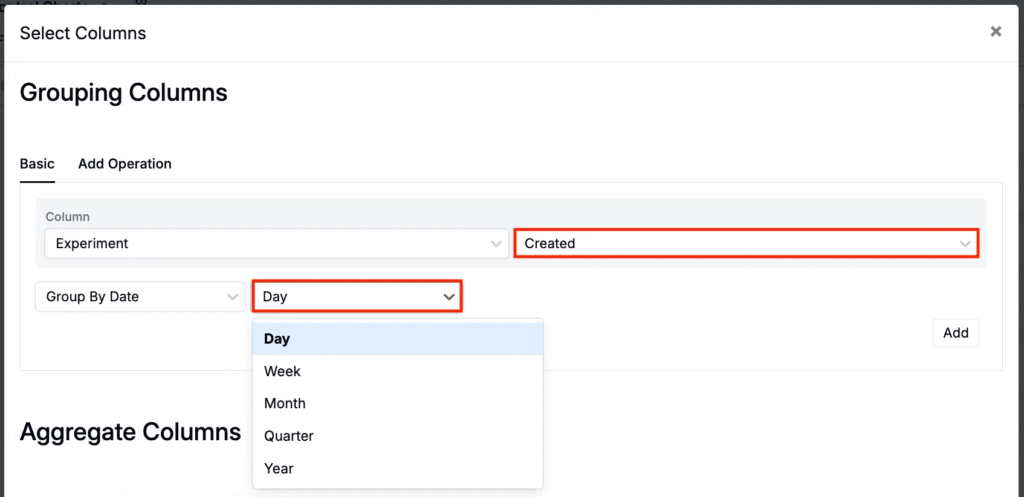
- In the modal, add an Experiments + Created grouping column.
- You can choose to group by day, week, month, quarter, or year.
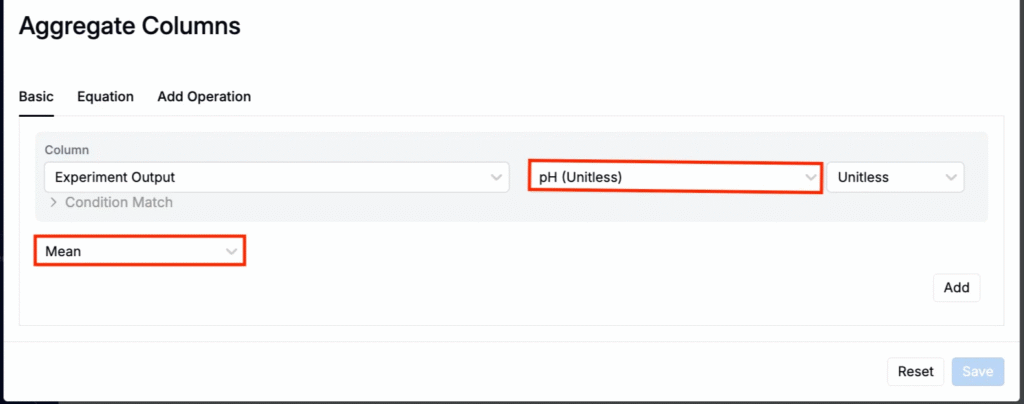
- Add a Experiment Outputs + [Output] aggregate column. Here, you can select any output you want to monitor (e.g., pH, Anode wet weight).
- Set the aggregation to Mean (or another statistic, if appropriate). This ensures that if you record multiple measurements per day, they are averaged into a single value for that time bucket.
- Remove any extra identity columns you don’t need and save the configuration.
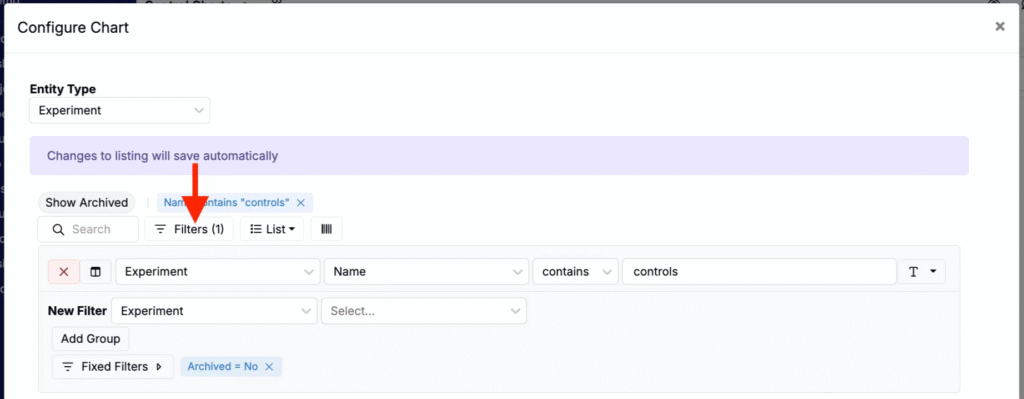
- Then add a filter to scope the listing table to include only the experiments that contain your control or process data.
Step 3 — Assign axes
After configuring your fields:
- Filter the listing table to include only the experiments that contain your control or process data.
- Click Automatically Assign in the chart configuration.
- Uncountable will typically:
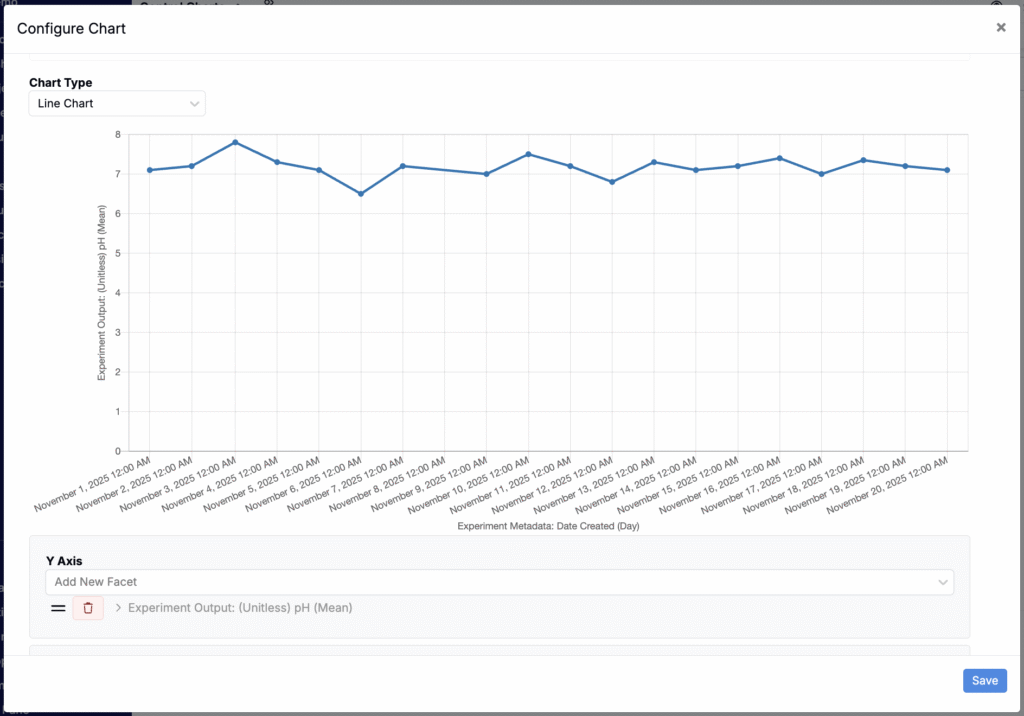
- Place your time field on the x-axis.
- Place your mean measurement on the y-axis.
You can also manually assign axes, if needed.
At this stage, you have a basic trend chart: you can see how your control or process value changes over time.
Adding Control Limits
To turn your standard chart into a true control chart, you’ll add a line for mean, UCL, and LCL.
Step 4 — Create aggregates for mean, UCL, and LCL
In the chart configuration modal:
- In the Aggregates section, add three aggregates on your experiment output.
- For the Mean control limit:
- Name: Mean
- Equation:
Mean
- For the UCL (Upper Control Limit):
- Name: UCL
- Equation:
Mean + 3 × stddev
- For the LCL (Lower Control Limit):
- Name: LCL
- Equation:
Mean − 3 × stddev
- Save.
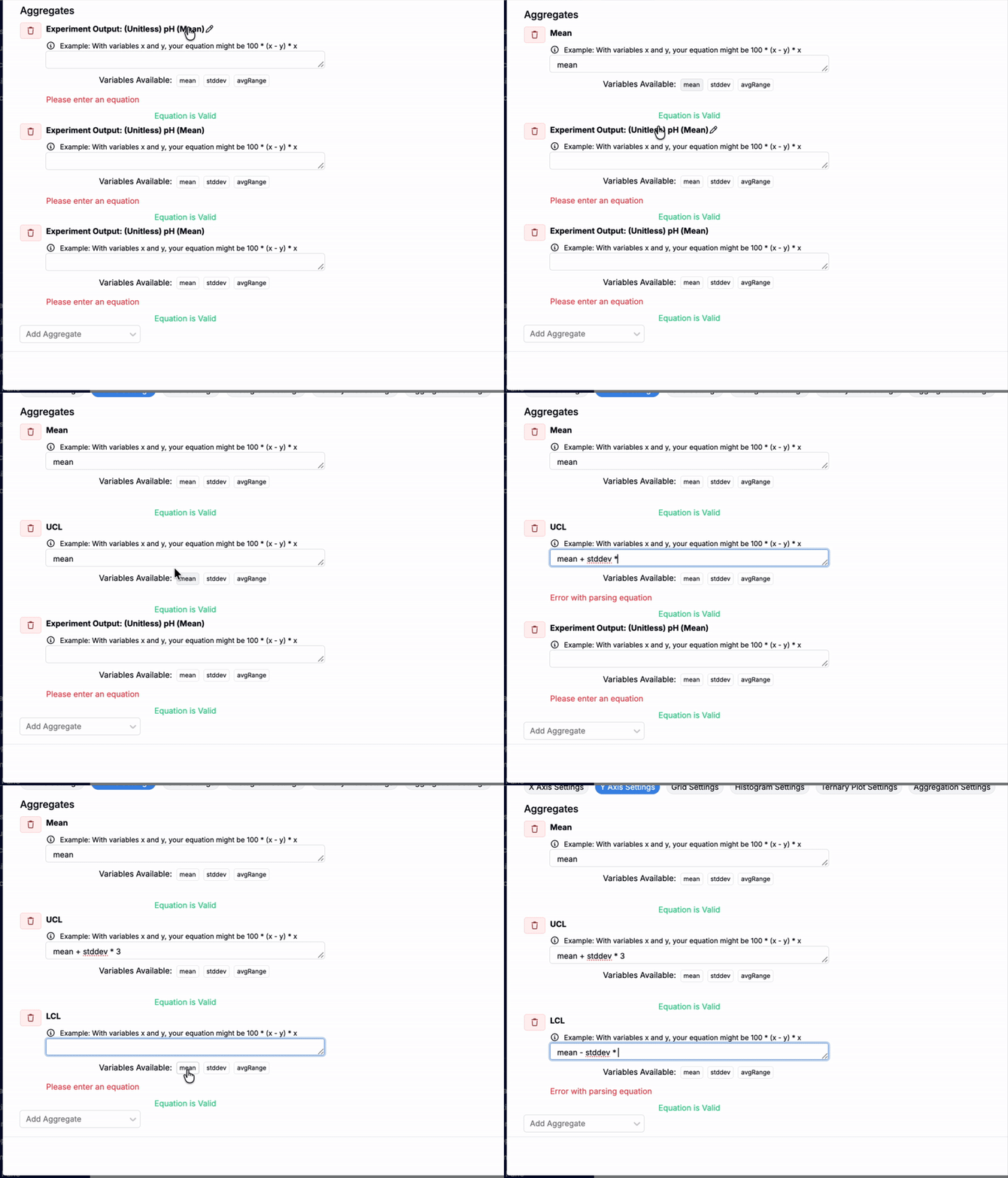
Note: The exact syntax depends on how aggregate equations are configured in your environment. Conceptually, you are always computing mean ± 3 × standard deviation for the same output you’re plotting.
Step 5 — Add the aggregates as lines on the chart
After defining the aggregates:
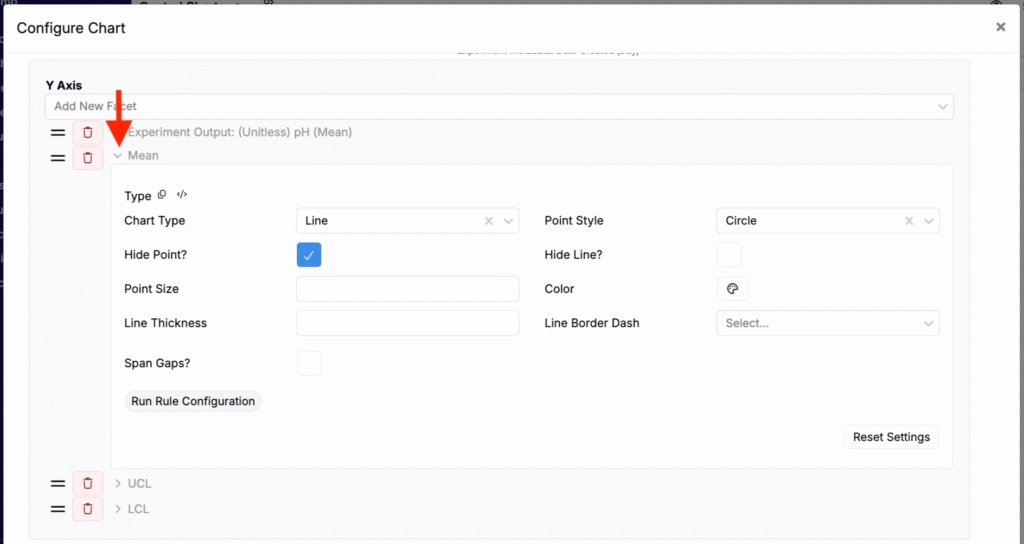
- Click Automatically assign again, or manually assign the aggregates so they appear as reference lines across the chart.
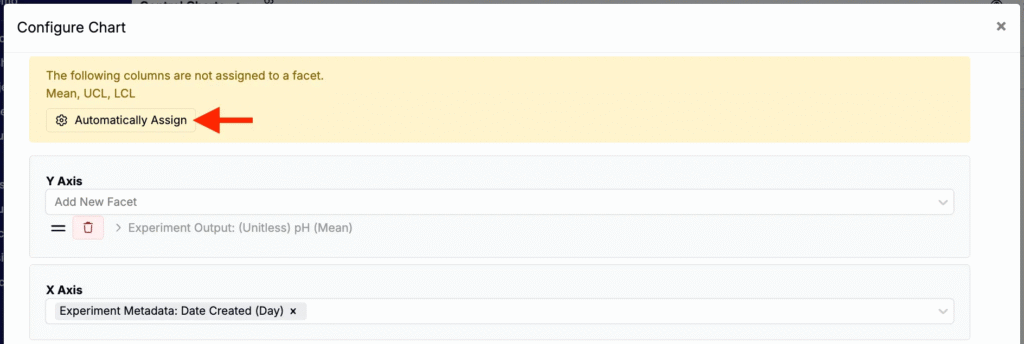
- Optionally, adjust line color and styles by expanding the aggregate’s settings.
- Save the configuration.
Interpreting Control Charts
Because the chart is on a dashboard notebook, it updates automatically when you record new measurements for the same parameter. If you are running regular controls (e.g., daily instrument checks), the control chart becomes a live view of your current process health.
Some common patterns to watch for:
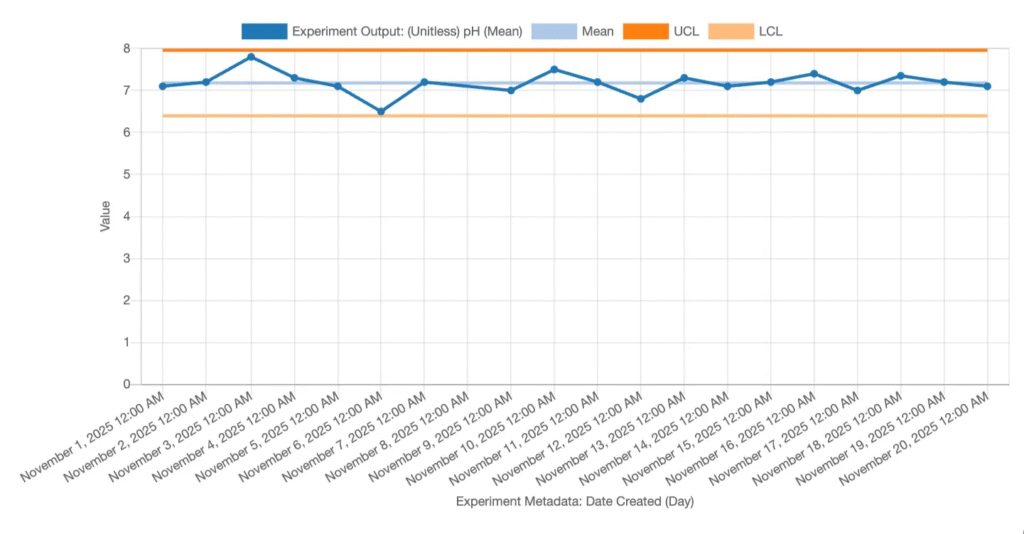
- Points inside UCL/LCL with no strong pattern
- Process is likely stable and behaving as expected.
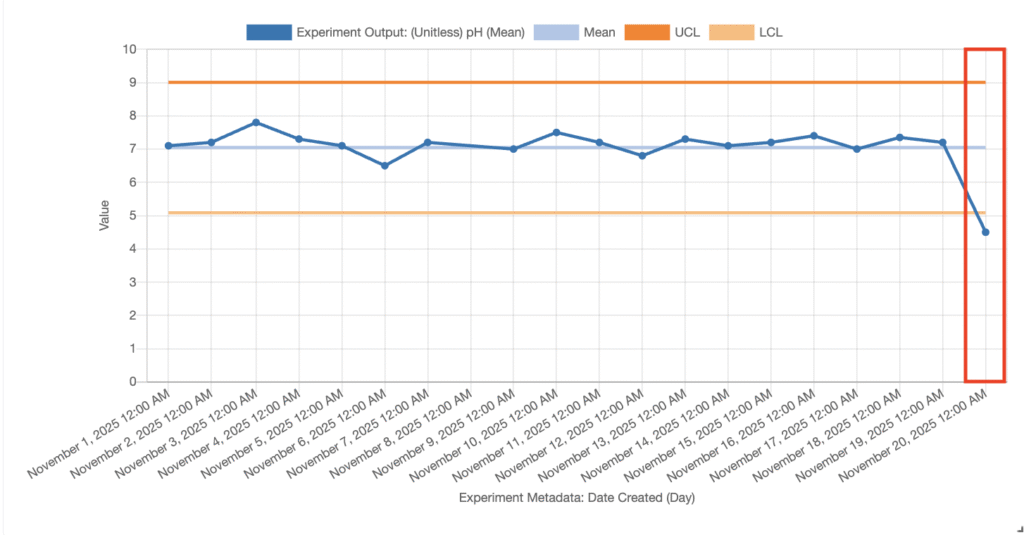
- Point above UCL or below LCL
- Strong signal that something in your process or measurement system has changed.
- Investigate machine calibration, materials, method changes, or data entry issues.
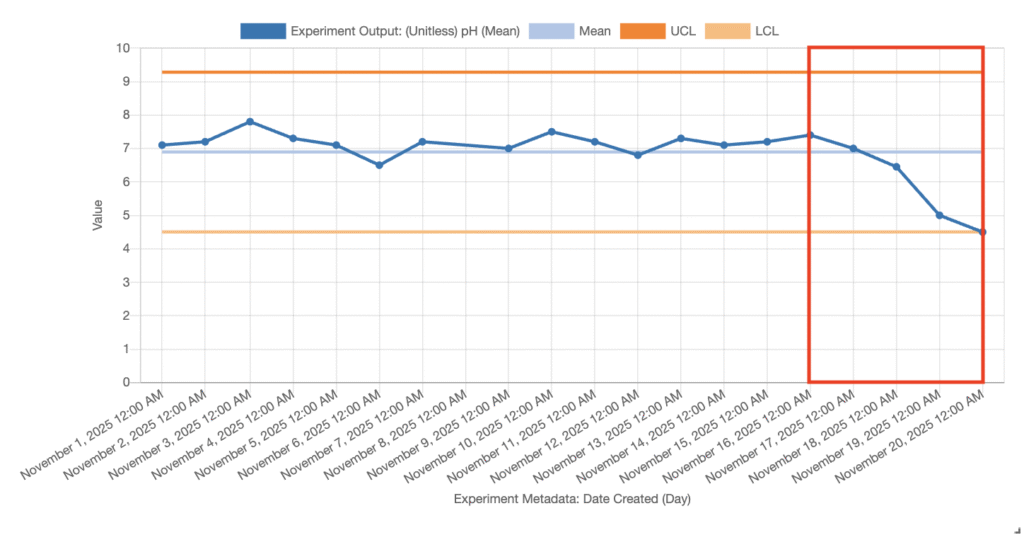
- Trend over time (e.g., gradual drift upward)
- May indicate progressive drift in equipment or a slow change in process conditions.
- Sequence of points on one side of the mean
- Can indicate a shift in the mean, even if points are still within UCL/LCL.
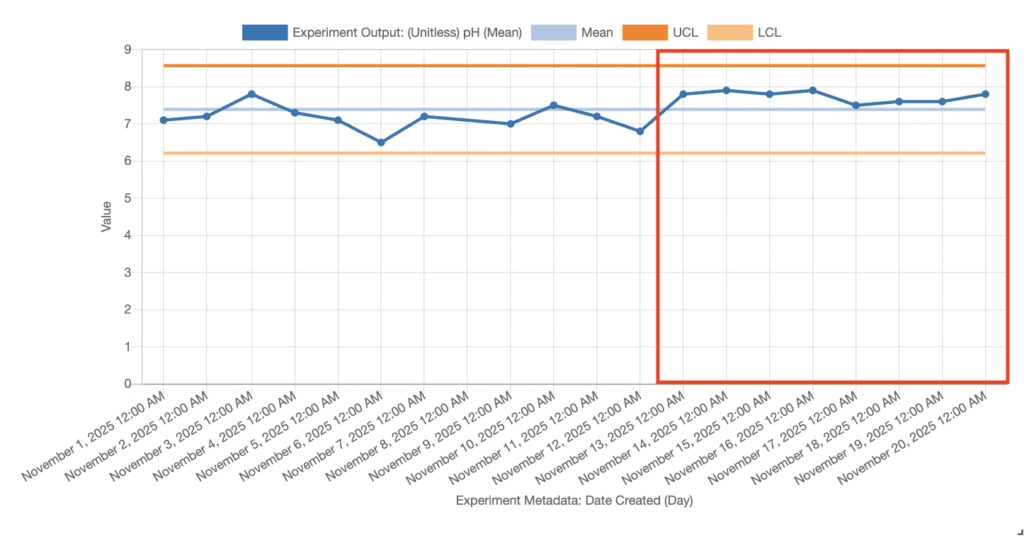
Use these signals to check or recalibrate instruments, review recent process changes, or decide whether to pause production or adjust process settings.
Key Takeaways
- Control charts track a measurement over time and surface drift using the mean plus upper and lower control limits (typically mean ± 3σ).
- Build them in dashboard notebooks by charting your output, grouping by time, averaging within each time bucket, and filtering to the relevant experiments.
- Add aggregates for Mean, UCL, and LCL, then assign them as reference lines so limits are visible on the chart.
- Interpret signals: points outside limits, persistent trends, or long runs on one side of the mean suggest investigation or recalibration. </aside>