Input groups are reusable sets of ingredients, process parameters, and optional instructions that can be added to recipes as a single unit. They streamline recipe creation by bundling commonly used inputs together, reducing repetitive work and ensuring consistency across experiments.
Each input group can include:
- A predefined mix of ingredients and/or process parameters
- Pre-configured values that auto-populate when the group is added
- Mix order instructions
Input groups are managed centrally and can be reused across multiple recipes and experiments, making it easy to standardize formulations and process conditions throughout your R&D process.
Creating New Input Groups
- Select Inputs/Outputs > Input from the navigation bar.
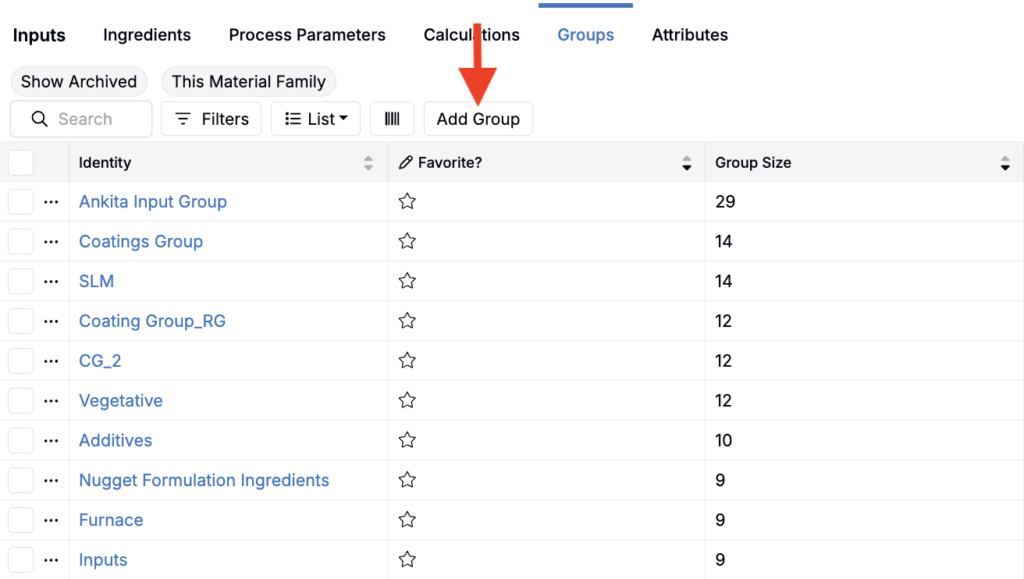
- Open the Groups tab, then click Add Group.
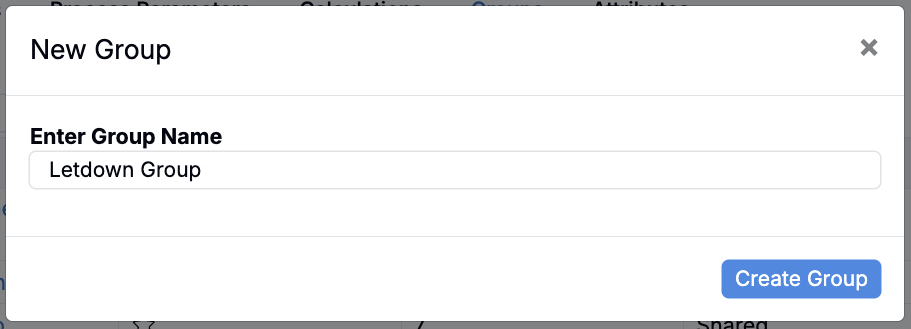
- Enter a Group Name, then save.
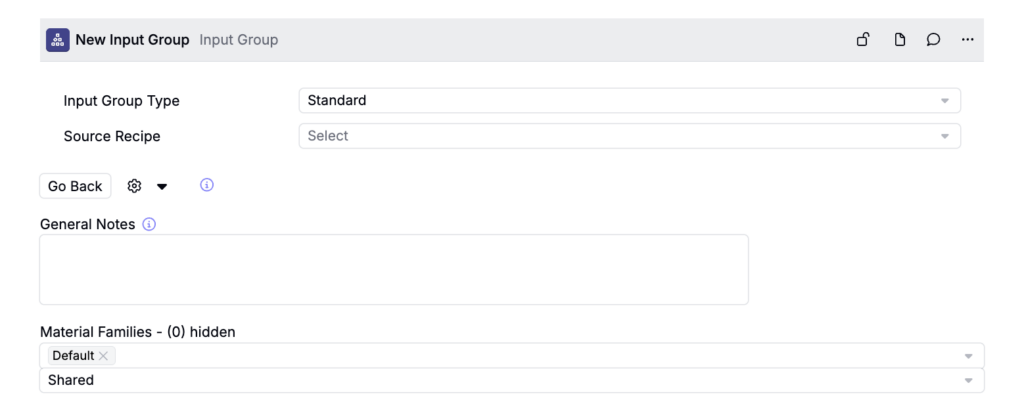
- On the new input group page, configure the group settings as needed:
- General Notes — Describe the group’s purpose or recommended use.
- Material Families — Choose which material families the group should be available in.
- Shared/Private — Use the field below Material Families to choose whether the input group is shared or private.
- Group Steps Together — Keep the group’s inputs together when they are added to a recipe.
- In the Input List table, use the Value column to add default values. These values automatically populate when the input group is added to a recipe.
- To update which inputs are included in the group, click Change Inputs.
- To reorder the inputs, click Sort inputs.
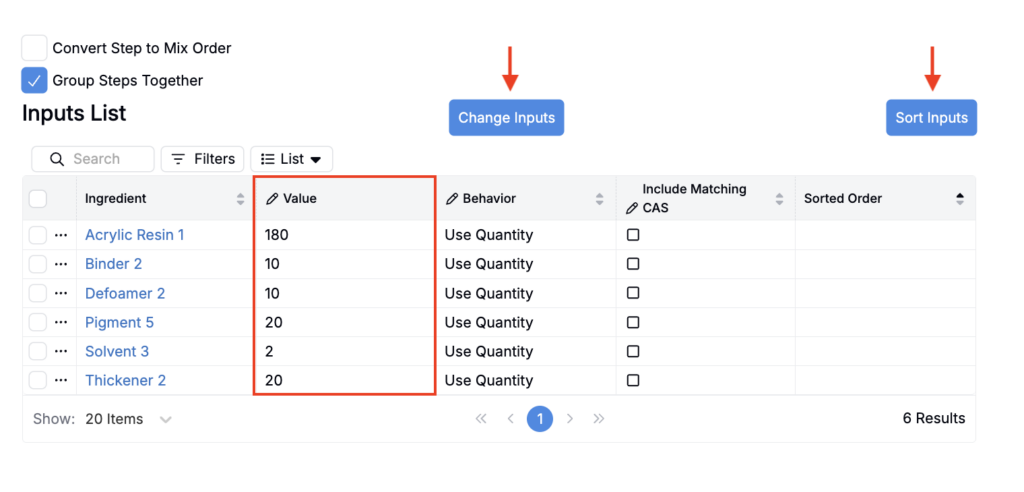
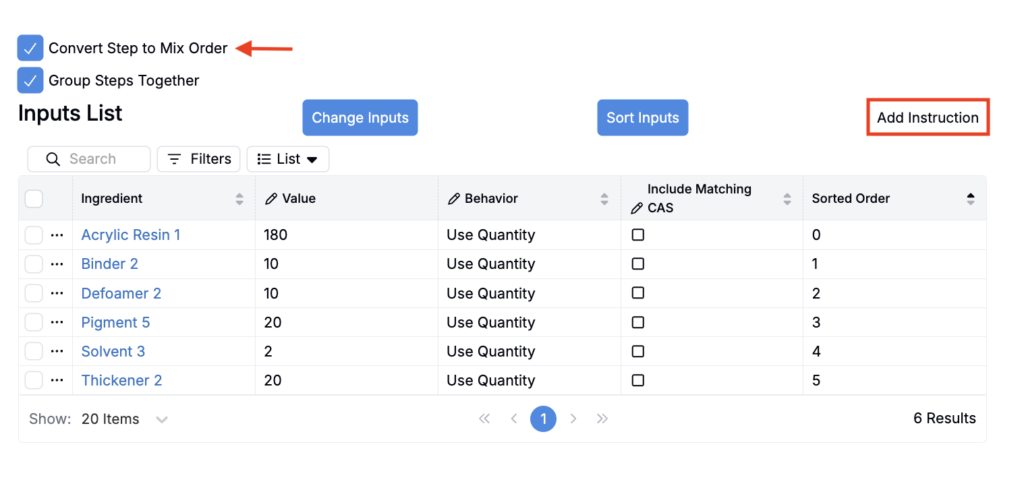
- To add instruction steps to the input group:
- Check Convert Step to Mix Order.
- Click Add Instructions.
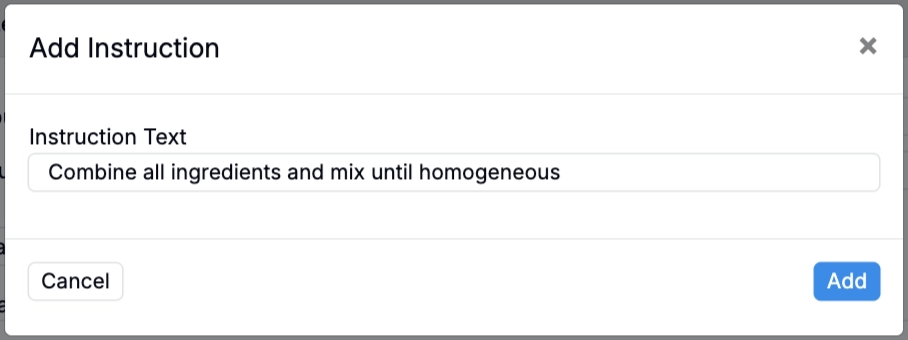
- In the modal, enter the instruction text and save.
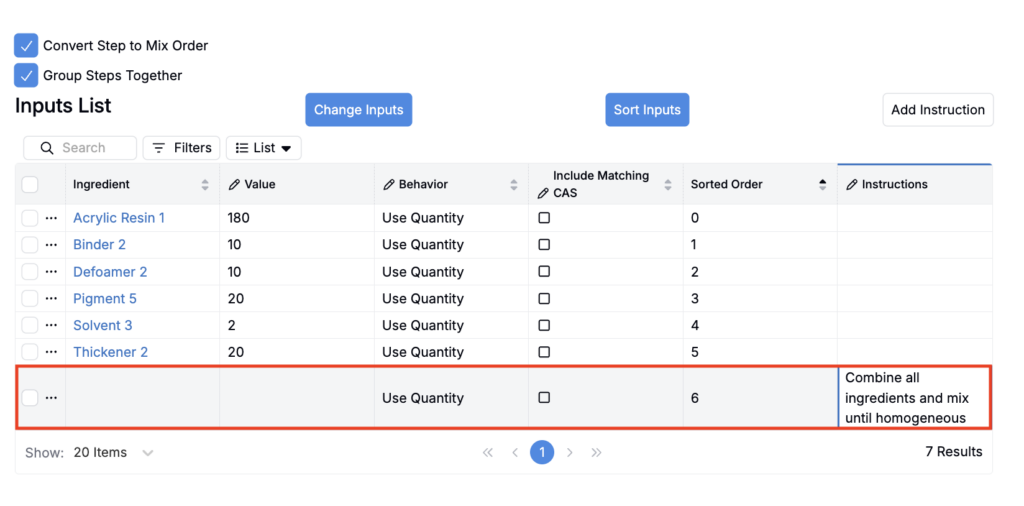
- The instruction row is added to the bottom of the Input List table.
- To view inputs and instructions together, add the Ingredients + Instructions column to the Input List table (List > Set Columns).
Adding Input Groups to a Recipe
Once input groups exist in your system, you can add them to experiment recipes.
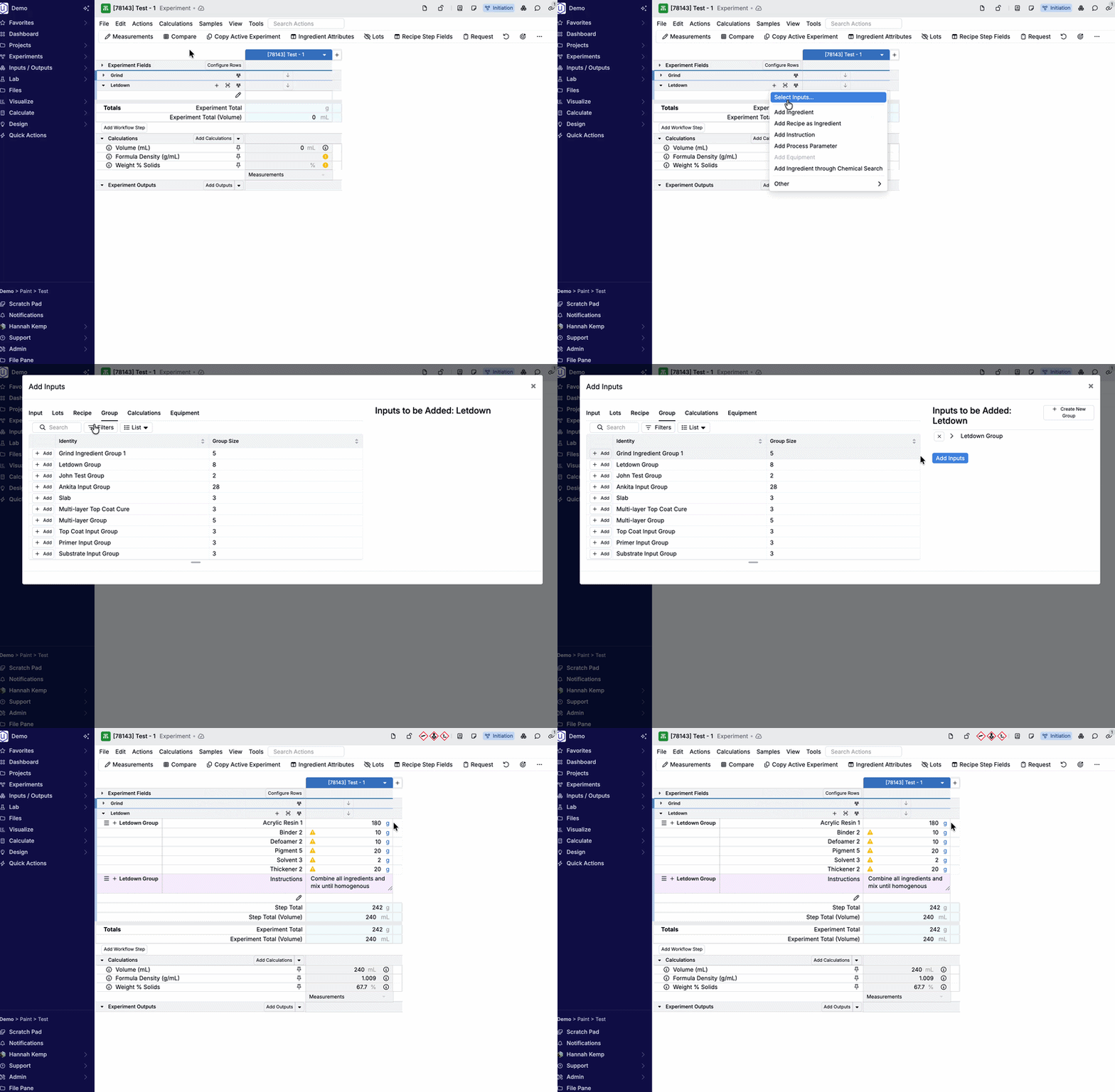
- Click the ➕ icon in the workflow step you want to add your inputs to.
- In the menu, click Select Inputs.
- In the modal, use the Groups tab to search for and add your input group.