Input calculations can be created from the Calculations listing page, directly in the recipe view of a formulation, or by converting a temporary calculation column. Each method opens the same New Input Calculation modal.
Only users with Write input permission for a material family can create or edit input calculations within that family.
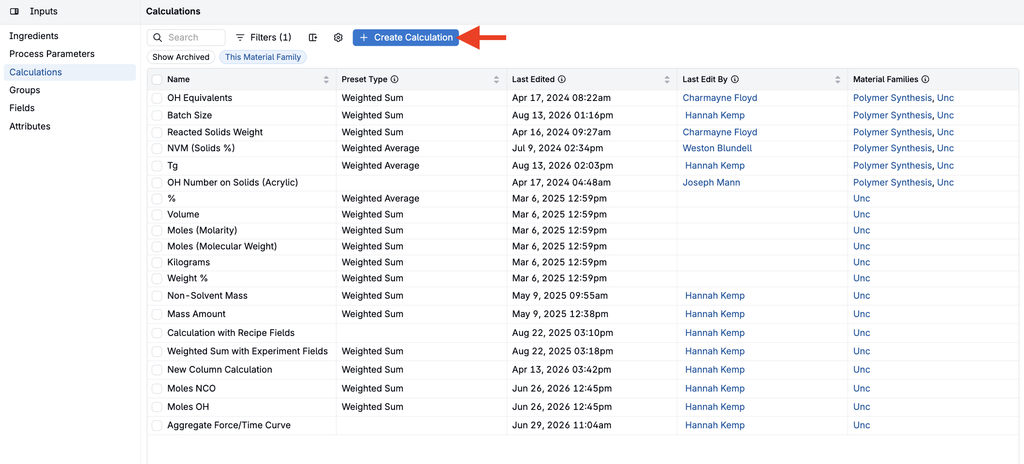
Option 1: From the Calculations Listing
- Go to Inputs/Outputs → Calculations.
- Click + Create Calculation.
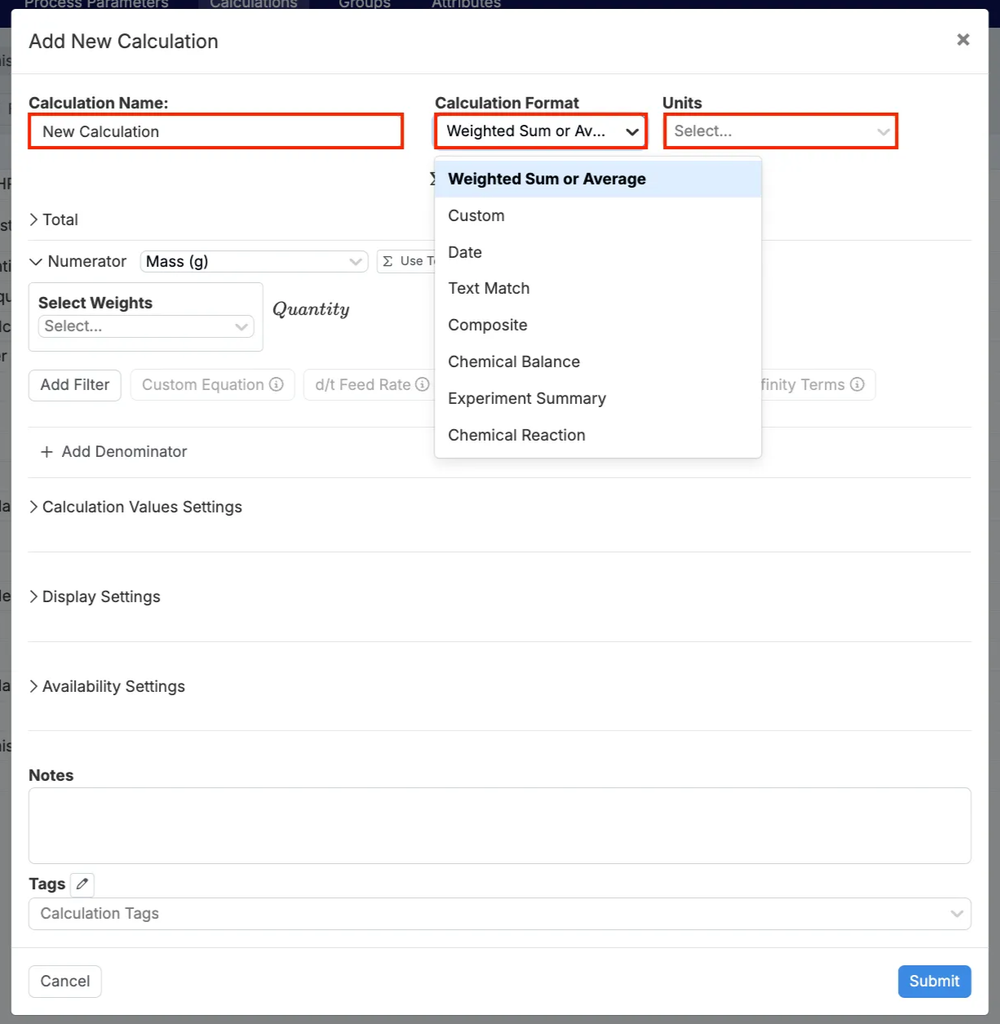
- In the modal, complete the following fields:
- Calculation Name – provide a clear name for the calculation.
- Calculation Format – choose from seven supported formats:
- Weighted Sum or Average – for recipe- or ingredient-level values (e.g. formulation cost, total % solids, moles NCO).
- Custom – build calculations using variables like ingredients, process parameters, or attributes.
- Date – create date-based calculations.
- Text Match – match against text patterns.
- Composite – combine elements of Custom and Weighted Sum/Average, with numerators and denominators.
- Chemical Balance – for synthesis workflows requiring chemical structure attributes.
- Experiment Summary – summarize experiment-level data.
- Units – assign the appropriate units.
Note: The ability to create new calculations from the recipe view can be restricted. If you don’t see this option, contact your Uncountable representative.
Option 2: From the Recipe View
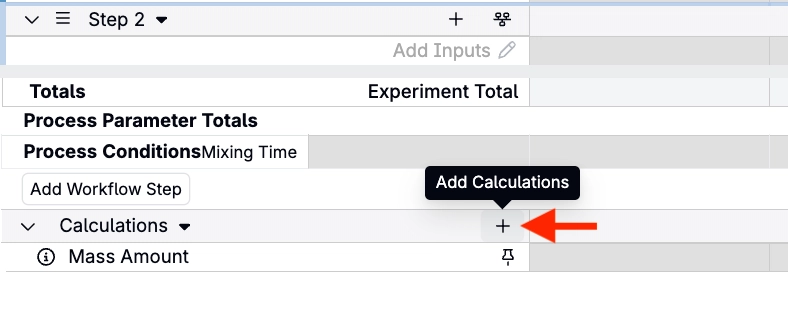
- In the recipe view, click the ➕ icon in the Calculations section header.
- From the menu, choose to create a new calculation (the same menu also lets you select an existing calculation).
- Complete the New Input Calculation modal as described above.
You can also create a calculation from a calculation ghost row, which appears at each workflow step and at the end of the recipe when Display Calculation Ghost Rows is turned on. See Experiment Recipe (Enter Recipe).
Option 3: From a Temporary Calculation Column
A temporary calculation column lets you build a calculation interactively on the Recipe view, in a spreadsheet-style workflow, and then save it as a permanent calculation. This is useful for exploring and validating calculation logic before committing it to a configuration.
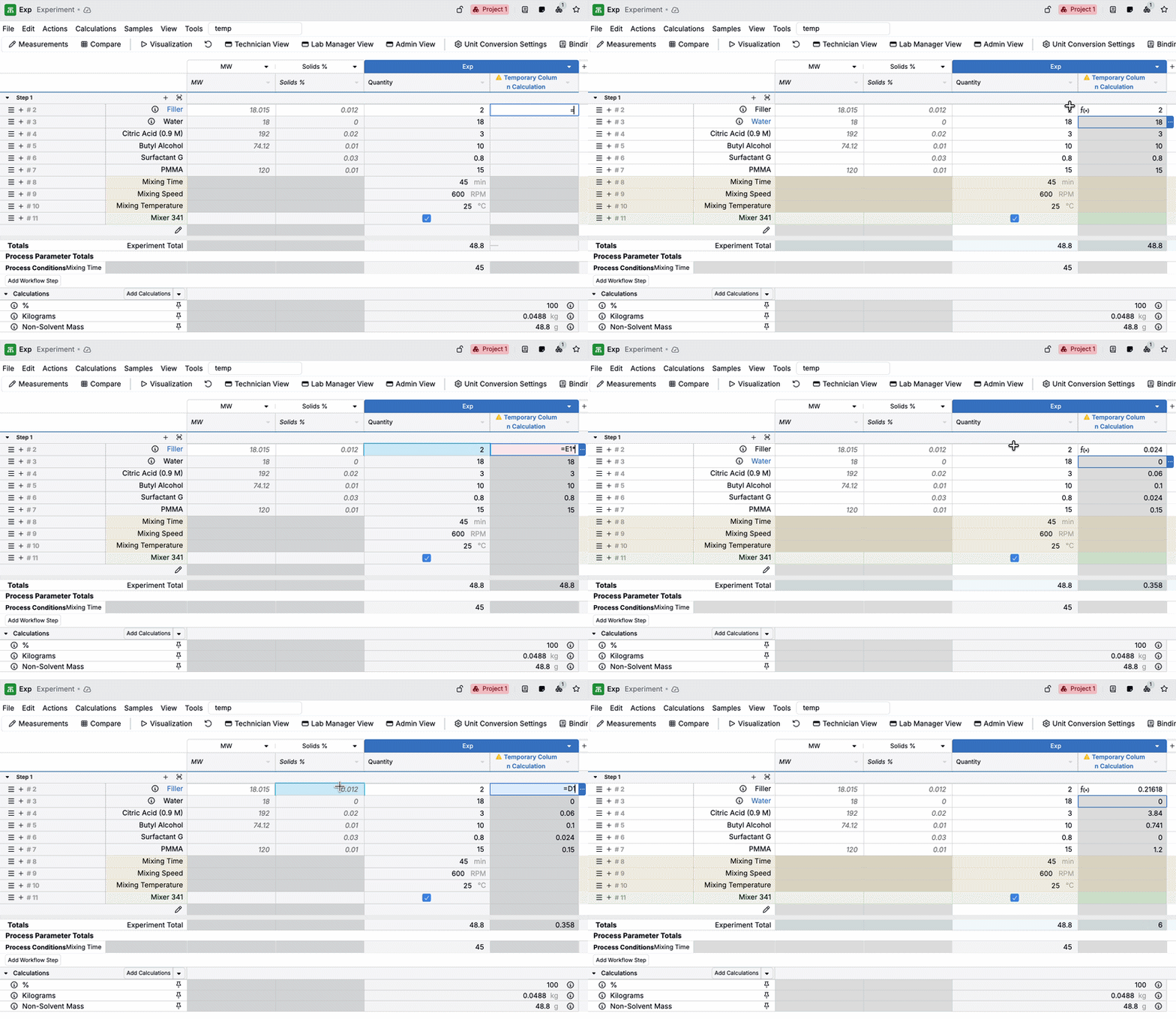
- Add a Temporary Calculation Column to your Recipe view.
- Click into a cell in the new column and enter
=to start your equation. - Click cells in the data grid to insert references into your calculation, including values like Quantity, Volume, ingredient attributes, and other column calculation results.
- Build and refine the calculation (for example, sums and multiplications).
- When you’re ready to keep it, click the column header and select Convert to Permanent Calculation.
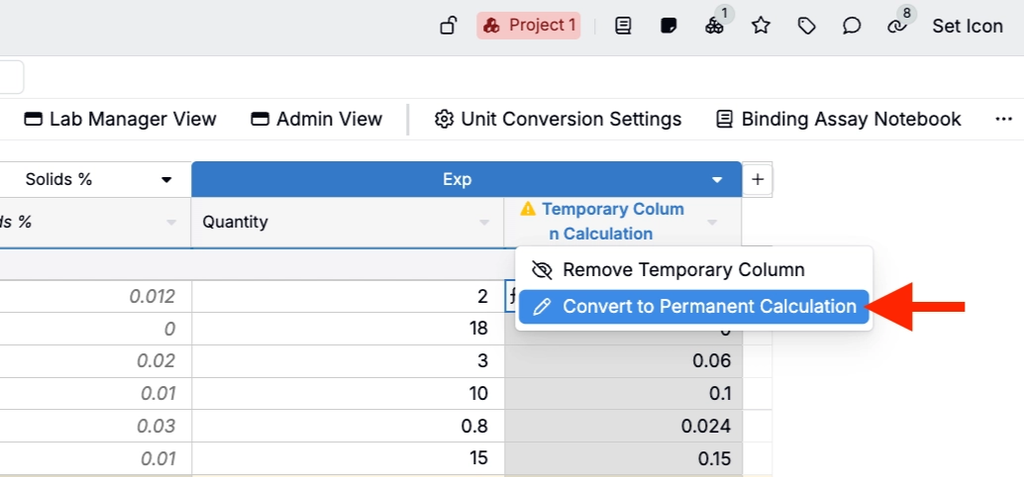
- In the New Input Calculation modal, rename the calculation and adjust its settings, then save.
Once saved, the temporary column is replaced with a standard column calculation on your Recipe view.
Note: Temporary calculation columns support No Source calculations, such as summing ingredient attribute values. When converted to a permanent calculation, these appear with Source set to No Source in the modal.
Previewing a calculation before saving
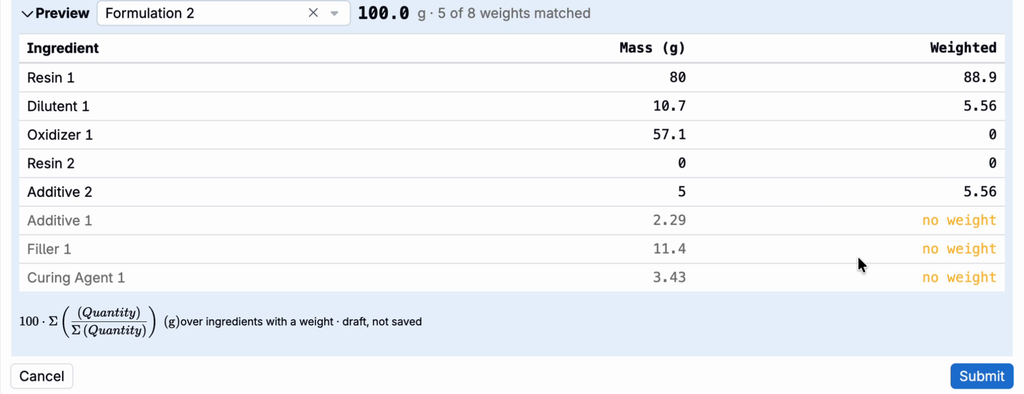
When creating an input calculation, you can preview the calculation’s value before saving it. The preview includes a per-ingredient breakdown of weights and each ingredient’s individual contribution to the result.
Use the preview to confirm that the calculation behaves as expected and to adjust its settings before anything is saved. This makes configuration issues easier to catch and fix before the calculation is applied to recipes.
Creating input calculations with Bodie AI
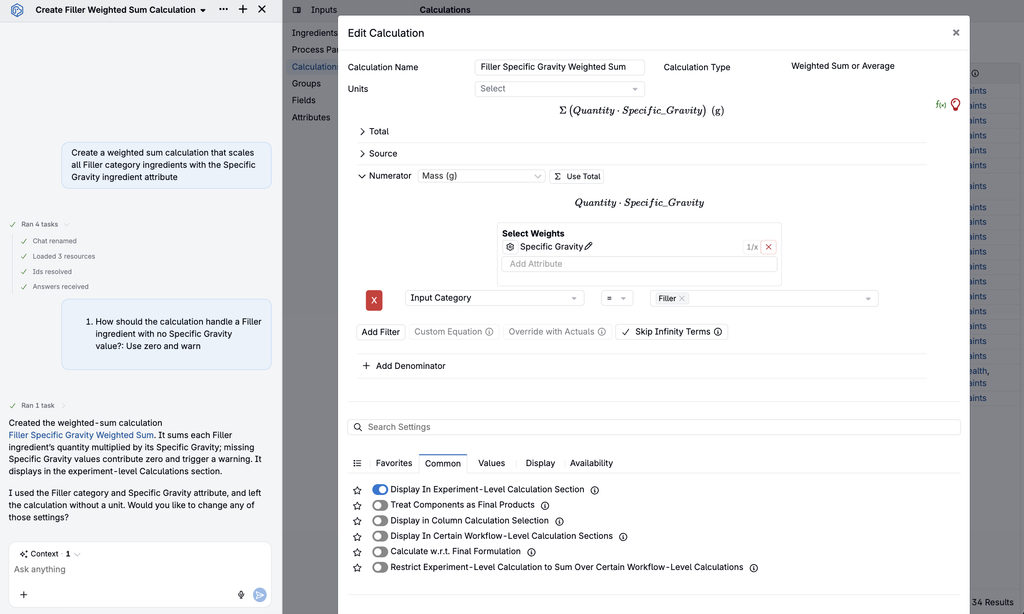
Bodie AI can create and edit all input calculation types from natural-language requests.
You can also ask Bodie general questions about what each calculation type does, when to use it, and which settings it requires. When you’re ready to create an input calculation, you can start with a general request, and Bodie will ask follow-up questions for any configuration details it needs.
Example prompts:
- “What input calculation type should I use to compare results across experiments?”
- “Explain how a chemical balance calculation works and which settings it requires.”
- “Create a weighted sum calculation that scales all filler-category ingredients by the Specific Gravity ingredient attribute.”
Creating input calculations from an Excel spreadsheet
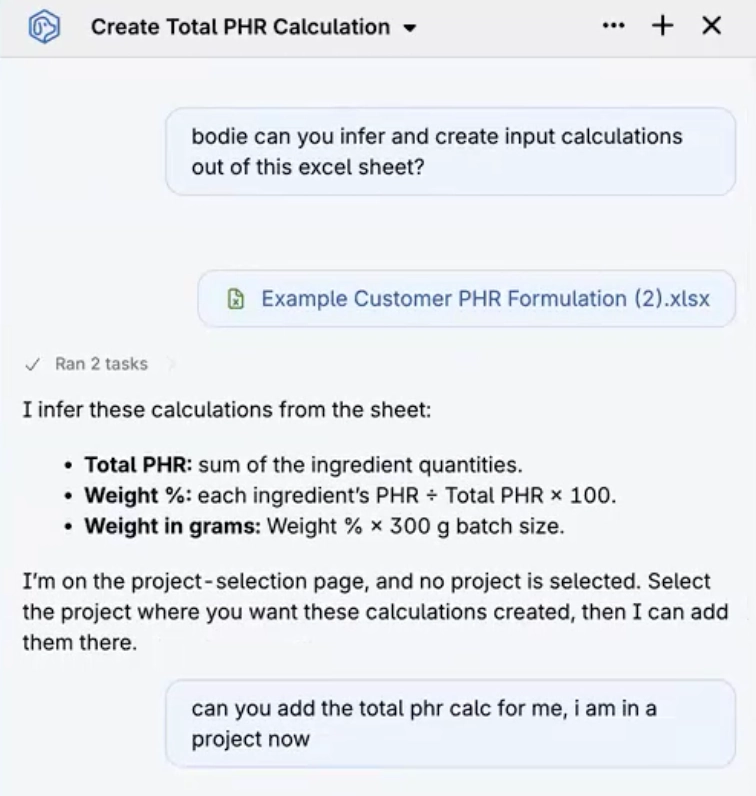
Bodie can read an uploaded Excel spreadsheet and set up matching input calculations. This supports workflows such as recipe imports and recreating spreadsheet-based formulations in the platform, where calculation logic would otherwise need to be rebuilt manually.
Bodie first describes what it can infer from the spreadsheet, for example, PHR values, weight percentages, or a combination of the two, and asks for any clarification it needs. It then creates the calculations, including custom calculations where the spreadsheet logic requires them. Results may vary for complex or ambiguous spreadsheets.
Example prompts:
- “Create input calculations from this spreadsheet.”
- “Import this formulation and recreate its PHR and weight percentage calculations.”