In Uncountable, a recipe as an ingredient, also called an intermediate, is an experiment whose recipe is used as an input to another experiment. This pattern is common in multi-step manufacturing workflows — for example, a premix, masterbatch, or intermediate blend that gets incorporated into a final formulation.
This article covers how to set up and work with intermediates: adding them to recipes, controlling how their composition is displayed, finding them on the ingredients page, and tracking where they’re used downstream.
What Is an Intermediate?
When an experiment is used as an ingredient in another experiment’s recipe, it acts as an intermediate (also called a component or sub-recipe). In a downstream experiment’s recipe, the intermediate shows up as one line item with the amount used.
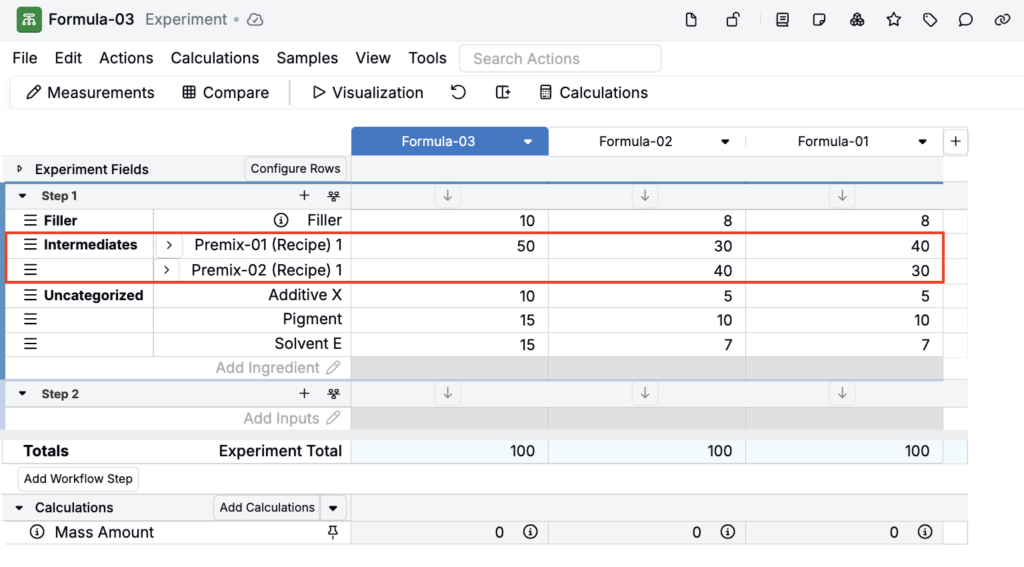
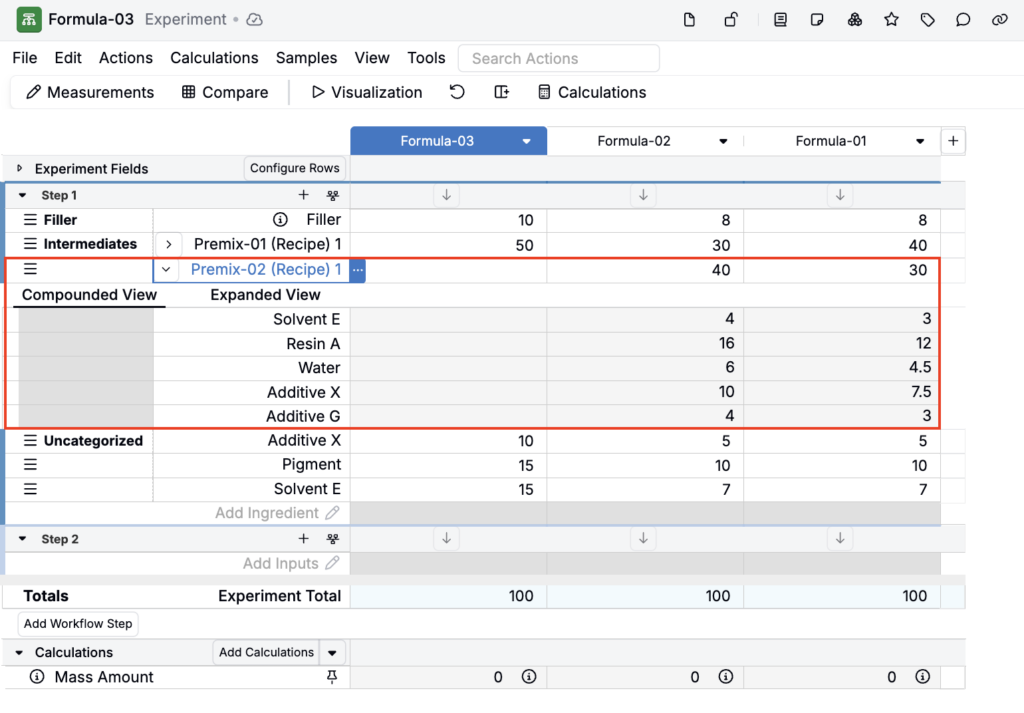
You can also click the arrow icon associated with a recipe as ingredient to view the it’s full recipe breakdown. When expanding an intermediate, you have two view options:
- Compounded View: Shows the intermediate’s recipe, view-only
- Expanded View: Shows the intermediate’s metadata, recipe, calculations, and measurements, with support for editing inline
This way you can track what’s inside the recipe as ingredient and how it affects any final formula that uses it.
Adding an Intermediate to a Recipe
To use an experiment as an ingredient in another recipe:
- Open the downstream experiment’s recipe view.
- In the relevant workflow step, click + and select Recipes as Ingredients from the dropdown menu.
- Search for the intermediate’s ingredient name and select it.
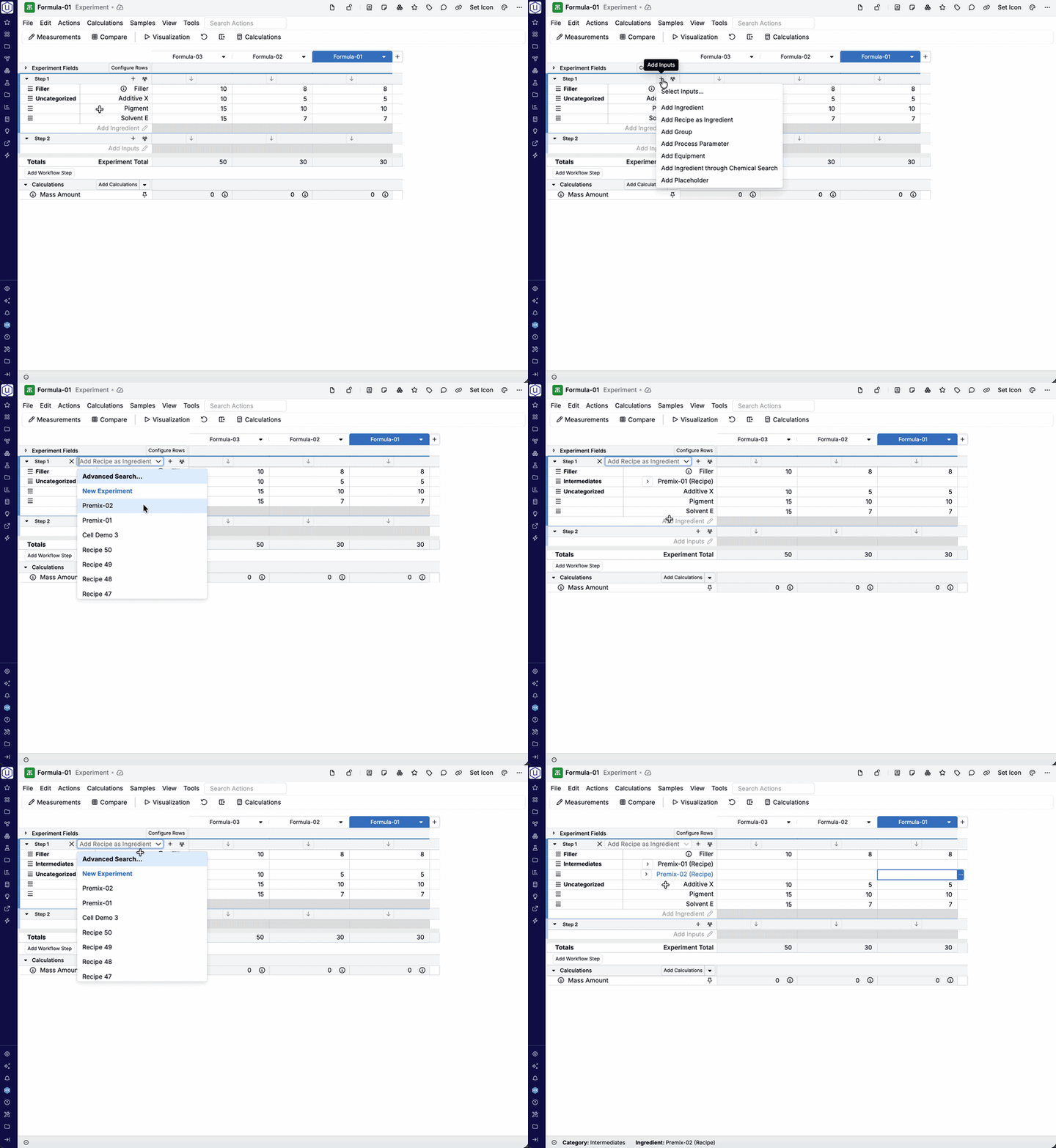
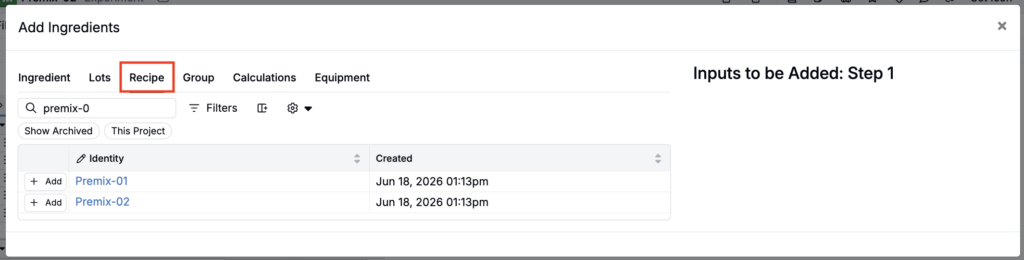
You can also add experiments as an ingredient via the Add Ingredients modal.
- Open the downstream experiment’s recipe view.
- In the relevant workflow step, click + > Select Inputs.
- Open the Recipe tab and search for and select recipes to add.
Tracking Intermediate via Related Experiments
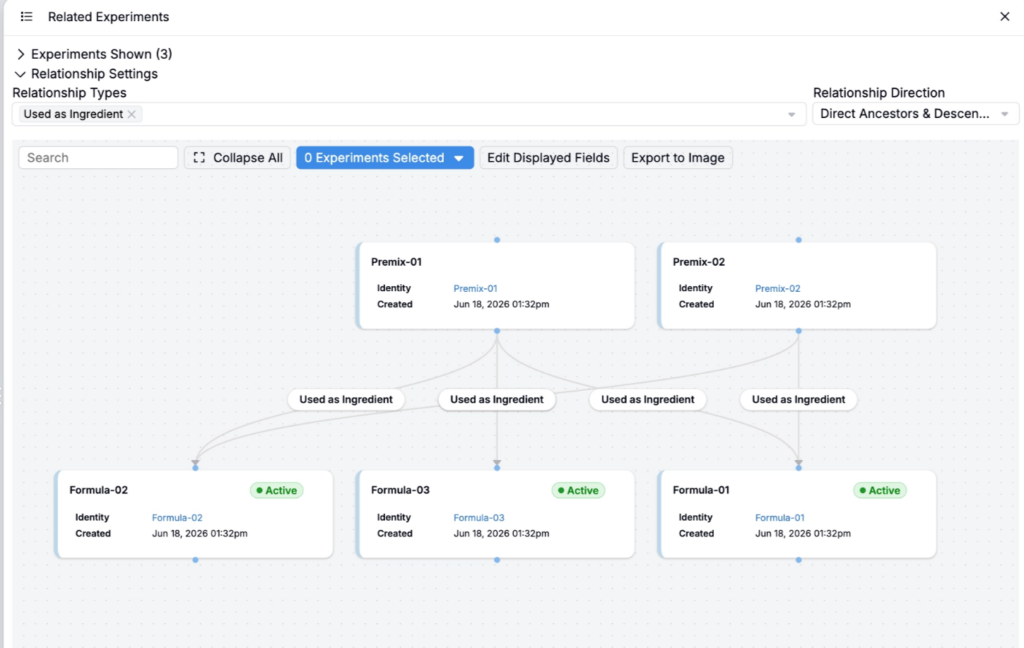
One of the most powerful aspects of the recipe as ingredient pattern is traceability: you can see every downstream experiment that uses a given intermediate.
The Related Experiments sidepanel can be opened from the experiment view and provides a tree of related experiments — both the intermediate’s own sub-recipes and the downstream experiments that use it as a component. It can also be filtered to show specific relationship types and directions (ancestor, dependent).
This is useful for:
- Impact assessment — Understanding which final formulas would be affected if you change an intermediate’s composition
- Genealogy tracking — Following the chain from raw materials through intermediate steps to final product
- Auditing — Confirming that specific lots of an intermediate were used in specific final experiments
To access the sidepanel, use the Search bar to search for “Related Recipes Sidepanel”.
Breaking Down an Intermediate
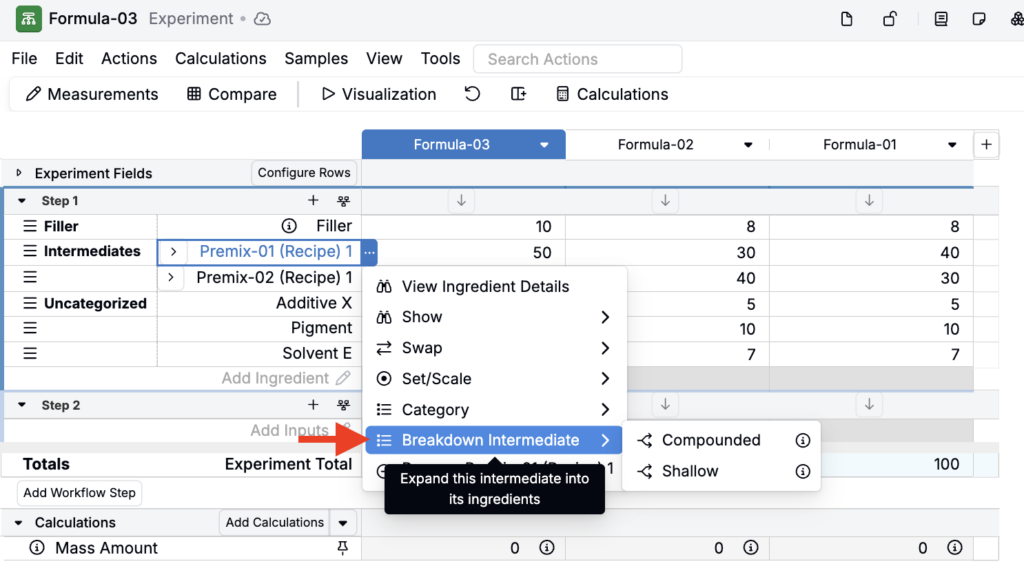
If you want to replace an intermediate in a recipe with its component ingredients, select Breakdown Intermediate from the ingredient’s menu.
There are two breakdown options:
- Shallow — Replaces the intermediate with only its direct (top-level) sub-ingredients, preserving one level of the recipe structure.
- Compounded — Fully flattens the intermediate all the way down, expanding through any nested intermediates to the raw material level.
This is a permanent, irreversible action. The intermediate is removed and its ingredients are added to the recipe in its place.
Viewing Intermediates on the Ingredients Listing
By default, intermediate ingredient definitions are hidden from the standard Ingredients listing. This is by design: recipes as ingredients are stored as intermediate ingredient definitions, but they are not meant to appear in the default Ingredients list.
To create a dedicated view of intermediates, set up a custom page by:
- Create a new custom page in Form Admin and add a page member.
- In the configuration modal:
- Add a name
- Set Page Member Type to Listing
- Select Page Member Listing Config
- Set Entity Type to Ingredient
- Set Scope to listing/primary
- Assign a Sorted Order (if adding multiple page members)
- Set Page to your new custom page
- Add constraints, if desired
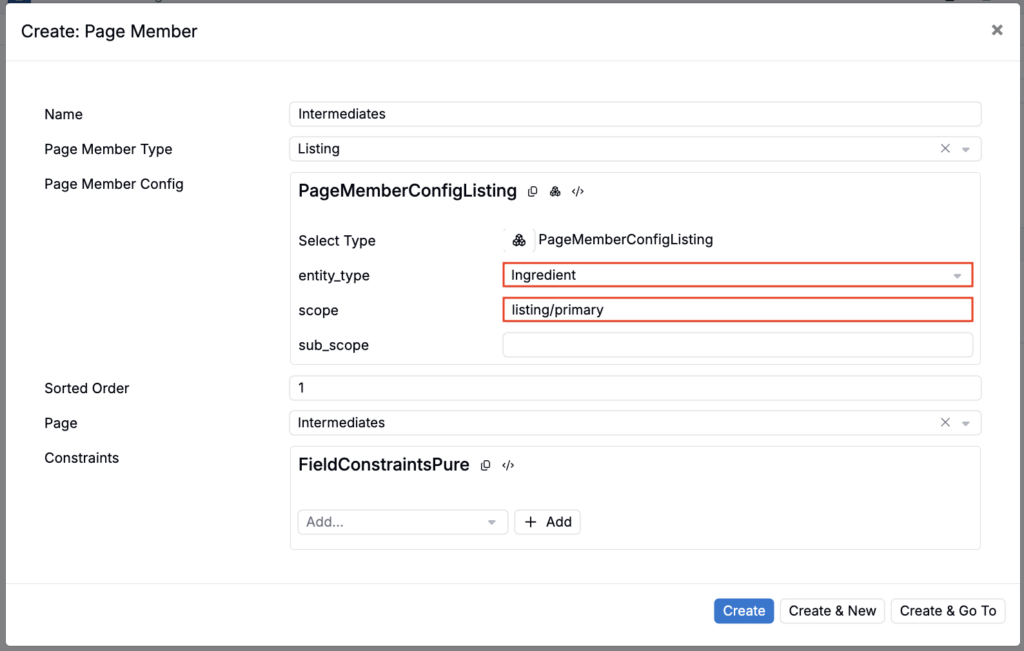
- Create the page. This new listing will contain all ingredients, including intermediates.
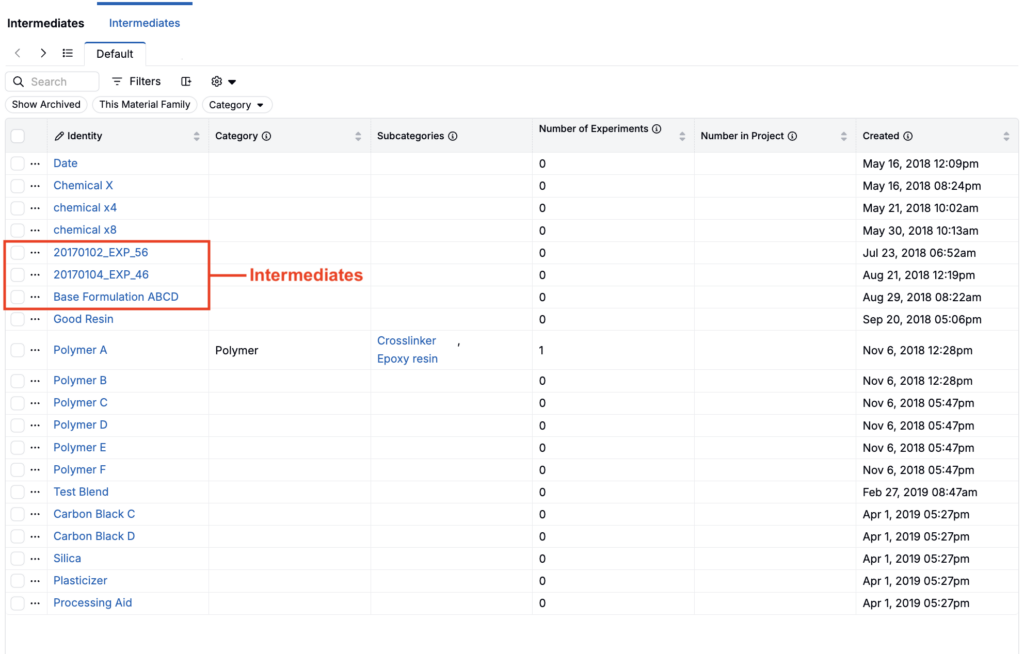
- Once created, you can add the custom page to your favorites or to the navigation bar for easier access. Learn more.
The separate listing approach is particularly useful for teams who want to manage their intermediate catalog — reviewing which experiments have been promoted to reusable intermediates, checking their compositions, and organizing them by category — without cluttering the main raw materials list.
Exploding Intermediate Ingredients
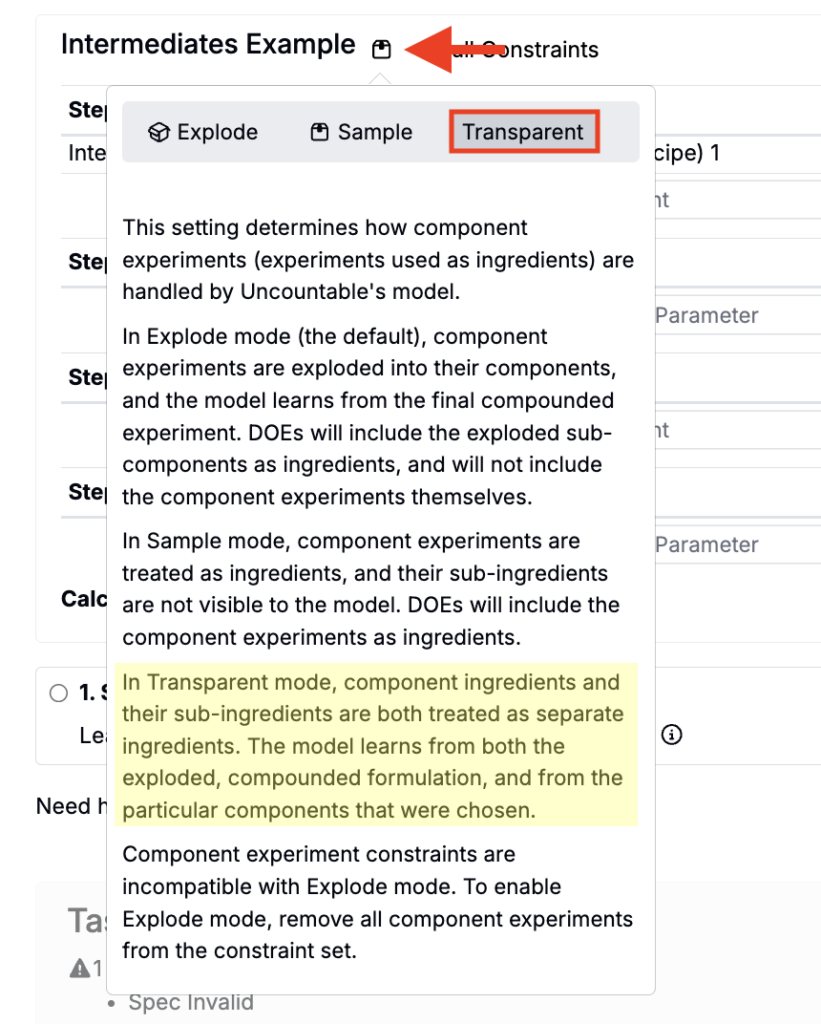
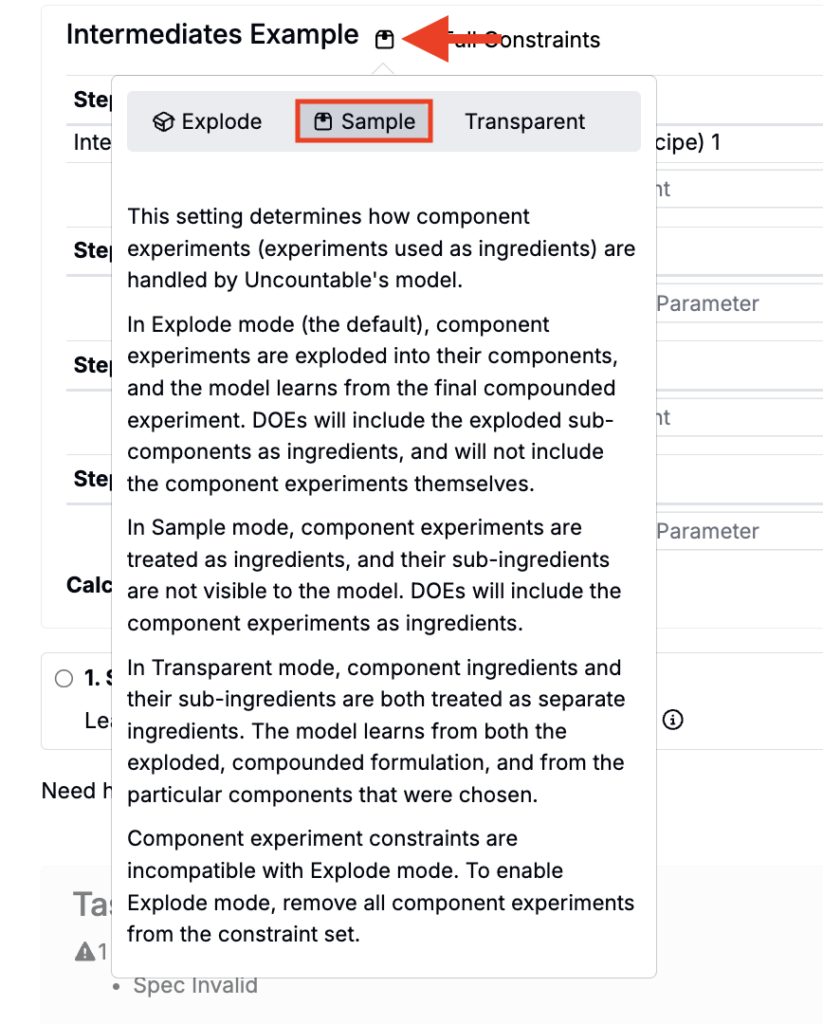
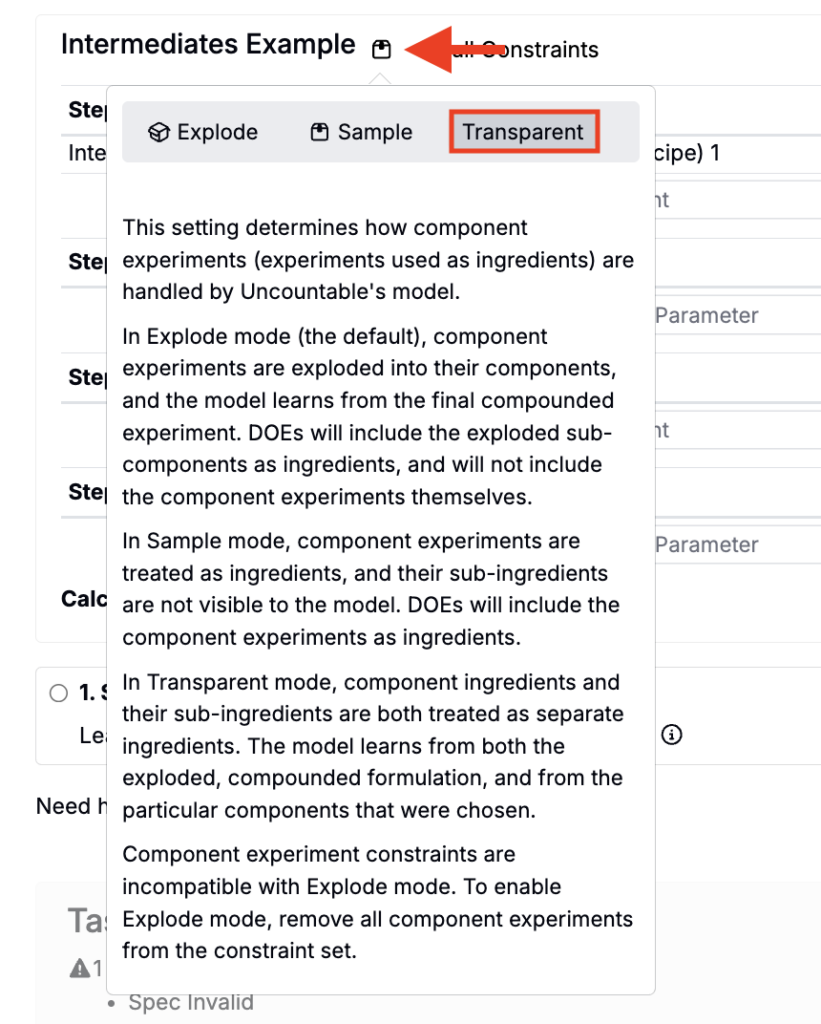
When an intermediate appears in a recipe, Uncountable gives you control over how its composition is displayed and used in model constraints. This setting determines how component experiments are handled by Uncountable’s model. There are three modes:
Explode Mode (Default)
Explode mode expands an intermediate into its underlying ingredients. The intermediate itself won’t appear as a single row in the recipe, only the sub-ingredients will.
Choose Explode mode when:
- You want modeling/calculations to work at the raw-material level
- You want to track ingredient contributions across the full final formula
Component experiment constraints are incompatible with Explode mode. To enable Explode mode, remove all component experiments from the constraint set.
Sample Mode
In Sample mode, component experiments are treated as ingredients, and their sub-ingredients are not visible to the model. DOEs will include the component experiments as ingredients.
Use Sample mode when:
- You want to model behavior at the intermediate level (e.g., compare different premixes as a whole)
- The internal composition of the intermediate is not relevant to downstream calculations
Transparent Mode
In Transparent mode, component ingredients and their sub-ingredients are both treated as separate ingredients. The model learns from both the exploded, compounded formulation and from the particular components that were chosen.
Transparent mode is best for Analyze jobs. Support in Suggest jobs is limited and still being developed — consult your Uncountable team before relying on it for Suggest workflows.
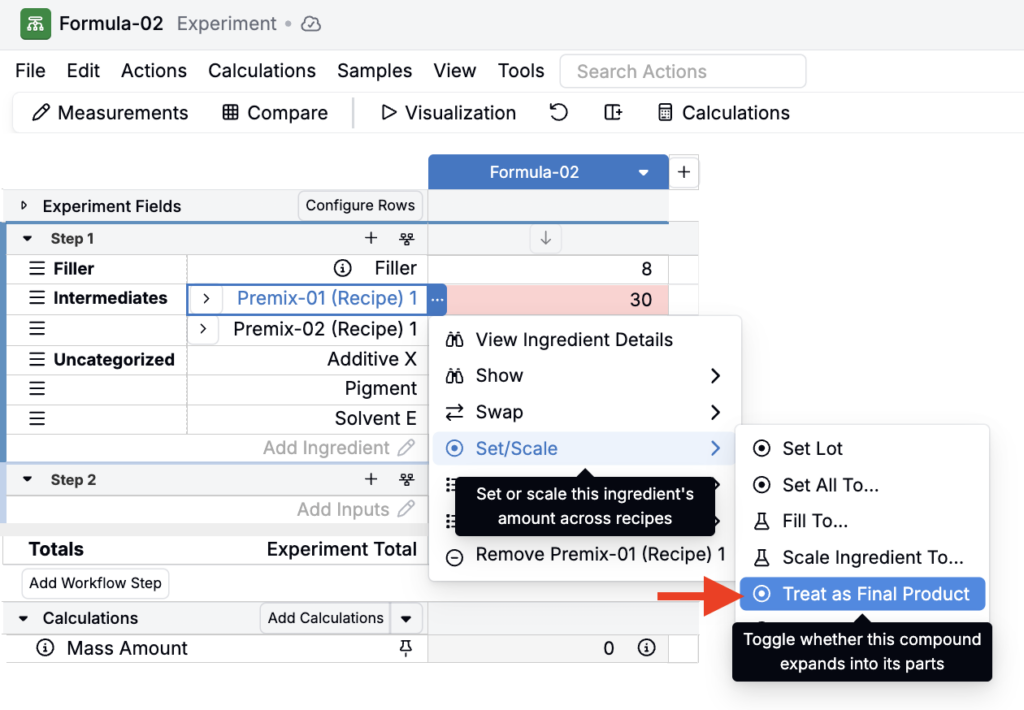
Treat as Final Product
You can override the explode behavior for a specific instance of an intermediate in a recipe by using the Treat as Final Product setting. This tells Uncountable to treat that intermediate as a single non-expandable ingredient, regardless of the constraint-level explode setting.
This setting is useful when:
- An intermediate has been finalized and you want to lock in its contribution
- You’re using scaled intermediates from prior experiments as inputs to a new step
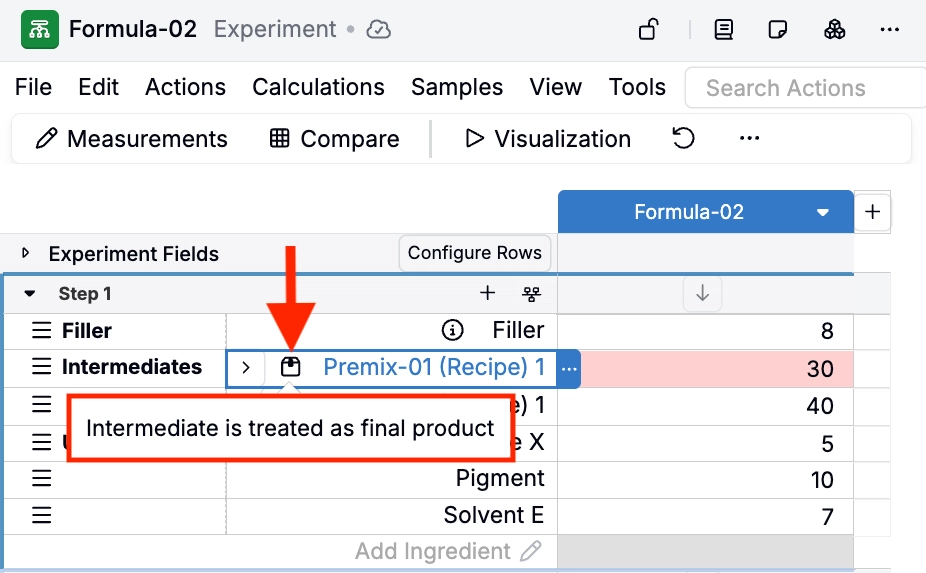
To access this option:
- Click the … associated with an intermediate in a recipe.
- Select Set/Scale > Treat as Final Product.