
Project constraints in Uncountable define the allowable limits for ingredients and process parameters within a project. They help ensure formulations meet project requirements while still allowing flexibility for optimization.
Constraints have two main use cases:
- Restricting inputs – Flagging and preventing use of inputs that should not appear in formulations.
- Training models – Controlling how inputs are treated when building predictive models.
This article walks through the second use case: training models. To learn about the first use case, see Project Constraints.
Accessing Project Constraints
From the navigation bar, go to Calculate > Set Constraints.
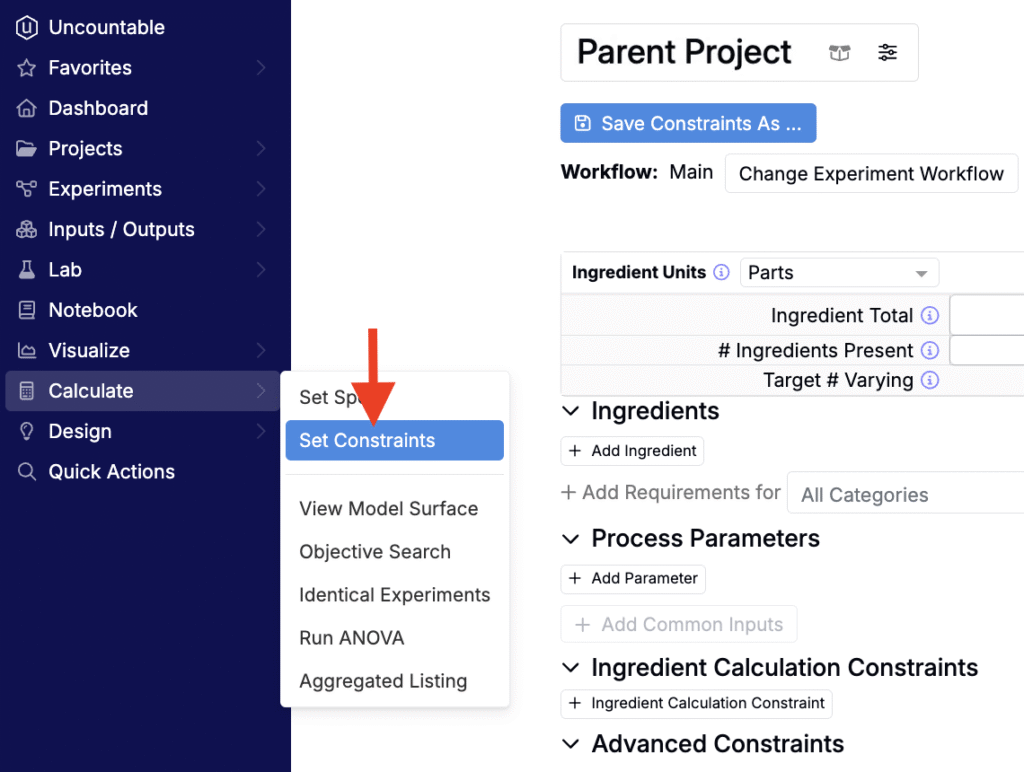
This opens the constraints page for your active project. From here, you can add ingredients and process parameters, and then define how they should be treated during model training.
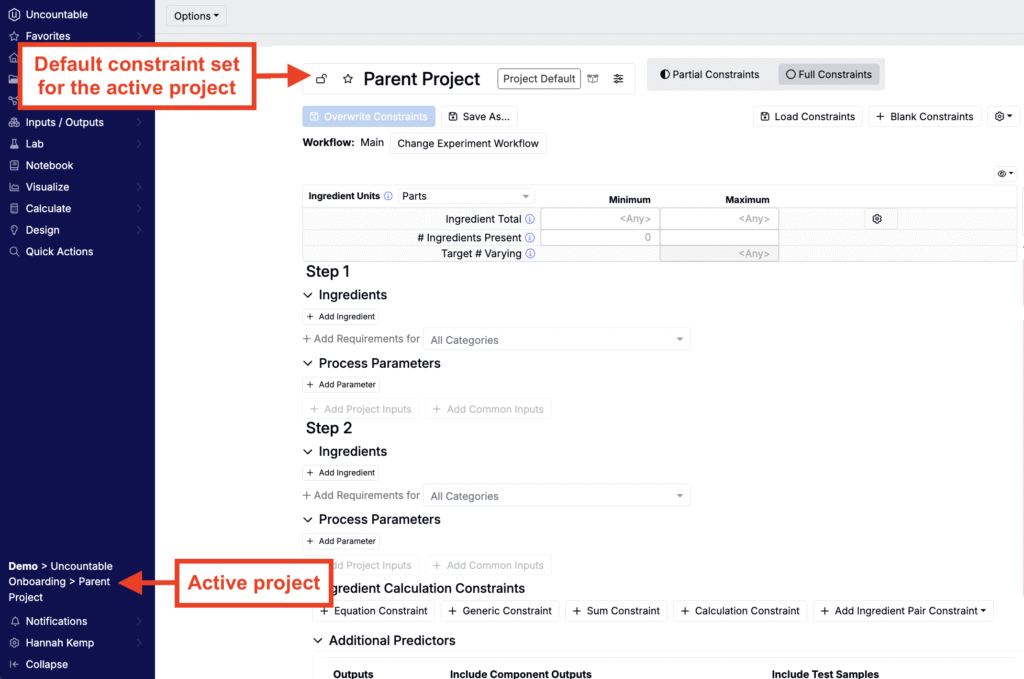
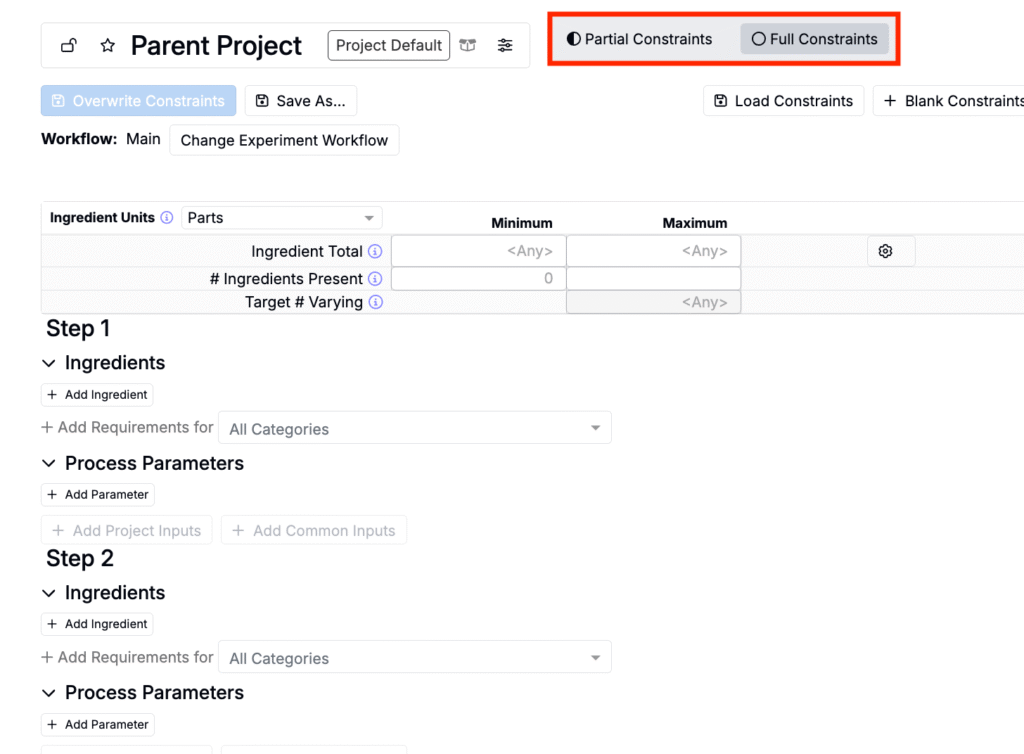
Partial vs. Full Constraints
When setting up a project, choose whether constraints are partial or full:
- Partial Constraints – You specify some inputs, and the model fills in the rest. Useful for exploration and optimization.
- Full Constraints – You specify all inputs; the model cannot add others. Useful for screening designs or locked-down experiments.
This choice directly impacts how the model generates formulations and interprets predictors.
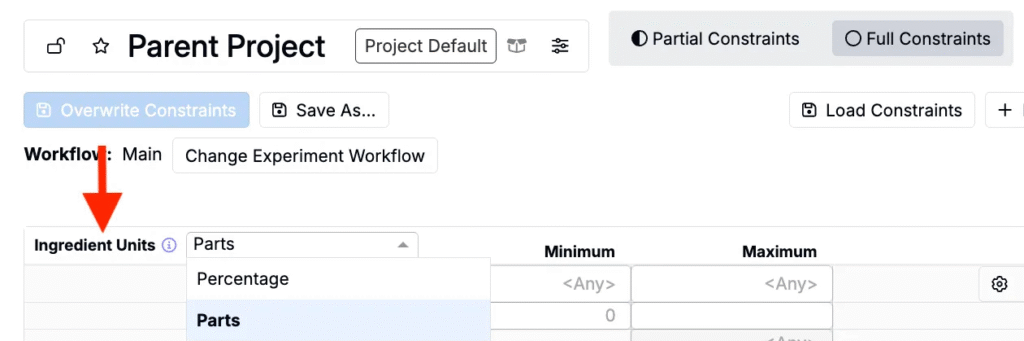
Ingredient Units
Ingredient units determine how ingredient amounts are summed:
- Percentage – Amounts sum automatically to 100%. The system will warn if the set limits cannot be met.
- Parts – No requirement for totals to sum to 100.
Adding Inputs
When a project is first created, its constraints set is empty. To train models effectively, you’ll need to add ingredients and process parameters. There are a few ways to populate the set:
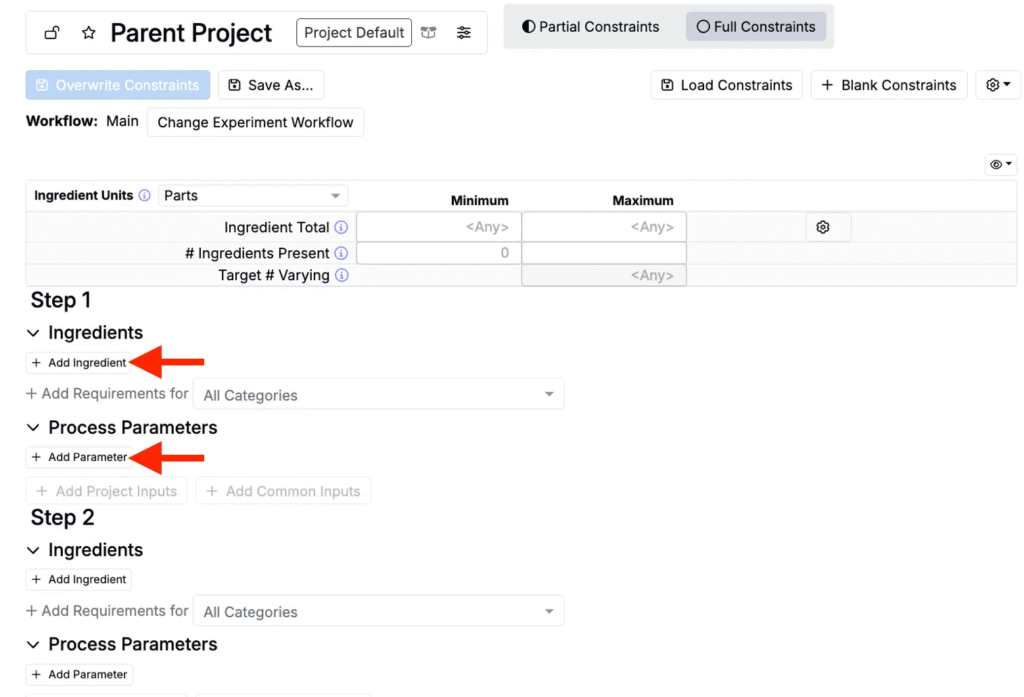
- Add Manually – Click + Add Ingredient or + Add Parameter to select from available items.
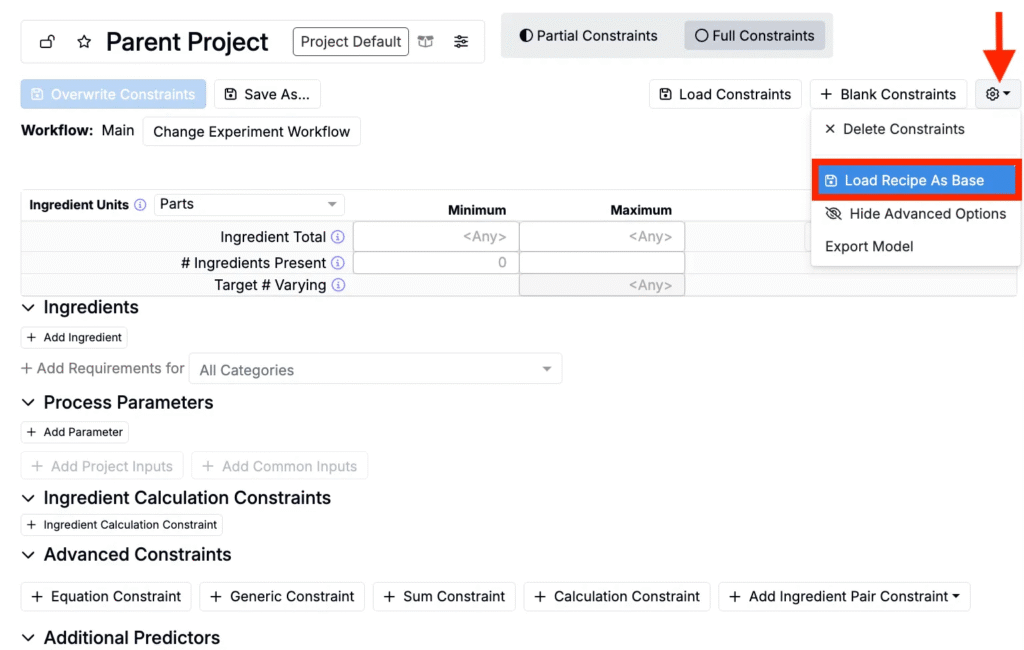
- Load Recipe as Base – Pre-fill constraints with inputs from a past recipe to guide model learning.
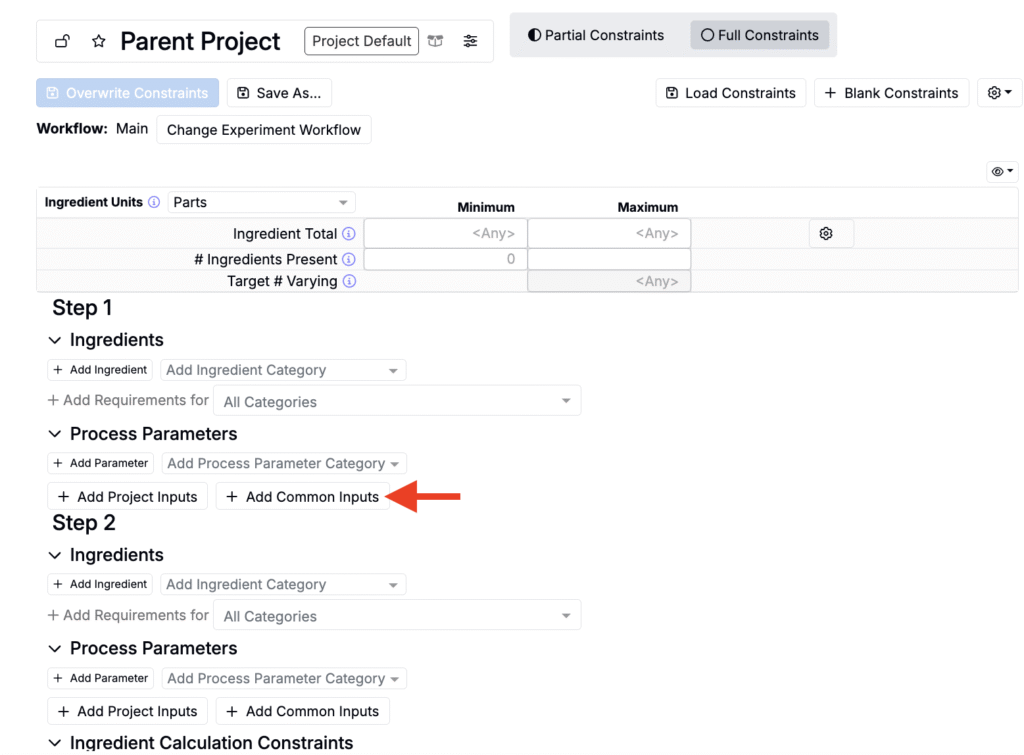
- Add Common Inputs – Quickly include frequently used ingredients and parameters.
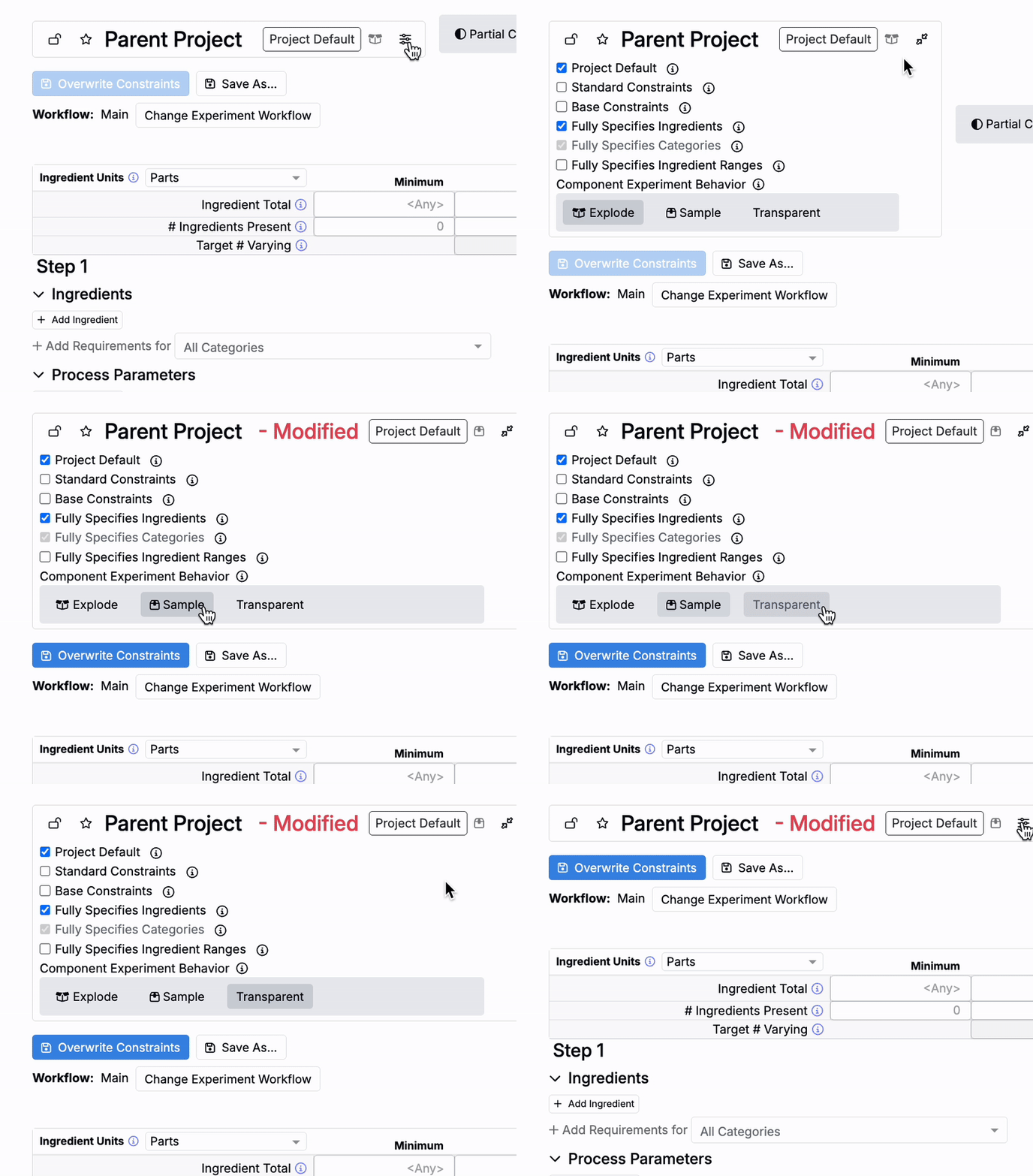
- Add Experiments as Intermediates – Treat an experiment as an input and choose its Component Behavior:
- Sample Mode – Treats the experiment as a single ingredient; sub-ingredients are hidden.
- Transparent Mode – Model learns from both the full formulation and sub-ingredients.
- Explode Mode – Removes component experiments from the set so the model learns from each sub-ingredient individually.
Applying Constraints for Model Training
Once inputs are added, constraints define the training and design space the model uses to make predictions.
Input Ranges
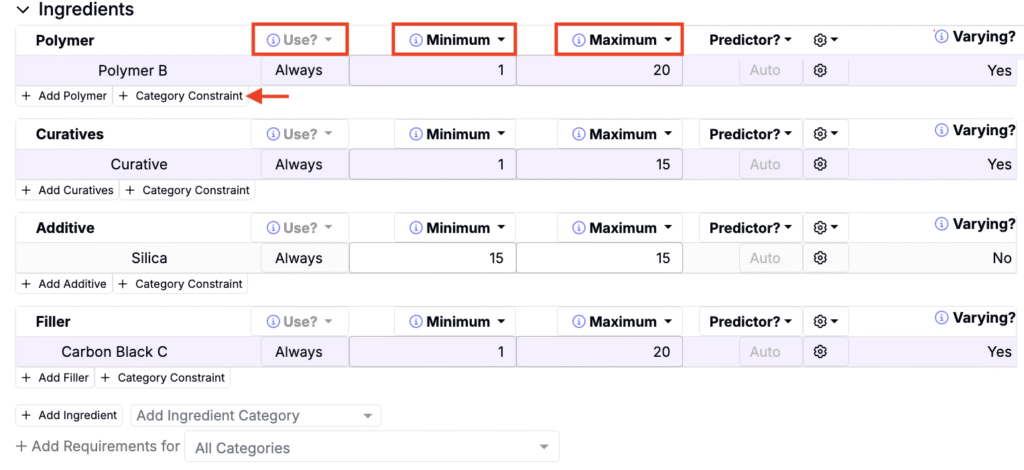
- Use Rules– Set inputs to Always Use, Never Use, or Sometimes Use to control input inclusion in training.
- Min/Max Ranges – Restrict numeric values (e.g., Polymer A between 5–10 g). The model only learns within these ranges.
- Category Constraints – Apply limits to groups (e.g., “max 2 solvents” or “20–60% total polymer”).
Ingredient Calculation Constraints
Beneath the inputs table, users can also add Ingredient Calculation Constraints to set limits on calculated values (e.g., Weight % of a raw material). These constraints apply regardless of unit.
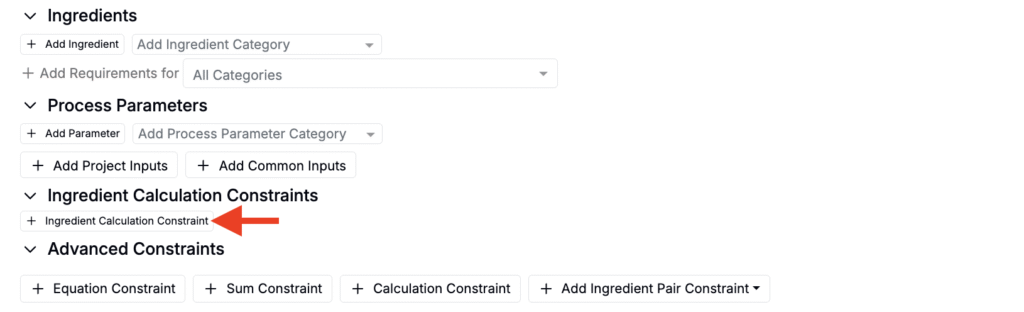
For example, you could add an Ingredient Calculation Constraint on the Weight % of Polymer 2 to require 0–50% by weight across all suggested recipes.

Advanced Options
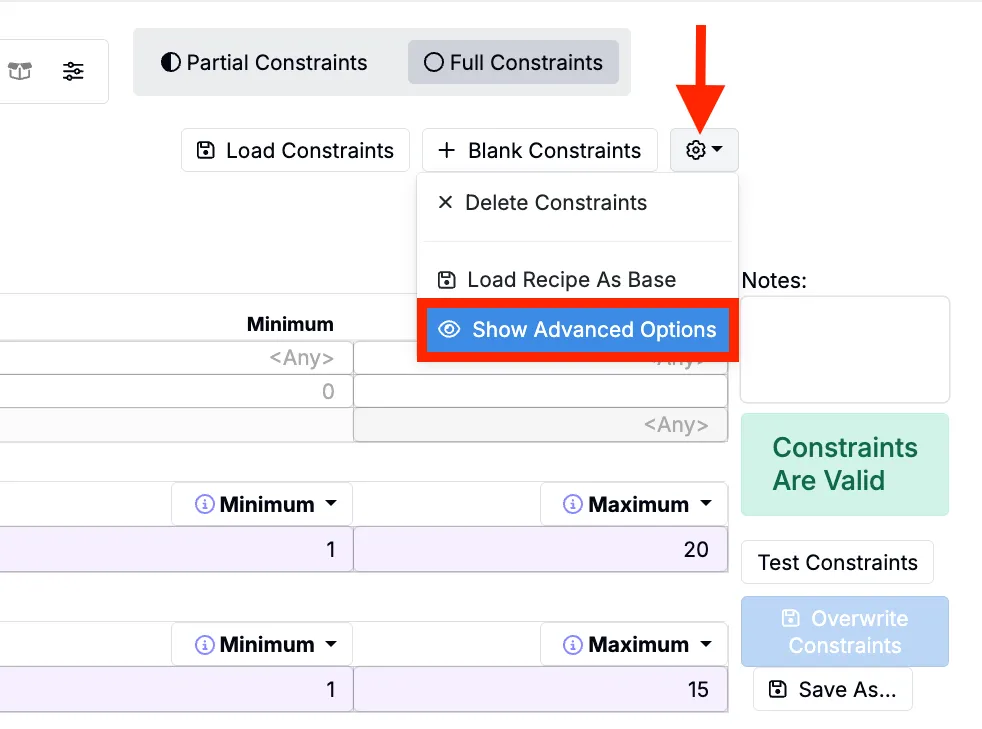
Enable Advanced Options by clicking the ⚙️ icon in the top right. This will add additional columns to the inputs table.
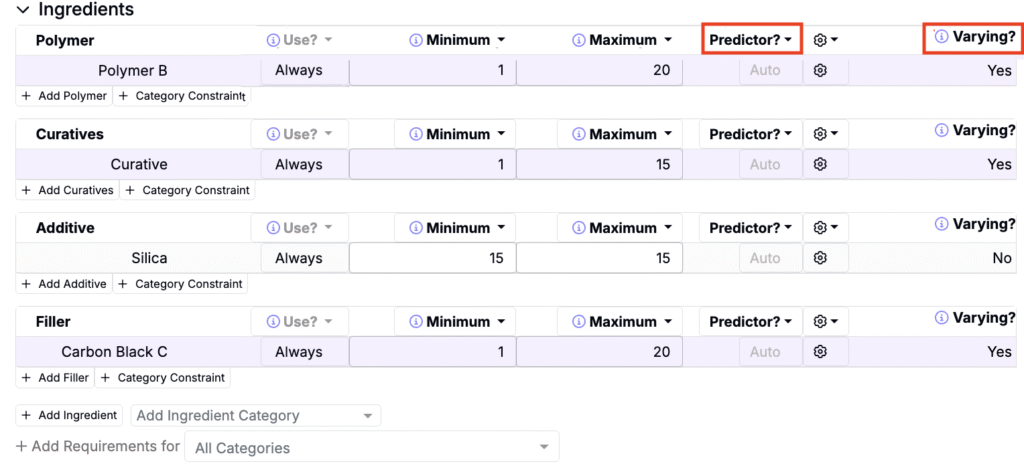
- Predictor? – Use this column to mark an input as a predictor if you want the model to explicitly consider it during training. This is useful when you know a parameter (such as temperature or supplier) influences performance.
- Varying? – Use this column to define whether an input should be treated as variable or fixed:
- Varying Inputs – Have ranges or are set to Sometimes Use. The model treats these as levers to explore.
- Non-Varying Inputs – Fixed values (Always Use, Never Use) or inputs governed by advanced rules.
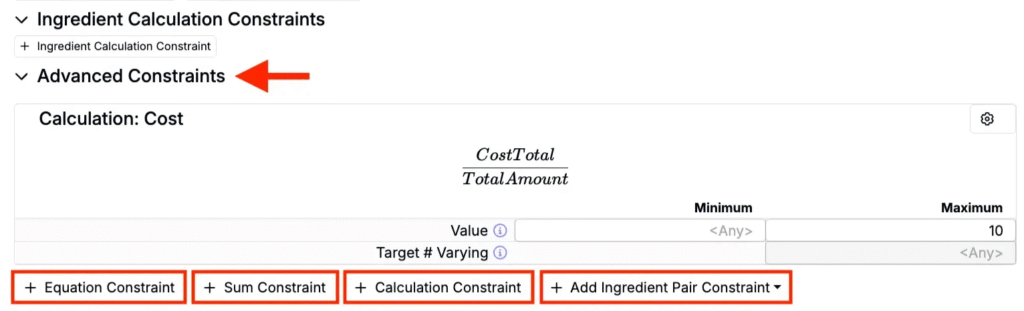
Advanced Constraints
Available at the bottom of the constraints page are several additional advanced constraint types:
- Equation Constraints – Temporary calculations applied only within constraints (similar to Calculations, but local to the constraint set).
- Generic Constraints – Combine inputs or categories with logical operators, ratios, or limits.
- Sum Constraints – Limit total amounts or counts for selected ingredients.
- Calculation Constraints – Base constraints on the result of an existing Calculation.
- Ingredient Pair Constraints – Require or prevent two ingredients from appearing together.
Additional Predictors
By default, Uncountable automatically selects inputs that act as predictors in model training. In many cases, this is sufficient. However, you can manually add additional predictors when you want the model to consider factors that are not included by default.
Predictors can include:
- Outputs – e.g., tear strength.
- Experiment metadata – e.g., supplier.
- Condition parameters – e.g., aging time.
Adding these predictors helps the model capture important drivers of performance that might otherwise be overlooked, leading to more accurate and interpretable predictions.

Save and Suggest Experiments
Once you’ve finished defining constraints for model training, click Suggest Experiments at the bottom of the page. This takes you directly into the experiment design workflow on the Suggest with AI page, with your constraints automatically loaded.
On this page, you can choose between two design options:
- Suggest Screening Experiments – Generates experiments to explore new ingredients or ranges by selecting ideal points in the design space.
- Suggest Optimized Experiments – Generates experiments to improve performance against defined targets.

Once you’ve made a selection, you can adjust final settings, name the DOE and desired number of suggested formulations, and click Suggest Formulations to generate the designed experiments.

Example Workflows
- Cost optimization – Use a calculation constraint to ensure total cost stays below a maximum while training the model on price as a predictor.
- Ingredient replacement – Keep most inputs fixed but let the model vary one or two to test substitutions.
- Exploration around a benchmark – Set most inputs to Always Use, allow a few to vary, and train the model to predict performance around a known recipe.
- Application change – Adjust predictors and constraints to account for regional regulatory or performance differences while leveraging shared data.
Key Takeaways
- Project constraints can be used to define the design and training space the Suggest Experiment models uses to make predictions.
- Use rules, ranges, category constraints to control how inputs are included in training.
- Mark predictors and specify whether inputs are varying or non-varying to guide the model.
- Apply advanced constraints (equations, sums, pairs, calculations) to encode domain knowledge.
- Add additional predictors such as outputs, metadata, or condition parameters to improve accuracy.