Uncountable’s mobile experience is designed for tasks you’re most likely to do away from your desk — inventory tracking, barcode scanning, and data entry on the production floor. This article covers the three main areas of mobile functionality: the mobile landing page, how listing tables display on small screens, and how to use the Recipe Data Side Panel and Measurement Side Panel for stepwise entry.
Note: The Uncountable mobile app is a lightweight wrapper around the same web platform you use on desktop. There is no functionality exclusive to the app — anything you can do in the app, you can also do in a mobile browser.
Mobile landing page
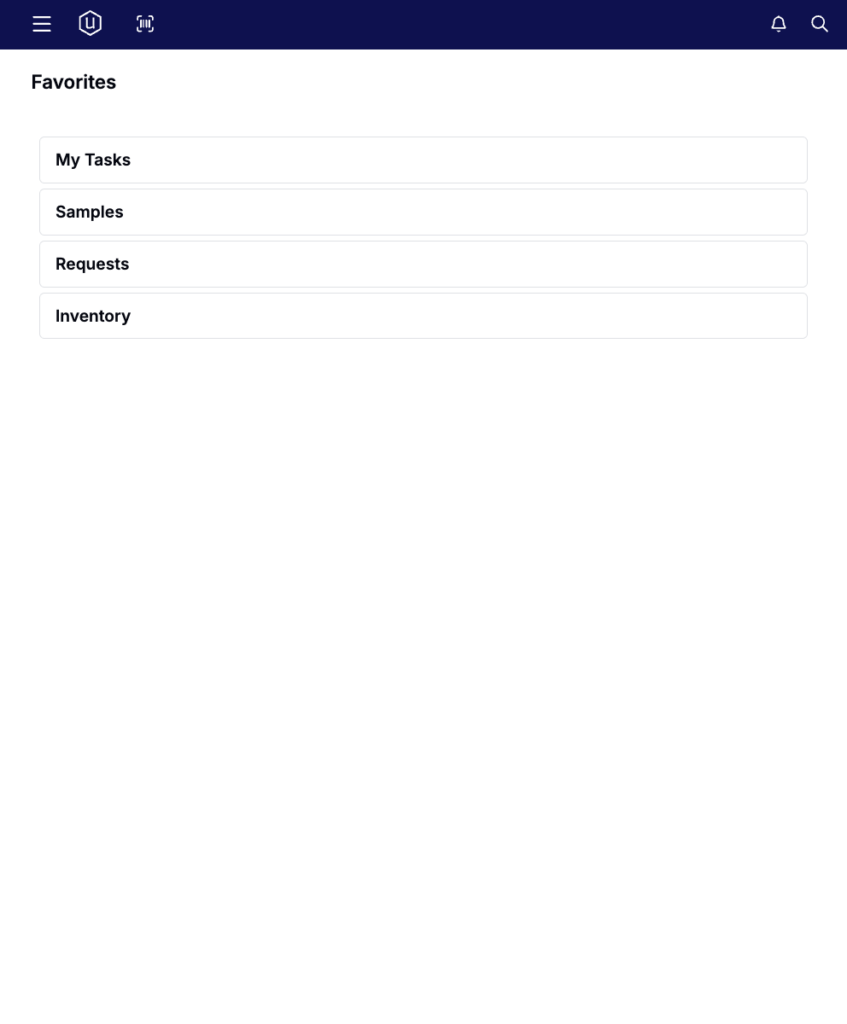
When you open Uncountable on a mobile device, you land on a page separate from your desktop home screen. The mobile landing page shows a list of shortcuts to the pages you’re most likely to need on mobile.
Configuring the mobile landing page
The mobile landing page is configured through Edit Favorites. Look for the Mobile Landing section — items you add there appear as a list of links on your mobile home screen.
Typical items to include:
- A projects or formulas listing
- A lab request listing
- Barcode tracking
For most implementations, your Uncountable team will configure the mobile landing page based on what your team uses mobile devices for. If you’re an admin and want to update it yourself, you can do so through Edit Favorites at any time.
Listing tables on mobile
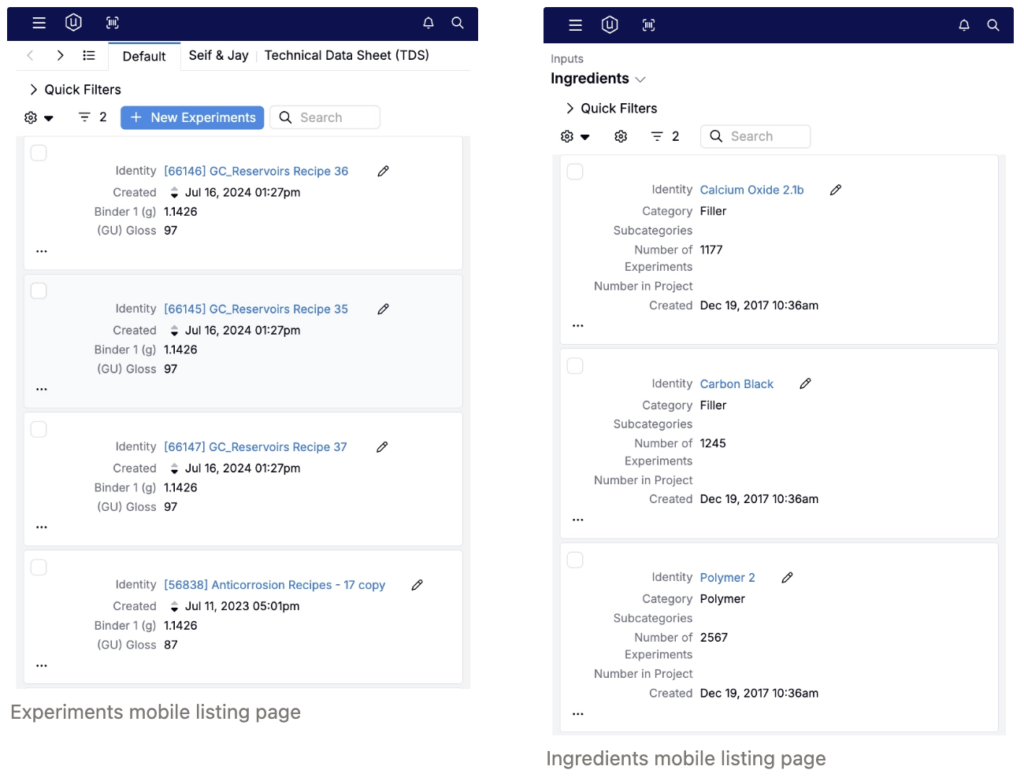
Listing tables automatically adapt when you’re in mobile view.
On desktop, a listing table shows multiple columns side by side in a row. On mobile, each row becomes a card, with all of that row’s columns stacked vertically so you can see all the information for a single item without scrolling sideways.
A few other things change in mobile view:
- Quick filters are collapsed by default to save vertical space. Tap to expand them.
- Tabs remain visible and work the same way.
- Buttons keep their icons but lose their text labels to save space.
- Search and filter controls are still available.
None of this requires any setup — Uncountable handles the layout conversion automatically based on your screen size.
Stepwise data entry
Entering data directly in the standard Recipe or Measurements view is difficult on mobile because of how much information is packed into those views. The Recipe Data Side Panel and Measurement Side Panel give you a simpler, step-by-step interface optimized for mobile use.
Recipe Data Side Panel
The Recipe Data Side Panel walks you through your recipe one step at a time. As you move through each stage, it shows you:
- The current recipe step name and details
- Each ingredient in that step, including the target quantity
- Fields to enter actual values and lot numbers as you work
Use the arrows/Previous and Next buttons to move through the inputs/steps in sequence.
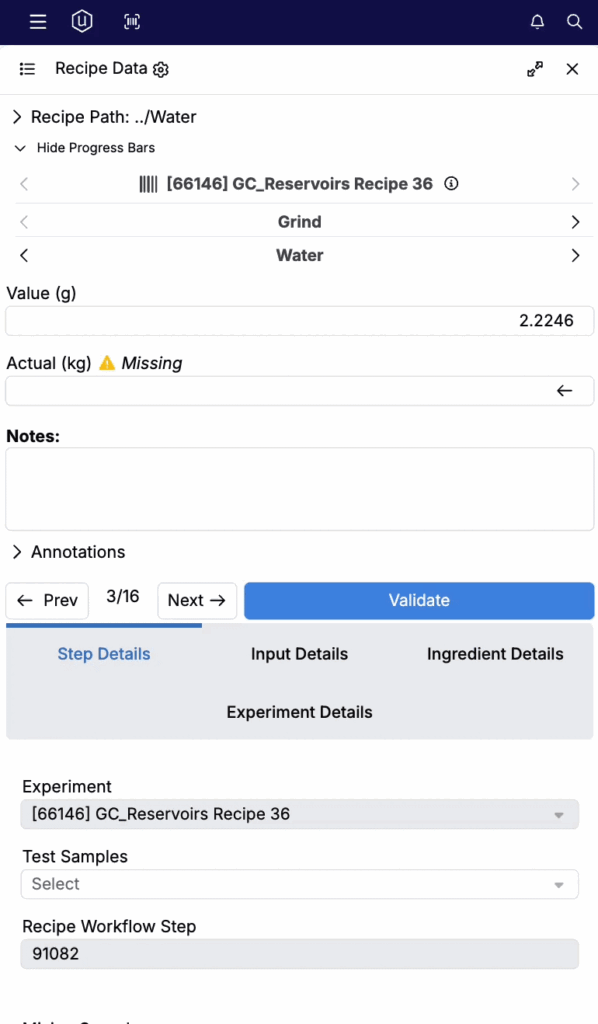
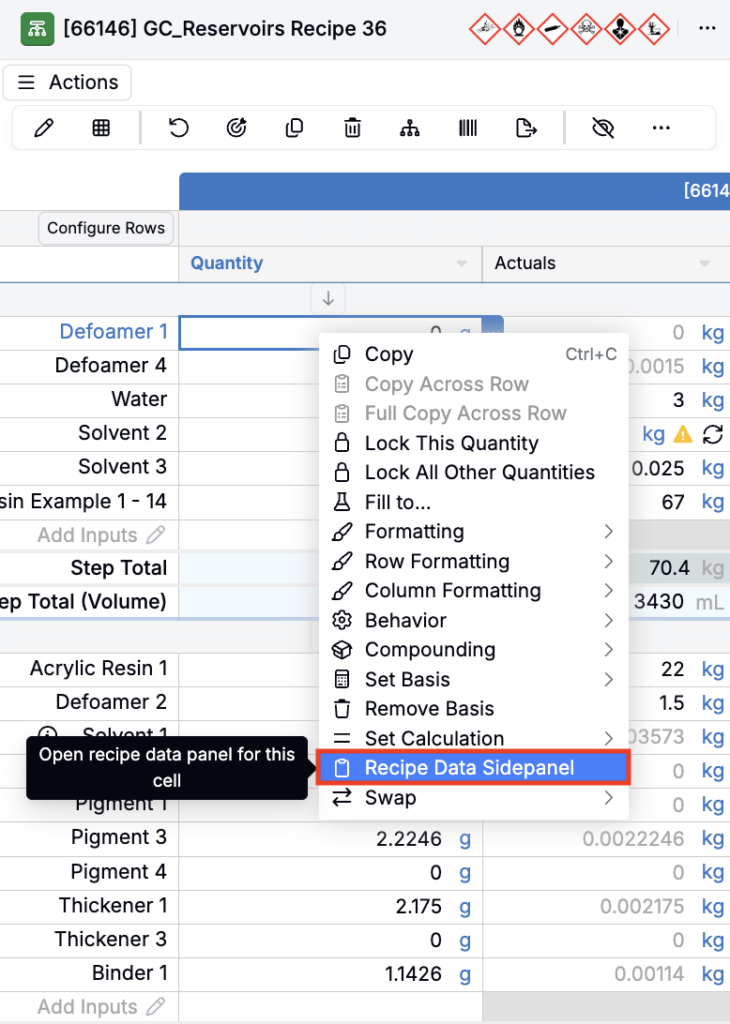
To access it: Right-click on a cell in the recipe screen and select Recipe Data Side Panel. Many teams add a dedicated button to the actions toolbar for quicker access. If your team uses this frequently, ask your Uncountable admin or team to add one.
Important: The actual values and lot number columns must be enabled on your main recipe screen for those fields to appear in the side panel. If you don’t see them, check that those columns are turned on.
Measurement Side Panel
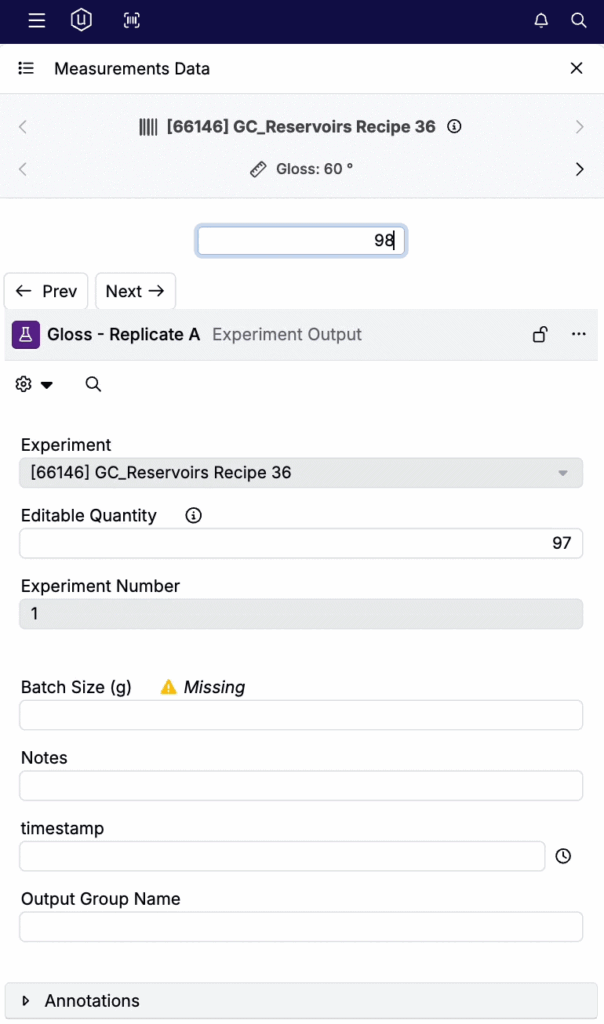
The Measurement Side Panel works the same way for the measurements view. The outputs on your experiment are typically already created — the side panel is used to fill in the actual measured values.
Use the arrows/Previous and Next buttons to move between measurements and experiments.