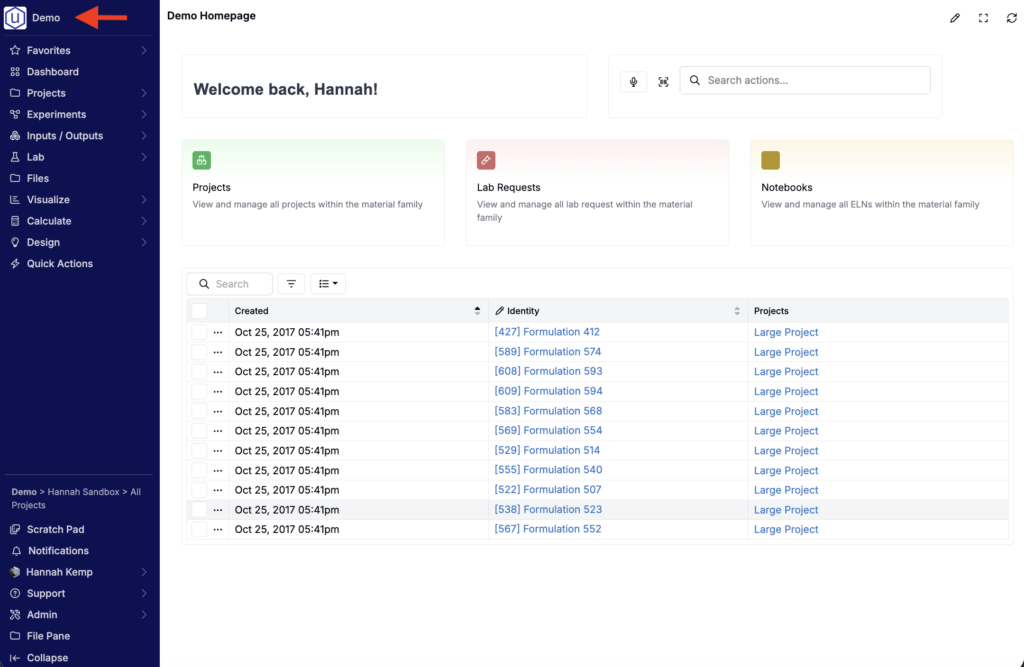
The landing page is the first page users see when they enter Uncountable — both when they log in and when they click the logo in the navigation bar. Both actions always bring users to the same place, and that destination is fully customizable.
You can set the landing page to any page in the platform, or create a custom homepage dashboard tailored to your team’s workflow. For help building one, see Custom Uncountable Homepages. These two destinations are controlled by separate settings, so you’ll need to set both to keep them in sync.
Setting 1: Edit Favorites (logo button route)
This controls what happens when users click the logo in the navigation bar.
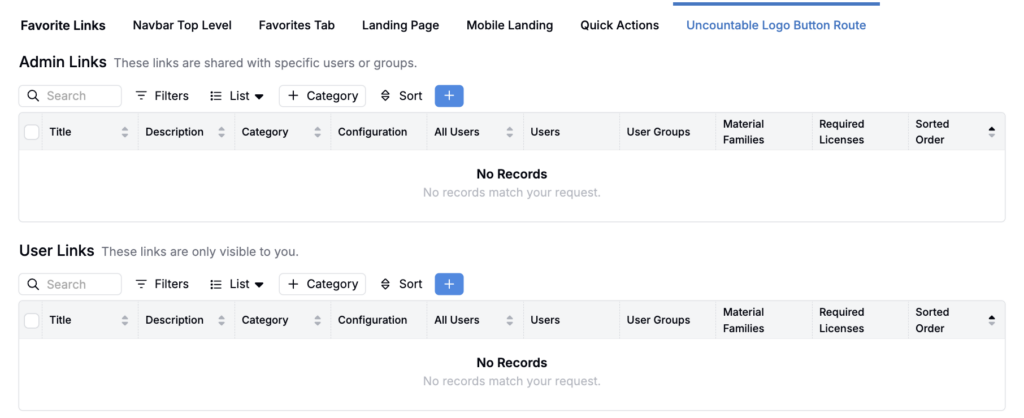
- Open the Uncountable Logo Button Route tab of the Edit Favorites page.
- Click the blue + icon.
- Use Admin Links to set a route for a group of users.
- Use User Links to set it only for yourself.
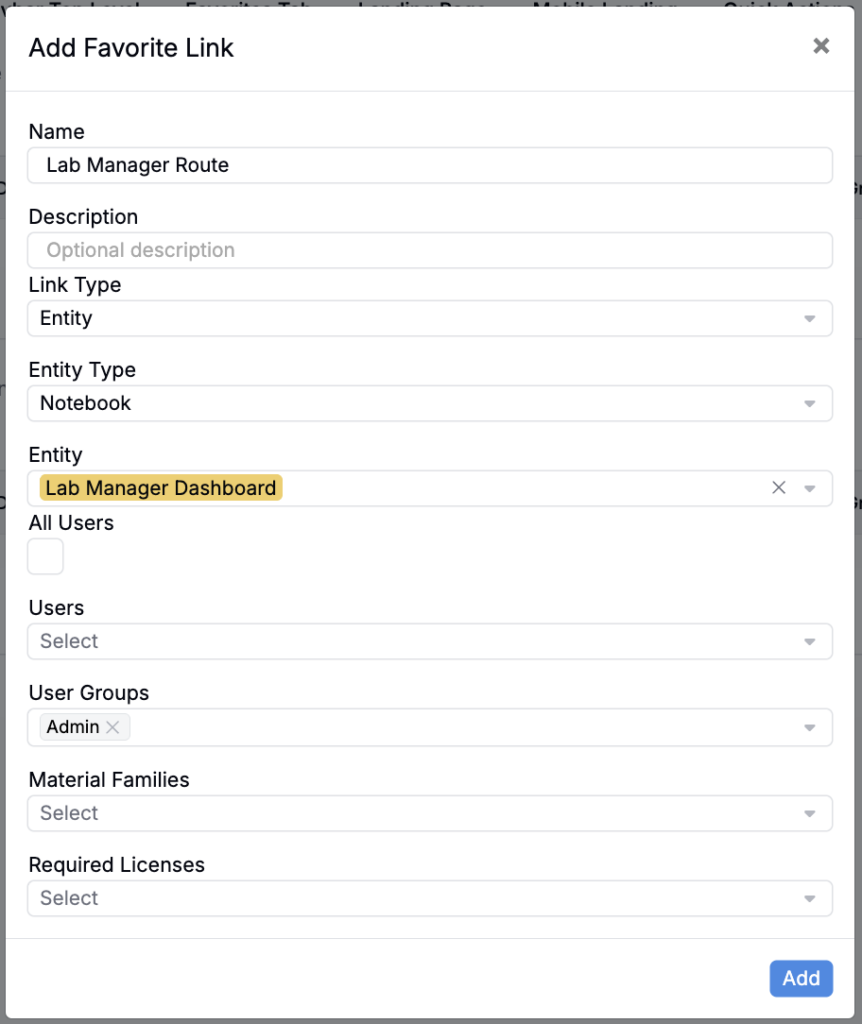
- Add a route name and optional description.
- In Link Type, select either:
- Page — Select a standard platform page (e.g. the Lab Requests listing, the Tasks listing).
- Entity — Select a notebook/custom homepage or other entity.
- Choose the user group(s) and required licenses that should be routed to this page.
- Choose the material families where this should apply, then save.
Setting 2: User Administration (login landing page)
This controls where users land when they first log in. Set this to match the same page configured in Setting 1.
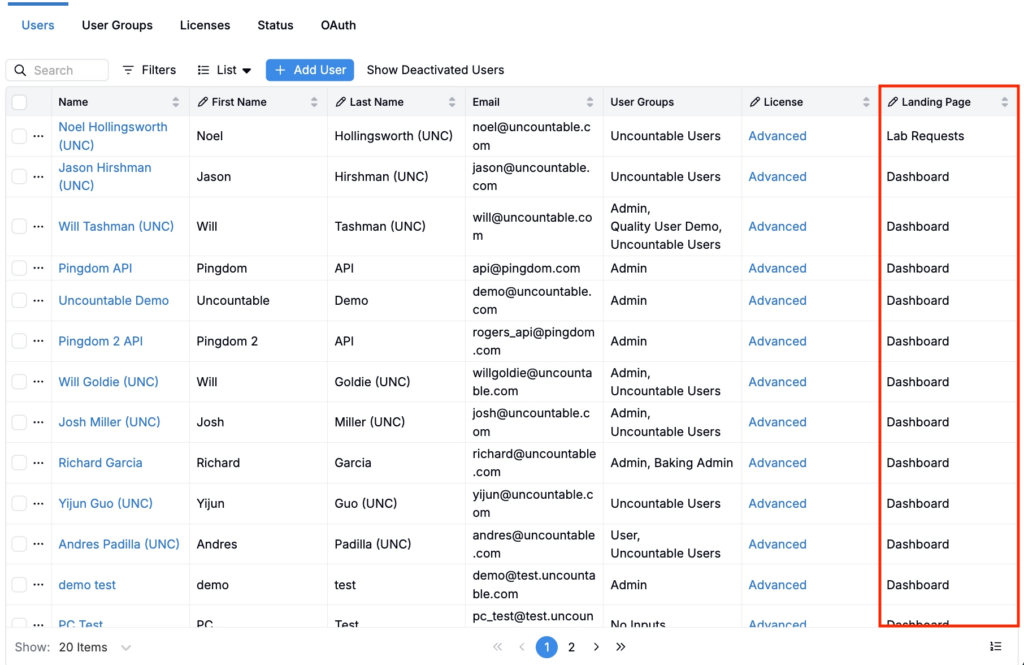
- Navigate to the User Administration page.
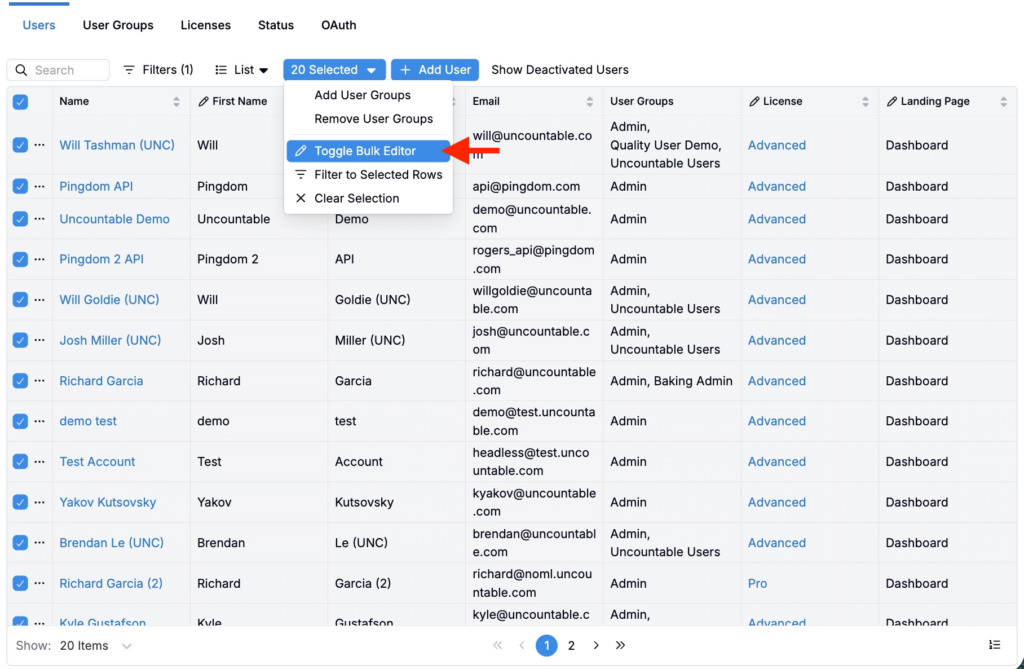
- In the Users tab, add the Landing Page column if it isn’t already visible.
- Set each user’s Landing Page value to the landing page you created in Setting 1.
- (Optional) Bulk update users:
- Filter the Users listing to the target population (e.g. all Admin users).
- Select multiple users and click Toggle Bulk Editor.
- Update the Landing Page field for all selected users.
Once both settings point to the same page, users will land there both when logging in and when clicking the logo.