Runsheets in Uncountable are highly configurable. Use the Default Runsheet Configuration page to control what appears on a runsheet and to fine-tune advanced behaviors for how runsheets generate and display data.
Runsheet Settings
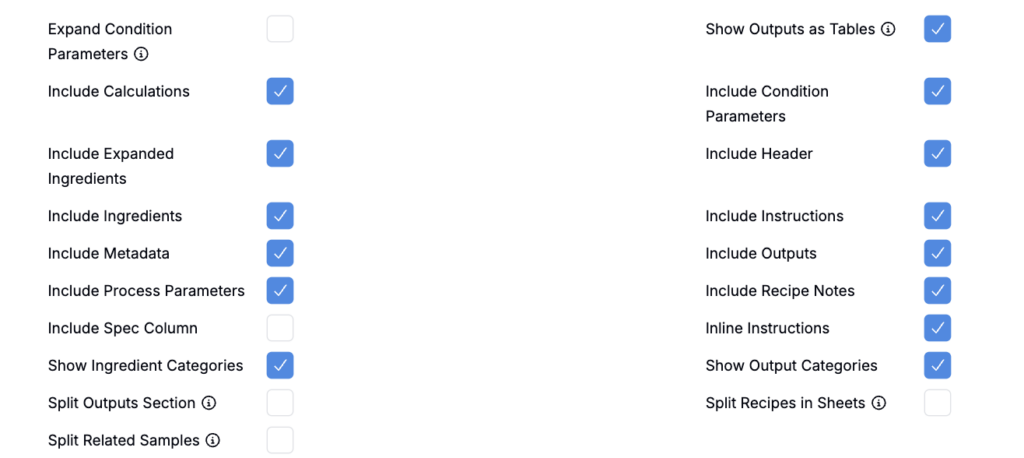
- Expand Condition Parameters: When condition parameters are included and this setting is enabled, the runsheet will include both condition parameter names and values.
- Expanded: Brookfield Viscosity—Aging Time: 24 hours
- Not expanded: Brookfield Viscosity—24 hours
- Show Outputs as Tables: Enabling this setting will display outputs and condition parameter values in table parameter/column parameter format. This display mirrors the Enter Measurement page configuration, which is set in the Organize tab of the Sort and Organize modal.
- Include Calculations: Includes input calculations in the runsheet. This does not include column calculations. To add column calculations, refer to the Adding Column Calculations section of the Configuring Runsheets article.
- Include Condition Parameters: Includes condition parameter values on the runsheet.
- Include Expanded Ingredients: Includes an expanded ingredients section on the export.
- Include Header: Includes a header.
- Include Ingredients: Includes recipe ingredients on the runsheet.
- Include Instructions: Includes instructions on the runsheet.
- Include Metadata: Includes recipe metadata on the runsheet.
- Include Outputs: Includes recipe outputs on the runsheet.
- Include Process Parameters: Includes process parameters on the runsheet.
- Include Spec Column: Includes a spec column on the runsheet.
- Inline Instructions: Displays recipe instructions inline in the export.
- Show Ingredient Categories: Includes ingredient categories in the export.
- Split Outputs Section: Export inputs and outputs as separate Excel files.
- Split Recipes in Sheets: Export individual recipes as separate Excel files.
- Split Related Samples: Export individual test samples as separate Excel files.
Advanced Settings
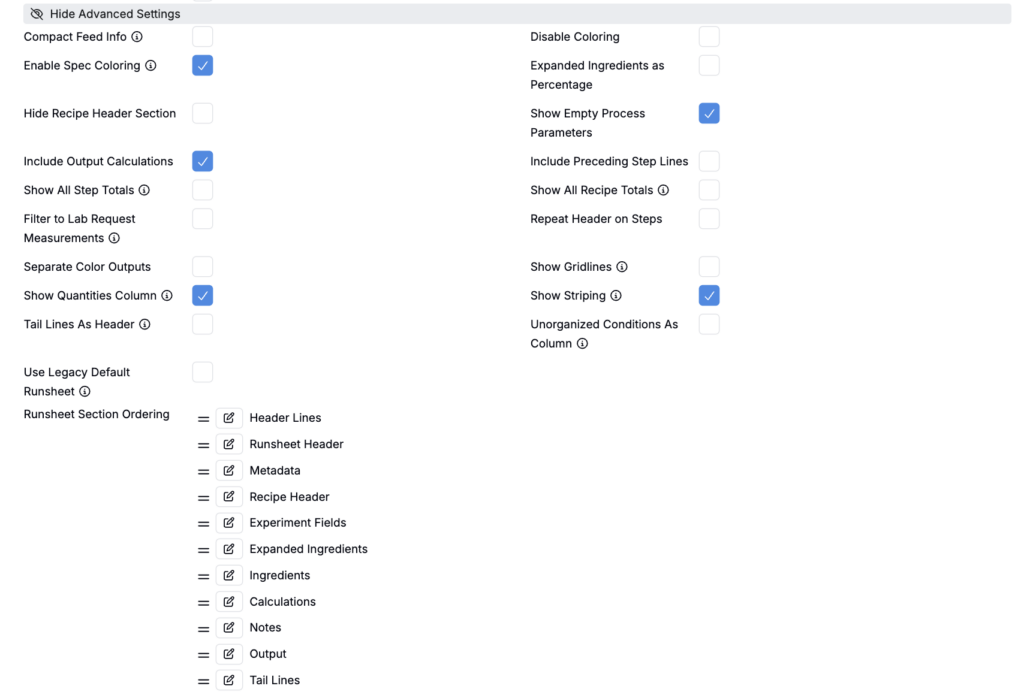
To configure additional advanced settings (section order, formatting, file name, calculations, metadata, header/tail lines), click 👁️ Show Advanced Settings.
- Compact Feed Info: Display feed rate and feed time in an abbreviated form on one line.
- Enable Spec Coloring: Colors output cells green if they are within spec, or red if they are outside spec. Note: requires printing in color.
- Hide Recipe Header Section: Hides the recipe header section in the runsheet export.
- Include Output Calculations: Include output-calculation results in the export.
- Show All Step Totals: Include all step totals, ignoring workflow/platform settings
- Filter to Lab Request Measurements: Only include measurements on the runsheet if they were on the associated lab request.
- Separate Color Outputs: Export “color” outputs in a separate section.
- Show Quantities Column: Unchecking will remove the main recipe column (ingredient/measurement values).
- Tail Lines As Header: The tail lines defined in the runsheet configuration will repeat at the top of each page.
- Use Legacy Default Runsheet: Use the legacy version of the default runsheet. This code is no longer supported and not recommended to be used.
- Disable Coloring: Remove colored styling from the export.
- Expanded Ingredients as Percentage: Show expanded ingredient quantities as percentages.
- Show Empty Process Parameters: Show process parameter rows even when blank.
- Include Preceding Step Lines: Include extra context lines from the previous step.
- Show All Recipe Totals: Include all recipe totals, ignoring platform settings.
- Repeat Header on Steps: Repeat step headers for readability.
- Show Gridlines: Enable Print Gridlines by default in Excel.
- Show Striping: Alternately shade rows for greater differentiation.
- Unorganized Conditions As Column: Unorganized condition parameters — the ones not organized into a table or column – are in a separate column instead of being attached to the output name.
- Runsheet Section Ordering: Reorder runsheet sections by dragging and dropping them. Click the pencil icon associated with a section to add a page break after it.
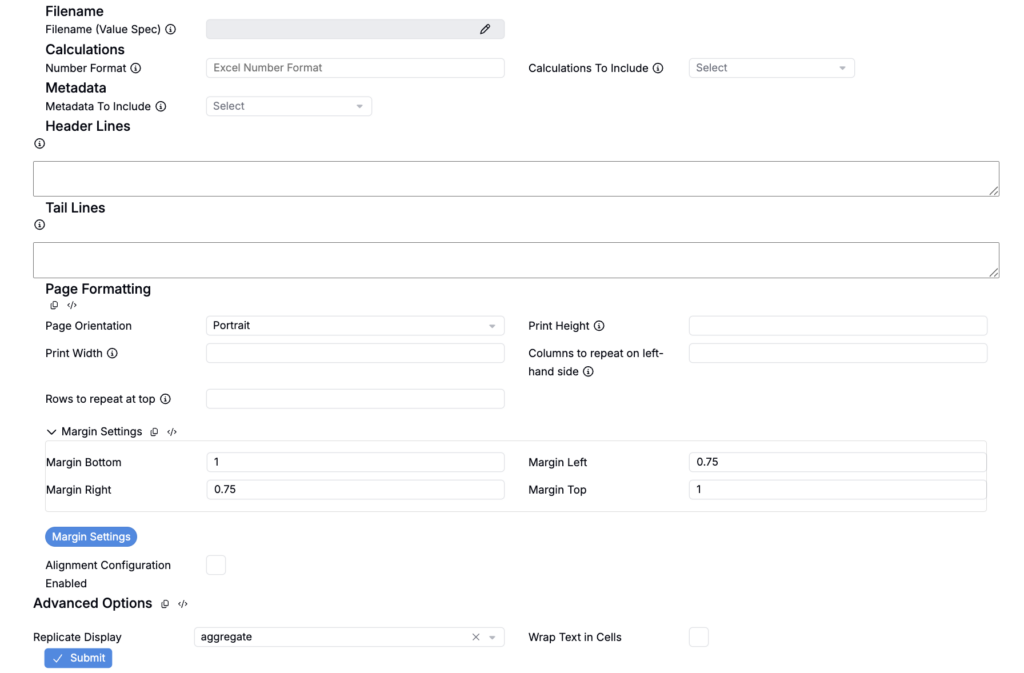
- Filename (Value Spec): Use the Filename section to override the default file name by inputting a value spec string.
- Calculations
- Number Format (Calculations): Number format to be applied to the cells in the recipe columns.
- Calculations to Include: Selected Calculations are included in the runsheet if they are available for the recipe. If none are specified, the calculations shown on the enter pages will be included.
- Metadata to Include: Selected Metadata are included in the runsheet if they are available for the recipe. If none are specified, the metadata shown on the enter pages will be included.
- Header Lines: Specify lines to be appended to the runsheet. Values are parsed as value spec strings.
- Tail Lines: Specify lines to be appended to the runsheet. Values are parsed as value spec strings.
- Page Formatting
- Page Orientation: Portrait or landscape.
- Print Height: Fit-to-page height.
- Print Width: Fit-to-page width.
- Columns to repeat on left-hand side: Repeat key columns on printed pages.
- Rows to repeat at top: Repeat header rows on printed pages.
- Margin Settings: Manually set the Bottom, Top, Left, and Right margins
- Alignment Configuration Enabled: Enable additional cell alignment options.
- Advanced Options
- Replicate Display: Aggregate or rows
- Wrap Text in Cells: Wraps text within cells in the runsheet export to reduce manual resizing in Excel.