Default Compounding Behavior at the Lot Level
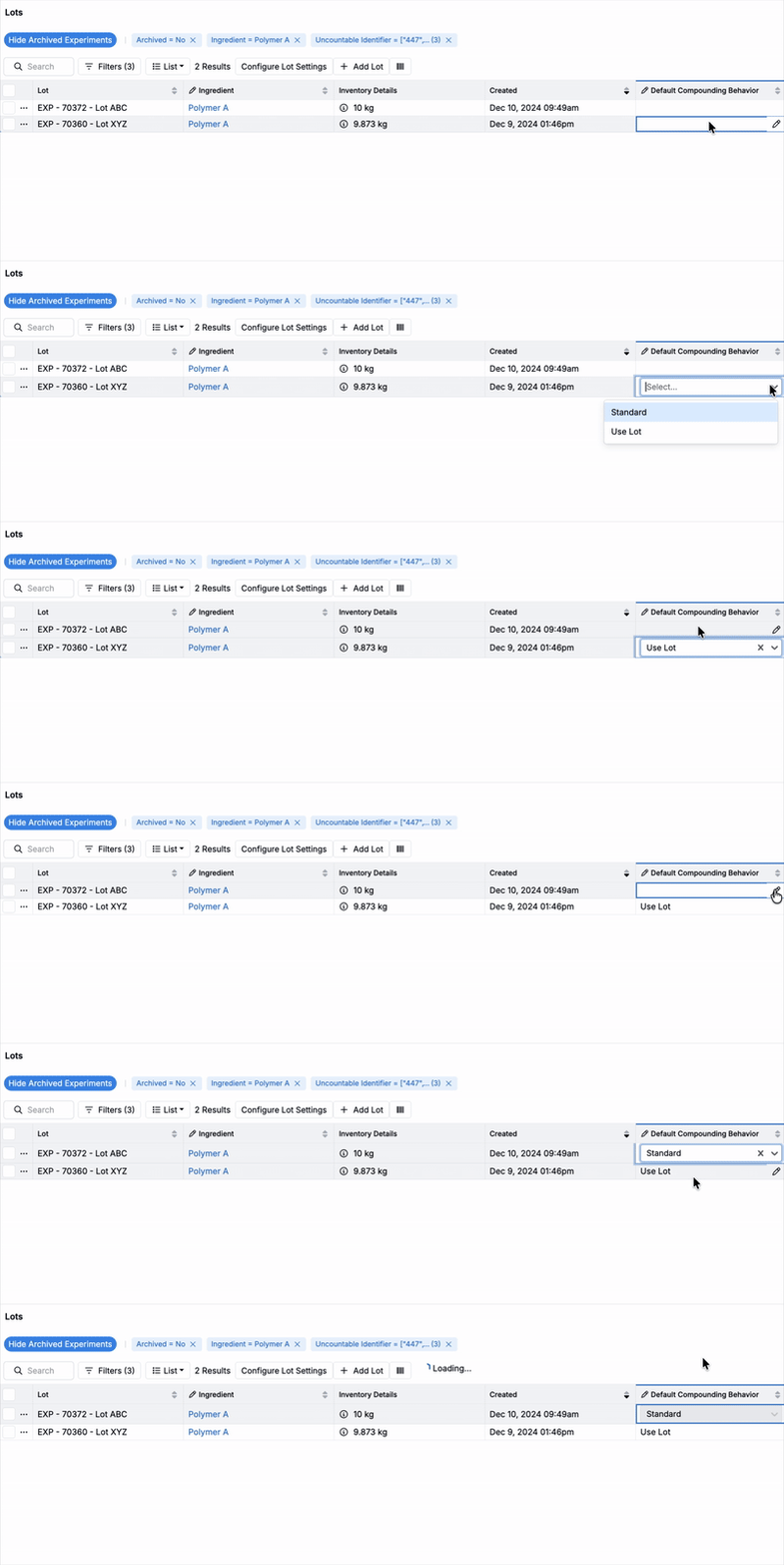
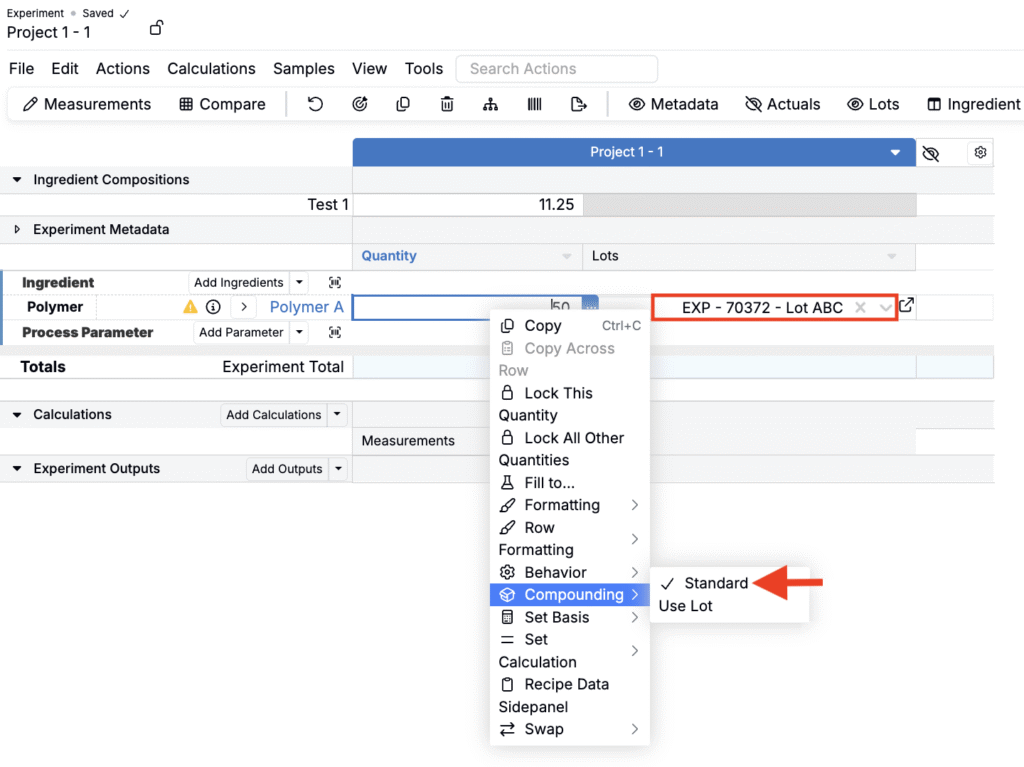
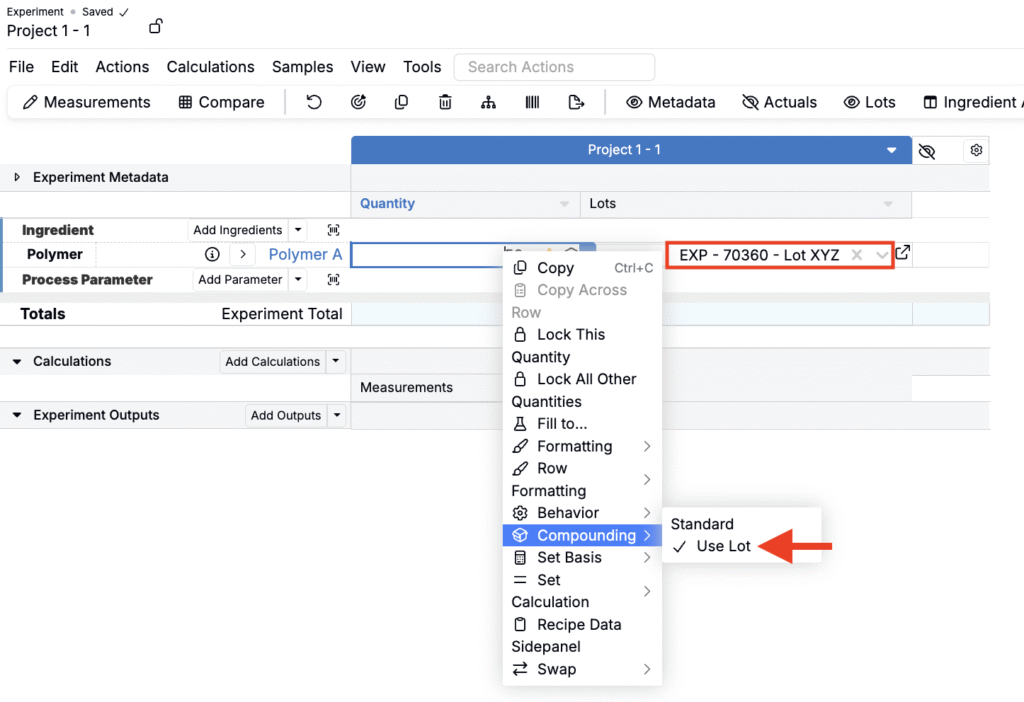
You can now set a default compounding behavior per ingredient Lot (Use Lot, Standard) so the correct behavior is applied automatically whenever that lot is selected or swapped into a recipe.
The new lot-level default takes precedence over ingredient-level defaults. If a lot has no default set, the current recipe behavior is left as-is. This change makes lot substitutions more efficient during formulation and reduces manual fixes after swapping in lots of an ingredient.
How to use
- On the Lot listing page, display the Default Compounding Behavior column (List > Set Columns).
- For each Lot, use the column to set the behavior you want (Use Lot, Standard).
- Assign or swap a lot in the recipe. The selected lot’s default applies automatically.
Column Visibility by View (Full vs. Compact/Mobile)
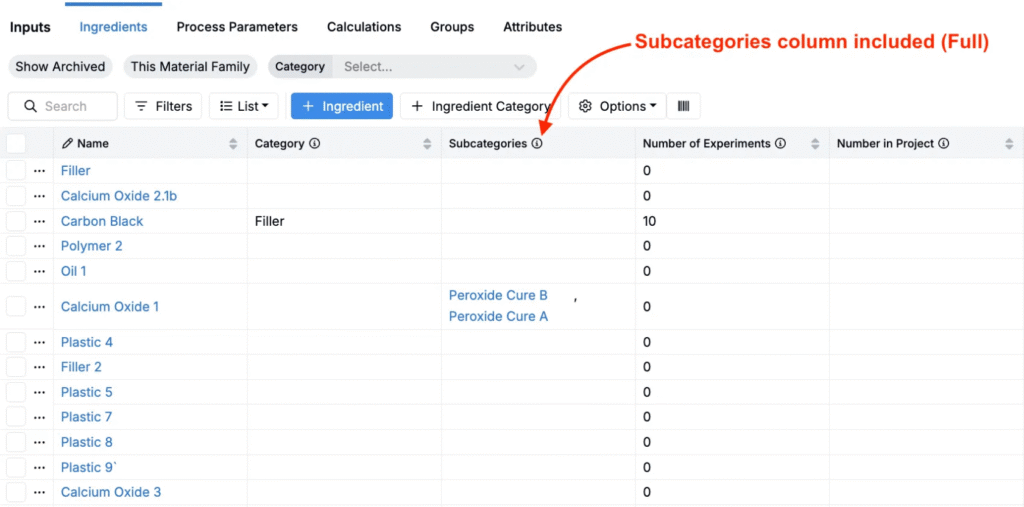
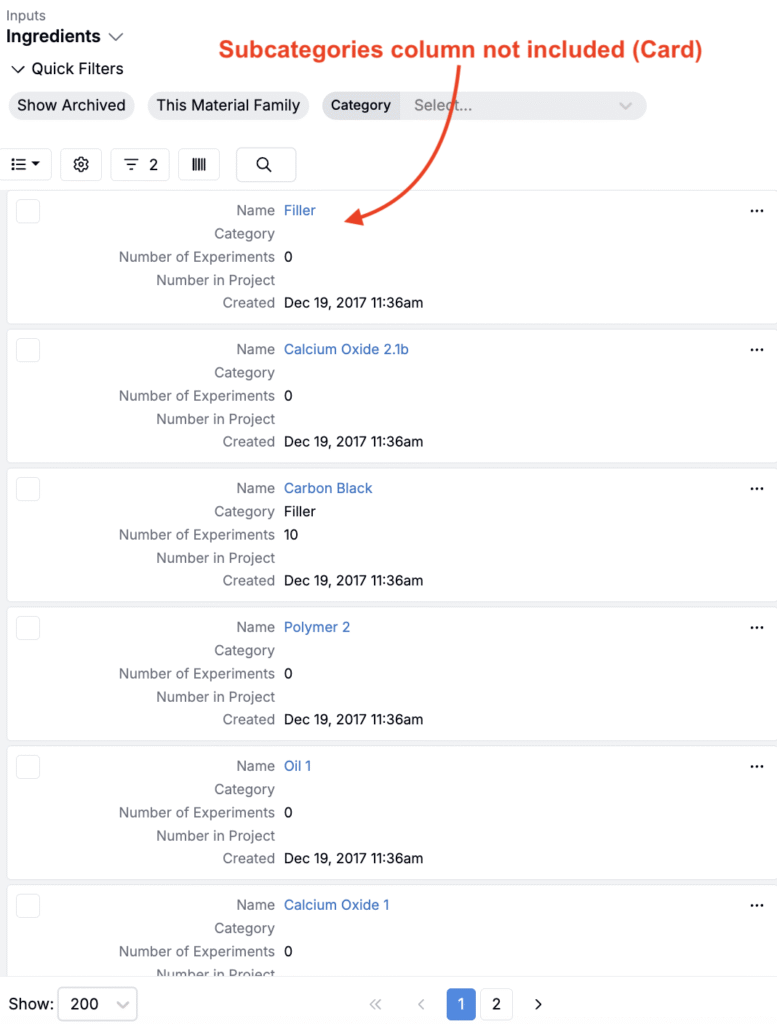
You can now tag columns to show only in Full (desktop/wide) or Card (mobile/narrow) view so dense tables stay readable on small screens without losing detail on large monitors.
These display settings help cater listing views to specific users or use cases. For example, technicians recording data on tablets can now view only the columns relevant to them while analysts can keep full context on desktops. This change also reduces card height in narrow views for faster scanning.
How to use
- On any listing, open a column’s menu and select Format Column.
- In the modal, access the Columns tab.
- Set Display Scope to:
- All — Default, column will appear in both the full desktop and compact card/mobile view
- Full — Column will only appear on the full desktop view
- Card — Column will only appear in the compact card/mobile view
- Save changes.
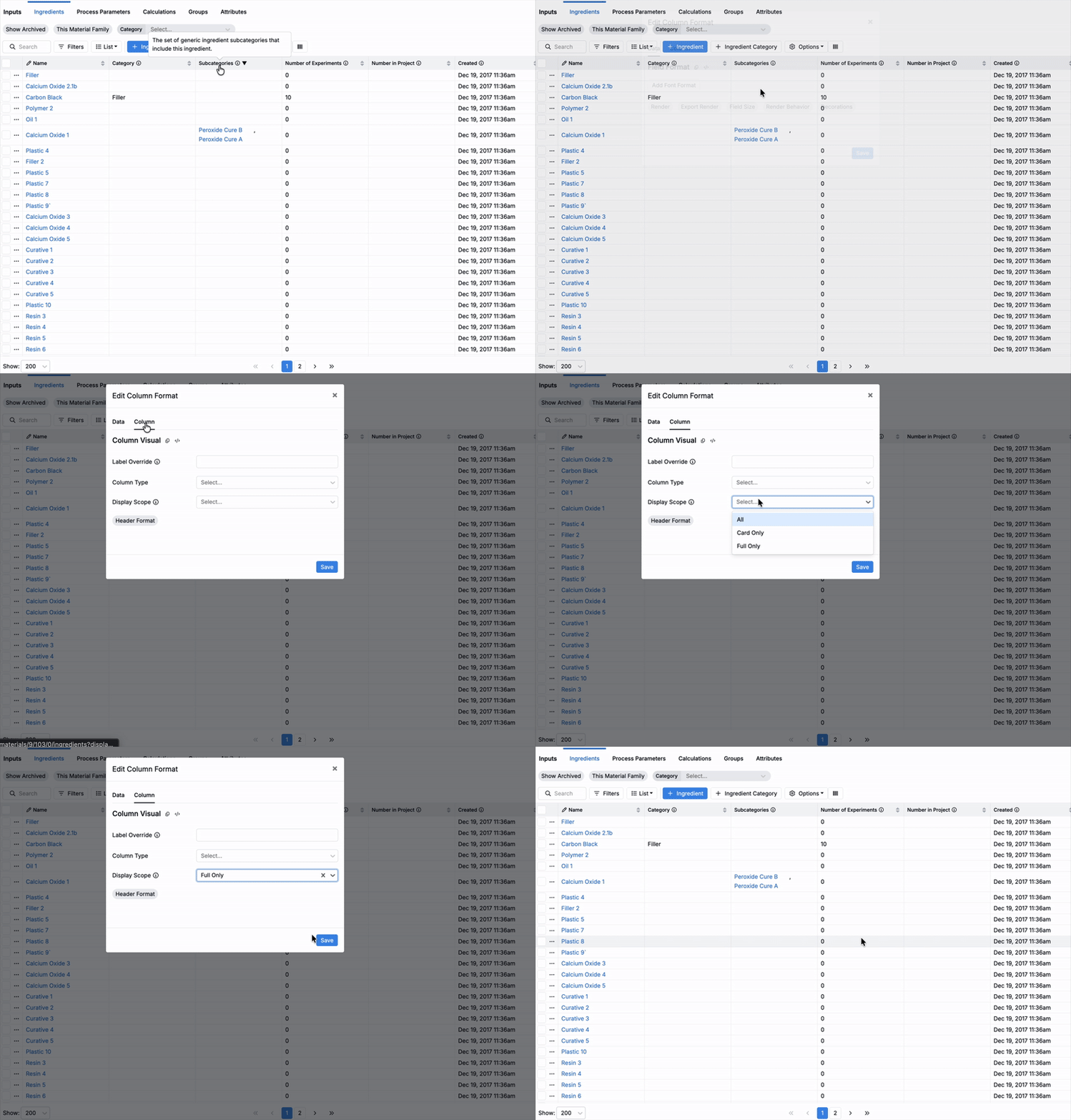
- Resize the window (or view on mobile) to verify that columns appear as configured.
Turn On/Off Groups of Calculations by Tag
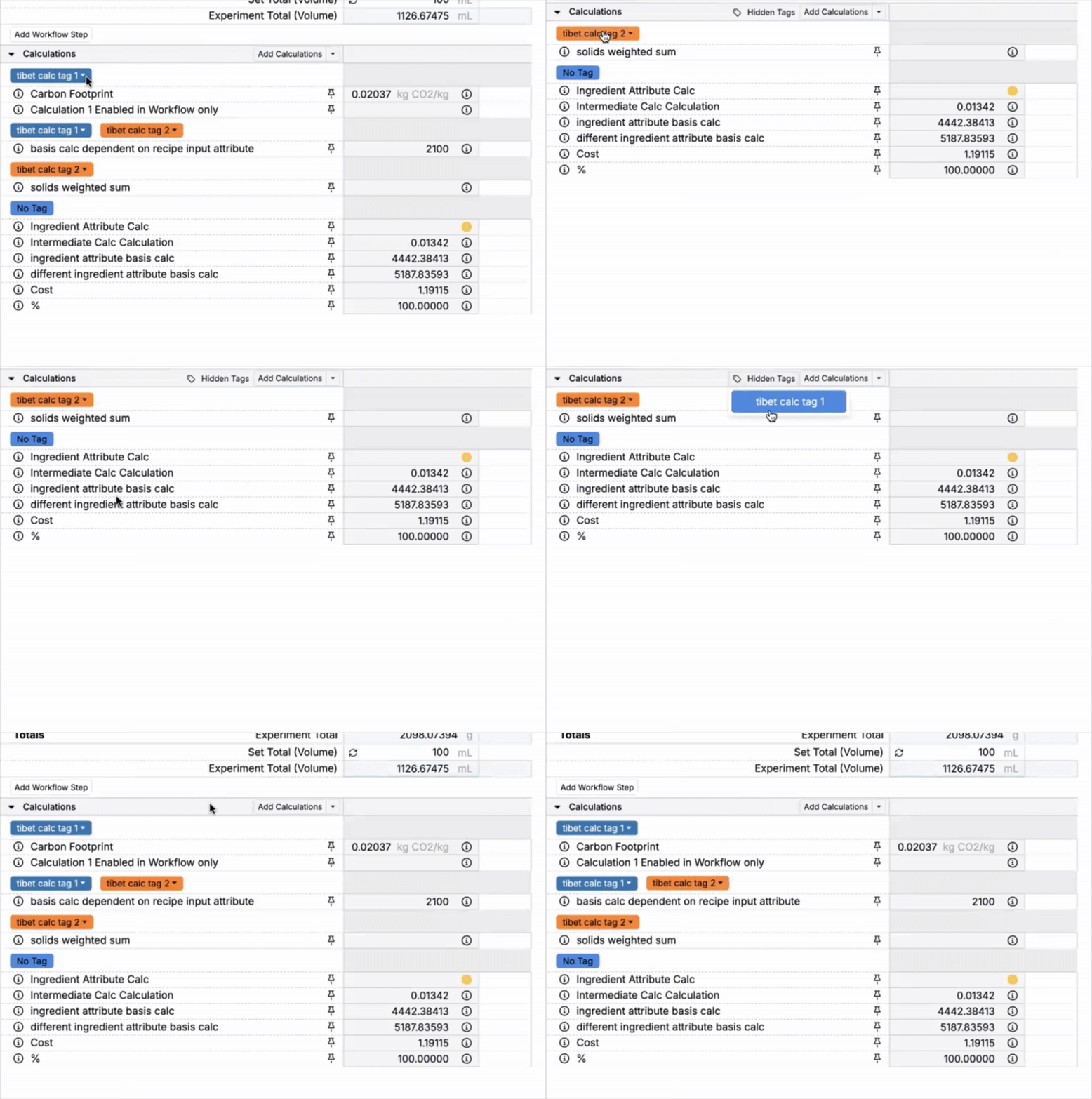
Uncountable users can now quickly hide entire groups of calculations on the recipe view of experiments using tags. Visibility is per-user and persistent, so each person can focus on the calculations relevant to them.
This change will be useful when projects contain dozens of calculations and different roles care about different subsets. For example, you can switch between USD vs. EUR cost calculations or R&D-only vs. production calculations without editing recipe configuration.
How to use
- Add tags to group input calculations (under Availability Settings).
- On the recipe view of experiments, within the Calculations section, click a tag pill to hide all calculations with that tag.
- When tags are hidden, click Hidden Tags in the Calculations header to review and unhide tags.
Units for Numeric Fields (and On-the-Fly Conversion)
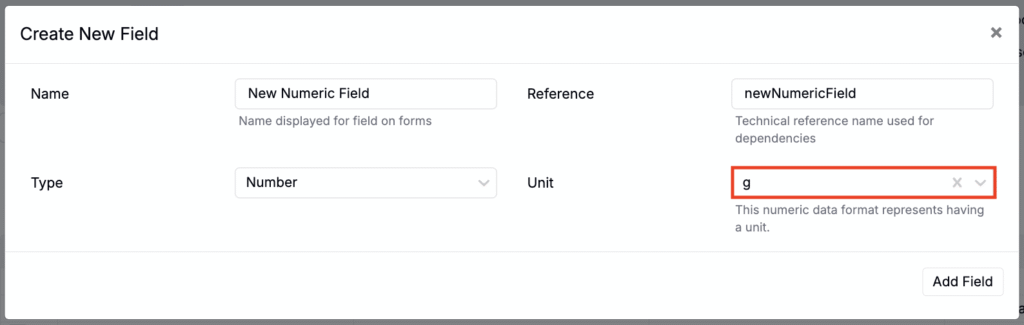
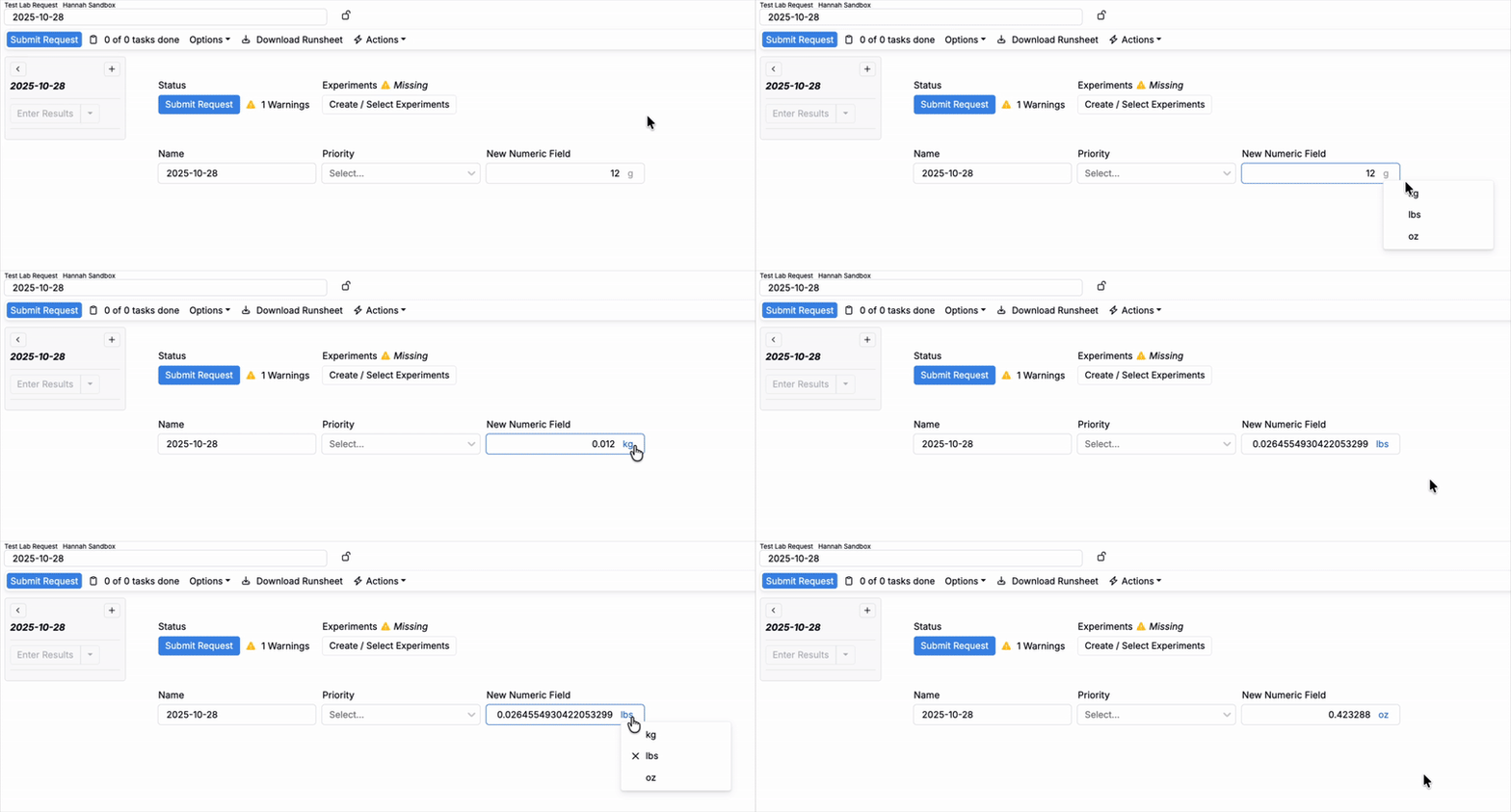
When creating or editing numeric fields, you can now assign a unit (e.g., kg, lb) and users can convert values between units wherever the field is used.
This standardizes data entry across labs and suppliers and prevents unit confusion in forms and requests. Conversions are persistent and display consistently.
How to use
- Create a numeric field and choose a unit.
- On an entity using that field, click the unit next to a value to convert (e.g., g ↔ kg).
- Edit values in the selected unit and conversions update automatically and persist on refresh.
Lot Columns on Recipes
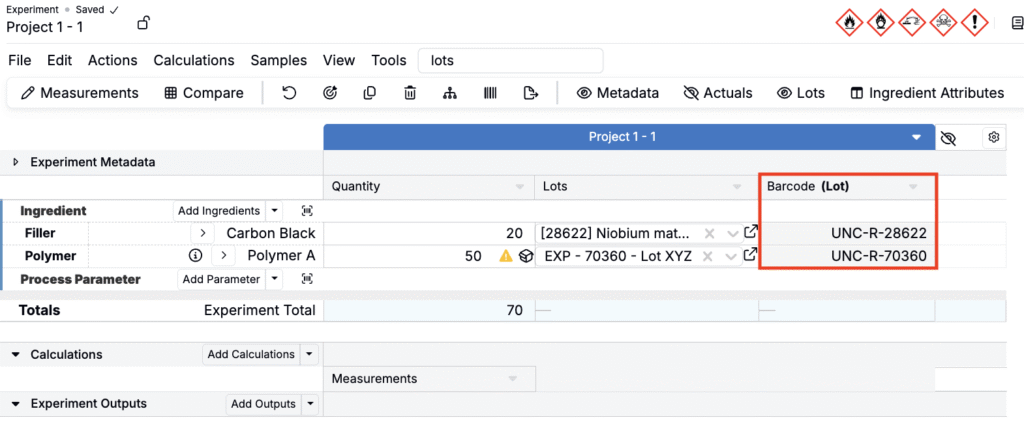
You can now display Lot listing fields as columns directly on the recipe view of an experiment. Previously, this information could only be displayed in the Experiment Fields section above the datagrid.
Displaying Lot fields as columns allows you to view Lot information across multiple ingredients at once and edit inline where allowed. This makes Lot-level audits and bulk edits faster during formulation.
How to use
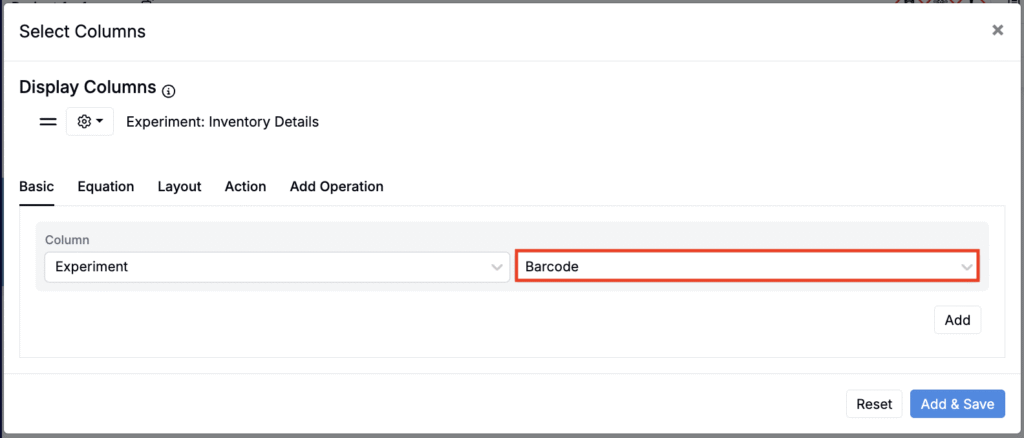
- Display the Lots column on your experiment recipe.
- Click into the Lots column header and select Lot Columns.
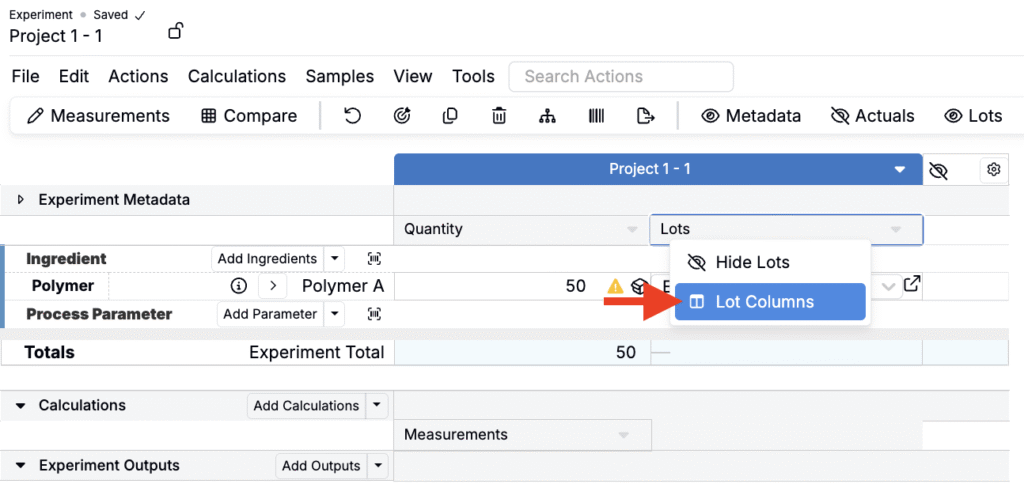
- In the modal, select which Lot fields to display and save.
- Once added, you can reorder/resize columns and edit any editable fields inline.
New Numeric Filter Options: ≥ and ≤
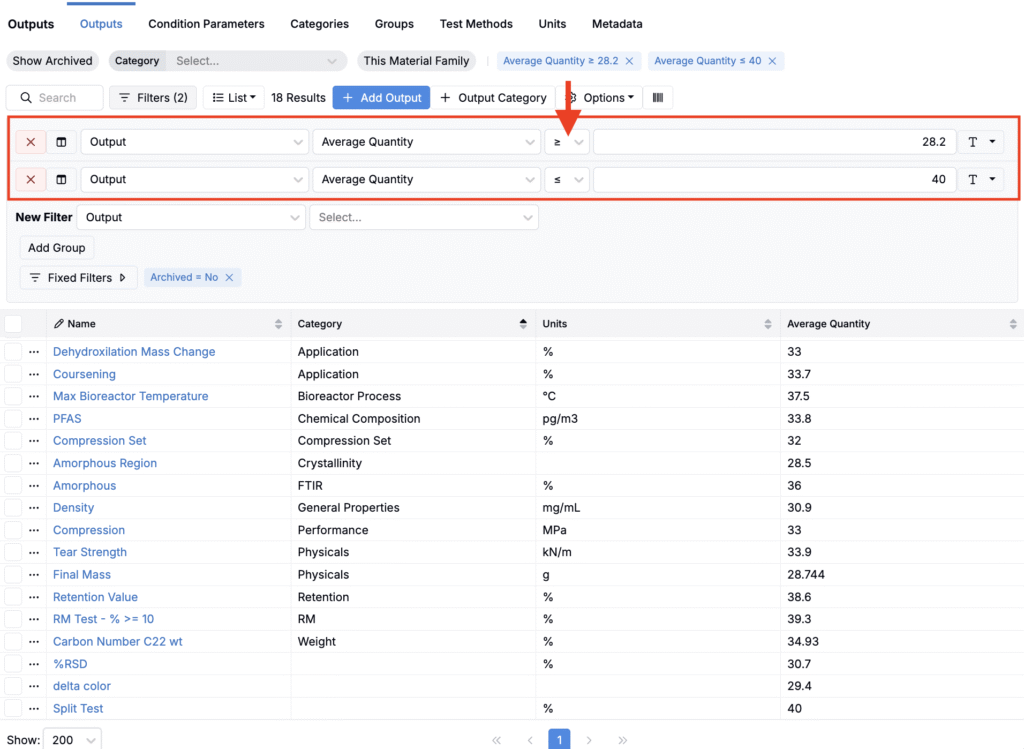
Filters now support greater than or equal to (≥) and less than or equal to (≤) comparisons, so you can set exact thresholds without workarounds.
This is valuable for R&D and regulatory tasks that hinge on boundary values (e.g. “if pH ≥ 11.5, classify as Category 1,” inclusive spec gates in QC, and branching trigger logic at floor/ceiling limits.
How to use
- Open Filters on a listing or spec.
- Choose a numeric field.
- Select ≥ or ≤, enter the value, and apply.
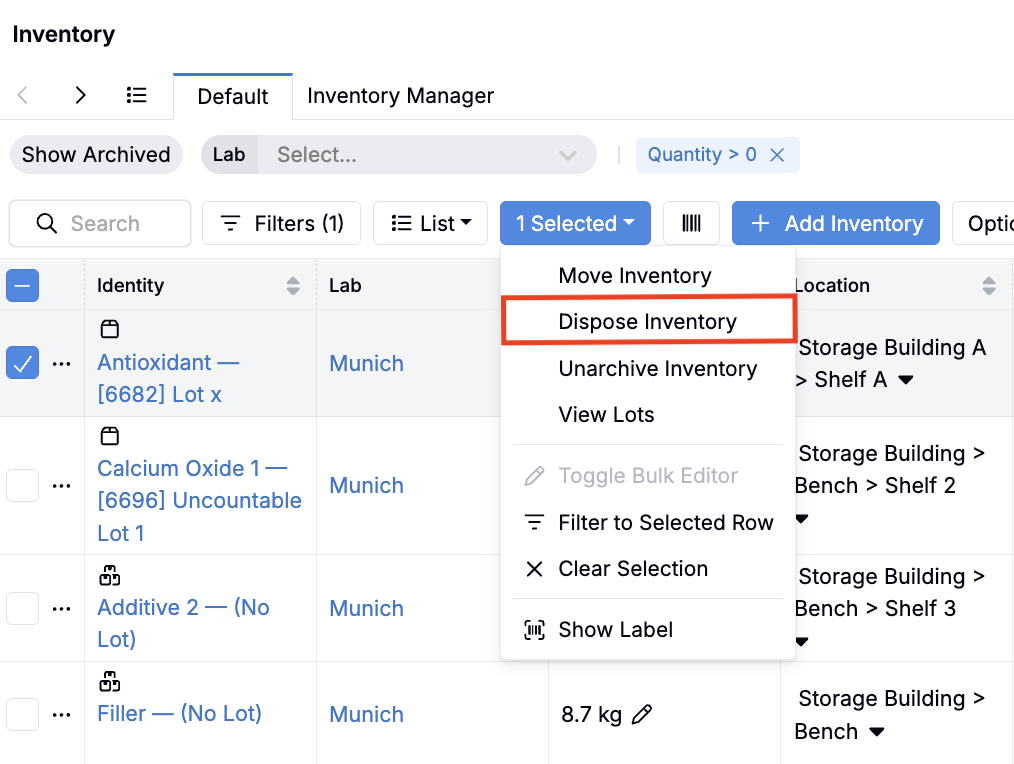
Terminology Update: “Archive Inventory” → “Dispose Inventory”
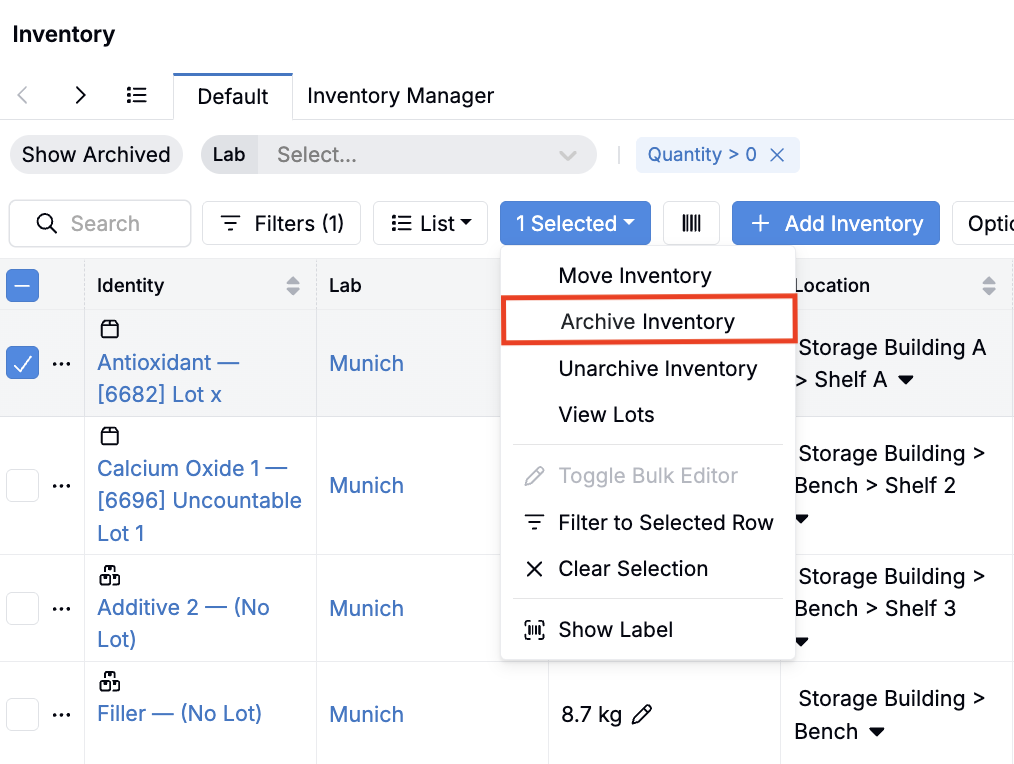
We’ve updated the wording used for archiving inventory across the platform.
Previously, actions that removed inventory from active use were labeled Archive Inventory. To better reflect typical lab and warehouse language, the action will appear as Dispose Inventory in buttons, menus, and confirmation dialogs.
Note that the negative case, Unarchive Inventory, will remain unchanged.
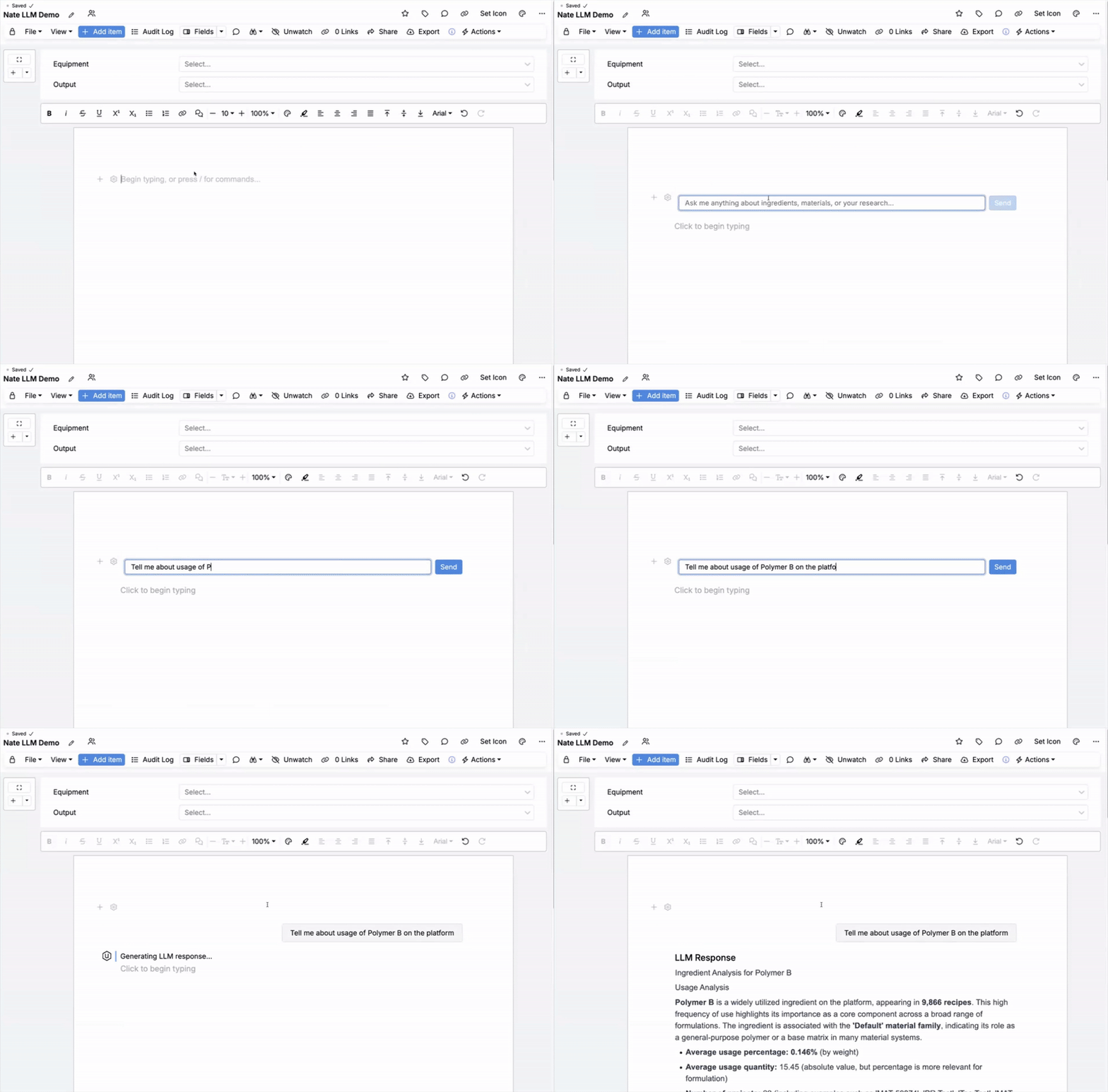
LLM Conversations in Notebooks
Notebooks can now include an LLM Conversation cell that can be used to summarize ingredient usage (recipes, projects, average quantity, frequency distributions) and suggest alternatives.
The LLM cell gathers platform data and generates summaries within the notebook context. This is especially helpful for exploring substitutes during formulation. Note that this tool is only available for users with LLM features enabled in their schema.
How to use:
- In a notebook, click Add Item and insert an LLM Conversation cell.
- Prompt the cell (e.g., “Tell me about usage of Polymer B on the platform”).
- Review the usage statistics and alternative recommendations.
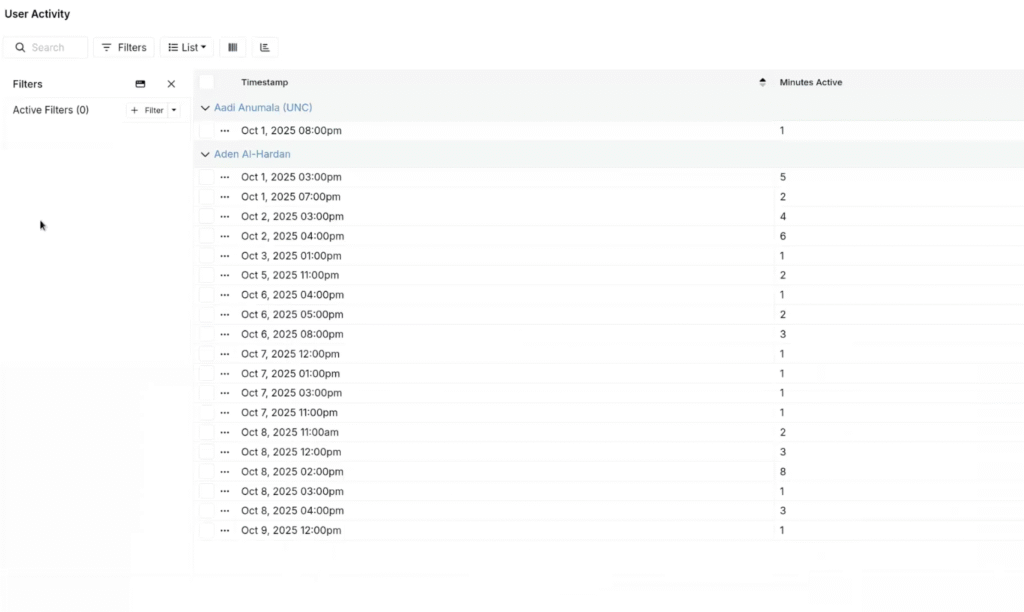
User Activity: Minutes Active per Hour
Uncountable admins can now analyze minutes active per hour to understand individual user or user group usage patterns. Previously, usage data focused on counts (e.g., logins, edits) but not sustained activity windows.
This new view can be useful for validating adoption after a rollout or highlighting teams that need additional resources or training. It can also reveal changes in activity and identify infrequently used accounts.
How to use:
To access the user activity page, append entities?entityType=user_activity to your Uncountable base URL to access the User Activity view.

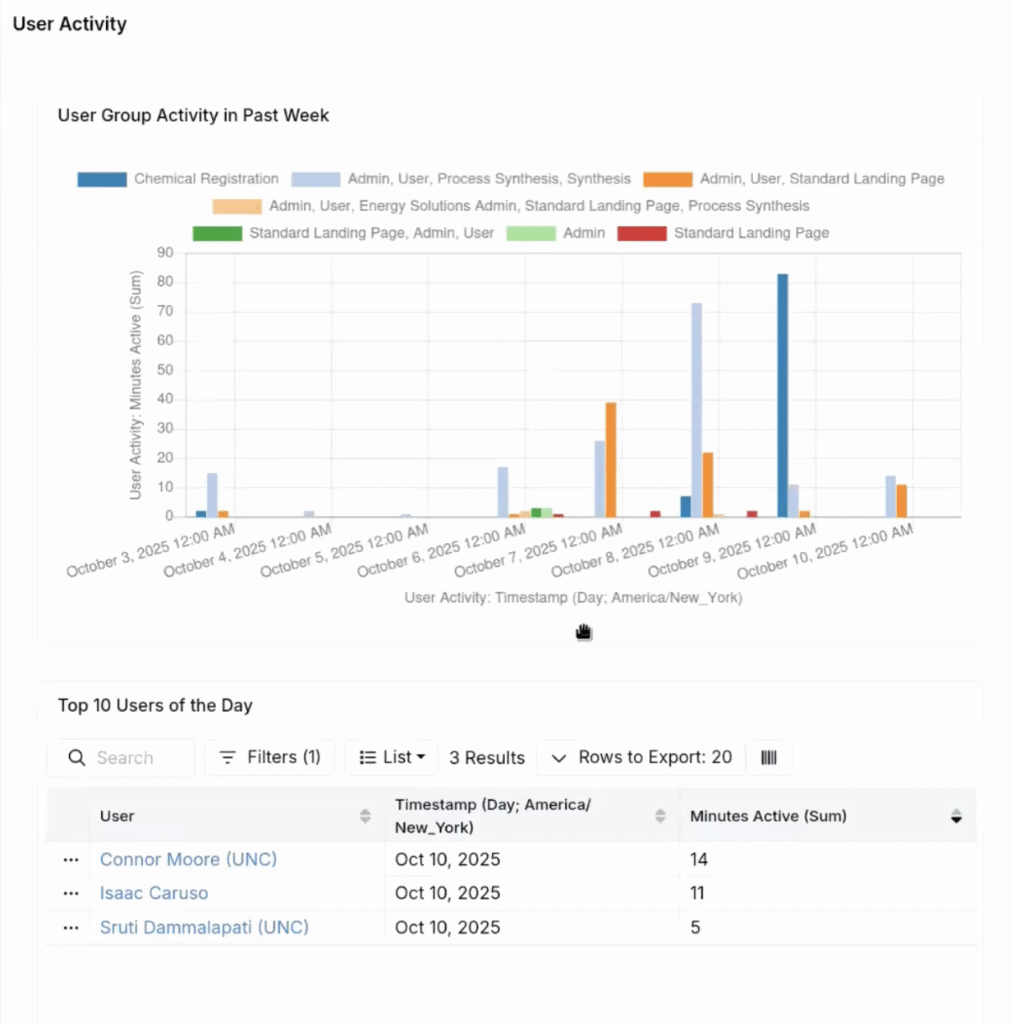
You can also use this dataset to create user activity dashboards. For example, chart activity by group combinations or add a list of the top 10 most active users per day.
New “Search for Similar Ingredients” Flow
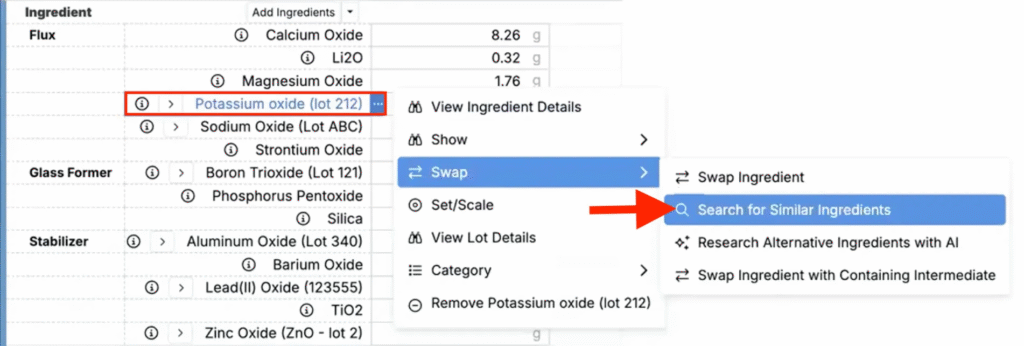
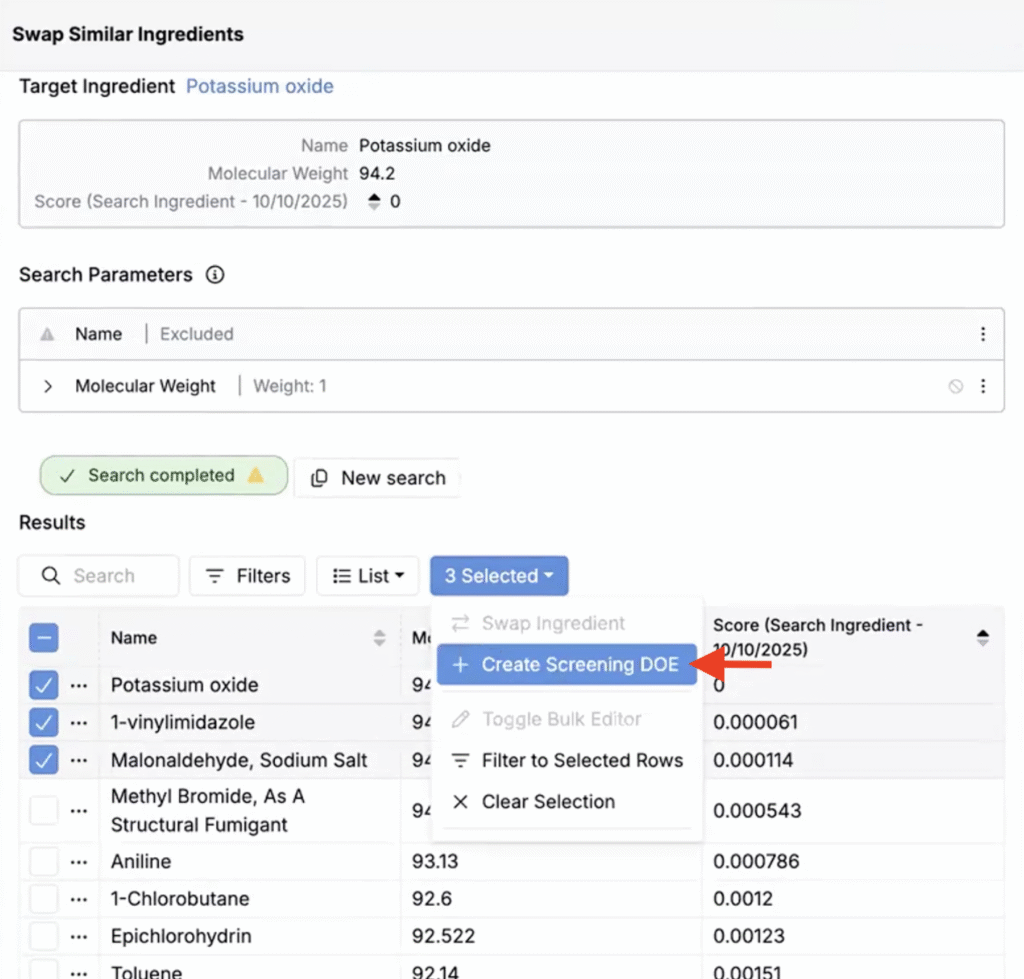
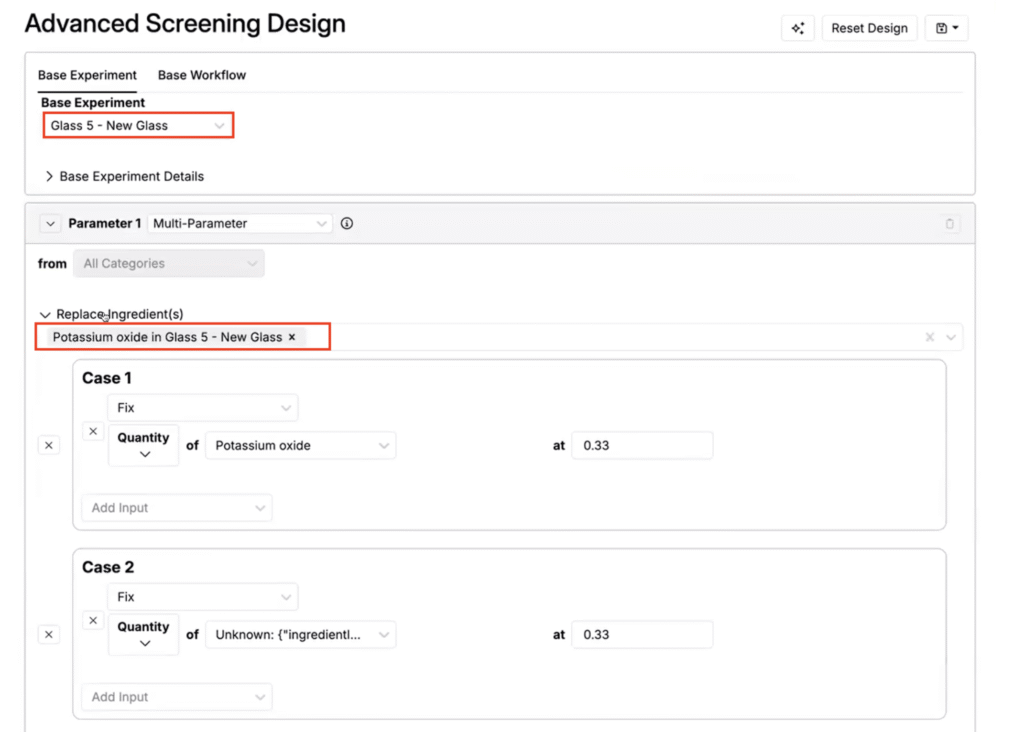
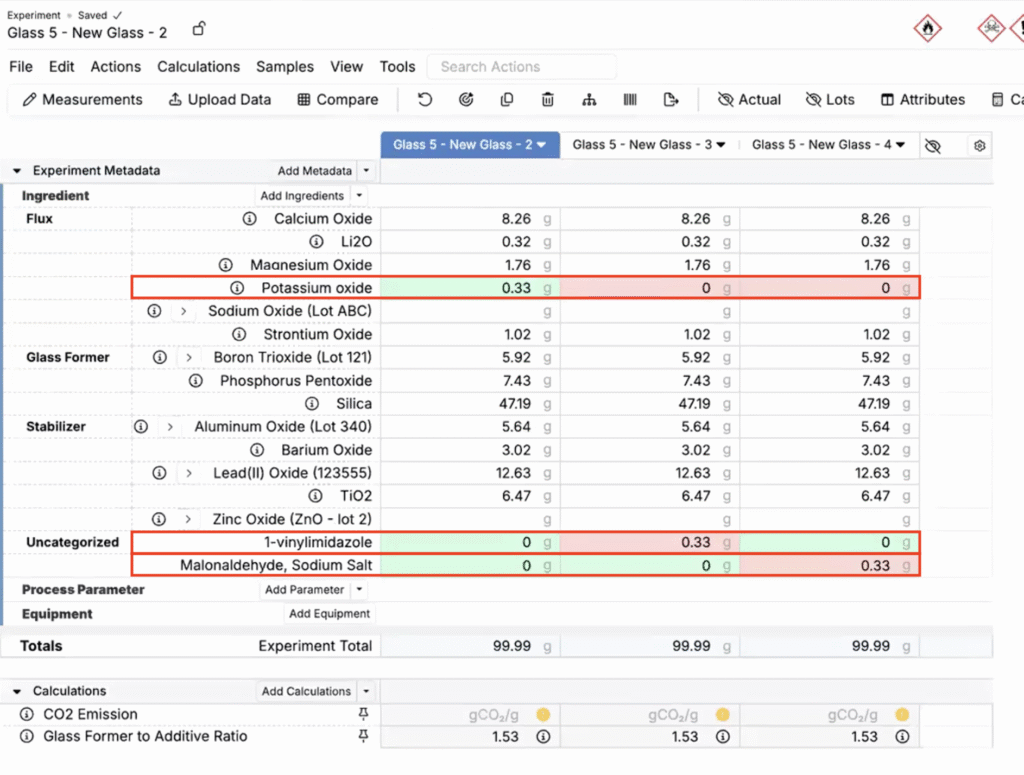
When searching for similar ingredients, users can now choose candidates and start a Screening DOE directly from the recipe view of an experiment. The Advanced Screening page opens prefilled with your base experiment and selected replacements; submitting creates experiments with those substitutes.
Previously this required manual swapping per ingredient and a separate DOE setup. With this update, users can now use one continuous, simplified workflow.
This flow can be used for quick, controlled, head-to-head comparisons of substitutes (e.g. trying alternate curatives in a rubber formulation) without rebuilding designs by hand.
How to use:
- In an experiment, open the ingredient menu for the component you want to substitute and choose Search for Similar Ingredients.
- In the Swap Similar Ingredients sidepanel, run a search based on select parameters and review results (low Score indicates high similarity, high Score indicates low similarity).
- Select ingredients to swap via DOE. In the selection menu, click Create Screening DOE.
- Review the Advanced Screening Design page. Your base experiment will be prefilled with the target ingredient mapped to your selected replacements.
- Submit the DOE to generate experiments. The new experiments will include the selected substitutes swapped into the formulation.
New Quick Filter Type: Numeric Ranges
We have introduced a new Quick Filter type, Numeric Range, that can be used to filter listing by any numeric column. Previously, to filter by a numeric range, users had to create a custom filter.
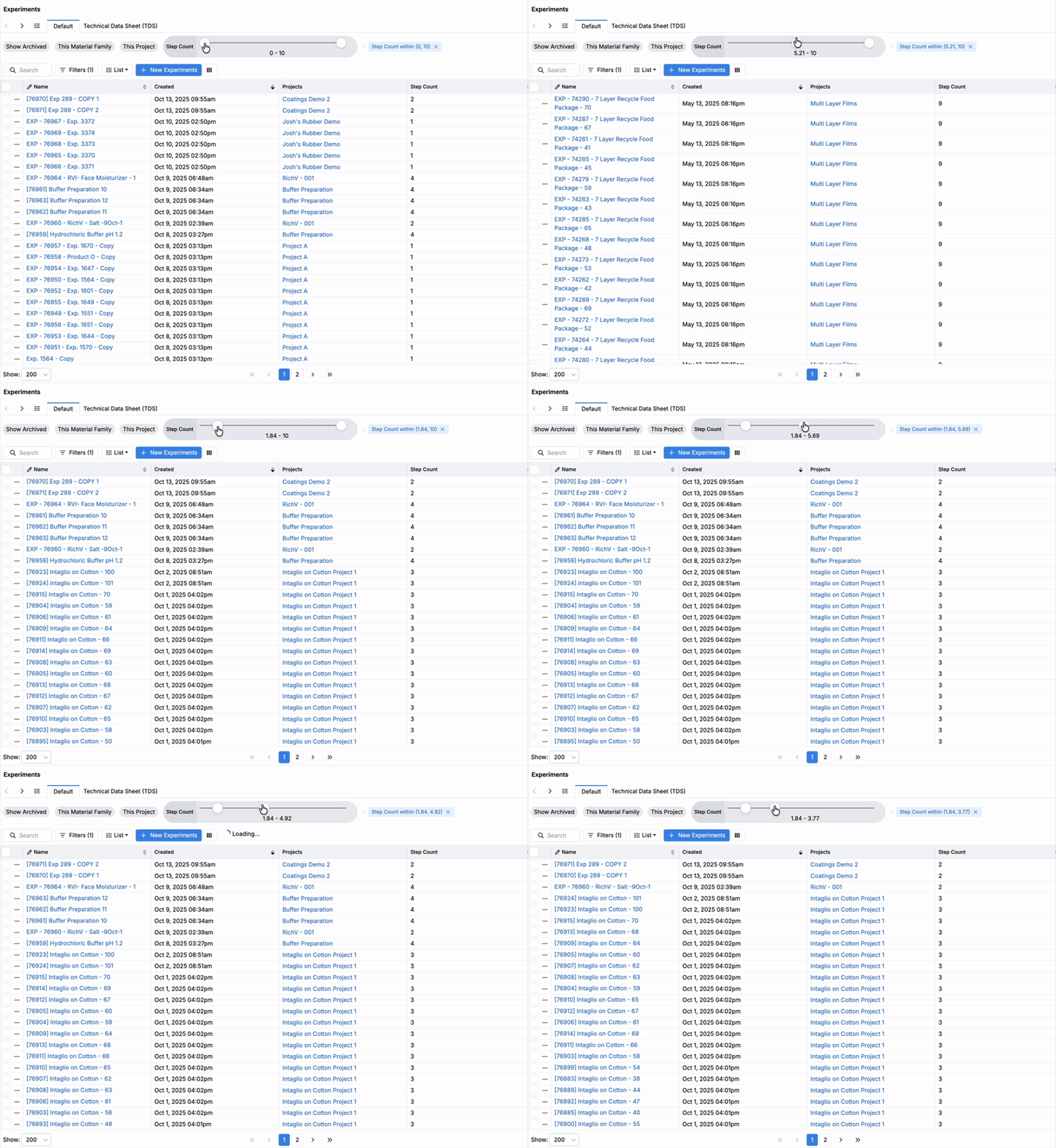
Now, you can use the slider to set a minimum and maximum value and the list updates immediately. For example, it could be used to filter the Experiment listing to only experiments with 3-5 workflow steps.
How to use:
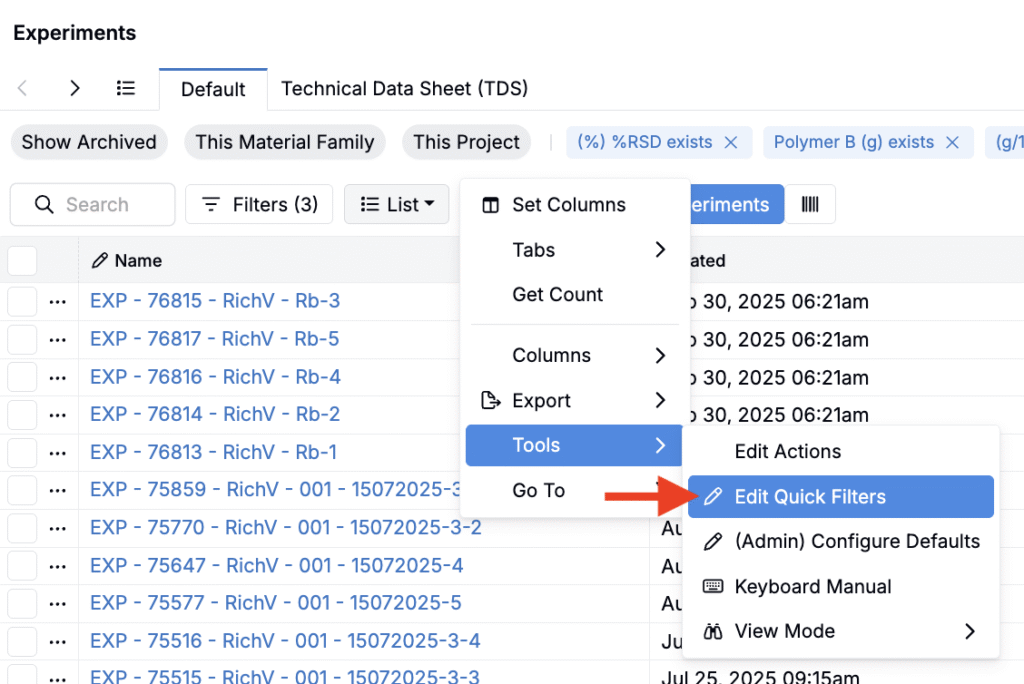
- To add a Numeric Range filter to a listing, click List > Tools > Edit Quick Filters.
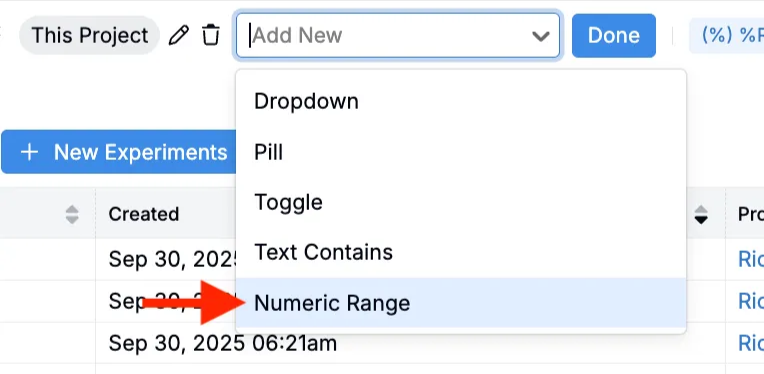
- Add a new Numeric Range filter.
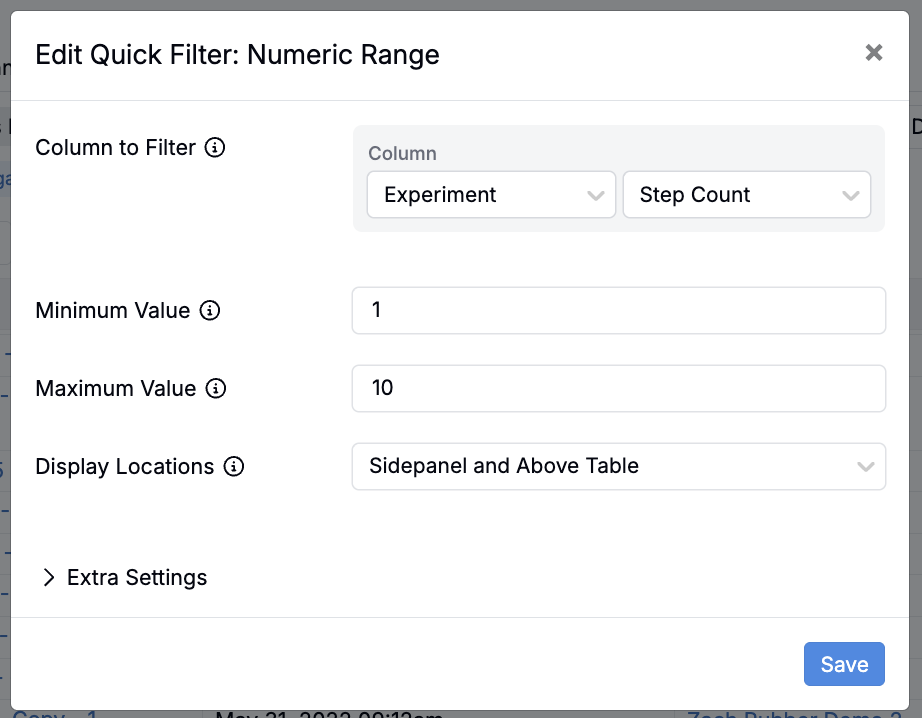
- In the modal, select the column to filter, specify a minimum and maximum value, and save.
Once added to the listing, you can use the slider to specify the numeric filter range. Doing so will automatically filter the listing by the numeric column to that range.
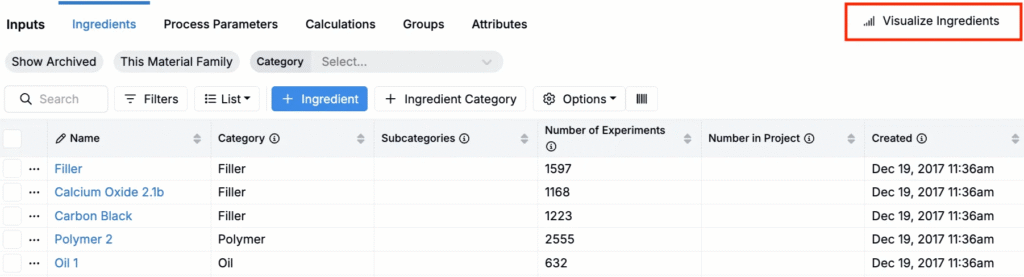
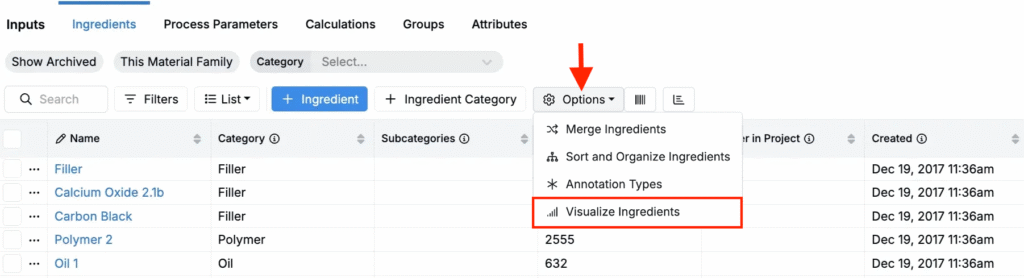
Ingredients Listing — “Visualize Ingredients” Shortcut Removed
We’re updating the Ingredients listing page to remove the Visualize Ingredients shortcut. This keeps the page focused on primary actions and better matches our standard listing layout, especially on smaller screens.
Note that this change is design only. The Ingredient Plot page, previously accessible via the shortcut will now be available from the Options menu on the listing and via Quick Actions.