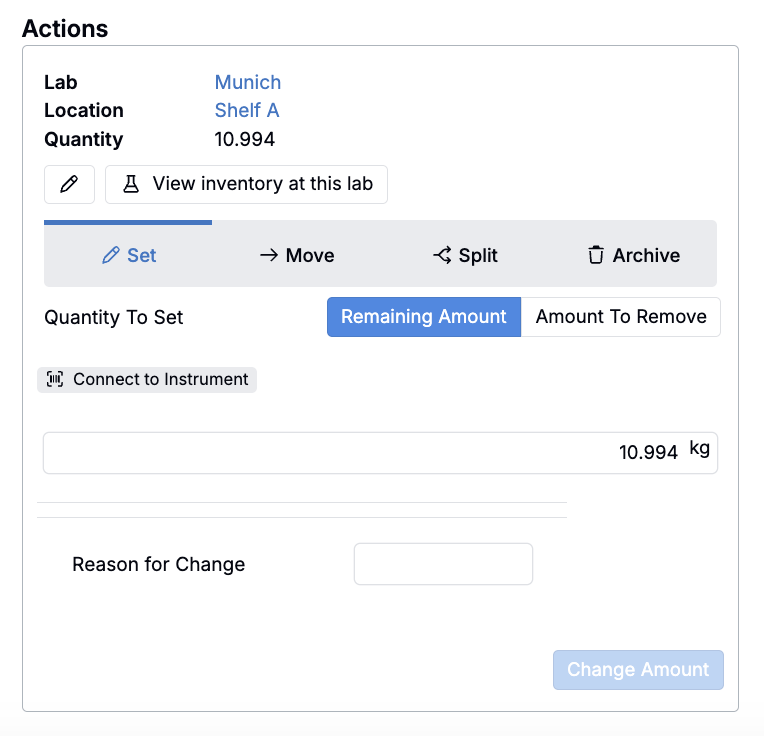
Uncountable provides a built-in barcoding system to help customers connect their physical lab operations with their digital database. Barcodes can be generated as linear codes or QR codes, making it easy for teams to search, track, and update experiments or inventory using scanners, readers, or even phone and tablet cameras.
All barcodes and labels in Uncountable are configurable, allowing teams to tailor the system to their specific workflows.
Types of Barcodes
Experiment Barcodes
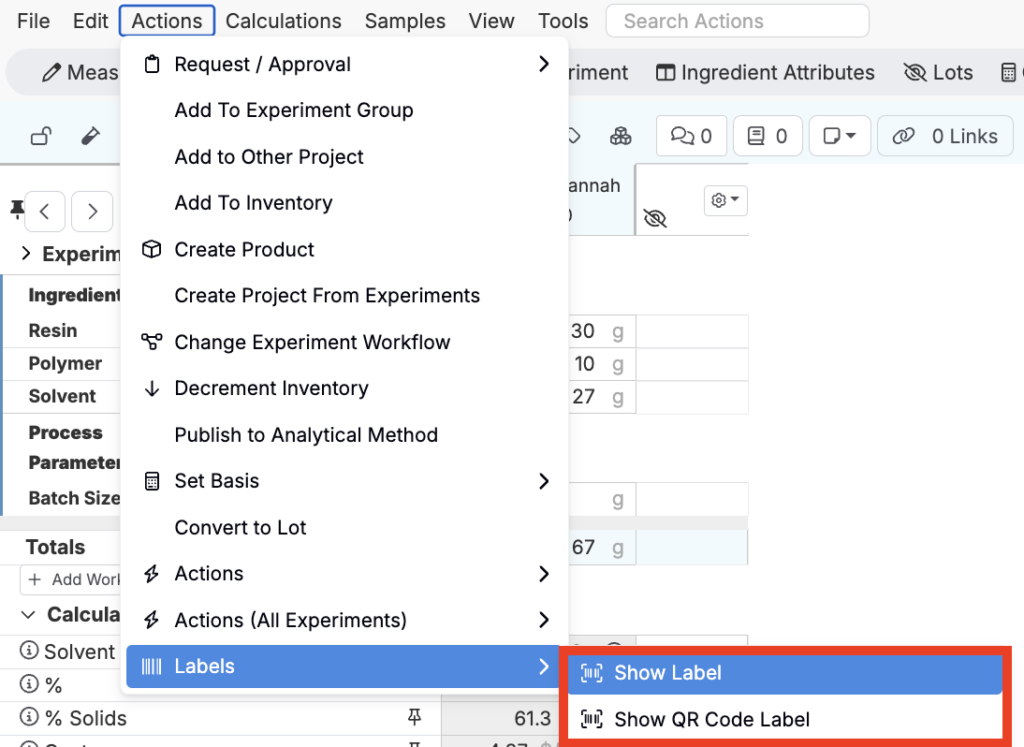
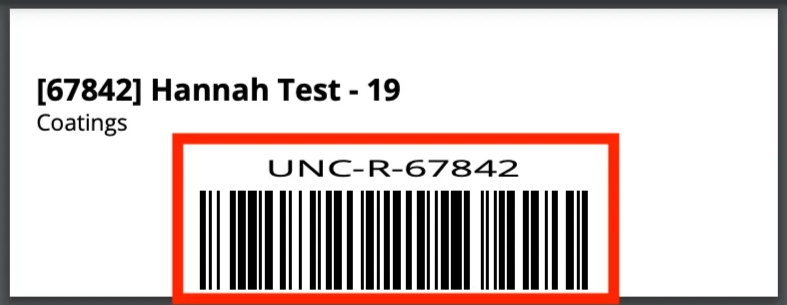
Experiment barcodes are generated automatically for every experiment in the platform. Each barcode is unique, begins with UNC, and scanning it links directly to the experiment’s digital record.
Users can view and print experiment barcodes by selecting Actions > Label and choosing a label type (standard, QR code, or custom).
Inventory Barcodes
Inventory barcodes are linked to ingredients or lots stored in the inventory system. Each barcode is unique, begins with INV, and scanning it filters directly to the associated ingredient or lot.
Users can view an inventory barcode by opening the item’s Inventory page and selecting Show Barcode in the top-left corner.
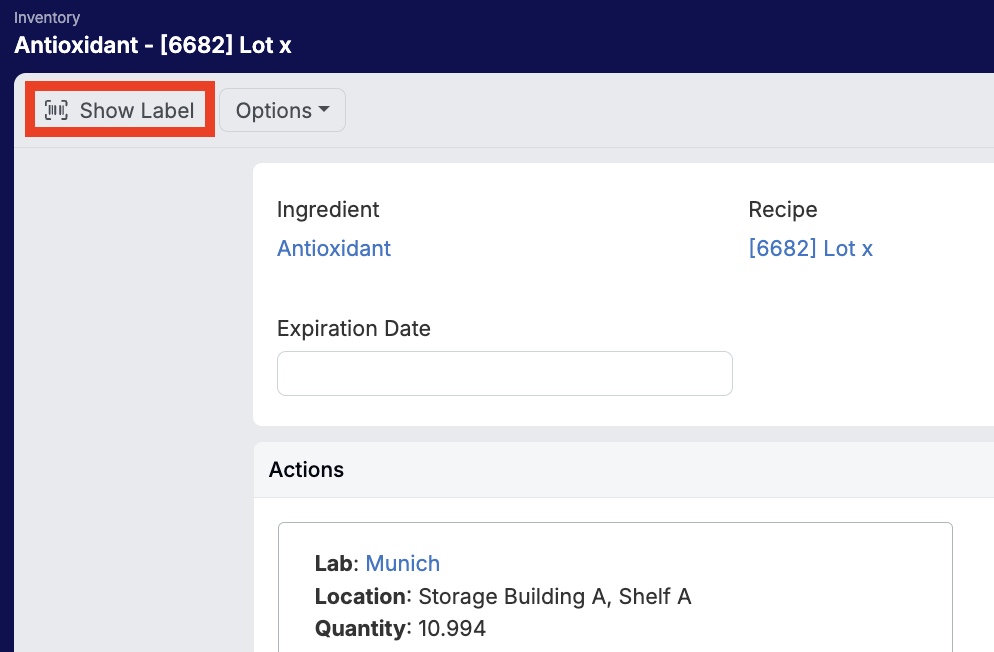
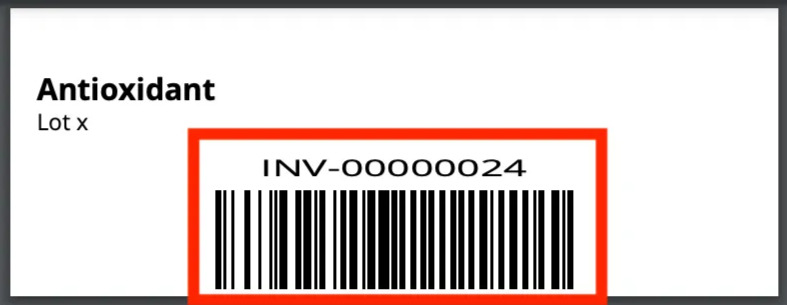
Note: These examples reflect the default configuration. Customers can fully customize labels and barcodes to fit their needs.
Common Use Cases
Common use cases for barcoding in Uncountable include:
- Inventory tracking
- Teams can scan an inventory barcode to adjust quantities or update storage location.
- Experiment tracking
- Experiment barcodes affixed to physical samples allow teams to scan and open the corresponding digital record instantly.
- Adding experiments as ingredients
- Scanning an experiment barcode provides a fast way to add it as an intermediate ingredient when building a new experiment.
- Using QR codes
- For smaller labels, QR codes can be substituted for barcodes.
- QR codes are supported for both experiments and inventory.
Barcode Rendering in Listings
To configure barcode rendering on a listing column:
- Open the listing where you want to surface barcodes.
- Select Format from the Barcode column header menu.
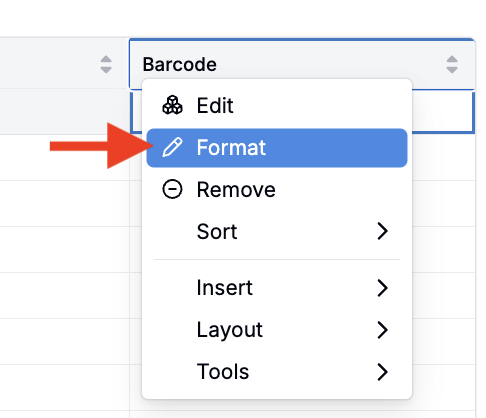
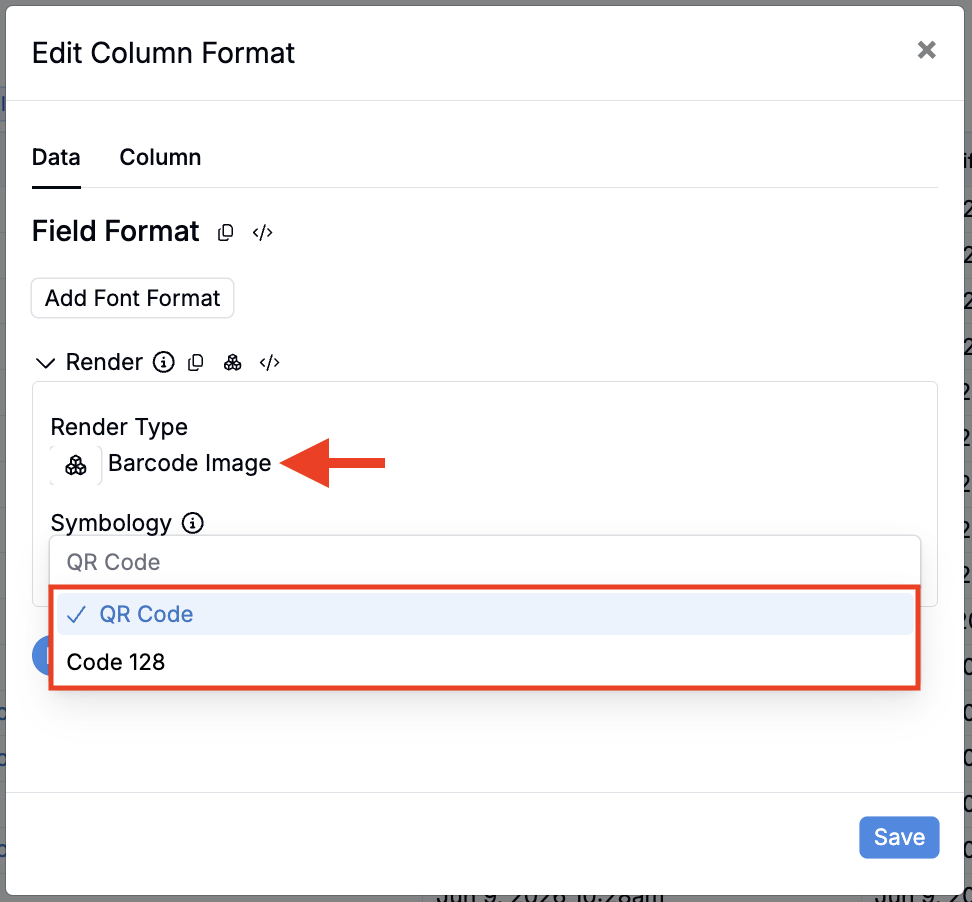
- In the modal, click Render. Set Render Type to Barcode Image.
- Use the Symbology Field to select between the standard Code 128 barcode or a QR Code.
- Save. The listing will now render a scannable barcode for each row.
Scanning Barcodes
Uncountable’s barcode system is compatible with standard scanners, handheld readers, and phone/tablet cameras.
Using a Scanner to Add Inventory
- Ensure that barcode scanning is enabled on a recipe (Show Barcode Scanning).
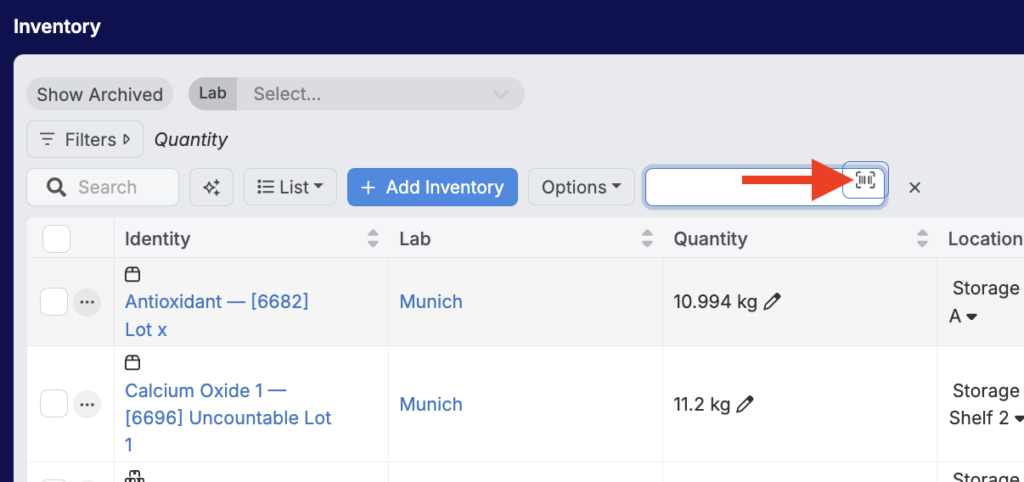
- Click the barcode icon.
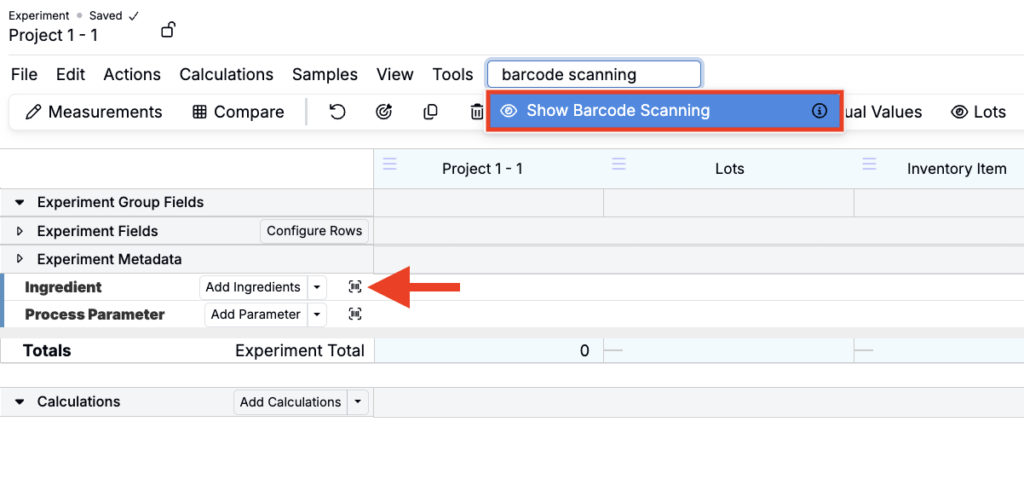
- Scan the barcode using the connected scanner to retrieve the recipe or inventory item instantly.

Using a Phone or Tablet Camera
- Select the barcode icon on the recipe or inventory page.
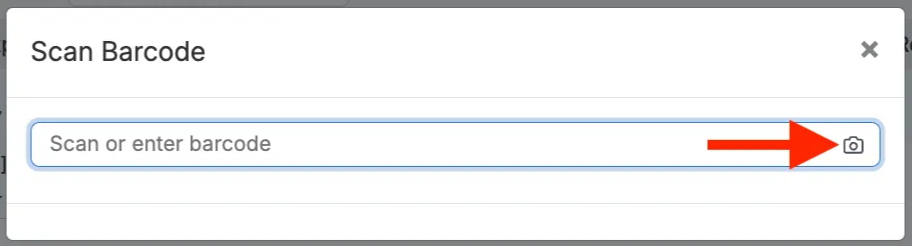
- In the search bar, click the barcode symbol to launch the device’s camera.
- Use the camera to scan the barcode and retrieve the associated record.
Barcode Tracking
Teams can also manage barcoded items through the Barcode Tracking module.
- From the sidepanel, select Lab > Barcode Tracker.
- Scan or manually enter a barcode to access its experiment or inventory record.
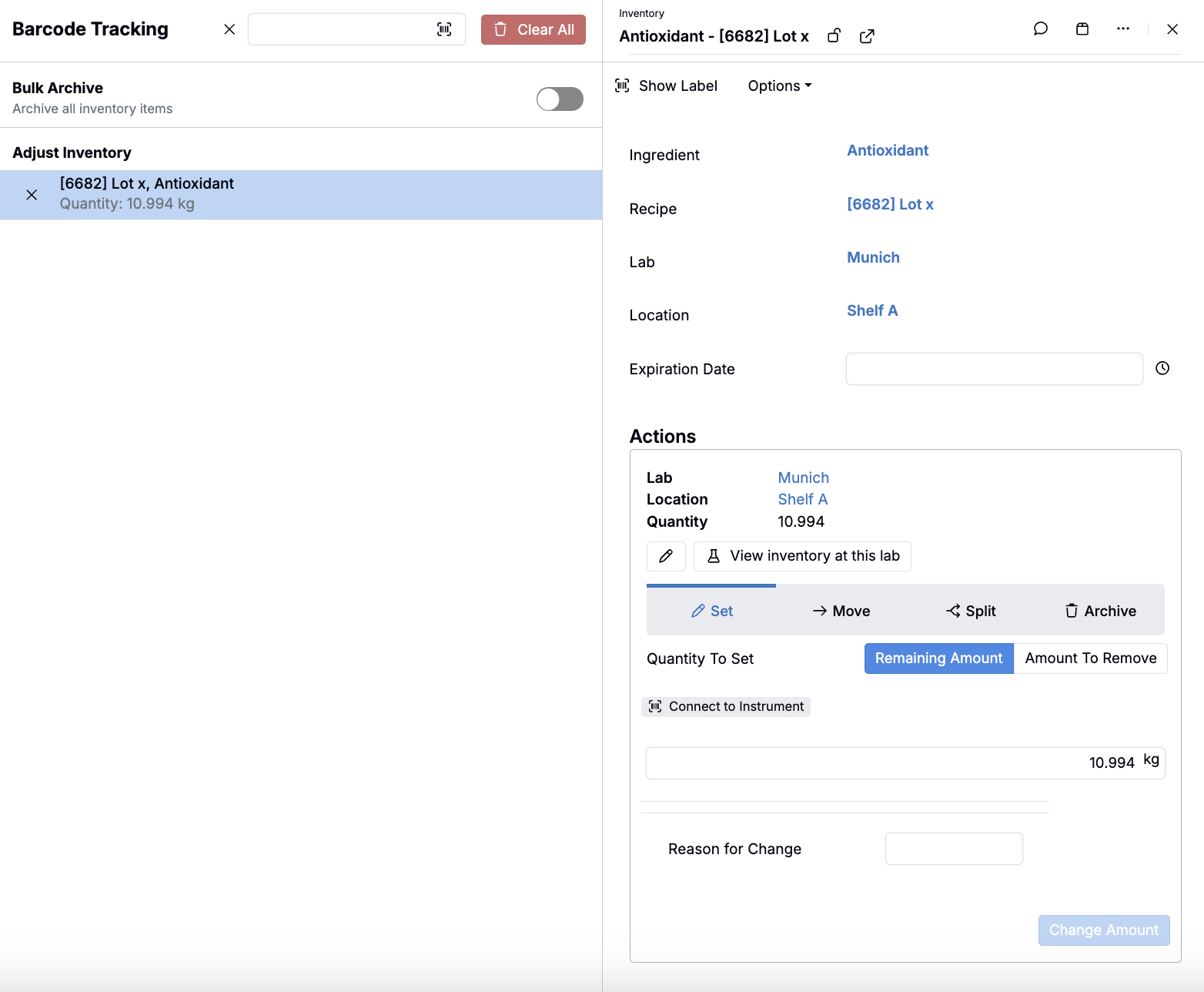
Inventory Actions in Barcode Tracking
When working with inventory, Barcode Tracking allows teams to:
- Set Inventory – Update the available amount and record a reason for the change.
- Delete Inventory – Remove an item entirely from the system.
- Move Inventory – Scan an item and a destination to update its location.
- Split Inventory – Divide a lot between two or more storage locations.