
Creating categorical process parameters works differently than creating other process parameter types because they must be linked to a fixed list of options in Form Admin.
Step 1: Create the categorical process parameter
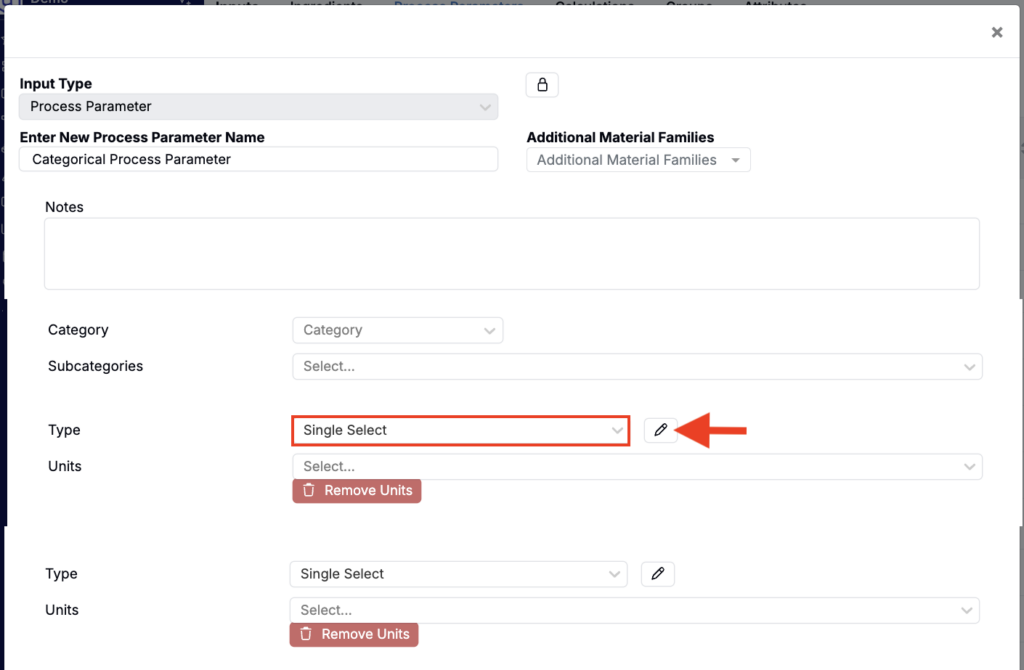
- Create a new process parameter.
- Enter the process parameter name.
- Assign units if needed.
- Set Type to Single Select or Multi Select.
- Click the ✏️ icon to select an ID source.
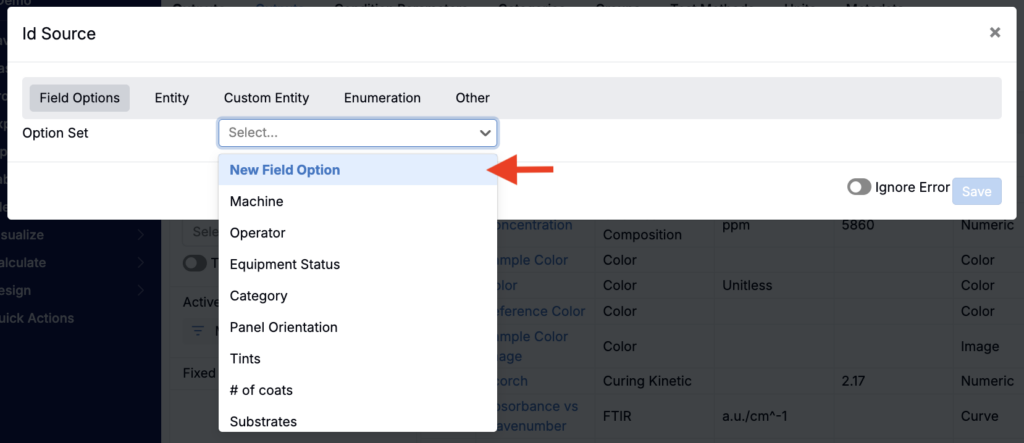
- In the modal:
- Select an existing Options Set, or
- Select New Field Option to create a new Options Set.
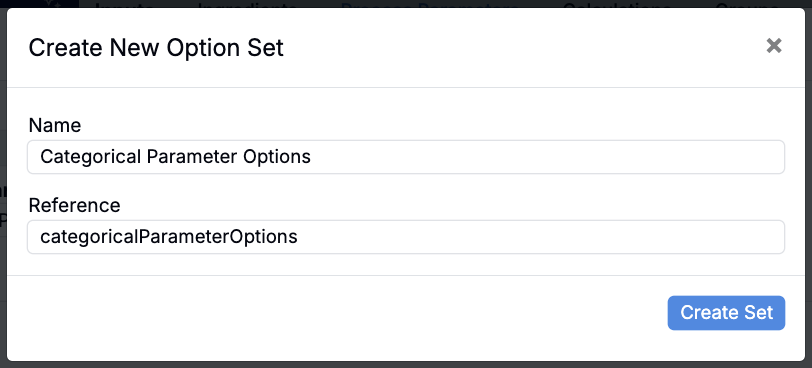
- If you are creating a new Options Set:
- Enter a name.
- Click Create.
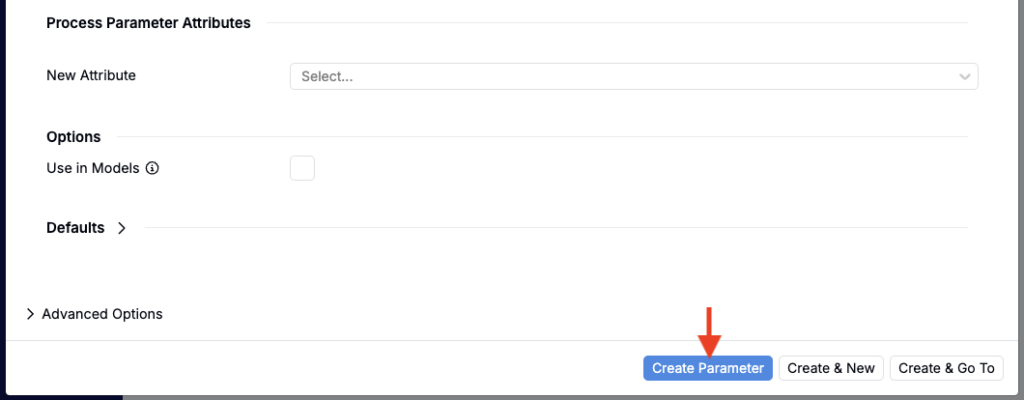
- Click Create Process Parameter.
Step 2: Add options to the Options Set
After the process parameter is created:
- Navigate to the Field Options page (Form Admin > Field Options) and open the new Options Set.
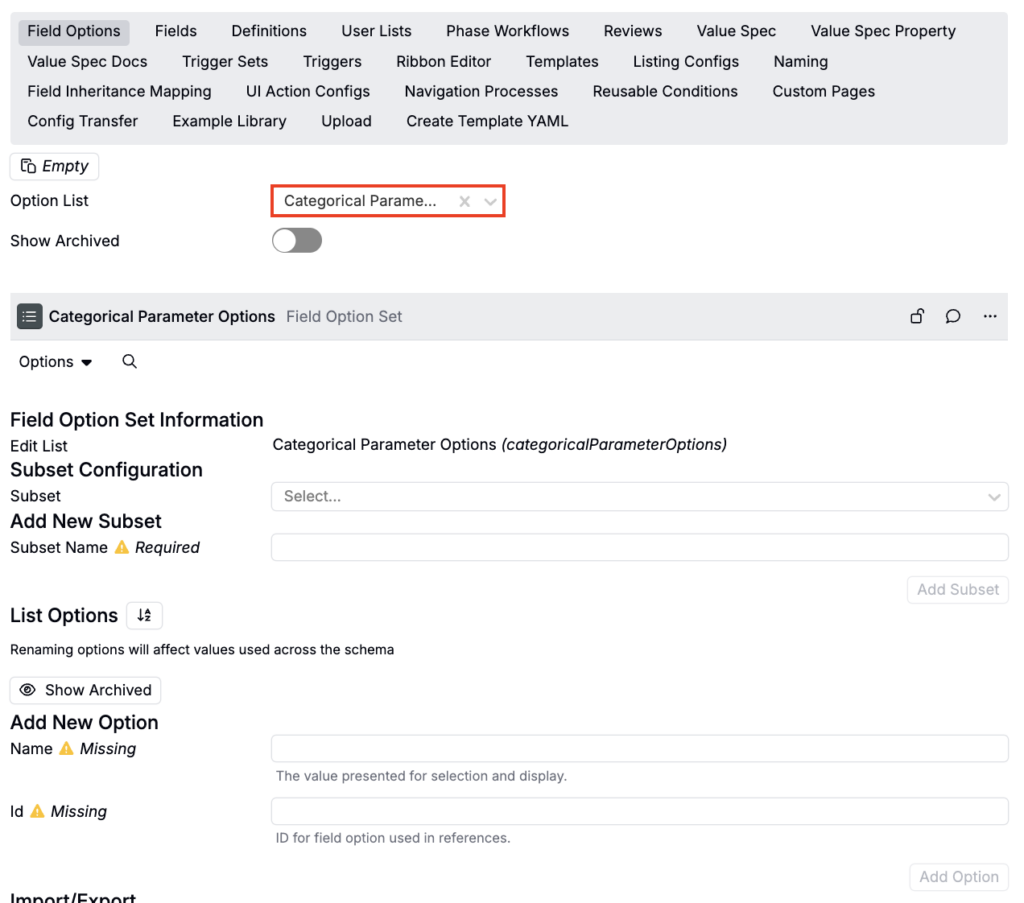
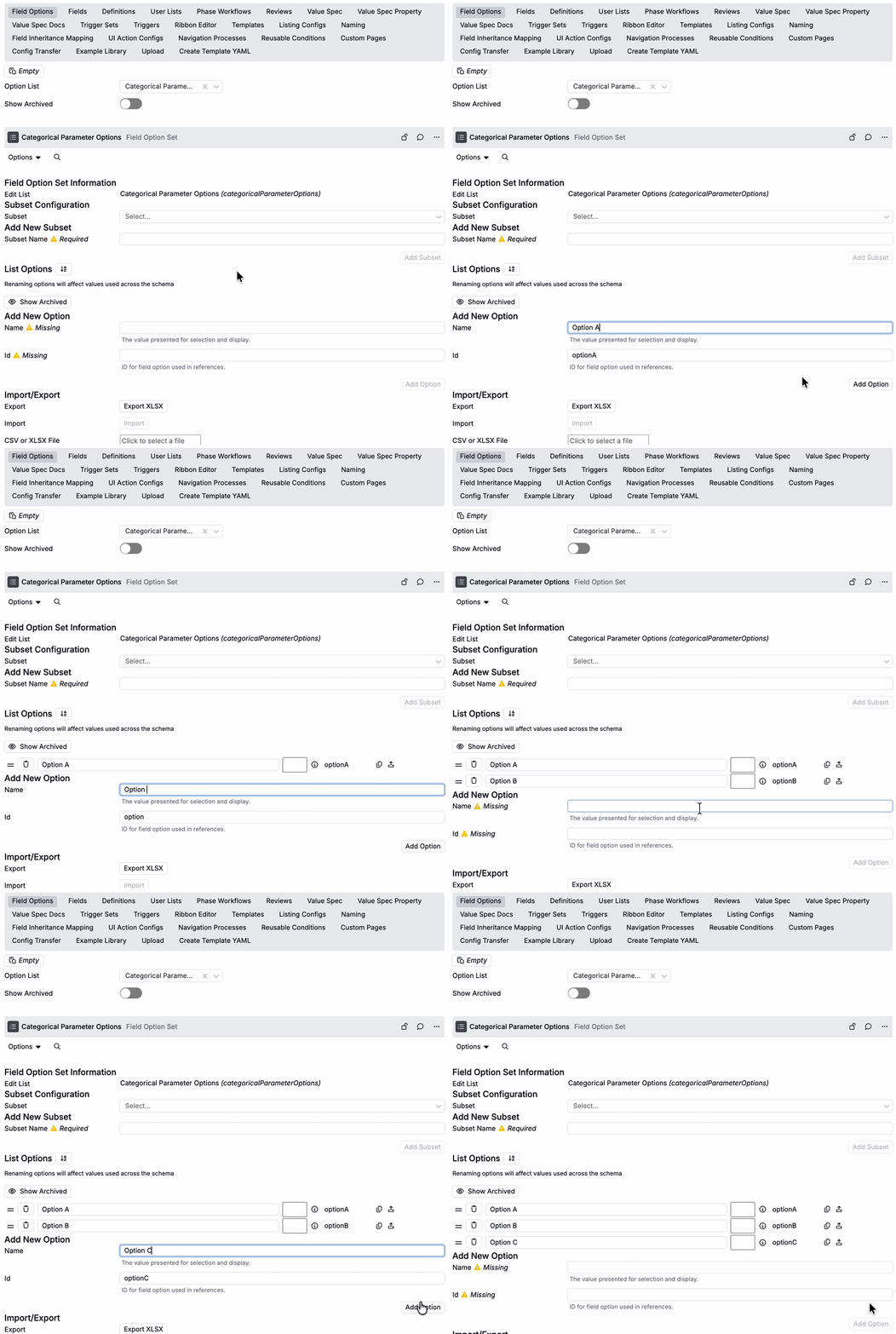
- Under Add New Options, type an option name.
- Click Add Option.
- Repeat until you have added all required options.
Step 3: Use the categorical process parameter
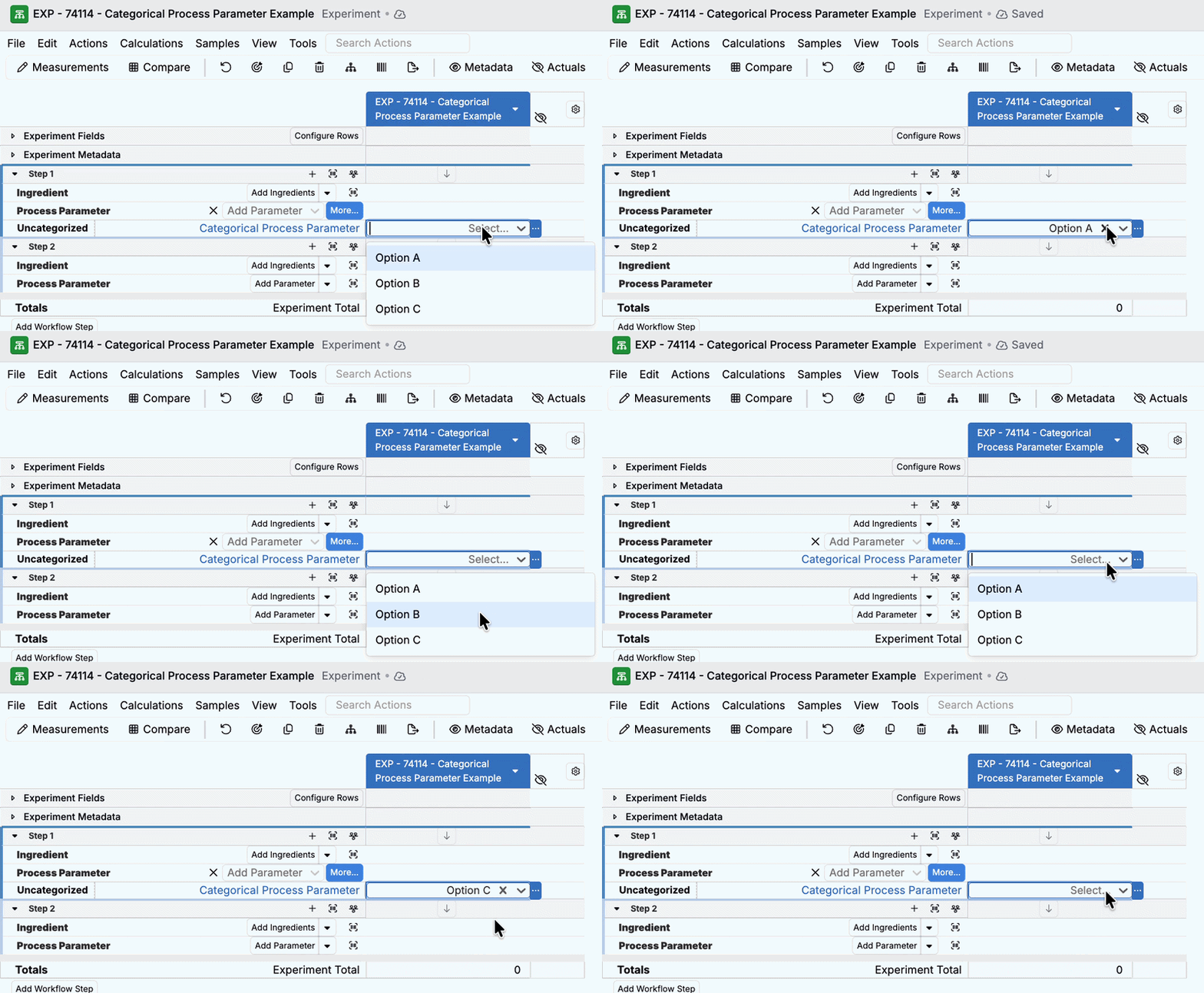
Once created, you can add the categorical process parameter to any experiment as normal. Once added, use the dropdown to select between field process parameter options.
Note: If the process parameter does not appear as an option, check the Material Families section of the process parameter’s details page to make sure it is available within the material family you are working in.