Aggregate Curve input calculations allow you to combine multiple curve-type attributes from the ingredients in a recipe into a single blended curve. The resulting aggregated curve represents a weighted average of individual ingredient curves, enabling you to predict or compare a formulation-level curve property based on the curves of its components.
This calculation type was introduced to support curve-based solver workflows, particularly for formulations where a key property — such as particle size distribution, absorption spectrum, or viscosity profile — can be approximated as a weighted combination of the ingredient curves.
What Is an Aggregate Curve Input Calculation?
Unlike other input calculation types that return a single numeric or text value, Aggregate Curve calculations return a curve — a set of x/y data points representing a blended property across the formulation.
The aggregation process works by taking a selected curve attribute from each ingredient in the recipe (or from each ingredient’s lot, depending on the configuration), then computing a weighted average across all curves using the ingredient amounts as weights.
Example use cases
- Particle size distribution (PSD) — Blend the PSD curves of dry powder ingredients proportionally to their mass fractions to predict the combined particle size distribution of the mixture
- Absorption or reflectance spectra — Aggregate spectral curves from pigments or fillers based on their concentrations
- Rheology profiles — Combine viscosity or flow curves from components to estimate a blend rheology
- Thermal analysis curves — Aggregate DSC or TGA curves to approximate behavior of a mixed system
How to Configure an Aggregate Curve Input Calculation
Aggregate curve calculations can be created from the Calculations listing page or directly in the Recipe view of a formulation. Both methods open the same creation modal.
In the modal:
- Enter a name and units (recommended) for your calculation
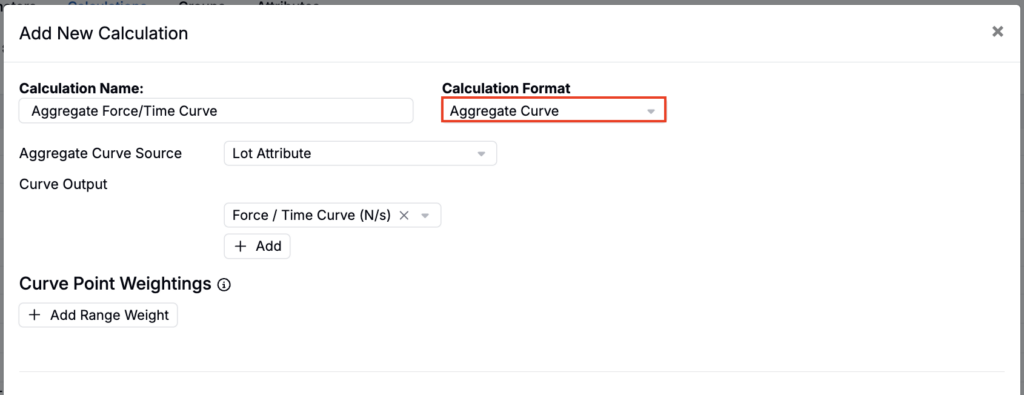
- Set Calculation Format to Aggregate Curve.
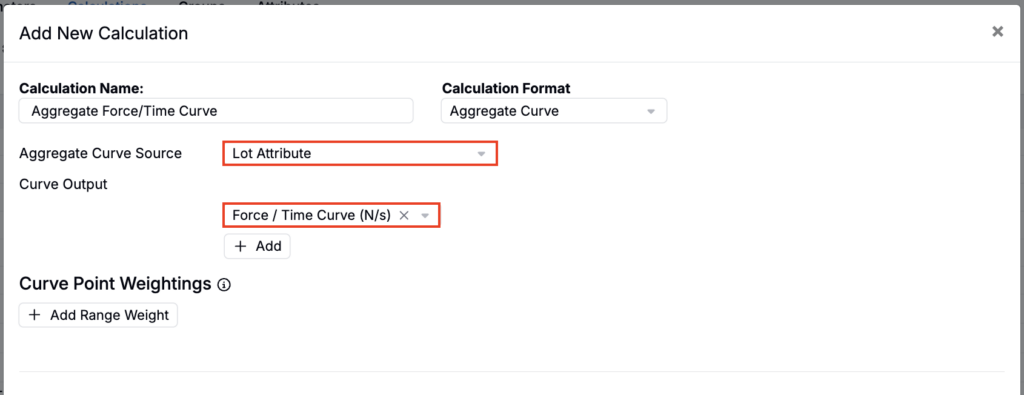
- Set Aggregate Curve Source to Lot Attribute. This pulls the curve from the measurement data stored on each ingredient’s lot.
- Select your Curve Output(s). This is the curve process parameter or curve-type output where the aggregated curve will be calculated and displayed.
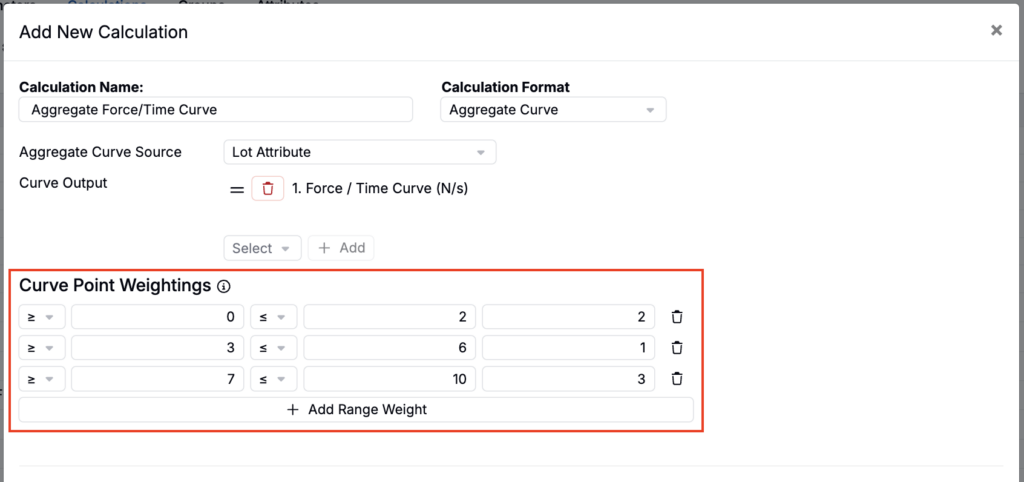
- Add Curve Point Weightings, optional solver-specific weights applied to ranges of curve x-values. Set a minimum and/or maximum x-value, then enter the weight to apply within that range. Points outside every range use a weight of 1.
Once saved, the calculation will display a blended curve on the recipe view, representing the weighted average of all ingredient curves present in the recipe.
Using Aggregate Curve Calculations with the Curve Solver
Aggregate Curve calculations are designed to work hand-in-hand with the Curve Solver. Once you have an Aggregate Curve calculation configured, you can set it as a Curve Objective in the Solver sidepanel. The Solver will then adjust ingredient quantities, while respecting any locks and constraints you have set, to make the aggregated curve match a target curve as closely as possible.
This workflow eliminates the need to manually prepare or manipulate curve data before solving, and makes it straightforward to optimize a formulation toward a target curve property.
To use:
- Create an Aggregate Curve calculation for the curve property you want to optimize.
- Enable the calculation on the relevant project or workflow.
- Open the Solver sidepanel on the recipe view.
- Set a Curve Objective targeting the aggregate curve.
- Run the solve. The Solver will adjust ingredient amounts to bring the aggregated curve (A) as close to the target curve (B) as possible.
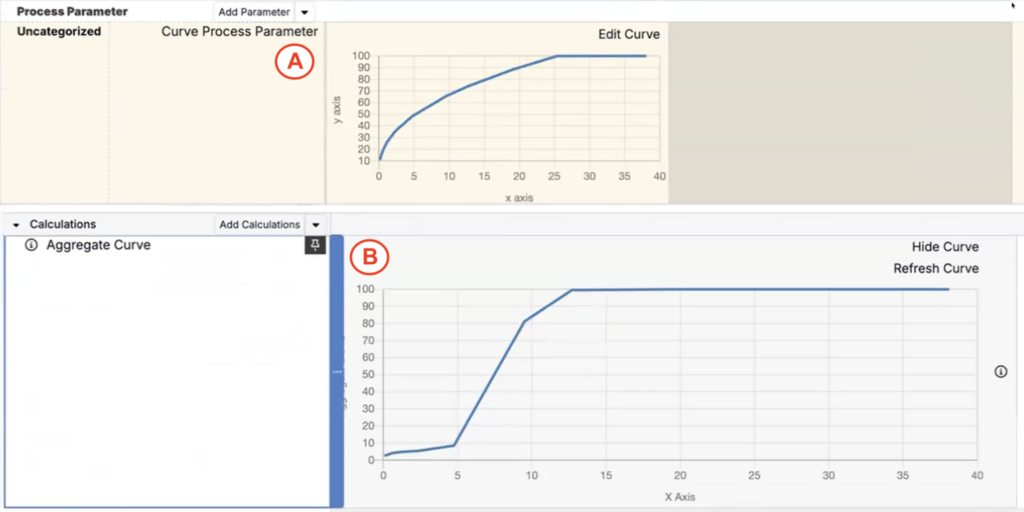
For more information, refer to the Curve Solver article.
Calculation Settings
Common
- Display in Experiment-Level Calculation Section — Shows the value at the bottom of the full recipe

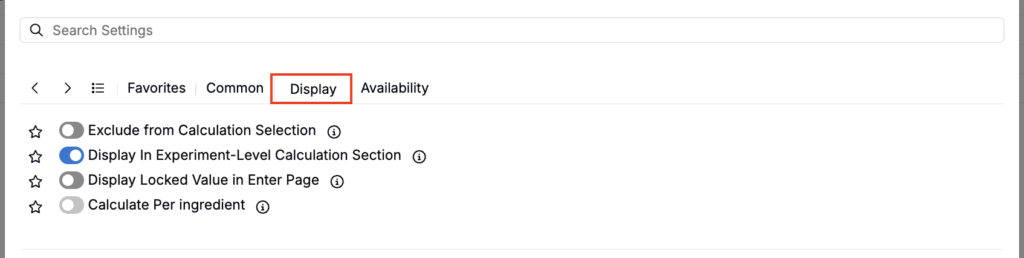
Display
- Exclude from Calculation Selection — Hides the calculation from view (useful for intermediary calculations)
- Display in Experiment-Level Calculation Section — Shows the value at the bottom of the full recipe
- Display Locked Value in Enter Page — If enabled, all cells for this calculation are locked on the Enter Recipe page (behaving like they are in Solve mode), preventing manual edits.
- Calculate Per Ingredient — When enabled, the calculation is computed separately for each ingredient (rather than only as a single rolled-up recipe-level value).
Availability
- Add to New Projects — Automatically includes this calculation in new projects in the material family

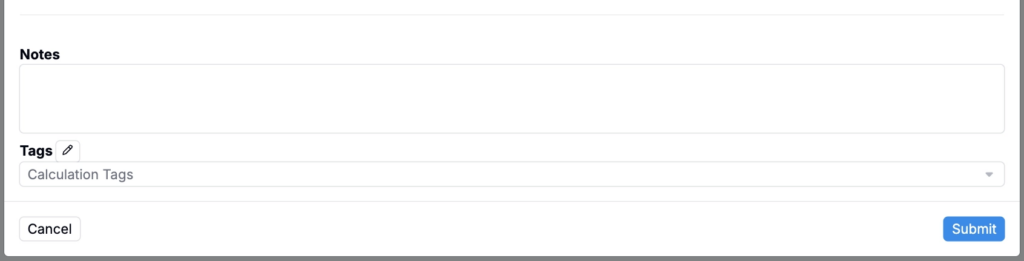
- Notes — Free-text shown on hover over the calculation in the recipe view
- Tags — Group calculations together. Tags let you toggle visibility of related calculations as a set.