The Support Tickets system is the best way to ask for help, report a problem, or request a change in Uncountable. Submitting a ticket creates a shared, trackable record that both your team and Uncountable can use to coordinate, prioritize, and resolve the request.
When to file a ticket
File a support ticket any time you need help that should be tracked to completion, including:
- Something isn’t working as expected (errors, missing data, permissions issues, performance problems).
- You have a question that impacts your work (how to do something, best practice guidance).
- You want to request a change (new fields, new options, workflow updates, account-specific configuration).
- You need Uncountable to investigate something that may require back-and-forth.
A ticket is especially useful when:
- The issue is blocking work or has a deadline.
- Multiple people need visibility into the status.
- You want the full history of the request in one place.
How to submit a ticket
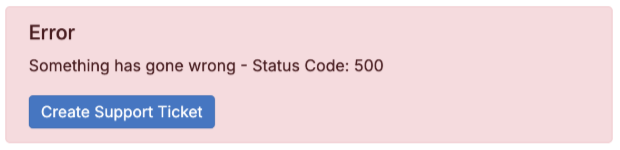
Some errors messages include a Create Support Ticket button directly in the red error pop-up. This is usually the fastest way to report an issue, because it captures context automatically.
To create a ticket manually:
- Navigate to the page where you see the issue.
- This is important because it automatically attaches a link to that page.
- If the issue shows up in more than one place, file the ticket from the page that best demonstrates the problem and mention any other impacted pages in the description.
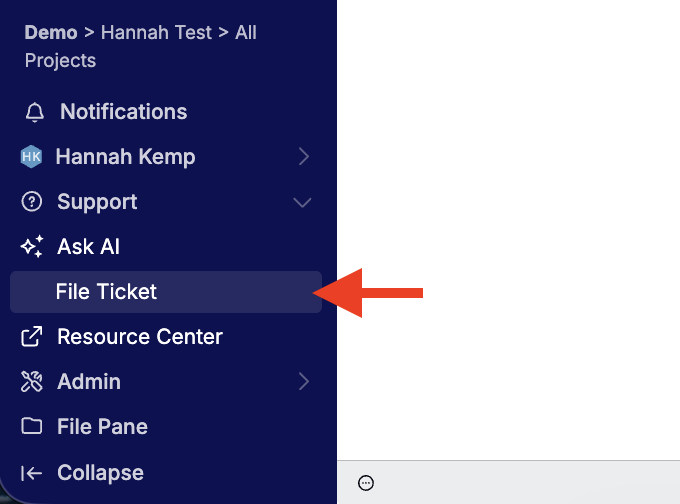
- Create a new support ticket by clicking Support → File Ticket in the navigation bar.
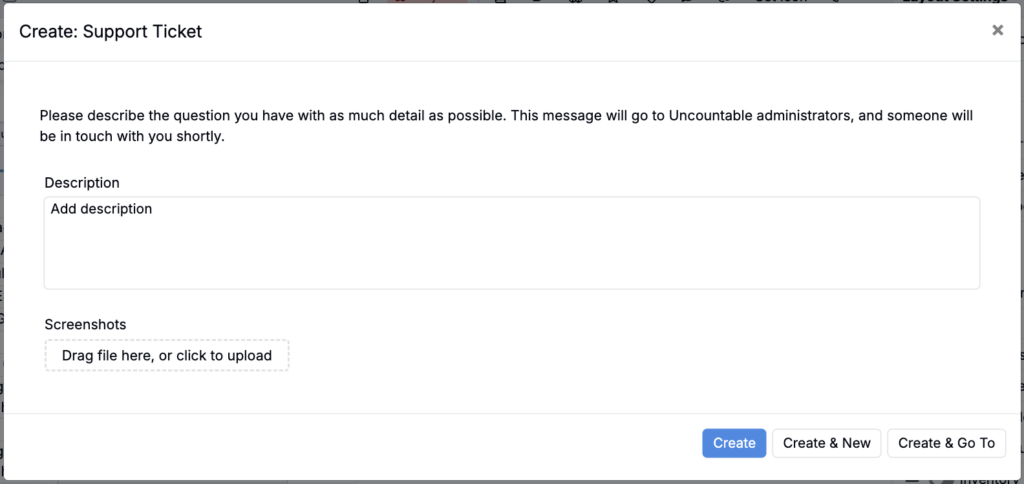
- In the modal, add a description including what happened, what you expected, and any relevant context.
- Create the ticket.
How to view support requests
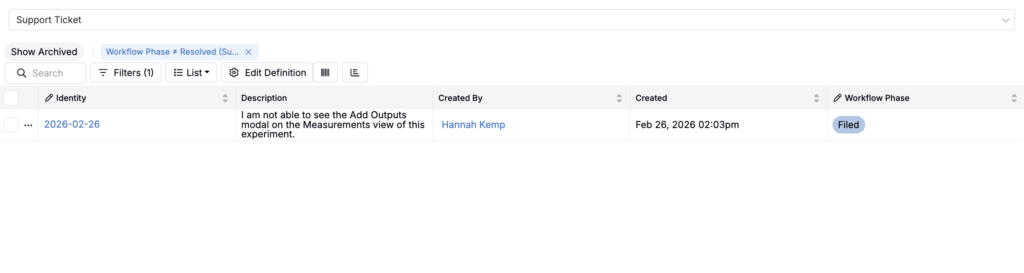
After you submit, the ticket will appear in the Support Ticket listing and can be tracked through its workflow stages (Filed, Responded, Resolved). To access the listing, select Lab > Lists from your Uncountable navigation bar. Then, select Support Ticket in the top menu.
Support ticket email notifications
Within your schema, you can control over who receives email notifications when support tickets are filed by adding them to the Support Ticket Notify user list.
To add a user to this list:
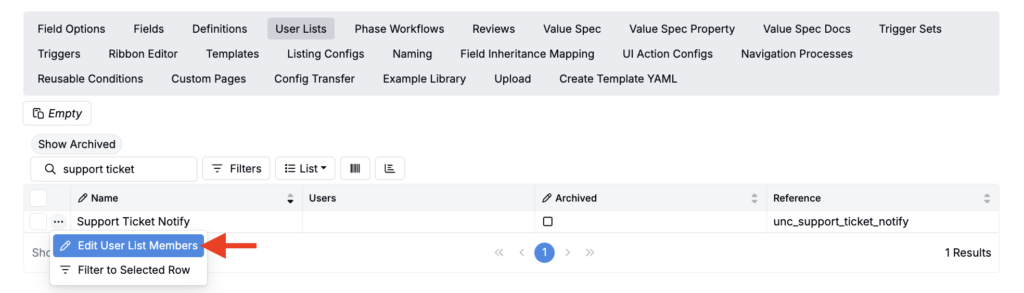
- Navigate to the User List tab of Form Admin.
- Search for the Support Ticket Notify user list.
- Select … > Edit User List Members.
- At the bottom of the page, use the Add User field to add users.

All users added to the Support Ticket Notify user list will receive email notifications when new tickets are filed within the schema.
Who responds to tickets?
Once filed, a Uncountable representative will respond to your ticket.
Commenting on support tickets
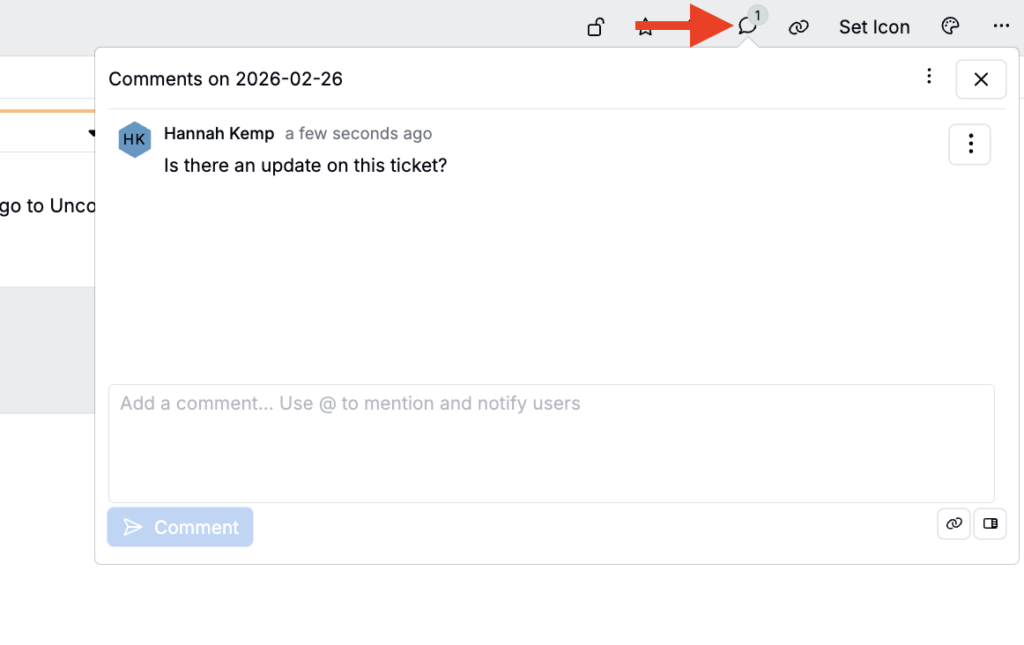
Use the Comments section on the ticket for all follow ups, ask questions, and receive updates. This keeps the full history of the request attached to the ticket.