
Use the Entities Importer to bulk create or update projects within a schema. This importer allows you to add or edit project names, parent projects, and other core fields for many projects at once, instead of doing so manually.
Using the Entities Importer
Step 1 — Access the Importer
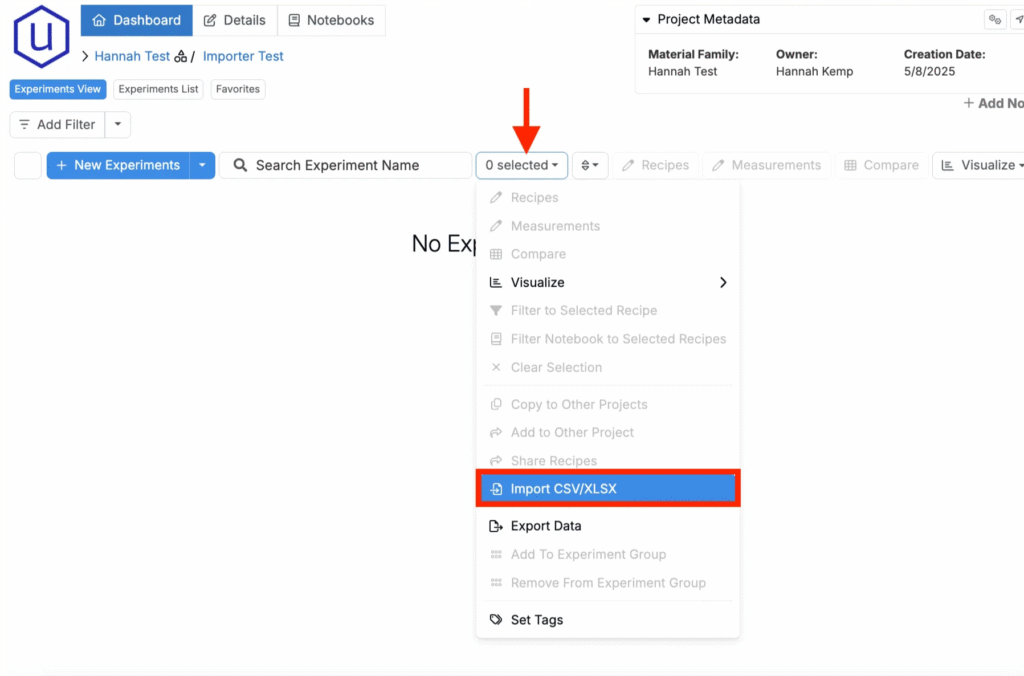
- Navigate to any project dashboard.
- Access the selection menu and click Import CSV/XLSX.
Step 2 — Select Import Type
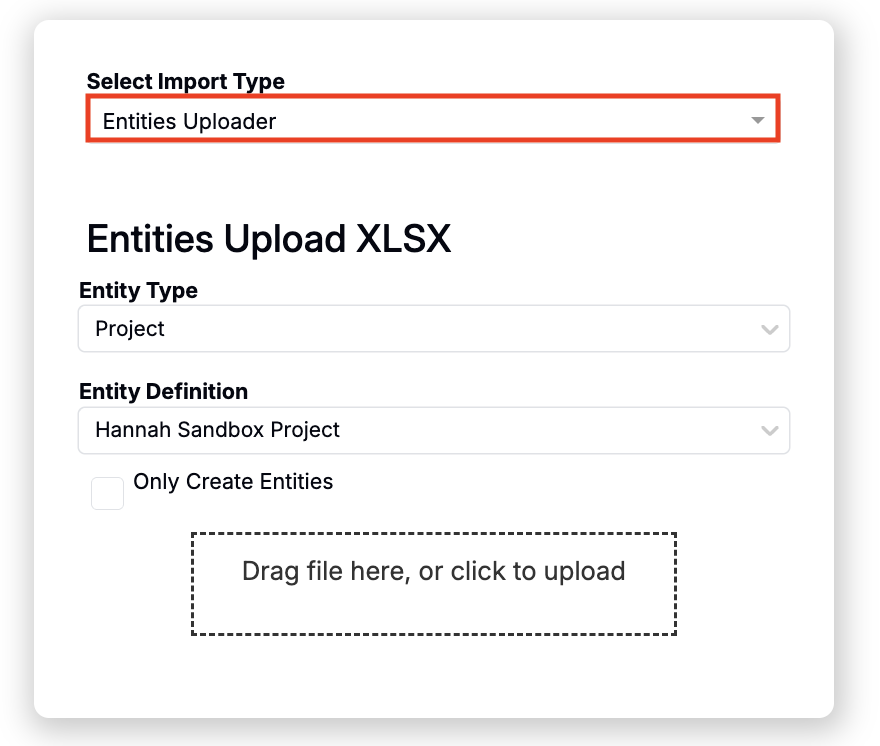
- At the top of the page, set Import Type to Entities Uploader.
- Set Entity Type to Project.
- Use the Entity Definition field to select from available project definition types.
Step 3 — Prepare Your Spreadsheet
For Uncountable to process your upload, your spreadsheet must follow a specific format. Start from the sample template, then configure the columns for your projects.
- Download the template: Project Entities Uploader Template
Spreadsheet Structure
Each row represents a single project and each column represents project information.
Required Columns
- name — Final display name for the project. If you plan to automate naming via triggers, you can still provide a name here as a fallback.
- coreEditableName — The editable name field used by Uncountable. In most setups this matches name.
Optional Columns
You can also columns for each project definition/metadata field you want to populate. Use each field’s reference name as the column header.
- Example headers:
projectNumber,customer,core_project_startDate,projectManager
Values must be formatted according to the field type:
- Date: ISO‑8601 date (YYYY‑MM‑DD) or datetime if the field expects time
- Numeric: number only, no units or symbols
- Fixed list: option text must match exactly, including case
- Text: free text


Tips
- Confirm that your project definition includes all of the metadata fields you intend to import and that it’s enabled for the correct material families.
- If updating existing projects, include a stable identifier column that your company uses to locate projects, or ensure that the combination of name/coreEditableName and selected definition uniquely identifies the target project.
Rules & Constraints
- Column order does not matter, but headers must match exactly.
- Use field reference names for metadata columns and ensure values match field types.
Step 4 — Import, Review, and Submit
- Upload your file. Drag and drop the prepared spreadsheet into the Entities Uploader.
- Resolve errors. Issues will be highlighted in red and will prevent submission.
- Review changes. Confirm the projects to be created or updated and any associated projects and metadata.
- Click Import to apply the changes.
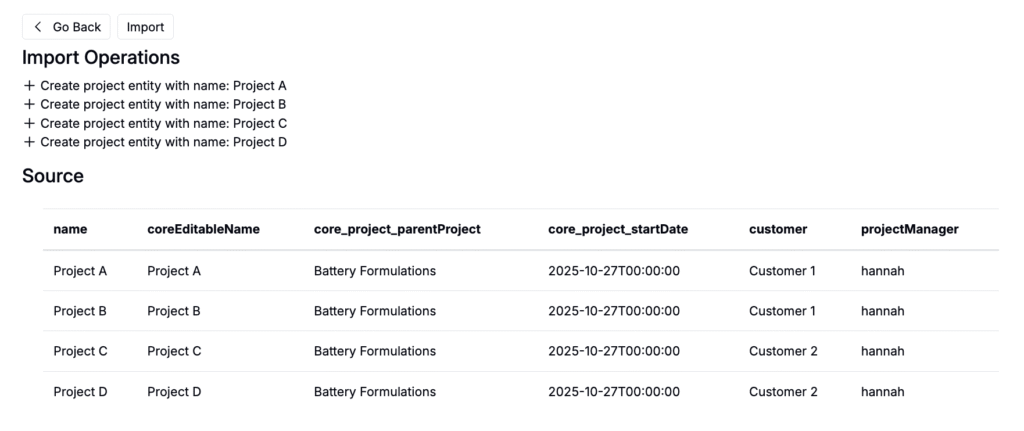
After submission, the importer will create new projects or update existing ones in your schema’s projects list. Metadata columns that match reference names on the selected definition will be populated on each project.