
Advanced Screening Design, Uncountable’s DOE (Design of Experiments) tool, lets you generate sets of experiments by combining fixed and varying factors across ingredients, ingredient categories, process parameters, and calculations.
When to use
Use Advanced Screening Design when you want to:
- Explore a space without any previous data or information.
- Create large sets of experiments with systematic factor changes like in traditional DOEs.
- Keep certain input values aligned to a validated baseline while testing deltas.
- Control totals/targets (e.g., sum to 100) while varying components.
- Reuse the same setup across teams and projects as a saved design template.
- Build multi-layer coating panels or samples at scale. Learn more.
Key concepts
- Base Experiment (recommended): An existing experiment you start from.
- Base Workflow: Structured steps that create the framework for new experiments. Not needed if you select a Base Experiment.
- Base Variant (optional): A specific preset within the chosen base workflow.
- Design: A reusable template that defines factors, levels, totals, layout, and constraints.
- Replicates: How many identical recipes to create for each factor combination.
- DOE Group Type: The physical layout/grouping for generated experiments (e.g., generic experiment group, well plate/panel).
- Generation Preview: A live count/list of what will be created before you commit.
Creating a DOE
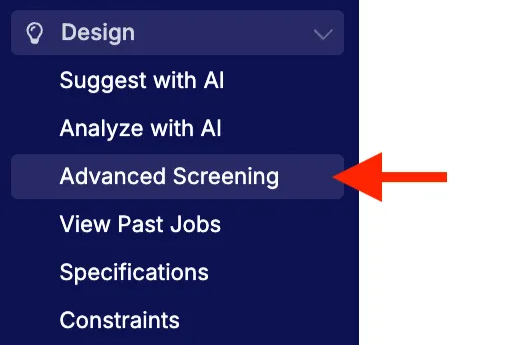
- In the navigation bar, select Design > Advanced Screening.
- Choose a Base Experiment or a Base Workflow (and Base Variant, if relevant).

- Decide whether to load a saved design template or create a new one from scratch.
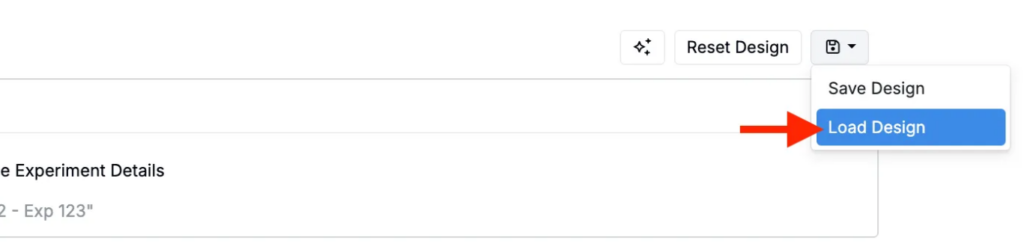
- To load a template, click the Save icon (top‑right) → Load Design.
- Use the Parameter field to add DOE parameters (see all parameter types below).
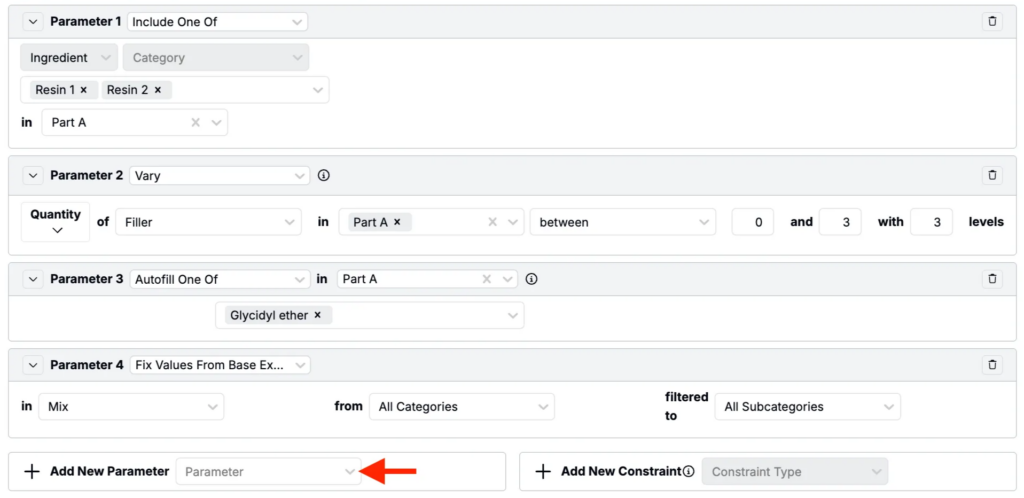
- Optionally, you can also use the Constraint Type field to exclude unwanted input combinations (applies to Include one of factors).

- Set the DOE Group Type (the physical layout or grouping for the experiments you generate, such as a generic experiment group, well plate, or panel).

- Under Advanced Options, you can also manage the following:
- DOE Type — Select either a Full or Fraction Factorial Design.
- DOE Generation Mode — Choose whether to generate a single group or child groups.
- Parent Group — Add new experiments to a selected parent experiment group
- Solver Constraints — Toggle on/off Solver constraints for new experiments created.

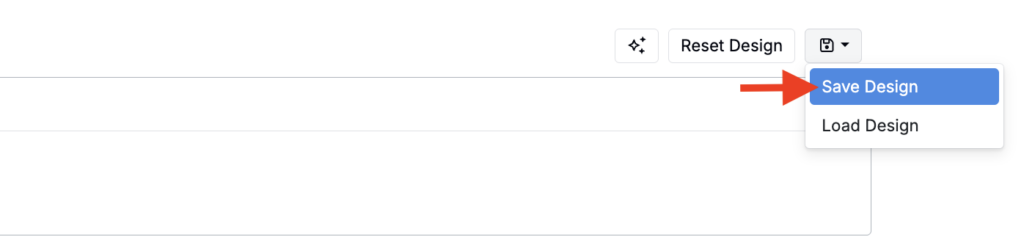
- To save your DOE as a template, click the Save icon (top‑right) → Save Design.
- In the modal, enter a name or replace an existing save.
- Choose users and user groups to share the DOE with (optional).
- Select Create Design to generate experiments.

Once generated, you’ll be directed to a view of all new experiments generated from your parameters, constraints, and replicates. From this page, you can can edit fields, add measurements, and re-solve.
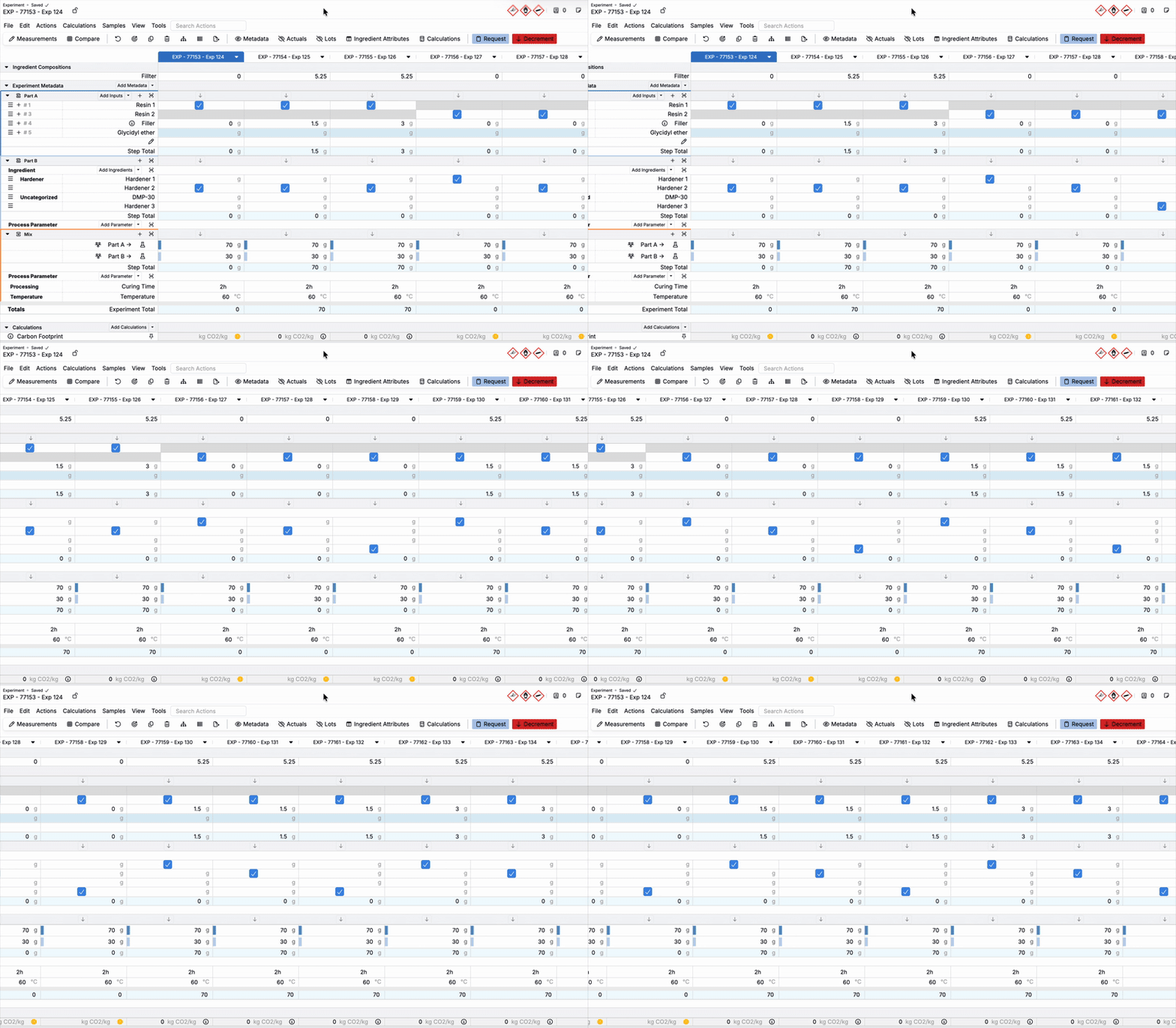
DOE Parameter types
Below are a list of all parameter types currently available. For DOEs with workflows, each parameter is scoped to a specific step.
Fix
Hold an input at a specific value for all generated experiments.
- Use for: Locking validated ingredients, set points (e.g., thickness, bake temp), or reference selections.
- Example: In the Part B workflow step, fix the weight percent (input calculation) of Hardener 1 at 5%.

Vary
Explore an input across discrete levels or an auto‑spaced range.
- Use for: Exploring parameters between A and B, starting at X, or at fixed levels of X, Y, Z.
- Example: In the Mix workflow step, vary the temperature between 400 and 450 with 3 levels.

Float
Allow an input to move up/down to meet a target total during solve.
- Use for: Balancing formulations to a step or experiment total.
- Behavior: Adjusts at experiment generation time to hit the total. Does not persist as an “autofill” behavior on the recipe (use Autofill one of for this).
- Example: In the Part B workflow step, float the amount of DMP-30 upon experiment creation.

Include one of
For each experiment, include exactly one input from a list—ideal for swapping a raw material or parameter option.
- Use for: Selecting one substrate, one binder, one topcoat, etc., per recipe.
- Constraints: Pairs with Constraints to forbid specific combinations.
- Example: In the Part B workflow step, include one of Hardener 1, Hardener 2, or Hardener 3.

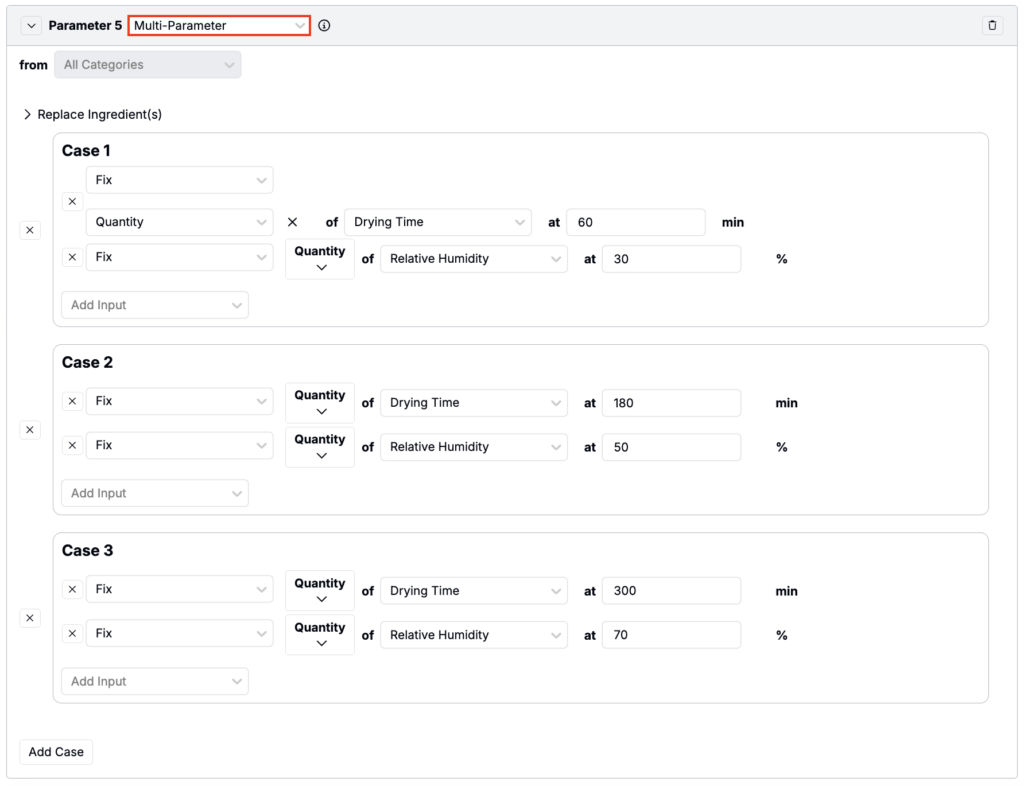
Multi‑parameter
Vary multiple parameters together as a bundle when factors are interdependent (e.g., category‑based swaps).
- Use for: Testing predefined pairs/groups (e.g., two surfactants that must move together).
- Example:
- Case 1: Fix drying time at 1 hour and relative humidity at 30%.
- Case 2: Fix drying time at 3 hours and relative humidity at 50%.
- Case 3: Fix drying time at 5 hours and relative humidity at 70%.
Fix values from base experiment
When using a base experiment, pull values from the selected base and lock them in the design.
- Use for: Keeping ingredients, parameters, or specific ingredient categories/subcategories identical to baseline while other factors change.
- Example: Fix all ingredient and parameter values within the Mix workflow step.

Autofill one of
Designate the ingredient that should automatically fill to a workflow or recipe step total. There can only be one Autofill ingredient per workflow step.
- Use for: Ensuring workflow step totals are met by dynamically autofilling one item.
- Behavior: Unlike Float, Autofill persists on generated recipes as an ingredient behavior.
- Example: In the Part A workflow step, autofill the amount of Glycidyl either upon and after experiment creation.

Manually set total
Define a target total mass per step (or across all steps) that the solver respects.
- Use for: Enforcing a specific total mass per workflow step or cross the entire formulation.
- Generate with Solver Constraints: When the total depends on calculations or you want Solver to keep enforcing the target during re-solve, enable Generate Solver Constraints under Advanced Options so the total is added as a constraint on the new experiments.
- Example: Manually set the experiment total to be 100 g.

Number of replicates
Create N identical copies of each factor combination.
- Total experiments generated = (factor combinations) × N replicates
- Example: If your other parameters generate 6 factor combinations and you set 3 replicates, you’ll create 18 total experiments.

Adding DOE Constraints
Use Constraints to prune combinations between two Include one of parameters.
- Choose AND to keep only cases where both chosen options co-occur, or
- Choose OR to allow one or the other (not both).
Example
You define two Include one of parameters in the Part B workflow step:
- Include one of: Hardener 1, Hardener 2, Hardener 3
- Include one of: DMP-30, Sulfuric acid
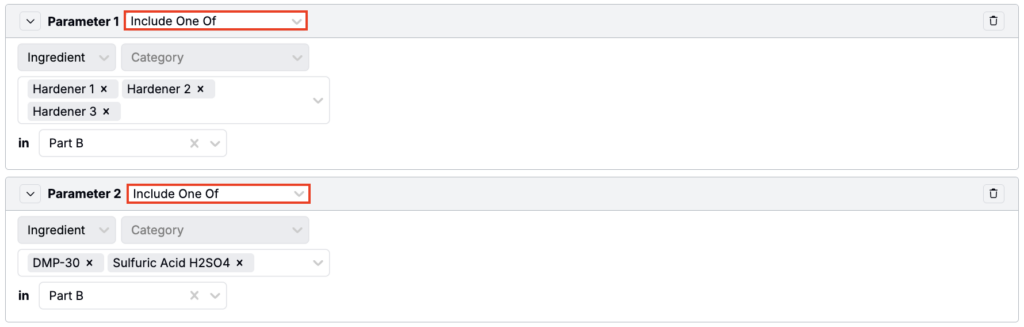
You could then add a OR Constraint between these two factors:
- Left Factor: Hardener 3 (Parameter 1)
- Right Factor: Sulfuric Acid (Parameter 2)

The OR constraint keeps cases where one side is chosen but filters out recipes that would include both inputs.
DOEs with calculations & solver constraints
Some parameters are calculations. For example, you can create a Fix parameter that fixes the weight percent (input calculation) of Hardener 1 at 5%.

When you Fix or Vary an input calculation or when you Manually set total target:
- Under Advanced Options, check Generate Solver Constraints.
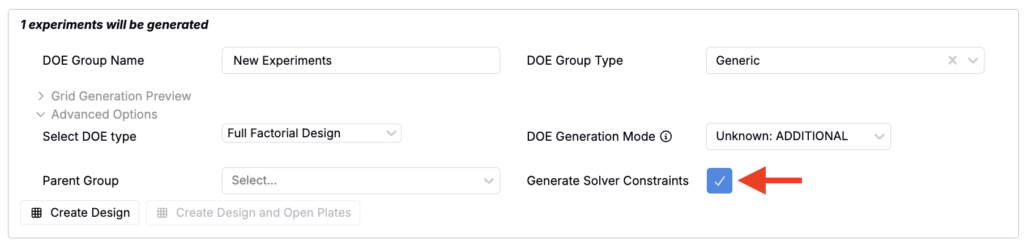
- Create your design.
- On the new experiments, open the Solver/Locks sidepanel (to verify constraints are present). If values don’t appear locked, confirm the calculation is enabled for those recipes and that constraints exist.
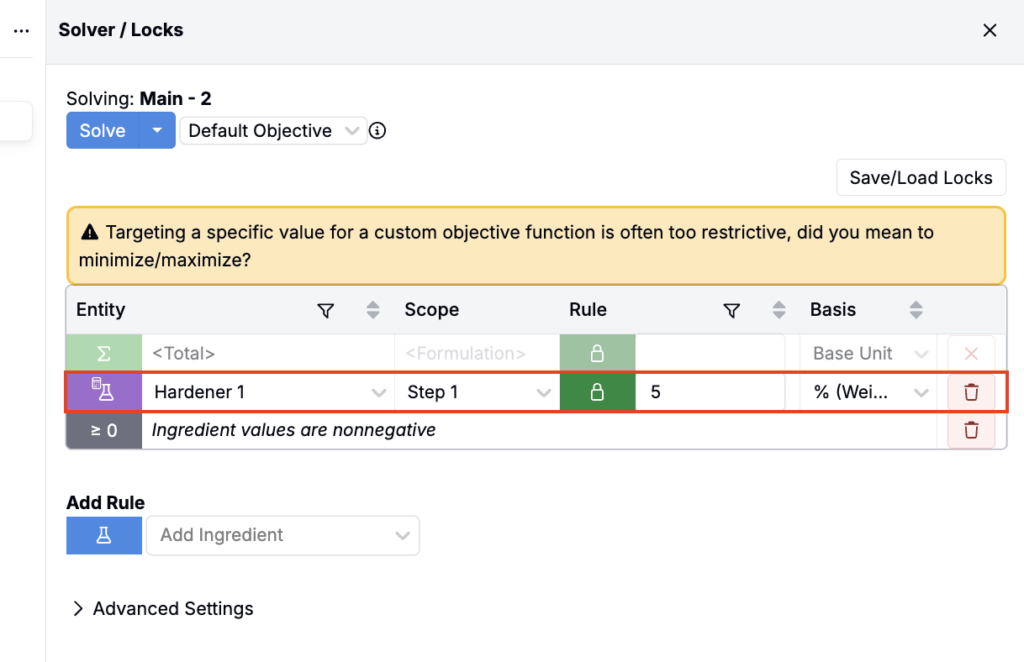
- Use Solve mode to finalize experiment values.
Multi-layer samples and coating panels
One great use case for the DOE tool is building multi‑layer coating panels. Using Advanced Screening Design, you can define layer‑specific inputs (substrate, primer, base coat, top coat), vary process conditions (film thickness, bake profile, humidity, application method), and add replicates. This allows you to efficiently generate and validate complete panel matrices in one pass while pruning invalid combinations with constraints.
To learn more, refer to Advanced Screening Design for Multi-Layer Samples.