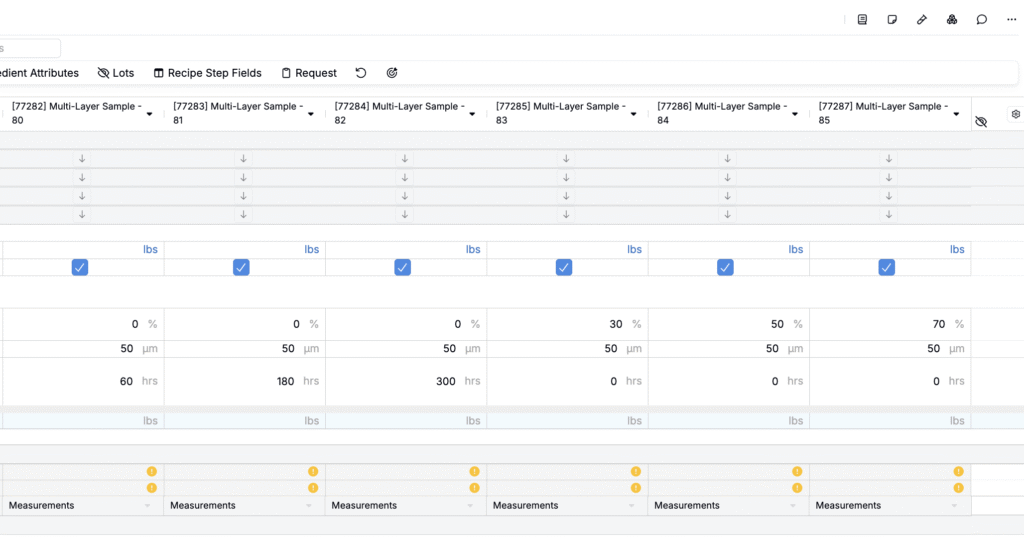
In Uncountable, the Advanced Screening Design (DOE) tool lets you generate many experiments at once by combining fixed and varying factors across ingredients, ingredient categories, process parameters, and calculations.
You can use this tool to create multilayer recipes and multi-coat paint panels at scale (coating systems or system buildups). For example, if you need a series of samples with several substrates, primers, base coats, and top coats, the DOE will generate all required combinations for you.
Within a single DOE, you can define multiple layers, including recipes (coatings that form each layer in the system), substrates (the underlying materials), and process parameters (such as temperature, humidity, application method, and drying time).
Any setup you create can be saved as a reusable Design template and shared with individual users or user groups for future use.
Multi-Layer Sample DOE Workflow
To set up multi-layer samples (such as multi-coat panels or coating systems) with the Advanced Screening Design tool, follow this high-level workflow:
Step 1 — Access the DOE tool
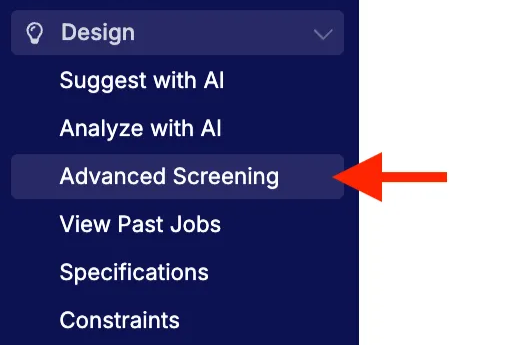
- From the navigation bar, select Design > Advanced Screening Design.
Step 2 — Select a panel workflow
- On the Base Workflow tab, choose a panel workflow that defines the steps and layers in your multi-layer system (e.g. substrate → primer → base coat → top coat).
- If applicable, select a Base Variant that matches the specific variant of the workflow you want to use.

Step 3 — Load a DOE template (optional)
DOEs are structured templates that define the precise sequence of inputs required to create the desired multi-layer recipe or panel.
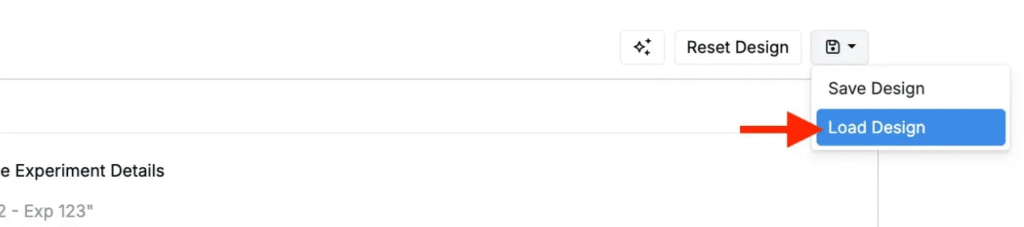
- To reuse an existing template, click the Save icon (top‑right) → Load Design.
- Once loaded, you can adjust design parameters as needed.
Step 4 — Define parameters for your layers and substrates
If not using a previously saved template, create a new DOE by adding parameters. These parameters inform the combinations of multi-layer samples that will be generated.
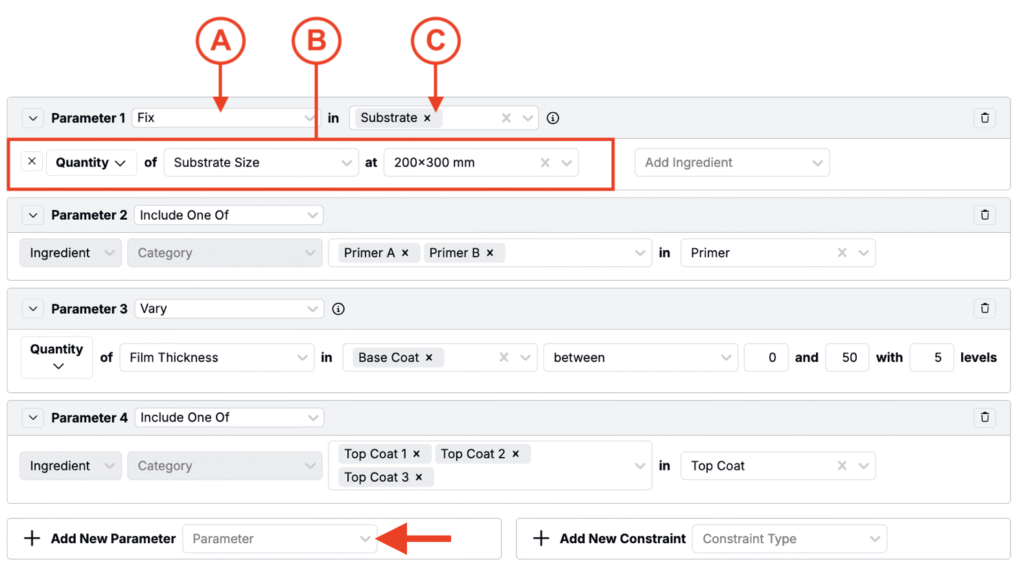
- Add new parameters using the Add New Parameter field.
- For each parameter:
- Select a Type (A). Learn more about parameter types.
- Select the input (B) the parameter will be applied to and its value or range, if applicable.
- Inputs can be coatings (e.g., primer, binder, solvent), process parameters (e.g., film thickness, application method, drying time), or input calculations.
- Use the Step (C) field to specify which layer of the sample the input will be included in.
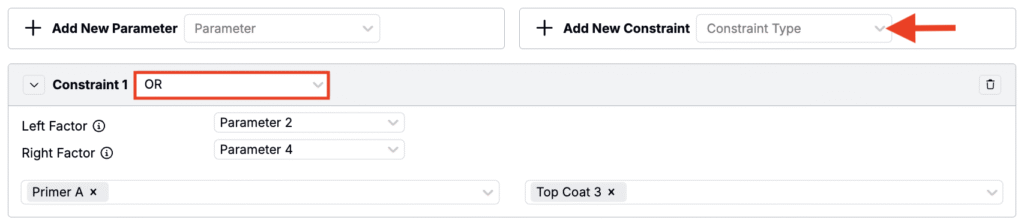
- (Optional) Use Constraints to exclude unwanted combinations between two Include one of parameters. Learn more about constraints.
- Choose AND to keep only cases where both chosen options co-occur, or
- Choose OR to allow one or the other (not both).
- Add a Number of Replicates parameter to specify the number of identical panels/recipes that should be created.

- Specify the DOE Group Type.

- (Optional) Use Generation Preview to verify counts and combinations.
Step 5 — Save and reuse your Design
Once configured, save your DOE so you or your team can quickly regenerate similar multi-layer panels in the future.
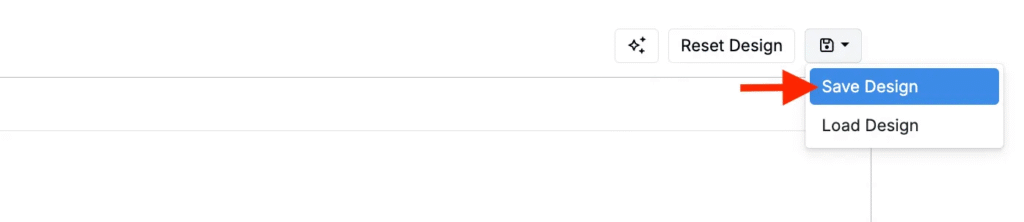
- Click the Save icon (top‑right) → Save Design.
- In the modal, enter a name or replace an existing save.
- (Optional) Choose users and user groups to share the DOE with.
Step 6 — Create DOE
- Once ready, click Create Design to generate experiments.
- You’ll then be directed to a view of all new multi-layer samples. From this page, you can can edit fields and add measurements.

Learn more
For detailed guidance on the DOE tool, including parameter types, settings, and behavior, refer to the main Advanced Screening Design (DOE) article.
DOE for Multi-Layer Samples Examples
To better understand Advanced Screening Design, let’s consider a few example scenarios:
Scenario 1
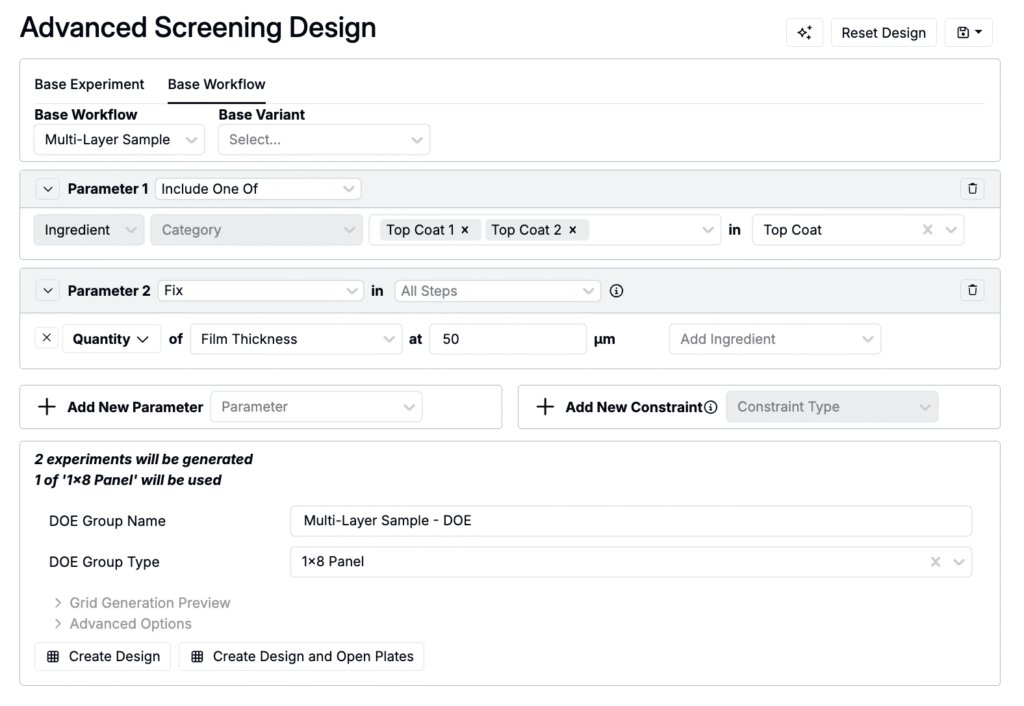
You want to determine whether Top Coat 1 or Top Coat 2 is a better coating layer for a formulation with a film thickness of 50 µm.
- Set Parameter 1 to include one of Top Coat 1 or Top Coat 2.
- Set Parameter 2 to fix a film thickness of 50 µm.
- Select a group type.
- Create the design.
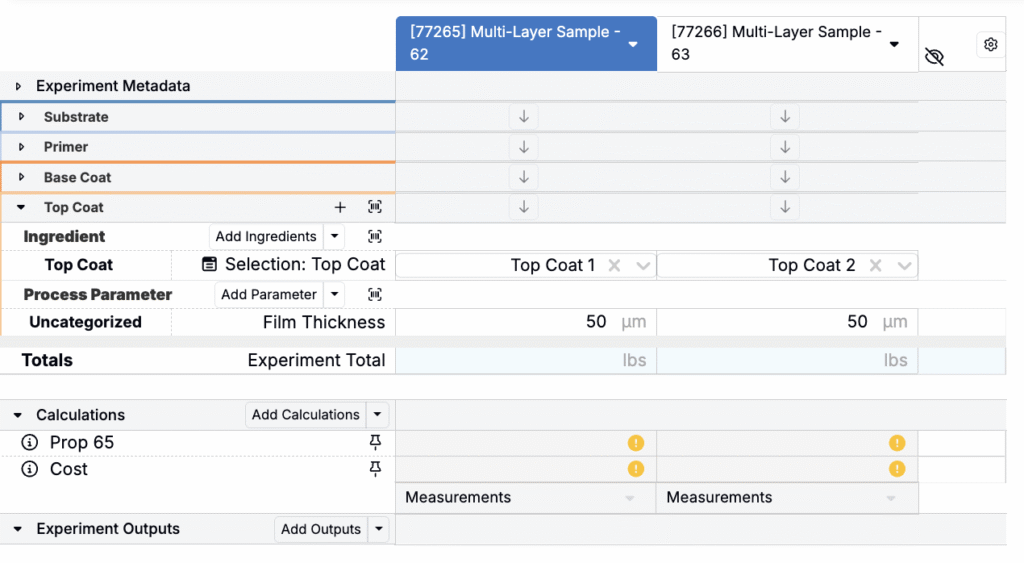
Results: The design generates two otherwise identical panels, one with Top Coat 1 and one with Top Coat 2, each at 50 µm. With substrate and process settings held constant per your workflow, differences in performance can be attributed to the top coat. Compare key measurements to decide which top coat is optimal.
Scenario 2
You want to find the optimal drying conditions for a new paint material with a film thickness of 50 µm.
- Set Parameter 1 to vary the drying time between one and five hours with three levels.
- Set Parameter 2 to vary drying air humidity between 20% and 80% with three levels.
- Set Parameter 3 to fix film thickness at 50 µm.
- Select a group type.
- Create the design.
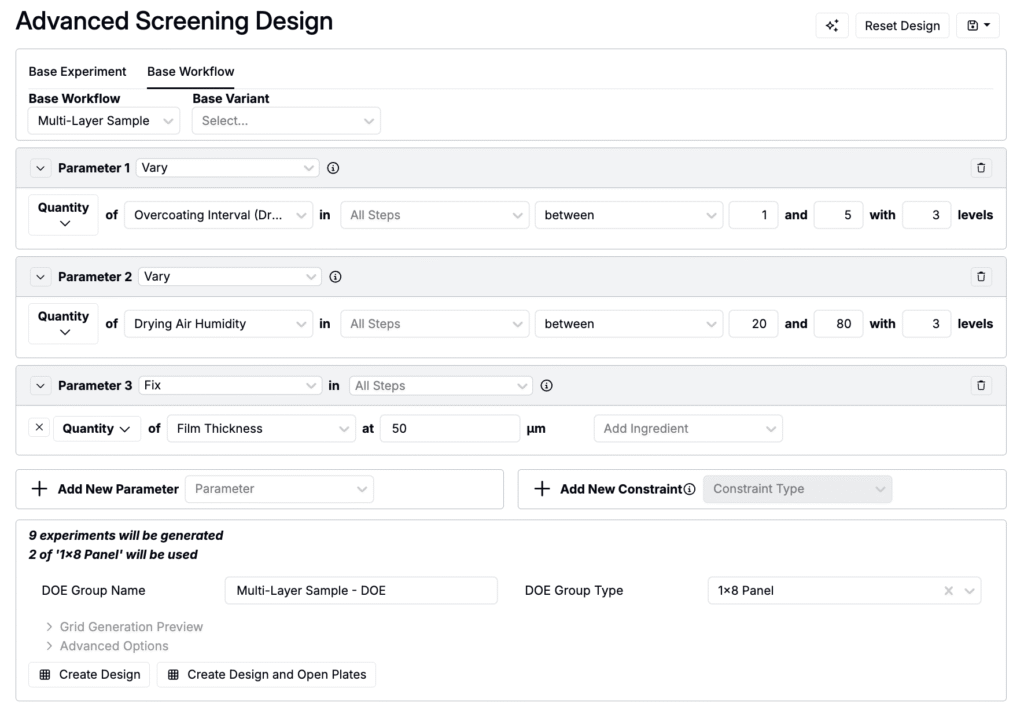
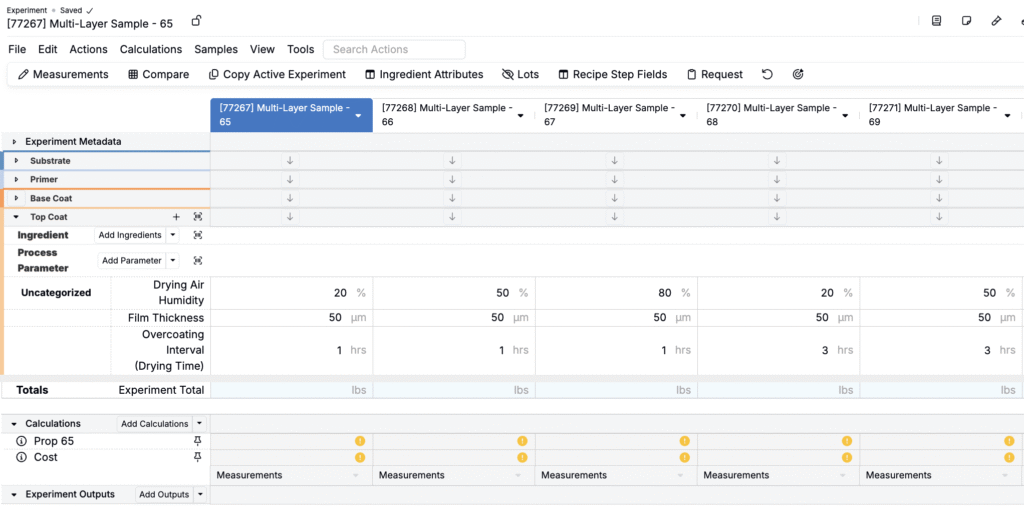
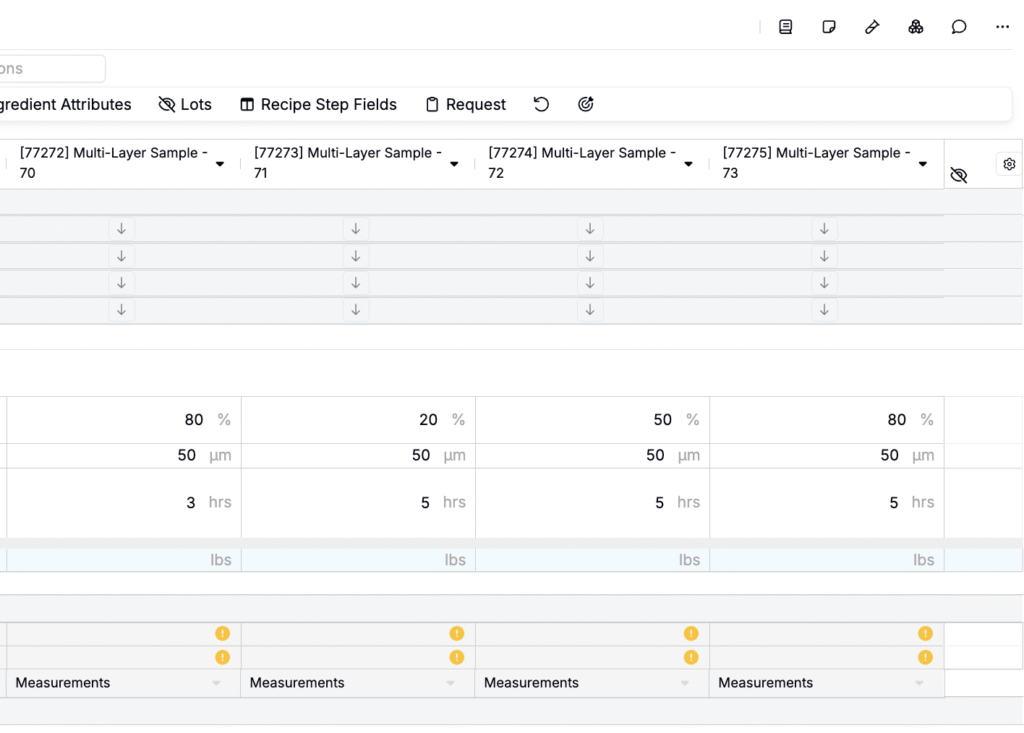
Results: The design creates a matrix of panels spanning the chosen drying time and humidity levels while holding film thickness at 50 µm. With other inputs fixed, performance differences can be attributed to the drying conditions.
Scenario 3
You want to find the optimal formulation for a paint that includes Pigment 1 and Binder 2, has a film thickness of 50 µm, and uses a multi-parameter to vary drying time and humidity.
- Set Parameter 1 to include one of Pigment 1 or Binder 2.
- In Parameter 2, use a multi-parameter to:
- Vary the drying time between one and five hours with three levels.
- Vary the drying air humidity between 30% and 70% with three levels.
- Set Parameter 3 to fix film thickness at 50 µm.
- Select a group type.
- Create the design.
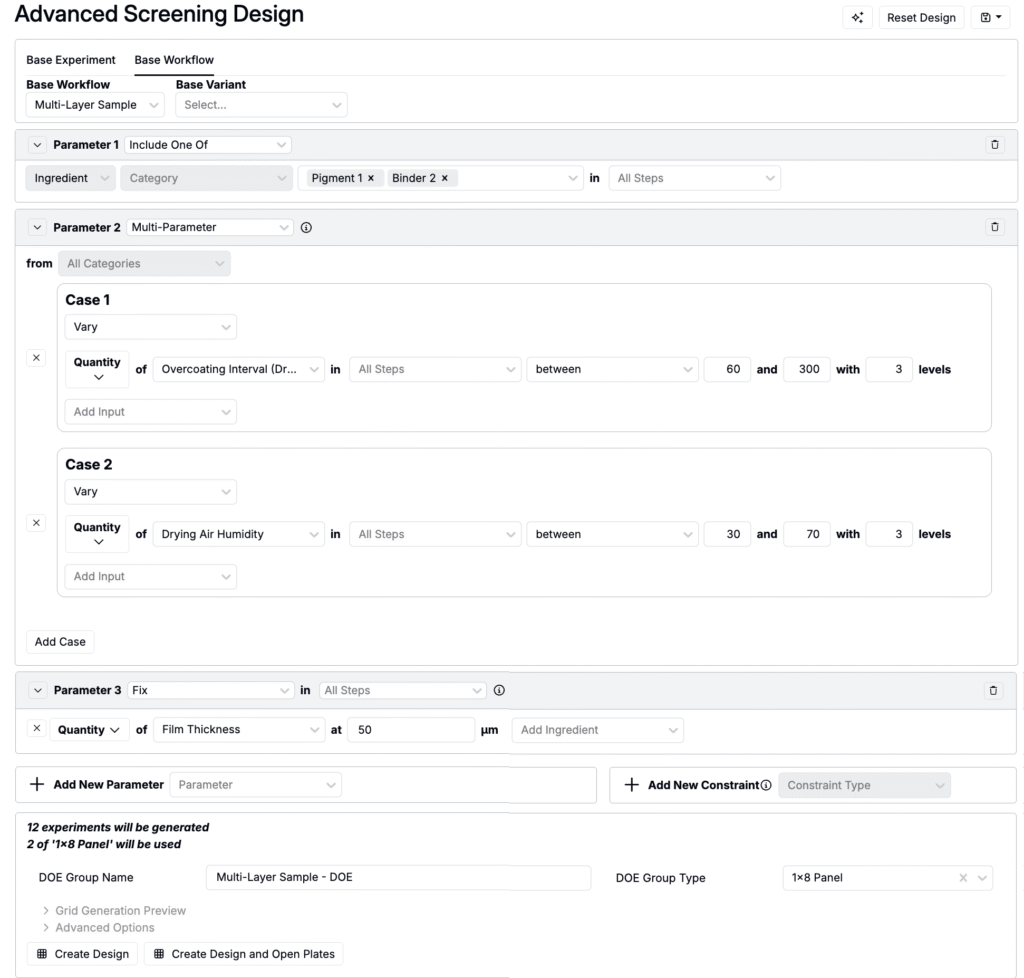
Results: The design generates two sets of panels: one with Pigment 1 and one with Binder 2, each at a fixed 50 µm film thickness. Within each set, the multi-parameter varies drying time and humidity across the chosen levels to create a balanced grid of conditions. With other inputs held constant, observed differences can be attributed to formulation choice and drying conditions.