
Quick Filters appear at the top of any listing page and let users quickly apply and remove filters. Each user can customize their own Quick Filter toolbar by adding, editing, or removing filters based on how they work.

Note that Quick Filters are user-specific. Changes do not affect what other users see.
Editing Quick Filters on a Listing
To customize your Quick Filters on a specific listing page:
- Access the listing page.
- Click the List button at the top of the page.
- Select Tools → Edit Quick Filters.

From here, users can edit the Quick Filters directly on the listing page:
- Click the pencil icon to edit an existing filter (A)
- Click the trash icon to delete an existing filter (B)
- Use the Add New field to add a new filter (C)

Quick Filter Types
When adding a new filter, you’ll first choose a filter type: Dropdown, Pill, Toggle, or Text Contains.
Dropdown Filters
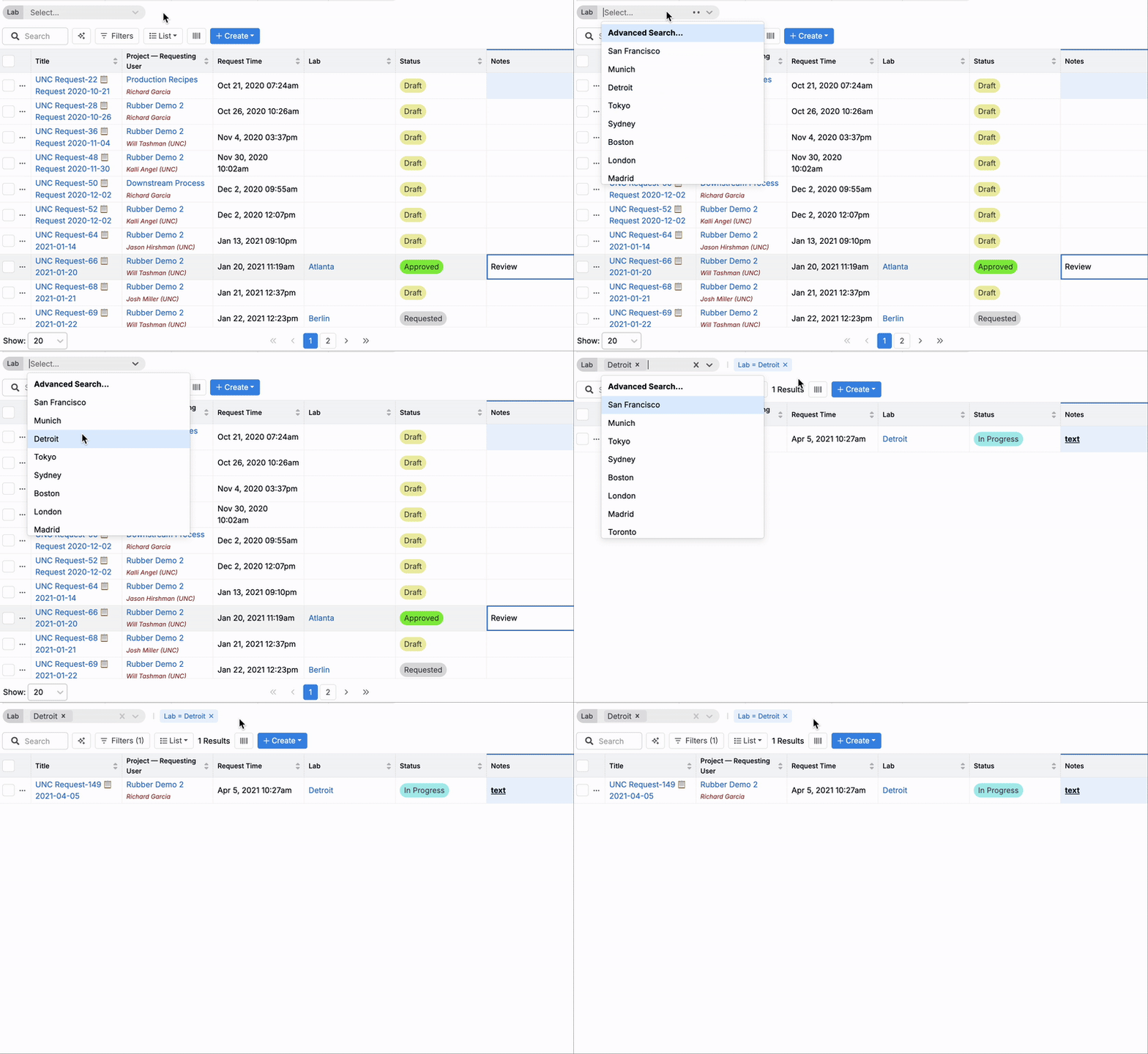
Dropdown filters display a list of selectable values from a specific column. Users can configure whether to allow single or multiple selections.

To add a dropdown filter:
- Use the Add New field to select Dropdown.
- Choose the column to filter.
- Set Select Mode to either Single or Multiple.
For example, a dropdown filter on the Lab Location column might allow users to select one or more labs from a dropdown menu to filter results.

After adding the filter, it will appear in the toolbar. Selecting options from the dropdown updates the listing results in real time.
Pill Filters
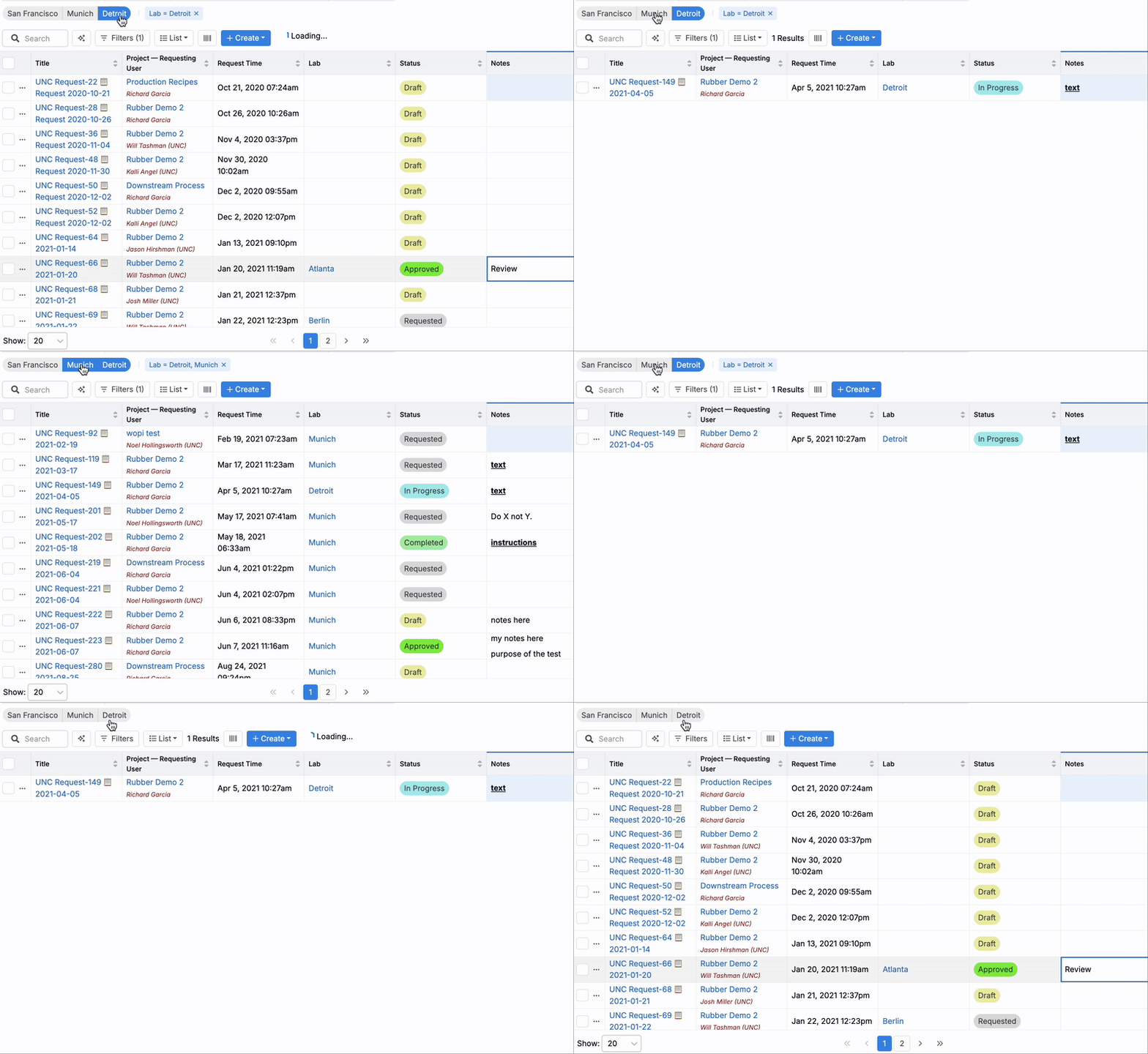
Pill filters work similarly to dropdowns but are displayed as a row of selectable buttons (or “pills”). Each pill represents a filter value.

To add a pill filter:
- Use the Add New field to select Pill.
- Choose the column to filter.
- Select options to include in the pill filter.

Once configured, clicking a pill will filter the listing to show matching results. Multiple pills can be selected at once to broaden the results.
Toggle Filters
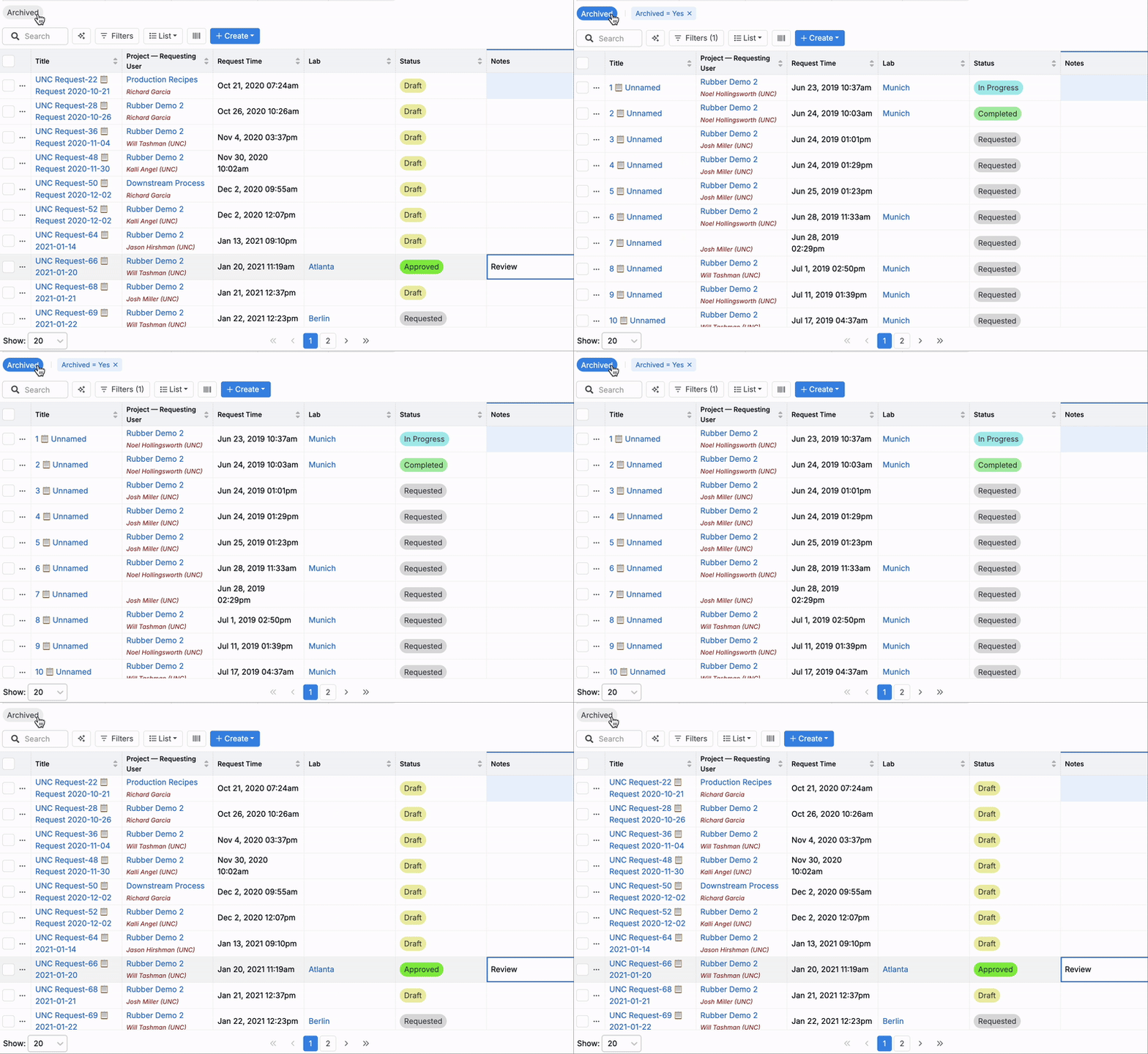
Toggle filters allow users to switch a single filter criterion on or off with a button press. These are best for binary options, such as showing or hiding archived entries.

To add a toggle filter:
- Use the Add New field to select Toggle.
- Choose the column to filter.
- Choose the filter condition (e.g., “Archived = True”).

Once added, the toggle appears as a button in the toolbar. Clicking it applies the filter and highlights the button; clicking again removes the filter.
Text Contains
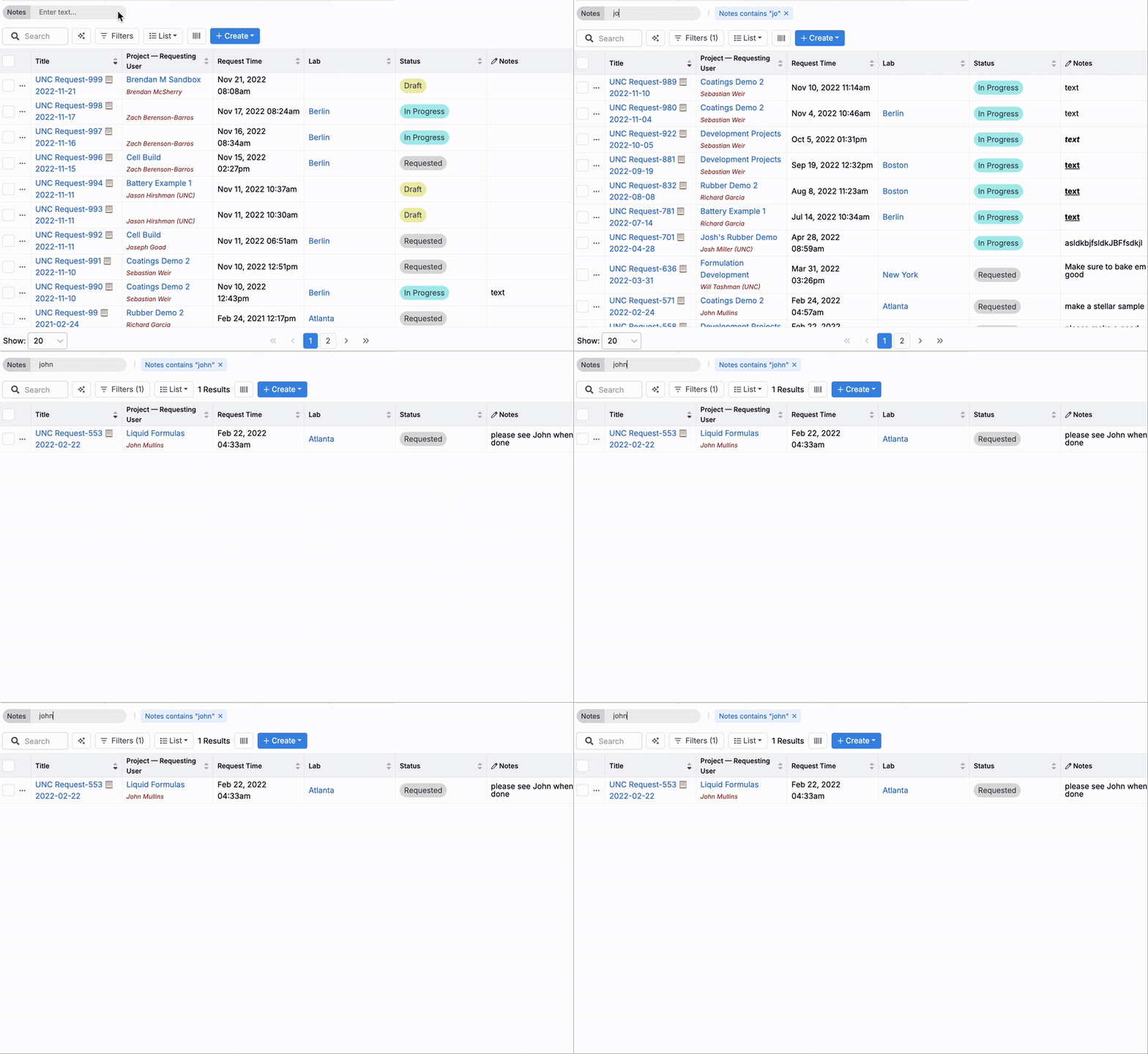
Text Contains filters allow users to filter by matching text values in a specified column. These filters can be added to text-type columns such as Notes, Descriptions, or custom text fields.

To add a Text Contains filter:
- Use the Add New field to select Text Contains.
- Choose the column to filter (must be text).

After the filter is added, type any string into the input box to show only entities where the selected column contains that text. The listing updates in real time as you type.
FAQ
Do Quick Filters affect what other users see?
No. Quick Filters are user-specific and do not change the listing view for others.
Can I remove or change filters later?
Yes. Use the Edit Quick Filters menu to update or delete filters at any time.