
On the Measurements view of experiments, condition parameters can be displayed as table columns instead of the default standard suffix to make measurement tables easier to read and organize.
You can also configure column conditions so that a condition parameter appears as a column only for specific tables or testing contexts. When the defined conditions are met, the parameter will appear as a column. When not met, the condition parameter will be added as a standard suffix next to the output value.

This allows you to create more focused and relevant measurement table layouts when the same outputs are used across different categories or testing scenarios.
Supported column conditions
Supported condition types include:
Condition Parameter Value Match
Displays the condition parameter as a column when the output contains another table condition parameter with one or more selected values.
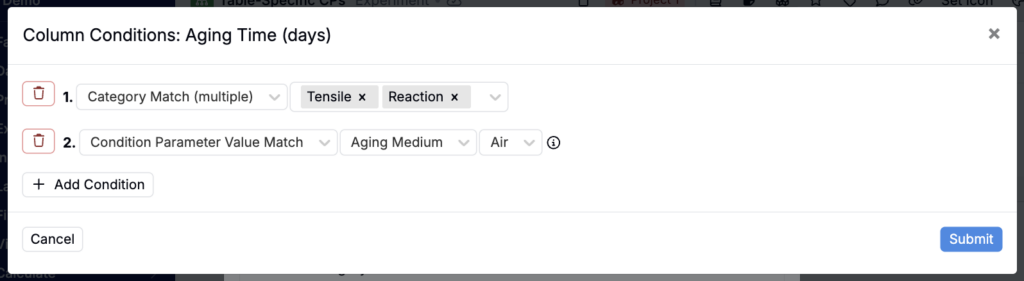
Example: Show Aging Time as a column parameter when Aging Medium = Air or Nitrogen.

Category Match
Displays the condition parameter as a column when the output belongs to one or more selected categories.
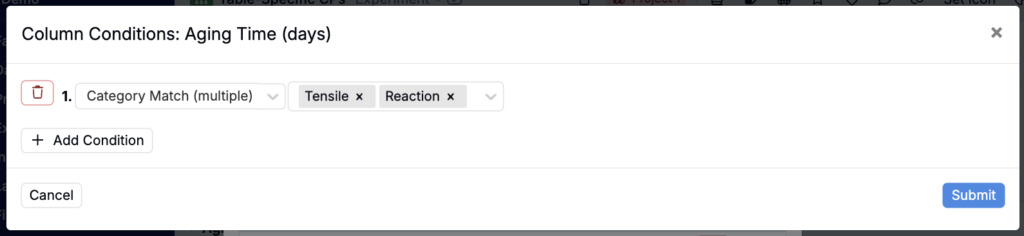
Example: Show Aging Time as a column parameter when the output category is Tensile or Reaction.

Column condition logic
Both condition types support multi-select filtering, allowing you to include multiple values or categories within a single condition. Column conditions use a combination of OR or AND logic.
- Multiple values within a single condition use OR logic
- Example: Category = Tensile OR Reaction
- Multiple conditions use AND logic
- Example: Category = Tensile OR Reaction AND Aging Medium = Air
How to add column conditions
To configure a table-specific condition parameter column:
- Open the Measurements view of your experiment or experiments.
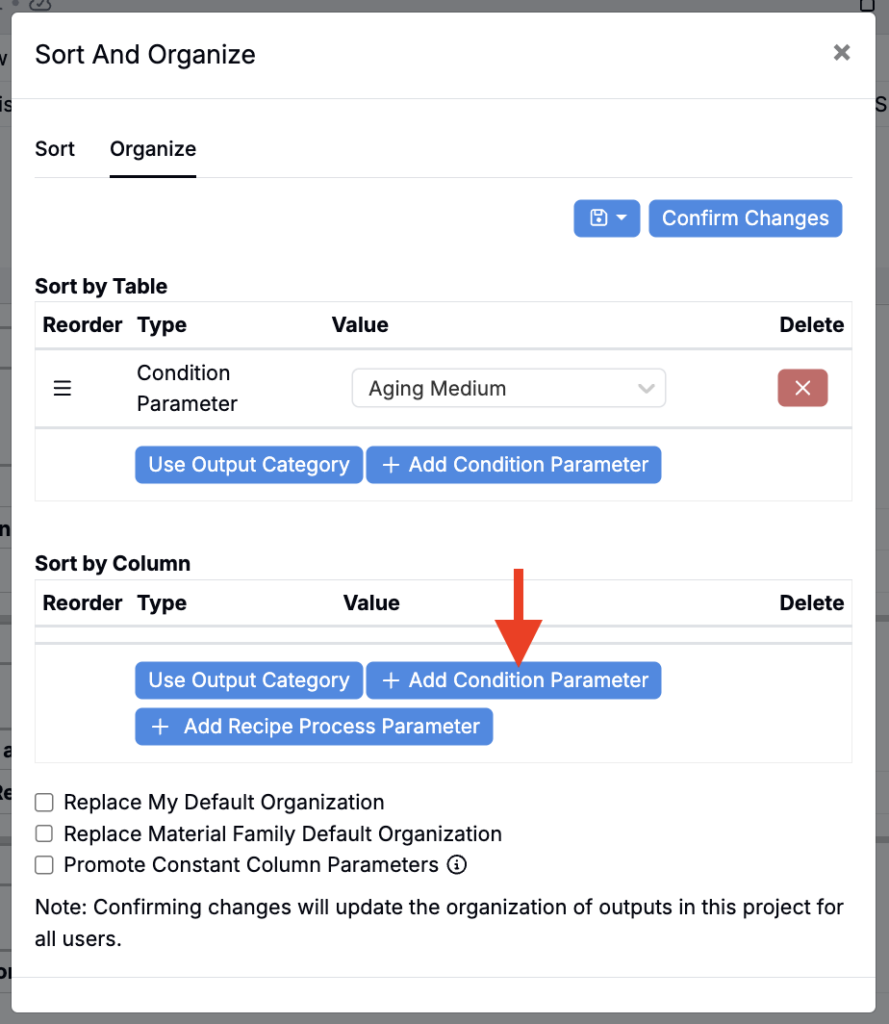
- Access the Sort and Organize modal.
- Open the Organize tab.
- Under Sort by Column, click + Add Condition Parameter.
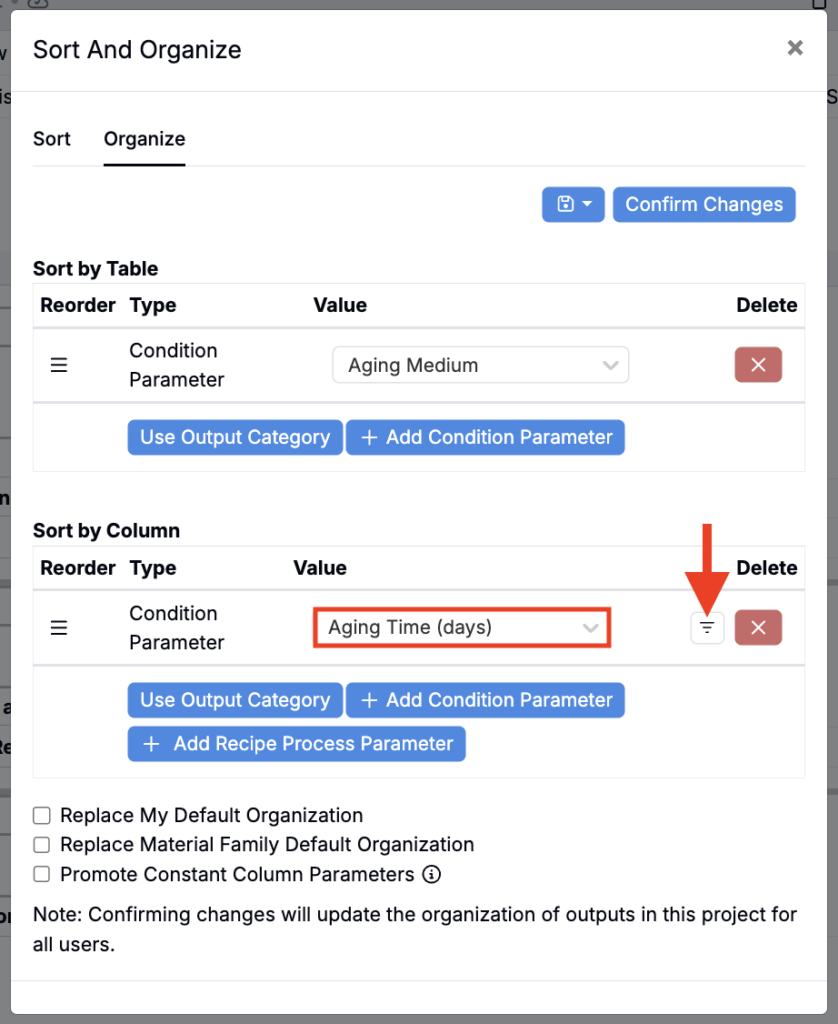
- Select the condition parameter you want to configure (e.g. Aging Time).
- Click the filter icon next to the parameter.
- In the Column Conditions modal:
- Add a condition.
- Select a condition type:
- Category Match — Select a single output category to filter to
- Category Match (multiple) — Select multiple output conditions to filter to
- Condition Parameter Value Match — Select a table parameter values to filter to
- Condition Parameter Value Match (multiple) — Select multiple table parameter values to filter to
- Choose one or more values or categories to match (e.g. Aging Medium = Air).
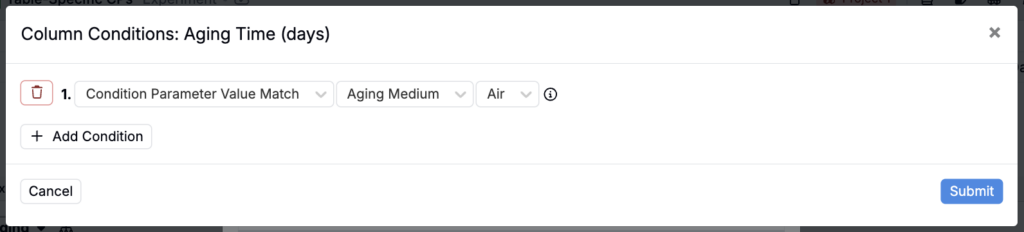
When adding a Condition Parameter Value Match condition, if you are unable to select a parameter, make sure you have added it as a table parameter.
- Add additional conditions if needed to create AND filter logic.
- Submit to confirm your changes.
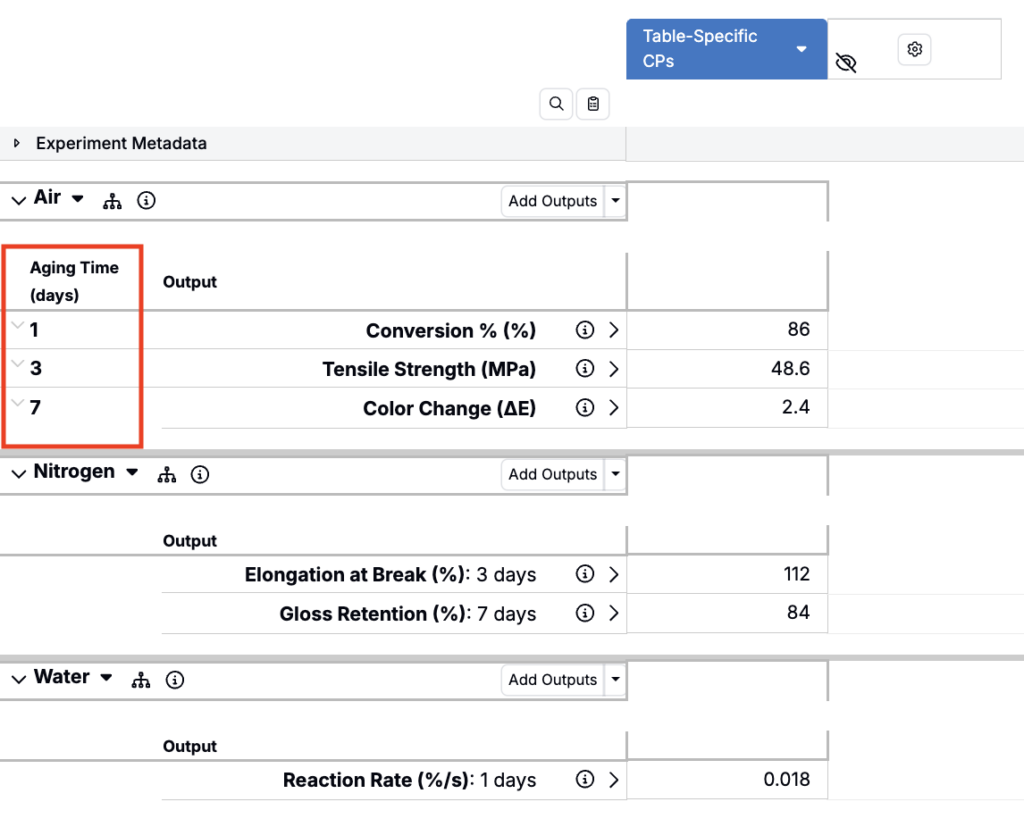
You can also add a table-specific column condition directly from a measurement table.
- Click the information icon next to access its information popover.
- In the popover, open the menu for the condition parameter you want to add as a table column.
- Select + Add as Column Parameter When.
- Then select from table parameter options.
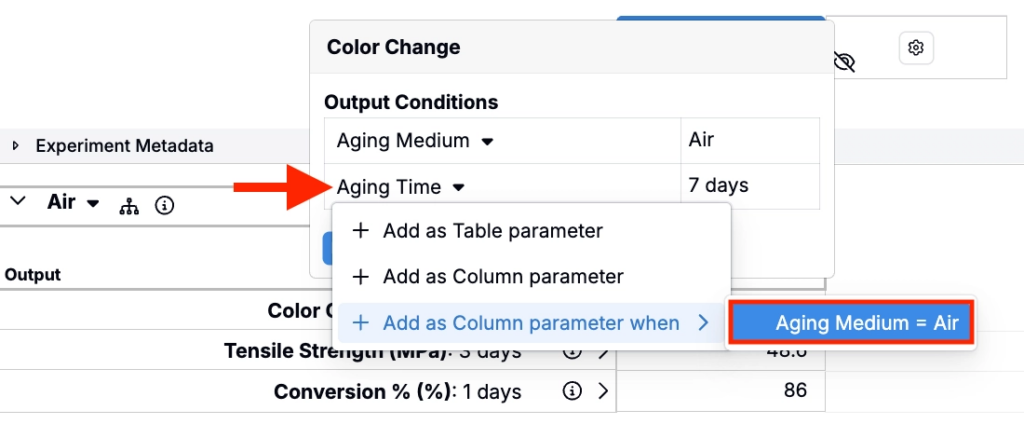
This will add the selected condition parameter as a column for the current table (for example, when Aging Medium = Air). Additional values or categories can later be added to the condition if needed.