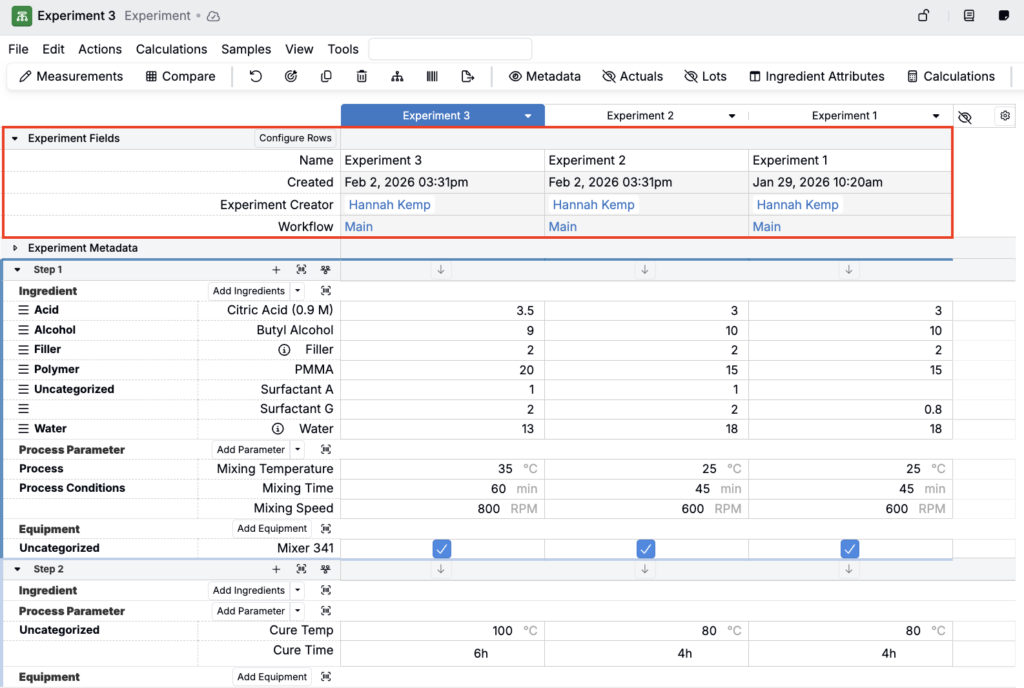
Experiment fields display key information about experiments and linked entities directly on the Recipe and Measurements views. This lets you show additional experiment context without configuring experiment metadata or building custom logic.
What Fields Can You Display?
- Fields on an experiment (e.g. Created date, Experiment Creator, Barcode, Last Edited date, Notes).

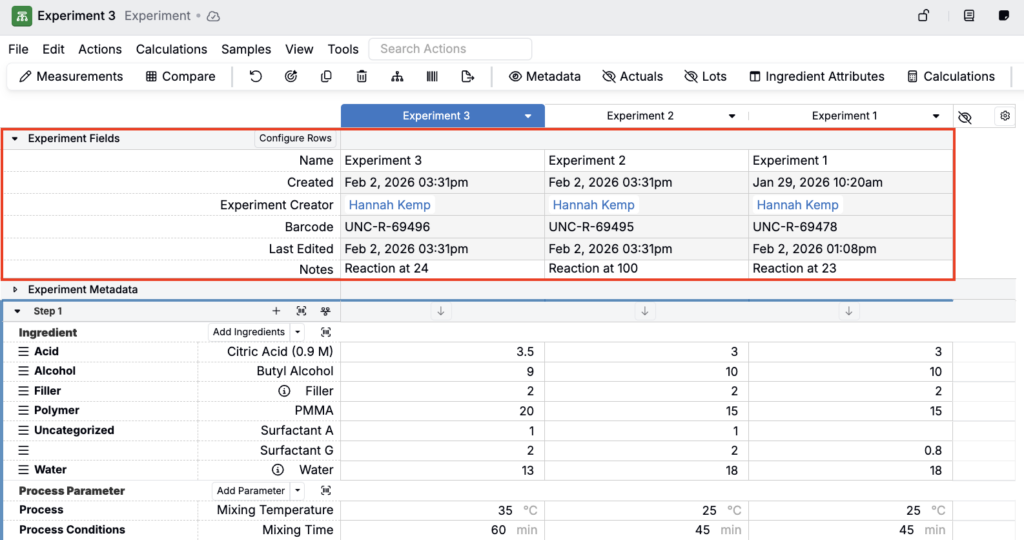
- Fields on linked entities, for example:
- Lab Requests (e.g. Lab, Lead, Location)
- Test Samples (Creator, Created Date)
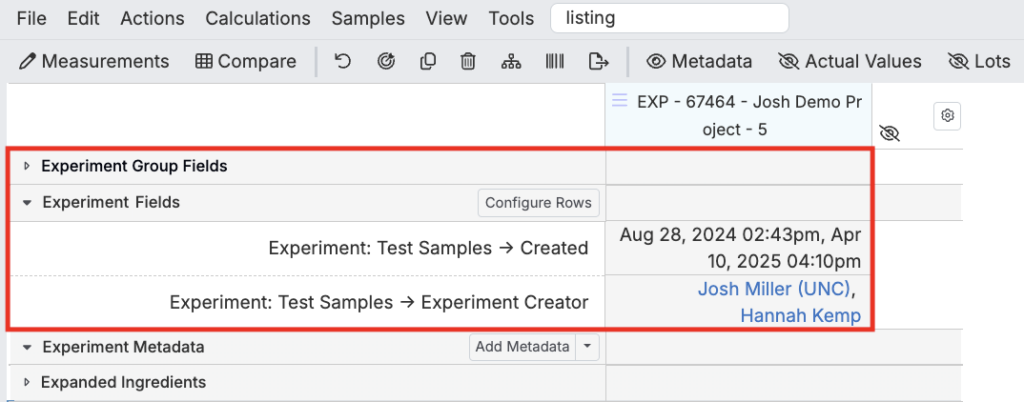
Field options include all those available when configuring columns in an experiment listing and can be customized to your team’s workflows.
How to Configure Experiment Fields
Adding Fields
- On the Recipe or Measurements view of an experiment, search for experiment fields in the action bar and add the section to the top of your data table.
- Expand the section and click Configure Rows.
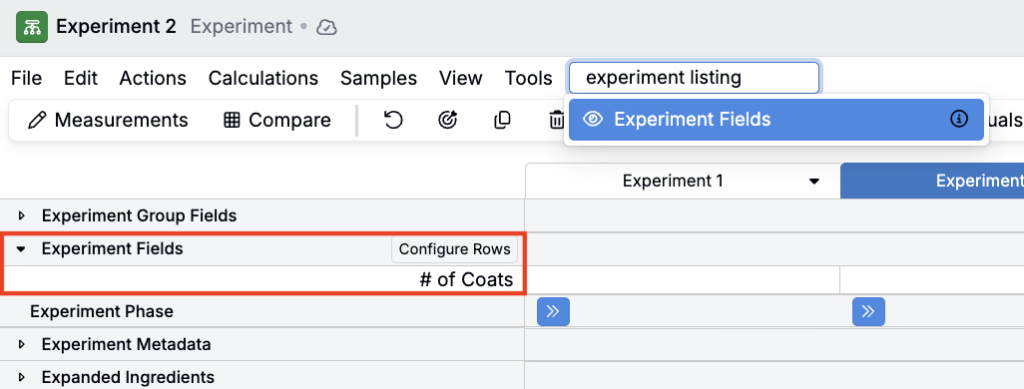
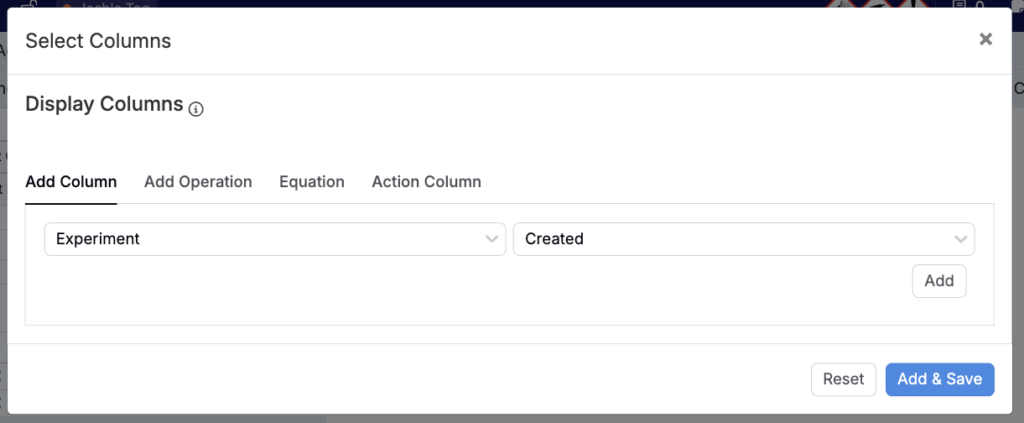
- In the configuration modal, select the experiment fields or linked entity fields you want to display, then click Add & Save.
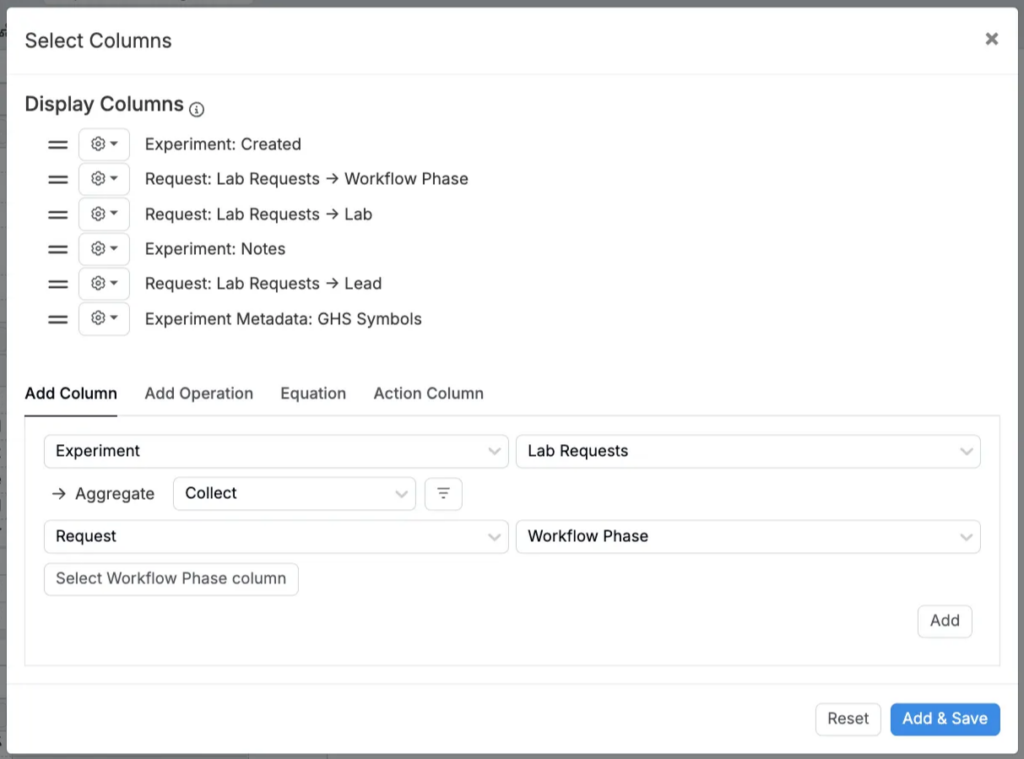
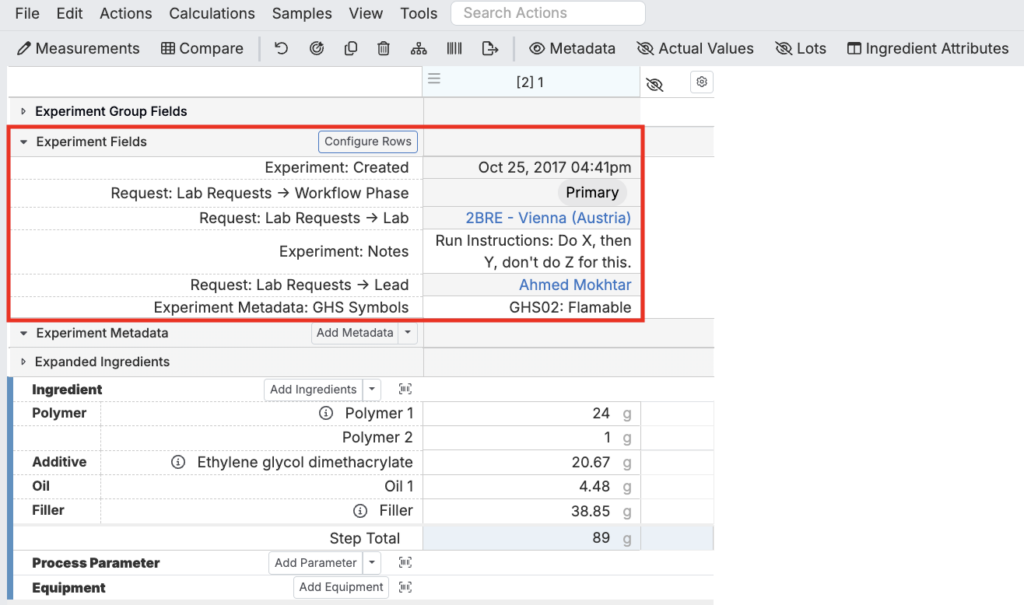
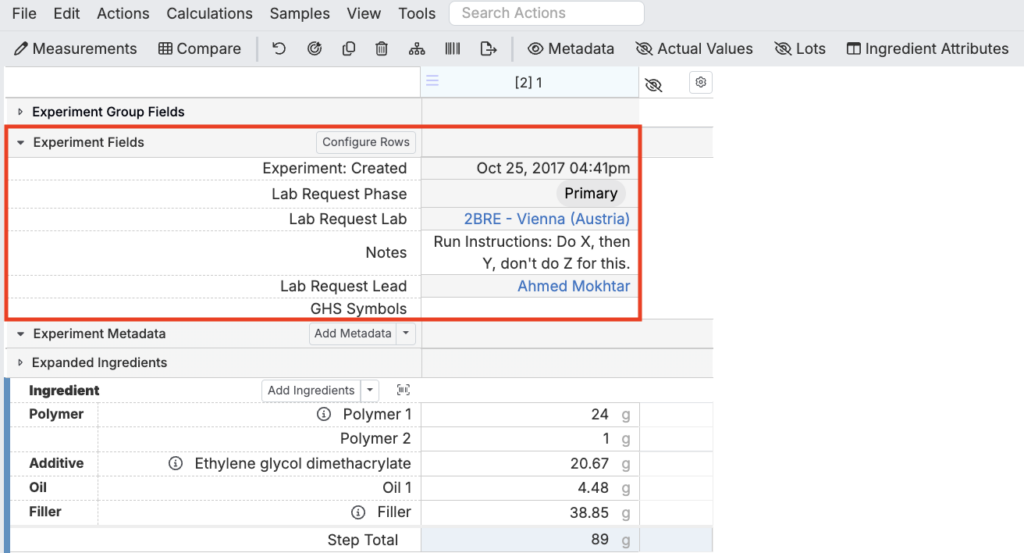
Once configured, fields appear as rows above the table with values specific to each recipe.
Renaming Fields
Customize field names to make them more user-friendly:
- Click Configure Rows, access a row’s settings, and select Edit Name.
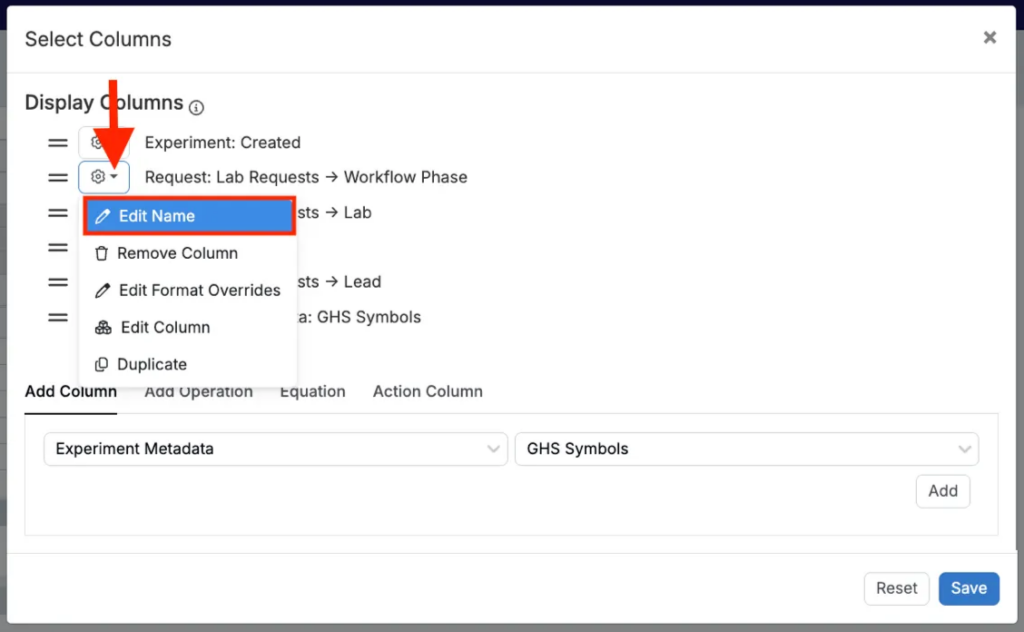
- Enter a new name and click Set.
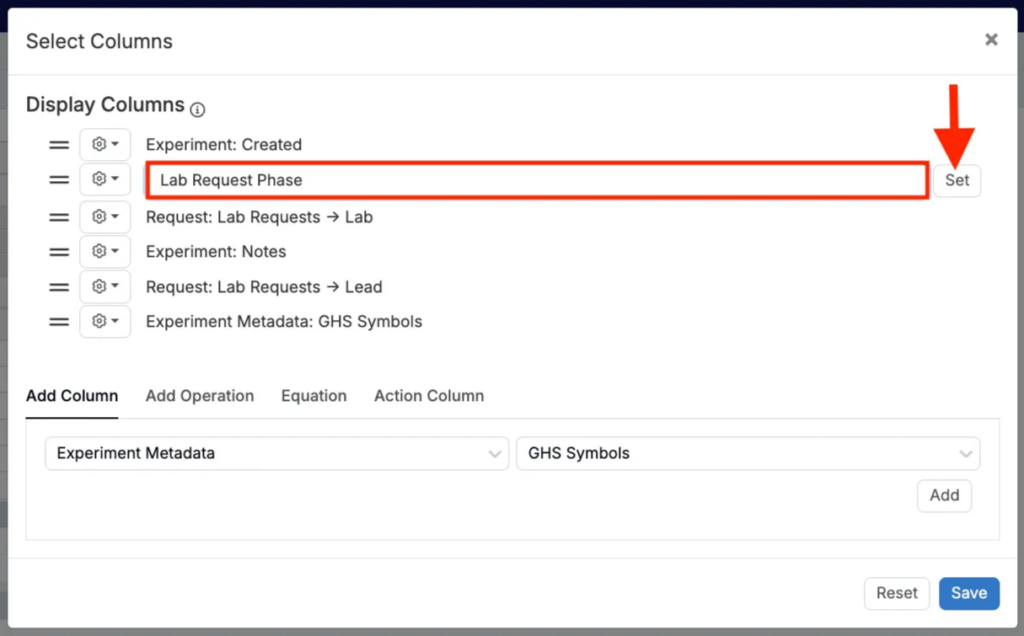
- Repeat for additional rows as needed, then click Save.
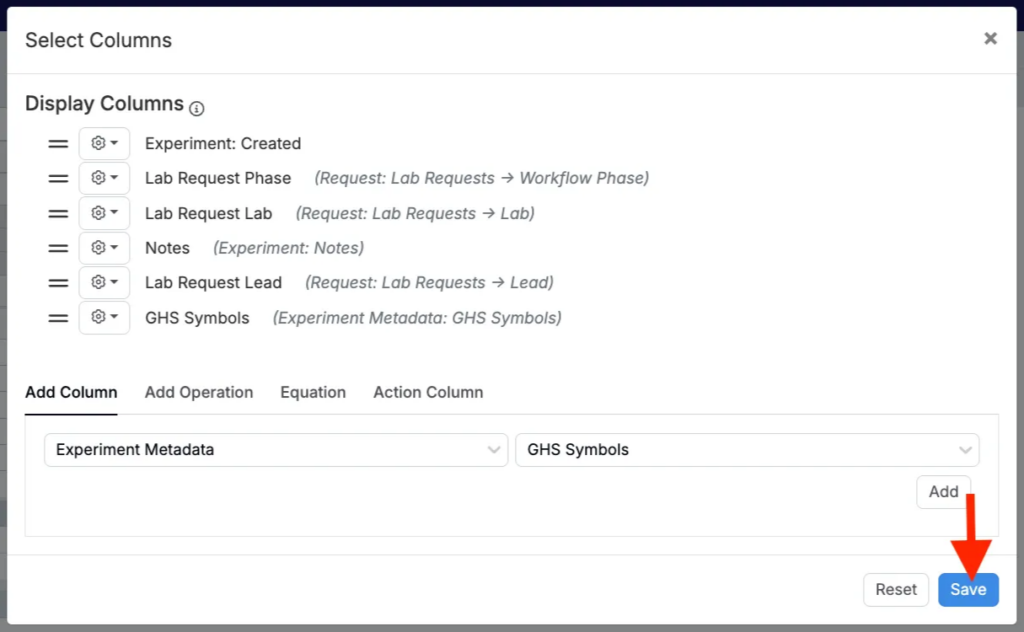
Your renamed fields will update immediately.
Use Cases
Example 1 — Key Experiment Information
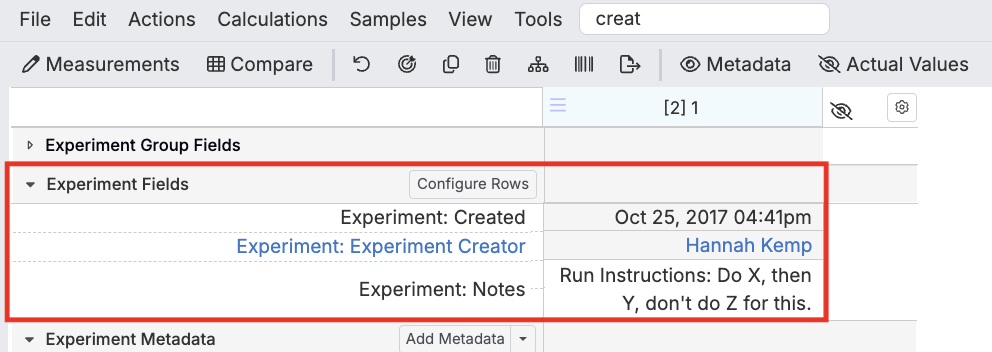
Display important experiment details that are already in your Experiments listing as experiment fields rather than in the Experiment Metadata section.
Configuration:
- Add the Experiment Fields section to your Recipe or Measurements view.
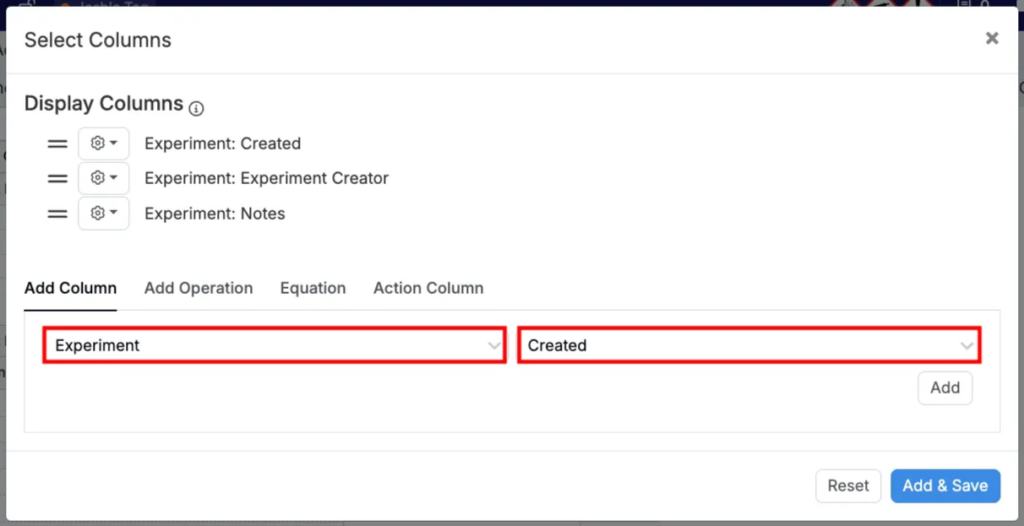
- Click Configure Rows and add:
- Experiment → Created
- Experiment → Experiment Creator
- Experiment → Notes
- Save your configuration.
Example 2 — Lab Request Information
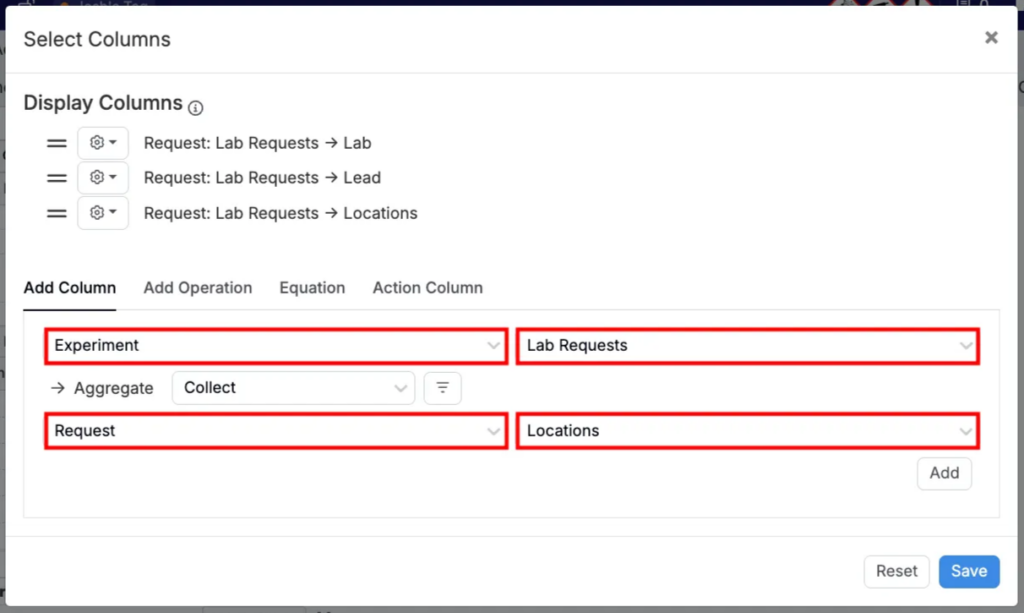
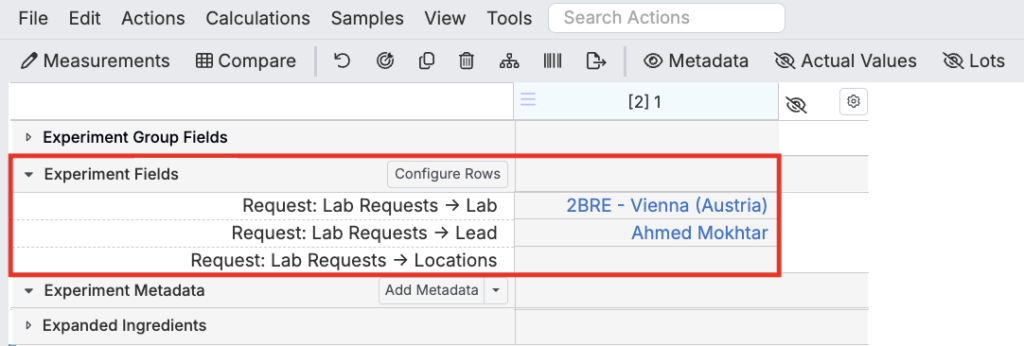
Show lab request details like Lab, Lead, or Workflow Phase directly on recipe and measurement pages.
Configuration:
- Add the Experiment Fields section to your Recipe or Measurements view.
- Click Configure Rows.
- First, add Experiment → Lab Requests.
- Click Select Lab Request column.
- Then select Request → Lab/Lead/Locations.
- Save your configuration.
Example 3 — GHS Pictograms Per Recipe
Display GHS symbols as pictograms alongside other experiment information on a per-recipe basis.
Configuration:
- Add the Experiment Fields section to your Recipe or Measurements view.
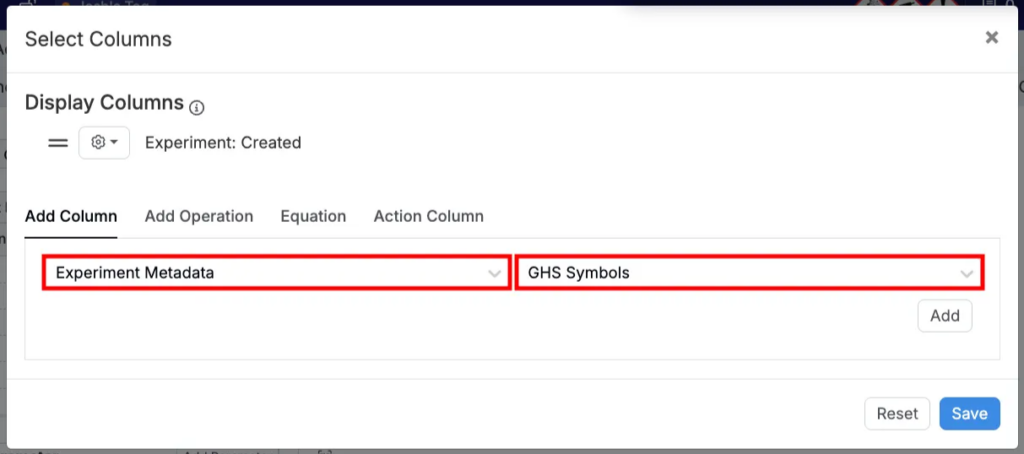
- Click Configure Rows.
- Add Experiment Metadata → GHS Symbols.
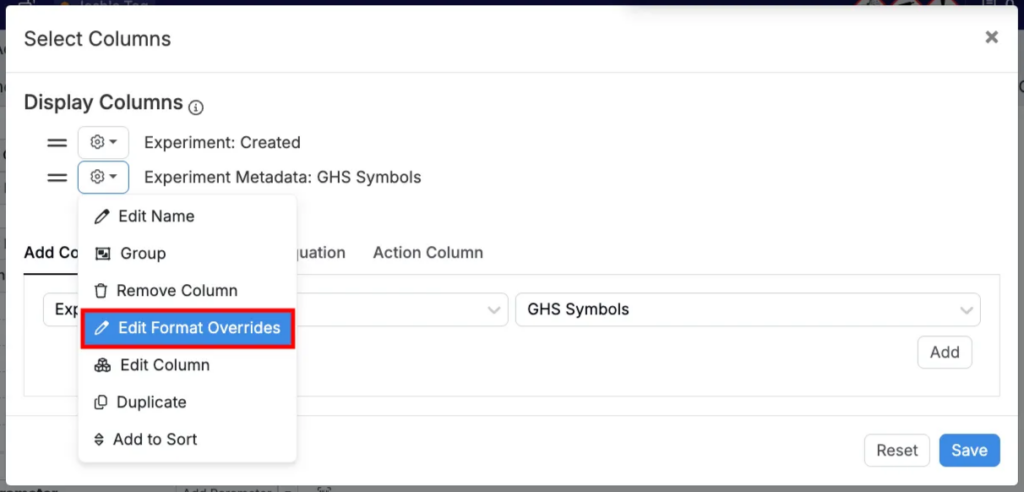
- Under Display Columns, click the GHS Symbol row ⚙️ icon and select Edit Format Overrides.
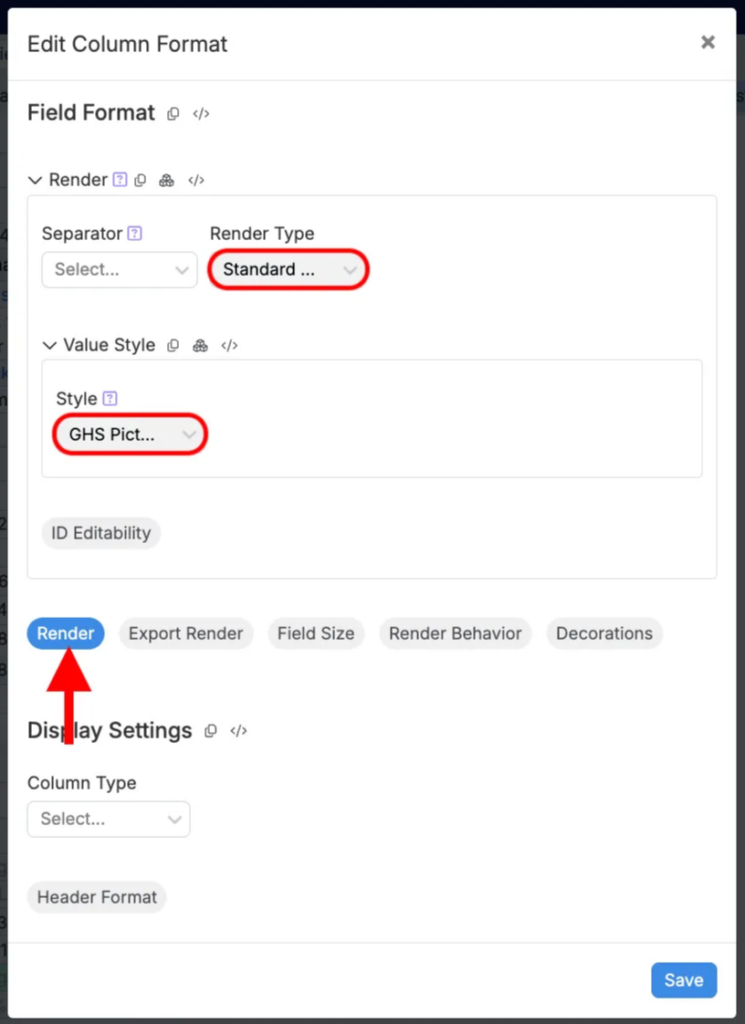
- Configure the Render override:
- Set Render Type to Standard Multiple Entities
- Set Style to GHS Pictograms
- Save your changes.
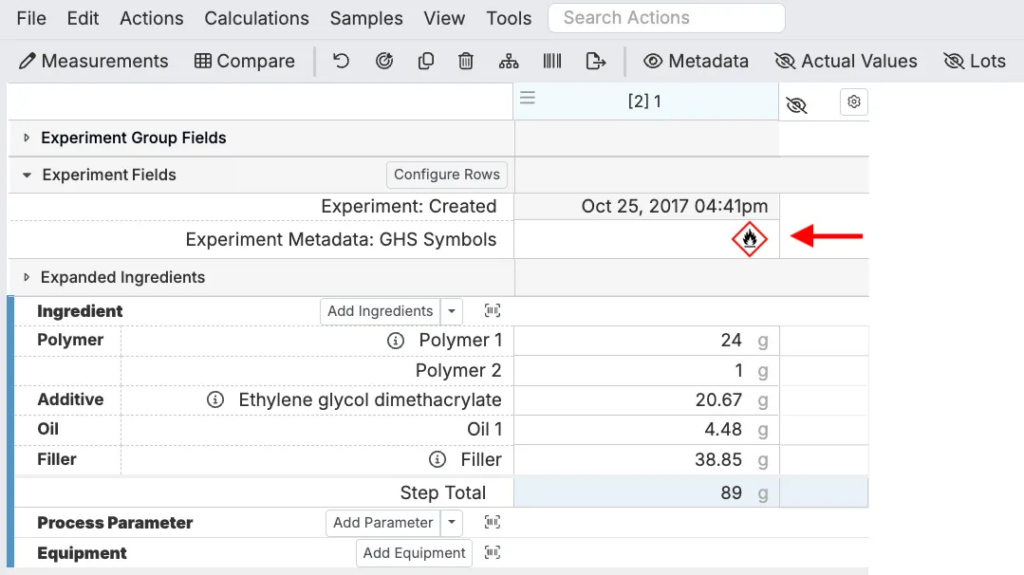
As a result, the GHS symbols will display within the Experiment Fields section.
Sharing Configurations with User Groups
While users can configure their own experiment fields, admins can create default configurations that pre-populate experiment fields for specific user groups using Listing Configs.
Creating a Default Configuration
- Navigate to Form Admin > Listing Configs.
- Add a new config.
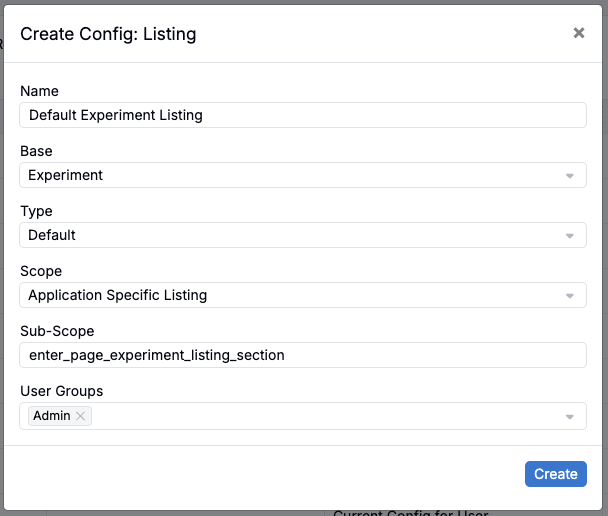
- In the modal, configure:
- Name: Any descriptive name
- Base: Experiment
- Type: Default
- Scope: Application Specific Listing
- Sub-Scope: enter_page_experiment_listing_section
- User Groups: Select relevant groups (optional)
- Add the columns you want displayed (e.g. Created, Experiment Creator, Workflow).
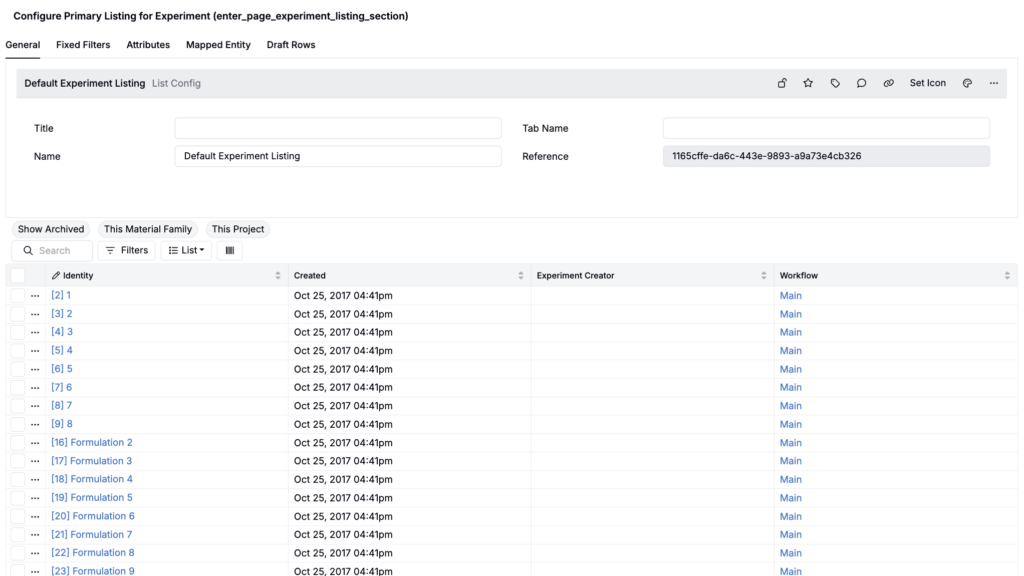
- To enforce these changes across users, navigate back to the Listing Configs tab and select Configure Reset User Config.
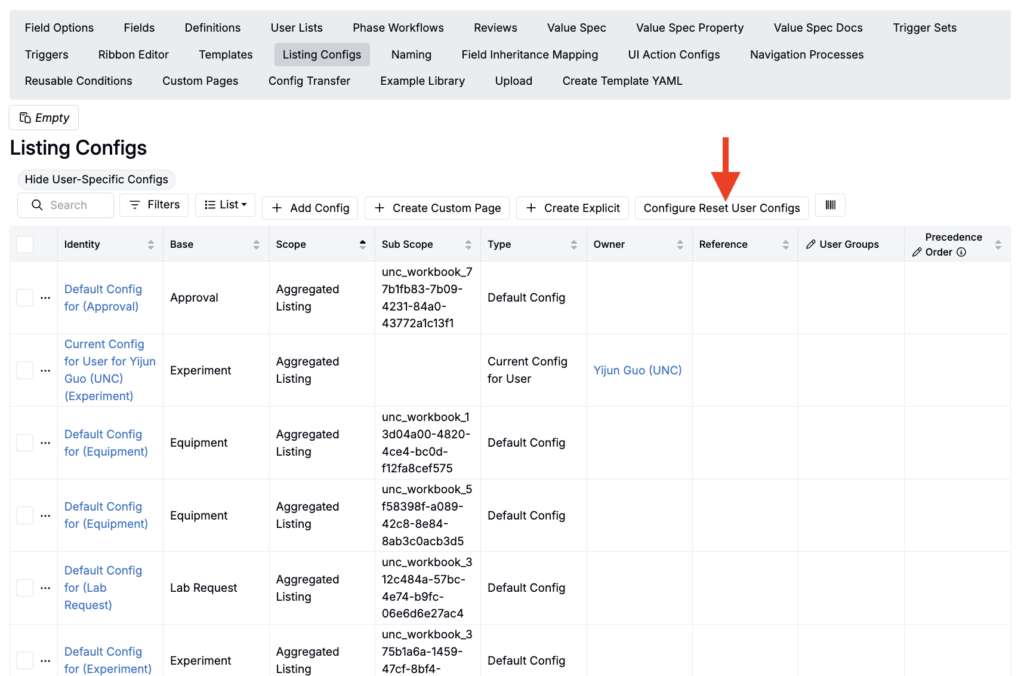
- In the Reset User Configs modal, enter:
- Base: Experiment
- Scope: Application Specific Listing
- Sub-Scope: enter_page_experiment_listing_section
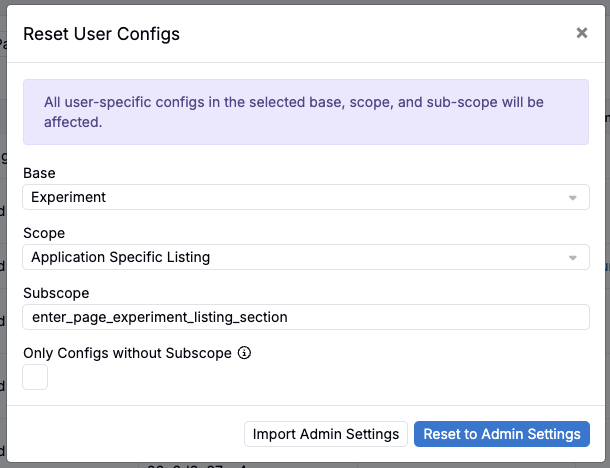
This resets the experiment fields shown on Recipe pages to match your Listing Config for users in the specified user group.