
Notebook templates are reusable blueprints that pre-configure notebook pages, content blocks, and default filters. Use notebook templates to quickly create consistent project notebooks and side-panel notebooks without starting from scratch each time.
Templates preserve structure and configuration, but the data always reflects the notebook’s context. In project notebooks, visuals resolve to the project’s experiments; in side-panel notebooks, visuals reflect the experiments selected in the panel.
Create a Notebook Template
Notebook templates can be created from new or existing notebooks.
From an Existing Notebook
- Open the notebook and make any edits you want to reuse.
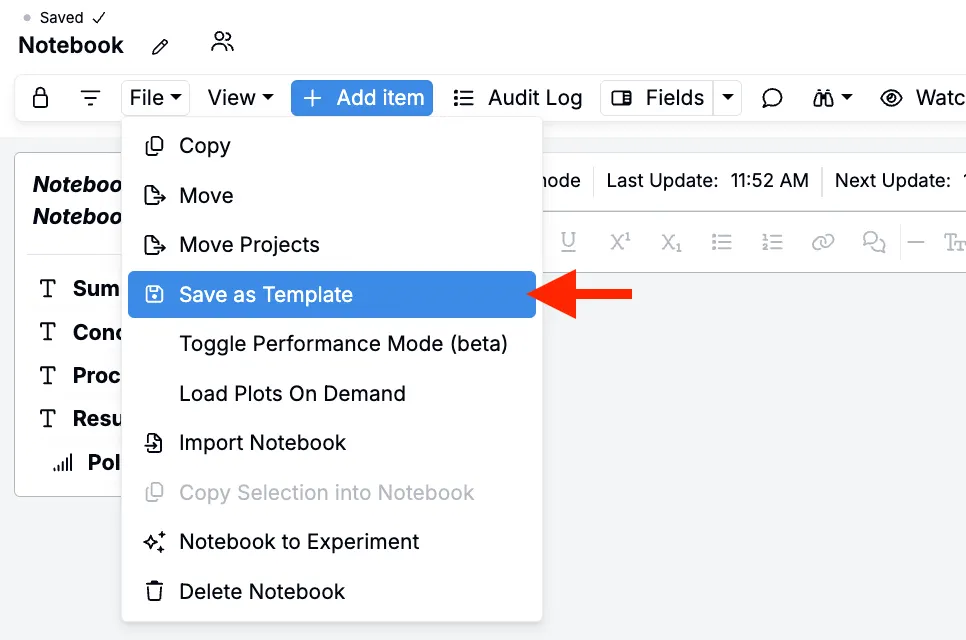
- Go to File > Save as Template.
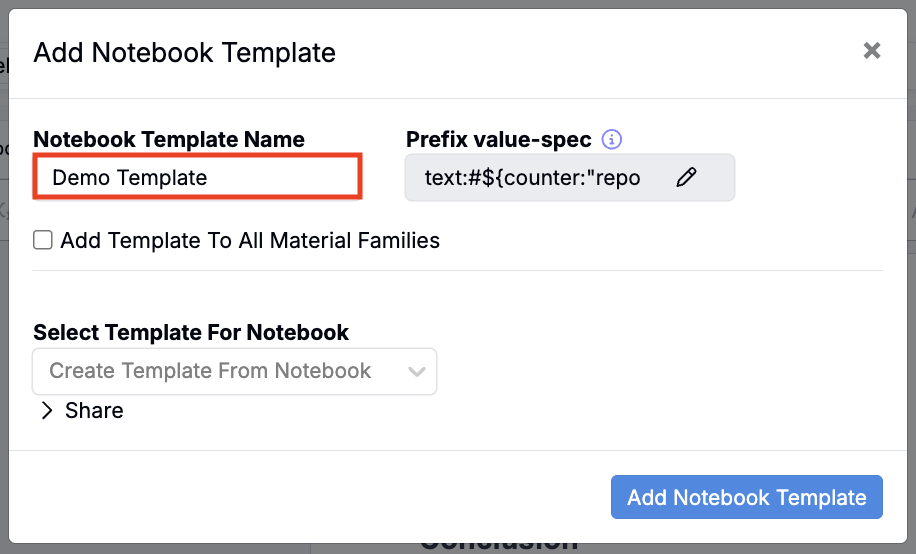
- In the modal, name the template and click Add Notebook Template.
From a New Notebook
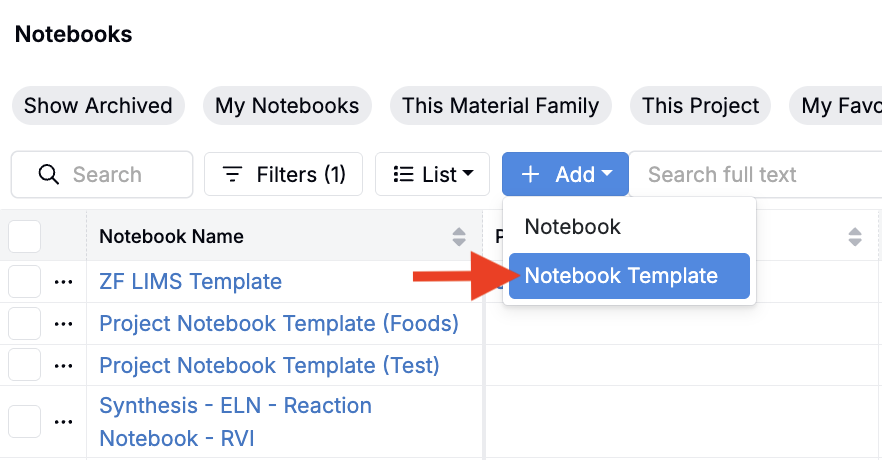
- On the Notebooks listing page, click Add > Notebook Template.
- In the modal, name the template and click Add Notebook Template.
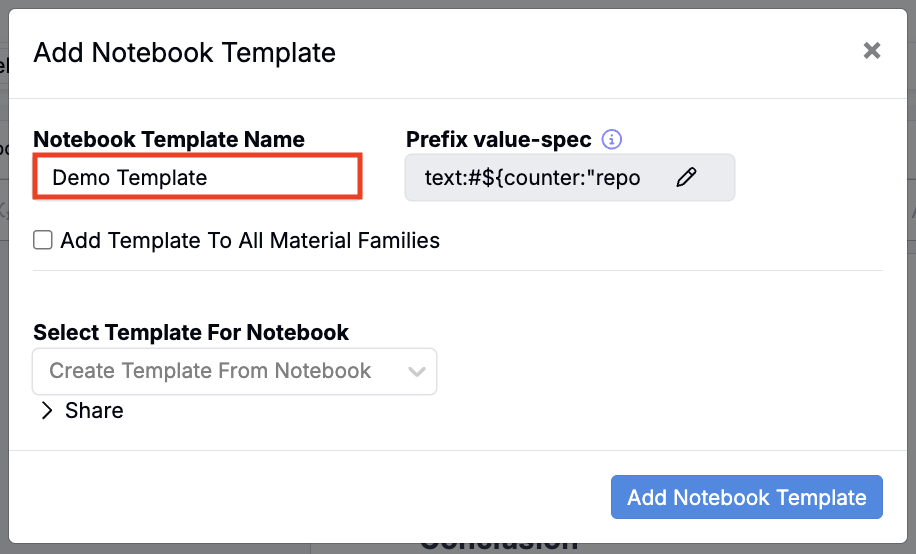
- This will navigate you to a blank notebook page where you can build the pages, layout, and content you want to reuse. To learn more, see Adding Items to a Notebook.
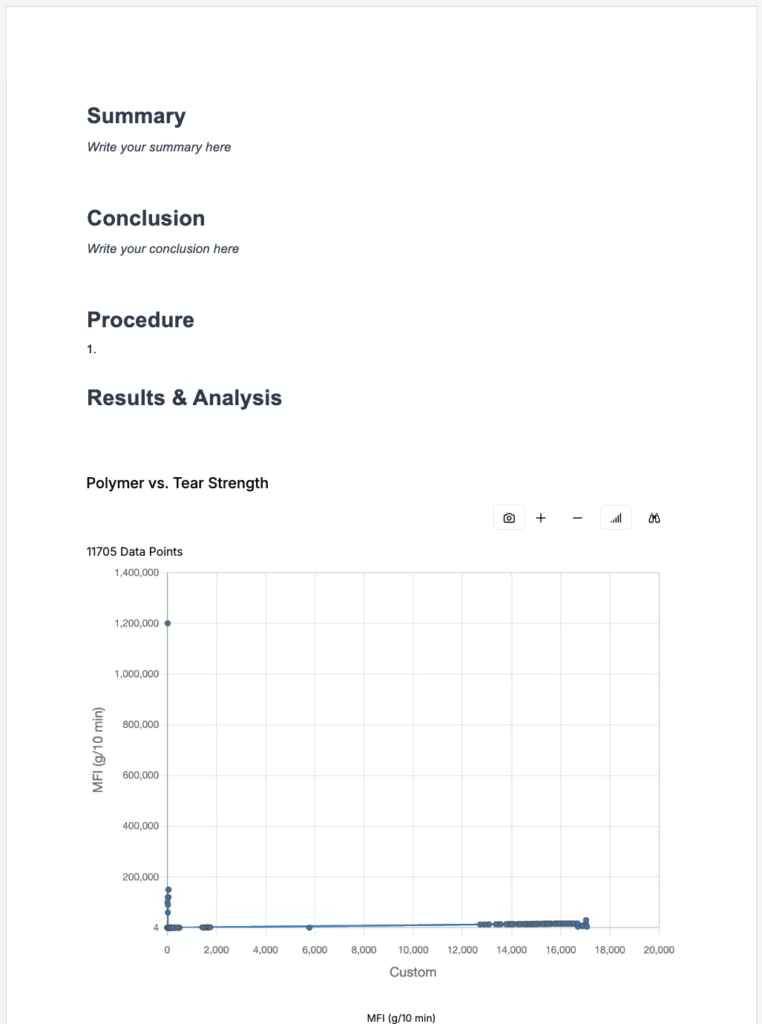
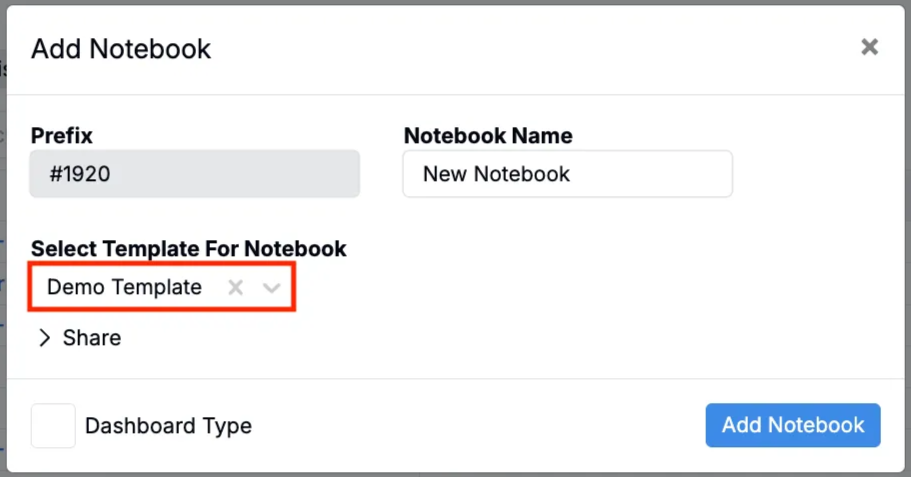
Creating a Notebook from a Template
When creating a new project or sidepanel notebook, use Select Template for Notebook to choose from available templates.
Adding Notebook Pages from a Template
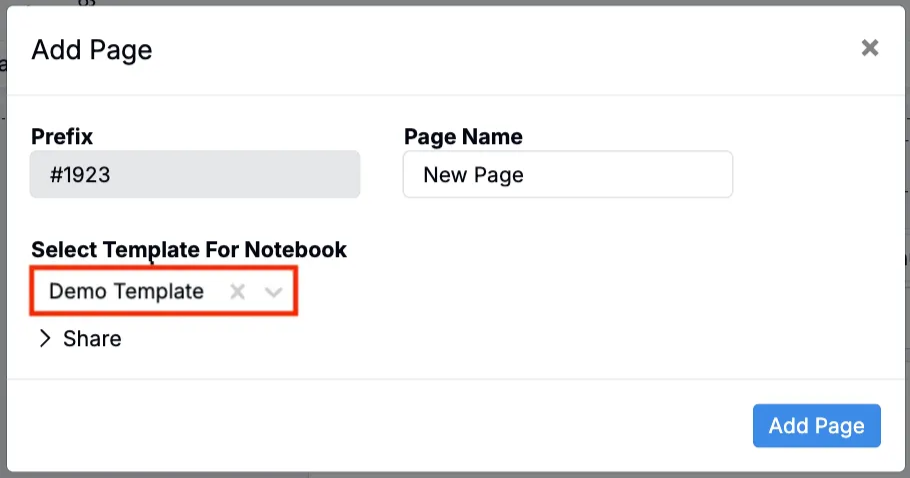
You can also use a template when adding an individual page to a notebook.
- Add a new page (Add Item > Page).
- In the modal, use the Select Template For Notebook field to choose from available templates, add a page name, and click Add Page.
Related
Notebook templates in Uncountable are also used to create template plots on the Explore Data visualizations page. To learn more, refer to Notebook Templates for Plots.