
The Solver can handle complex formulation scenarios involving multiple targets, complex calculation types, and column-level constraints. This article explains how to configure and run advanced solves, how Solver interprets constraints, and how to structure recipes to ensure feasible solutions.
Infeasible Problems
The Solver will report an “infeasible” problem when too many constraints compete for too few adjustable variables.
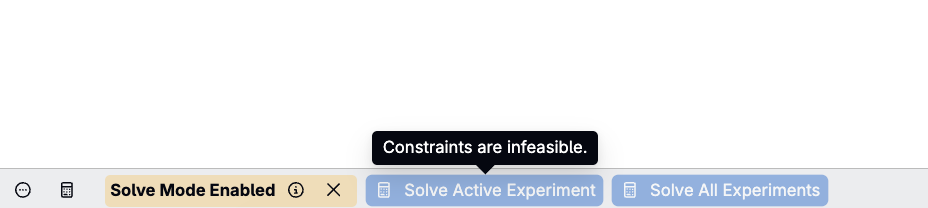
Solver becomes infeasible when the number of locked targets exceeds the number of unlocked ingredients Solver can adjust. As a quick check, count each unlocked ingredient as one degree of freedom, then count each locked target as a constraint.
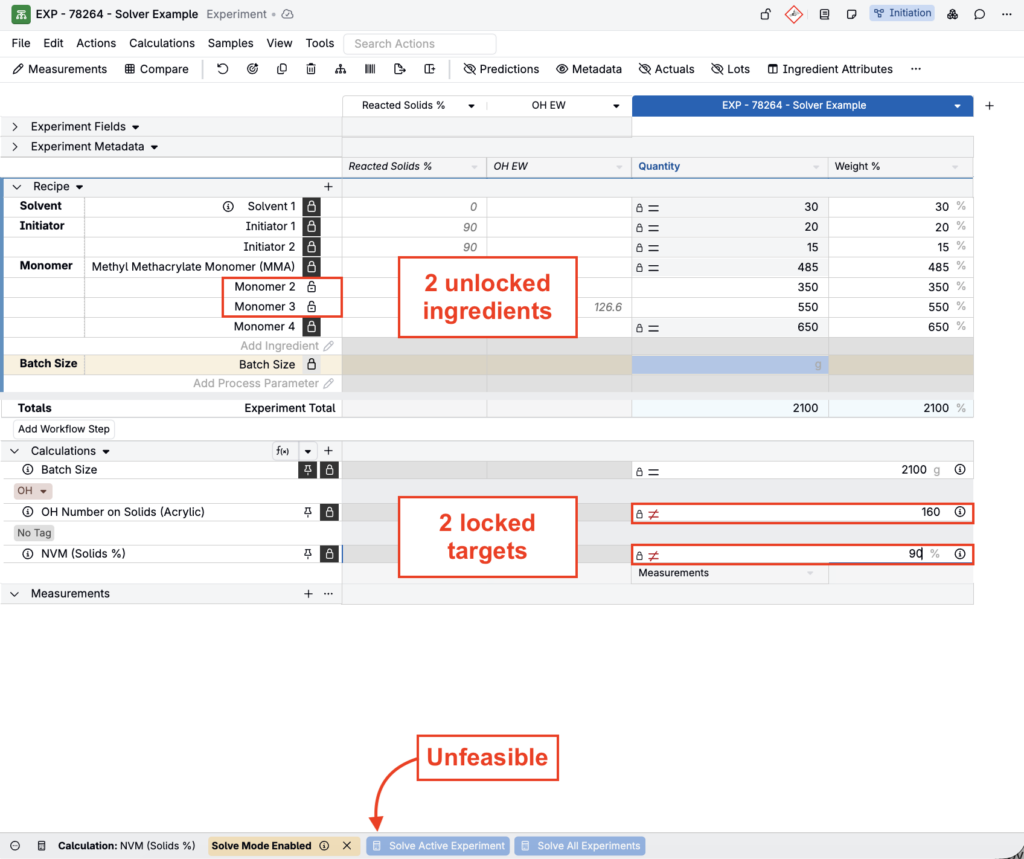
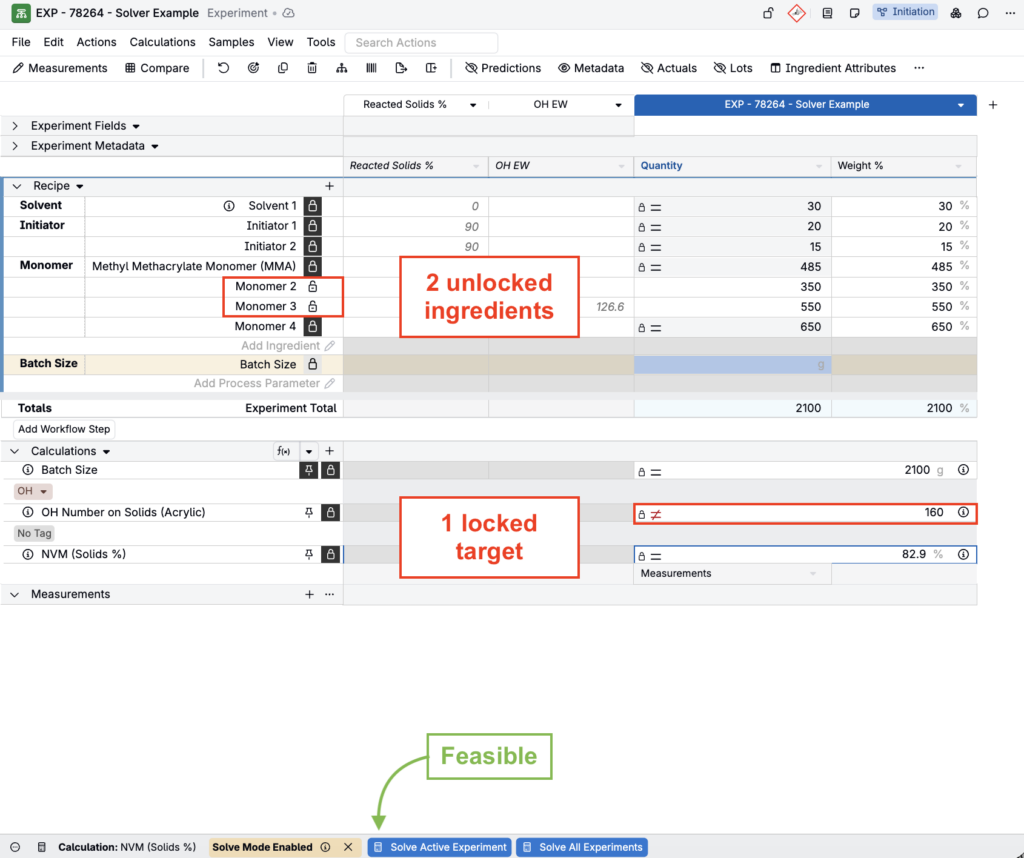
Note that column calculation locks are easy to underestimate because each locked row counts separately. For example, if you lock four Weight % rows, that contributes four constraints, not one.
Once you identify that a solve is over-constrained, you can usually resolve it by:
- Removing some constraints, or
- Unlocking additional ingredients to give the Solver more variables, or
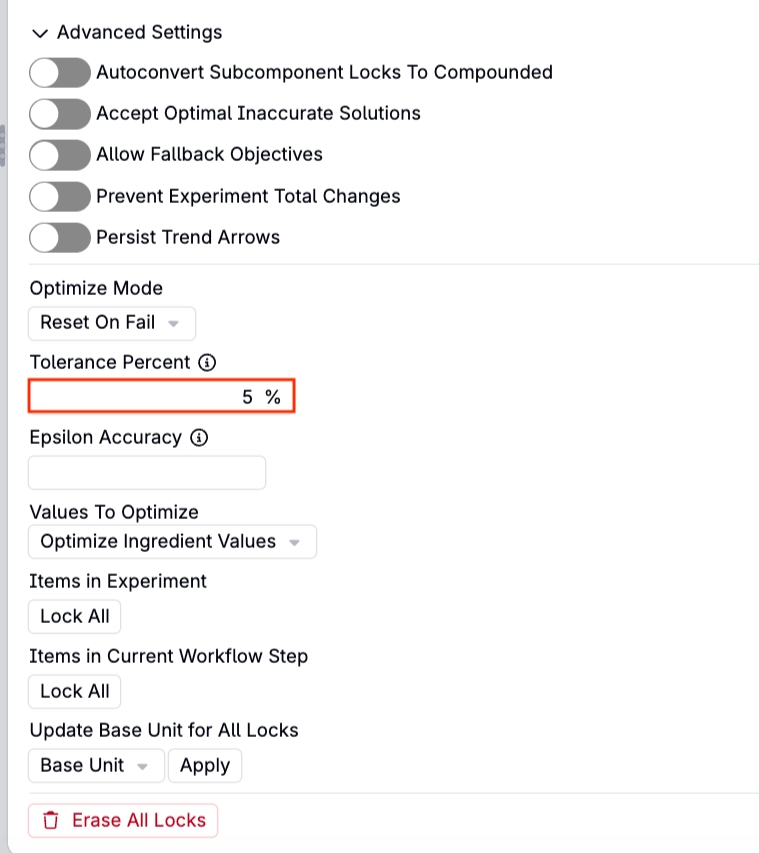
- Using Tolerance Percent (Advanced Setting in the Solver/Locks sidepanel) to give fixed-value constraints a small percentage of flexibility, or
- Loosen a fixed-value constraint into a directional (fixed range) constraint (see below).
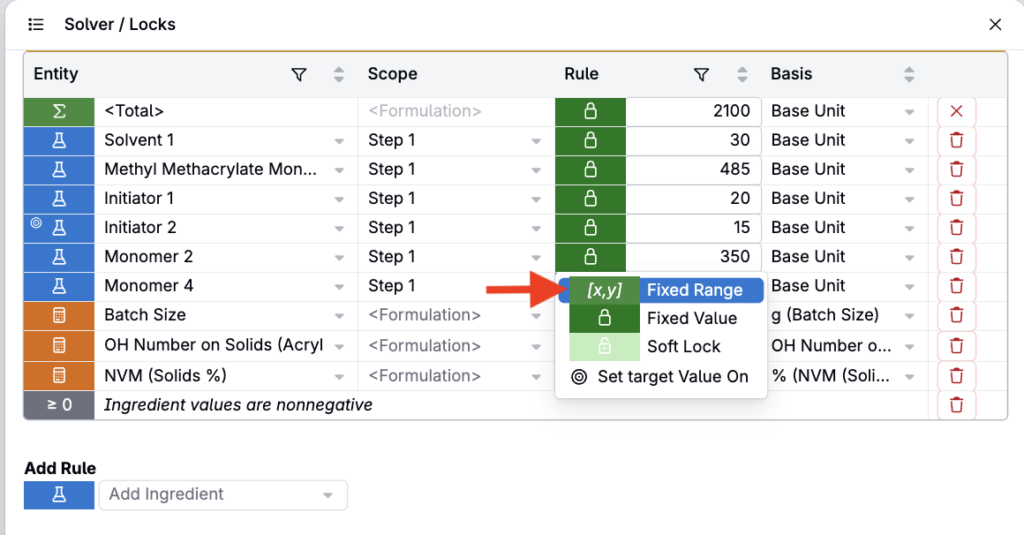
Directional (Fixed Range) Constraints
Not every target has to be a single fixed value. From the Solver’s Set Target panel, a lock can also be configured as a directional constraint:
- Fixed range — enter both a lower and upper bound (e.g., 1%–2%)

- ≥ (minimum only) — enter only a lower bound

- ≤ (maximum only) — enter only an upper bound

Directional constraints are handled as inequalities rather than strict equalities, which means they give the Solver more room to find a feasible answer. They’re especially useful for limits that only matter in one direction—like an ingredient that must stay at or below a regulatory maximum, or a property that only needs to clear a minimum threshold.
Directional constraints can be applied to locked calculations, column calculations, and ingredient amounts. A range constraint still counts toward your degrees-of-freedom budget the same way a fixed value would.
Additional Lock and Constraint Types
Beyond fixed values and ranges, the Solver/Locks side panel supports several other rule types for more advanced formulation control. To add one, open Solver/Locks (via Search Actions), then use Add Lock or Add Rule and choose the rule type.
Ingredient Ratios
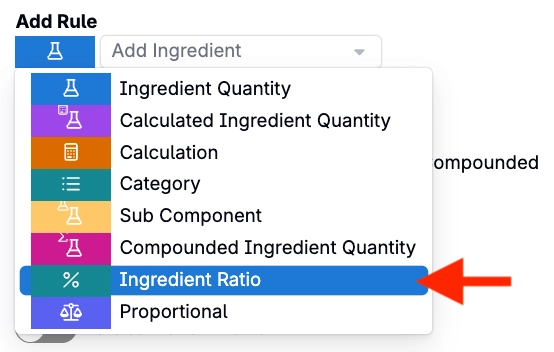
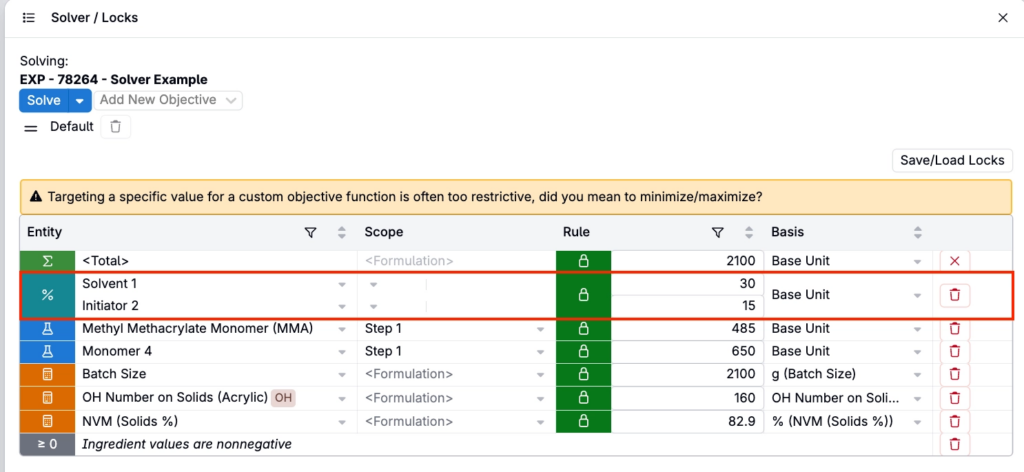
An Ingredient Ratio lock ties two or more ingredients together at a fixed proportion (e.g., 1:1:2), so that adjusting any one of them automatically scales the others to preserve the ratio. To set one up:
- Open the Solver/Locks side panel.
- Add an Ingredient Ratio rule.
- Select the ingredients you want to link by ratio.
- Set the desired ratio.
- Solve as usual—Solver will keep the ratio fixed while adjusting the linked ingredients together.
Compounded Ingredient Quantity and Subcomponent Locks
For multi-step recipes built from intermediates, an ingredient can appear inside more than one parent ingredient. Two related lock types help you control this:
- Compounded Ingredient Quantity locks the ingredient’s total quantity summed across every parent ingredient it appears in.
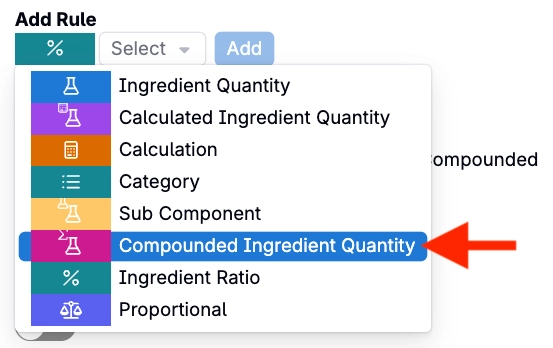
- Sub Component locks constrain the ingredient only within one specific parent, leaving its amount in other parents unaffected.
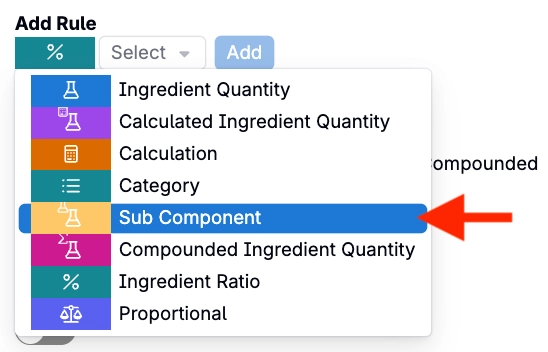
Use the Expanded Ingredients view to see an ingredient’s compounded total across all parents before deciding which type of lock best fits your recipe.
Curve Objective Configuration
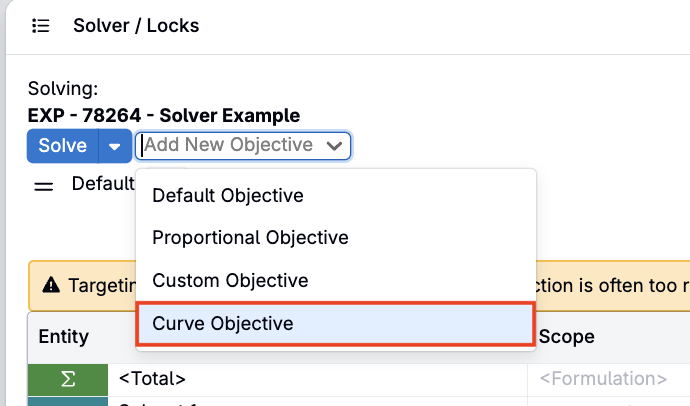
As introduced in How the Solver Works, the Solver can optimize toward a curve-matching objective instead of a single target value. Setting this up has two parts:
Unlike the locked calculation targets covered in Solver Compatible Calculations, the Curve Objective isn’t a lock or rule and doesn’t need to be a Weighted Sum/Composite calculation. It replaces the default objective (minimize distance to the original recipe) with a curve-matching objective, so an Aggregate Curve calculation can be targeted directly without needing to pass Solver-compatibility checks.
1. Create an Aggregate Curve calculation
- Create a new calculation and set Calculation Type to Aggregate Curve.
- Set Aggregate Curve Source to Lot Attribute.
- Select a Curve Output.
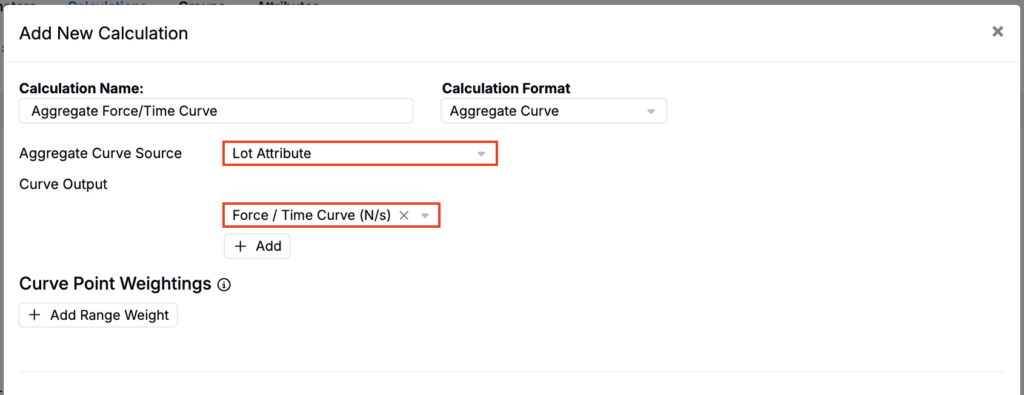
2. Set the Curve Objective and solve
In the Solver/Locks side panel, use the Add New Objective field to add a Curve Objective targeting the aggregated curve, then run the solve as usual. Solver adjusts the recipe’s unlocked variables so the resulting curve matches the target curve as closely as possible.
Solving with Column Calculations
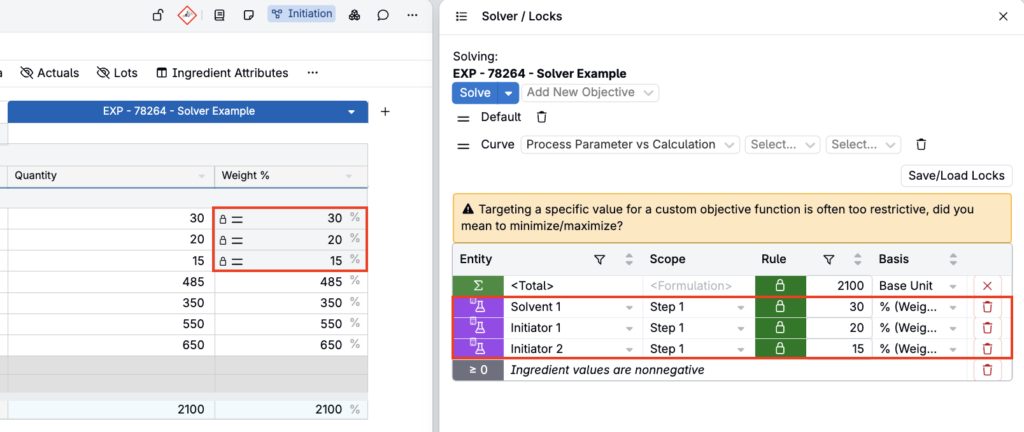
Column calculations show ingredient-level contributions, such as weight %, reacted solids contribution, OH equivalence per ingredient, or mass or mole fraction. Column targets are extremely powerful for advanced formulation control
To lock a column calculation value:
- Right click on the value.
- Click the 🔓 icon next to Lock Quantity? (In Solver).
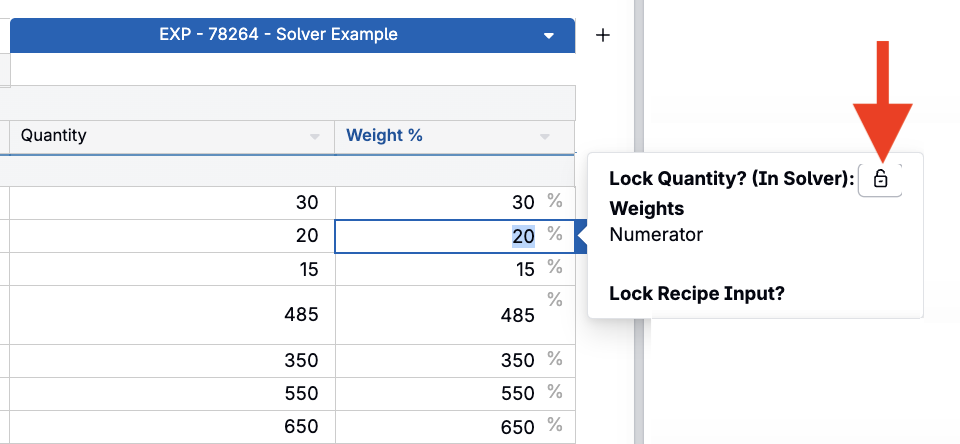
Locking a column calculation adds one constraint per locked ingredient row. For example, locking Weight % for four ingredients contributes four constraints.
What Solver Does When Multiple Solutions Exist
In complex systems, many ingredient combinations may satisfy the same constraints. Solver selects the solution that is nearest to the original recipe using squared-distance minimization (L2 norm).
This ensures:
- No ingredient changes drastically unless necessary
- Adjustments are distributed across unlocked ingredients
- Final recipes are chemically reasonable and intuitive
For example, if two formulas both satisfy OH Number on Solids = 140 and Batch Size = 2100 g. Solver chooses the one requiring the smallest total change across all ingredients.
Behavior of Locked vs. Unlocked Ingredients
Locked Ingredients
Locked ingredient amounts:
- Cannot change
- Are treated as fixed constraints
- Do not contribute to degrees of freedom
Unlocked Ingredients
Unlocked ingredients:
- Are variables Solver can adjust
- Must have a non-zero starting value
- Contribute to degrees of freedom
- Change proportionally unless constrained by more specific targets
If an ingredient’s amount is blank or zero, Solver treats it as frozen and will not adjust it. This often causes infeasibility. Users should seed adjustable ingredients with 1 g if you don’t yet know their intended value.
Using the Solver/Locks Side Panel
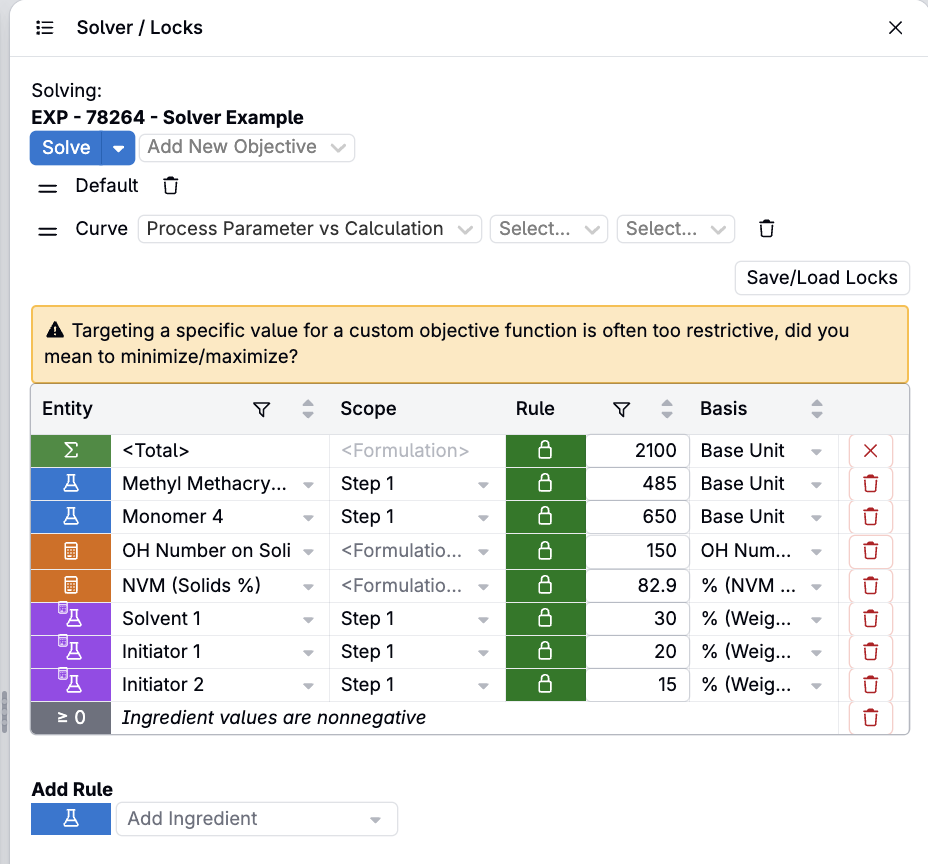
The Solver/Locks panel is critical for debugging and understanding advanced configurations. To open it, use Search Actions and type “Solver/Locks”.
The panel shows:
- All locked calculations (even if hidden from view)
- All locked ingredient values
- All locked column values
- Lock types and target values
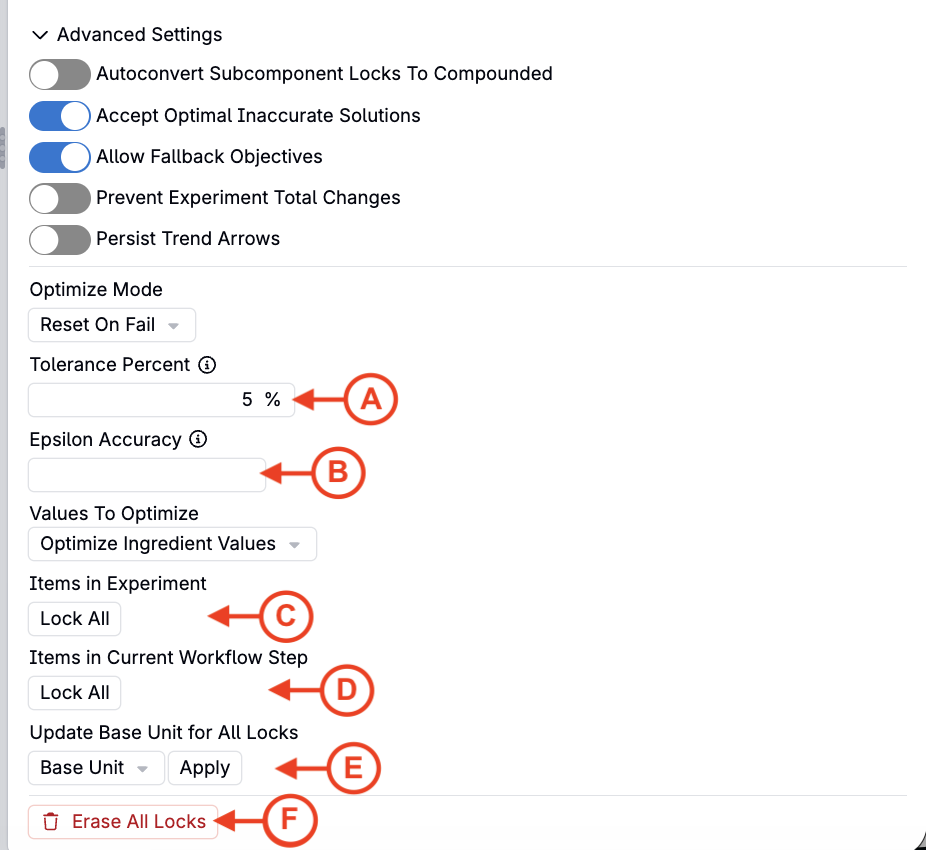
Under Advanced Settings, you will also find:
- Settings to add a tolerance percent (A) and epsilon accuracy (B)
- Actions to lock all items in a recipe (C) or workflow step (D)
- Action to remove locks directly (E)
- Update the unit basis for every currently locked item to a selected unit at once (F)
If a user hides a calculation after locking it, the lock persists and can cause Solver to fail. The panel is useful for revealing these hidden locks.
Saving and Loading Lock Sets
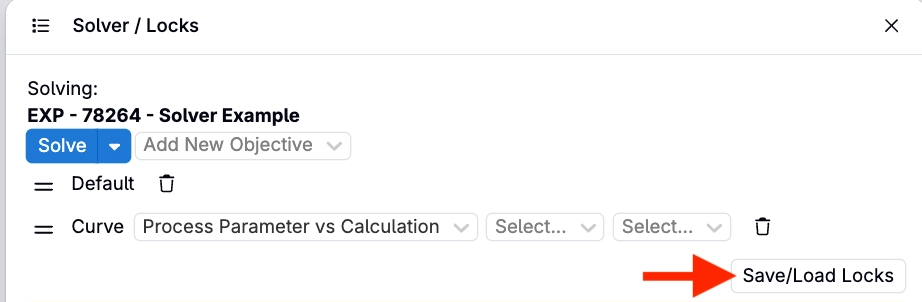
If you regularly solve the same type of recipe with the same locks—a standard buildup, for example—you can save the current set of locks and reapply it later instead of recreating it by hand.
- Save Locks stores the current lock configuration (which calculations, ingredients, ratios, etc. are locked, and their targets) as a reusable set.
- Load Locks applies a previously saved set to the current experiment. If the experiment’s ingredients don’t exactly match the ones the lock set was created for, only the matching locks are applied—Solver will not error out over the mismatch.
- Locks also persist automatically when you copy an experiment, so a copied recipe keeps its original lock configuration.
This is especially useful for teams that repeat the same formulation pattern across many experiments.
When the Solver Cannot Find a Solution
Advanced configurations create more opportunities for infeasibility. Solver may fail when:
- A locked ingredient amount is zero or blank — The Solver never changes blank/zero values.
- There are more locked constraints than unlocked ingredients — Over-constrained systems cannot be solved mathematically.
- A hidden calculation is still locked — Use the Solver/Locks panel to find it.
- A calculation used as a constraint is not Solver-compatible — If it can’t display a lock icon, it can’t be used.
- Ingredient-calculation multipliers or special denominator behaviors block compatibility — Mostly seen in custom setups.
- Column values were accidentally locked — Especially common without Auto-Lock awareness. The associated error message will typically say “infeasible.”
Multi-Step Recipes (Workflow Step Solving)
The Solver works within the current workflow step. If a calculation belongs to a specific workflow step:
- Solver only looks at the ingredients and amounts from that step
- Locks from different steps do not interfere
- Weighted sum/composite rules still apply
This allows fine-grained optimization within multi-step formulations.
Best Practices
- Always start simple — Lock one calculation → solve → verify → add another.
- Seed all adjustable ingredients — Non-zero starting points prevent false infeasibility.
- Use Solver/Locks before every complex solve — Ensure no hidden or unintended locks.
- Avoid mixing too many constraint types — Keep solves predictable by grouping related targets.
- Expose only the columns you need — Too many column-level locks can confuse the constraint structure.
- Test each calculation individually with Solver — Confirm solver-compatibility early.
- Prefer a range over a fixed value when either would do — Ranges give the Solver more flexibility and can turn an infeasible solve into a feasible one.
- Save lock sets for recipes you solve repeatedly — This avoids rebuilding the same constraints by hand each time.