
Uncountable’s custom pages feature allow admin users to define the structure of new pages within the Uncountable platform. Rather than relying on fixed, hardcoded page layouts, custom pages give your organization control over how information is organized and presented across the platform.
Overview
Custom pages made up of one or more page members, where each page member represents a tab on that page. Each tab can be configured to display a listing of a specific entity type, scoped to a particular context, and can be shown or hidden based on user-level constraints.
Custom pages are useful when you want to:
- Rename an page tab to match your organization’s terminology.
- Control tab visibility for different users by applying constraints to individual page members, so certain teams only see the tabs relevant to them
- Organize related entity types together in a single, coherent page with tabs that reflect your workflow.
Configuring Custom Pages
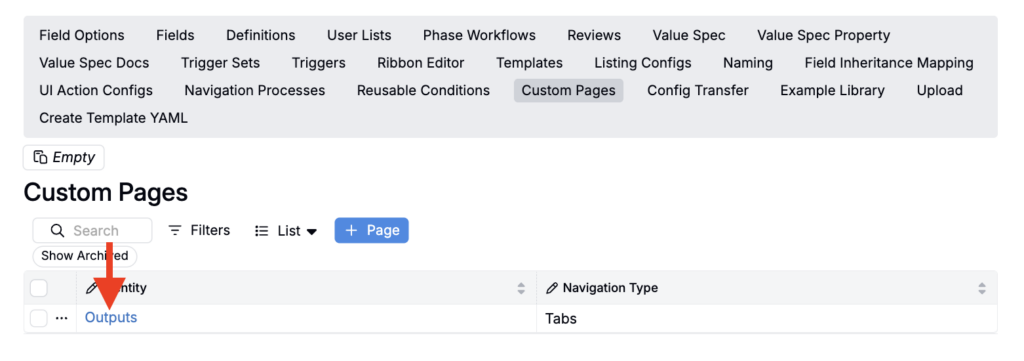
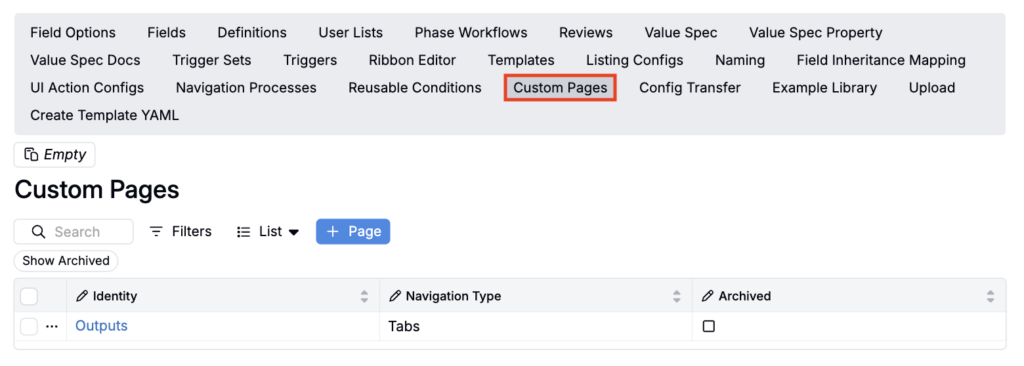
Custom Pages are configured by admins through the Custom Pages section of Form Admin. Here, you can view a listing of all custom pages configured within your schema.
Creating a Custom Page
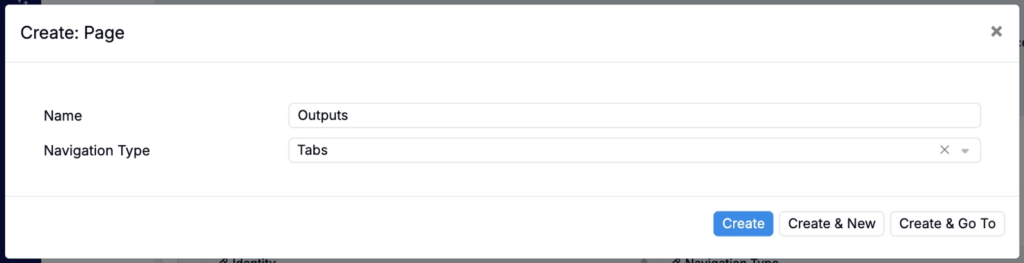
- Click + Page.
- In the modal, add a page name and set Navigation Type to Tabs.
- Once added, select it from the Custom Pages listing to begin adding page members.
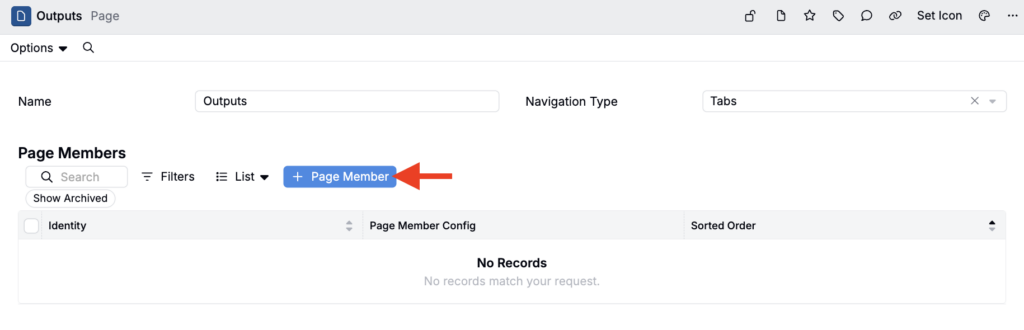
- Click + Page Member to add a new page member.
Editing a Page Member
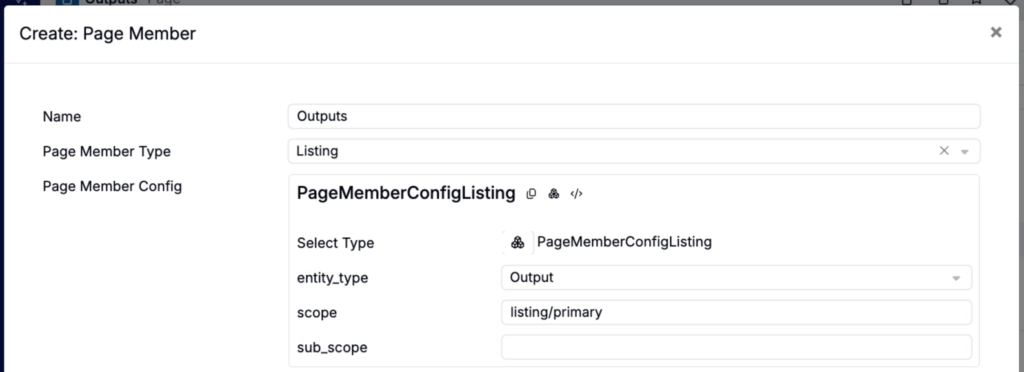
- Update the Name to change what the tab is called. Note that names are translatable, meaning they will automatically display in the user’s chosen language.
- Set the Page Member Type to Listing.
- Within the Page Member Config section:
- Use the entity_type field to select your entity type (e.g. output, condition parameter).
- Use the scope field to select your listing scope:
- Use listing/primary for standard listings (e.g. outputs, condition parameters), or
- Use listing/custom for custom listing configurations
- Optionally, use the sub_scope field to further narrow what the listing shows within the selected scope. For example, to point the tab at a specific saved view of that listing (like a particular subset or configuration) so the tab can show exactly the slice of data you want, not the entire entity type.
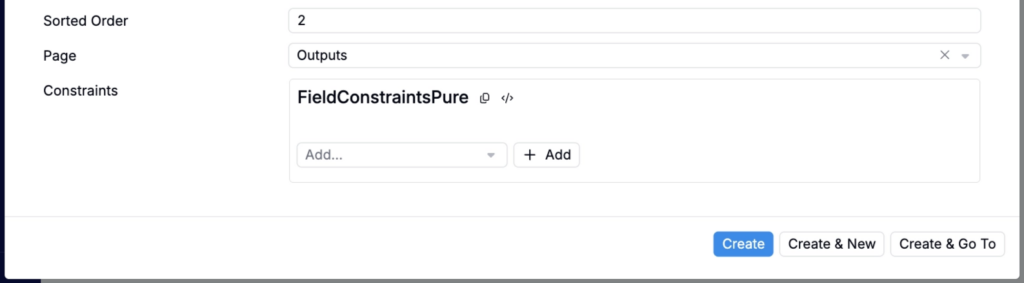
- Use the Sorted Order field to control the order that page members (tabs) appear on the custom page. Lower numbers show first, and higher numbers show later.
- Use the Page field to select your custom page.
- Optionally, use the Constraints section to control which users can see the page member (tab). Use constraints when you want a tab to be available only to certain roles or user groups.
Accessing a Custom Page
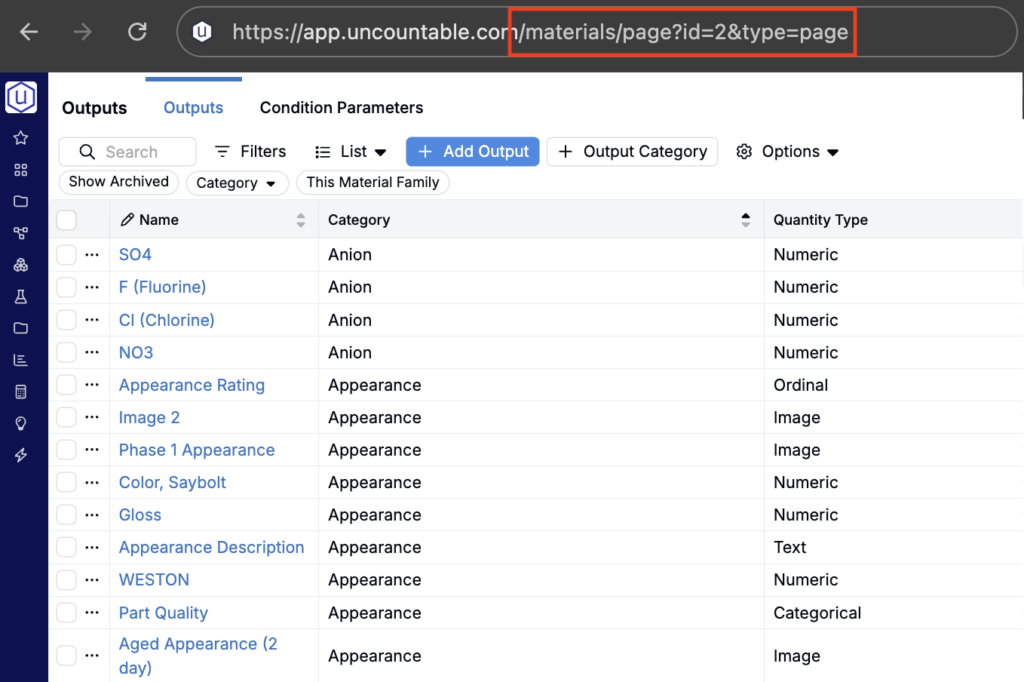
You can open a custom page directly in the platform by navigating to:
app.uncountable.com/materials/page?id=<page_id>
Find the page_id
To find a custom page’s page id:
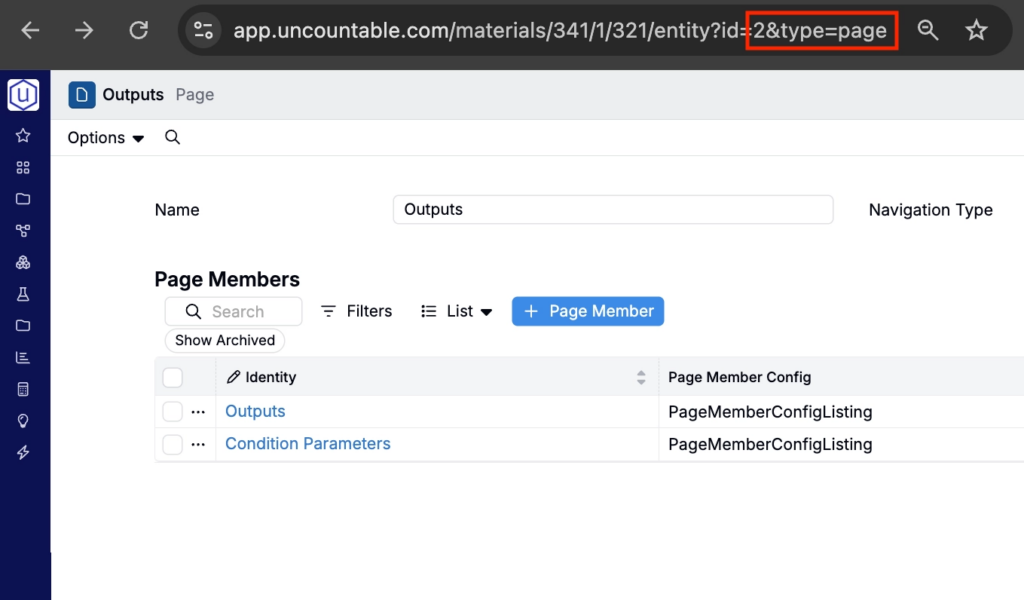
- Open the custom page’s entity record in Form Admin.
- Look at the browser URL and copy the value after
id=.
Open the page
- Paste that value into the URL pattern above (replace
<page_id>with your copied ID). - Press Enter to load the page.
Adding to Favorites
To save a custom page as a shortcut (for example, in the navigation bar, Favorites menu, or as a landing page), add a new Custom link from the Edit Favorites page.
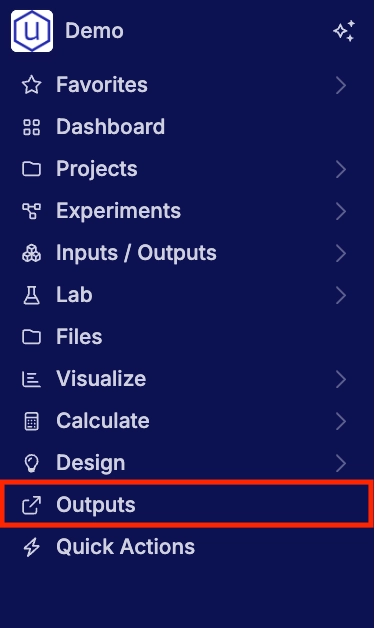
To learn more, refer to Edit Favorites.
Custom Pages vs “Create Custom Pages”
The platform uses the phrase “custom pages” in two different places. Here’s how to tell them apart:
- Custom Pages = builds end-user pages A custom page created in the Custom Pages tab of the Form Admin page is a new, real page in the platform made up of tabbed page members.
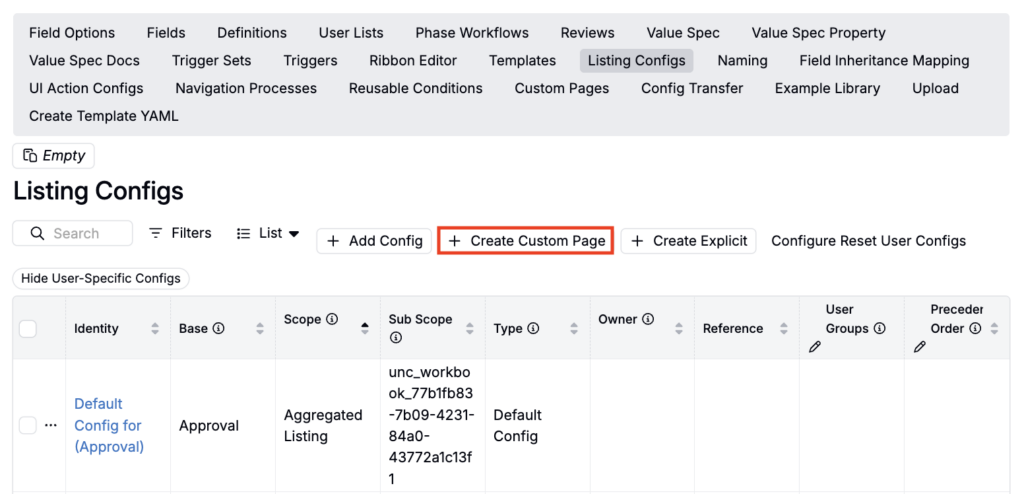
- “Create Custom Pages” Listing Config button = builds an admin view of a listing configuration This button creates a saved view for the admin listing of custom pages (columns, filters, sorting). It changes how the admin table looks; it does not create a new end-user page.
Note: Only admin users can create or modify Custom Pages. To request changes to an existing page or set up a new custom page for your schema, contact your Uncountable implementation contact.