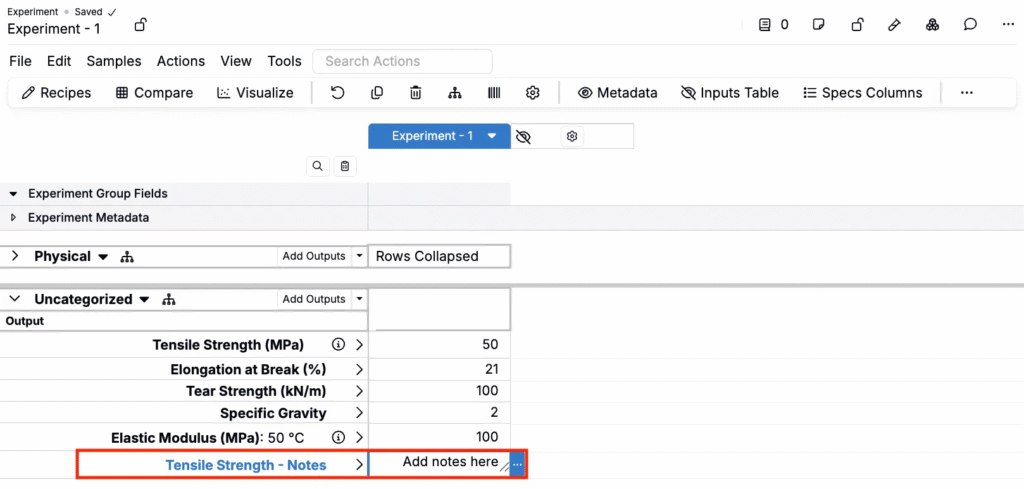
In Uncountable, there are three ways users can record notes on outputs:
- Cell Notes — Add a quick note tied to a single output value. Per measurement, simplest, least intrusive, best for ad‑hoc comments and one‑offs.
- “Notes” Recipe Output Field— Add a Notes‑type field to the experiment output definition. Can be displayed column and values stored in this way can be used in searching, filter, and export.
- “Notes” Output — Add a text output row associated with the output directly on the datagrid. Always visible but most intrusive, least recommended.
Adding Cell Notes
To add notes to an individual measurement cell:
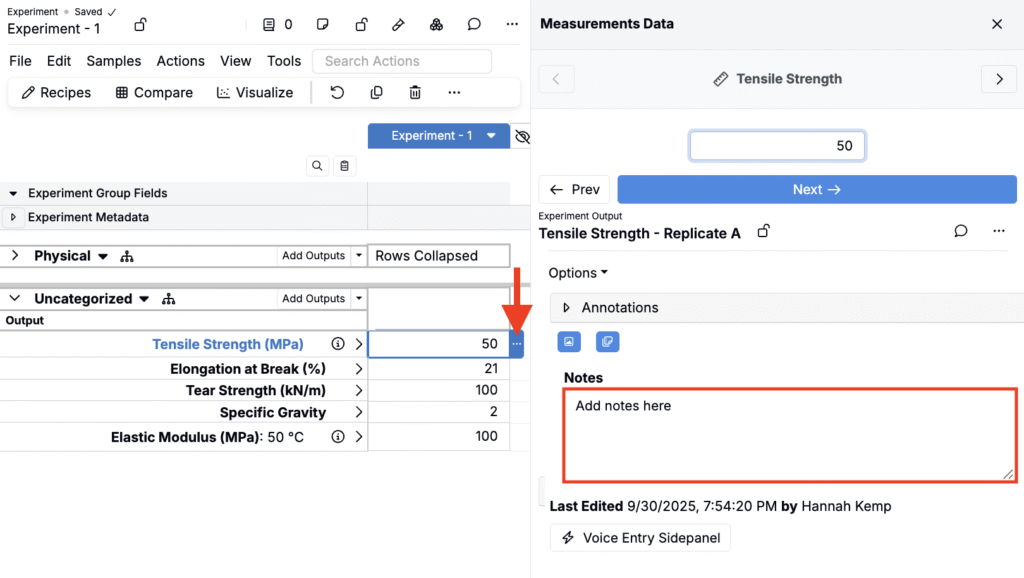
- In Measurements, select the value you want to annotate.
- Click the blue … to open the side panel.
- Use the default Notes field to enter comments.
Results
- The note is saved on that specific measurement value (per cell).
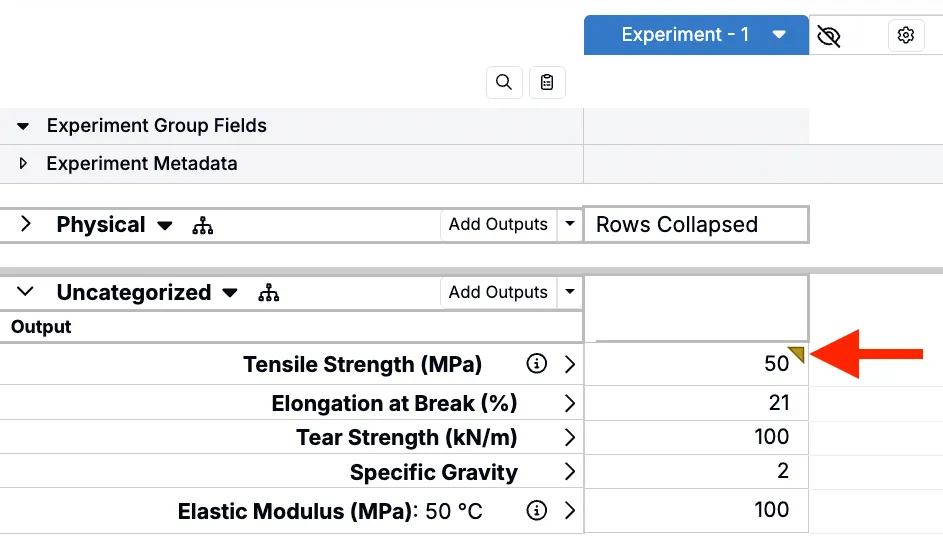
- The cell shows a yellow corner tag in the grid to indicate a note exists.
Using a “Notes” Recipe Output Field
Add a Notes recipe output field so every measurement in the schema can capture structured notes that you can show/hide, filter, search, and export.
Set up
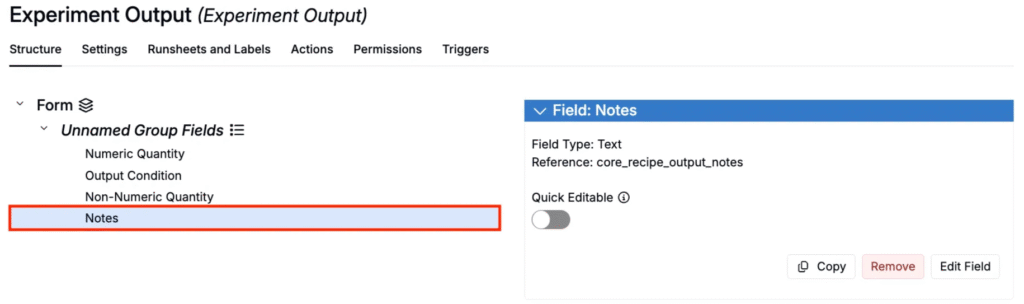
- Open Form Admin → Definitions.
- Find and open the Experiment Output definition.
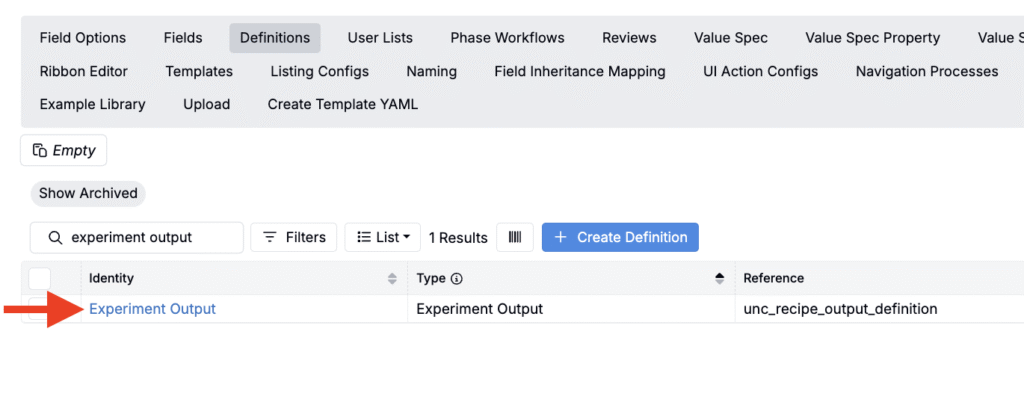
- Create or add an existing Notes output.
Add notes during data entry
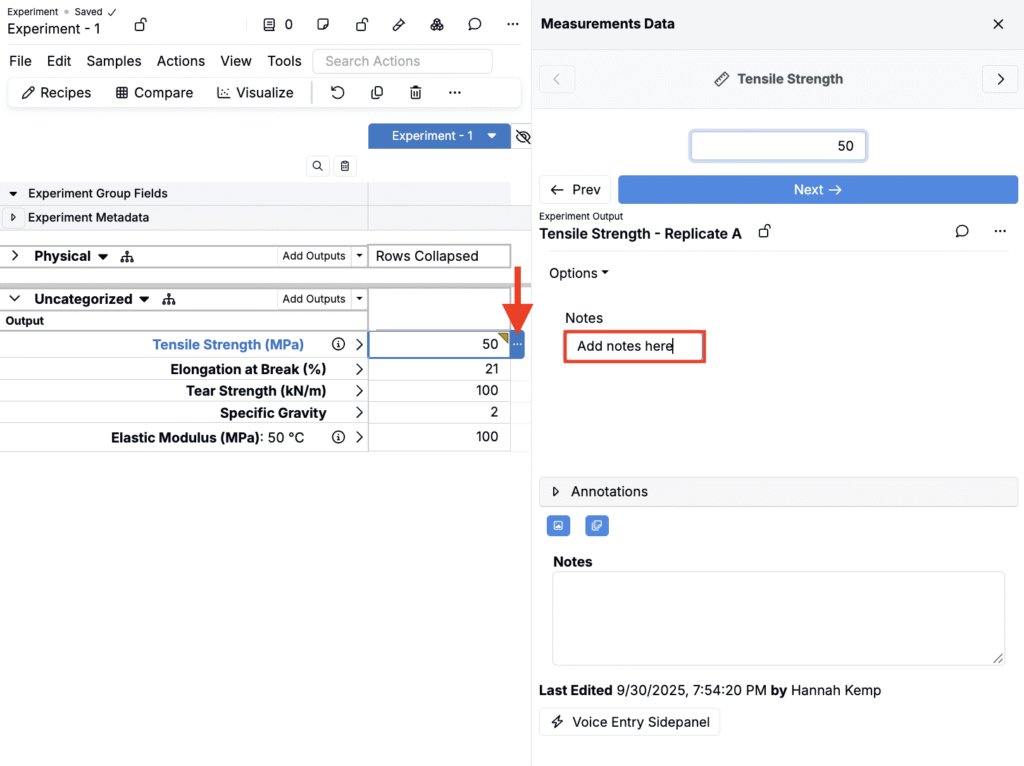
- In Measurements, select the value you want to annotate.
- Click the blue … to open the side panel.
- Use the configured recipe output Notes field to enter comments.
Results
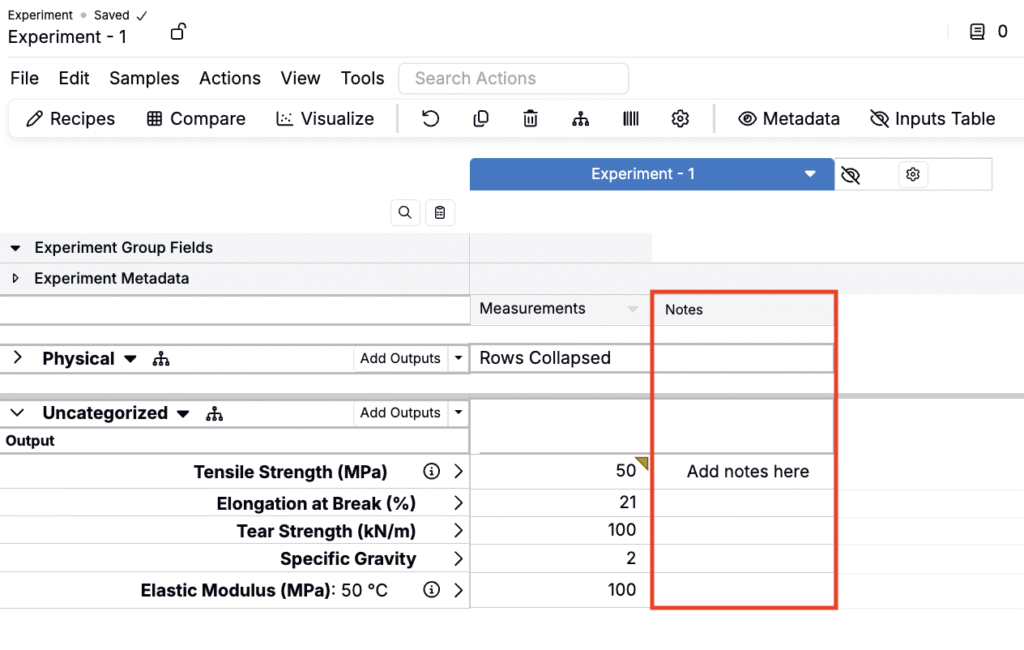
- The Notes field is available on all recorded outputs in that schema.
- Notes are saved on the specific measurement value (per cell).
- Because they live in a defined field, they can be shown as a column on experiment and listings, filtered and searched, and included in exports.
- Best for standardized note taking across a schema.
To learn more, refer to Recipe Output Fields.
Using Output Notes
Users can also add per-output Notes row directly on the datagrid. This method makes notes always visible but is the most intrusive and the least recommended.
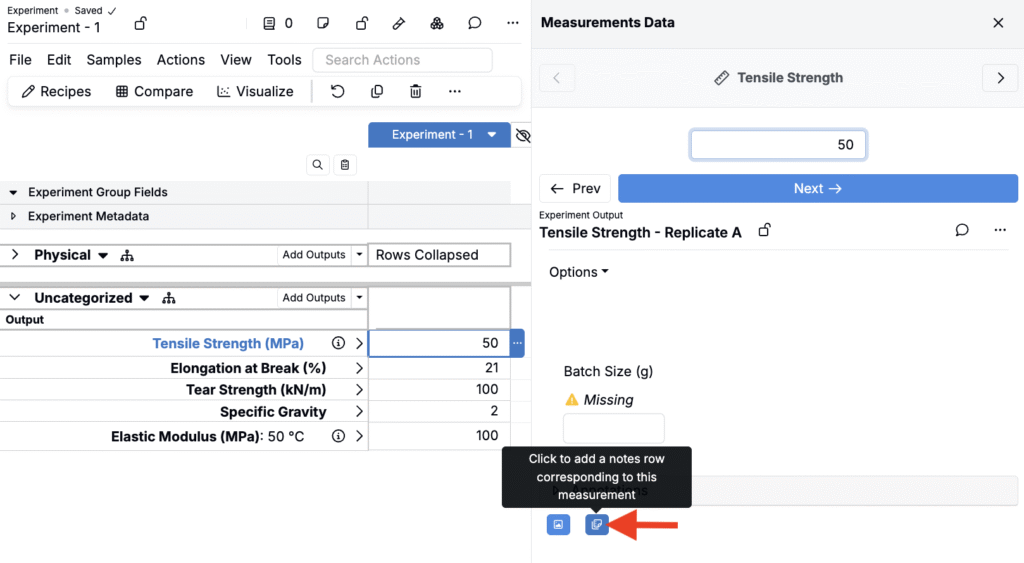
- In Measurements, select the value you want to annotate.
- Click the blue … to open the side panel.
- In the sidepanel, click the blue Add Notes Row icon.
Results
- This adds an additional [Output] – Notes rows to the data grid.
- Record comments directly in the recipe column.