The Ingredient Importer allows you to quickly bulk import new ingredients into the platform. On import, you can include ingredient attributes, categories, subcategories, and lot information.
However, the Ingredient Importer does not support importing ingredient field values — these are custom fields configured on the Ingredient definition.
If you want to bulk import ingredient field values, you can do so in stages:
- First, import new ingredients using the Ingredient Importer.
- After, use the Entities Importer to import ingredient field values, referencing each ingredient’s unique Uncountable Identifier.
How to Import Ingredients with Ingredient Fields
Step 1 — Import Ingredients Using the Ingredient Importer
Begin by importing your ingredients using the platform’s Ingredient Importer:
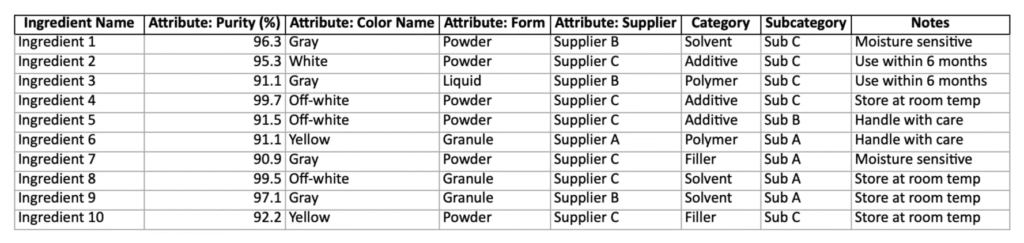
- Prepare your ingredient list — Create a spreadsheet with the columns for ingredient name, attributes, category, subcategory, etc.
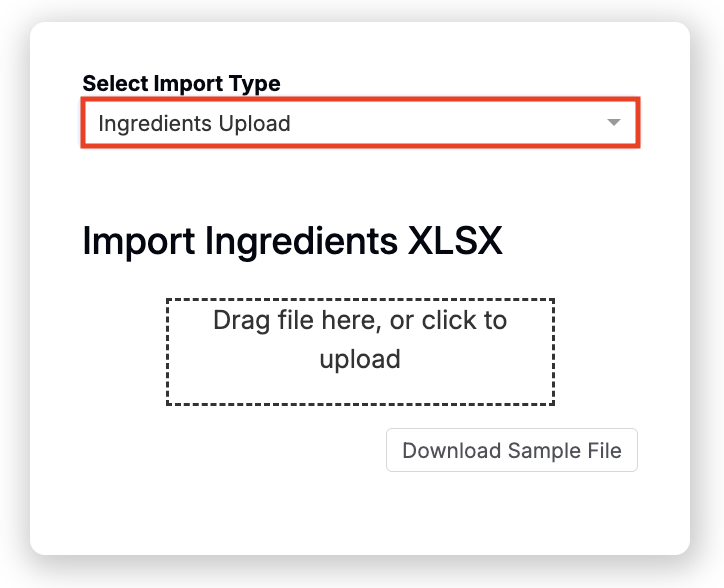
- Import your ingredients — Navigate to the Importer page, select the Ingredients Upload Import Type, drag in your prepared spreadsheet, review, and import.
To learn more, refer to Importing Ingredients, Process Parameters, and Lots.
Step 2 — Export the Ingredient List
Next, export the list of newly imported ingredients so you can retrieve their Ingredient IDs:
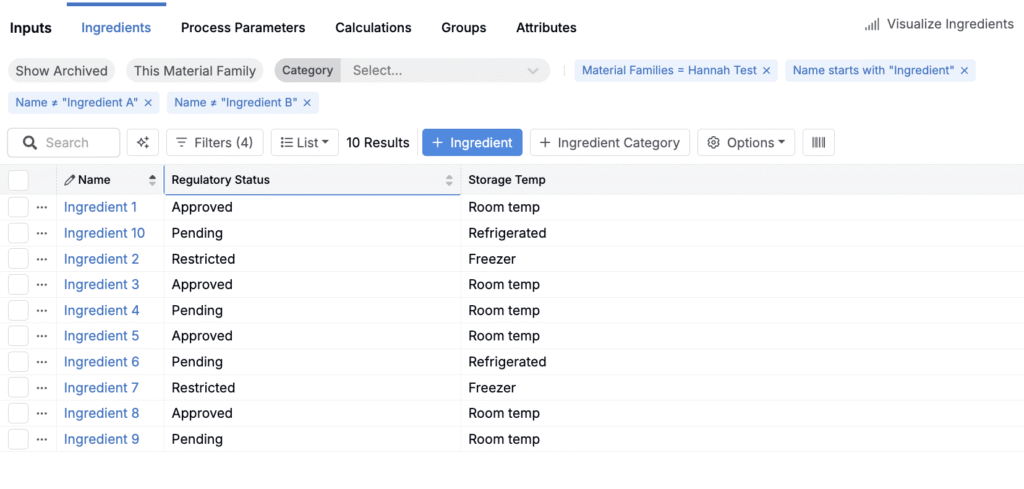
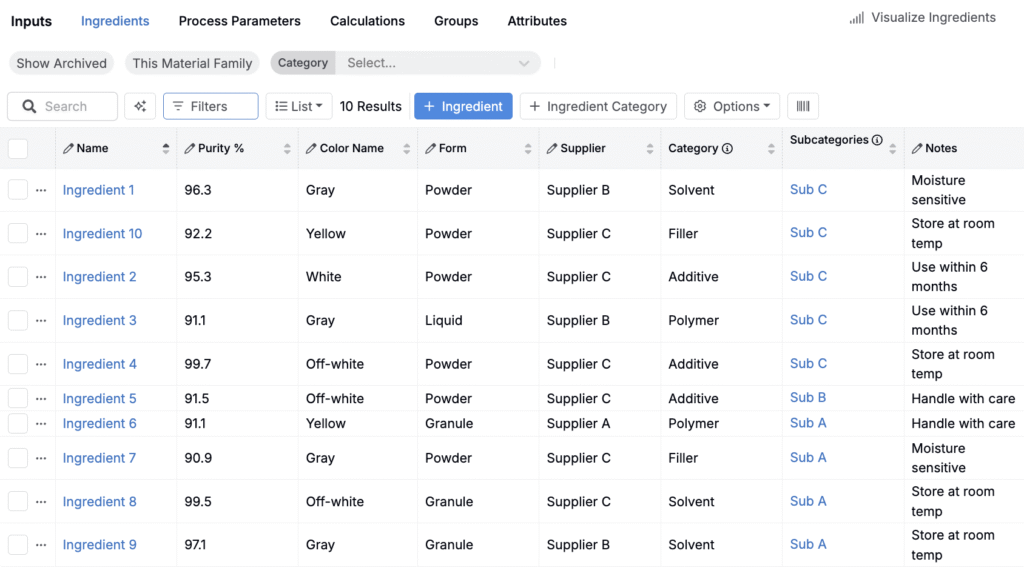
- Filter the Ingredient listing — Filter the Ingredients listing to show only the ingredients you just imported.
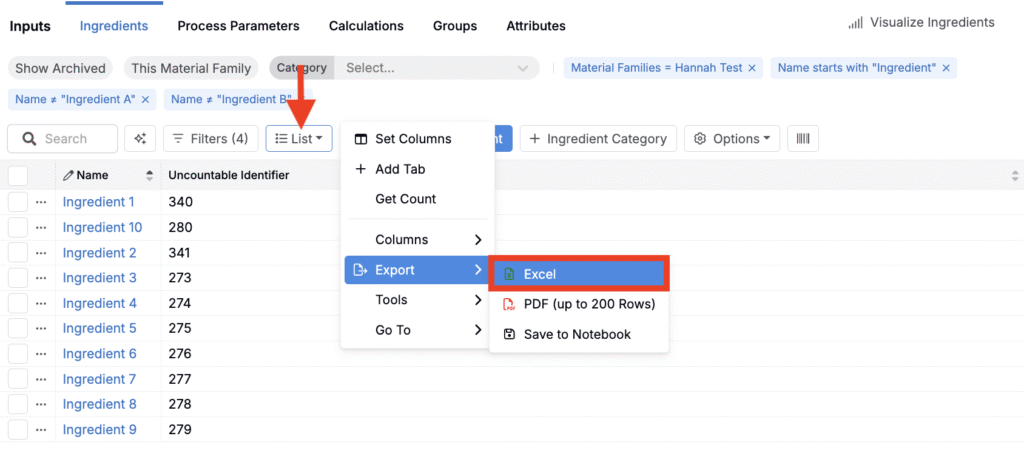
- Add the Uncountable Identifier column — This system-generated ID uniquely identifies each ingredient and is required when importing field values.
- Export the configured Ingredient List — Use List → Export to export the filtered list to Excel.
Step 3 — Configure a New Spreadsheet
Now prepare a new spreadsheet for the Entities Importer to import ingredient field values. The spreadsheet should include the following:
- Ingredient ID column — Add one column labeled “id” (matching the Uncountable Identifier from your export).
- Ingredient field columns — Add one column for each ingredient field you want to populate. The column names must match the corresponding ref name for the field added to the ingredient definition (see below).
- Rows — Each row represents one ingredient, matched by Ingredient ID.
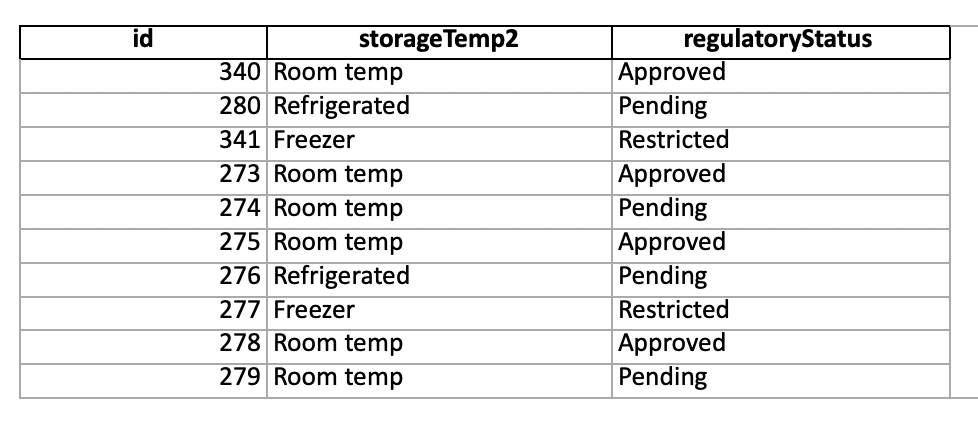
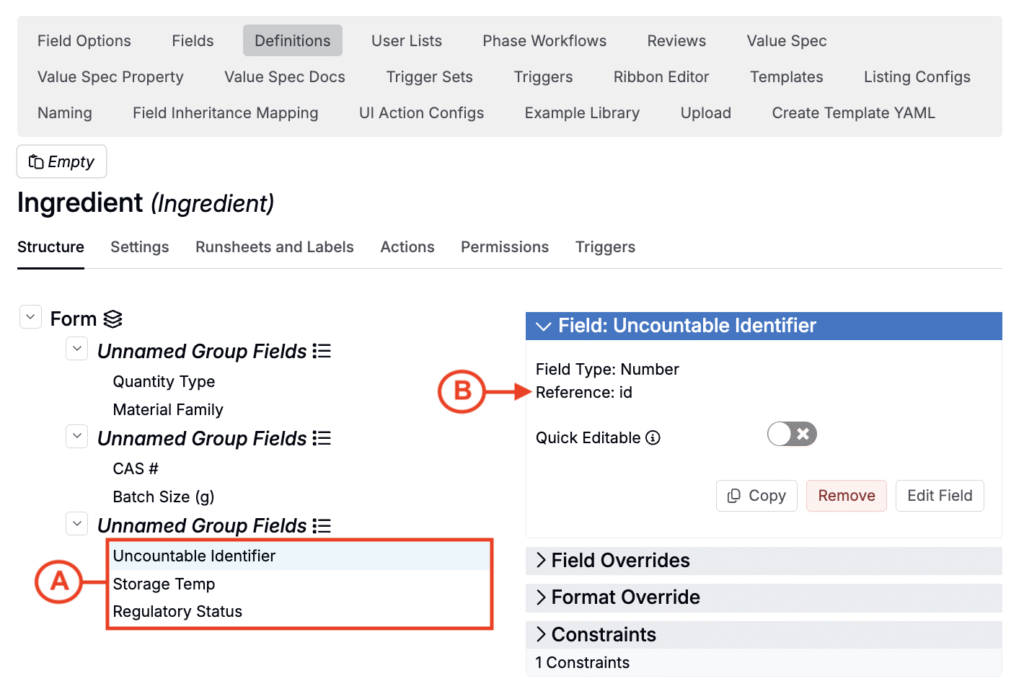
Note: Ingredient fields must already exist and be added to the selected ingredient definition before you import field values (A). To view an ingredient field’s ref name select the field on the definition itself and look for “Reference” (B).
Step 4 — Import Ingredient Fields Using the Entities Importer
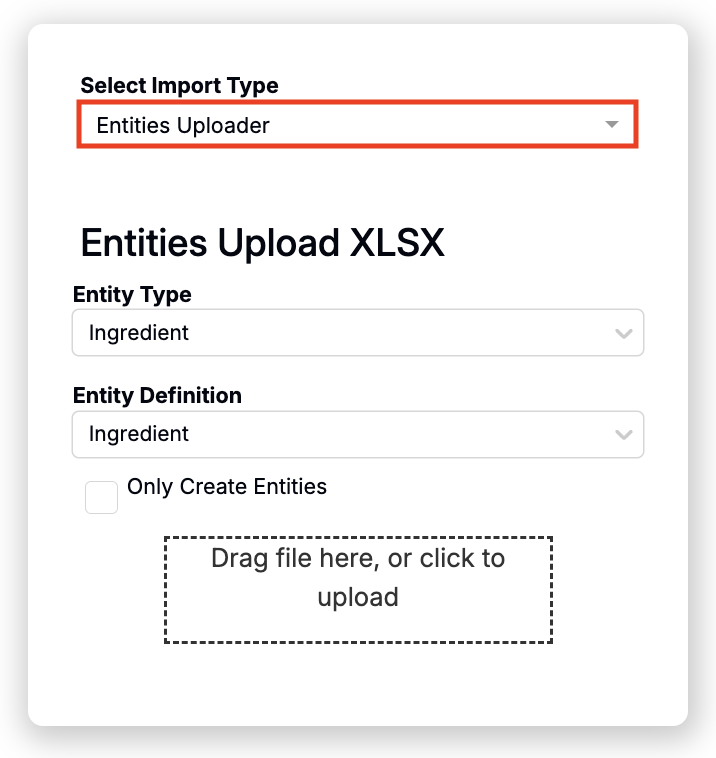
Once your spreadsheet is ready, navigate to the Importer page and select the Entities Importer.
- Set the Entity Type to Ingredient.
- Select the appropriate ingredient definition.
- Drag and drop your spreadsheet.
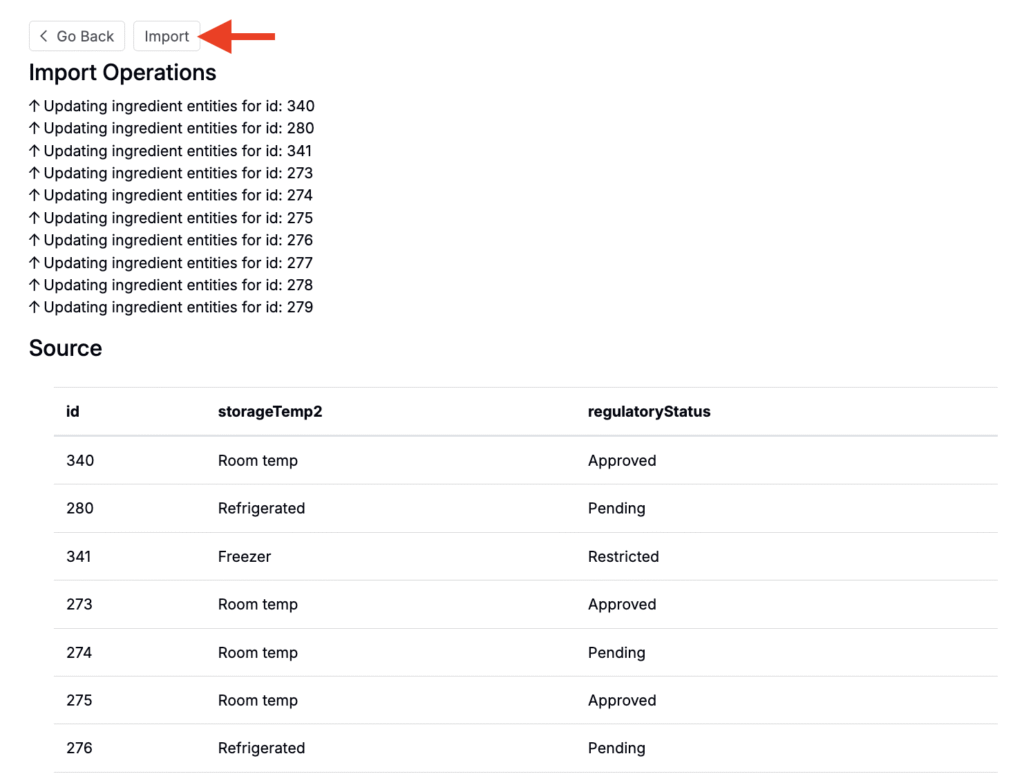
- Review the mapped fields and preview the data.
- When ready, click Import to complete the import.