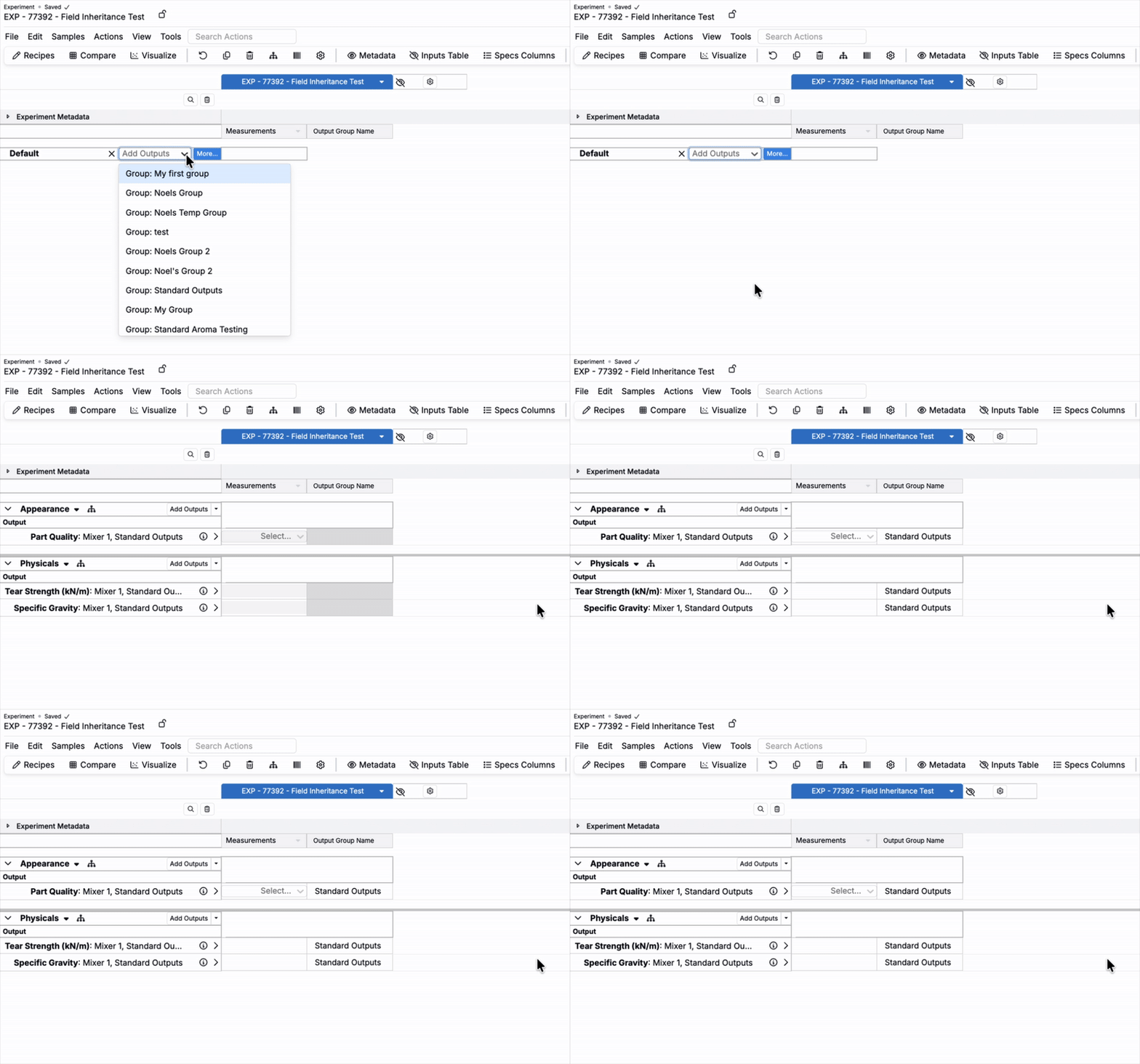
Field inheritance mapping enables admins to automatically transfer field values between related entities in Uncountable. This feature improves data consistency and simplifies workflows by inheriting field values automatically between connected definitions—without relying on triggers or manual updates.
Field inheritance mapping is configured centrally in Form Admin and applies automatically whenever supported entity relationships are used.
Supported Inheritance Types
Field inheritance mapping currently supports the following relationships:
- Ingredient to Recipe Ingredient
- Output Group Member to Recipe Output
- Experiment to Inventory Amount
- Ingredient to Inventory Amount
Additional inheritance types may be supported in future updates.
Creating a Field Inheritance Mapping
Field inheritance mappings are created in the Form Admin. Only admin users can access this page to create or modify inheritance mappings.
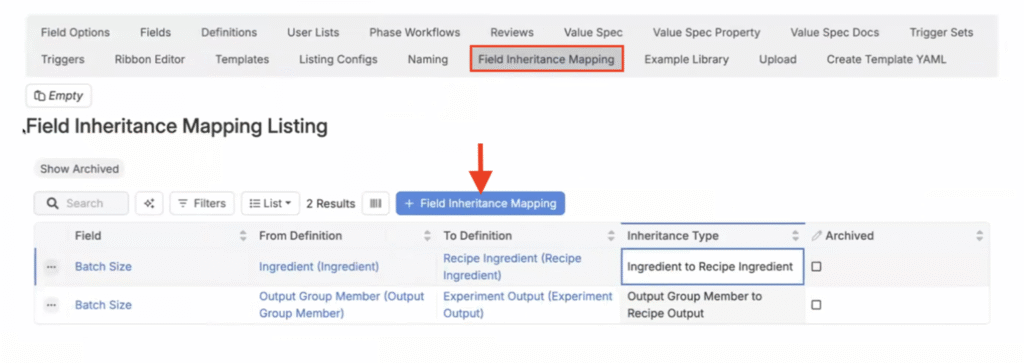
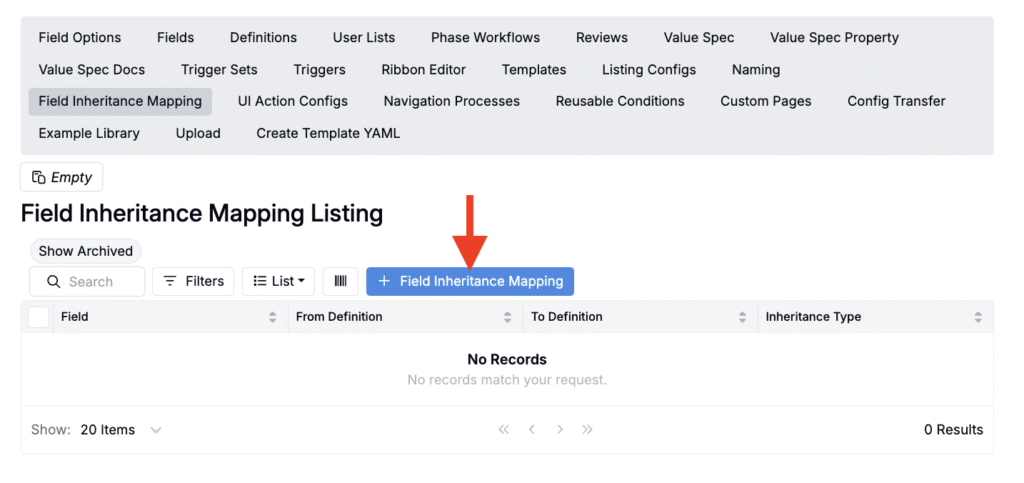
- Navigate to the Field Inheritance Mapping tab of the Form Admin page (Form Admin > Field Inheritance Mapping).
- Click + Field Inheritance Mapping.
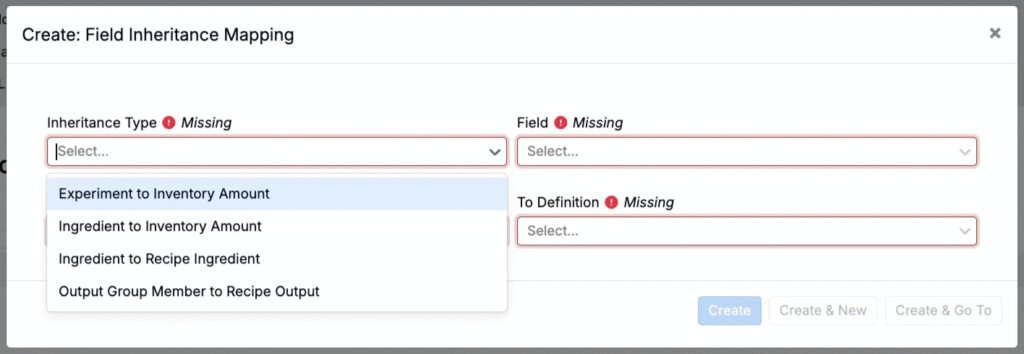
- In the modal:
- Select an Inheritance Type
- Use Field to select the field to inherit. Note that the selected field must already exist on both definitions. To learn more about adding fields to definitions, refer to this article.
- Use From Definition to select the definition to inherit from
- Use To Definition to select the definition to inherit to
- Click Create.
Once saved, the mapping will apply automatically to future entities created through that relationship.
Example: Ingredient to Recipe Ingredient
A common use case is inheriting ingredient information, like batch size or supplier information, into recipe ingredients. This ensures consistency across formulations without manual re-entry.
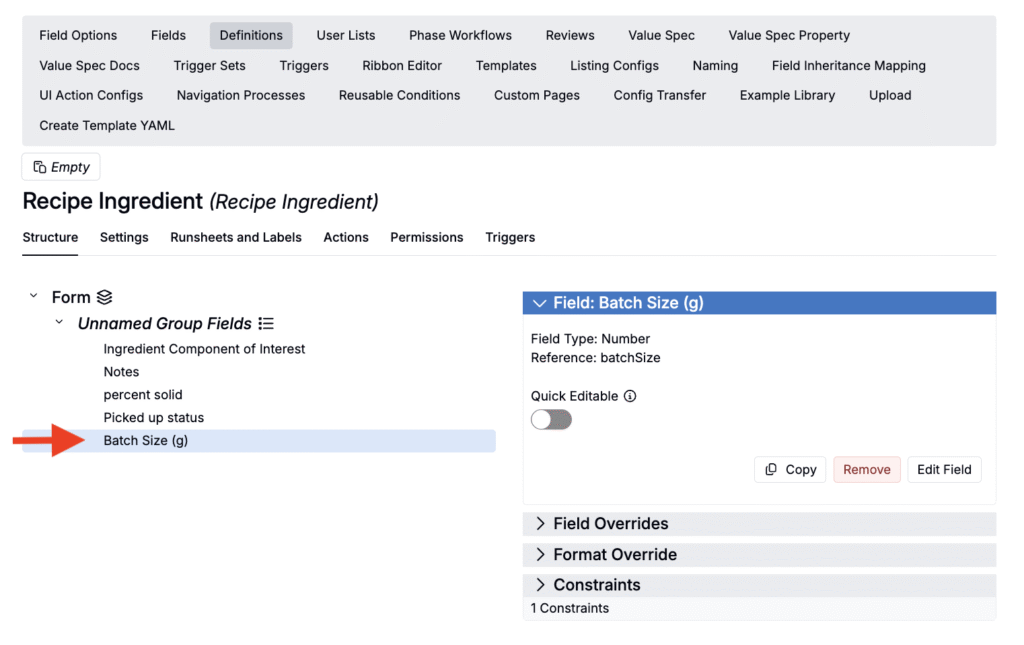
Step 1 — Add field to definitions
- Add a field (e.g. Batch Size) to the Ingredient definition.
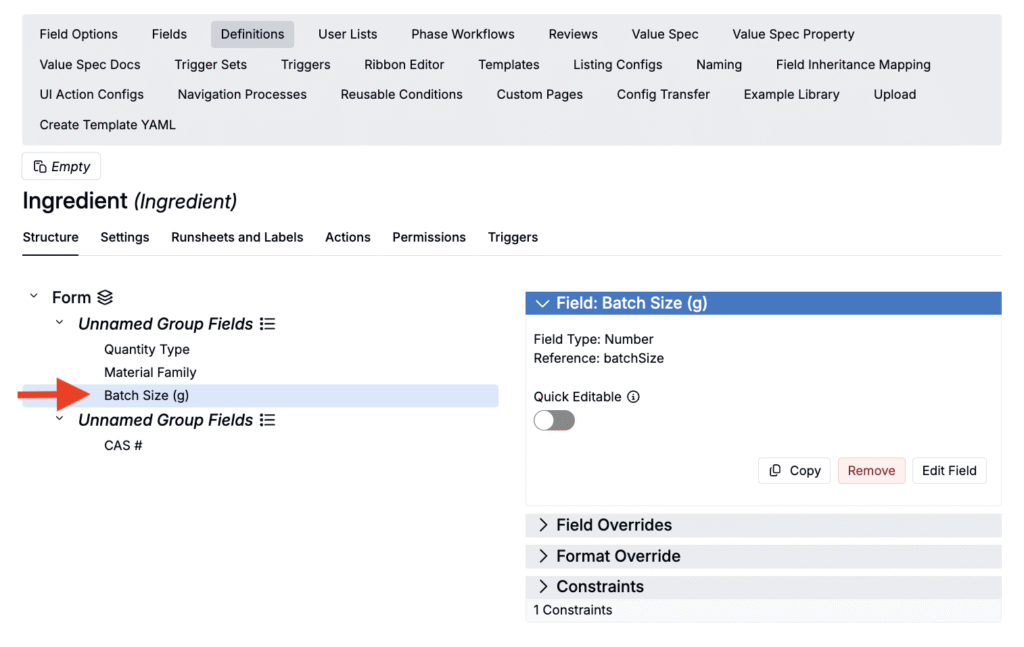
- Add the same field to the Recipe Ingredient definition.
Step 2 — Create the field inheritance mapping
- Create a new field inheritance mapping in Form Admin.
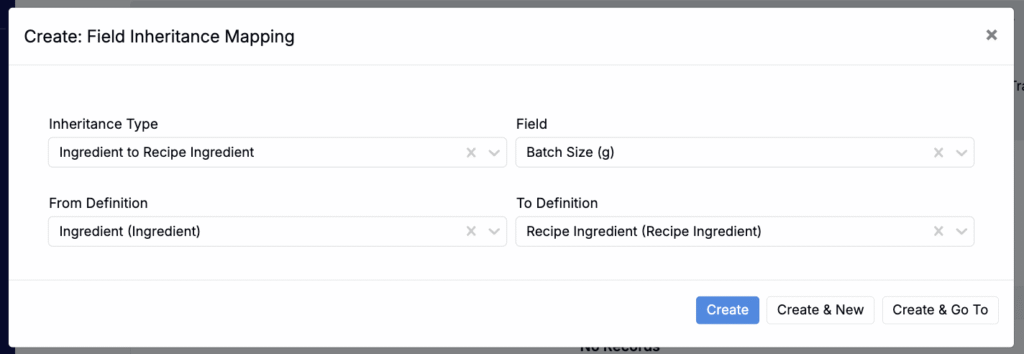
- In the modal, set:
- Inheritance Type to Ingredient to Recipe Ingredient
- Field to your selected field (e.g. Batch Size)
- From Definition to Ingredient
- To Definition to Recipe Ingredient
- Click Create.
Step 3 — Add default values
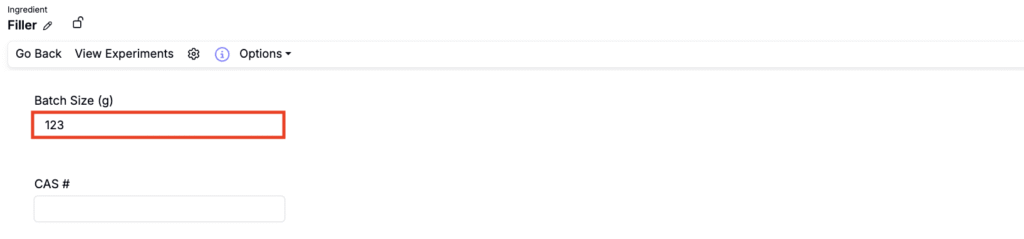
- Navigate to an ingredient’s details page.
- Use the field to add your default value.
Step 4 — Test
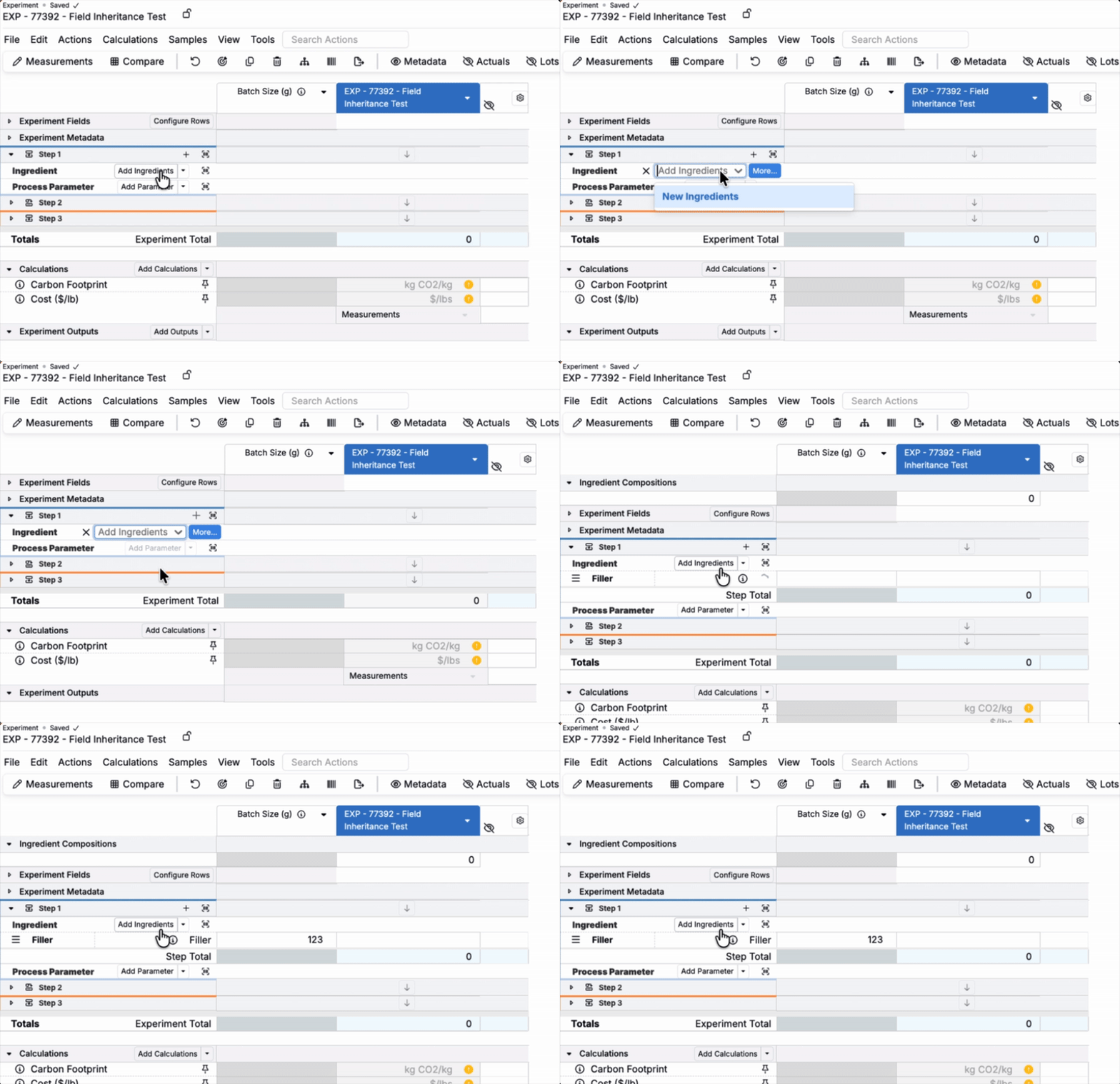
Then, when that ingredient is added to an experiment, the field value is automatically populated.
Example: Output Group Member to Recipe Output
Users also often want experiment outputs to retain context, like group name, about the output group they originate from.
Step 1 — Add fields to definitions
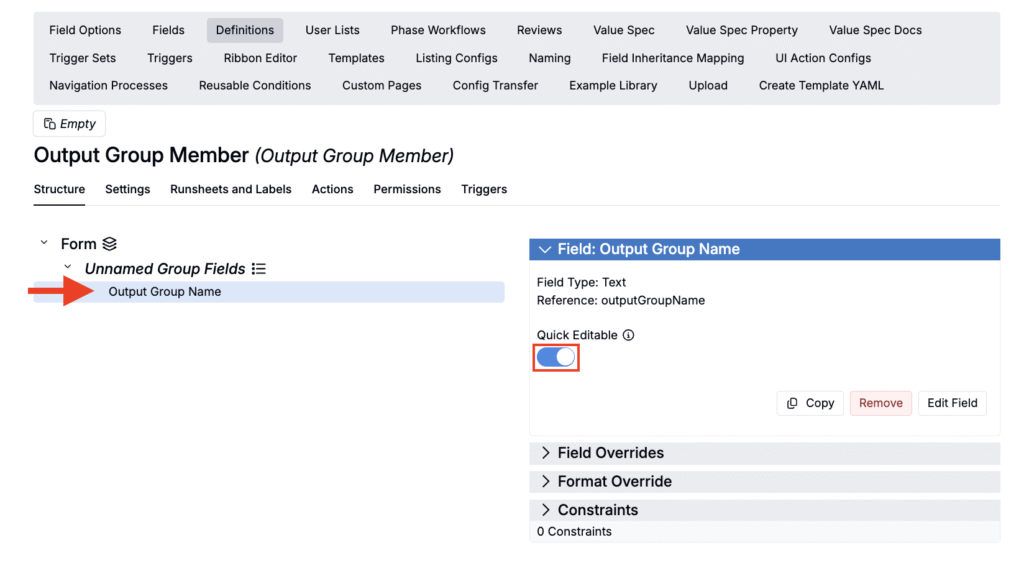
- Add a field (e.g. Output Group Name) to the Output Group Member definition.
- On the field, enable the Quick Editable toggle.
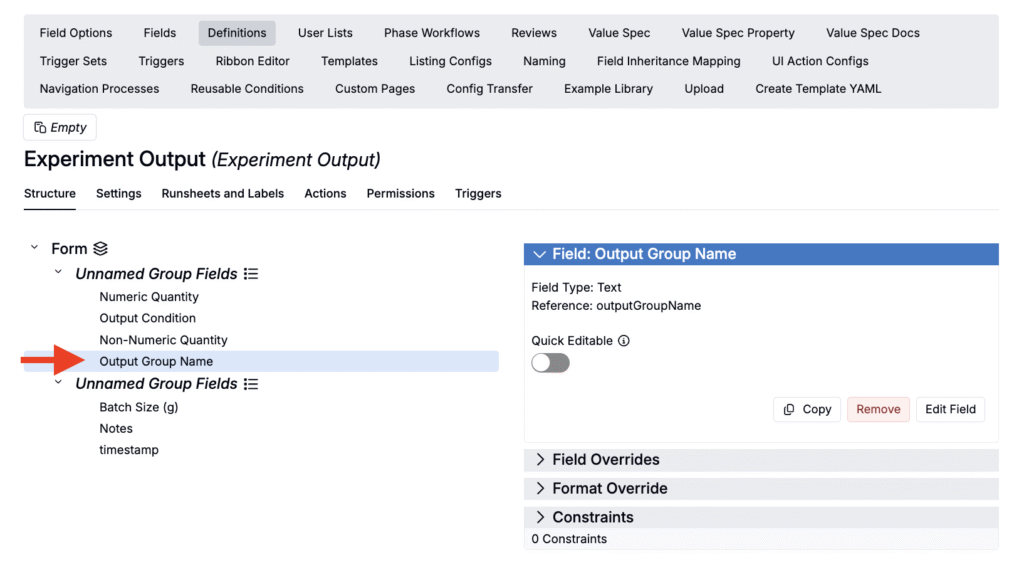
- Add the same field to the Experiment Output definition.
Step 2 — Create the field inheritance mapping
- Create a new field inheritance mapping in Form Admin.
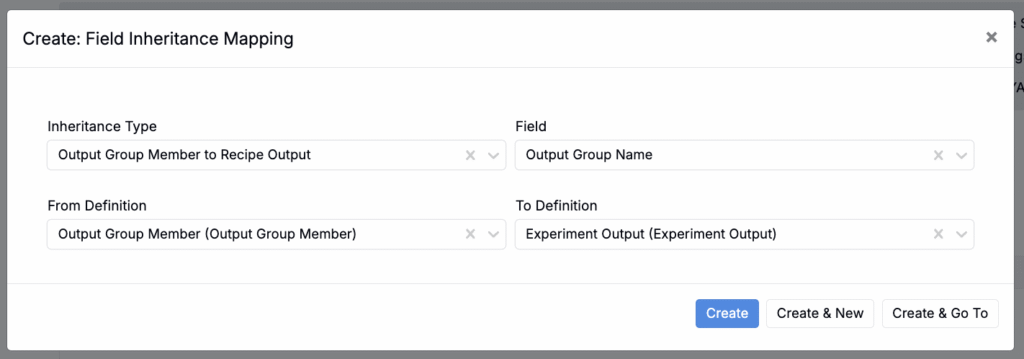
- In the modal, set:
- Inheritance Type to Output Group Member to Experiment Output
- Field to your selected field (e.g. Output Group Name)
- From Definition to Output Group Member
- To Definition to Experiment Output
- Click Create.
Step 3 — Add default values
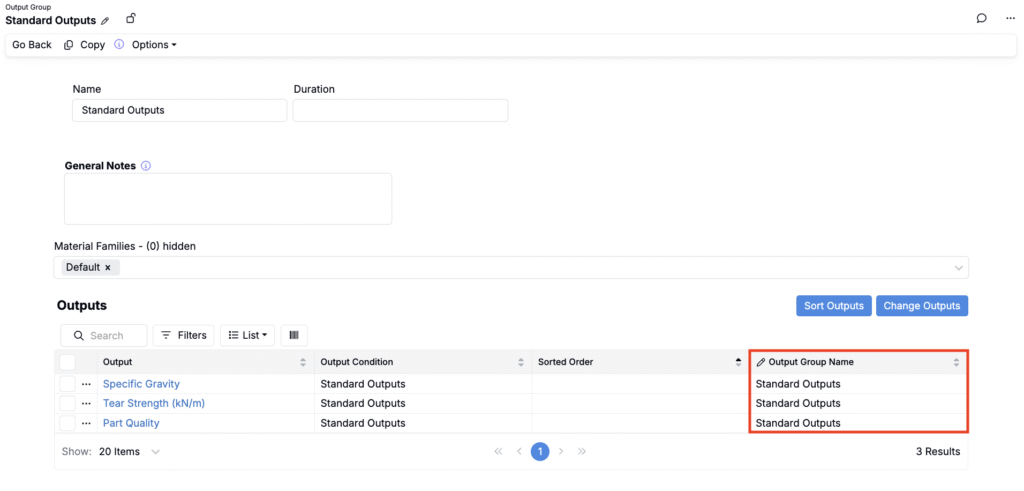
- Navigate to your output group’s details page.
- On the Outputs table, add a column to the outputs table for your selected field (List > Set Columns).
- Add a field value for each output.
Step 4 — Test
When an output group is added to an experiment, the recipe output field associated to the output within that group will be automatically populated.