
Creating categorical outputs works differently than creating other outputs types because they must be linked to a fixed list of options in Form Admin.
Step 1: Create the categorical output
- Create a new output.
- Enter the output name.
- Assign units if needed.
- Set Type to Single Select or Multi Select.
- Click the ✏️ icon to select an ID source.
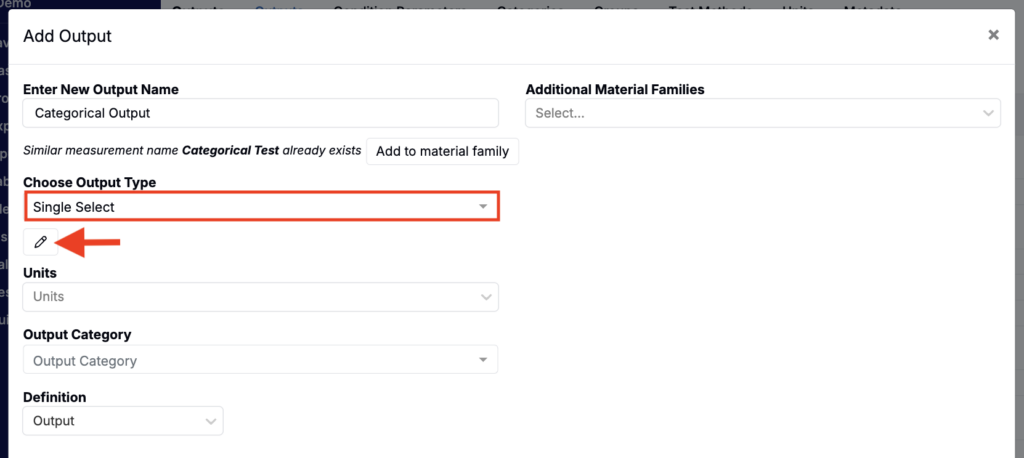
- In the modal:
- Select an existing Options Set, or
- Select New Field Option to create a new Options Set.
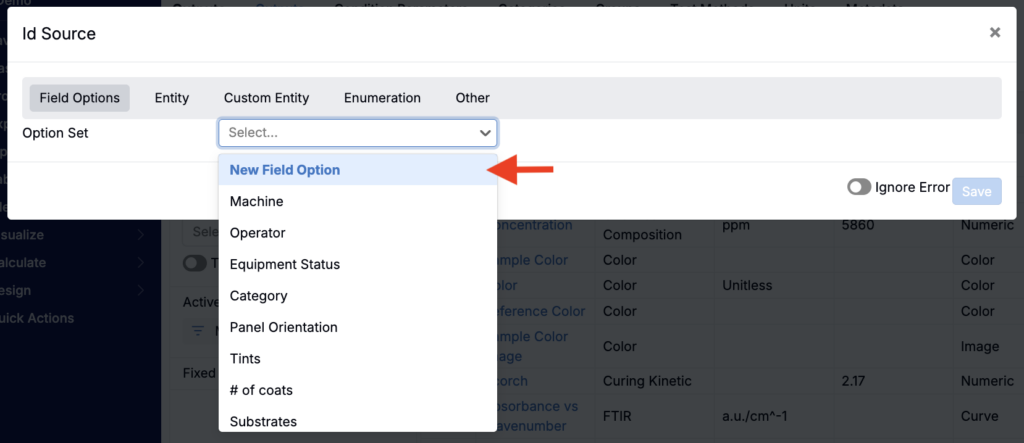
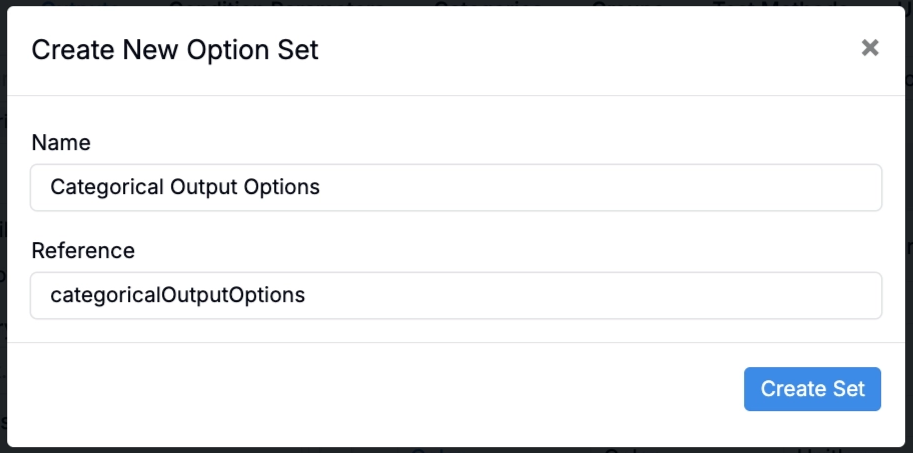
- If you are creating a new Options Set:
- Enter a name.
- Click Create.
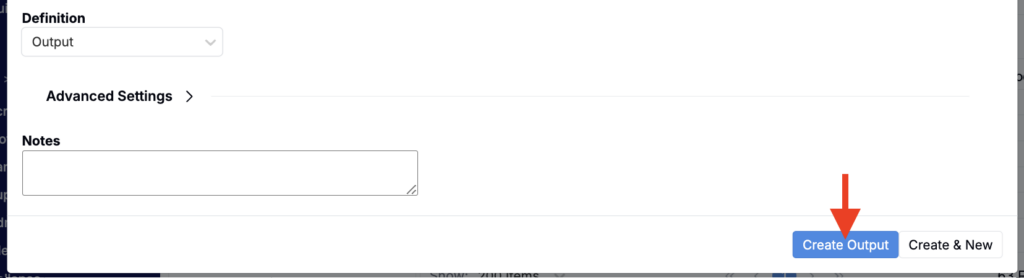
- Click Create Output.
Step 2: Add options to the Options Set
After the output is created:
- Navigate to the Field Options page (Form Admin > Field Options) and open the new Options Set.
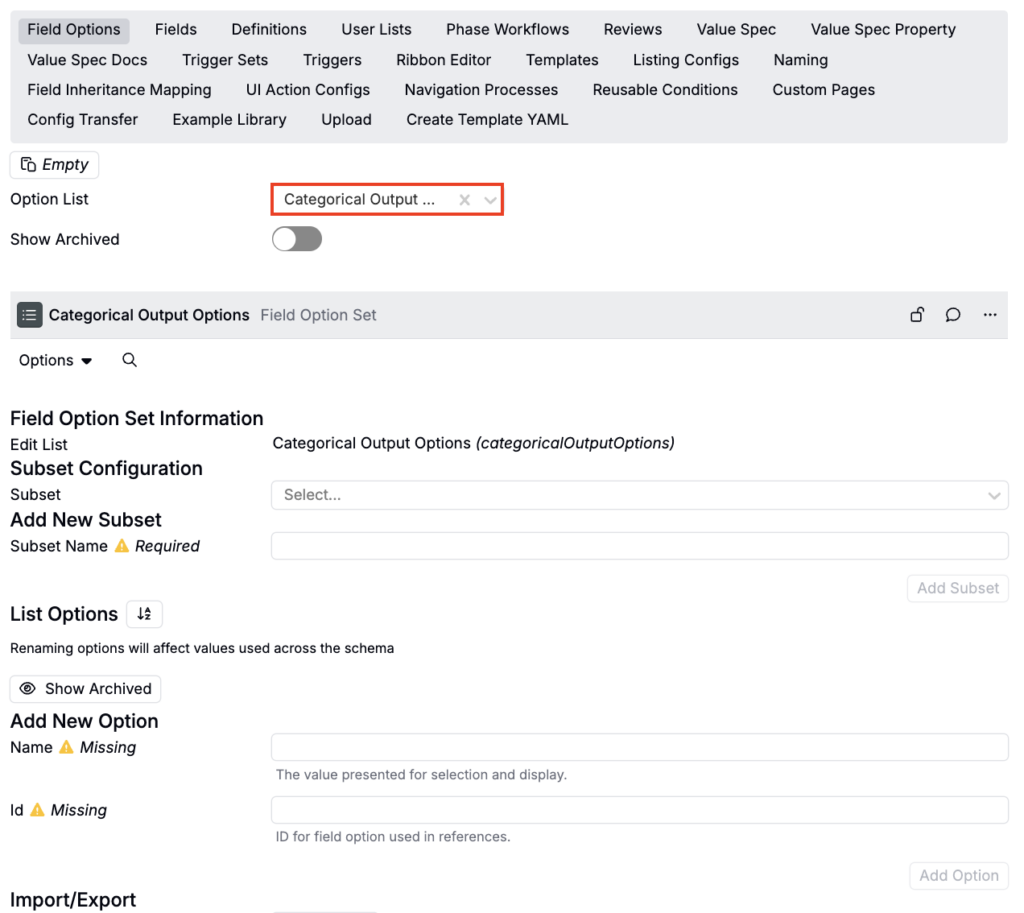
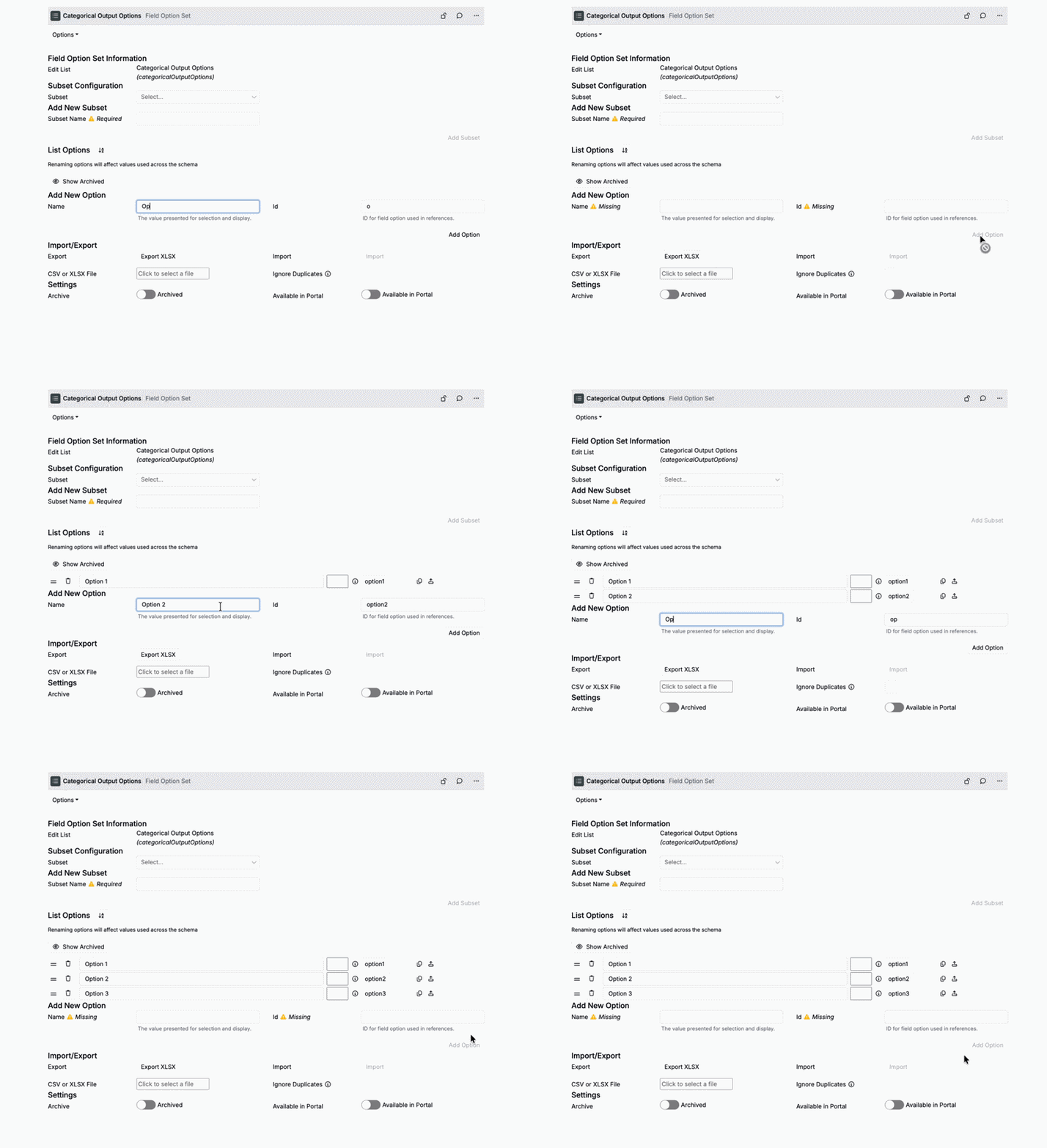
- Under Add New Options, type an option name.
- Click Add Option.
- Repeat until you have added all required options.
Step 3: Use the categorical output
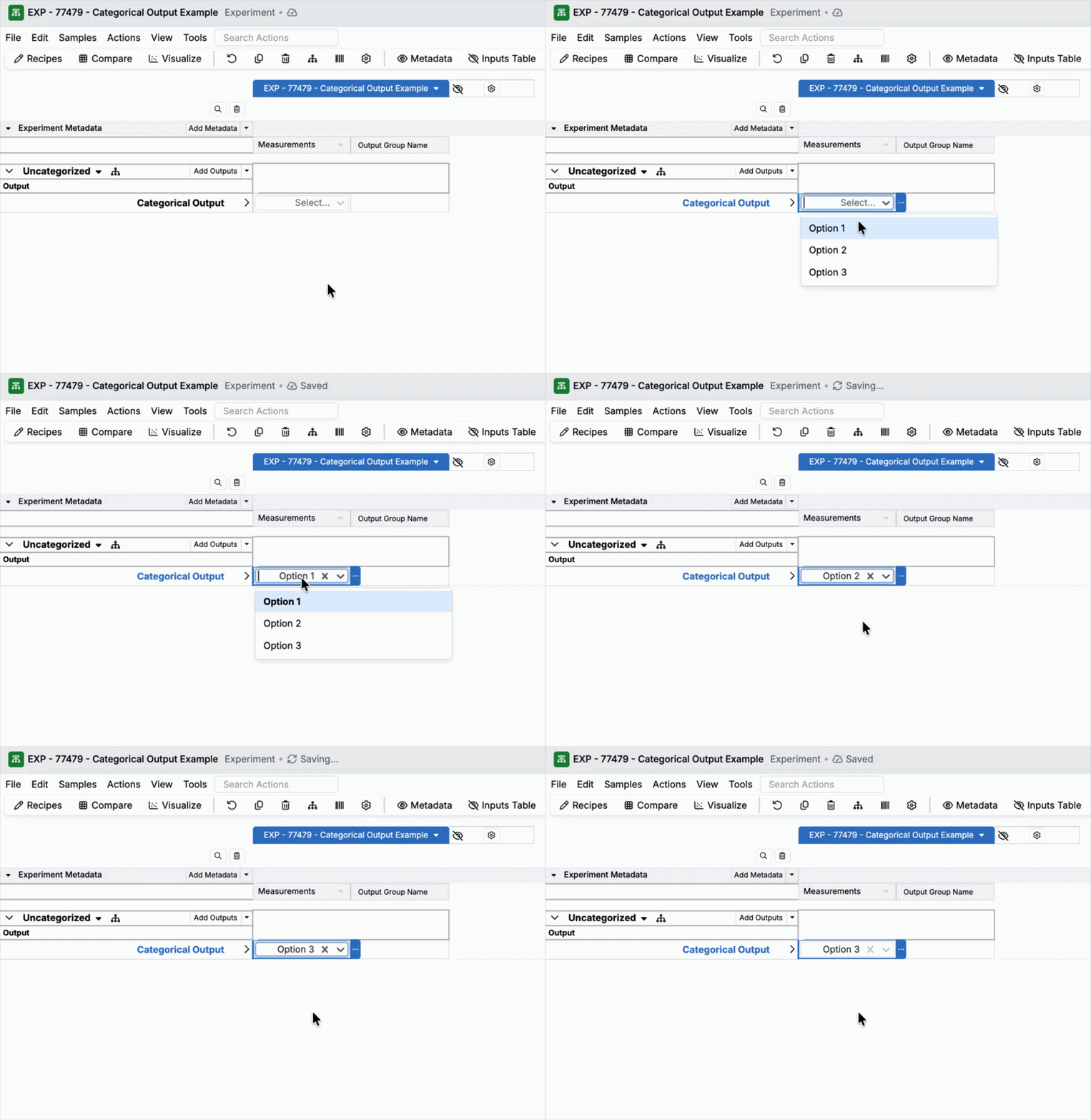
Once created, you can add the categorical output to any experiment as normal. Once added, use the dropdown to select between field output options.
Note: If the output does not appear as an option, check check the Material Families section of the output’s details page to make sure it is available within the material family you are working in.