Chemical Reaction input calculations display a structured breakdown of a chemical reaction — reactants, products, solvents, and catalysts — directly on the Recipe view of a synthesis experiment. They are designed for workflows where ingredients are organized into reaction-role categories across workflow steps.
What are Chemical Reaction calculations?
Chemical Reaction is a specialized input calculation type designed for synthesis applications. Rather than computing a single numeric value, it renders a reaction-style view by categorizing ingredients in the recipe into their roles in the reaction (reactants, products, solvents, and catalysts) and displaying them together in a way that reflects the structure of the reaction.
This calculation type is primarily used in ELN-first synthesis workflows where chemists document discrete reaction steps and want the recipe view to reflect the reaction structure rather than a simple ingredient list.
Example use cases
- Synthesis reactions — displaying reactants in one step and products in another, with solvents and catalysts identified by category
- Step-level reaction tracking — showing the reaction composition for each workflow step in a multi-step synthesis
- Reaction consistency checks — providing a readable summary of which ingredients fill which role in the reaction at a glance
- Stoichiometry display — when used alongside Chemical Structure attributes, surfacing molecular and structural context alongside ingredient quantities
How to configure
Chemical Reaction calculations can be created from the Calculations listing page or directly in the Recipe view of a formulation. Both methods open the same creation modal.
In the modal:
- Enter a name for your calculation.
- Set Calculation Format to Chemical Reaction.
- Add attribute sources to control what is displayed for each ingredient in the reaction diagram. Attribute sources resolve from top to bottom: the calculation uses the first populated source in the list, then falls back to the next source if needed.
- Optionally, add section-specific attribute sources for Reactants, Products, Catalysts, and Solvents. Use this when different sections should use different display logic, such as showing chemical structures for reactants and products but short text aliases for catalysts and solvents.

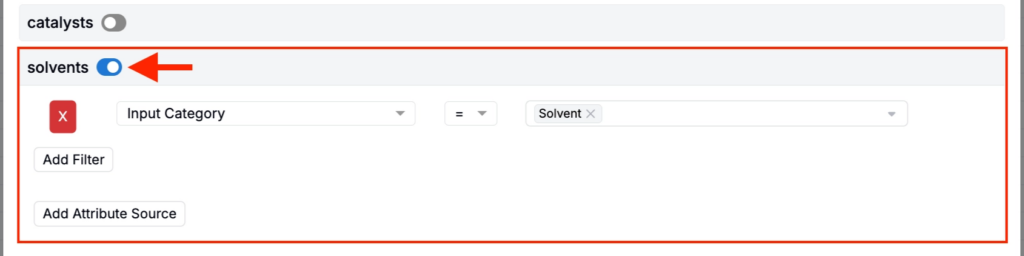
- For each reaction role (Reactants, Products, Solvents, Catalysts), configure the filter that determines which ingredients in the recipe are assigned to that role.
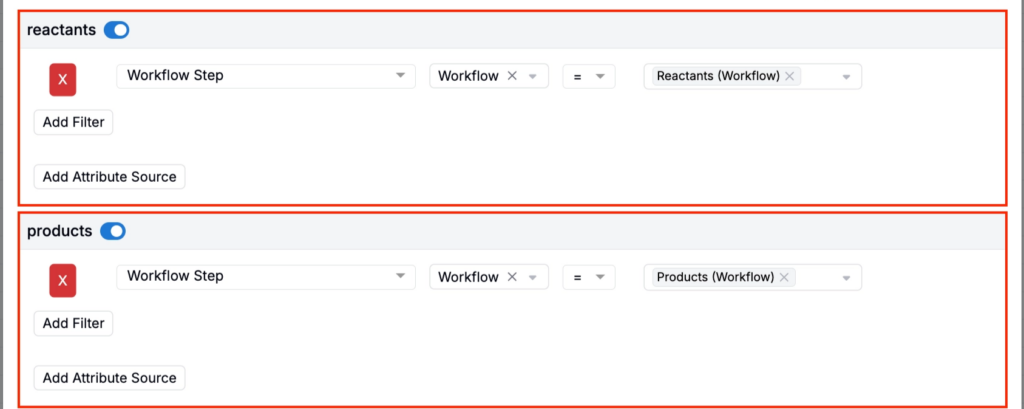
- Select a Compounding Mode to control how the calculation should handle recipe inputs that are themselves experiments (intermediates):
- No Compounding — Uses the recipe inputs as entered, without expanding intermediate or recipe-as-ingredient composition.
- Compounded Experiments — Uses compounded recipe inputs at the experiment level.
- Compounded Workflow Steps — Uses compounded recipe inputs at the workflow-step level, which is useful for multi-step synthesis workflows where each step should be evaluated separately.

Multi-step synthesis
For multi-step synthesis workflows, a separate Chemical Reaction calculation can be configured per reaction step, each scoped to the relevant workflow step’s ingredients. This allows each step to display its own reaction structure independently.
Calculation Settings
Common
- Display in Experiment-Level Calculation Section — Shows the value at the bottom of the full recipe

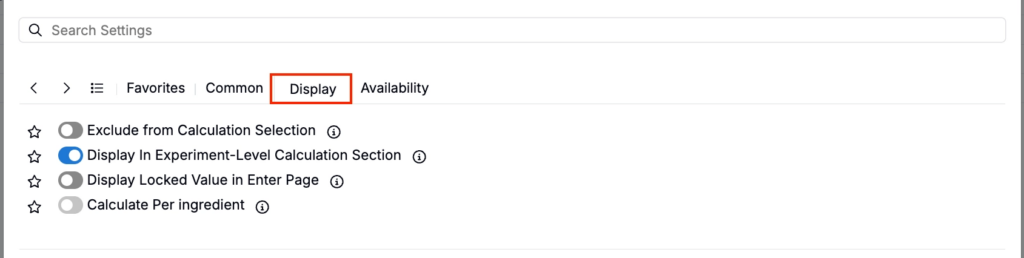
Display
- Exclude from Calculation Selection — Hides the calculation from view (useful for intermediary calculations)
- Display in Experiment-Level Calculation Section — Shows the value at the bottom of the full recipe
- Display Locked Value in Enter Page — If enabled, all cells for this calculation are locked on the Enter Recipe page (behaving like they are in Solve mode), preventing manual edits.
- Calculate Per Ingredient — When enabled, the calculation is computed separately for each ingredient rather than as a single rolled-up recipe-level value.
Availability
- Add to New Projects — Automatically includes this calculation in new projects in the material family

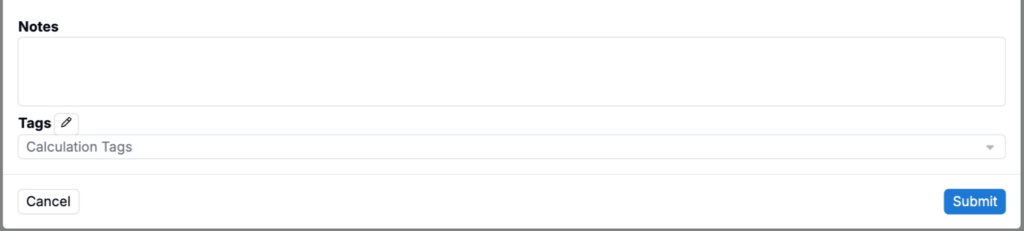
- Notes — Free-text shown on hover over the calculation in the recipe view
- Tags — Group calculations together. Tags let you toggle visibility of related calculations as a set.