Constraints are a key part of creating a DOE for a Suggest job. They define what formulations are allowed (for example, ingredient ranges, must-sum-to-100% rules, or other real-world limits), so Suggest focuses on options you can actually make and evaluate.
With constraints in place, Suggest can use your performance goals (specs) and past results to prioritize the most promising formulations inside that realistic space, which helps you reduce trial-and-error and run fewer experiments.
To understand where constraints fit into the overall DOE setup, refer to AI-Assisted Design of Experiments.
Automatically Generated Constraints
If you have sufficient historical data, you can use Auto Generate Constraints to quickly add a baseline set of constraints. This helps ensure your DOE starts in a workable state, so Suggest explores formulations that are feasible to make and evaluate.
Automatically generated constraints may include:
- Must-sum / total constraints for mixture designs (for example, ensuring the total of all ingredients equals 100).
- Default bounds for newly added ingredients when no min/max is provided.
- System-required constraints that prevent invalid formulations and ensure the DOE can run.

After generating constraints, use the Constraints tables below to review them and adjust anything that does not match your real-world requirements.
Adding Constraints Manually
Within the Constraints section, you can Ingredient, Category, and Advanced tabs to add constraints manually.
Ingredient Constraints
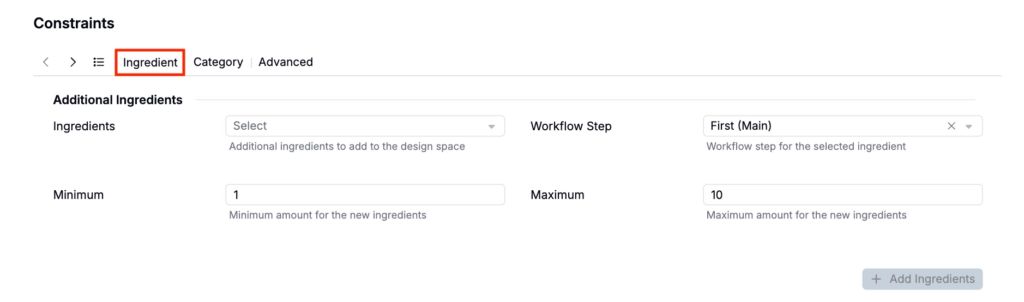
Ingredient constraints specify how much of an ingredient should be used in a select workflow step.
To add new ingredients to your design template:
- Select from the Ingredients field.
- Select a workflow step to add the ingredient to.
- Specify the minimum and maximum amounts for new ingredients (default to 1 and 10 respectively). This is not required. If left blank, the ingredient will be added unbounded.
- Click Add Ingredients.
Under Totals, you can also set bounds on the total ingredient amount for the entire formula.
- Use the Minimum and Maximum fields to set the overall minimum and maximum for the total amount of all ingredients. For mixture designs, set both values to 100.
- Click Add Total Constraint.

Category Constraints
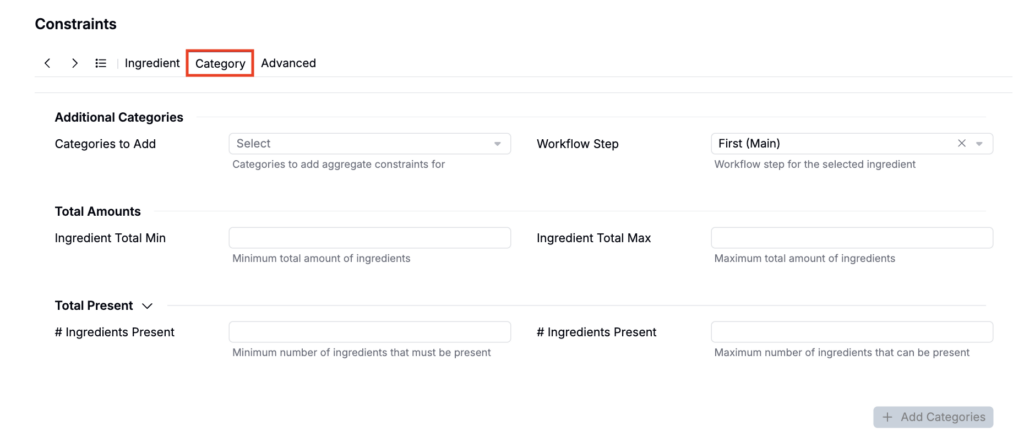
Category constraints restrict how much ingredients from a select ingredient category should be used in a select workflow step.
To add a category constraint:
- Use the Categories to Add field to select ingredient categories to constrain.
- Select a workflow step to add the ingredient to constrain the category over (optional).
- Under Total Amounts, specify the total ingredient minimum and maximum.
- Under Total Present, you can also specify the minimum and maximum number of ingredients from this category that should be present in a formulation.
- Click Add Categories.
Advanced Constraints
Ratio Constraints
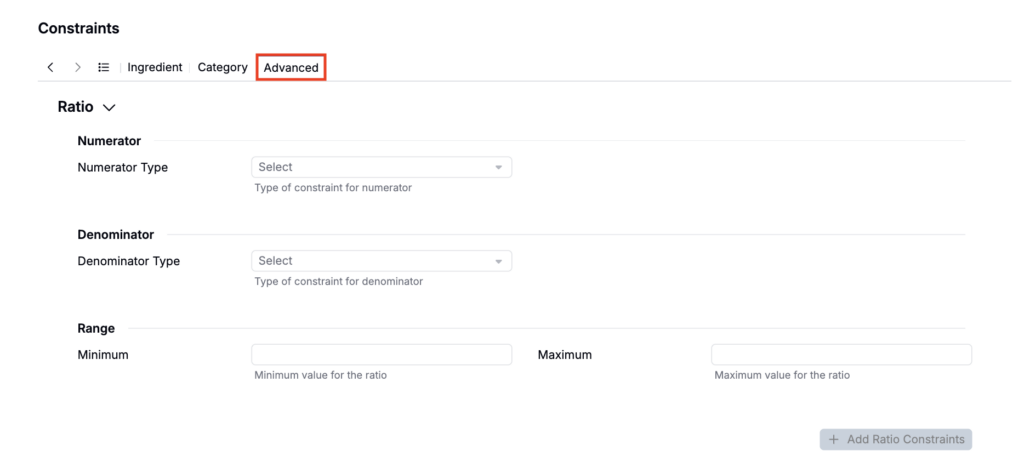
Ratio constraints allow you to enforce a fixed ratio between groups of ingredients or categories.
To add a ratio constraint:
- Select a numerator type and numerator (e.g. Additives).
- Select a denominator type and denominator (e.g. Polymer 3).
- Set the target ratio value.
- Click Add Ratio Constraints.
Calculation Constraints
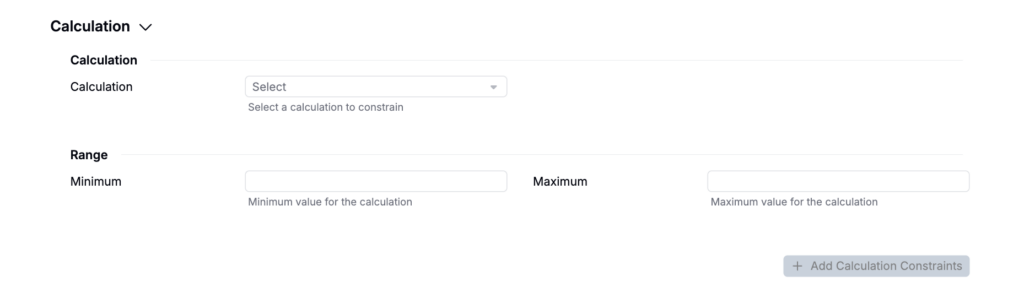
To constrain the value of input calculations (such as formula cost or solids percentage), add a calculation constraint.
To add a calculation constraint:
- Select a calculation that is supported in models.
- Under Range, specify the allowed range for the calculation value.
- Click Add Calculation Constraint.
Ingredient Pair Constraints
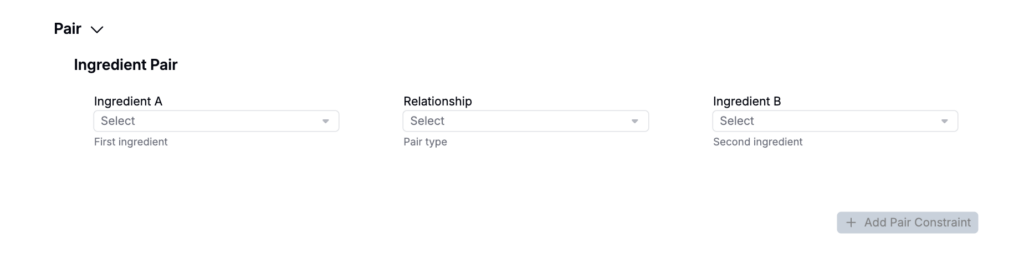
Ingredient pair constraints specify whether two ingredients should always appear together or never appear together in the same formulation.
To add an ingredient pair constraint:
- Select Ingredient A and Ingredient B.
- Select the relationship:
- Always Appear With means Ingredient A can only be used when Ingredient B is also present.
- Never Appear With means Ingredient A and Ingredient B cannot both be present in the same formulation.
Sum Constraints
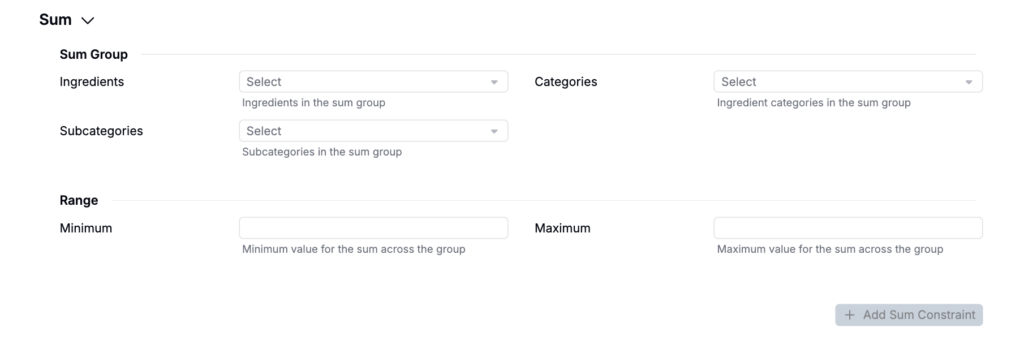
Sum constraints set a minimum and/or maximum for the combined amount of a selected group of ingredients or categories. Use these when a group should be constrained together, rather than setting limits on each ingredient individually.
To add a sum constraint:
- Select the ingredients, categories, or subcategories to include in the sum.
- Under Range, specify the allowed minimum and maximum for the combined amount.
- Click Add Sum Constraint.