This article details common uploader errors and how to troubleshoot them. To learn more about uploader mapping and configuration, refer to Configuring Uploaders and Advanced Uploader Configuration.
Uploader not working with new file type
If the uploader isn’t working for a new file, start by opening the uploader on the Edit Uploader page, then upload the file using the existing extraction settings. Check whether any fields are marked as unknown.
If unknowns appear, investigate the issue:
- If the header or channel blocks no longer match the file’s structure, you’ll likely need to create a new uploader.
- If the relevant channel names have changed, you’ll also need a new uploader.
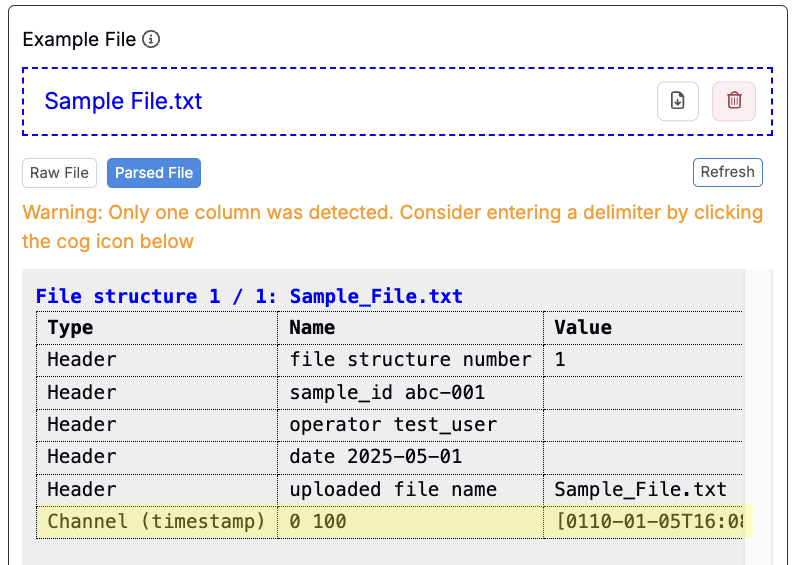
Uploader producing a single channel error
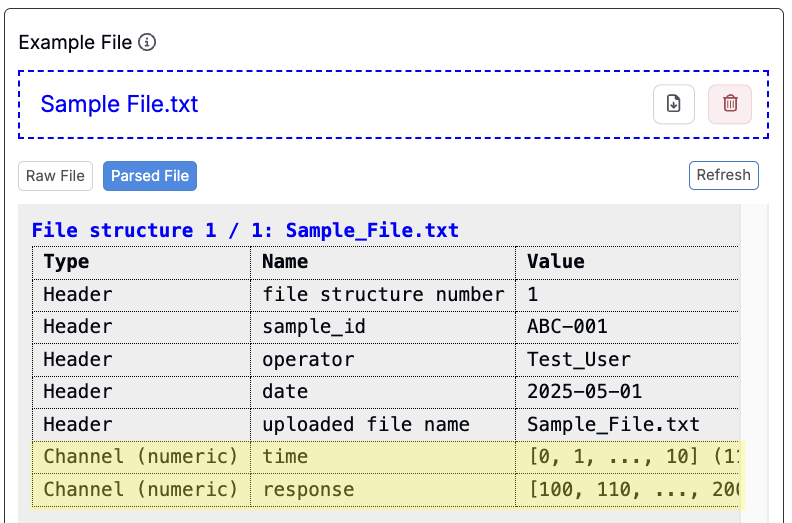
When configuring an uploader, if your entire data section appears as one long channel instead of separate columns, this may mean that the uploader didn’t correctly recognize the file’s delimiter (character that separates values in a file).
To fix this, access File Parser settings, enable Custom Delimiter, and manually enter the correct character. Refresh the Parsed File tab to verify.
Common Delimiters
- Comma (
,): Used in CSV files. - Tab (
\\t): Used in TSV files and some.txtexports. - Semicolon (
;): Common in European CSV formats and some instrument exports. - Pipe (
|): Used in flat files or logs where values may include commas. - Space ( “): Seen in
.txtfiles with fixed or loosely spaced values. - Colon (
:): Often used for metadata or key-value pairs (e.g.,parameter: value) - Equals Sign (
=): Sometimes used as a key-value separator (e.g.,Temp=25) - Custom Delimiters: Some instruments or software may use unique characters (e.g.,
~,^, or#)
Numeric/Curve Data Extraction Error
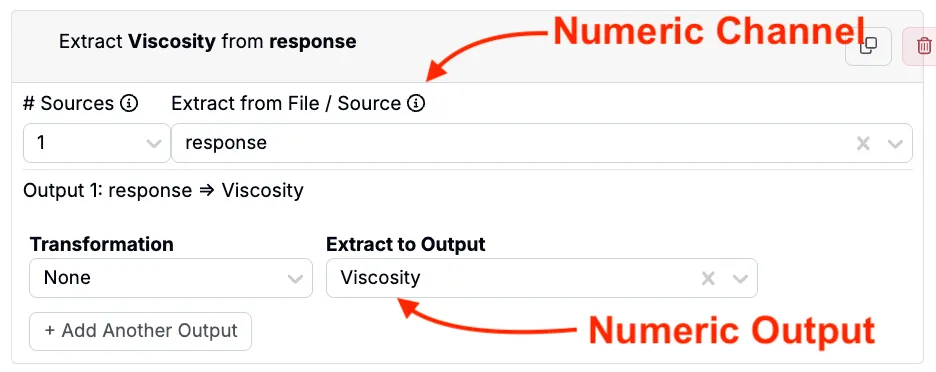
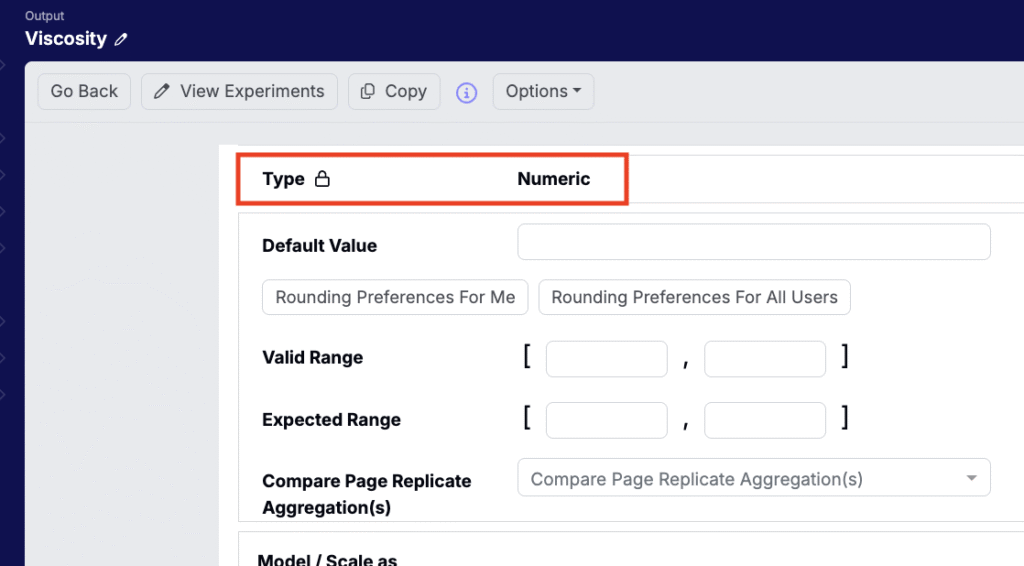
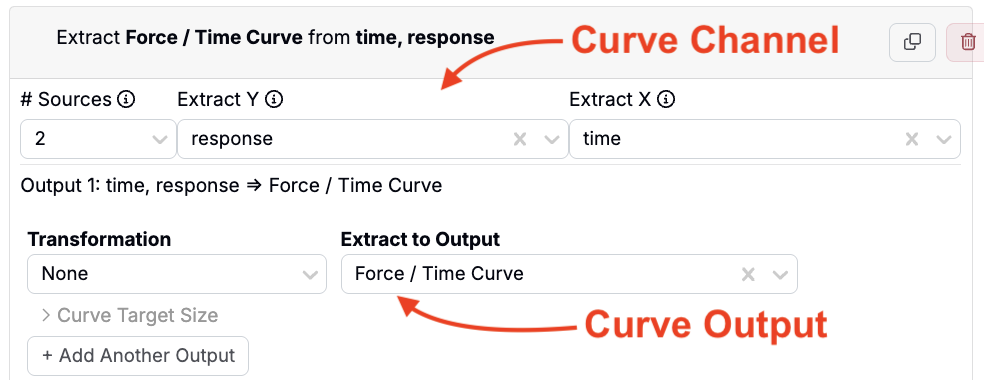
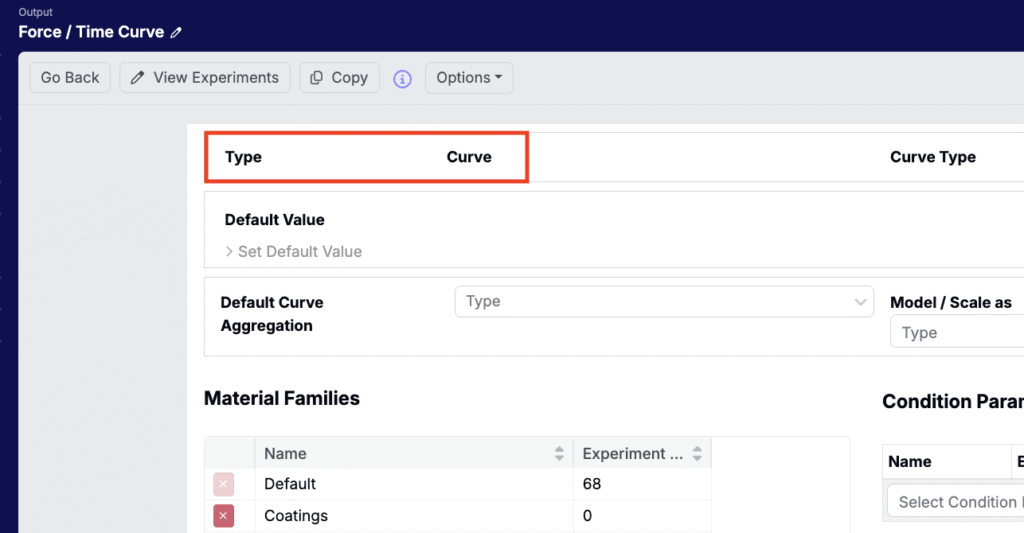
If the uploader isn’t generating curve or numeric data, first check that the output you’re extracting to is correctly set as a Curve or Numeric output.
For extraction to work properly, the channel type must match the output type:
- If you’re extracting a numeric channel, it must be mapped to an output of type Numeric.
- If you’re extracting a curve channel, it must be mapped to an output of type Curve.
You can confirm an output’s type by navigating to its Output Details page.