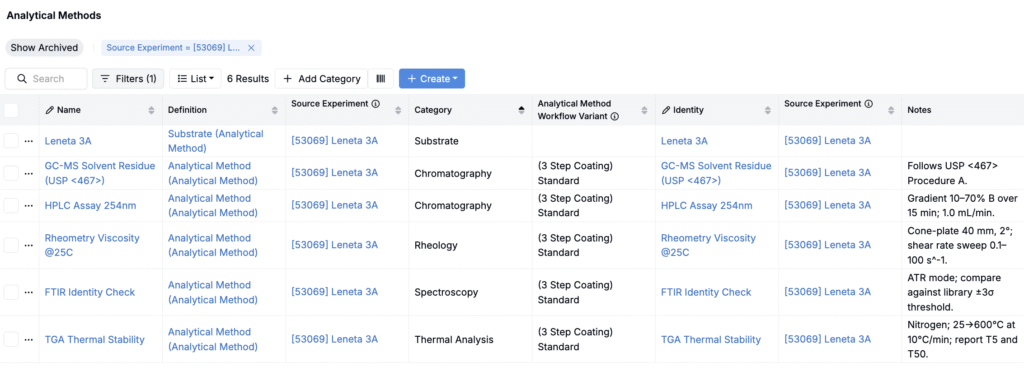
Use the Entities Importer to create or update analytical method condition parameters stored within your schema. This importer allows you to add or edit AMCP details such as name, category, associated recipe, workflow variant, and other fields on your AMCP definition.
For small, one‑off adds, you can still add or update analytical methods manually, but the importer is the fastest and most consistent path for bulk setup.
Using the Entities Importer
Step 1 — Access the Importer
- Navigate to any project dashboard.
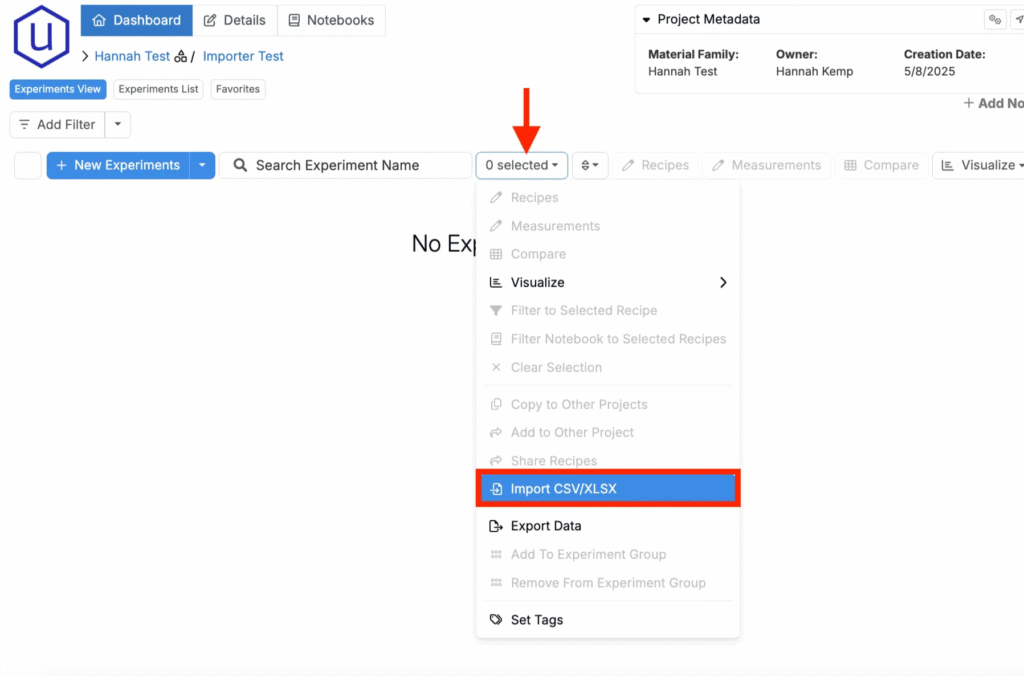
- Access the selection menu and click Import CSV/XLSX.
Step 2 — Select Import Type
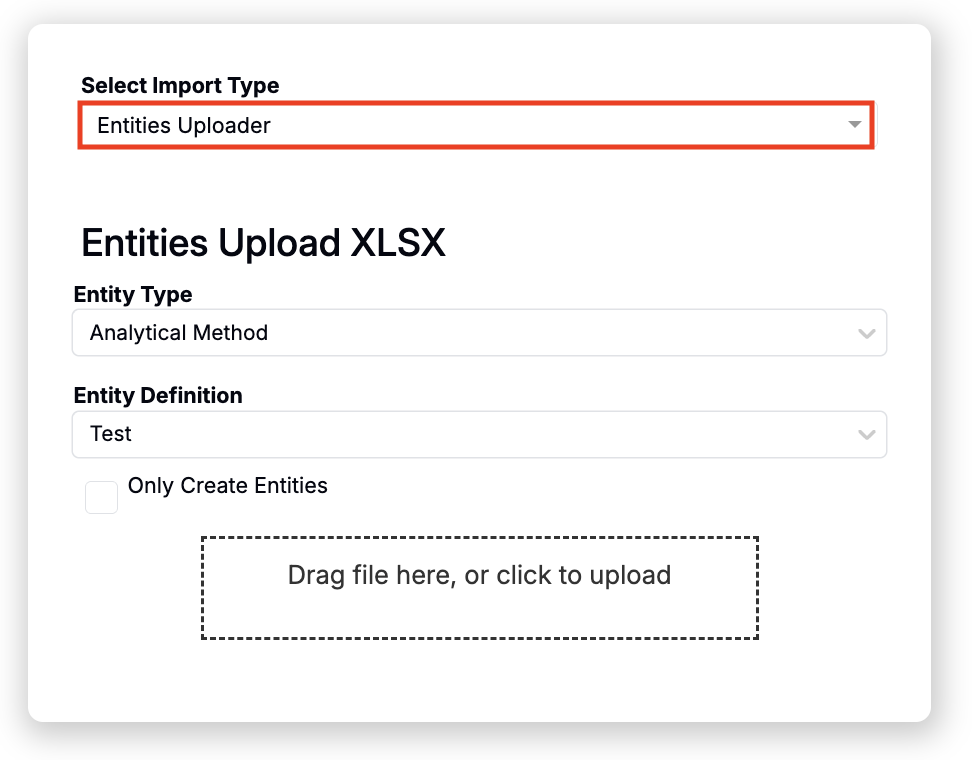
- At the top of the page, select Entities Uploader.
- Set Entity Type to Analytical Method.
- Use the Entity Definition field to select from available AMCP definitions.
Step 3 — Prepare Your Spreadsheet
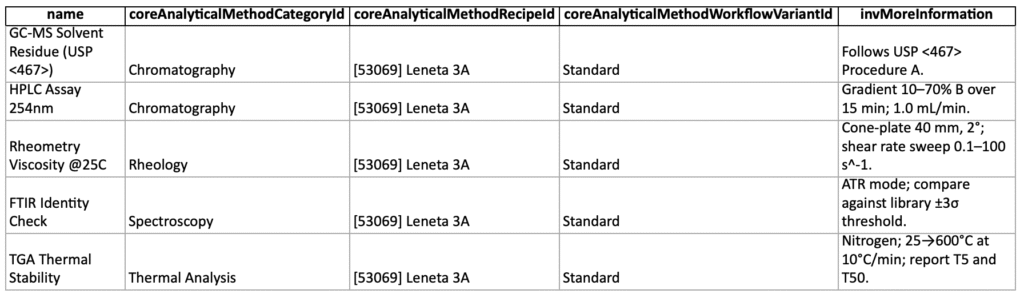
For Uncountable to process your upload, your spreadsheet must follow a specific template. Start from the sample and configure accordingly.
- Download the template: AMCP Importer Template
Spreadsheet structure
Use rows for analytical method records and columns for fields on your analytical method definition.
- Column order does not matter, but headers must match exactly.
- For fields that come from your definition, the header must be the field’s reference name.
- The importer will create new analytical methods or update existing ones by matching on the Name column.
Required Columns
- name — The analytical method name. This is the primary match key.
Optional Columns
- coreAnalyticalMethodCategoryId — Category for the method. Must match an existing category exactly. Categories are created and managed on the Analytical Methods page and must exist before upload. Matching is case sensitive.
- coreAnalyticalMethodRecipeId — Source experiment. Use the experiment name, not an ID. The experiment must already exist and be visible to your project.
- coreAnalyticalMethodWorkflowVariantId — Workflow variant. Use the exact variant name from your workspace.
- Add one column per additional field on the AMCP definition. Set the header to the field’s reference name. Values will be stored as metadata on the analytical method.
Tips
- If the Entity Definition dropdown shows no options when Analytical Methods is selected, ensure your schema includes at least one definition with type set to
analytical_method. - To find the Recipe ID for an AMCP, navigate to the Analytical Methods listing (Inputs/Outputs > Outputs > Condition Parameters > Options > Edit Analytical Methods) and expose the Source Experiment column.
- Verify reference names in Form Admin to avoid header mismatches.
- Prepare categories in advance so category matching succeeds.
Step 4 — Upload, Review, and Submit
- Upload the file. Drag and drop your prepared spreadsheet into the Entities Importer.
- Review matches and resolve errors. The review screen highlights any unrecognized categories, workflow variants, or fields. Fix headers or values in your file if needed and re-upload.
- Choose update behavior.
- To update existing analytical methods, keep the same value in the name column and check Overwrite Existing Values where appropriate. Blank cells do not overwrite existing values.
- Leave Overwrite unchecked to only create new methods and skip updates to existing ones.
- Submit. When validation passes, submit the import. You’ll see a success confirmation when processing completes.
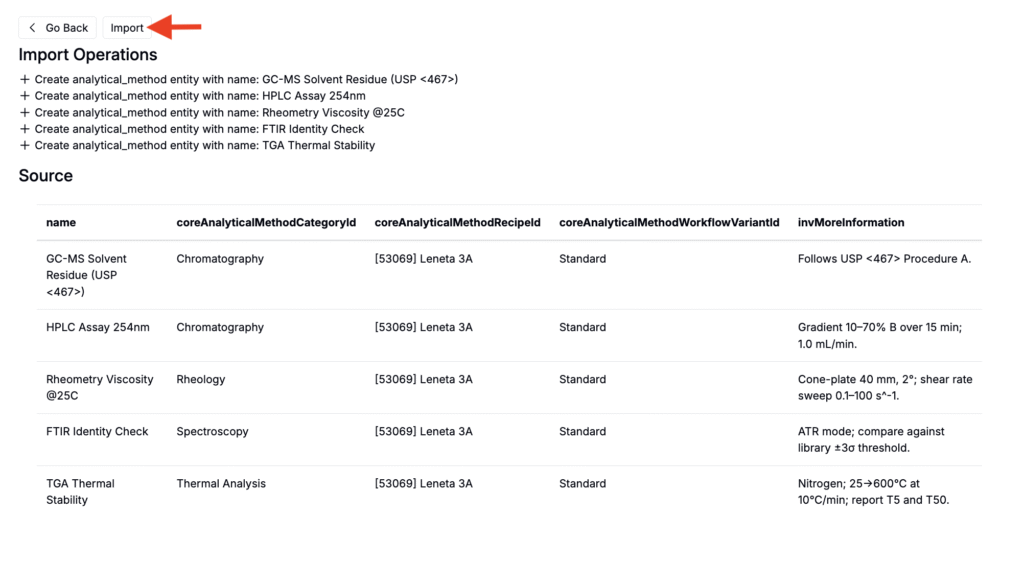
After submission, your analytical methods will be available from the Analytical Methods page (Inputs/Outputs > Outputs > Condition Parameters > Options > Edit Analytical Methods) and selectable wherever analytical methods are referenced.