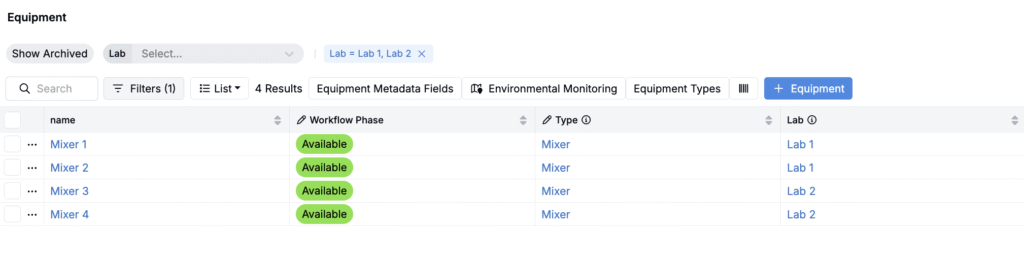
Use the Entities Importer to create or update equipment stored within your schema. This importer allows you to add or edit equipment name, type, status, lab, parent equipment, and other core fields.
For small, one‑off changes, you can still add or edit equipment manually, but the importer is the fastest and most consistent path for updating your equipment library in bulk.
Using the Entities Importer
Step 1 — Access the Importer
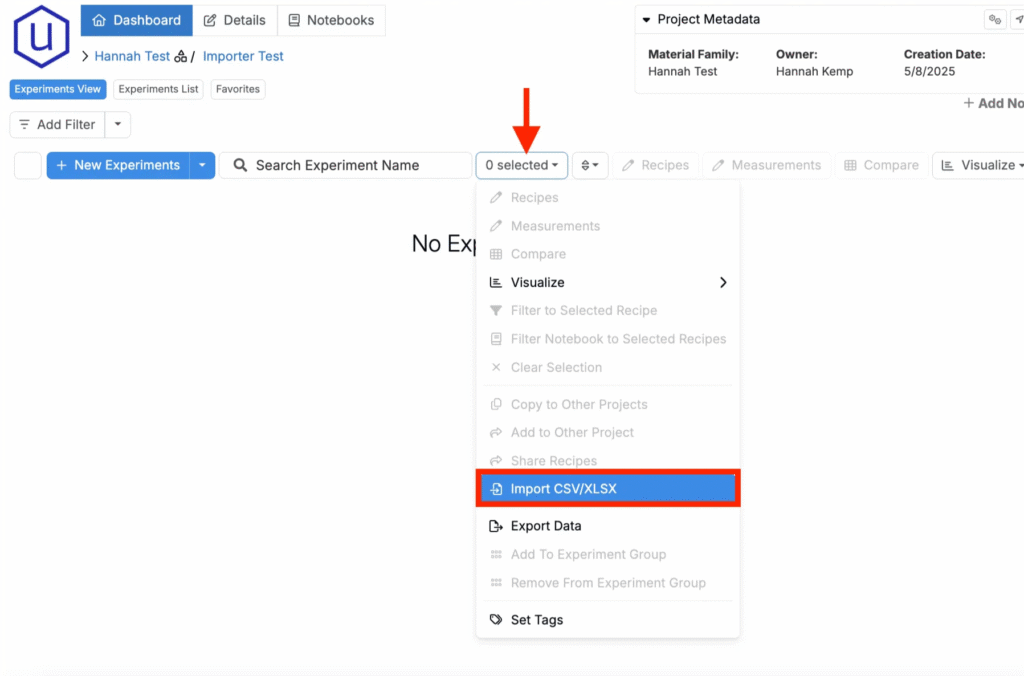
- Navigate to any project dashboard.
- Access the selection menu and click Import CSV/XLSX.
Step 2 — Select Import Type
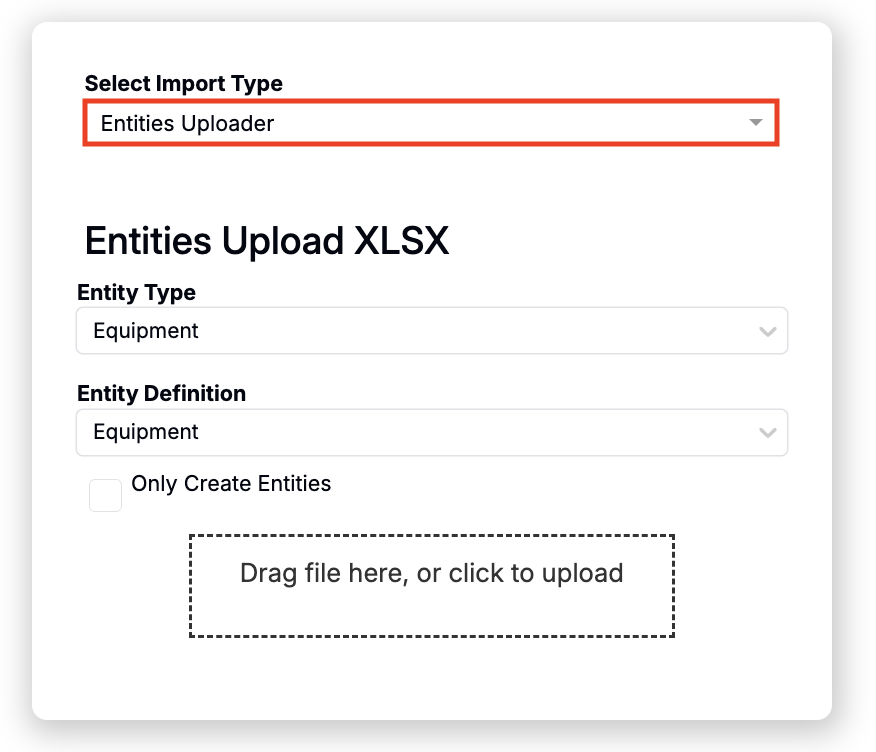
- At the top of the page, set Import Type to Entities Uploader.
- Set Entity Type/Definition to Equipment.
Step 3 — Prepare Your Spreadsheet
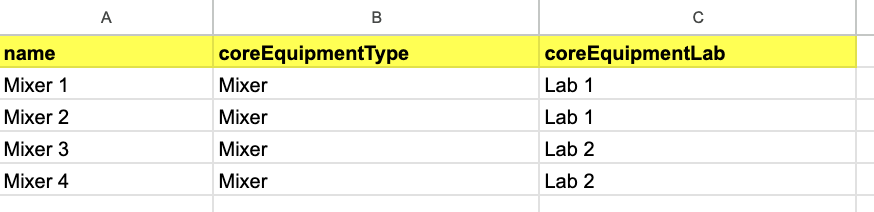
Start from the template, then add a row per piece of equipment. Your file must include the four required columns in this exact spelling, plus any optional metadata fields by their ref names.
- Download the template: Equipment Importer Template
Required Columns
- name — Equipment name. Used to identify the row when no
idis provided — see Identifying Rows: id vs. name below for exactly how the importer matches or creates records. - coreEquipmentType — Equipment type must already exist in your workspace.
- Add types manually on the Equipment Types page (Lab > Equipment > Equipment Types).
- If you have many new types, upload them first using Entities Uploader with Entity Type = “Equipment Type” and a single “name” column.
- coreEquipmentLab — Labs must exist before upload.
- coreEquipmentStatus — Equipment status must already exist in your workspace (e.g., Available, In Use, Maintenance, Out of Operation).
Optional Columns
- Any additional Equipment definition fields. Use the field’s reference name exactly as the column header.
- Match the data type. For example, dates should be proper date values, numbers should not include units or text, selects must match an existing option.
Identifying rows: id vs. name
Each row is matched to an equipment record using an identifier column (id) or name.
- Valid identifier headers —
idandname, plus entity-prefixed formsequipment:idandequipment:name. If a header is prefixed, the prefix must match the selected entity type token (equipment, lowercase). - First-time import — For brand-new equipment there’s no existing Uncountable id yet, so rows are typically identified by
name. - id precedence — If
idis present and non-empty, the importer uses it as the identifier of record. It does not fall back toname. - Nonexistent id — If a provided
iddoesn’t resolve to an existing equipment record, the import errors. - Blank id, name provided — Behavior depends on the Only Create Entities checkbox:
- Unchecked — The importer attempts a name match first: 1 match updates, 0 matches creates, and more than 1 match errors as a non-unique name.
- Checked — The importer skips name matching and treats the row as create-path, subject to required fields and validation.
- Name uniqueness —
nameis not enforced as a global database uniqueness constraint, but unique names are still best practice — they avoid ambiguous matches, reduce accidental duplicates, and make bulk updates/reconciliation safer.
Rules & Constraints
- One header row only. No blank columns. Avoid merged cells and formulas.
- If you include units in a value field, ensure the field is typed to accept text; otherwise strip units before upload.
Step 4 — Import, Review, and Submit
- Upload your file. Drag and drop the prepared spreadsheet into the Entities Uploader.
- Confirm mapping. Mapping is automatic when headers match exactly. Fix any unmapped columns by selecting the matching field.
- Review the preview table. Resolve any errors and re-import, if needed.
- Run the import. Click Import to create or update equipment.
Common Error Resolutions
- “Header not recognized” — Check spelling and case. Required headers must be exactly name, coreEquipmentType, coreEquipmentStatus, coreEquipmentLab.
- “Option not found” — Add the Equipment Type, Status option, or Lab first, or change the cell to a valid existing value.
- “Invalid value type” — Reformat the column in the spreadsheet to the field’s type, then re-upload.
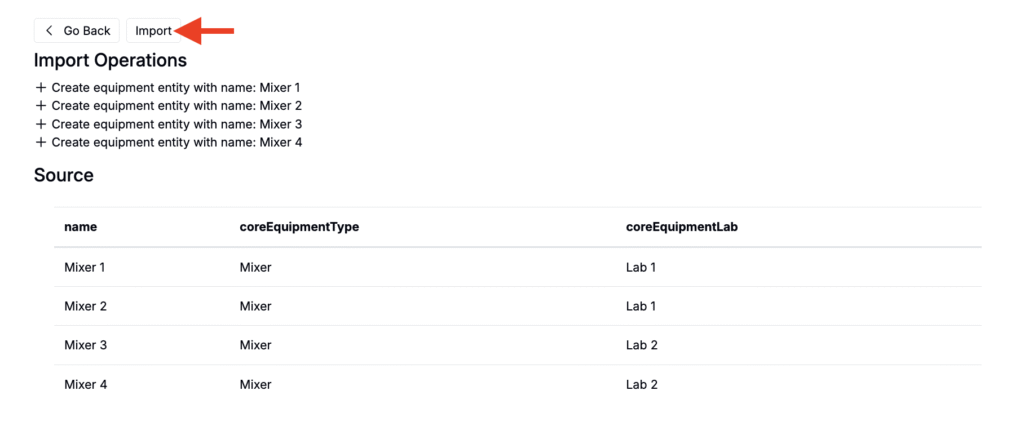
After submission, the importer will create or update equipment in your schema. Verify on the Equipment listing page (Lab > Equipment).