
Project constraints in Uncountable define the allowable limits for ingredients and process parameters within a project. They help ensure formulations meet project requirements while still allowing flexibility for optimization.
Constraints have two main use cases:
- Restricting inputs – Flagging and preventing use of inputs that should not appear in formulations.
- Training models – Controlling how inputs are treated when building predictive models.
This article walks through restricting inputs in formulations. To learn about the second use case, see Project Constraints for Model Training.
Why Restrict Materials?
There are many reasons you might want to prevent or limit use of certain ingredients:
- Regulatory compliance – Remove materials that do not meet regional or industry standards.
- Sustainability goals – Exclude ingredients with high carbon footprint or toxicity.
- Supply chain management – Restrict materials that are unavailable or too costly.
- Standardization – Ensure only approved or validated ingredients are used across a project.
A common scenario is “green replacement”, where traditional materials are banned and replaced with more sustainable alternatives. Another example is ingredient replacement projects, where you allow the model to explore substitutions but ensure specific materials never appear.
Accessing Project Constraints
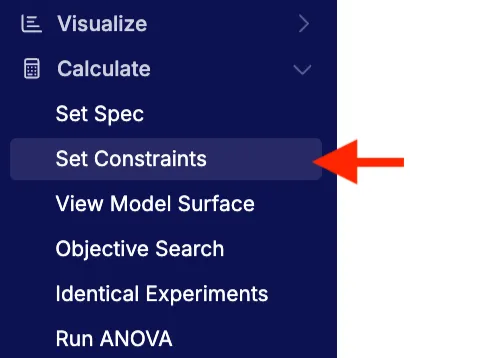
From the navigation bar, select Calculate > Set Constraints. This opens the constraints page for your active project.
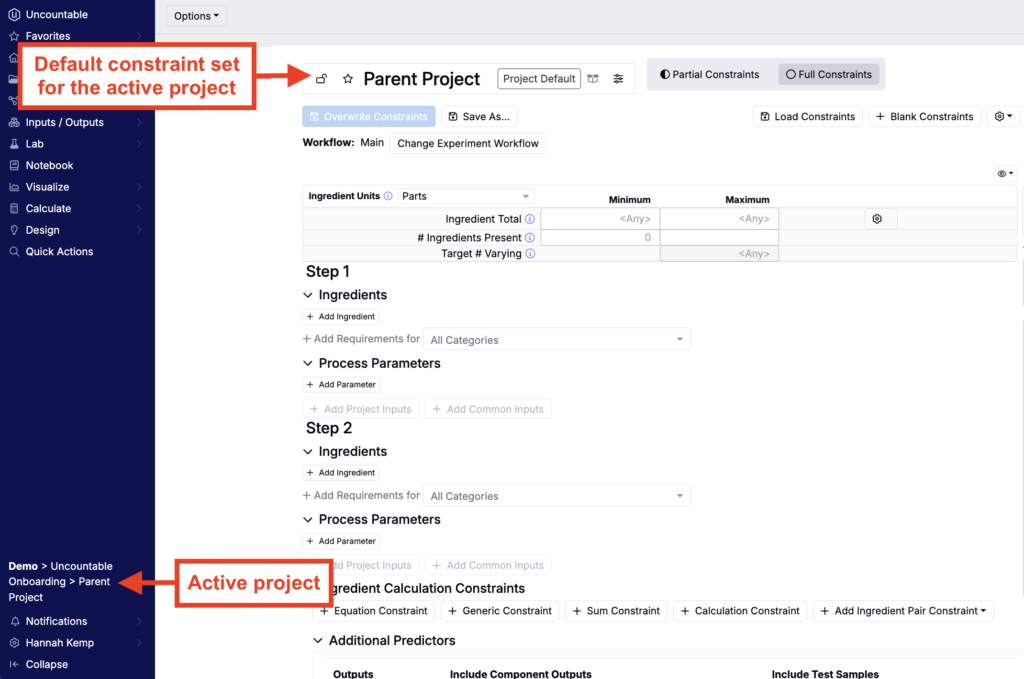
The constraint set will be pre-populated with steps based on the project’s workflow. From here, you can add ingredients and parameters, and then define how they should (or should not) be used.
Adding Inputs
When a project is first created, its constraints set is empty. You’ll need to add ingredients and process parameters before you can restrict or ban them. There are a few ways to populate the constraint set:
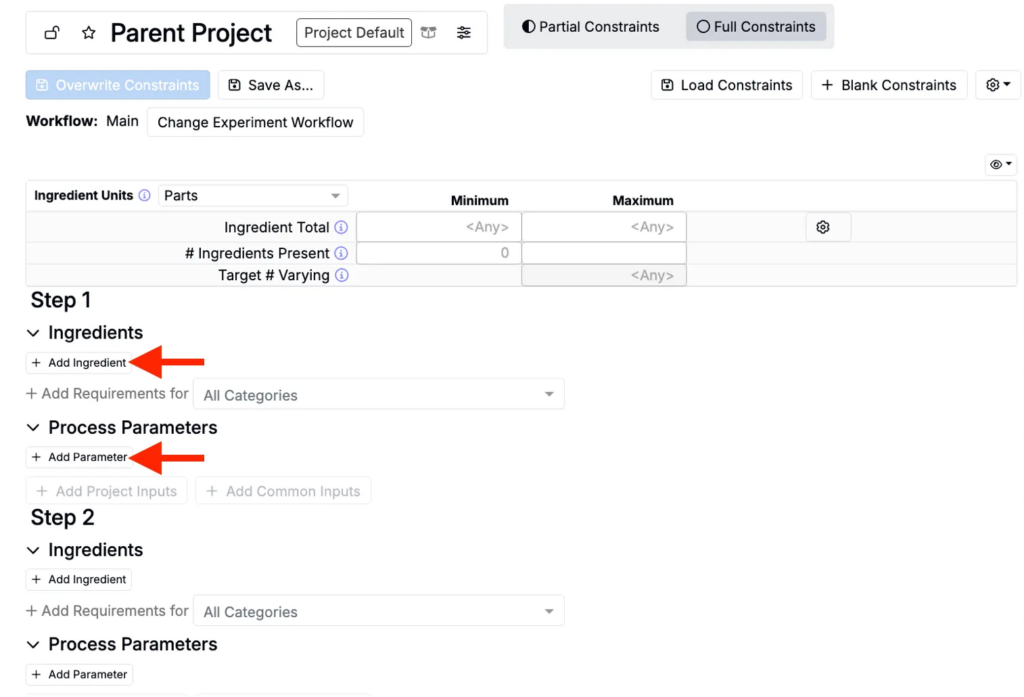
- Add Manually – For each workflow step, click + Add Ingredient or + Add Parameter to select from available items. Create new ones as needed.
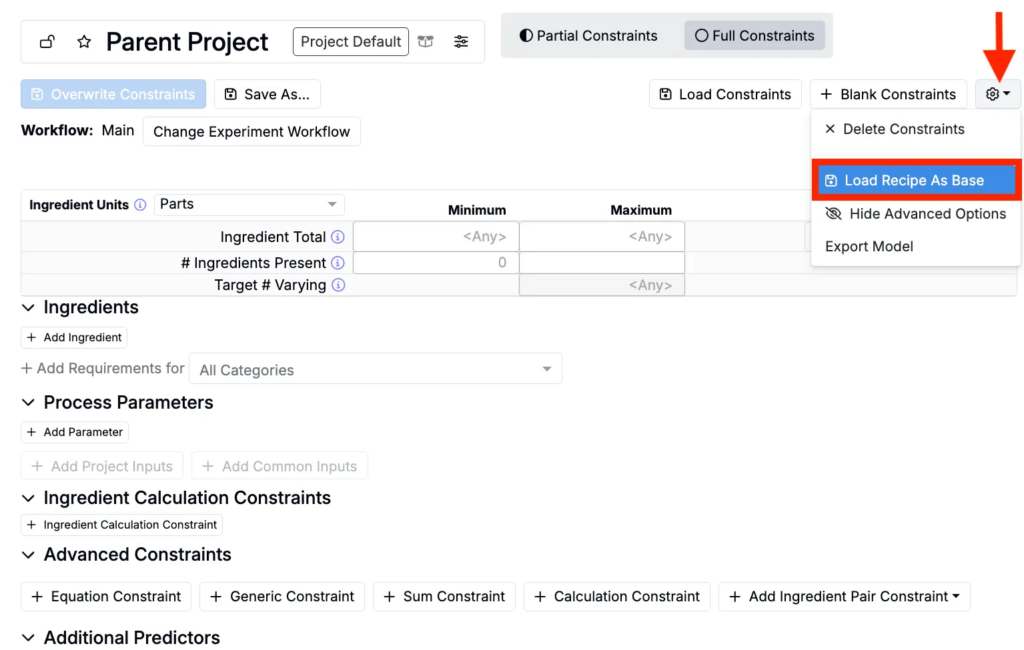
- Load Recipe as Base – From the ⚙️ menu, select Load Recipe as Base to pre-fill the constraint set with ingredients from a past recipe, then adjust as needed.
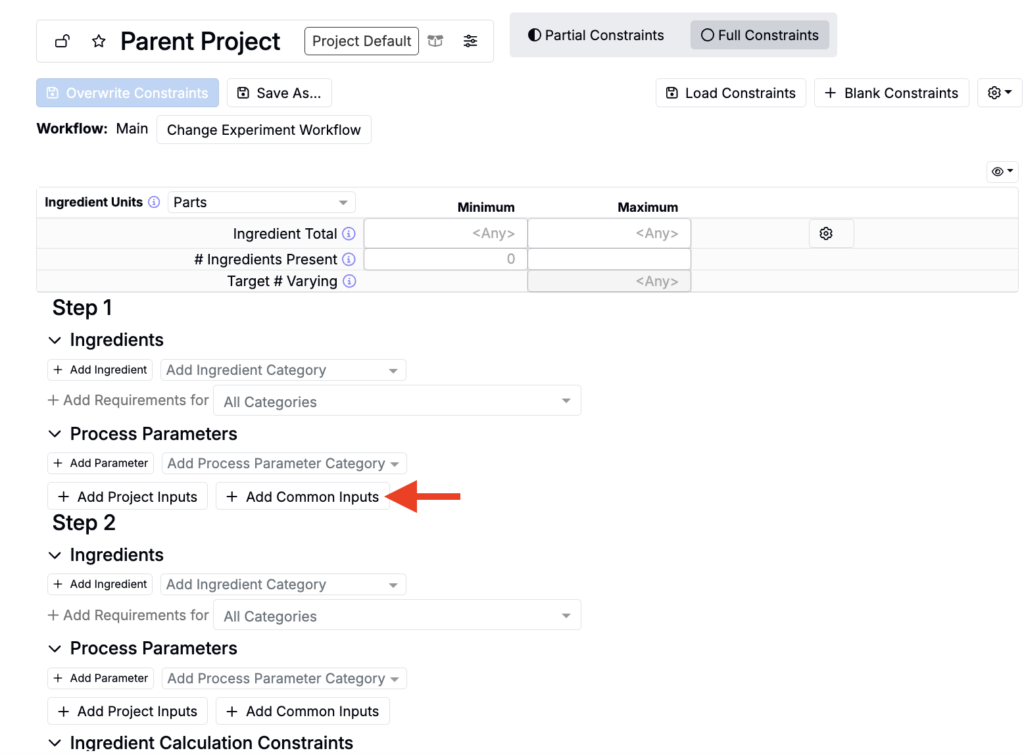
- Add Common Inputs – Use + Common Inputs to quickly add frequently used ingredients and parameters already associated with the project.
Defining Material Usage
Once inputs are added, you can control how each one is used in generated formulations:
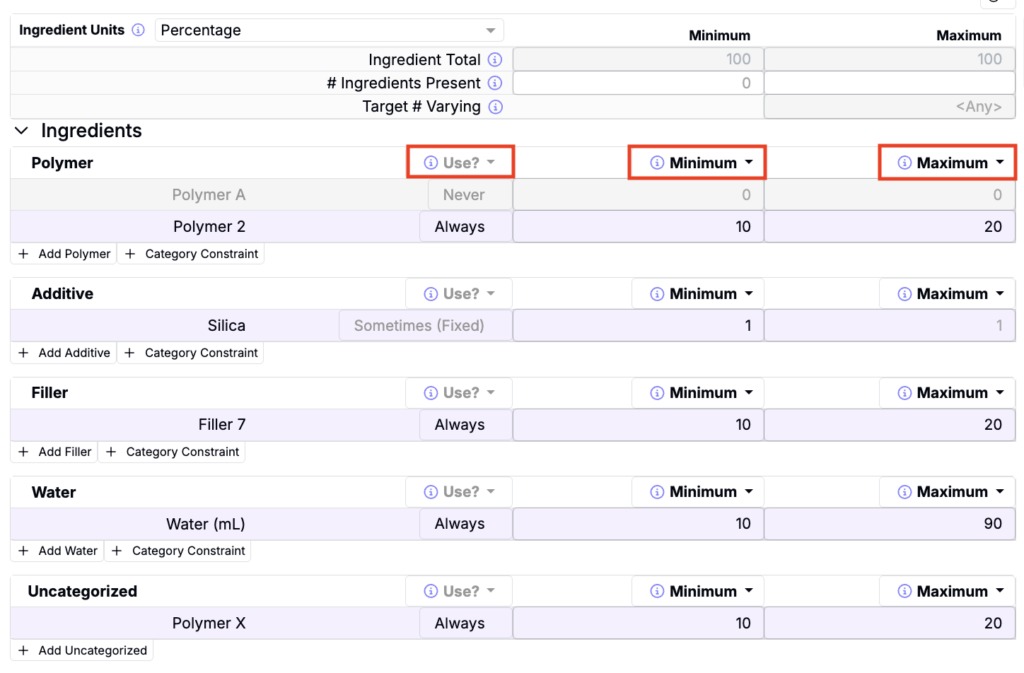
- Always Use – The material must appear in every generated formulation.
- Never Use – The material is excluded from all generated formulations.
- Sometimes Use – The material may be included in some formulations, based on probability.
These options are the main way to restrict materials — for example, setting a banned or non-compliant ingredient to Never Use.
You can also apply:
- Minimum/Maximum Ranges to limit the amount of an ingredient or parameter.
- Category Constraints to restrict groups of materials (e.g., “no more than two solvents” or “20–60% total polymer”).
Ingredient Calculation Constraints
Beneath the inputs table, users can also add Ingredient Calculation Constraints to set limits on calculated values (e.g., Weight % of a raw material). These constraints apply regardless of unit.
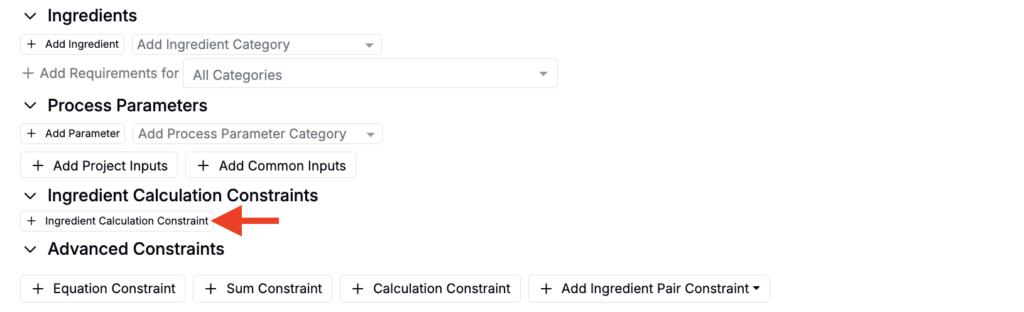
For example, you could add an Ingredient Calculation Constraint on the Weight % of Polymer 2 to require 0–50% by weight across all generated recipes.

Saving and Locking Constraints
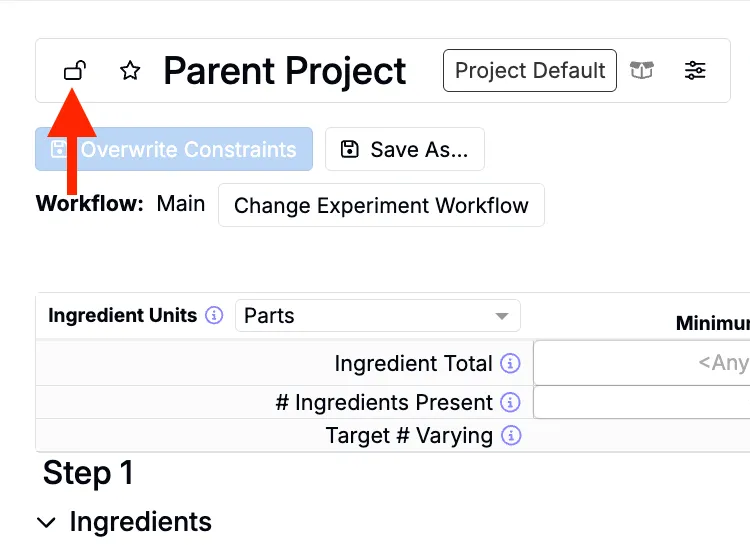
After defining restrictions, you can save them by clicking Save As….
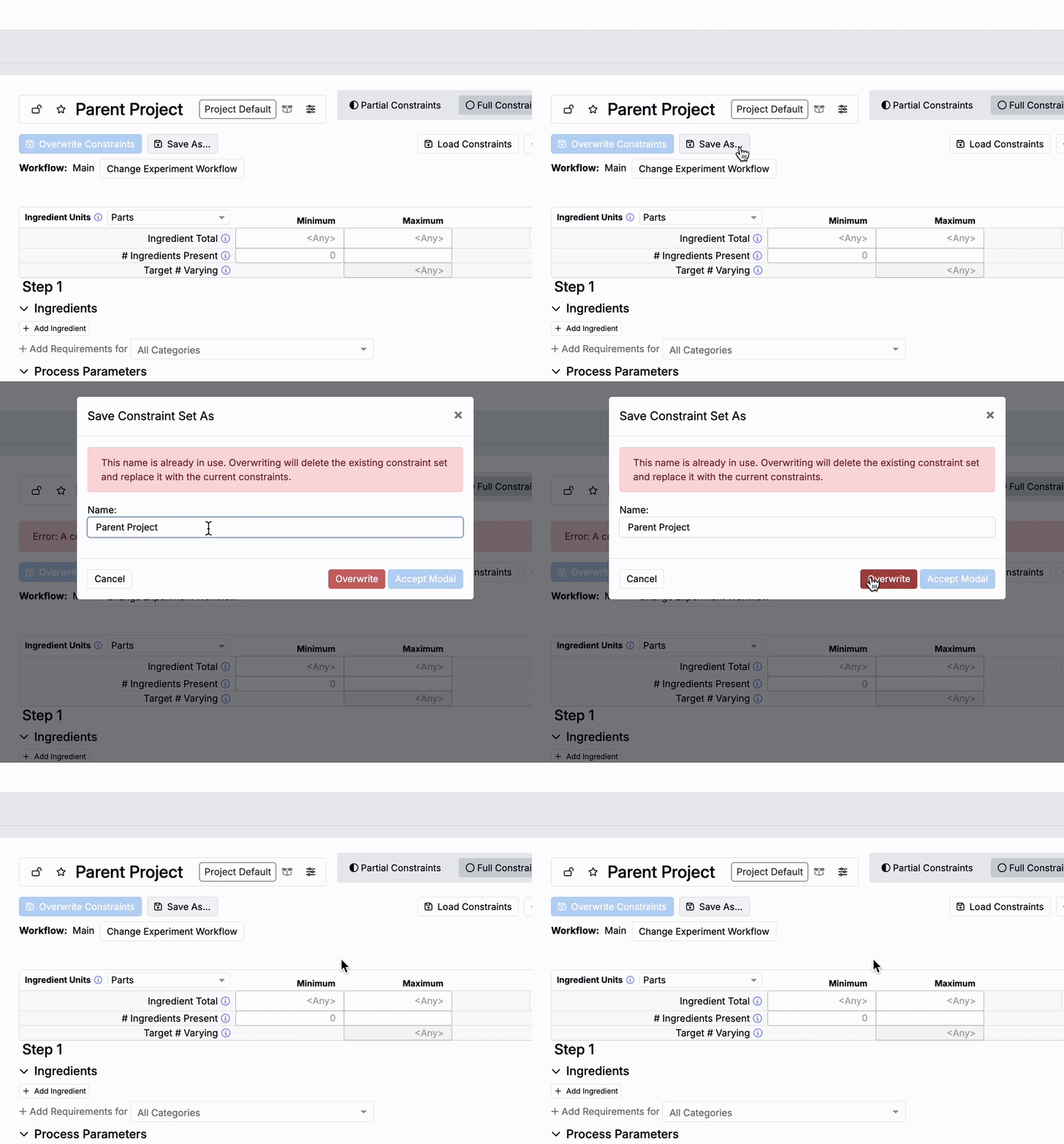
If you want to ensure the constraint set cannot be changed by others, click the lock icon to prevent edits.
Highlighting Restricted Materials in Recipes
Once constraints are defined, you can highlight them while reviewing recipes:
- Navigate to the recipe view of an experiment.
- Turn on Constraint Highlighting within the View tab (or search) to see if any recipe ingredients fall outside your defined rules.
This helps you quickly identify recipes that violate project constraints.

Example Workflows
- Green replacement – Create a constraint set based on an existing recipe, ban certain petrochemical ingredients, and add sustainable alternatives.
- Ingredient replacement – Keep most ingredients fixed, but set one to Never Use and introduce an approved substitute.
- Exploration around a benchmark – Fix nearly all inputs to Always Use, but leave one or two open for substitution or variation.
Best Practices
- Start with known recipes – Load an existing recipe as a base, then adjust constraints to exclude restricted materials.
- Use categories when possible – Restrict entire classes of materials (e.g., all halogenated solvents) rather than single ingredients.
- Update regularly – Review and revise constraint sets as regulations, supply chains, and material lists change.