The Admin Announcements feature allows Uncountable admins to send in-platform notifications to individual users, specific groups, or all users.
Sending an Admin Announcement
To create an announcement, take the following steps:
- Access the Admin Announcements tab of the Company-Wide Settings page.
- Click the blue + Admin Announcement button.
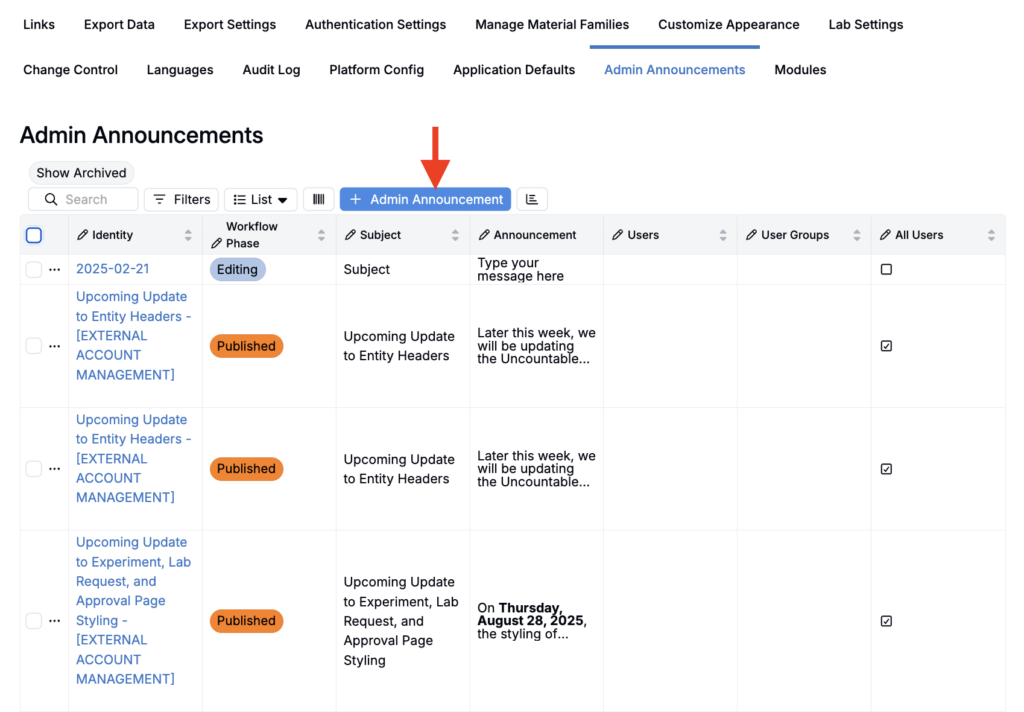
- In the modal, fill out the following information.
- Subject: Add a brief subject header.
- Announcement: Use this space to write out the message you want sent out.
- Users/User Groups: Select individual users and/or entire user groups. Select All Users to send the announcement to all platform users.
- Page to Display Announcement: By entering a page ref name in this field, users can opt to display the announcement only on a specific Uncountable page. For example, entering “enter_recipe” into this field will only display the message on the Enter Recipe pages for all users selected.
- Announcement Display Mode:
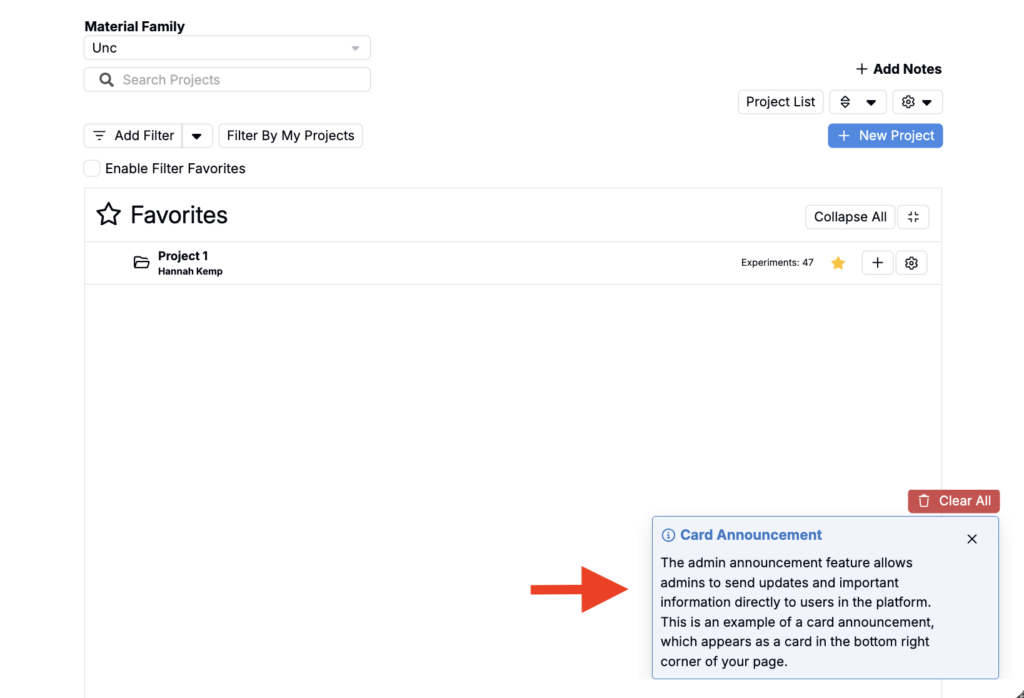
- Card — Announcements will display as small cards stacked in the bottom right corner of the screen (default)
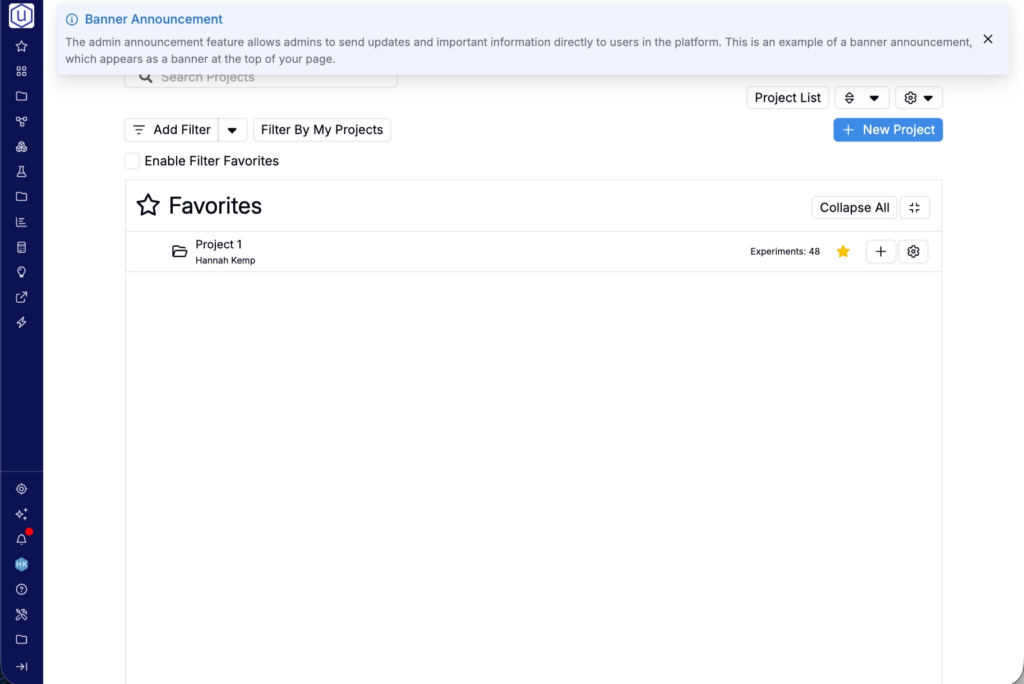
- Banner — Announcements will display as a banner across the top of the screen.
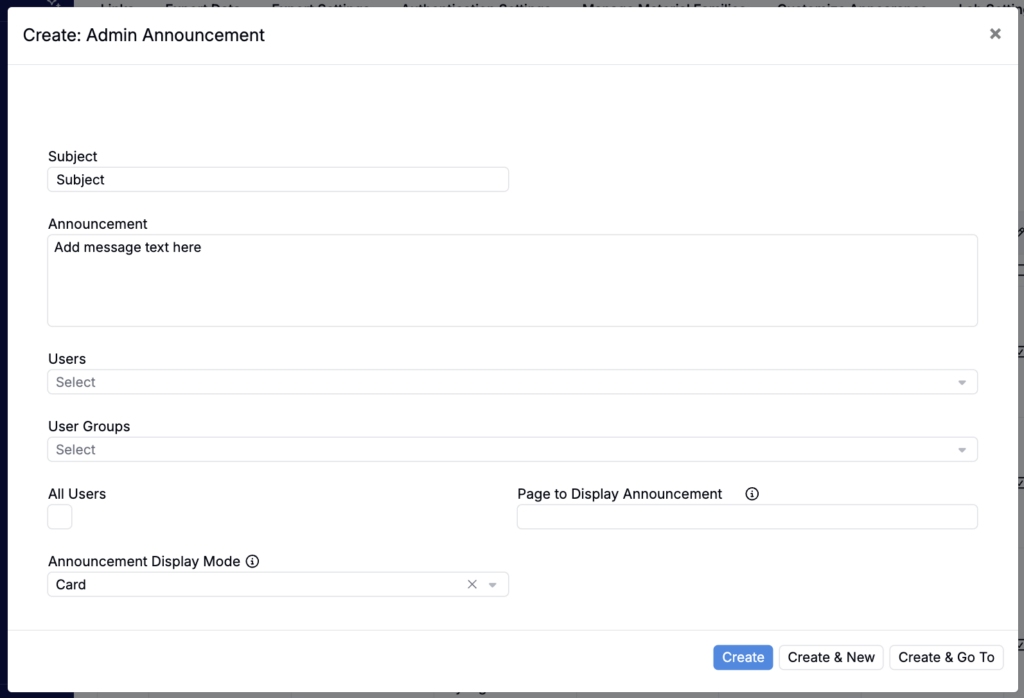
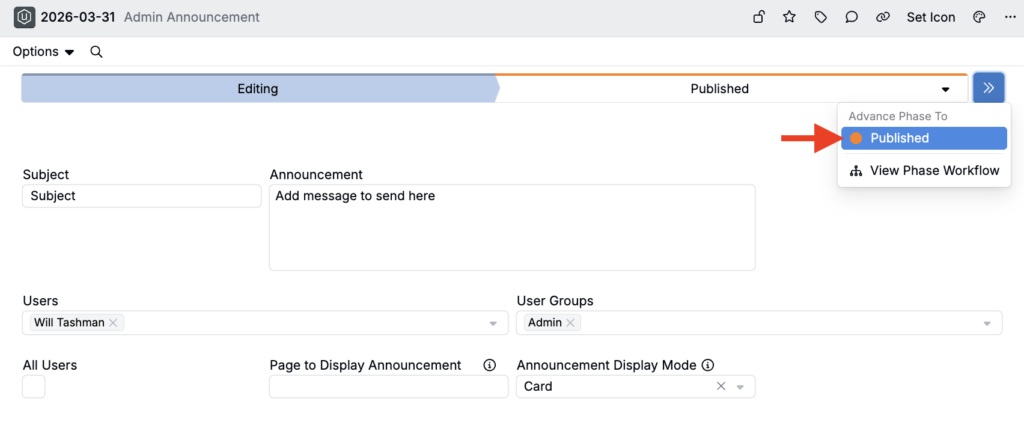
- Once created, the announcement will be added to the Admin Announcements listing in the Editing workflow stage for review.
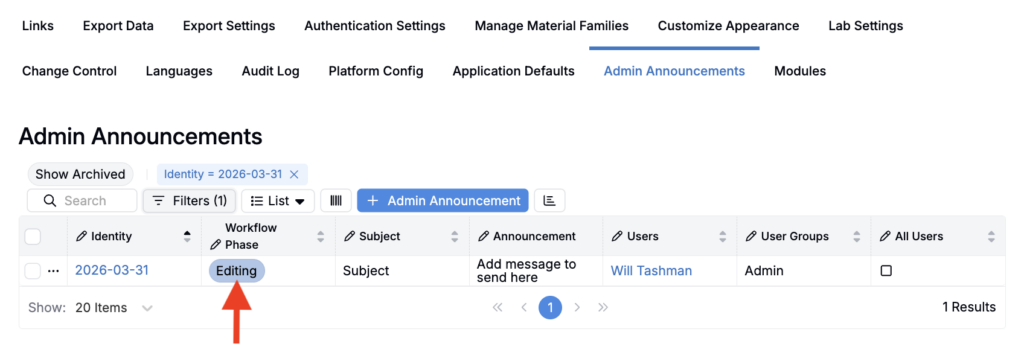
- Click into the announcement entity to review and make any changes. When ready, advance the workflow phase to Published to send the notification.
Receiving Admin Announcements
Once published, the announcement appears either as stacked cards in the bottom-right corner (Card mode) or as a banner across the top of the page (Banner mode), depending on the display mode selected.
Announcements remain visible as users move between pages until they close them, unless your team has configured different behavior. Users who are offline will see the announcement the next time they log in.
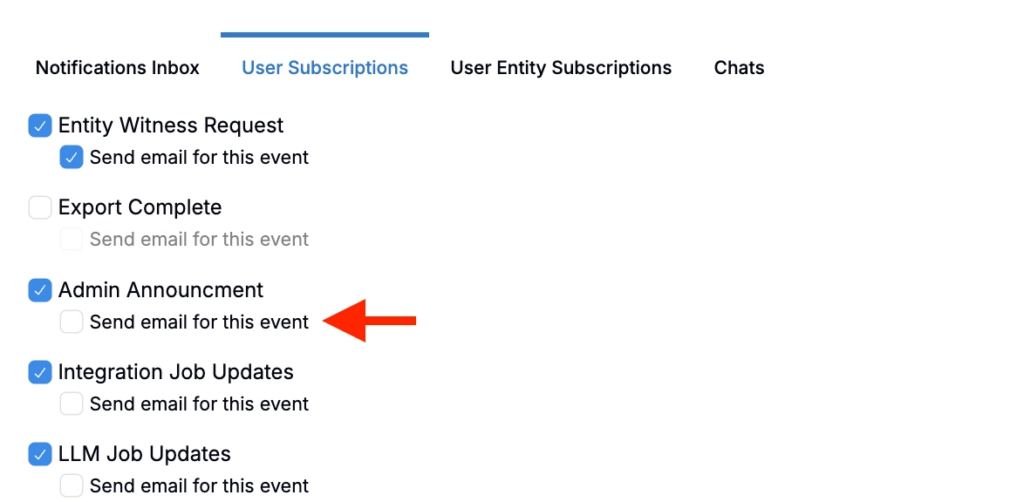
By default, notifications appear as platform popups, but they can be configured to also send emails. To adjust this personal setting, take the following steps:
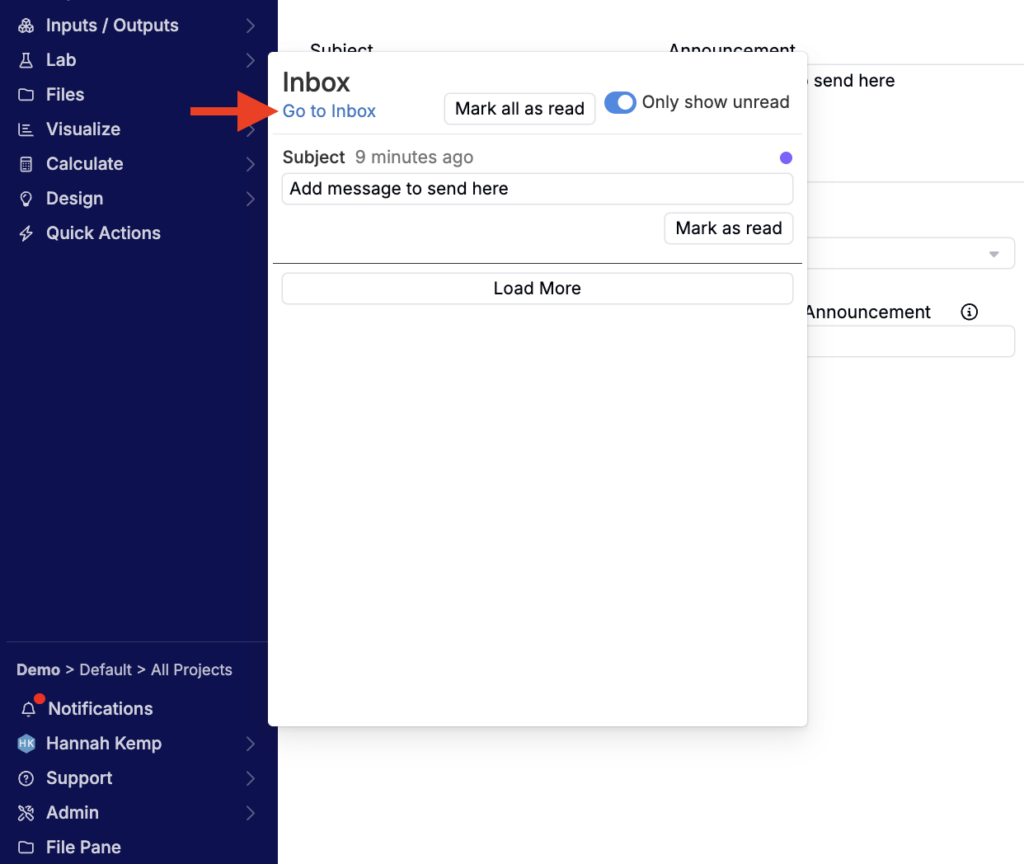
- From the navigation bar, select Notifications > Go to Inbox.
- Then, access the User Subscriptions tab.
- At the bottom of the page, locate the Admin Announcement setting. Toggle on Send email for this event to have admin announcements sent directly to your email inbox.
Admin Announcement Permissions
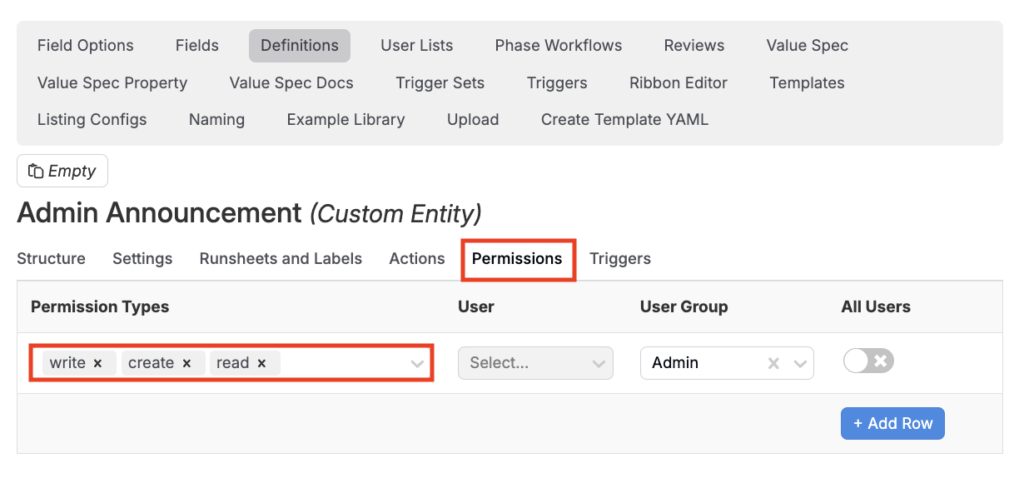
The Admin Announcements feature is a custom entity that has its own permissions configured in Form Admin. If the button to create a new announcement from the listing page is not visible, you likely do not have the appropriate permissions.
To view or adjust your permissions, navigate to the Definitions tab of the Form Admin page. Search for “Admin Announcements” and, within the Permissions tab of the definition, adjust permissions accordingly. Users need “Create” and “Write” permissions specifically for admin announcements.