
In Uncountable, mix order lets you define an explicit, step-by-step order of addition for ingredients, process parameters, and instruction rows within a recipe. Mix order steps are reorderable via drag-and-drop control and can be be organized into step groups.
Mix order is essential for staged additions. Without it enabled, the same ingredient cannot appear twice in one workflow step.
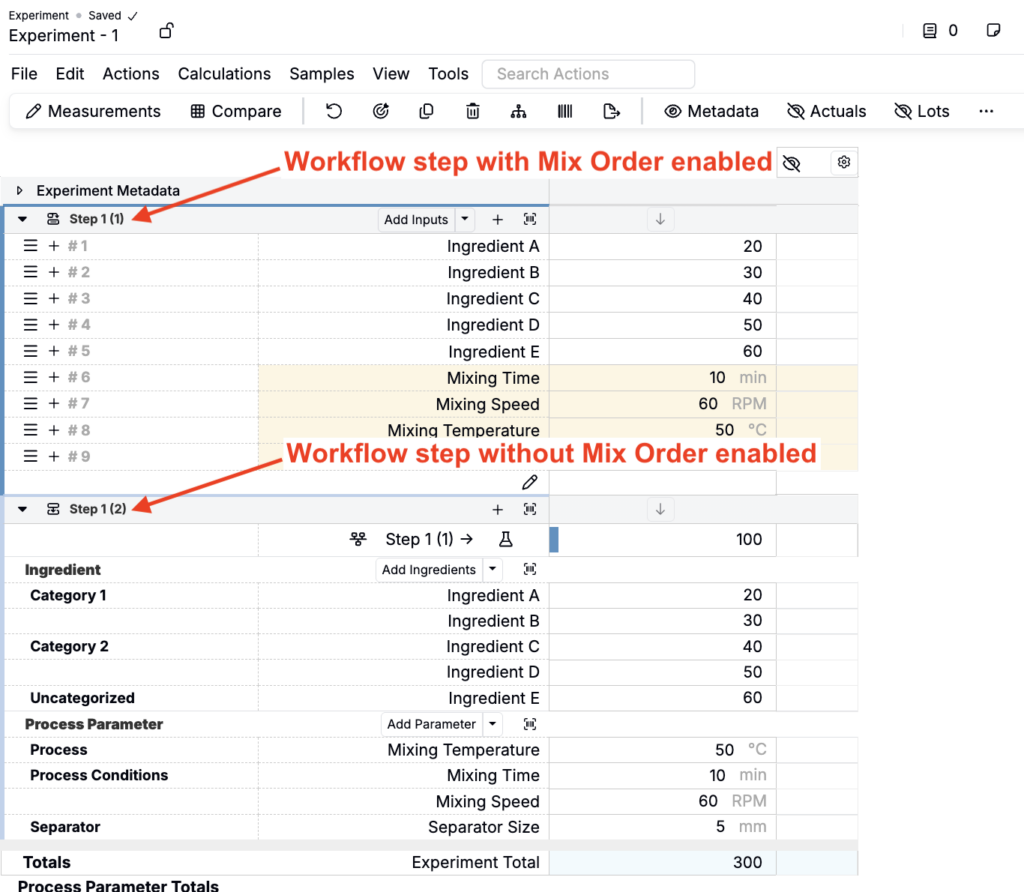
When to use mix order
Use mix order for recipes that follow a specific sequence (e.g., paint, rubber, compounding) or when you need to:
- Capture real-world procedure steps directly in the recipe.
- Add the same ingredient or parameter multiple times (e.g., staged additions).
- Keep inline instructions visible alongside inputs.
Enabling mix order
Mix order can be enabled on the recipe or workflow-level.
Experiment Recipe
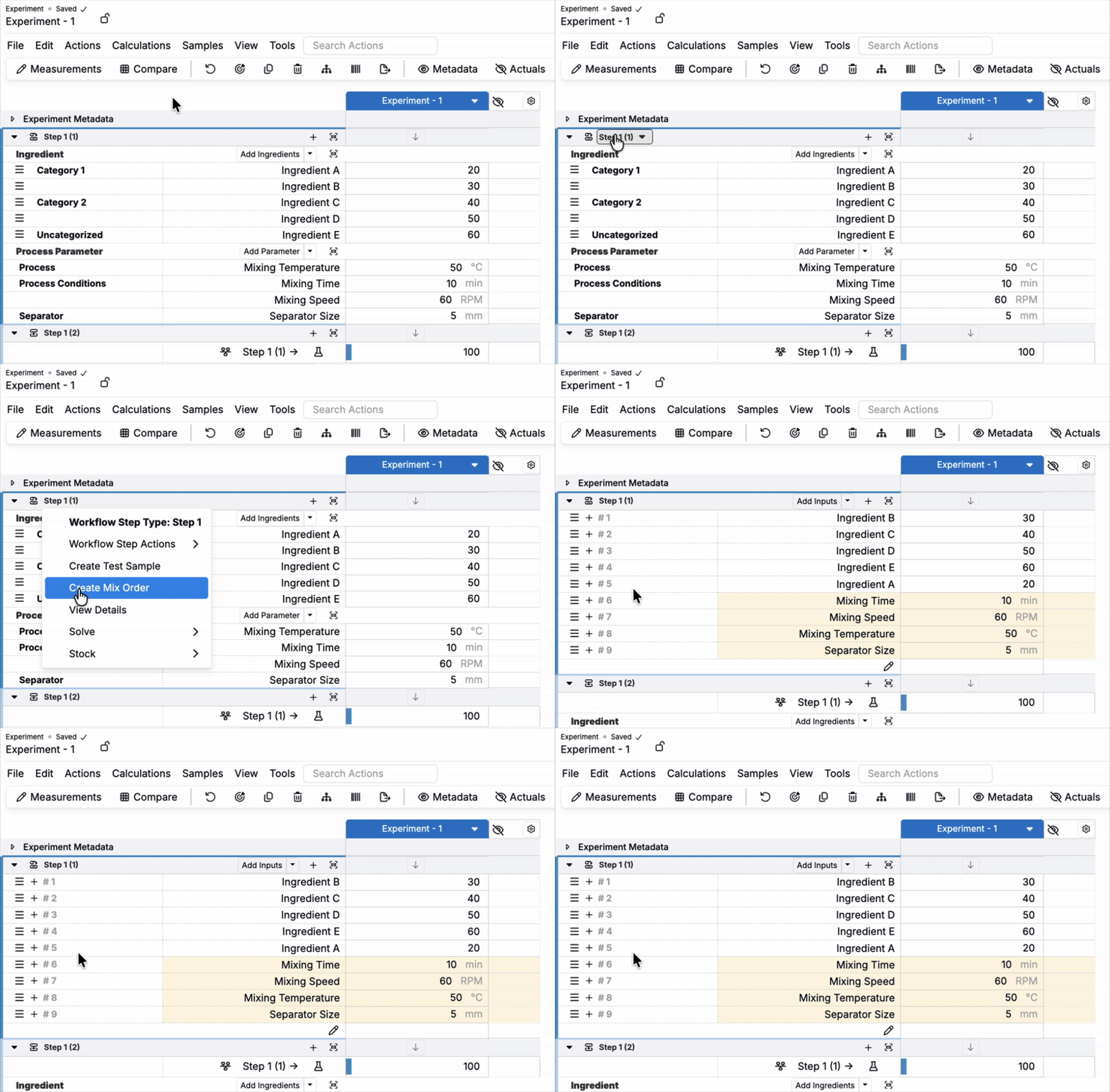
From the recipe view of an experiment:
- Click the workflow step header.
- Select Create mix order.
Default on via Workflow
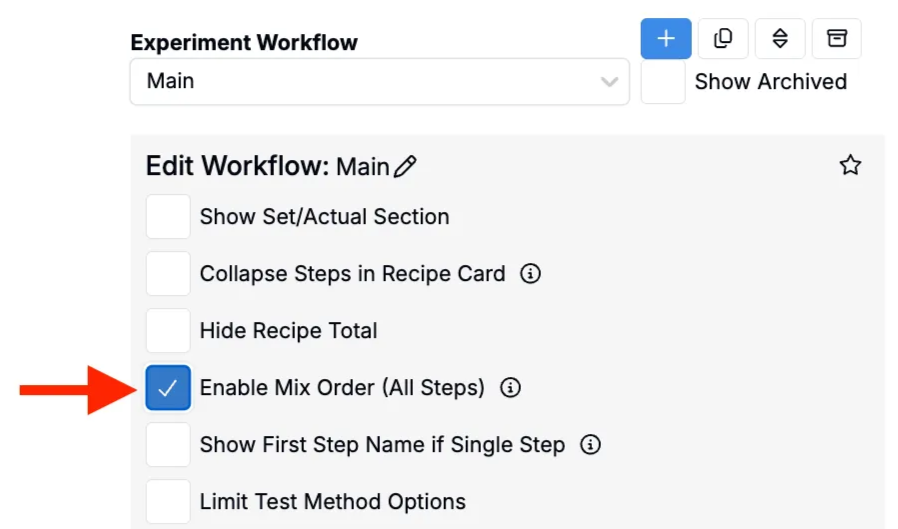
Set mix order to start on by default for an entire workflow—or only for specific steps. From the Workflow editor:
- Open the workflow you want to configure.
- Enable for all steps: Check the Enable Mix Order (All Steps) checkbox.
- Enable for specific steps only:
- Open the step menu (… → Edit Workflow Step)
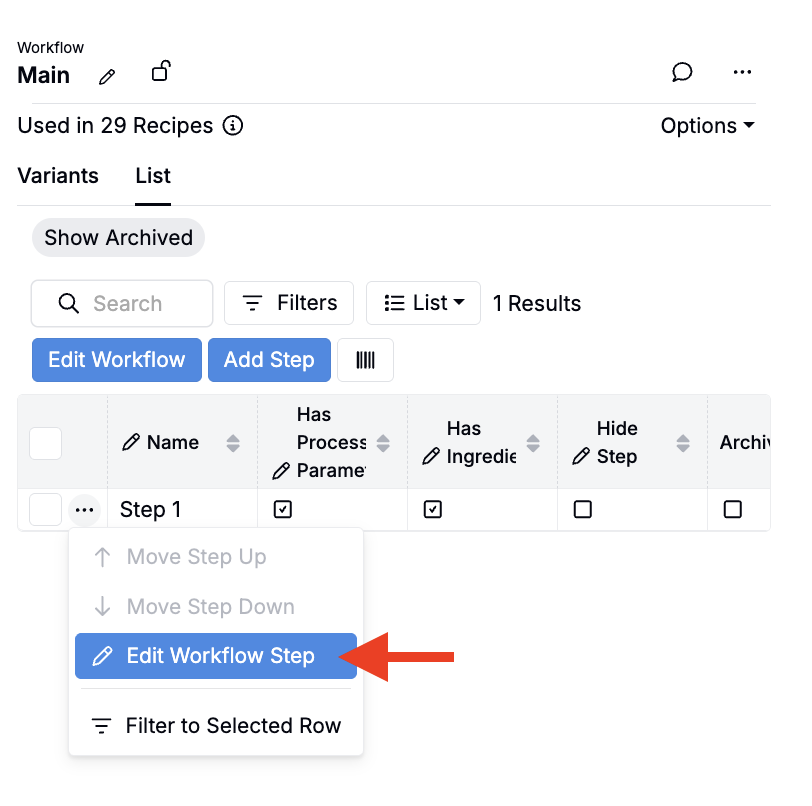
- Check the Enable Mix Order checkbox for that step.
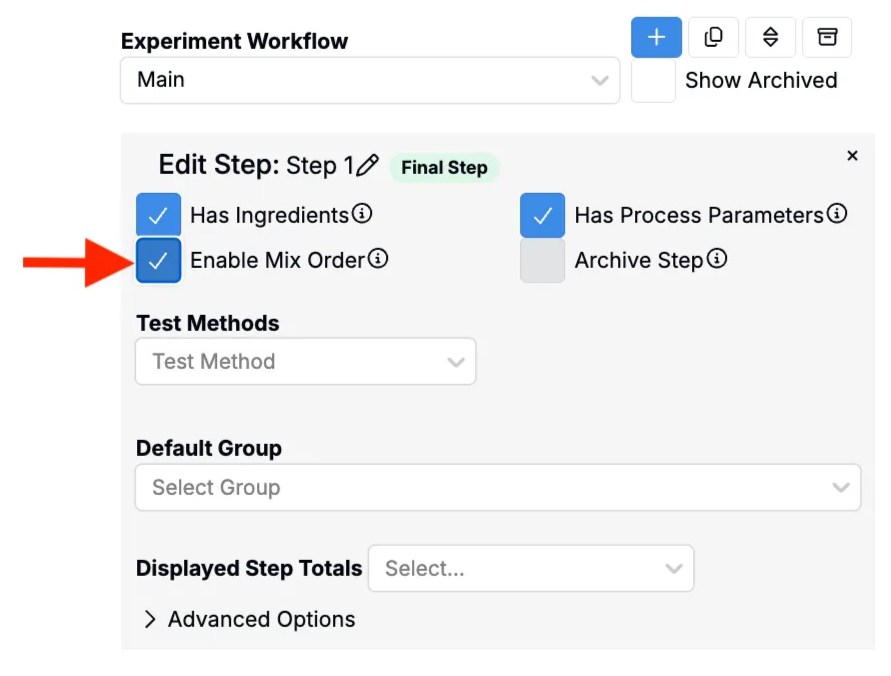
Notes
- New experiments that use this workflow inherit these defaults (you can still change mix order per experiment later).
- You can enable/disable mix order independently per workflow step.
Working in mix order
Once mix order has been enabled, the recipe becomes a set of reorderable mix steps.
- Adding mix steps
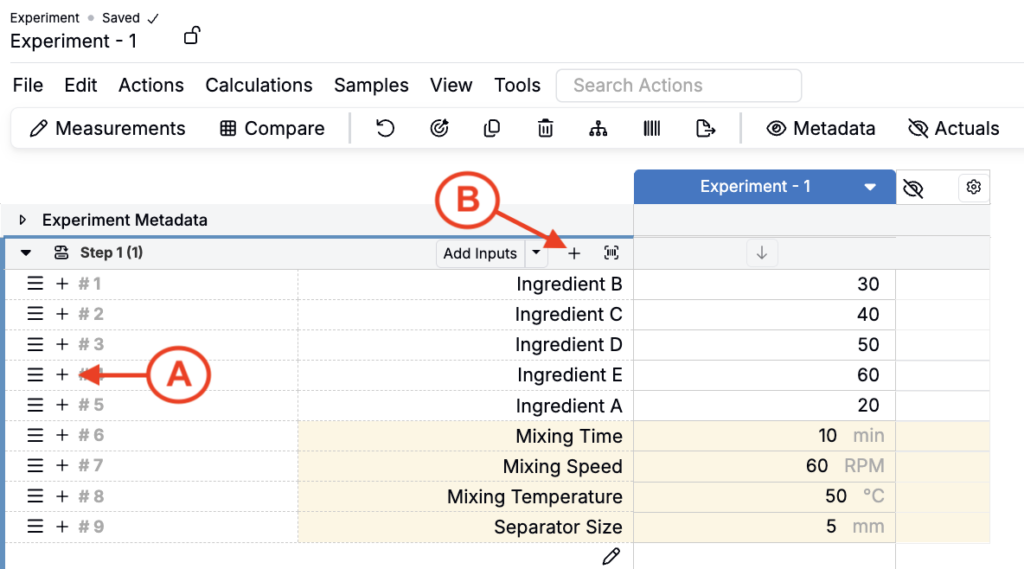
- Insert inline (A): Click the + next to the step above where you want the new step. The new mix step is created directly after that step.
- Add to the end (B): Click the + in the workflow-step header to append a new mix step at the bottom of the list.
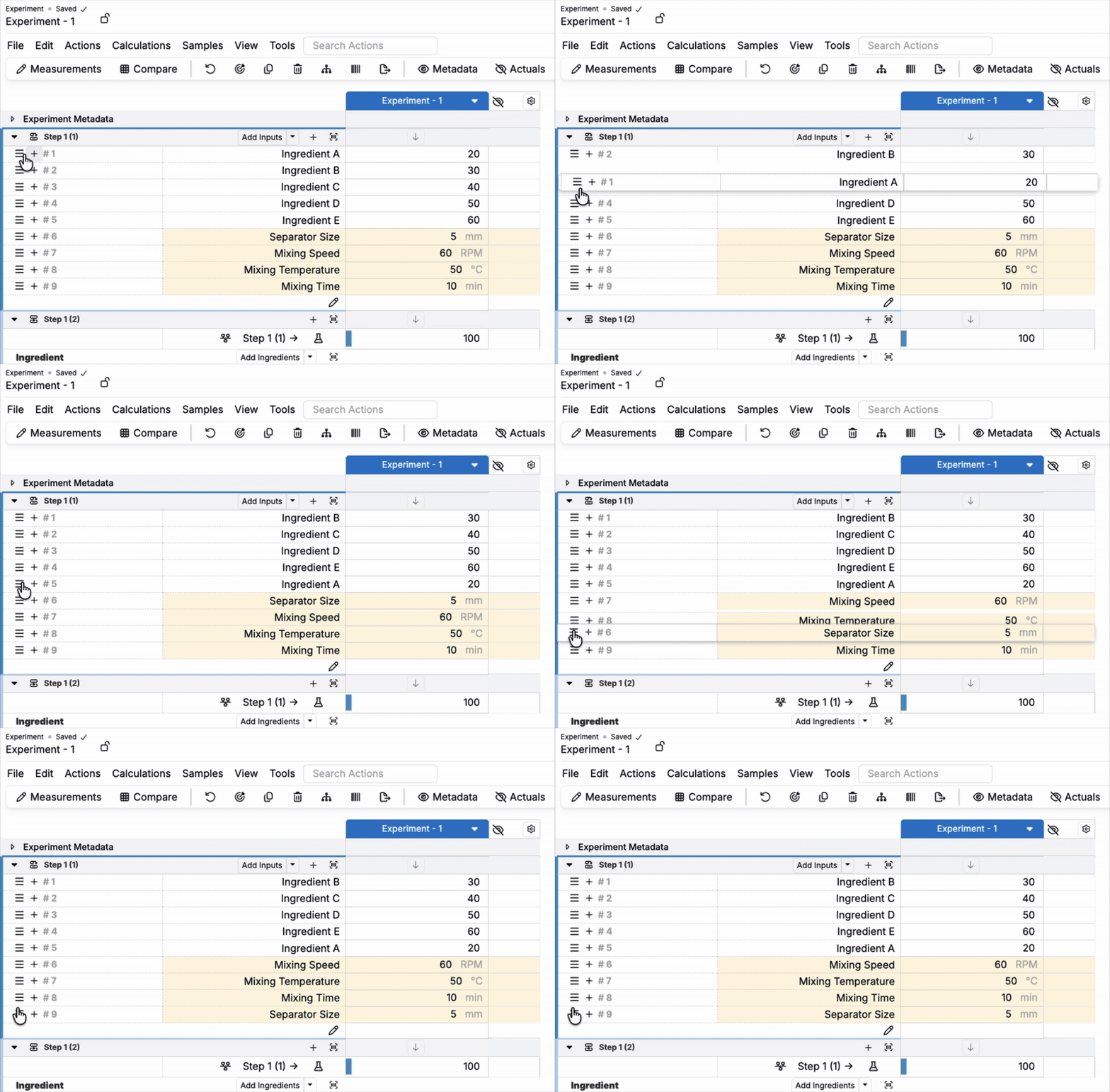
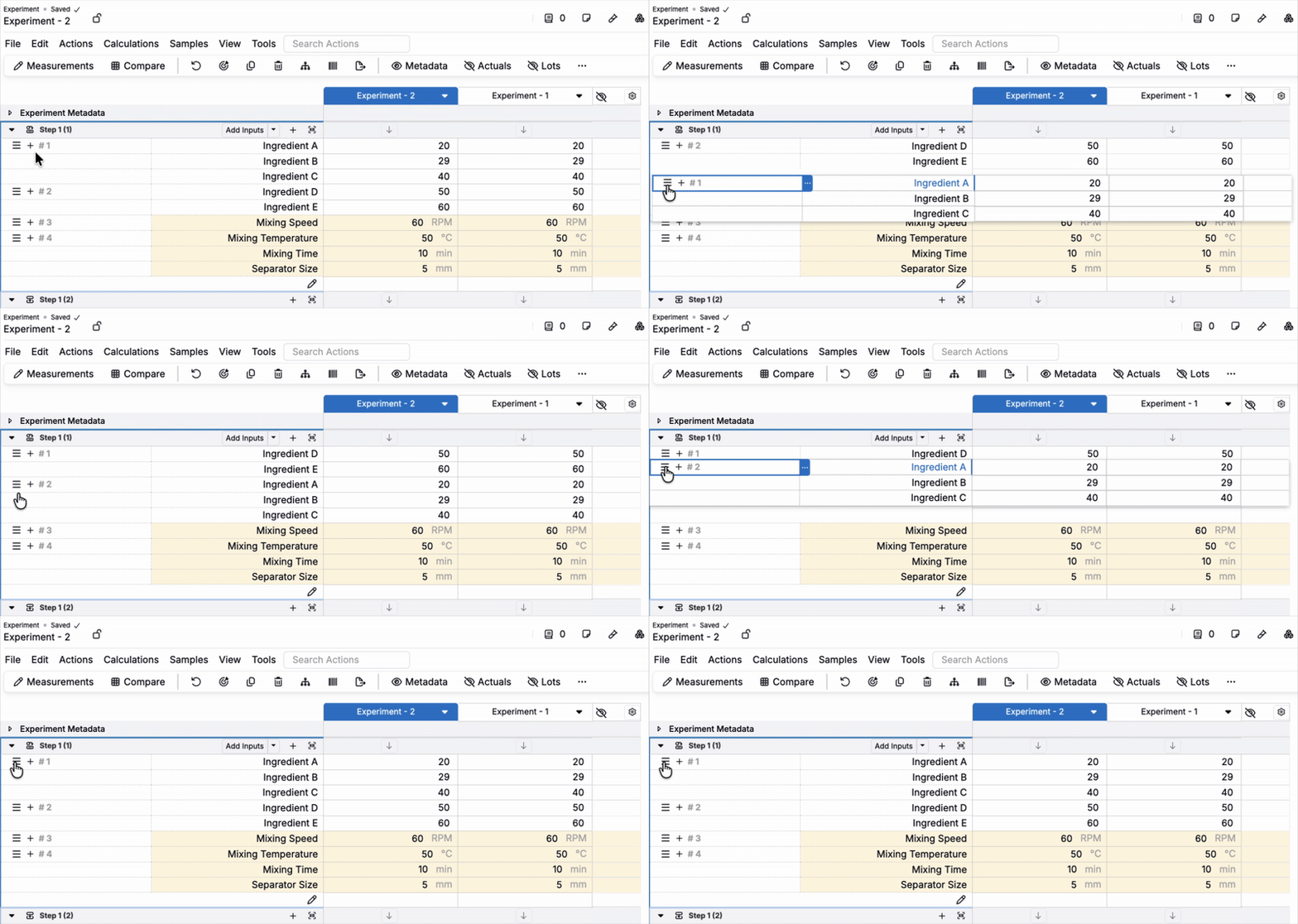
- Reordering mix steps — Click and drag a step’s drag handles to the correct order.
- Renaming mix steps — Access the step menu and select mix step Actions > Rename.
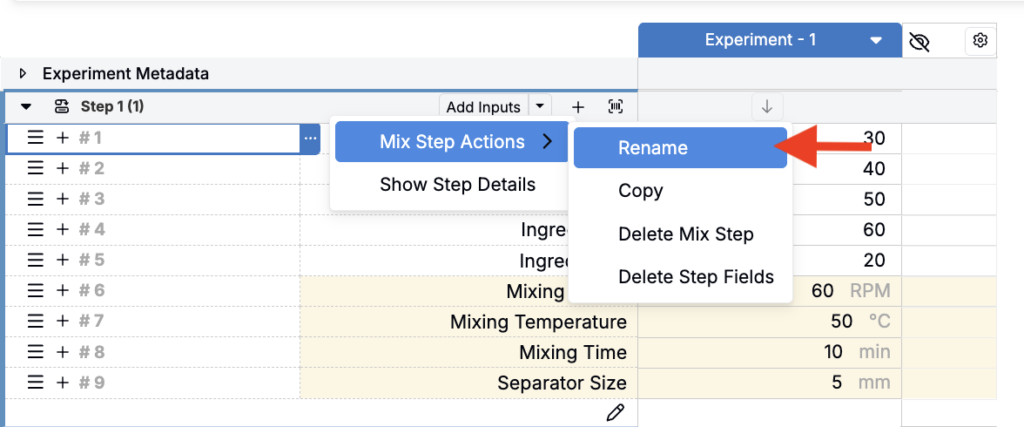
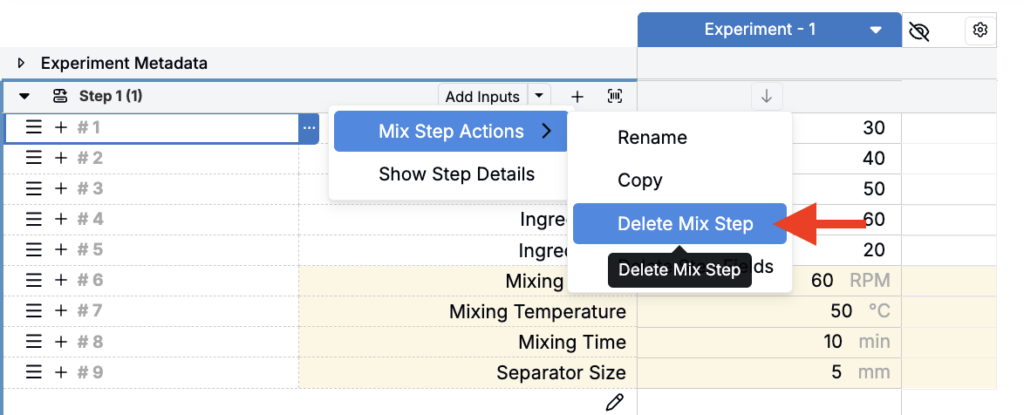
- Deleting mix steps — Access the step menu and select mix step Actions > Delete mix step.
Ghost Rows
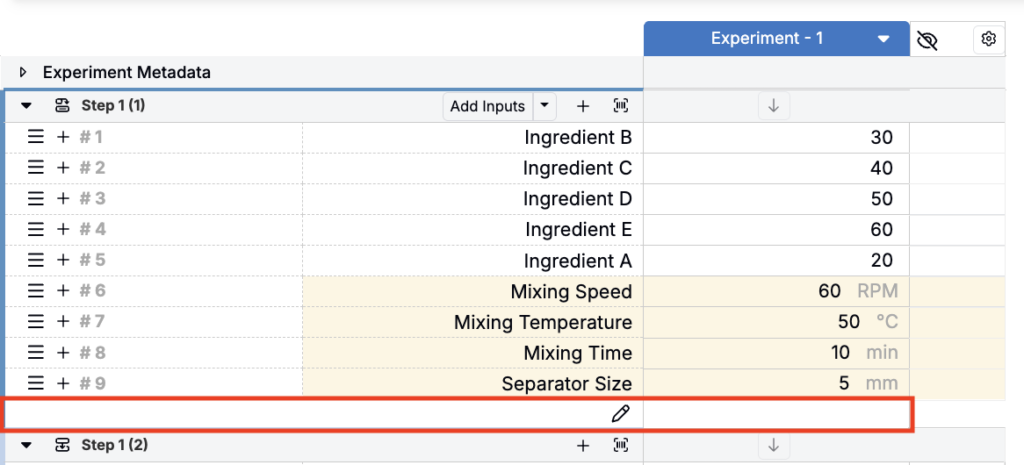
With mix order enabled, each workflow step includes a Ghost Row at the bottom of the step. This blank, editable cell lets you quickly add existing ingredients or instructions directly where you’re working—no modal required.
- Click into the Ghost Row and start typing. A type-ahead menu appears.
- Select a result or press Enter to add it.
- Items added via Ghost Row are inserted immediately after the current step; drag to reposition as needed.
To learn more, refer to Mix Order Ghost Row.
Instruction Rows
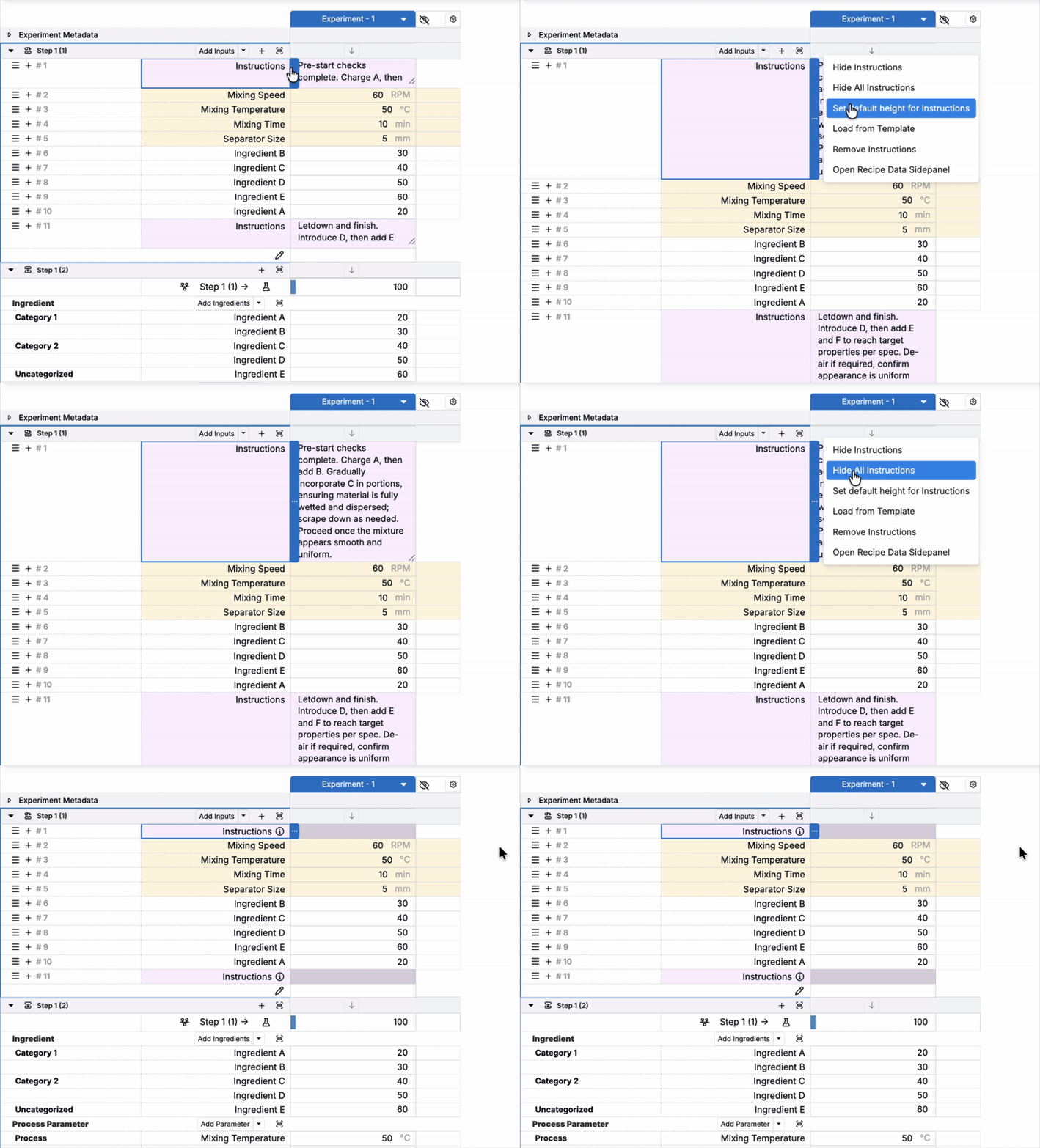
By default, instruction rows are truncated and each row is individually resizable. To control instruction cell display, click on the cell menu.
- Maximize All Instructions — auto-fits the instruction cell to the text
- Hide All Instructions— minimizes cell lines and hides all text
Step Groups
Step Groups let you cluster items within a mix step into a larger, movable block. This is helpful when several items must stay together (e.g., “wet-out package,” “letdown bundle,” or a staged addition with its note).
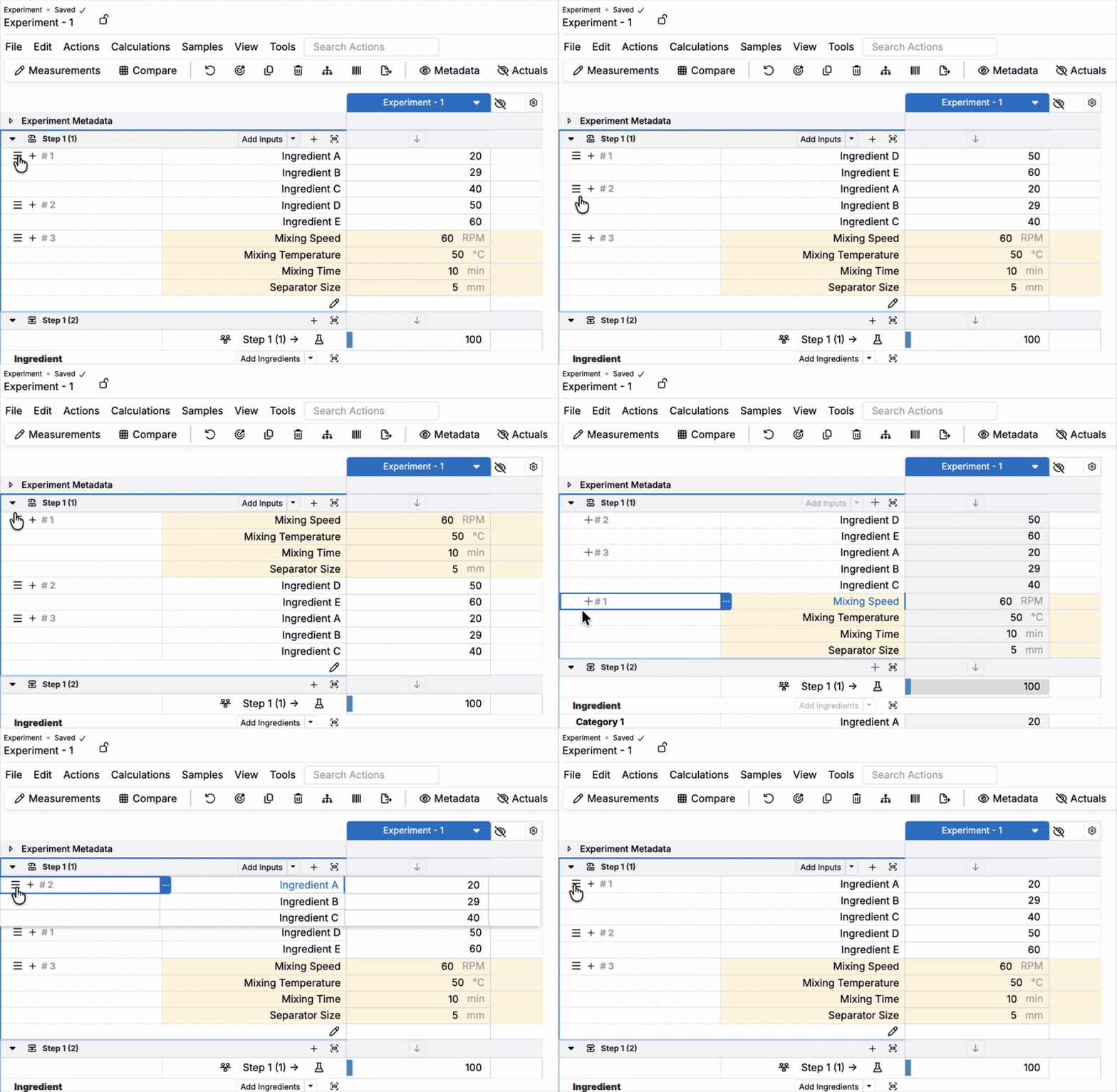
When Individual Step Reordering is enabled, each item in a step group shows its own handle for reordering. When reordering is disabled, the group displays a single handle at the top. Learn more.
Comparing Experiments with mix order
When viewing multiple experiments, mix order comparison focuses on steps, not individual cells. If experiments share the same step structure, dragging a mix step in one experiment moves that step in all experiments currently in view.
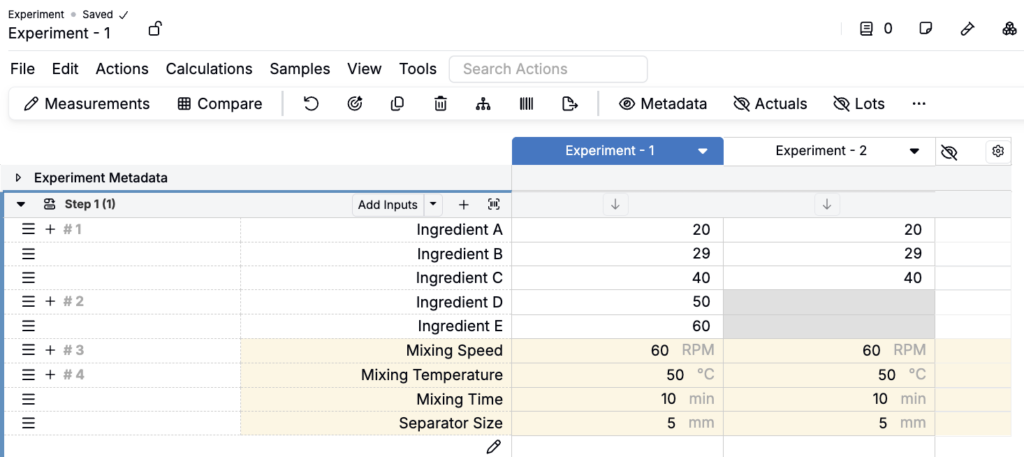
If a step exists in one experiment but not another, the table shows blank space to preserve step groupings.
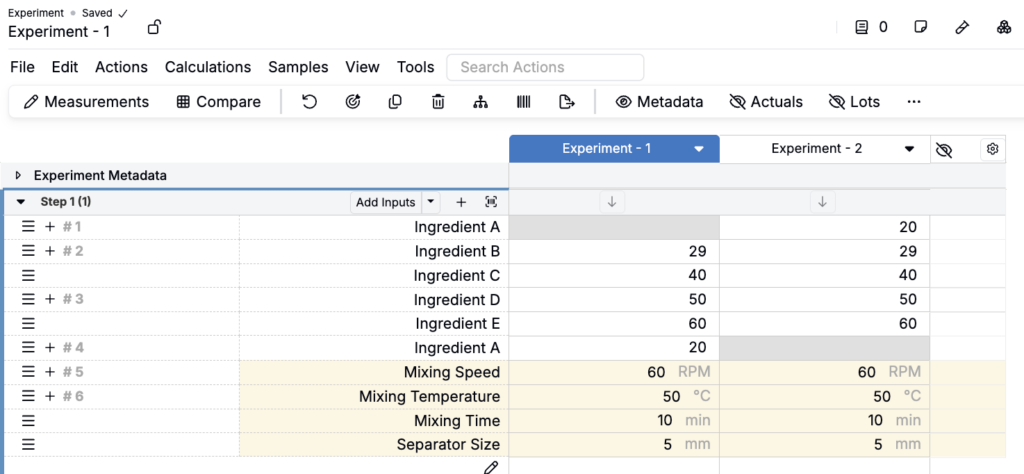
If step structures differ, alignment also preserves step groupings but doesn’t force ingredient-level alignment. Contents remain within their own steps.
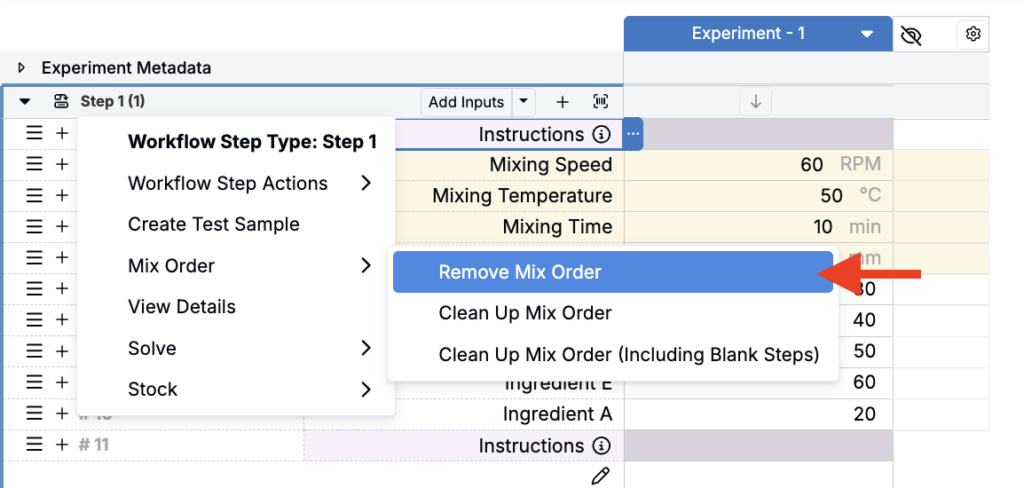
Removing mix order
From the Ingredient header menu, select the option to Remove Mix Order.
Warning: Some information (especially instruction-only steps or structure-dependent groupings) may be lost when reverting to categorical sorting. Consider duplicating the experiment before disabling.