Outputs in Uncountable are used to capture all types of experimental measurements, tests, and characterization data. While many outputs are numeric, the platform supports a variety of data types—including text, categorical values, curves, images, and files.
Creating New Outputs
New outputs can be created either from the Outputs listing page or directly from the Measurements view of an experiment.
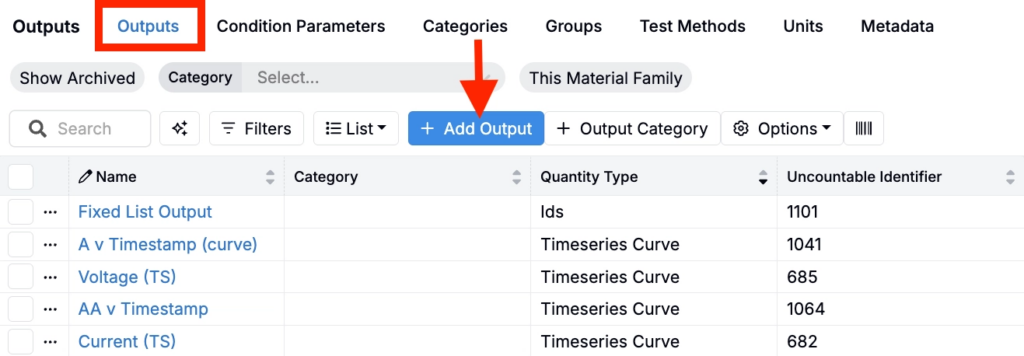
On the Outputs page, click the + Add Output button in the top right to open the creation modal.
On the Measurements page, select Add Outputs > More to open the modal, then click Add New to define a new output.
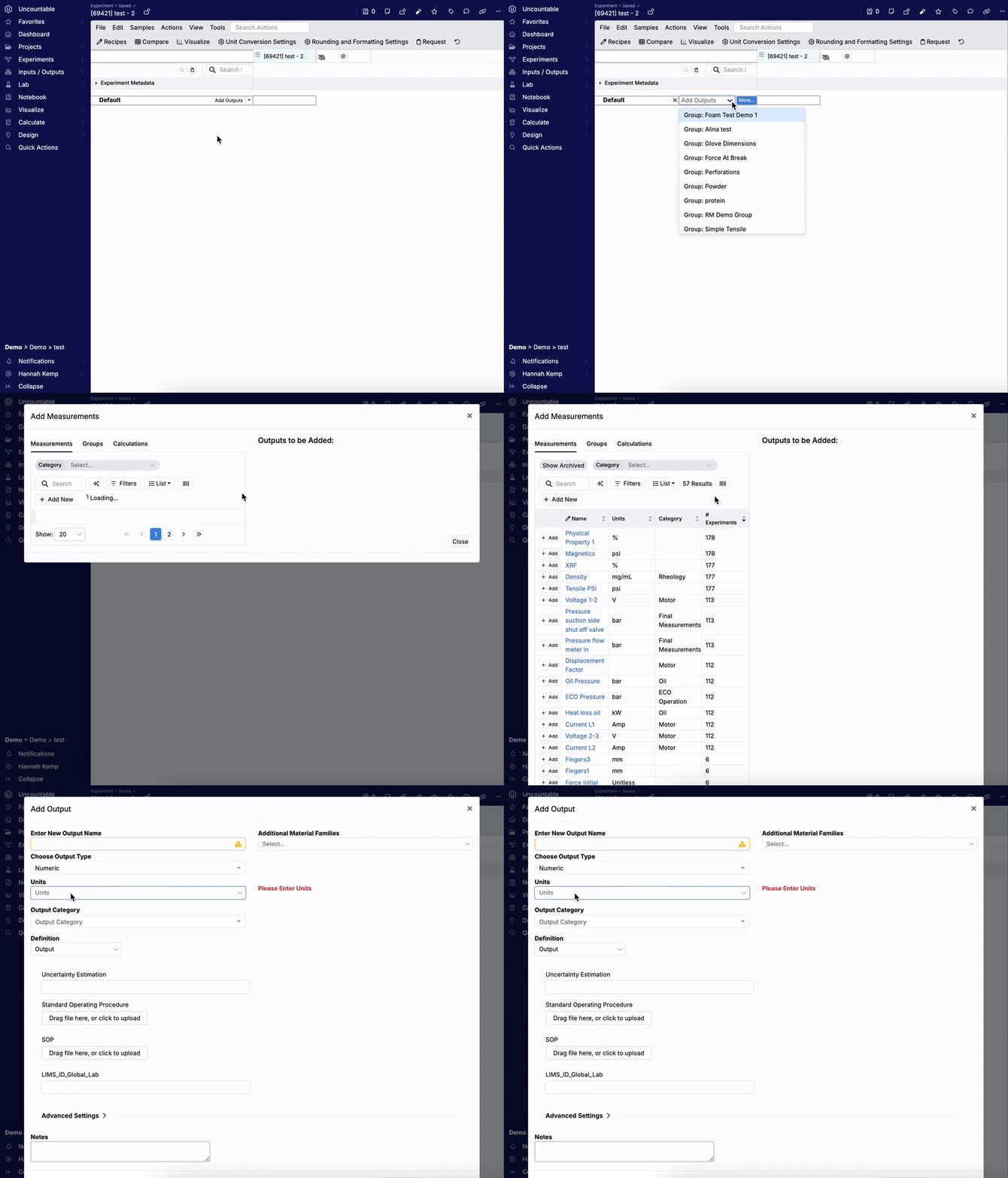
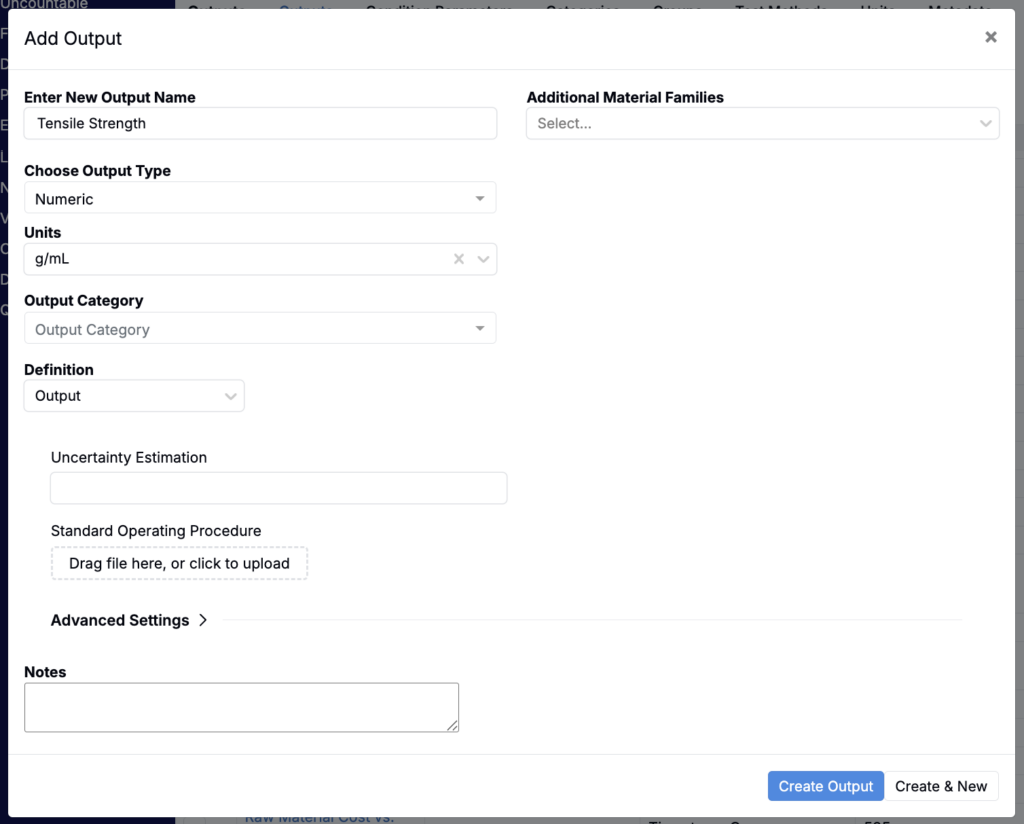
Both options will launch the same Add Output modal, where you can enter the necessary details to configure your measurement. Within the modal, fill out the following information:
- Name — Users should choose a name that’s widely understood across your organization to ensure clarity for other users. If alternate terminology is common, you may include it in parentheses (e.g., Tensile Strength (Pull Test)).
- Important: Do not include test conditions in the name. Instead, use condition parameters to specify details like temperature, aging time, or test speed. For example, use the output name Strength with a condition parameter of 100°C, rather than Strength at 100°C.
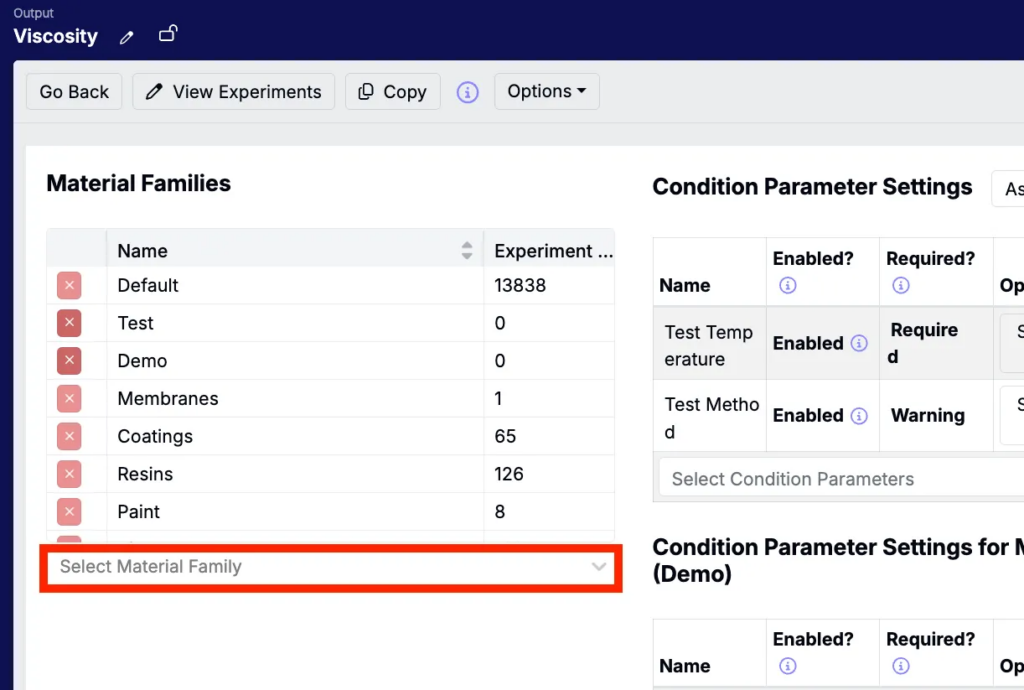
- Additional Material Families — By default, the output will be available only within the material family it’s created in. To make it accessible across other families, select them from the dropdown.
- Output Type —Select the data type that best fits the measurement being recorded:
- Numeric: For numerical values with required units (e.g., MPa, %, °C).
- Curve: For X/Y data such as stress-strain curves. Data can be entered manually or imported using a custom uploader.
- Image: For storing image files such as microscopy photos. See <LINK>.
- Calculation: For outputs derived from other values (e.g., change over time). These can be configured with help from your account manager. Learn more.
- Text: For unstructured notes, descriptions, or observations.
- Single Select/Multi Select (Categorical): For qualitative data using dropdown selections (e.g., Pass/Fail).
- Note: Categorical outputs require a multi-step setup process and work differently than other output types. To learn how to create a categorical output, refer to this article.
- Ordinal: Like categorical, but each option includes a numeric value to support sorting and analysis.
- File Upload: For attaching files like PDFs or spreadsheets. Files are stored but not processed; contact your account manager to discuss options.
- Units — If the output type is numeric, specify the appropriate unit of measurement (e.g., °C, MPa, wt%).
- Output Category — Assign the output to a category (e.g., Mechanical Properties) to support organization, filtering, and visibility controls. You can select an existing category or create a new one.
- Output Definition Fields — If any fields have been added to the Outputs definition on Form Admin (e.g. fields for SOP links or specification ranges) they will appear here for optional input during creation.
- Notes — Add any internal notes or context related to this output. These are for documentation purposes only and do not appear during measurement entry.
Once all required fields are complete, click the Create Output button to save your new output.
Adding Outputs from Another Material Family
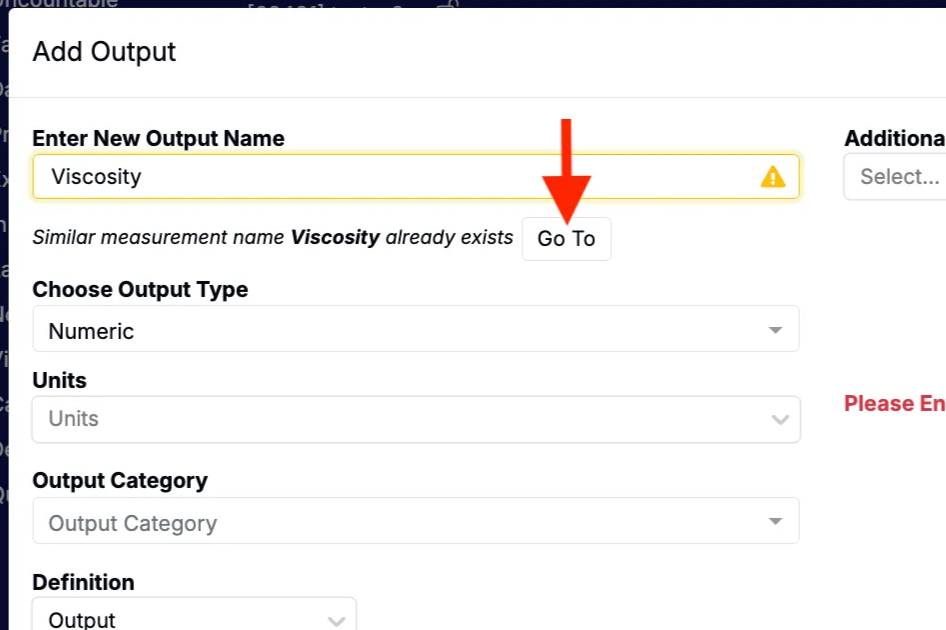
If an output with the same or similar name already exists in the workspace, you can add that existing output to your current material family instead of creating a duplicate.
When this happens, the Add Output modal will display a warning with a link to the existing output. Click Go To to open the output’s detail page.
On the detail page, scroll to the Material Families section to view where the output is currently available. Use the dropdown menu to add the output to your material family. Once added, it will be available for use in your project.