
SCIM tokens let an identity provider (IdP), such as Microsoft Entra ID or Okta, connect to Uncountable to provision, update, and deprovision users automatically. IT admins create and revoke SCIM tokens on the Authentication Settings page. For example, an IT admin can create a token for a dedicated SCIM user and enter it as the secret token in the IdP’s SCIM connection.
How SCIM Tokens Work
- Each token is tied to a user. The user must have the Manage Users IT admin permission. A dedicated SCIM user is recommended.
- The token is shown only once, when it is created. Copy it before leaving the page.
- SCIM tokens can be used only for SCIM provisioning requests, not for other parts of the platform.
- Tokens stay valid until they are revoked.
Creating a SCIM Token
- Go to Company-Wide Settings > Authentication Settings.
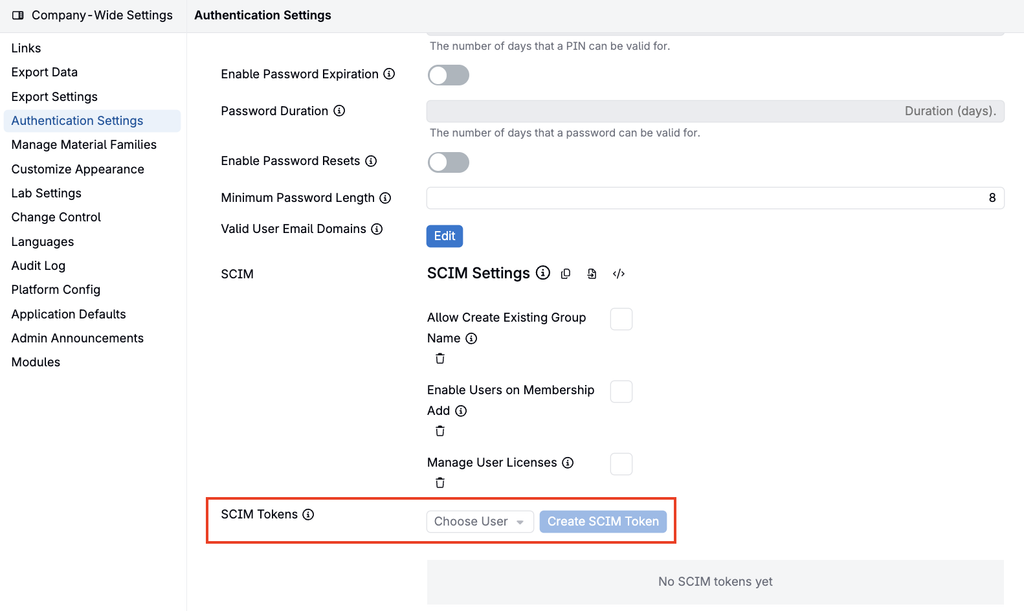
- In the SCIM Tokens section, select the user the token is for under Choose User.
- Click Create SCIM Token.
- Copy the token from the one-time notice and enter it as the secret token in your identity provider’s SCIM connection.
Note: Contact your Uncountable team for the SCIM tenant URL to enter in your identity provider.
Viewing and Revoking SCIM Tokens
The SCIM Tokens table lists active tokens with their User, Created By, Created, and Last Used values.
To revoke a token, revoke it from its row and confirm. An identity provider connection that uses a revoked token needs a new token before it can provision users again.
Permissions
Only users with the Manage Users IT Admin permission can see the SCIM Tokens section and create, view, or revoke tokens. The user a token is tied to must also have the Manage Users permission.