
The fully configurable navigation bar lets admins manage every sidebar item—including built-in links such as Dashboard, Inputs/Outputs, and Quick Actions. Admins can edit, reorder, hide, or remove links, add custom links and dropdown menus, and place links inside standard menus. Links continue to respect license requirements and existing platform configuration.
The Fully Configure Nav Bar toggle is visible only to admins with admin rights on all material families. Individual users can still manage their personal favorites; see Edit Favorites.
Enabling the Fully Configurable Navigation Bar
- Open the Admin Actions page (search for Admin Actions in Quick Actions) and run the Populate Navbar Favorites and Enable Fully Configurable Navbar admin action. This copies the schema’s standard sidebar links into the Admin Links section of the Edit Favorites page and turns on fully configurable mode. The action is safe to re-run: it skips links that already exist and never deletes or reorders existing favorites.
- Refresh the page. The sidebar initially looks unchanged, but every item in it is now a favorite link.
- Go to Favorites > Edit Favorites and select the Nav Bar Top Level tab. Every sidebar button and dropdown menu now appears in the Admin Links table, where it can be edited, reordered, hidden, or removed.
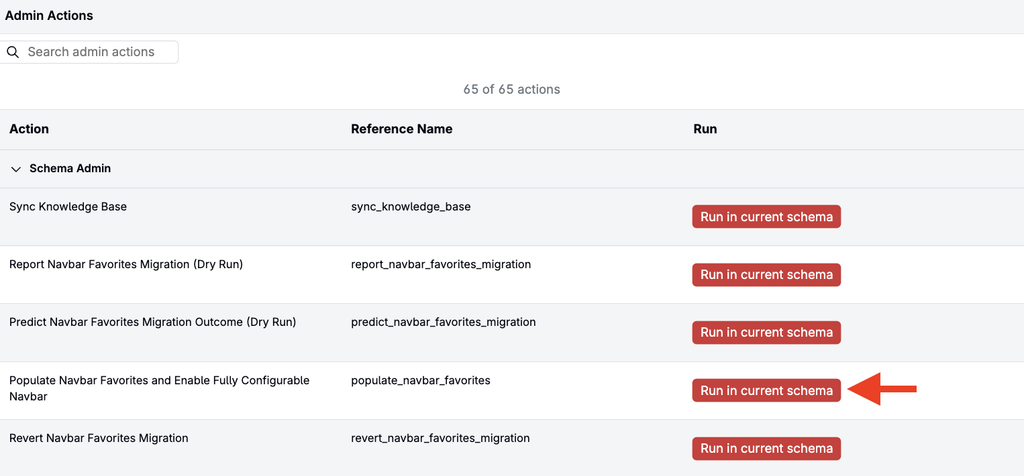
Two related admin actions are also available on the Admin Actions page: Report Navbar Favorites Migration (Dry Run), which previews the links that would be created without changing anything, and Revert Navbar Favorites Migration, which removes the seeded links and restores the previous navigation bar.
Fully configurable mode can also be turned on manually with the Fully Configure Nav Bar toggle in the Admin Links section of the Nav Bar Top Level tab. When the toggle is on, the built-in sidebar sections are hidden and only favorite links are shown. The toggle is visible only to admins with admin rights on all material families.
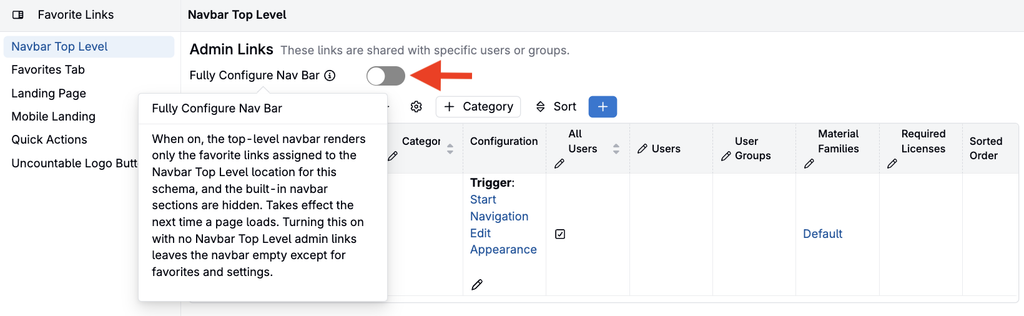
Note: Always run the populate admin action before turning on Fully Configure Nav Bar. Enabling the toggle on its own hides all built-in links and leaves a nearly empty sidebar. The settings menu always remains available, so the Edit Favorites page can still be reached.
Note: Because sidebar items are admin links, deleting an item removes it for every user who could previously access it, not just for you.
Creating Navigation Menus
A menu (dropdown group) in the navigation bar is a Category with links assigned to it. Links with no category appear as individual top-level buttons.
- On the Nav Bar Top Level tab, click + Add Category and name the menu.
- Create a link (or edit an existing one using the pencil icon) and set its Category to the menu. Every link with that category appears as an item in the dropdown.
- Rename, reorder, or delete the menu at any time from the Admin Links table.
Links can be moved into, out of, or between menus at any time by changing their Category, and custom links can be added to the standard menus (such as Inputs/Outputs or Lab) created by the migration.
Top-level items show a default icon when none is set; menu items show an icon only when one is set.
Reordering Links and Menus
Links and menus appear in the navigation bar in the order set on the Edit Favorites page. Use the Sorted Order column to reorder them. Admin links appear above each user’s personal links.
Quick Actions
In fully configurable mode, the built-in Quick Actions button is hidden and Quick Actions is managed as a favorite link instead, so it can be repositioned, renamed, or removed like any other item.