Ingredient fields store structured information on ingredients, such as a CAS number, storage temperature, or regulatory status. Ingredient fields are part of the entity field system used across Uncountable and are configured on ingredient definitions in Form Admin. Ingredient field values can be viewed and edited on an ingredient’s details page and displayed as columns on the experiment Recipe page.
Ingredient fields vs. ingredient attributes
Ingredient fields and ingredient attributes can store similar ingredient-level information, but they belong to different generations of the platform data model:
- Ingredient attributes are the older (legacy) mechanism for storing structured information on ingredients. Many existing configurations still use them.
- Ingredient fields are the newer, more flexible model. They are recommended for new configuration, provide better layout and control on the ingredient details page, and work the same way as fields on other entities.
| Ingredient attributes | Ingredient fields | |
|---|---|---|
| Recommended for new configuration | No (legacy mechanism) | Yes |
| Where it’s configured | Attributes listing page (Inputs/Outputs > Inputs > Attributes) | Ingredient definition in Form Admin |
| Layout on the ingredient details page | More limited | More flexible layout and control |
| Consistency with other entity fields | Specific to ingredients | Uses the same field system as other entity definitions |
| Quick edit on the Recipe page | Yes | Yes |
Note: Moving existing ingredient attributes to ingredient fields is a configuration change handled with your Uncountable team. Calculations, listings, exports, and triggers that reference an attribute need to be updated too.
Adding ingredient fields
Ingredient fields are added to the ingredient definition in Form Admin, using the same process as adding fields to any other definition: open the definition’s Structure tab, click into a group, and select Fields from the Form menu to add an existing field or create a new one. Once added, a field’s display settings, constraints, and requirements can be configured on the definition.
For step-by-step instructions, see Managing Fields on a Definition.
Quick editing ingredient fields on the Recipe page
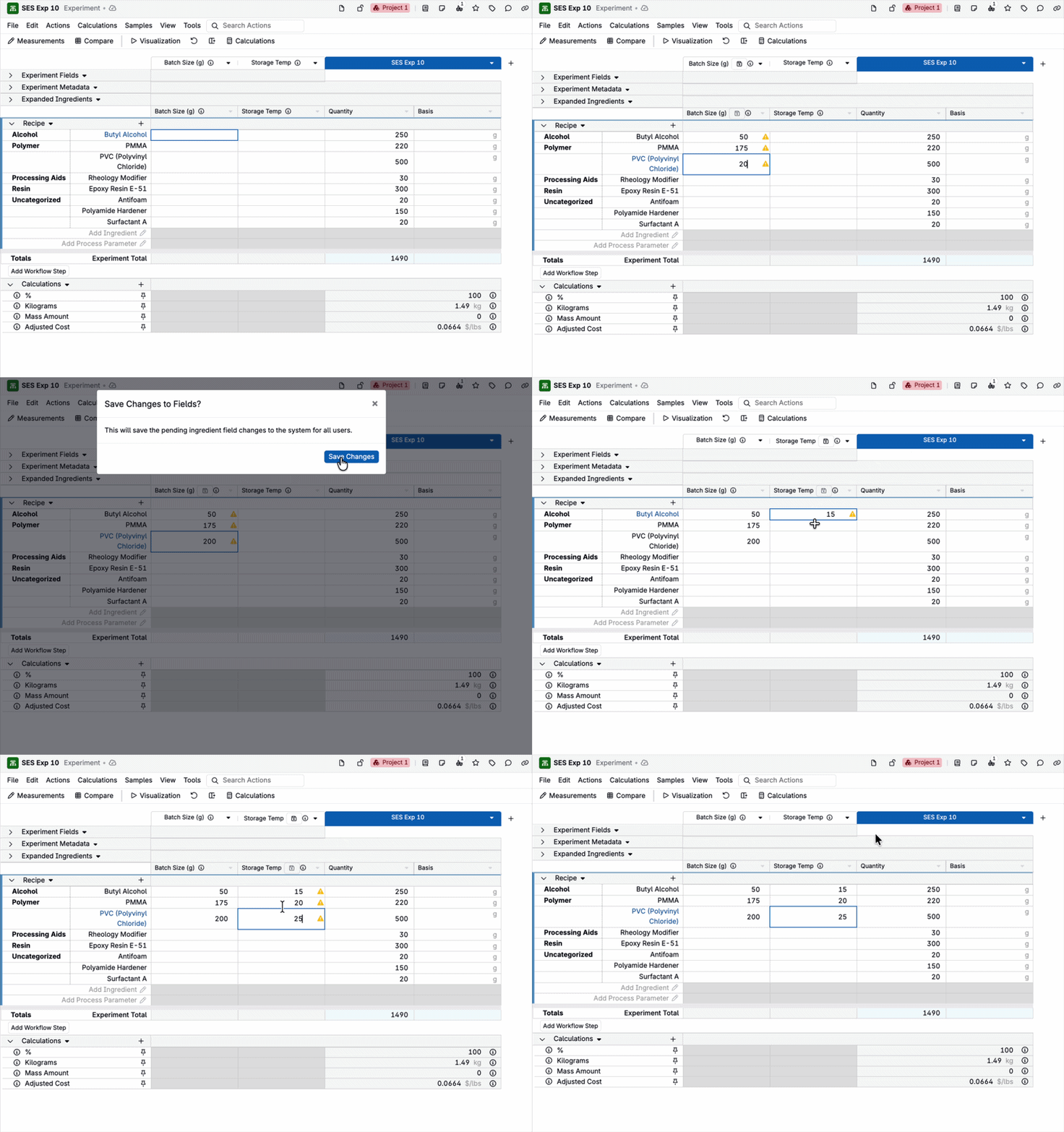
Ingredient field values can be quick edited directly on the experiment Recipe page. This lets you see how a change to an ingredient field value affects your recipes without changing the recipes themselves, making it faster to explore the impact of ingredient data during formulation. Quick edit for ingredient fields works the same way as quick edit for ingredient attributes.
To edit ingredient field values:
- Add the ingredient field as a column (select View > Ingredient Field, then choose the field in the modal).
- Click the ingredient’s cell in that column and enter the desired value.
- Click the save icon in the column header to save the updated values for all users.