Uncountable’s Solver feature is a constraint optimization tool that adjusts ingredient amounts to satisfy one or more locked targets.
This article provides a high-level technical explanation of how the Solver interprets calculations, locks, and ingredient amounts, and why it behaves the way it does.
Solver-Compatible Calculations
The Solver only works with input calculations that follow a predictable, differentiable structure. These include:
- Weighted Sum / Weighted Average calculations
- Composite calculations (built only from weighted sums)
These calculation types behave linearly with respect to ingredient amounts, which allows the Solver to determine how changing each ingredient affects the final calculation.
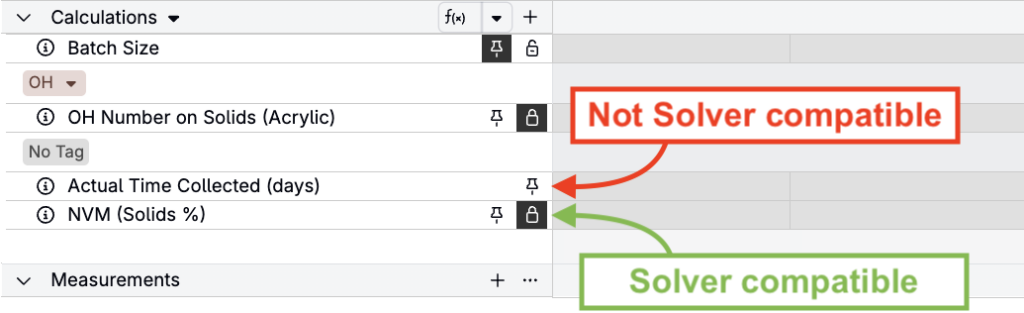
If a calculation shows a lock icon in Solve Mode, it is Solver-compatible. If no lock appears, the Solver cannot use that calculation as a constraint.
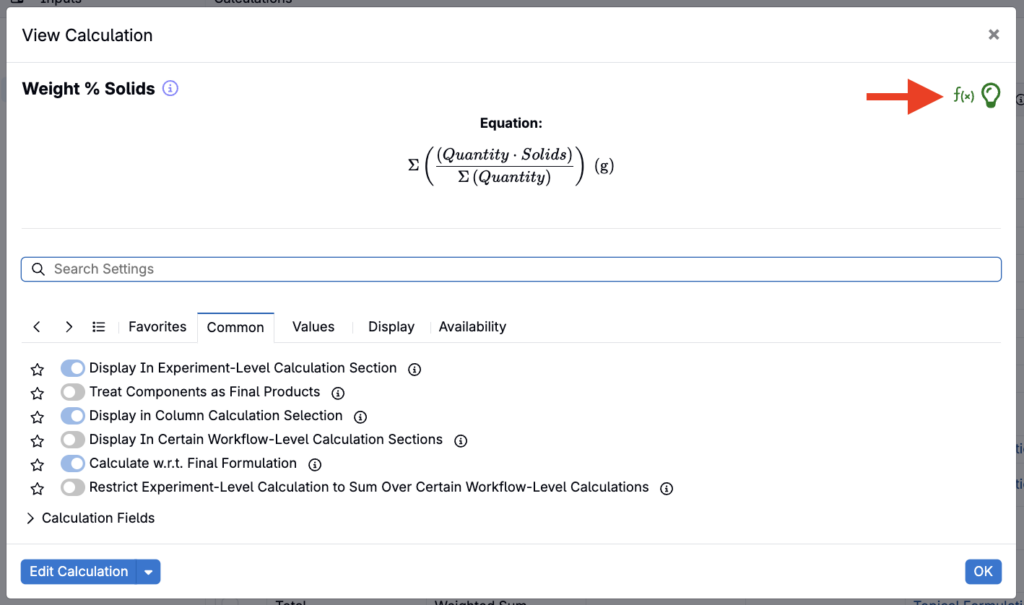
Additionally, in the Edit Calculations modal, a green f(x) in the top right corner indicates a Solver compatible calculation and a red f(x) indicates a non-Solver compatible calculation.
Why only these types?
Because they create mathematical expressions with a clear relationship between ingredient amounts and the calculated value. This allows the Solver to compute how to adjust ingredients to reach a target.
Locked Calculations Become Constraints
When you type a new value into a calculation and lock it, you are adding a precise mathematical condition: “This calculation must equal this target value in the final recipe.”
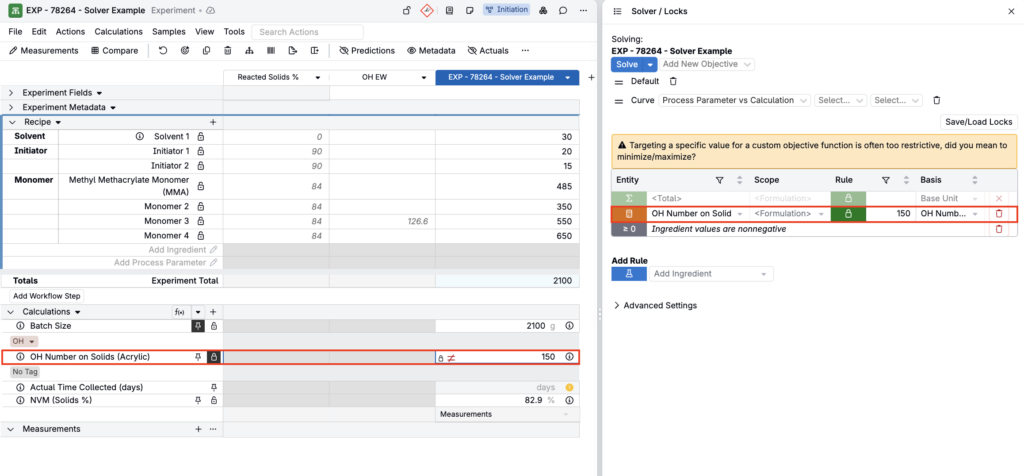
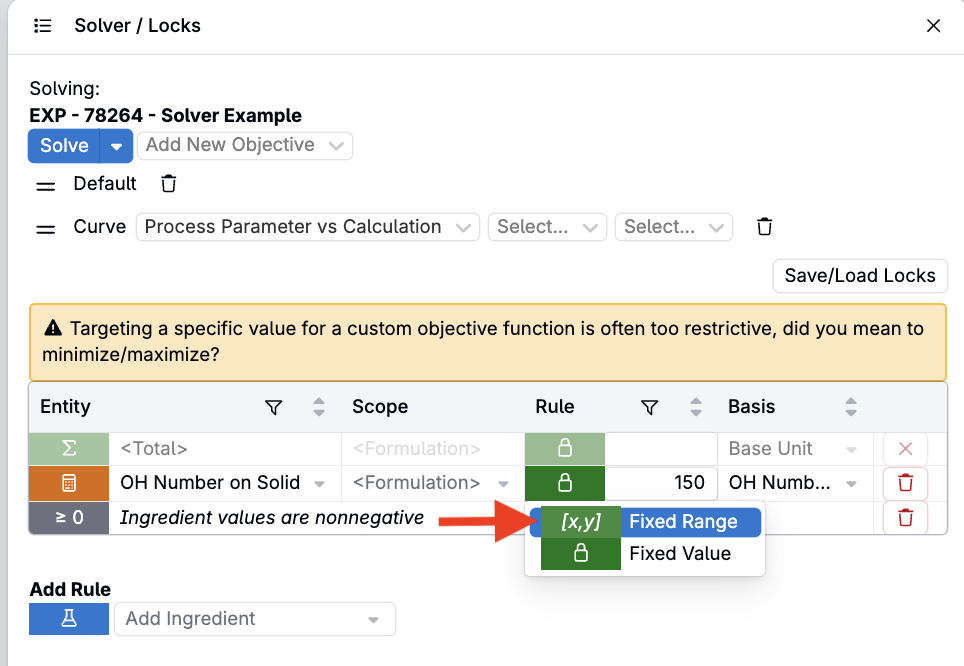
A locked calculation does not have to be an exact equality, either. As covered in Solver, you can lock a directional (fixed range) constraint instead—a minimum, a maximum, or a fixed range between two bounds—which the Solver treats as an inequality rather than a strict equality.
Decision Variables
Behind the scenes, the Solver builds a single vector of decision variables. Each variable represents either:
- An unlocked ingredient quantity within a recipe step
- A step-to-step relationship quantity, when the recipe workflow includes intermediate or multi-step relationships that can vary
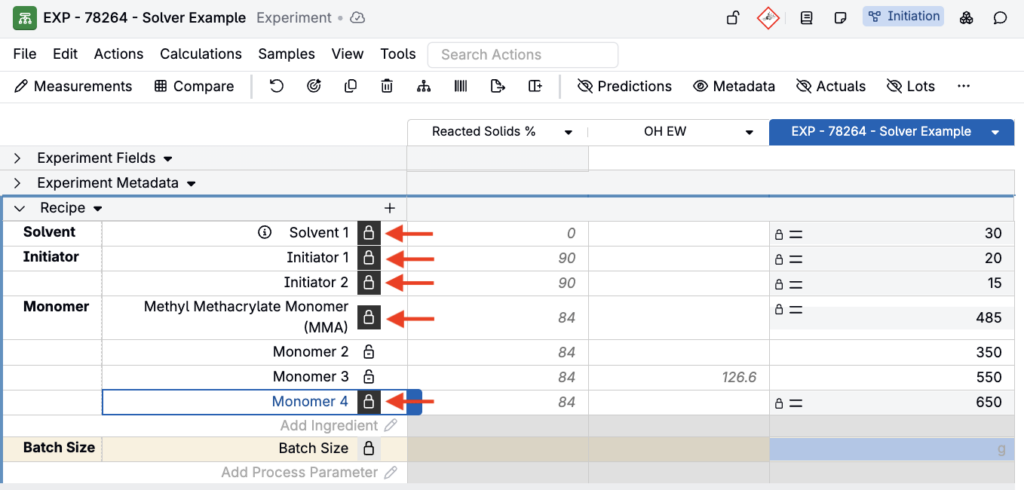
Locked ingredients, fixed relationship quantities, and blank ingredient values are not treated as adjustable decision variables.
Column Calculations as Constraints
Column calculations represent ingredient-level contributions. When locked, they act as constraints for the overall solve.
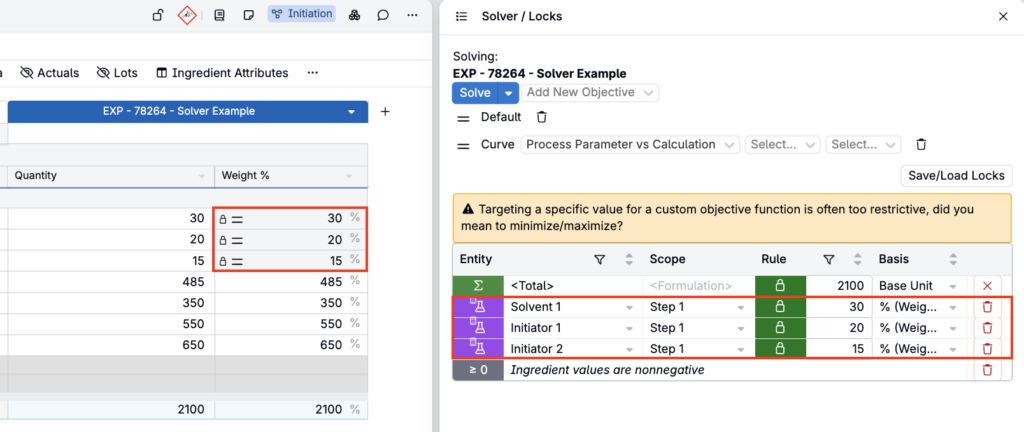
- Locking column values creates a constraint requiring all those row values to match their locked targets.
- When locked, one constraint per ingredient row is added.
- Column constraints combine with bottom calculations for complex solving.
Column solving is especially useful for setting percentage distributions or proportionality rules.
Locked vs. Unlocked Ingredients
Locked ingredient amounts must remain fixed. Unlocked ingredient amounts can be adjusted by the Solver and must have a starting value (cannot be blank). Solver solutions require enough unlocked ingredients (adjustable variables) to satisfy all locked constraints.
Additional Constraint Types
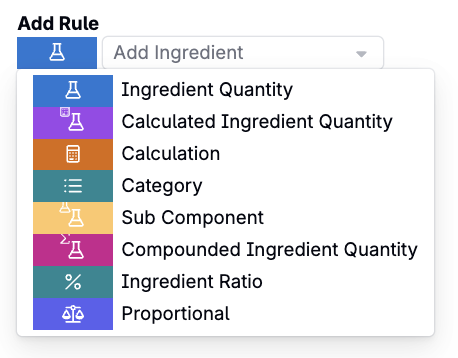
Beyond locking calculations and ingredient amounts directly, the Solver/Locks side panel supports a few other constraint types that are useful in more advanced setups:
- Ingredient Ratios — fix a proportional ratio between two or more ingredients (e.g., 1:1:2), so that adjusting one automatically scales the others to preserve the ratio.
- Compounded Ingredient Quantity and Subcomponent locks — constrain an ingredient’s total quantity across all the parent ingredients it appears in, or constrain it within one specific parent, which is useful for multi-step and intermediate-based recipes.
- Recipe Total, Weighted Sum, Weighted Average, and Composite Calculation constraints — constrain totals or calculated values directly, using the calculation structure to convert user-entered targets into solvable mathematical relationships.
These are covered in more detail in Advanced Solver Configuration.
Constraint Types Reference
| Constraint | What It Does | Mathematical Form |
|---|---|---|
| Input Variable | Bounds on individual ingredient quantities, such as minimum, maximum, or fixed values | xᵢ = / ≥ / ≤ value |
| Recipe Total | The sum of all compounded inputs for final steps equals or stays within a target | Σ(compounded_xᵢ) = / ≥ / ≤ total |
| Weighted Sum | A linear combination of variables hits a target | Σ(cᵢ × compounded_xᵢ) = / ≥ / ≤ target |
| Weighted Average | A ratio, such as numerator / denominator, hits a target; the Solver linearizes the relationship to avoid direct division | Σ(nᵢxᵢ) – target × Σ(dᵢxᵢ) = / ≥ / ≤ 0 |
| Composite Calculation | A multi-term numerator / denominator calculation with bias constants hits a target | (Σnum + bias_n) – target × (Σden + bias_d) = 0 |
| Ingredient Ratio | Fixed proportional ratios between ingredient pairs or groups | cᵢ × x[i+1] – c[i+1] × xᵢ = 0 |
| Relationship Variable | Bounds on step-to-step relationship quantities | Same as input variable constraints |
Infeasible Problems
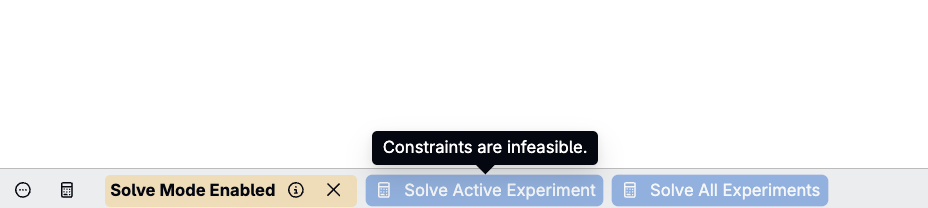
The Solver will report that a problem is “infeasible” if there are too many constraints competing for too few adjustable variables. To resolve this, you can remove constraints, loosen a fixed value into a range, or use the Tolerance Percent to give each constraint a percentage of flexibility.
Solver may also not be able to find a solution when:
- A calculation is hidden but still has an active lock
- A calculation is not solver-compatible
- Constraints mathematically contradict one another
- Column locks + calculation locks create implicit conflicts
Use the Solver/Locks side panel (Search Actions > “Solver/Locks”) to identify hidden or conflicting locks. Learn more.
Solver Statuses
| Status | Meaning |
|---|---|
| Optimal | Solution found |
| Optimal Inaccurate | Solution found, but may have numerical issues; accepted only if Accept Optimal Inaccurate Solutions is enabled |
| Infeasible | Constraints are contradictory or cannot all be satisfied with the available adjustable variables |
| Other non-optimal | Generic solver failure |
Optimization Objective = Closest Possible Formula
When more than one solution satisfies all constraints, the Solver chooses the one that is most similar to the original recipe.
Technically speaking, it minimizes the sum of squared changes to ingredient amounts (also known as an L2 norm or Euclidean distance minimization). This objective penalizes large changes more heavily than small ones.
Objective Types
Three objective types are available:
| Type | Formula | Meaning |
|---|---|---|
| Default | minimize Σ(xᵢ – x₀ᵢ)² | Closest feasible point to original values |
| Proportional | minimize Σ | xᵢ – x₀ᵢ × (x_ref / x₀_ref) |
| Custom | minimize, maximize, or target a weighted-sum calculation | User-defined optimization of a specific calculation |
When Optimize Mode is set to Optimize on Fail, the Solver adds a slack variable, ε ≥ 0, to the objective with a large penalty: base objective + 1000 × |ε|. This allows slight constraint violations when the problem is otherwise infeasible. When this slack variable is active, every constraint is softened by ±ε; for example, x = value becomes value – ε ≤ x ≤ value + ε.
Curve Solver (Curve Objective)
In addition to the default “stay close to the original recipe” objective, Uncountable can also run the Solver with a curve-matching objective (often referred to as the curve solver).
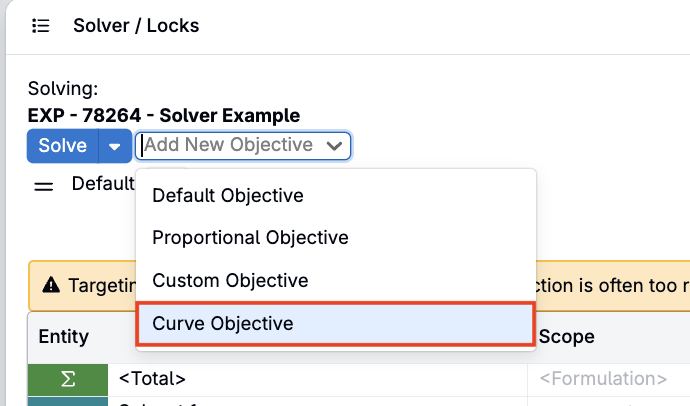
At a high level, the curve solver:
- Treats one curve as the target curve and another curve as the recipe-driven curve (often a calculated curve).
- Adjusts the unlocked variables in the recipe (e.g., ingredient quantities, and in some setups process parameters) to make the recipe-driven curve match the target curve as closely as possible.
- Uses an objective function based on the sum of squared differences between the curves’ y-values across x (often with additional configuration such as x-range weighting).
Step-by-step instructions for setting up an Aggregate Curve calculation and configuring a Curve Objective are covered in Advanced Solver Configuration.
Practical notes:
- The curve solver still respects locks and constraints (locked calculations and locked ingredient values). If the curve match is impossible given the constraints, the solve may be infeasible or may use an optimize-on-fail behavior depending on settings.
- Curve-based objectives usually require additional configuration (which curves to compare, and how to weight parts of the curve). If your results look “off,” check the curve selection and weighting assumptions.
Results
- Solver avoids extreme or unintuitive adjustments
- Changes are distributed across all unlocked ingredients
- The solution feels “reasonable” to a formulator
For example, if changing one ingredient by 230 g and changing four ingredients 10-20g each are both possible solutions, the Solver will choose the second option.
Why Blank Ingredient Values Cannot Change
Solver requires a mathematical relationship between ingredient mass and calculated values. A blank value:
- Represents no mass contribution
- Has no differentiable effect on calculations
- Cannot be modified within the optimization structure
Therefore, Solver always treats blank values as fixed, even if the lock icon is open. To allow Solver to adjust an ingredient, assign any placeholder amount (e.g., 0 or 1 g).
Normalization
After Solver finds ingredient amounts that satisfy all constraints, it performs a normalization step to ensure ingredient ratios and dependent calculations remain consistent if possible.
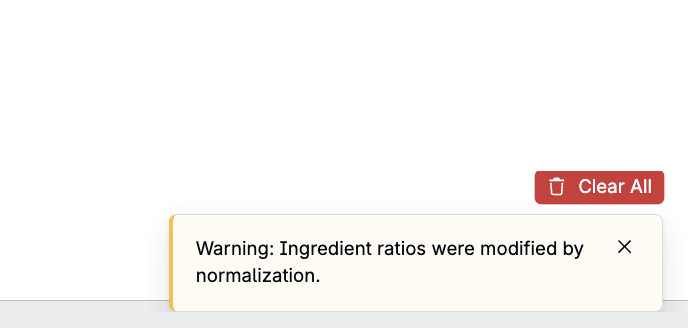
If it is not possible to satisfy all constraints while maintaining ingredient ratios, a banner will appear indicating “Ingredient ratios were modified by normalization”. This is expected behavior and indicates the Solver successfully balanced your constraints.
Post-Solve Cleanup
Once the Solver has found a solution, the raw numbers it returns go through two lightweight cleanup steps before they’re written back to your recipe:
- Aspect-enforced snapping — compensates for ordinary floating-point imprecision. If a value has an equality constraint of exactly 5.0, the underlying solver might technically return something like 4.9999999997; this step snaps it back to the clean target value (and similarly for ≥ / ≤ range bounds).
- Sanitization — rounds negligible residual values (e.g., 1e-20) down to zero, while preserving amounts that are actually meaningful.
This is why solved amounts generally come back as clean, sensible numbers rather than long floating-point strings.
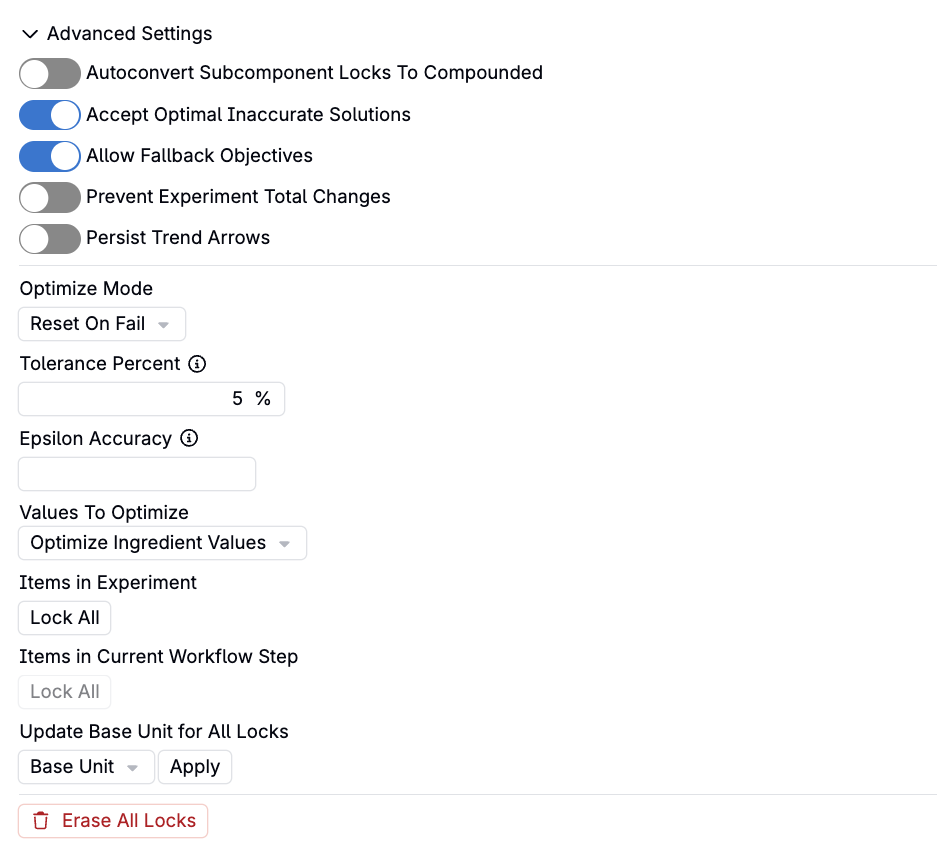
Advanced Settings
In the Solver/Locks sidepanel, under Advanced Settings, have a range of additional settings available that allow users to adapt the solver behavior to their use case.
Accept Optimal Inaccurate Solutions
This is particularly useful when working with high precision starting values, but wanted to allow for slight flexibility in precision of solutions.
Allow Fallback Objectives
Enabling this will allow you to rank multiple objectives to attempt to use.
The available objectives are Default, Proportional, and Custom (allows user to specify a target calculation to optimize for).
Optimize Mode
When constraints cannot be met fully, you can choose “Reset on Fail” which will make no changes to ingredient values or “Optimize on Fail” which will meet the constraints as closely as possible, but not exactly. Behind the scenes, Optimize on Fail works by adding a small slack variable to the objective (with a large penalty attached) so that a near-miss solution can still be returned instead of a hard failure.
Tolerance Percent
Enables flexibility to all fixed value constraints of the percentage specified.
Epsilon Accuracy
This value overrides the default epsilon accuracy value (1e-5) used in the solver. Reducing this value can prevent degenerate solutions.
Values To Optimize
Users can choose whether to optimize ingredient values (standard) or process parameter values.
The Optimize Parameter Values option will treat all ingredient values as fixed and treat any process parameters involved in locked calculations as variables that the Solver can change.
Persisting Trend Arrows
By default, the up/down arrows that show which ingredients increased or decreased after a solve clear the next time you make an edit. This setting keeps those trend arrows visible so you can continue to reference the most recent solve’s changes.