Chemical Balance input calculations are a specialized calculation type designed for synthesis applications. They allow you to perform a mass balance directly in Uncountable by referencing chemical structure data stored on your ingredients, then comparing reactant and product amounts across workflow steps.
What Is a Chemical Balance Input Calculation?
Chemical Balance calculations use Chemical Structure type ingredient attributes — which store molecular formula or SMILES data — to compute a stoichiometric mass balance across the reactant and product steps of a multi-step synthesis workflow. The calculation determines how much of a given compound is expected based on the masses of reactants entered in the recipe.
This calculation type is primarily useful for synthesis chemists who want to:
- Confirm that reactants and products balance correctly at the recipe level
- Track yield or conversion within a synthesis workflow
- Display expected product amounts as a calculated value on the recipe view
Prerequisites
To use this calculation type, a Chemical Structure ingredient attribute must be defined in your material family and populated for the relevant ingredients. Reach out to your Uncountable Account Manager to set this up if it is not already configured.
How to Configure a Chemical Balance Input Calculation
Chemical balance calculations can be created from the Calculations listing page or directly in the Recipe view of a formulation. Both methods open the same creation modal.
In the modal:
- Enter a name and units (recommended) for your calculation
- Set Calculation Format to Chemical Balance.
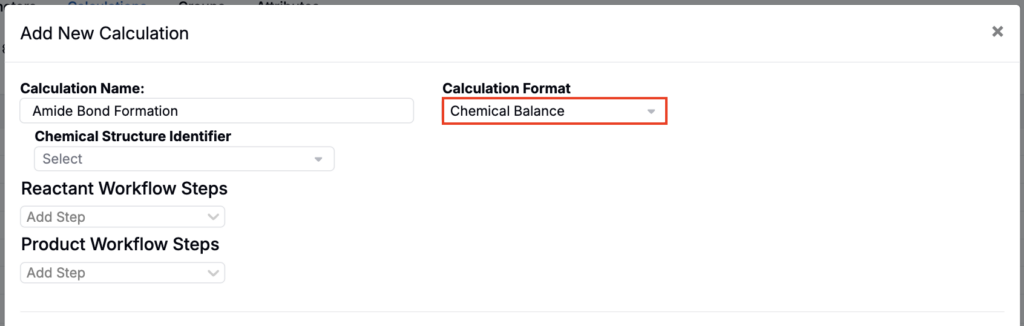
- Chemical Structure Identifier — Select the ingredient attribute of type “Chemical Structure” that stores the molecular information for your ingredients. This attribute must exist in your material family before you can configure this calculation.
- Reactant Step(s) — Select the workflow step(s) that contain the reactants for the mass balance. The calculation will use the ingredient amounts entered in these steps as the reactant inputs.
- Product Step(s) — Select the workflow step(s) that contain the products. The calculation will use the molecular data and amounts here to compute the expected product yield relative to the reactants.
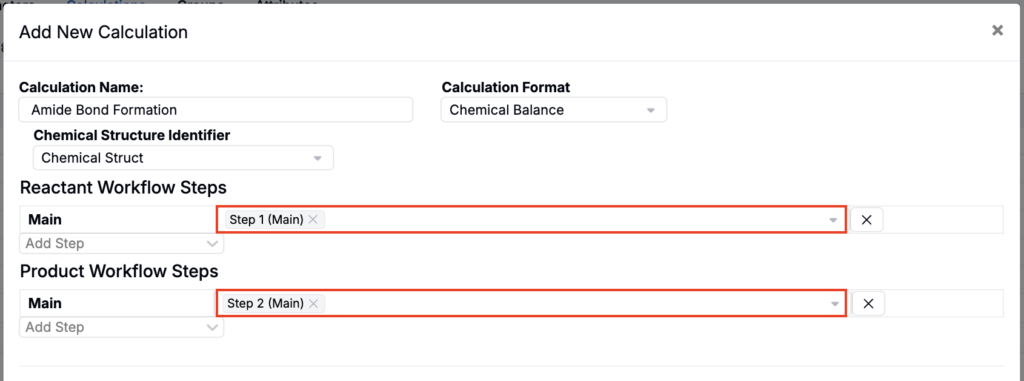
Once configured, the Chemical Balance calculation displays a mass balance result on the Recipe view. The result reflects how closely the entered product amounts align with what is theoretically expected based on the reactant amounts and the molecular weights derived from the chemical structure data.
Example: Amide Bond Formation
Consider a two-step synthesis workflow where:
- Step 1 (Reactants) contains an amine and a carboxylic acid with Chemical Structure attributes populated
- Step 2 (Products) contains the expected amide product
A Chemical Balance calculation referencing the Chemical Structure attribute, with Step 1 as the Reactant step and Step 2 as the Product step, will compute a mass balance that shows whether the amounts entered in Step 2 are consistent with what is theoretically expected from the Step 1 reactants.
This gives synthesis chemists an instant sanity check at the recipe level, without needing to perform the calculation externally.
Calculation Settings
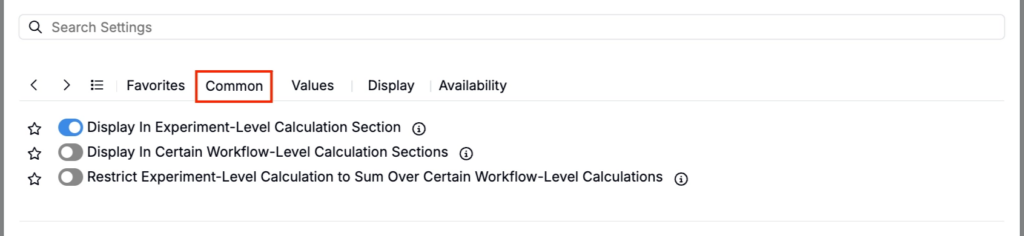
Common
- Display in Experiment-Level Calculation Section — Shows the value at the bottom of the full recipe
- Display in Certain Workflow-Level Calculation Sections — Shows the value only at selected workflow steps
- Restrict Experiment-Level Calculation to Sum Over Certain Workflow-Level Calculations — Limits the experiment-level total to selected workflow steps
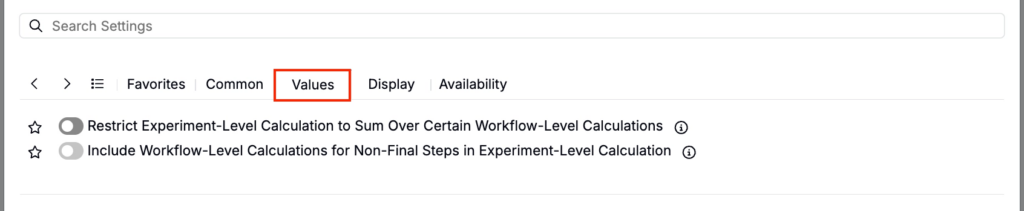
Values
- Restrict Experiment-Level Calculation to Sum Over Certain Workflow-Level Calculations — Limits the experiment-level total to selected workflow steps
- Include Workflow-Level Calculations for Non-Final Steps in Experiment-Level Calculation — Controls whether non-final step values roll up into the experiment-level calculation
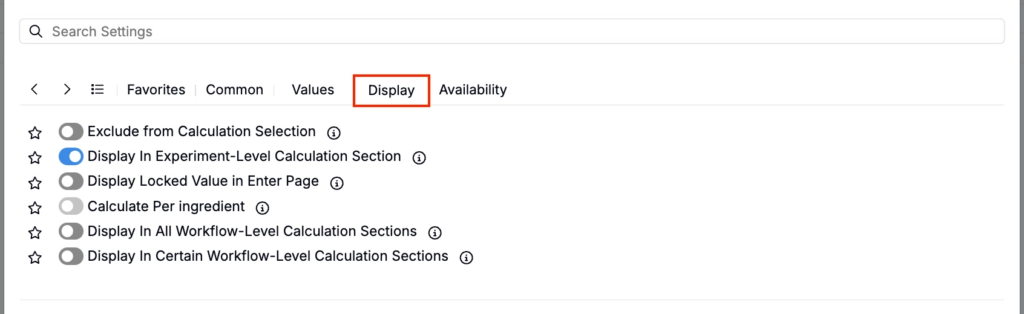
Display
- Exclude from Calculation Selection — Hides the calculation from view (useful for intermediary calculations)
- Display in Experiment-Level Calculation Section — Shows the value at the bottom of the full recipe
- Display Locked Value in Enter Page — If enabled, all cells for this calculation are locked on the Enter Recipe page (behaving like they are in Solve mode), preventing manual edits.
- Calculate Per Ingredient — When enabled, the calculation is computed separately for each ingredient (rather than only as a single rolled-up recipe-level value).
- Display in All Workflow-Level Calculation Sections — Shows the calculation at the end of every workflow step.
- Display in Certain Workflow-Level Calculation Sections — Shows the calculation only at the end of selected workflow steps.
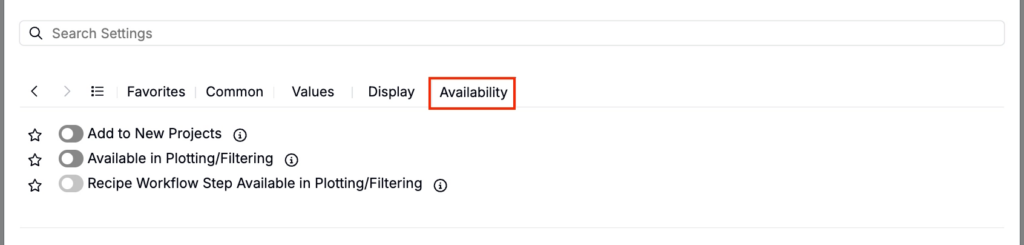
Availability
- Add to New Projects — Automatically includes this calculation in new projects in the material family
- Available in Plotting/Filtering — Makes the calculation value available as a filter or plot axis
- Recipe Workflow Step Available in Plotting/Filtering — Makes the calculation’s workflow-step-level values available to use as filters or plot axes (so you can analyze how the value changes by workflow step, not only at the overall experiment level).
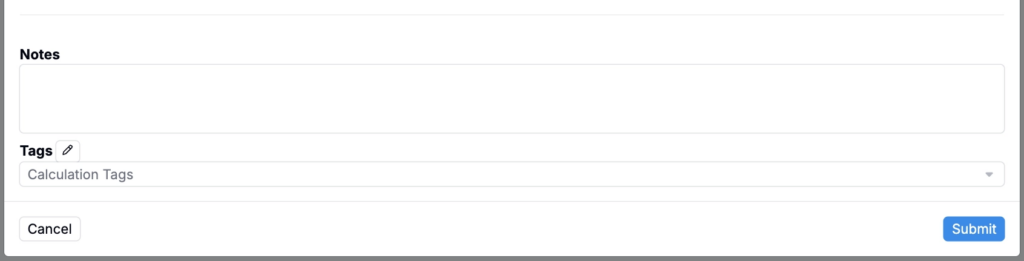
- Notes — Free-text shown on hover over the calculation in the recipe view
- Tags — Group calculations together. Tags let you toggle visibility of related calculations as a set.