Composite input calculations act as a hybrid between Custom and Weighted Sum/Average calculations. They allow you to combine multiple terms — which can themselves be existing calculations — into a single numerator/denominator structure.
Composite calculations are useful when you need to build a calculation that divides one group of values by another, and the individual components of each group are already defined as separate calculations.
What Is a Composite Input Calculation?
A Composite calculation takes a set of numerator terms and denominator terms, each of which can be an existing calculation or a process parameter, and combines them into a single ratio. Terms within the numerator and denominator are summed together, and the overall result is the numerator sum divided by the denominator sum.
Because terms can reference already-existing Weighted Sum or Weighted Average calculations, Composite calculations make it easy to build higher-order formulas without re-entering all the underlying logic.
Example use cases
- Stoichiometric ratio (e.g., NCO:OH index) — Divide moles NCO (a Weighted Sum calculation) by moles OH (another Weighted Sum calculation), multiplied by 100
- Cost per unit property — Divide formulation cost by total solids to get cost per unit of solids content
- Yield efficiency — Combine multiple output-related calculations in the numerator and divide by a total input quantity
- Process-adjusted property — Incorporate a process parameter as a coefficient to scale a calculation
How to Configure a Composite Input Calculation
Composite input calculations can be created from the Calculations listing page or directly in the Recipe view of a formulation. Both methods open the same creation modal.
In the modal:
- Enter a name and units (recommended) for your calculation
- Set Calculation Format to Composite.
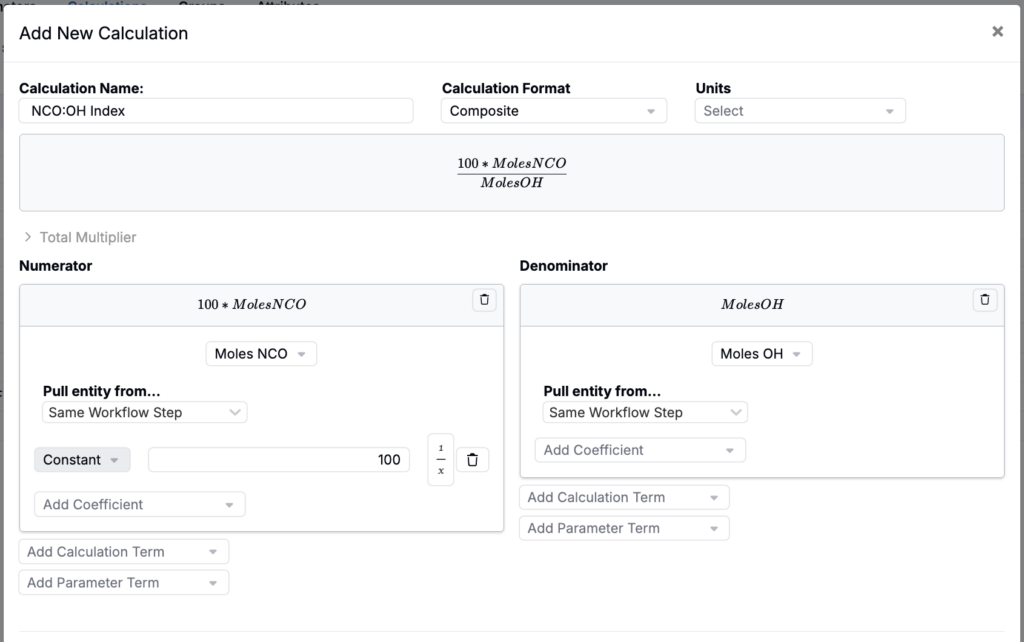
Building Numerator and Denominator Terms
For each term in the numerator and denominator:
- Specify the term type — either a Calculation (an existing input calculation) or a Parameter (a process parameter value).
- Add a coefficient — Optionally apply a constant coefficient or a process parameter as a multiplier for the term. This scales the term’s contribution without requiring a separate calculation.
- Invert the term (1/x) — Select the 1/x button next to any term to use the reciprocal of that term’s value. This is useful for building ratio-based expressions.
- Pull entity from — For terms or coefficients that are process parameters, specify whether to pull the value from the entire experiment, the same workflow step, or specific workflow steps.
- Fallback value when missing — Define a default value to use if the referenced parameter or calculation has no value.
Terms within the numerator are summed; terms within the denominator are summed. The final result is numerator sum / denominator sum.
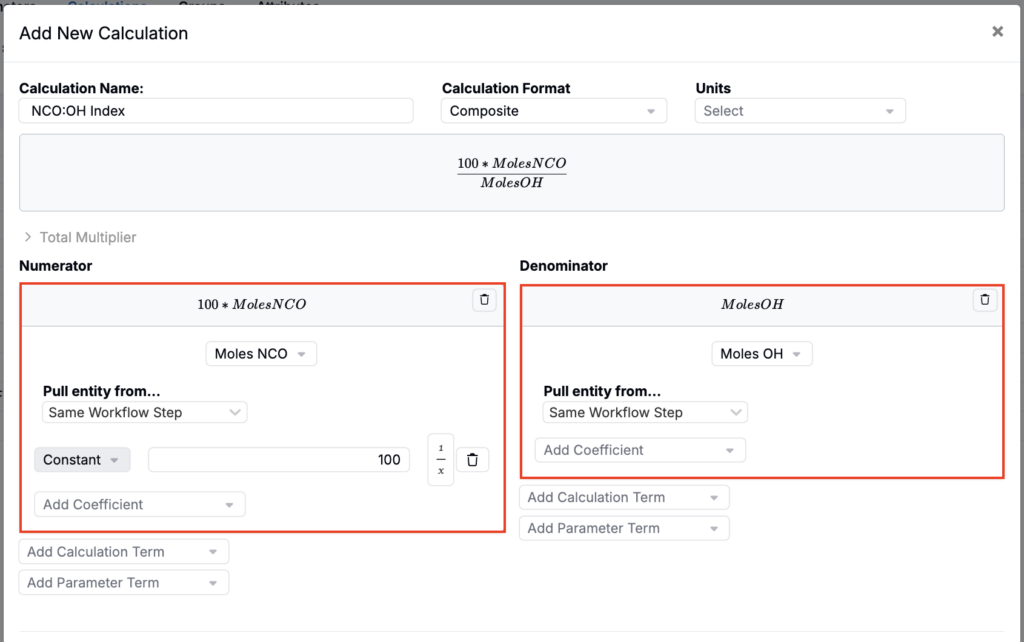
Multiplier Section
Like Weighted Sum calculations, Composite calculations also support a Multiplier (Total) section. This allows you to define scaling factors applied to the overall result (constants, ingredients, process parameters, ingredient calculations, process calculations).
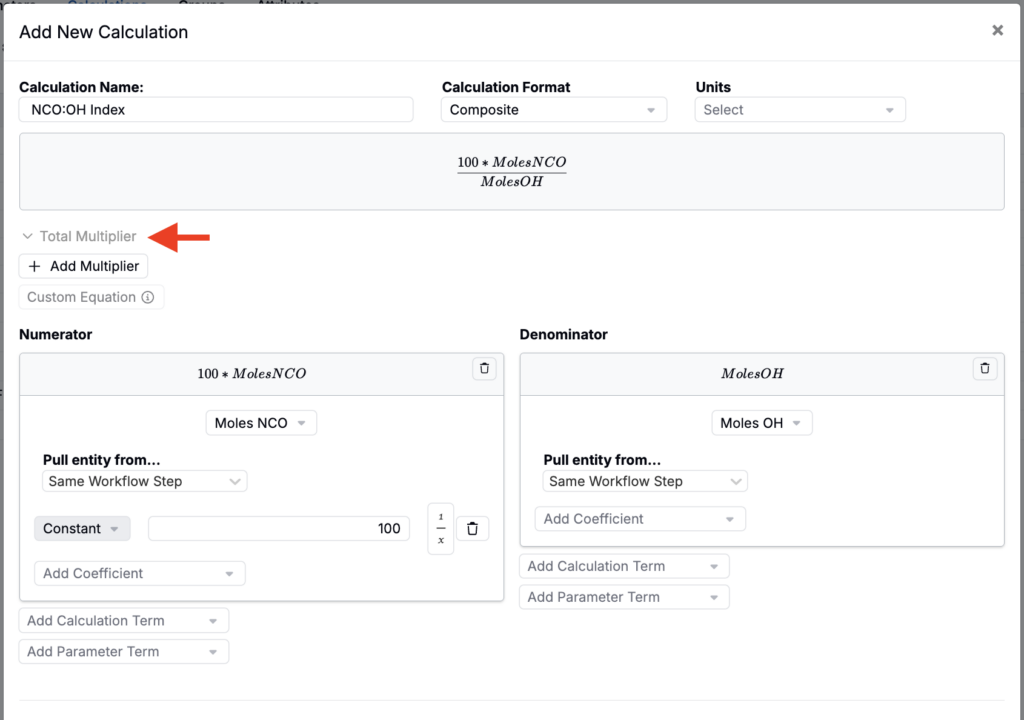
Example: NCO:OH Index
A common use case is calculating an NCO:OH index (a stoichiometric ratio important in polyurethane formulation):
- Ensure you already have a Moles NCO Weighted Sum calculation and a Moles OH Weighted Sum calculation configured.
- Create a Composite calculation named “NCO:OH Index”.
- Add Moles NCO as the single numerator term.
- Add Moles OH as the single denominator term.
- Add a constant coefficient of 100 to the numerator term (or use a Multiplier of 100).
- Save.
The result will display the NCO:OH index — (Moles NCO / Moles OH) × 100 — on the recipe view for any experiment that uses this calculation.
Calculation Settings
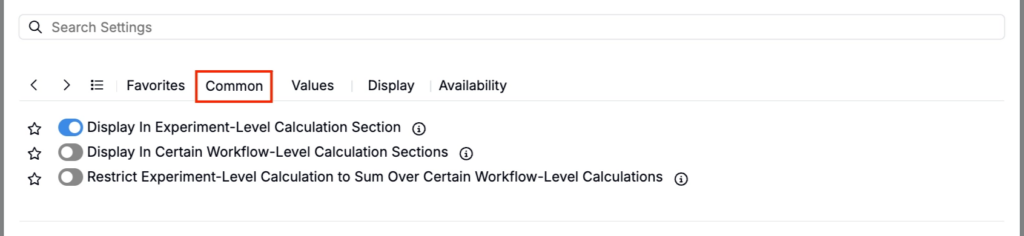
Common
- Display in Experiment-Level Calculation Section — Shows the value at the bottom of the full recipe
- Display in Certain Workflow-Level Calculation Sections — Shows the value only at selected workflow steps
- Restrict Experiment-Level Calculation to Sum Over Certain Workflow-Level Calculations — Limits the experiment-level total to selected workflow steps
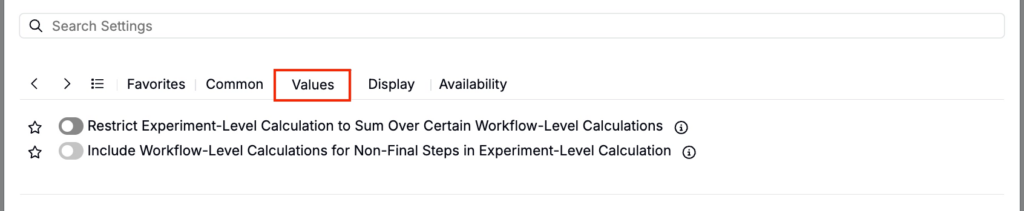
Values
- Restrict Experiment-Level Calculation to Sum Over Certain Workflow-Level Calculations — Limits the experiment-level total to selected workflow steps
- Include Workflow-Level Calculations for Non-Final Steps in Experiment-Level Calculation — Controls whether non-final step values roll up into the experiment-level calculation
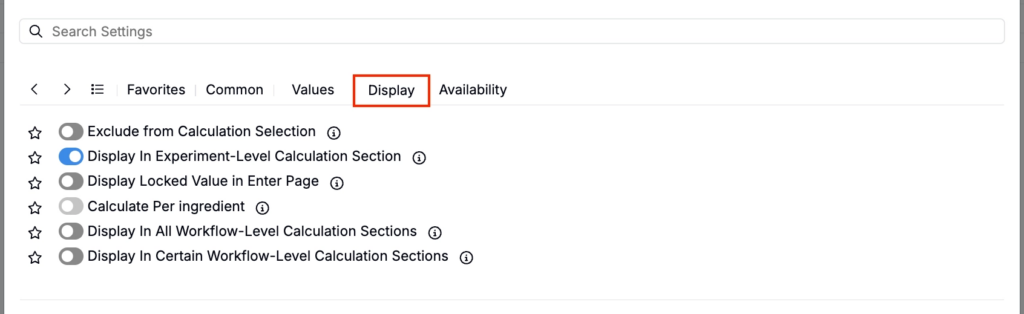
Display
- Exclude from Calculation Selection — Hides the calculation from view (useful for intermediary calculations)
- Display in Experiment-Level Calculation Section — Shows the value at the bottom of the full recipe
- Display Locked Value in Enter Page — If enabled, all cells for this calculation are locked on the Enter Recipe page (behaving like they are in Solve mode), preventing manual edits.
- Calculate Per Ingredient — When enabled, the calculation is computed separately for each ingredient (rather than only as a single rolled-up recipe-level value).
- Display in All Workflow-Level Calculation Sections — Shows the calculation at the end of every workflow step.
- Display in Certain Workflow-Level Calculation Sections — Shows the calculation only at the end of selected workflow steps.
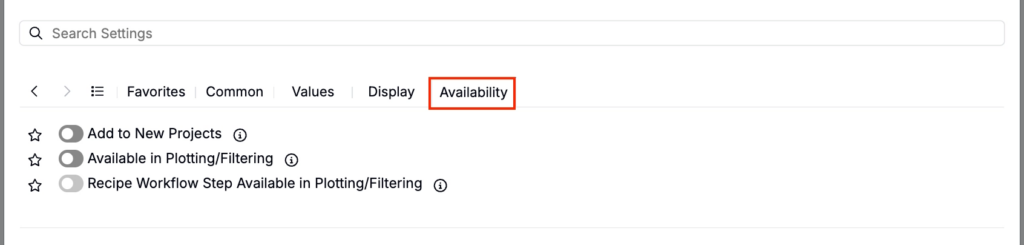
Availability
- Add to New Projects — Automatically includes this calculation in new projects in the material family
- Available in Plotting/Filtering — Makes the calculation value available as a filter or plot axis
- Recipe Workflow Step Available in Plotting/Filtering — Makes the calculation’s workflow-step-level values available to use as filters or plot axes (so you can analyze how the value changes by workflow step, not only at the overall experiment level).
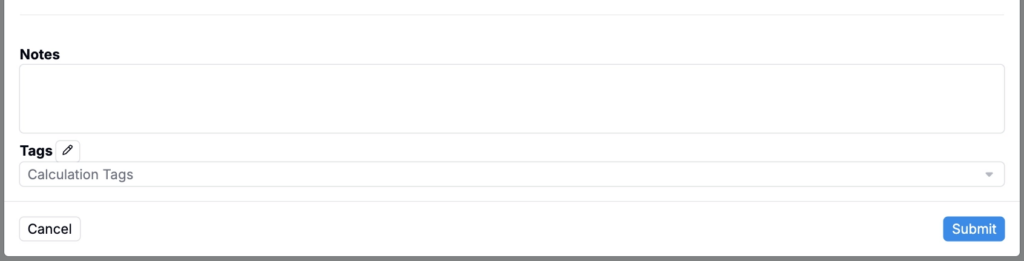
- Notes — Free-text shown on hover over the calculation in the recipe view
- Tags — Group calculations together. Tags let you toggle visibility of related calculations as a set.