
You can now configure unit conversions for any numeric condition parameter, letting users view and enter condition values in their preferred unit.
Overview
Any condition parameter that has a base unit can now have a unit conversion applied. Conversions are per-user — each user can set their own preferred unit without affecting what others see. When a conversion is active, the platform converts the stored value for display and converts input values back to the base unit before saving, so underlying data integrity is preserved.
Setting a Unit Conversion for a Condition Parameter
Unit conversions are configured from the Condition Parameters listing page and are set on a per-user basis.
- Navigate to Inputs/Outputs > Outputs > Condition Parameters.
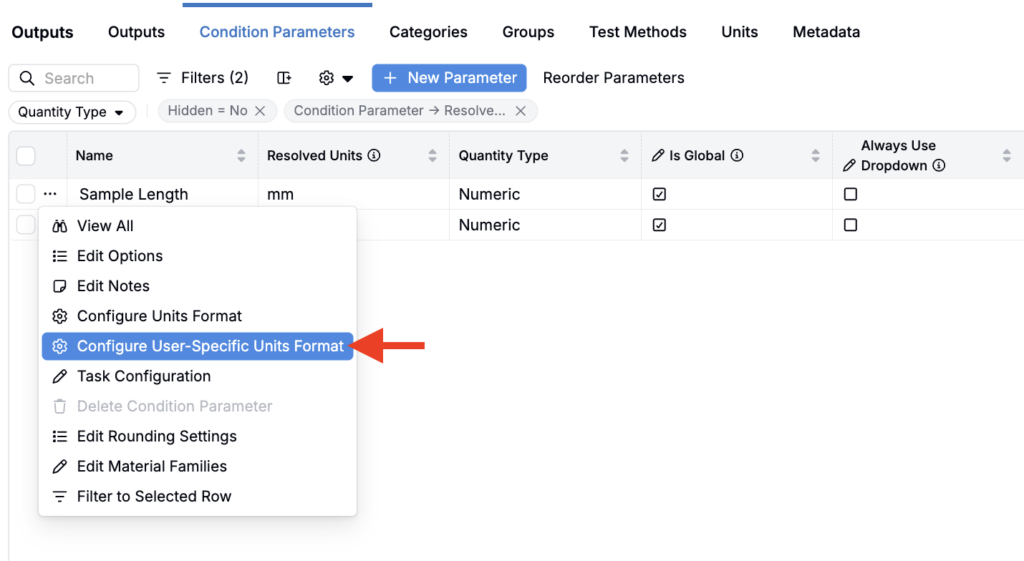
- Find the condition parameter you want to configure and click the … menu next to it.
- Select Configure User-Specific Units Format. This opens the unit conversion modal.
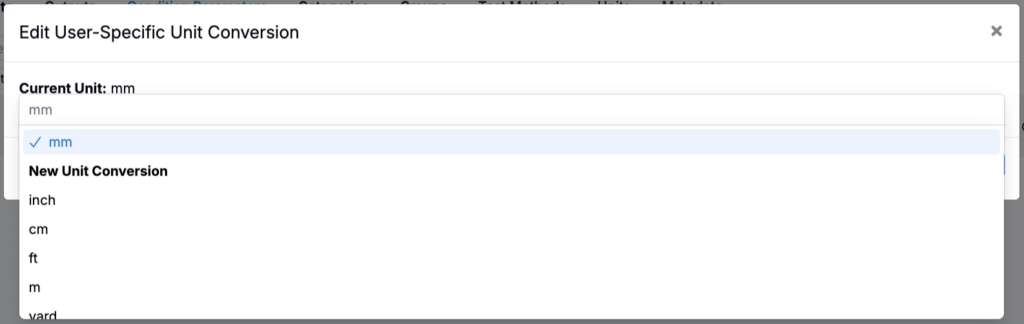
- In the dropdown, you’ll see any existing unit conversions for this parameter, plus a New Unit Conversion option at the top.
- To use an existing conversion, select it from the list and click Save. The parameter will now display in the converted unit for you.
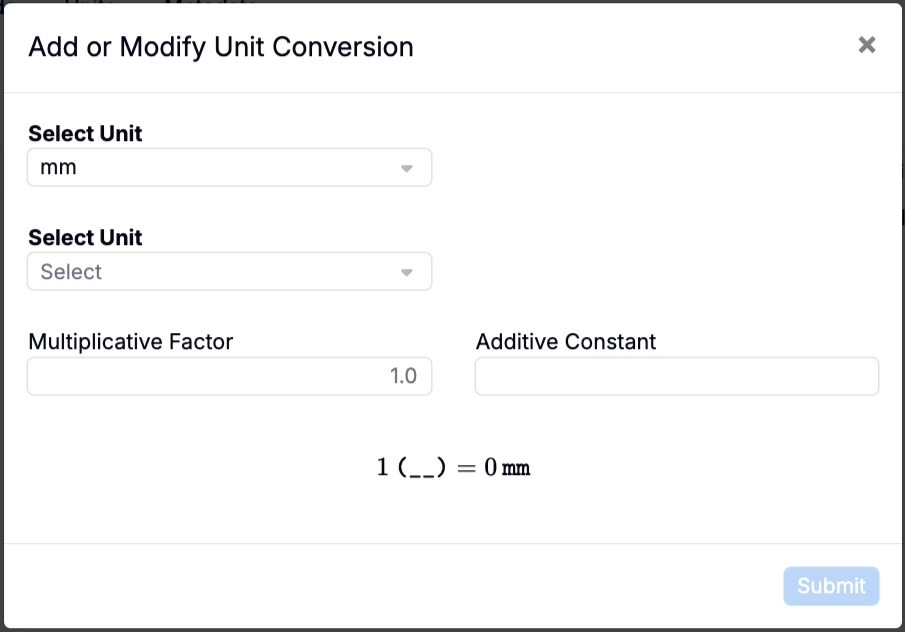
- To create a new conversion, select New Unit Conversion. A second modal will appear where you can define:
- New Unit — Use the second Select Unit field to choose the new unit to display (e.g., °F, lbf, psi)
- Conversion formula — Use the Multiplicative Factor and/or Additive Constant fields to create the formula to convert from the base unit to the target unit (e.g., multiplying by a factor, or a linear transformation)
- Save the new conversion. It will be applied immediately and will also be available for other users to select.
How Conversions Affect Data Entry
When a unit conversion is active for a condition parameter:
- The Resolved Units column of the Condition Parameters listing will reflect the current unit set for the parameter.
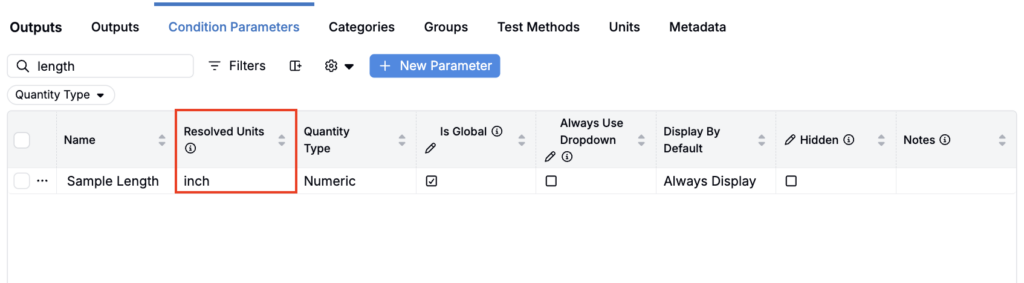
- Values on the measurements table display in the converted unit.
- The parameter label updates to reflect the preferred unit name.
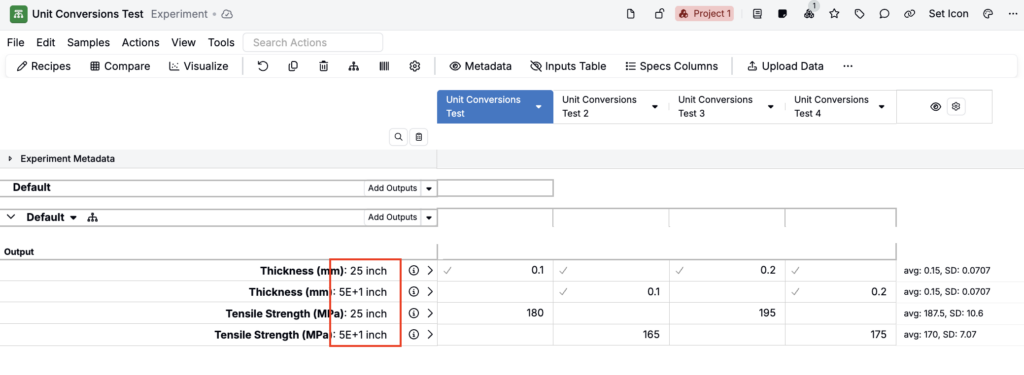
- When you enter a new value, you enter it in the converted unit. The platform automatically converts it back to the base unit before saving — so no data migration is needed and the underlying data is not changed.
Removing a Unit Conversion for a Condition Parameter
To remove a user-specific unit conversion:
- Navigate to Inputs/Outputs > Outputs > Condition Parameters.
- Find the condition parameter and click the … menu next to it.
- Select Configure User-Specific Units Format to open the unit conversion modal again.
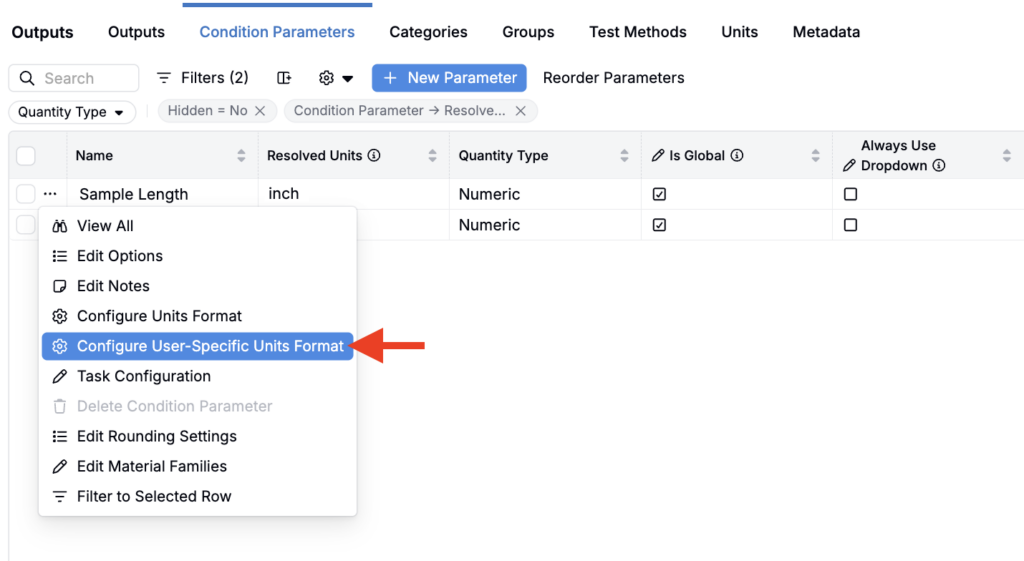
- Click the red Remove unit conversion button.
