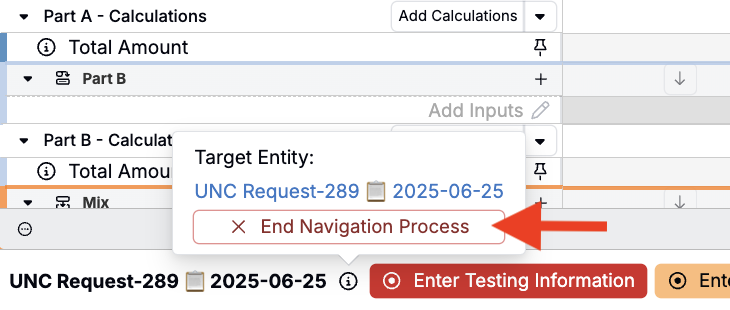
Navigation processes guide users through a repeatable workflow inside Uncountable, appearing as a persistent step bar at the bottom of the screen (similar to Excel worksheet tabs or a multi-page lab notebook).
Each process is linked to the entity where it was started (an experiment, notebook, or request). Steps remain visible and accessible across the entire platform, even when navigating to unrelated pages, making it easy to return to your original context or jump to the next relevant place with one click.
This is especially valuable for teams transitioning from traditional lab systems, where moving between related entities often means losing your place. Navigation processes keep context intact no matter where a workflow takes you.
What a navigation process is
A navigation process is:
- An ordered set of steps tied to an entity (e.g., a Lab Request, Notebook, Experiment).
- Each step runs one or more action (e.g. open a related page, apply a view preference, scroll to a section, mark a stage complete, send a notice).
- A way to make complex workflows feel guided and consistent, especially for new or occasional users.
💡 Navigation process vs File/Folder system
Navigation processes and file/folder panes both help users avoid getting lost within the platform. However, the file/folder pane groups related entities while the navigation process guides users through an ordered workflow.
What users see
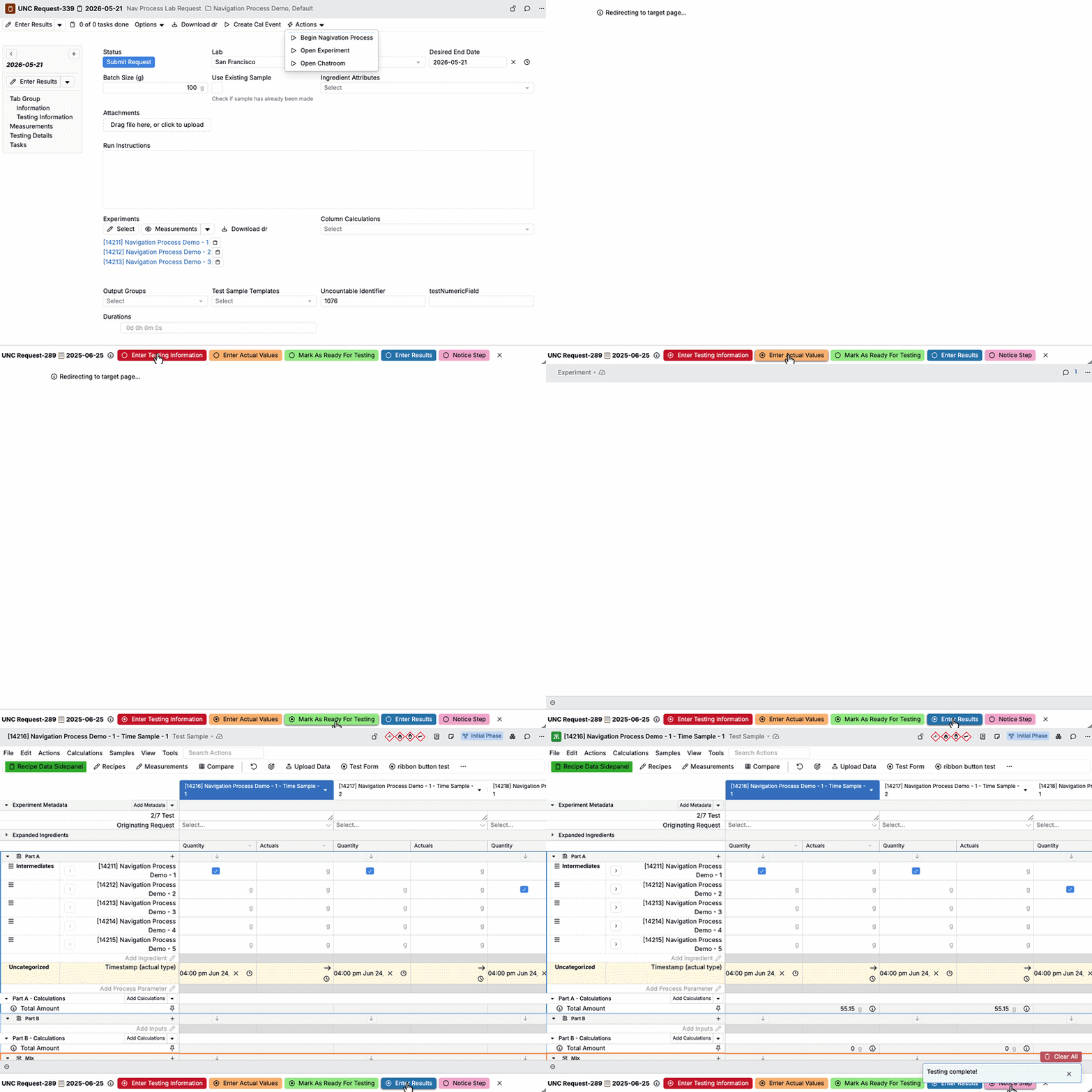
When a navigation process starts, users see a step bar:
- Steps are clickable.
- The current step is highlighted.
- Completed steps have a filled-in circle icon.
- Incomplete steps have an unfilled circle icon.
- The step bar stays visible as you move around the platform.
- Users can dismiss the bar and later resume it from the navigation bar.

Creating a navigation process
Navigation processes can be set up by admins within the Navigation Processes tab of the Form Admin page. Each process defines:
- Allowed base entity types (notebooks, experiments, recipes, etc.)
- Navigation steps — each step runs a trigger in the context of the starting entity
- Triggers associated with steps — typically UI entity actions that open related pages or change view preferences
Creating a process
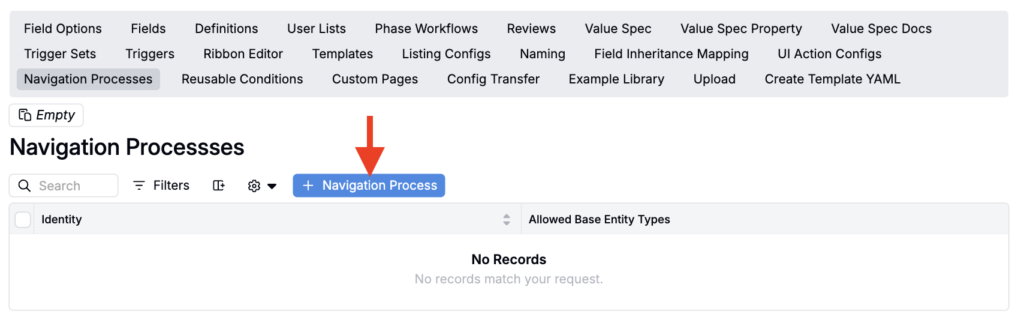
- Click + Navigation Process.
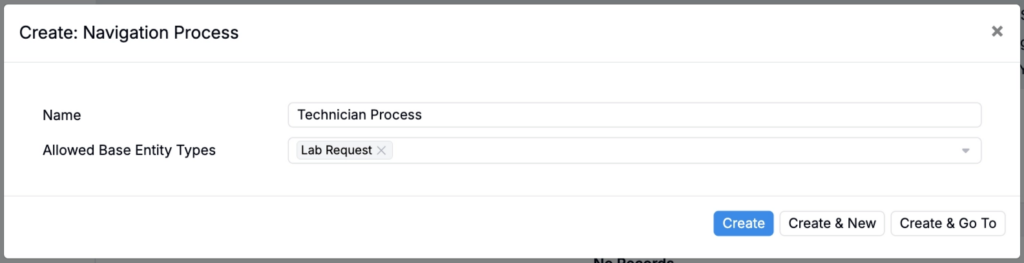
- Name the process and choose the allowed base entity types (the entity types it can be started from).

Adding steps
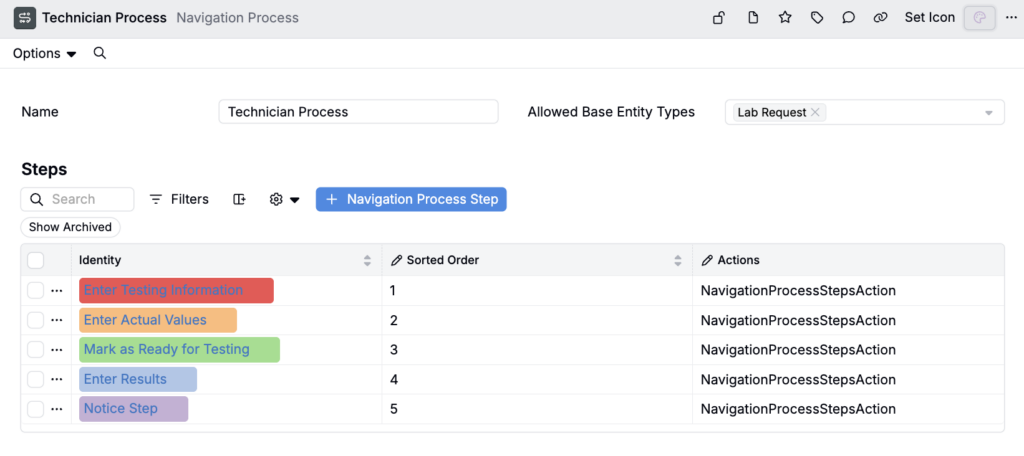
- Add your first process step by clicking + Navigation Process Step.
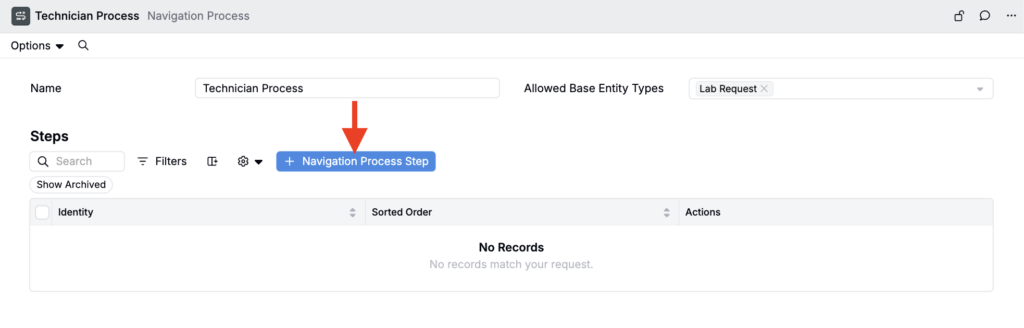
- For each step:
- Set the step name and sort order
- Choose one or more actions (what happens when the step is clicked)

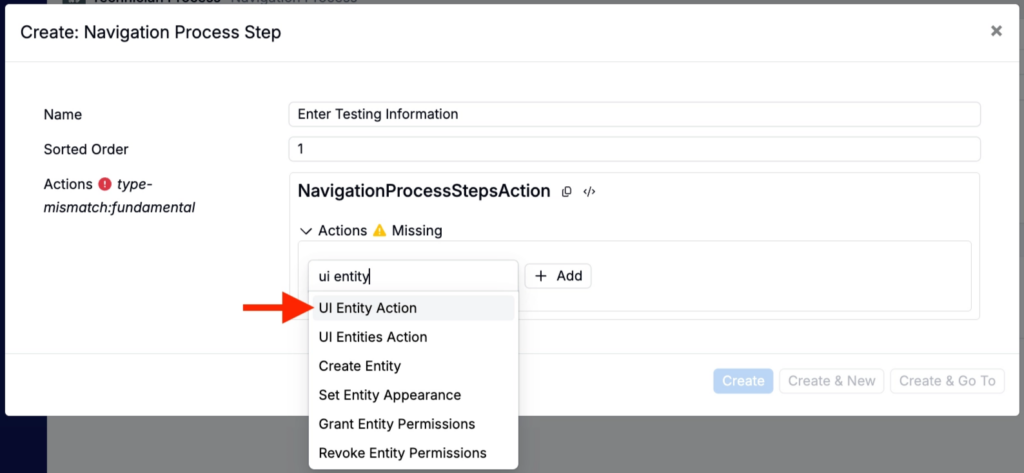
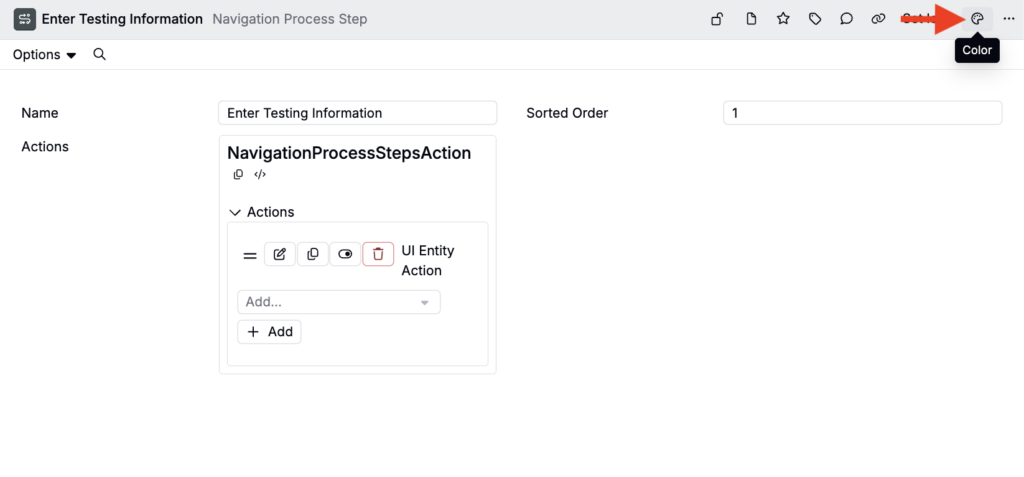
For example, for a “Enter Testing Information” step, you could add a UI Entity Action to open a specific request.
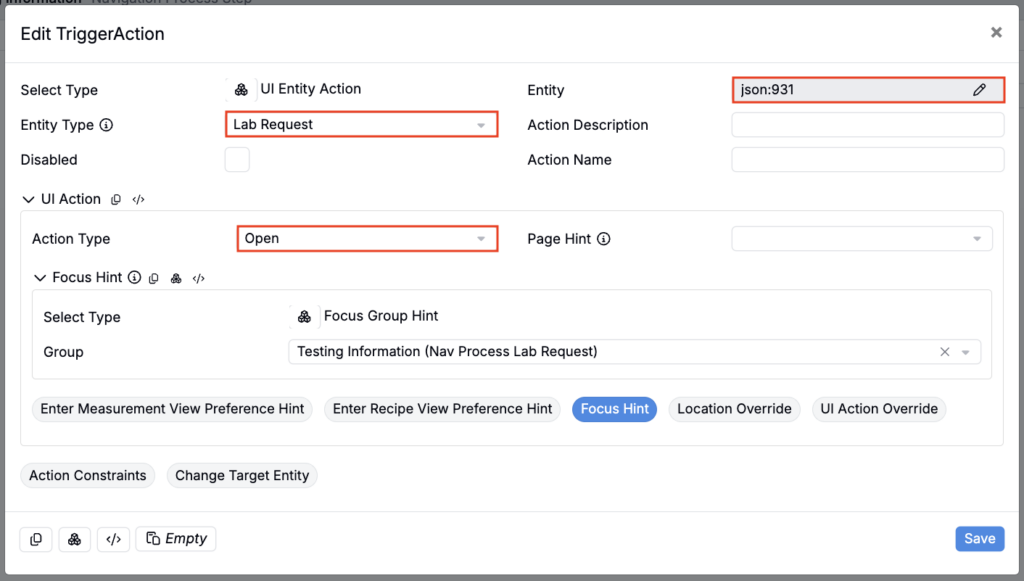
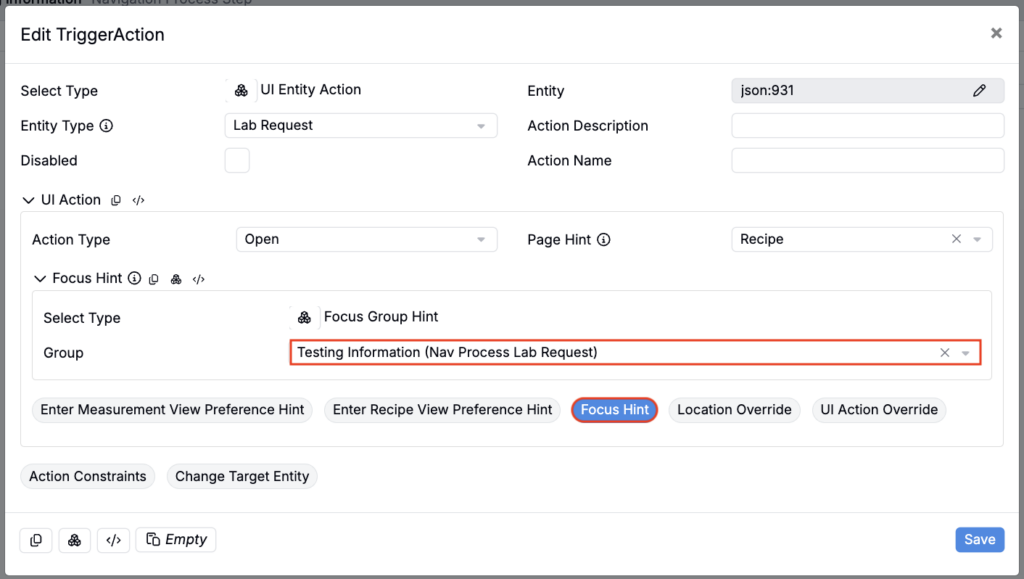
You can also use use Page Hints, View Preference Hints, and Focus Hints to load a specific page, view preference, or focus on a specific part of the loaded platform page.
- Add color to a step by clicking the 🎨 icon in the top right corner of the step’s entity header.
- Repeat these steps to add addition process steps.
Beginning a navigation process
Navigation processes don’t appear on their own, they must be initiated via trigger. To do this, you’ll need to add a UI Navigation Process trigger on your navigation process’s base entity’s trigger set.
Example: Beginning a navigation process via entity action
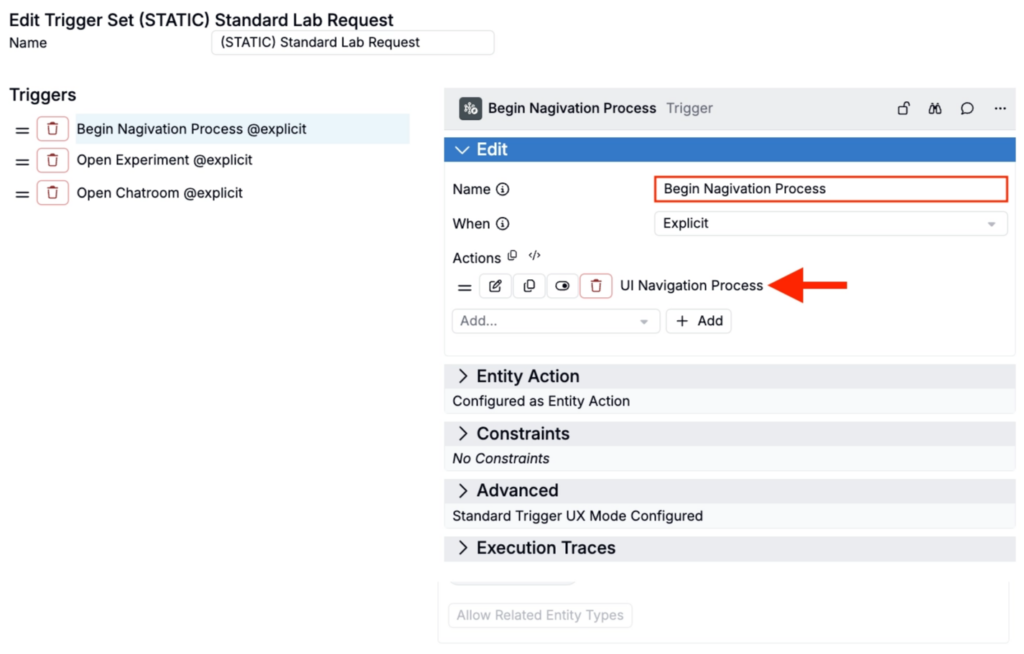
- On your base entity’s trigger set, add a new trigger.
- Add a trigger name, which is how the trigger will appear in the UI (e.g. “Begin Navigation Process”).
- Set When to Explicit.
- Add a UI Navigation Process trigger action.
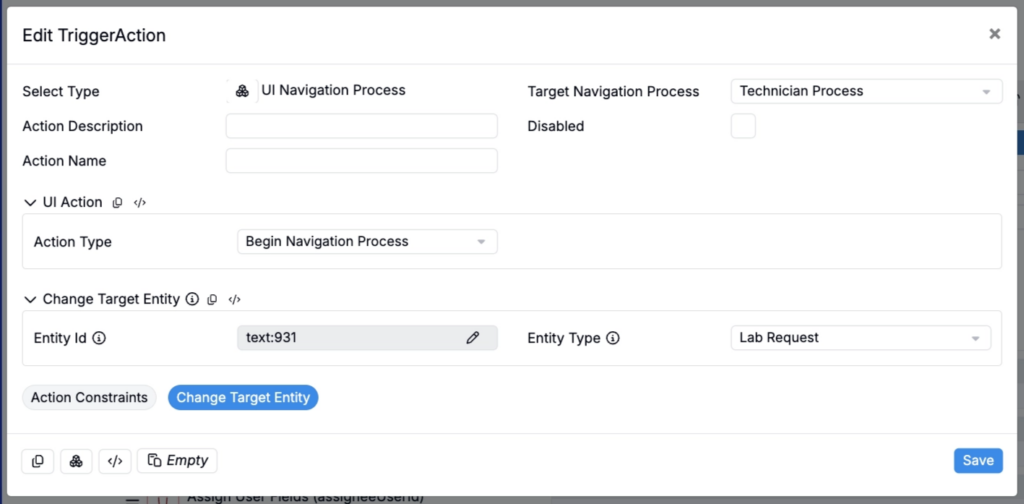
- In the Edit TriggerAction modal:
- Use the Target Navigation Process field to select your navigation process.
- Set Action Type to Begin Navigation Process.
- To change the target entity, click Change Target Entity. This changes the execution context of the entire action. Value specs will resolve against the new target entity, which means fields from the originating entity will no longer be available.
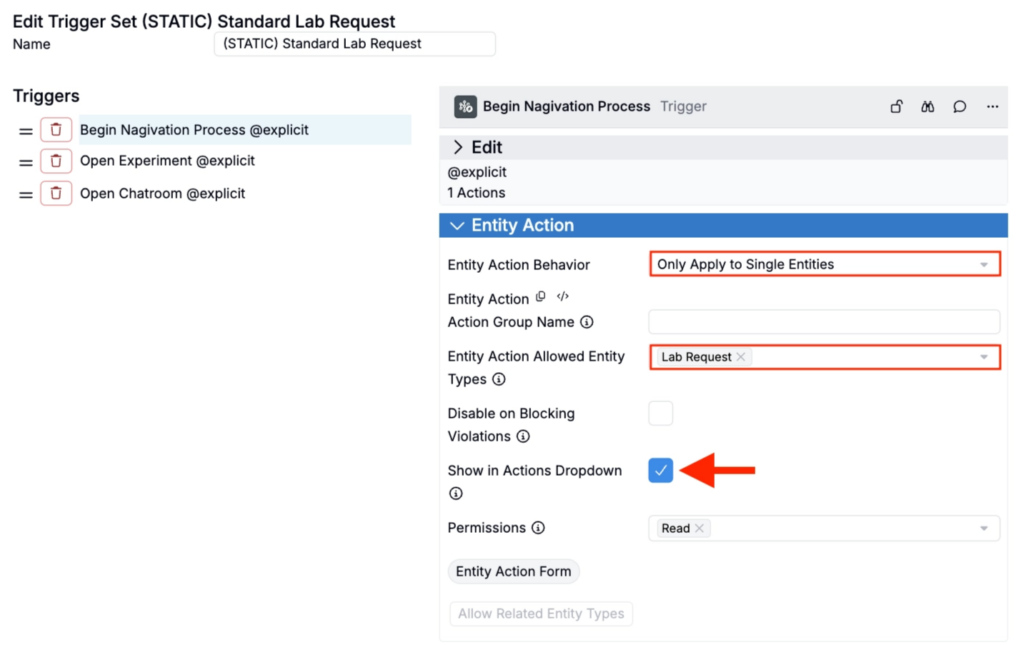
- In the Entity Actions section:
- Set the Entity Action Behavior.
- Select Entity Action Allowed Entity Types.
- Set Show in Actions Dropdown to true.
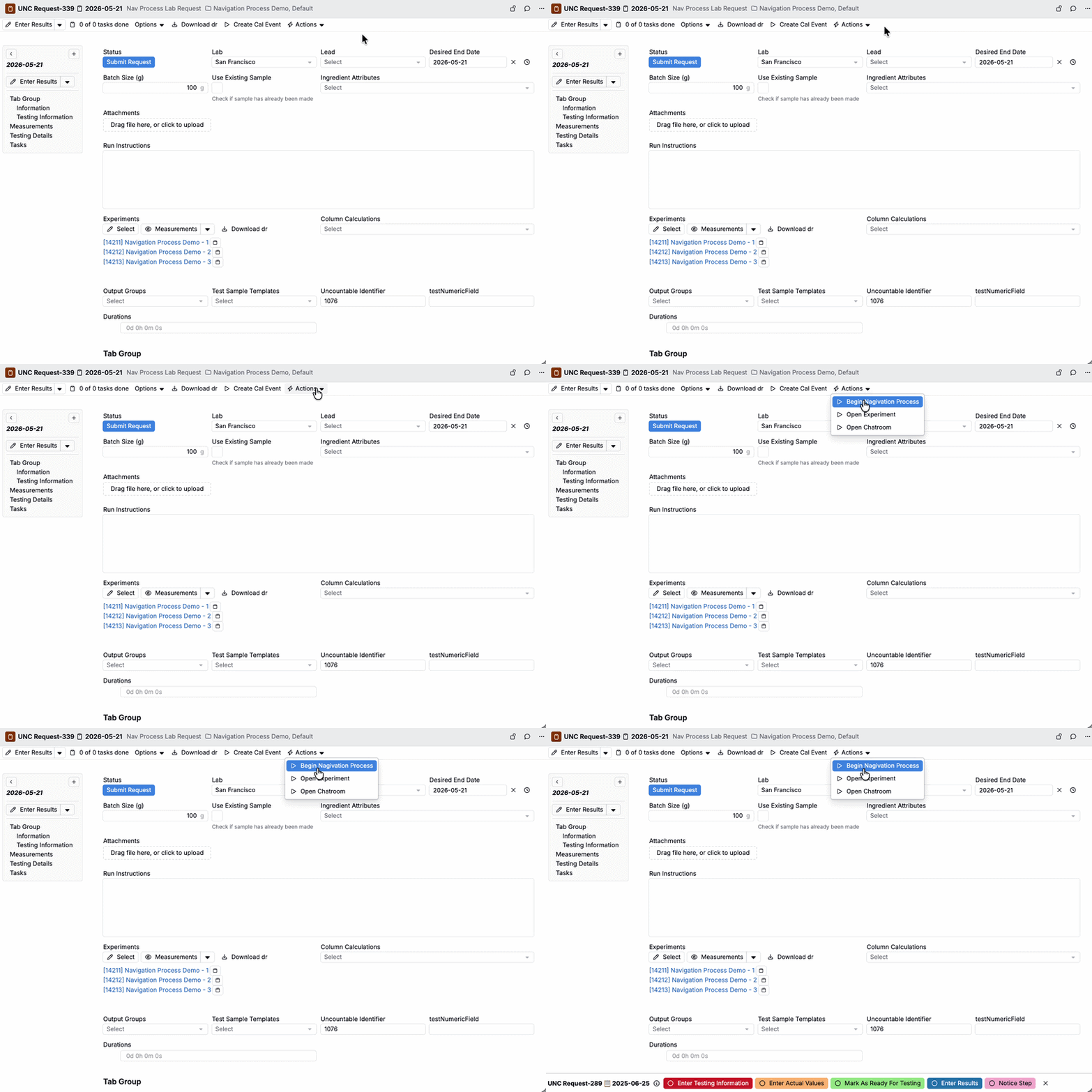
Once configured, you’ll be able to begin a navigation process by selecting the entity action from the Actions dropdown of your base entity.
Dismissing/ending a navigation process
- To dismiss a navigation process, click the X in the navigation process bar.
- To resume a navigation process, click the Resume Navigation Process button in the navigation bar.
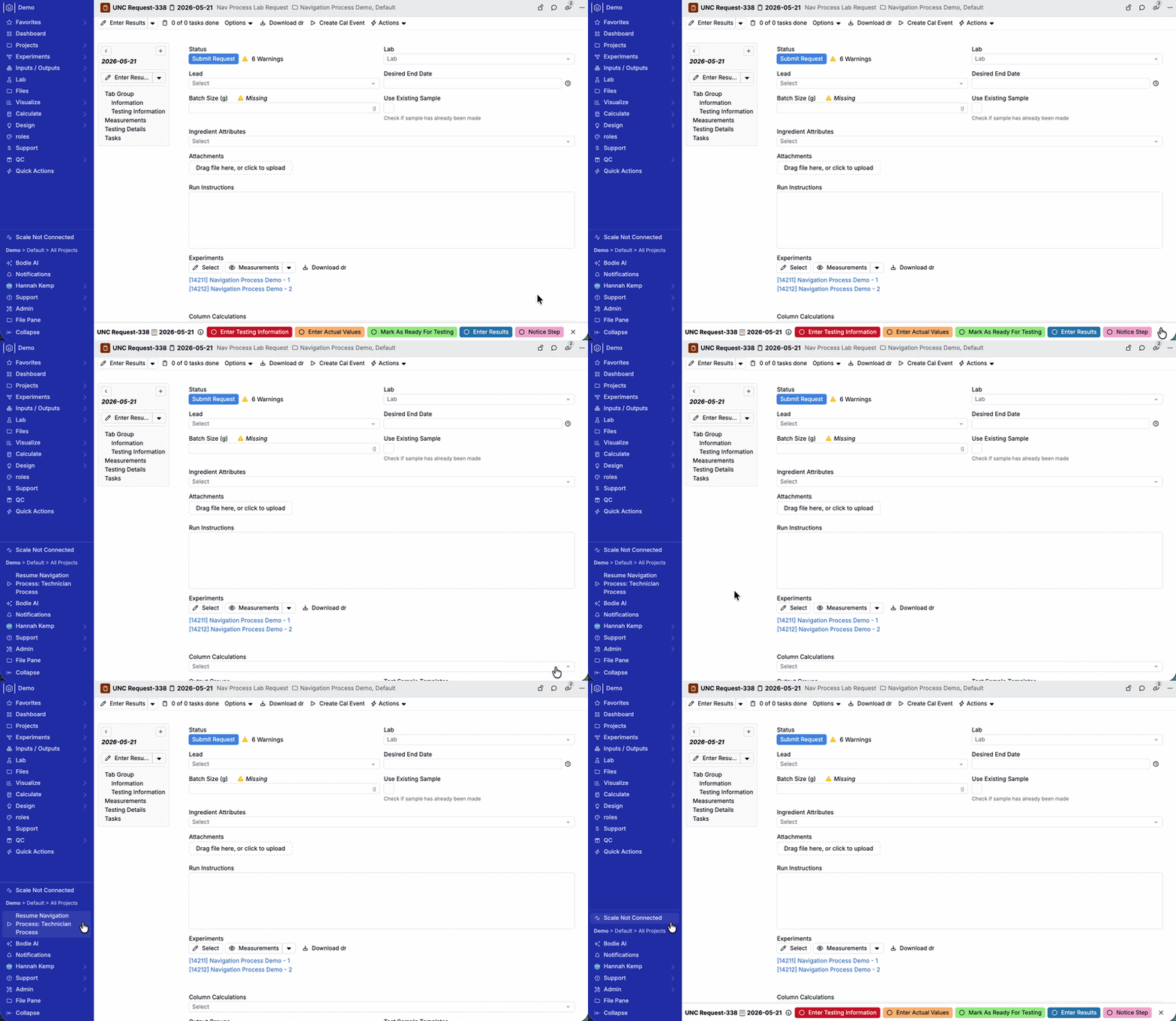
- To end a navigation process, hover your mouse over the information icon in the navigation process bar and select End Navigation Process.