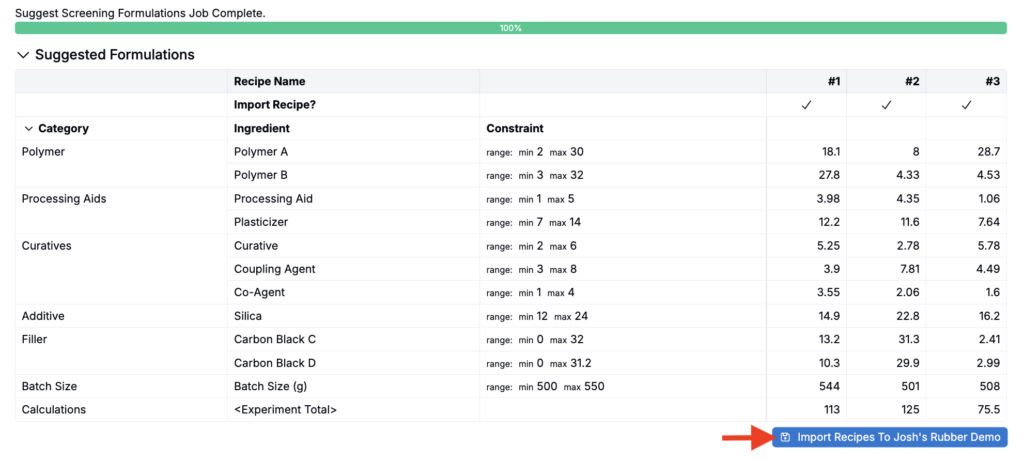
The new AI-Assisted Design of Experiments flow in Uncountable provides a guided, step-by-step process for generating new formulations.
The flow supports two design types: Screen New Ingredients (used when you have zero or limited past data) and Optimize Formulations (used when you have sufficient past data available to train a predictive model).
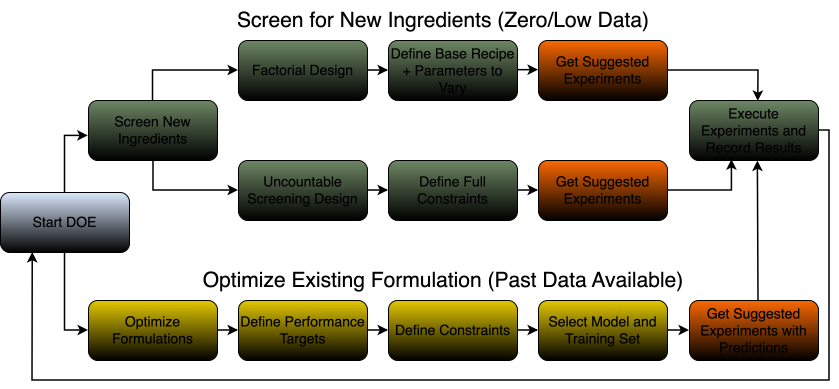
Key Concepts
- Design template (constraints set) — A reusable blueprint for setting up a DOE. It defines the allowed ingredients and ranges (and any relevant process parameters), plus the constraints and rules the system uses to generate candidate formulations.
- Performance targets (specs) — A collection of output goals that the optimization should aim to achieve. Each goal specifies a measurement, a goal type (minimize, maximize, or target range), and threshold values. Only used in the Optimize Formulations design type.
- Training set — A collection of previously created formulations that are used to train the predictive model.
Starting a DOE
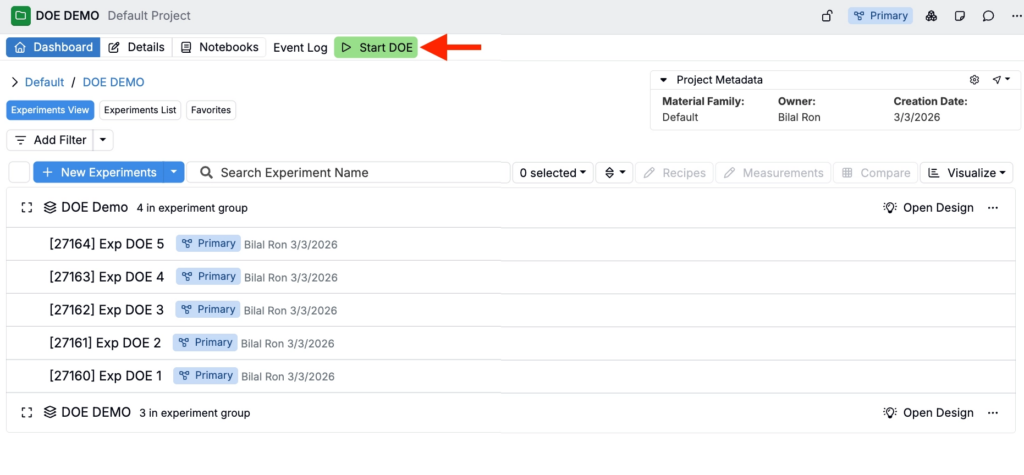
Within your study or experiment group, click Start DOE to start a new design.
This only sets the starting context. You can still choose training data from other study group later, as long as you have access to them.
Design Setup
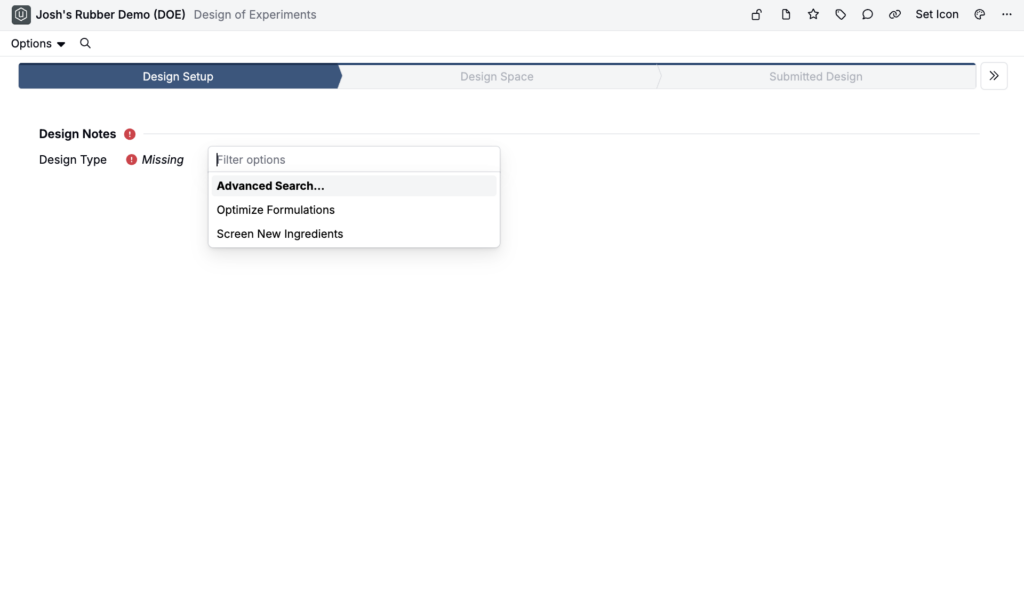
The first step is to create a Design Setup. This defines the high-level parameters for your experimental design.
- Select the Design Type:
- Screen New Ingredients — Does not use past data. Generates formulations using a space-filling design to maximize coverage of the experimental space. Use this when evaluating new ingredients or chemistries with no historical performance data.
- Optimize Formulations — Uses past data to train a predictive model and generate formulas. The algorithm suggests formulations that are most likely to meet your specs. Use this when you have prior results to learn from.
- Click Next.
Training Set (Optimize Formulations only)
If you are using an Optimize Formulations design type, the next step is to create your training set: the historical experiment data used to train the predictive model, so it can learn patterns from past formulations and results.
- Use the Training Data Projects field to select existing projects to include.
- Use the Experiment Workflow field to select a workflow.
- Add filters to further restrict experiments included in your training data set.
- Click Next.
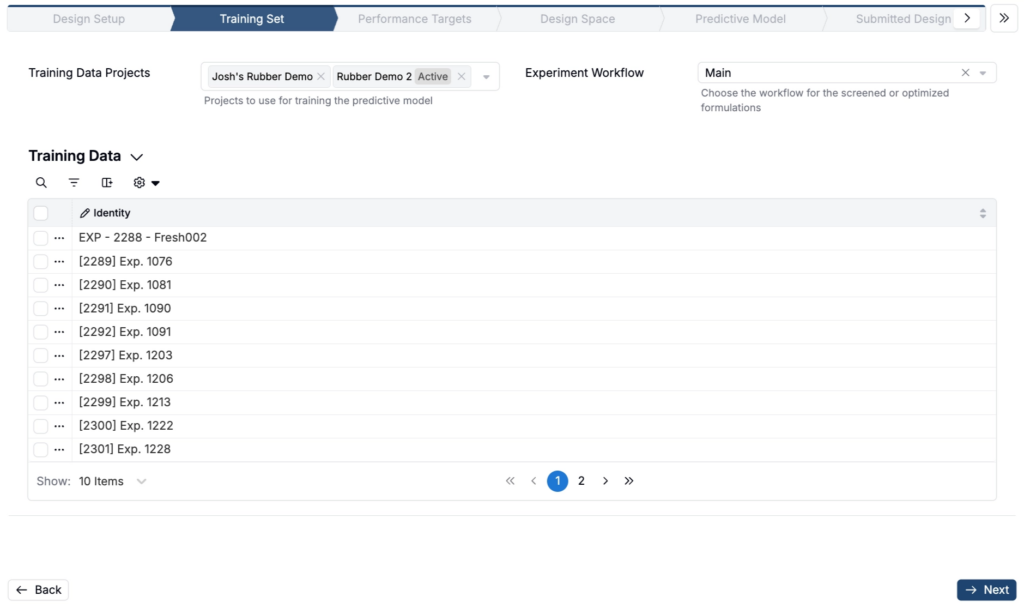
If any experiments in the training data use a different workflow than the one selected, a warning appears at the bottom of the page. Resolve the mismatch before continuing; otherwise, all training data will be condensed into a single-step workflow.


Performance Targets (Optimize Formulations only)
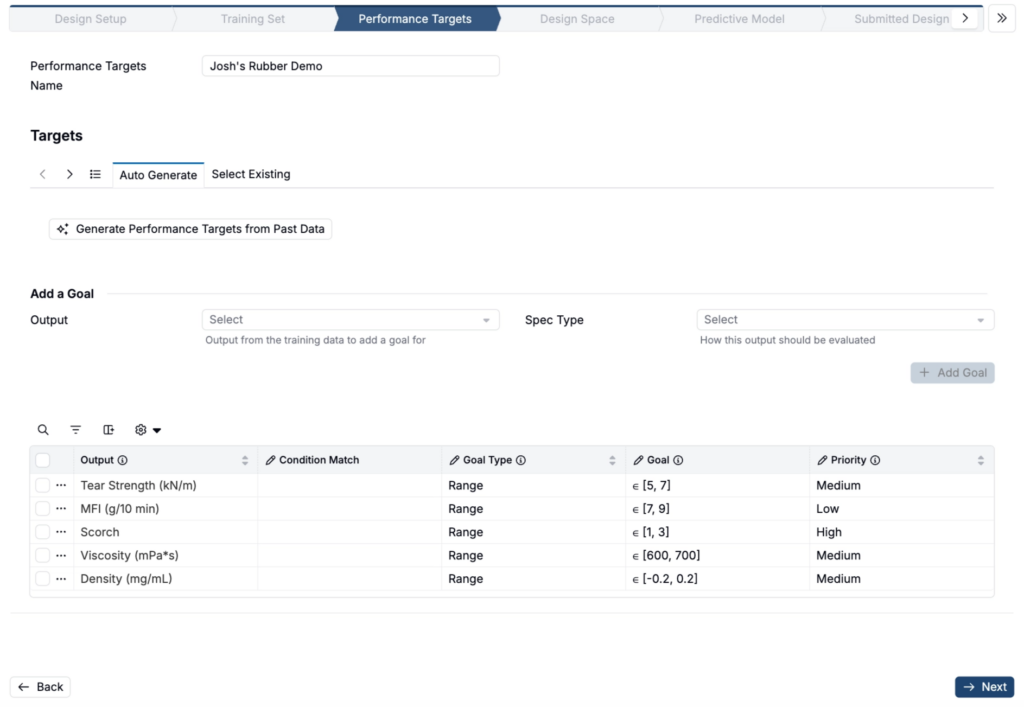
For Optimize Formulations, next define your performance targets: the specs, or output goals and thresholds the predictive model should use to rank candidate formulations.
Here, you can:
- Add a Performance Targets Name.
- Under Targets, select either:
- Auto Generate to generate a new performance from scratch, or
- Select Existing to reuse an existing spec
- To automatically generate spec goals with AI, click Generate Performance Targets from Past Data. The system analyzes past project data to create a spec with appropriate output goals and thresholds.
- You can also use the goals table below to add specs manually or edit them inline.
- Click Next.
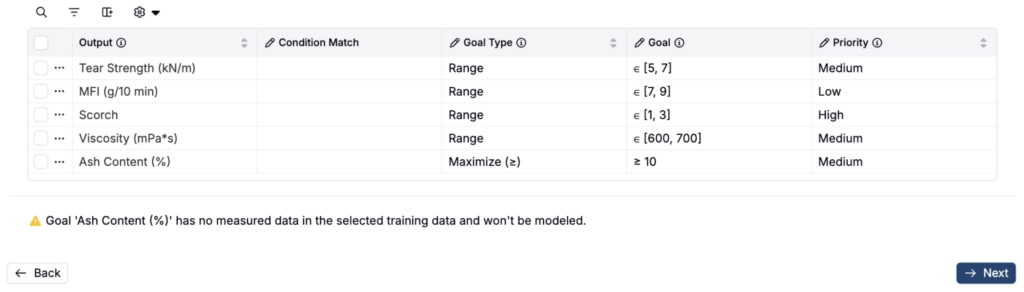
If a performance target goal has no measure data, a warning pop appear at the bottom of the page. If all performance goals contain no measure data, you will be blocked from continuing until the issue is resolved. Catching missing measure data at this stage saves you from running a full solve against a spec that was never usable in the first place.

Design Space
During the Design Space step, users will defines the constraints the DOE must follow.
Defining constraints is an important step in setting up any Suggest job. Constraints tell Suggest what is workable, including ingredient ranges, must-sum-to-100% rules, processing limits, and other real-world requirements, so it can focus on formulations you can actually make and evaluate. Then, using your specs and past results, the AI can prioritize the most promising options within that realistic space, saving you time and experiments.
To define your constraints:
- Fill out the top fields:
- Constraints Set Name — Add a name for your DOE’s constraint set
- Ingredients Units — Select between parts or percentage
- Component Mode — Select between Explode (varies ingredients inside a mixture) or Sample mode (uses the mixture as one ingredient)
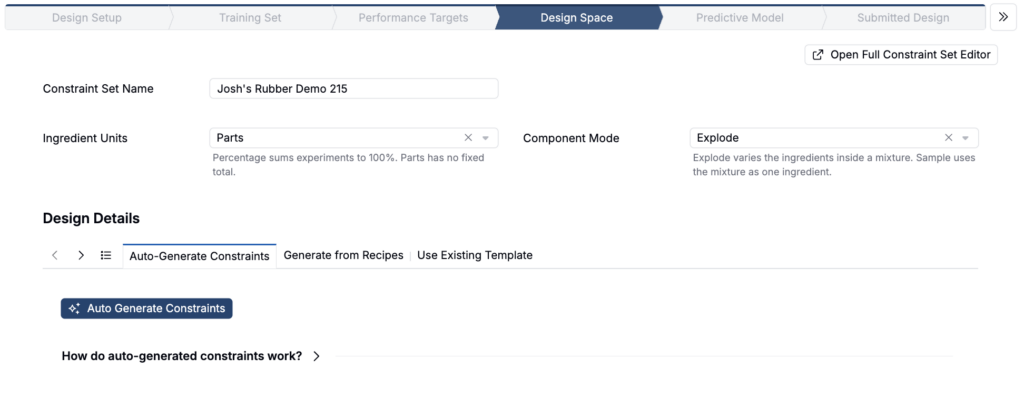
- Under Design Details, select from one of the three tabs:
- Auto-Generate Constraints — If you have historical data, you can click Auto Generate Constraints to automatically populate the constraint table. The system analyzes your selected training data and:
- Includes ingredients used in at least 5% of experiments with at least 5% variation in amount
- Sets min/max limits based on the 10th to 90th percentile of historical amounts
- Generate from Recipes — Select recipes to generate constraints from
- Use Existing Template — Select an existing constraints set
- Auto-Generate Constraints — If you have historical data, you can click Auto Generate Constraints to automatically populate the constraint table. The system analyzes your selected training data and:

Constraints generated/selected will appear in the table at the bottom of the page.
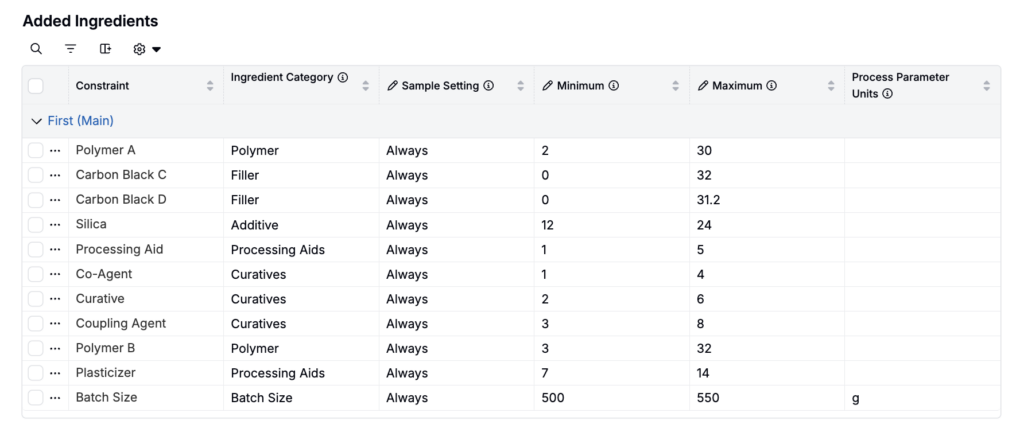
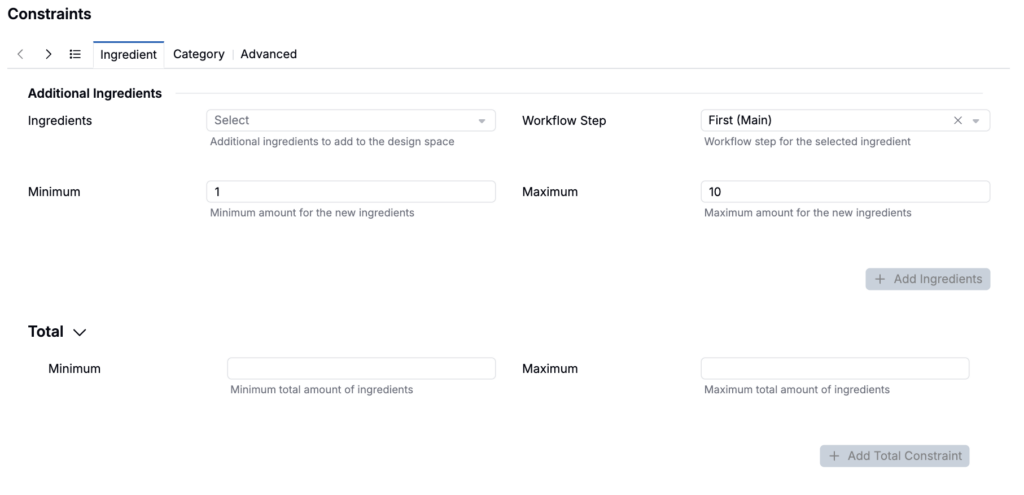
- You can also use the Constraints section to manually add ingredient, category, ratio, calculation, and formula constraints, and edit constraints inline. Learn more.
- Once all your constraints have been defined, advance to the next step.
Predictive Model (Optimize Formulations only)
If you are using the Optimize Formulations design type, next configure the model used to predict output performance.
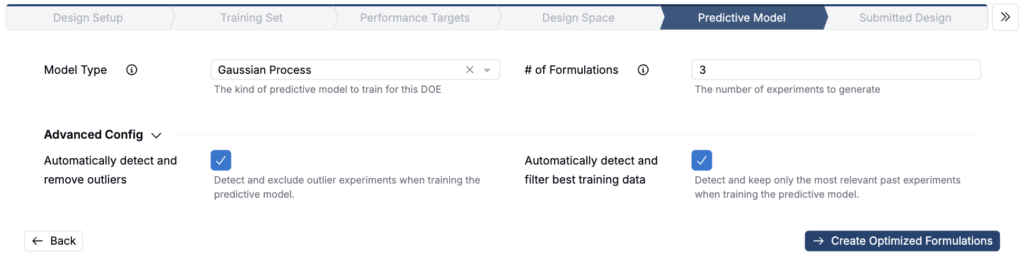
- Select a Model Type. This is the type of predictive model trained on your data. Uncountable defaults to a Gaussian Process. The model is trained on historical performance data and is used to predict the output performance of hypothetical formulations. The optimization algorithm selects candidates based on their predicted performance and the information gained from running those trials.
- Specify the Number of Formulations to generate.
- Optionally, configure advance settings:
- Automatically detect and remove outliers — Detect and exclude outlier experiments when training the predictive model
- Automatically detect and filter best training data — Detect and keep only the most relevant past experiments when training the predictive model
- Once ready, click Create Optimized Formulations.
After Submitting a DOE
Screen New Ingredients
When you submit a Screening Design:
- Any new ingredients you selected are added to the design template with the specified min/max ranges, and a DOE run is submitted.
- Uncountable generates suggested screening experiments that satisfy all constraints in the design template by sampling broadly across the valid design space (no predictive model).
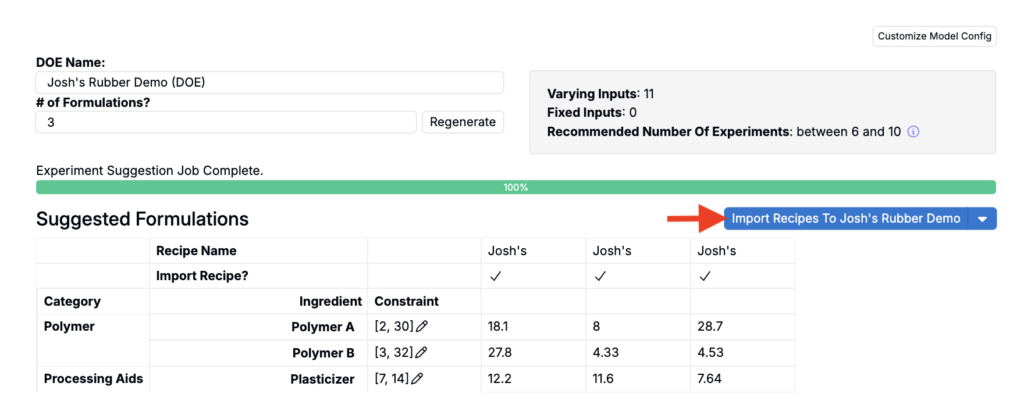
- Results open in a new tab, where you can review and import the suggested formulations.
- An Iterate on Screening button can also be to the DOE definition. This trigger creates a copy of the current DOE, switches the design type to Optimize Formulations, and opens it in a new tab so the screening results can serve as the foundation for a subsequent optimization round.

Optimize Formulations
When you submit an Optimization design:
- A training set is created from experiments in your selected training data projects.
- A DOE run is created using the design template, specs, and training set.
- The system trains a predictive model on the training data and uses it to generate candidate formulations predicted to meet the goals defined in your Spec.
- Results open in a new tab, where you can review suggested formulations, analyze model accuracy, and import experiments into your project.