
Products in Uncountable provide a way to classify experiments, connect workflows, and link experiments to ingredients. They serve as a bridge between projects, making it easier to organize, reuse, and analyze experiments across your organization.
How Products Work
Products are created by assigning a project folder as a product. Experiments in that folder are automatically assigned, and experiments from other projects can be manually added—appearing in both their original folder and the product folder.
On the Products listing page (Inputs/Outputs → Products), users can view all product types defined in the schema.
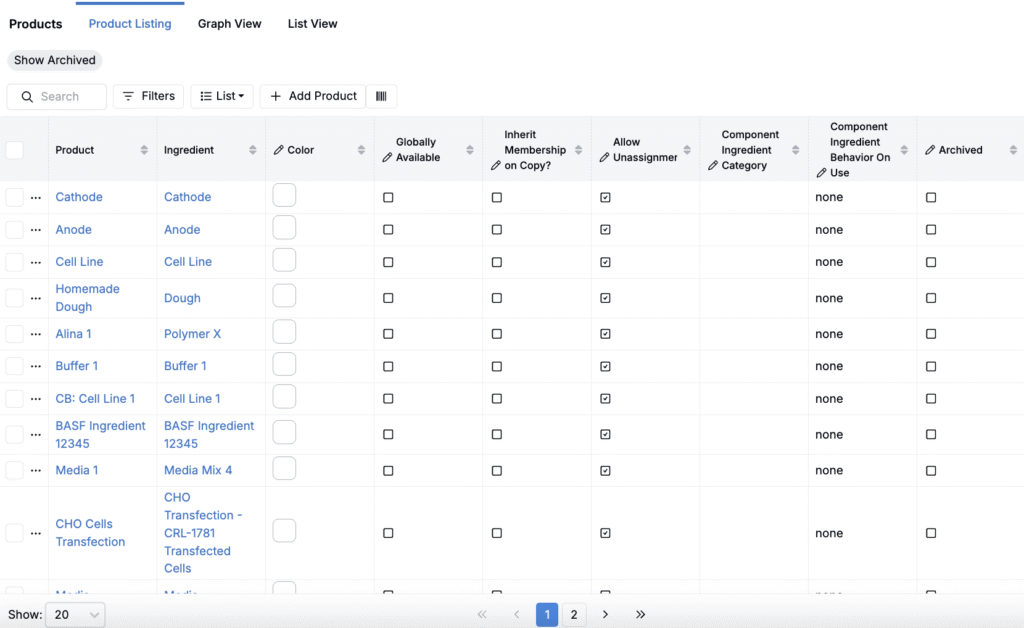
Selecting a product from the listing opens its folder, showing every experiment currently assigned to that product type.
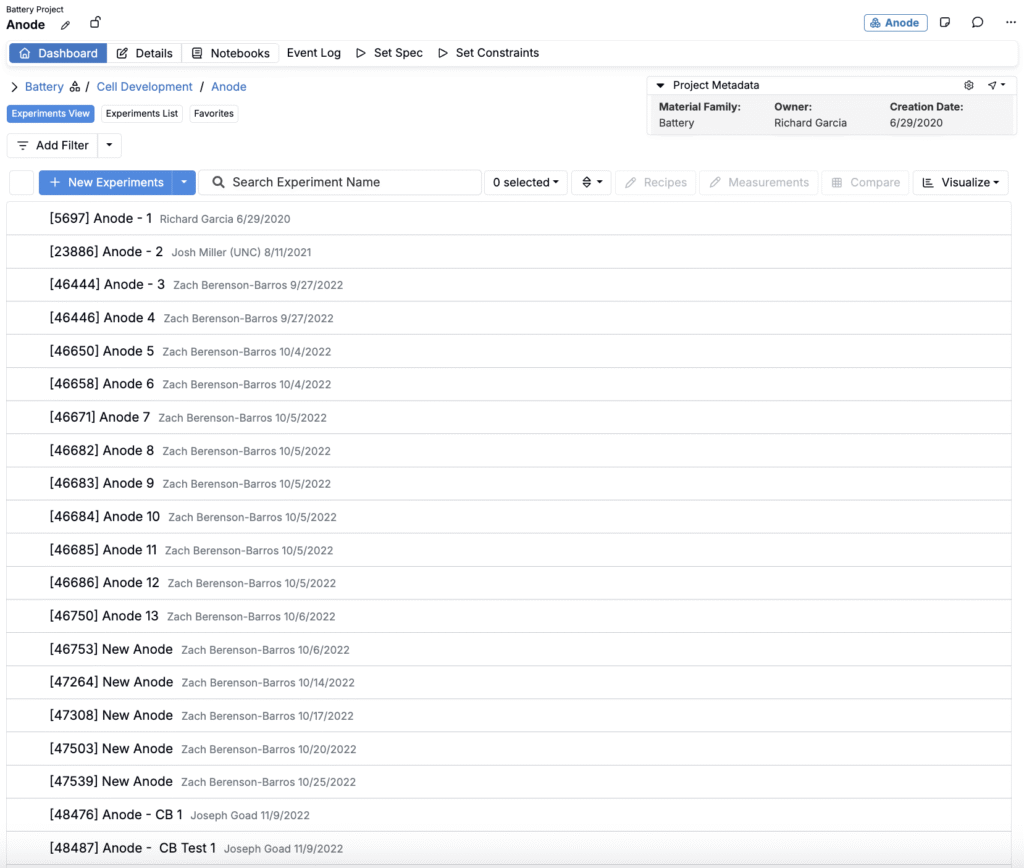
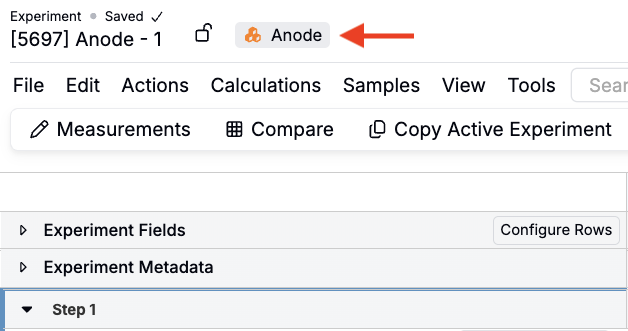
When an experiment is assigned to a product, a product tag appears next to its name. Tags are visible on the Project Dashboard, as well as in the recipe and measurement views. They provide a quick way to identify which product an experiment belongs to.
Creating a Product Folder
To create a product folder:
- On Select Projects, create a new project and assign it a product name.
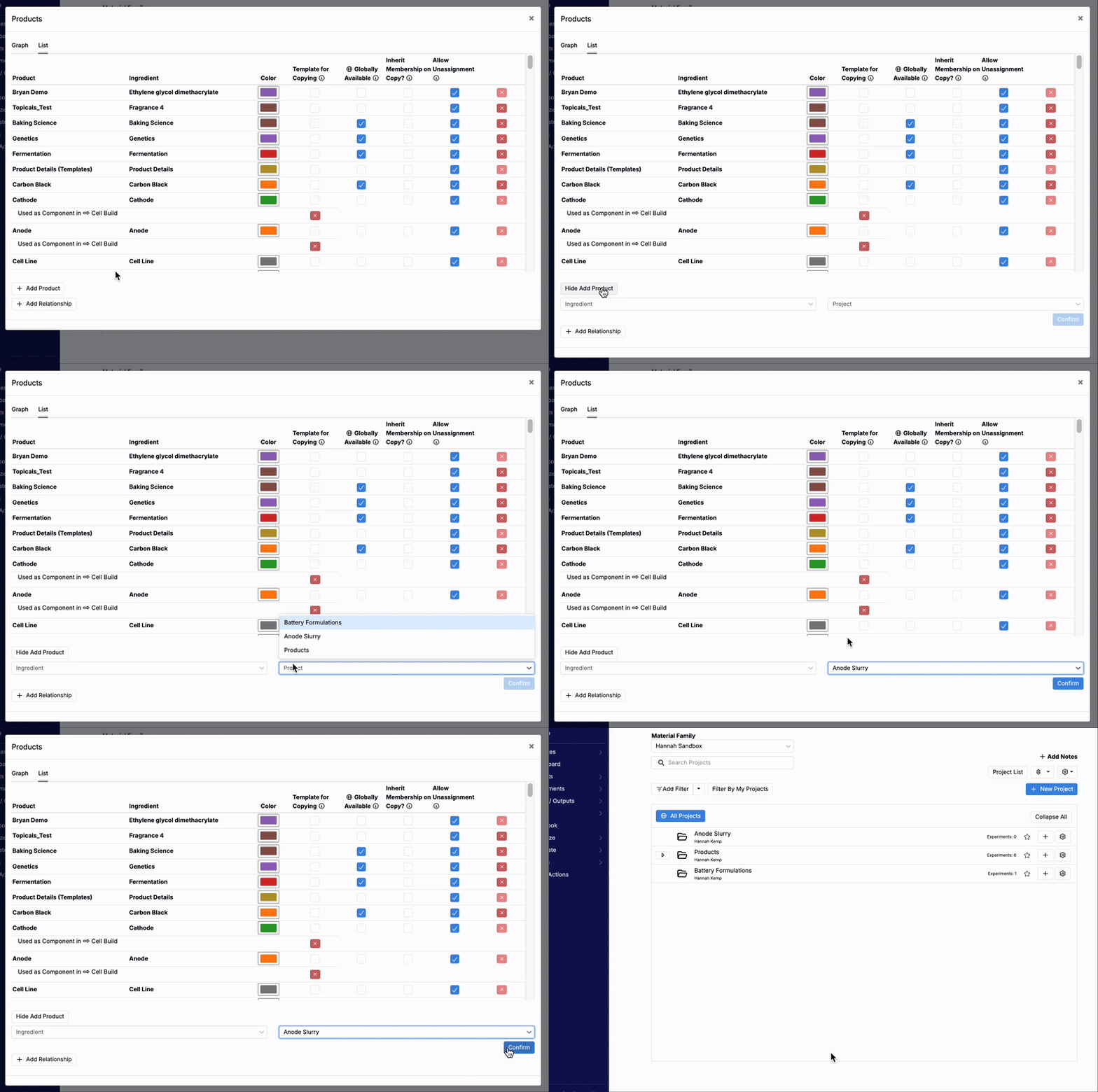
- Click ⚙️ → View Products.
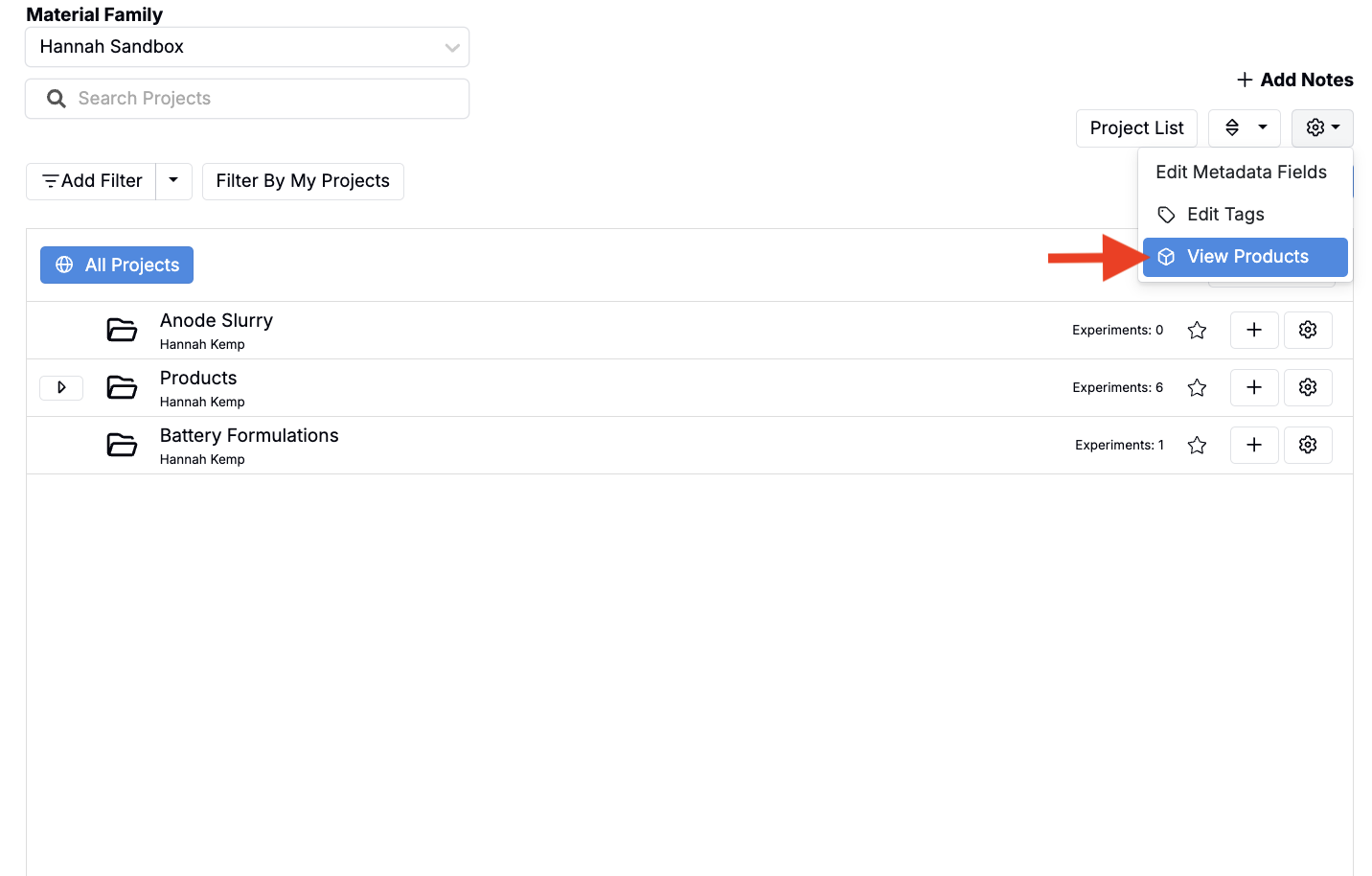
- Click Add Product and use the Project field to choose the product folder.
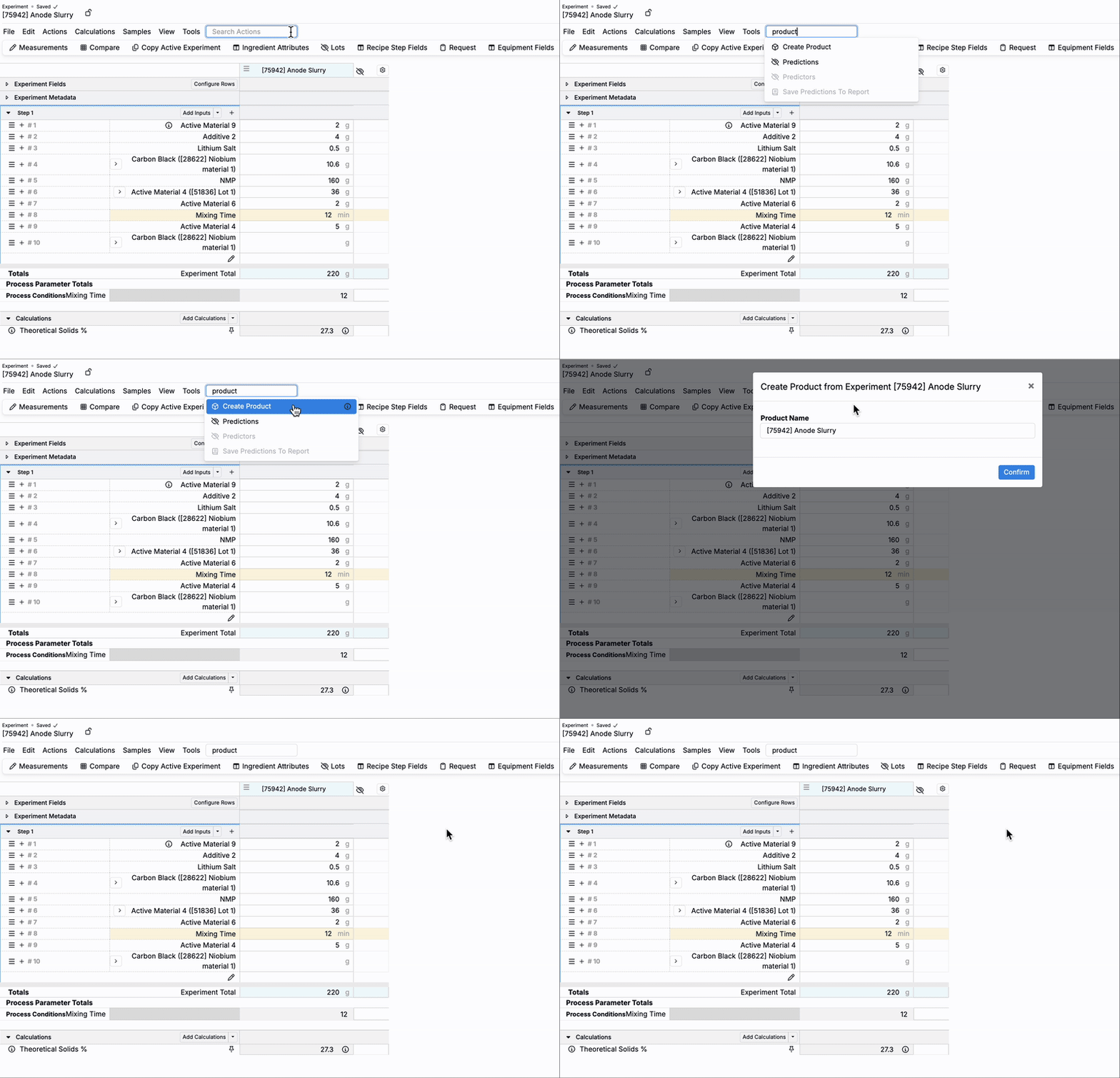
- You can also create a new product from an experiment manually by searching for and selecting Create Product. This action converts the experiment’s project into the product folder.
Creating Products
Once a product folder exists, all experiments created within the folder are automatically assigned as that product. You can also manually assign experiments from other projects or templatize product assignment via workflow variants.
Automating with Workflow Variants
To automate product assignment via workflow variant:
- Create a workflow that matches the product category (e.g., Commercial Resins Workflow).
- In the Variants tab, create a workflow variant for each product.
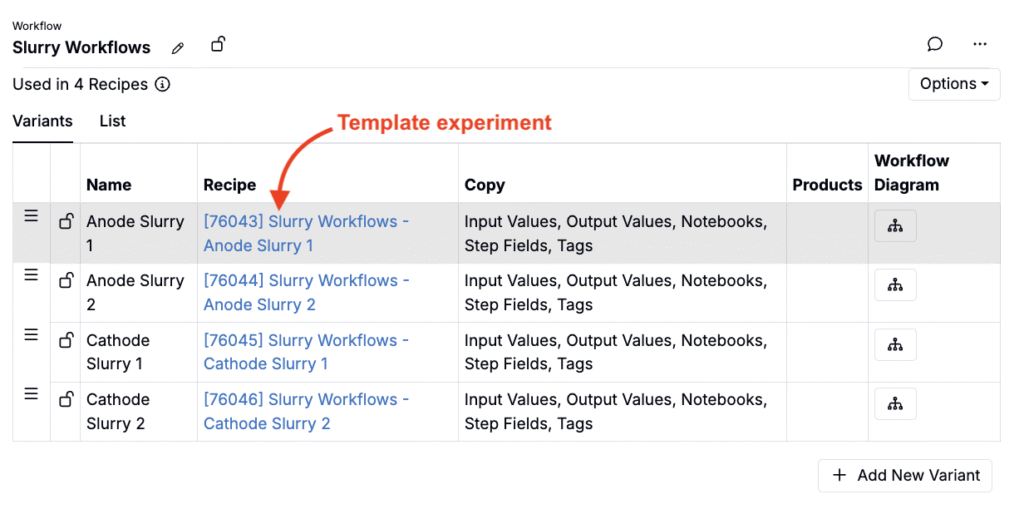
- Configure each variant’s template assignment and assign it to the correct product (via the stacked boxes Product icon).
- In the Products listing page, check Inherit Membership on Copy for each product.
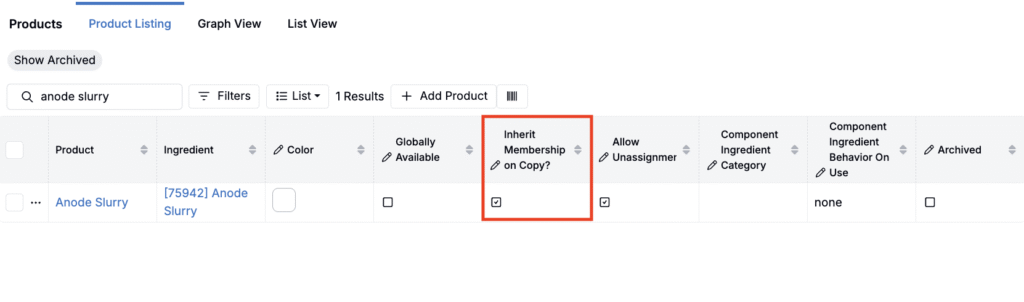
Now, whenever a new experiment is created from a workflow variant:
- Recipe details are copied from the template.
- The experiment is automatically assigned to the correct product.
Manually Assigning Experiments
To manually assign individual experiments as products:
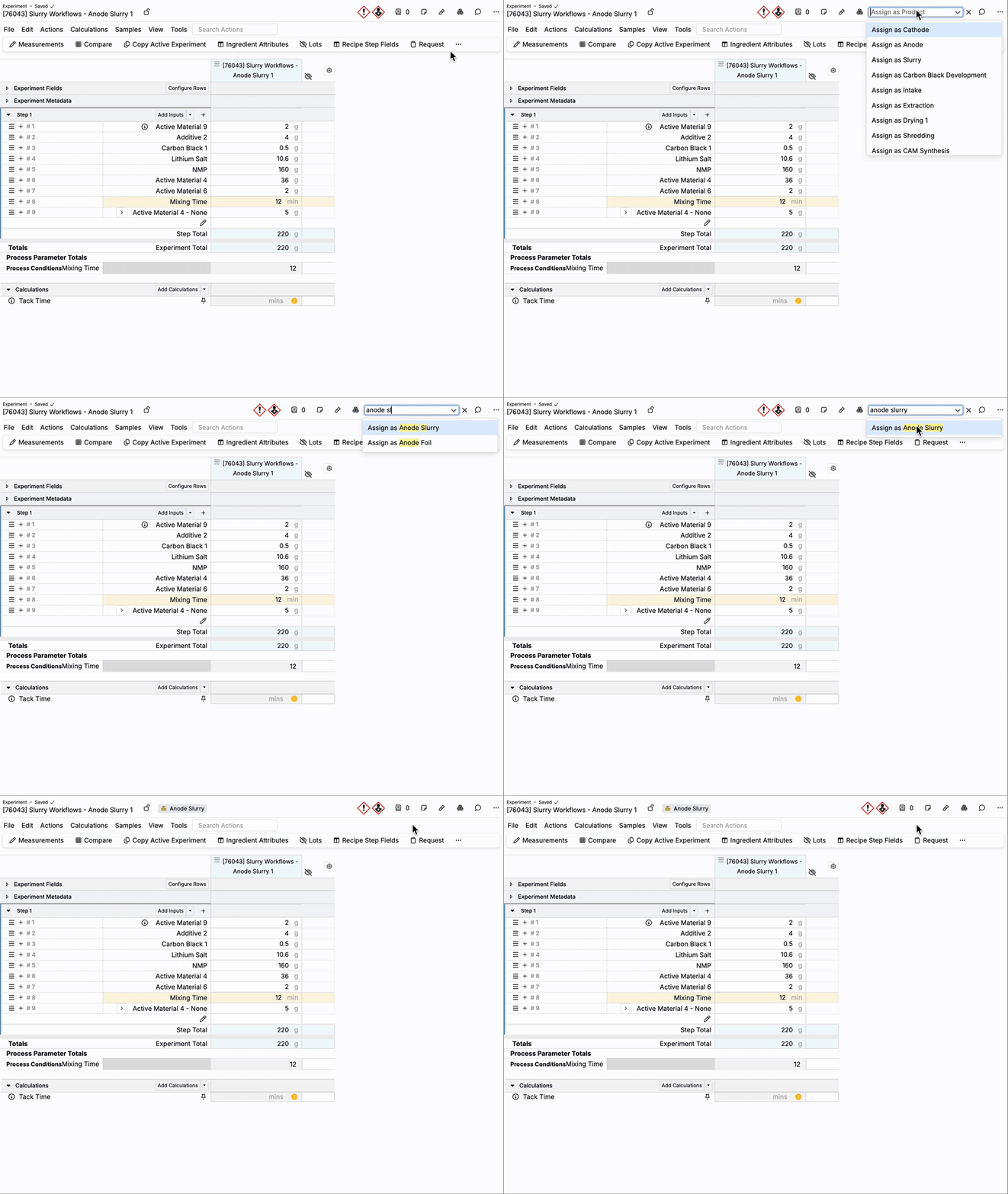
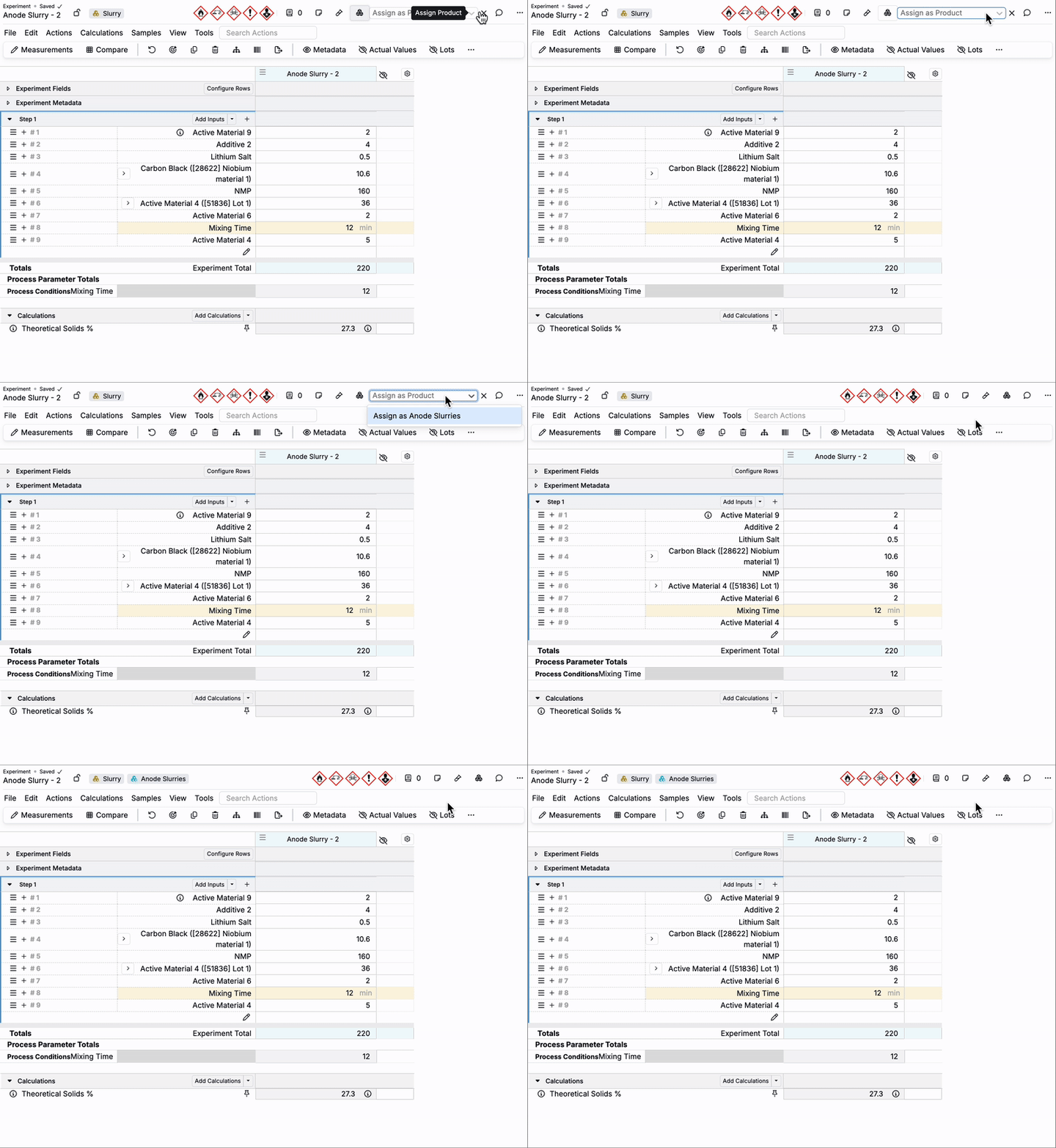
- On the experiment, click the Product icon (stacked boxes) in the header.
- Select the desired product.
The experiment will be added to the product folder while remaining in its original project folder.
While manual assignment is supported, Uncountable recommends automating product assignment with workflow variants for consistency.
Bulk Assigning Products
To bulk assign products, you can select and import them into the product folder. This is especially useful for reorganizing existing projects or managing large batches of experiments.
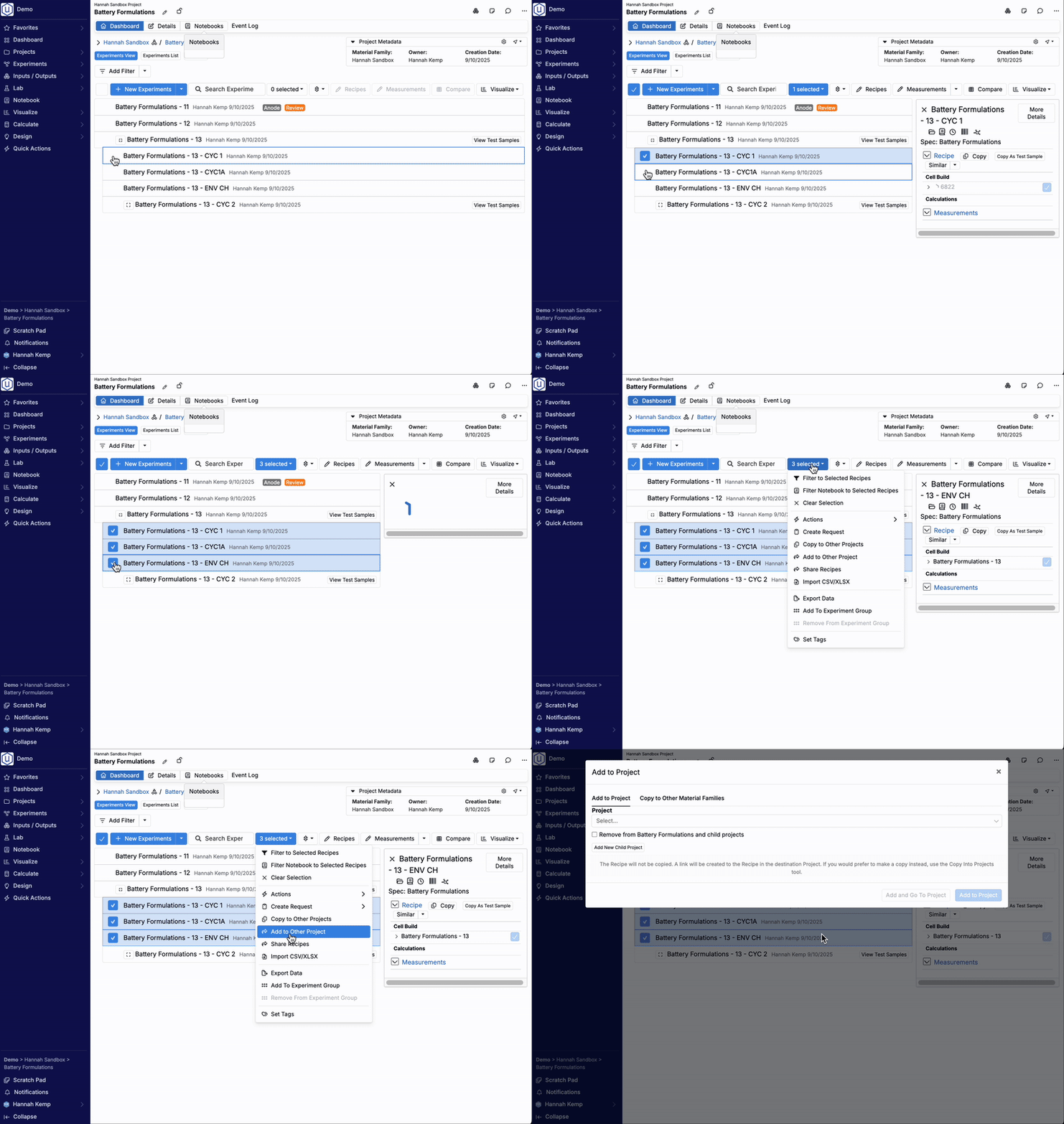
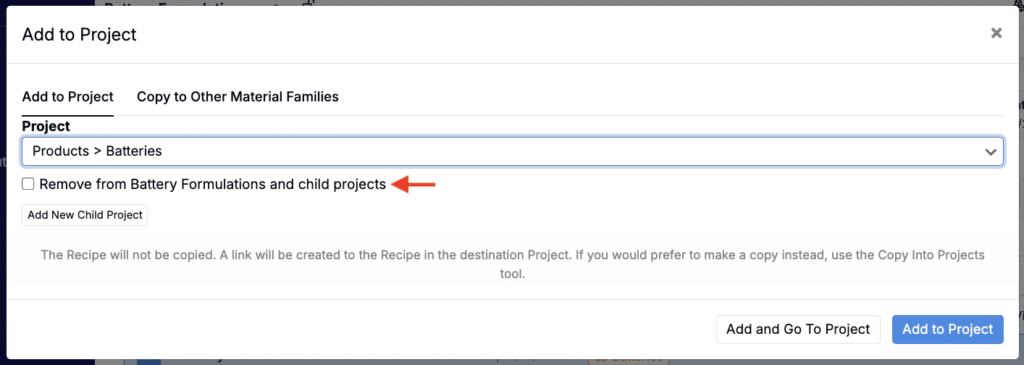
For detailed steps on bulk assigning from both the Project Dashboard and the Experiment List, see Bulk Assigning Products.
Using Products
In Uncountable, products are typically used in three ways:
- Experiment Categorization & Process Flows – Defining product types (e.g., slurries, anodes, cells, batteries) and linking them together to represent how experiments feed into each stage.
- Ingredient Mapping – Associating a product with a specific ingredient (e.g., a resin SKU or BOM part number), so experiments can act as reusable lots or batches of that ingredient.
- Product Templates for Copying – Marking products as templates so teams can quickly copy existing recipes (ingredients, parameters, and all) when creating new experiments.
To learn more, refer to the designated article on each topic.