
To access your organization’s data in the Uncountable mobile app, you must first specify the correct instance name — this tells the app which regional server to connect to. You can either manually enter the instance name or scan a QR code from your browser session.
What is an Instance Name?
An instance name, or instance URL, identifies the regional server hosting your Uncountable environment. When logging into the mobile application, this helps ensure your app connects to the correct database.
Uncountable operates across three main instance names:
app.uncountable.com– U.S. instanceappeu.uncountable.com– European instanceappjpn.uncountable.com– Japan instance
Method 1: Manual Login with Instance Name
- Open the Uncountable mobile app.
- On the login screen, enter the appropriate instance name in the field labeled Instance URL:
app.uncountable.com(U.S.)appeu.uncountable.com(Europe)appjpn.uncountable.com(Japan)
- After entering the instance, you can proceed to log in with your email and password.
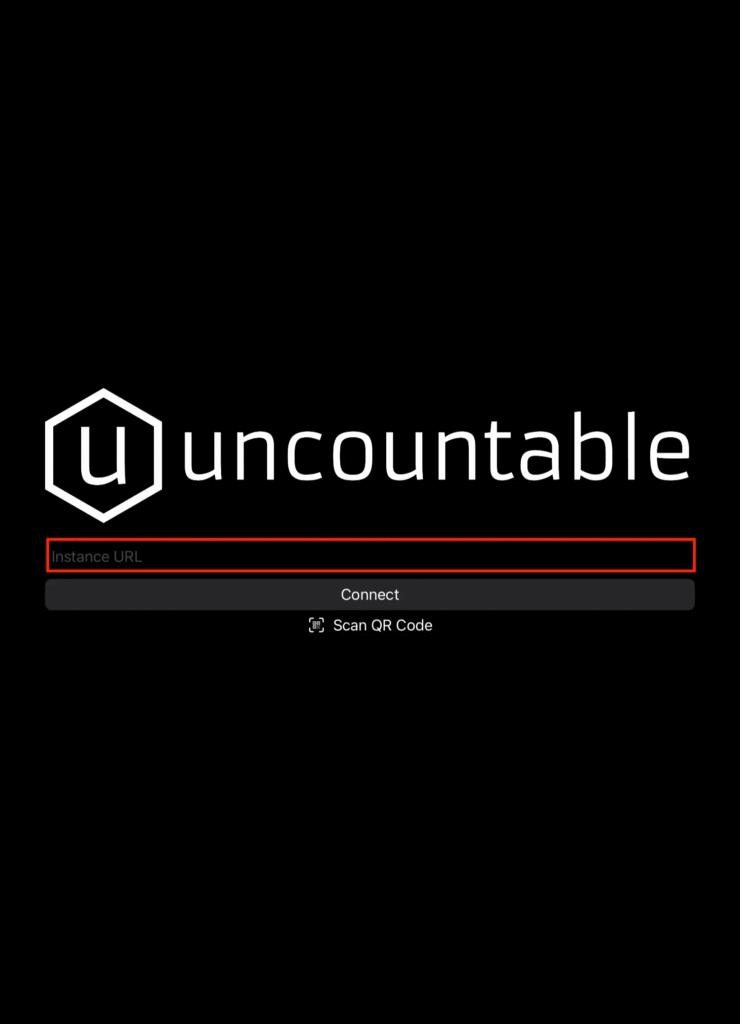
Method 2: QR Code Login from Web Application
- On your computer, open the Uncountable browser application.
- Navigate to the Company-Wide Settings page and locate the Quick Mobile Login QR code.
- In the Uncountable application on your mobile device, click Scan QR Code and scan the code.
- This automatically fills in the correct instance and logs you in.


Switching Instances
To change your instance in the mobile app:
- Log out from the app.
- Return to the initial login screen.
- Enter a different instance name in the Instance URL field to switch environments.