
To make it easier to compare test samples on the Enter Measurements page, Uncountable now supports displaying test sample process parameters as columns.

Previously, process parameters were only visible within the test sample’s Characterization section. Now, they can be displayed as columns—just like condition parameters—making it easier to compare how sample inputs vary across samples.

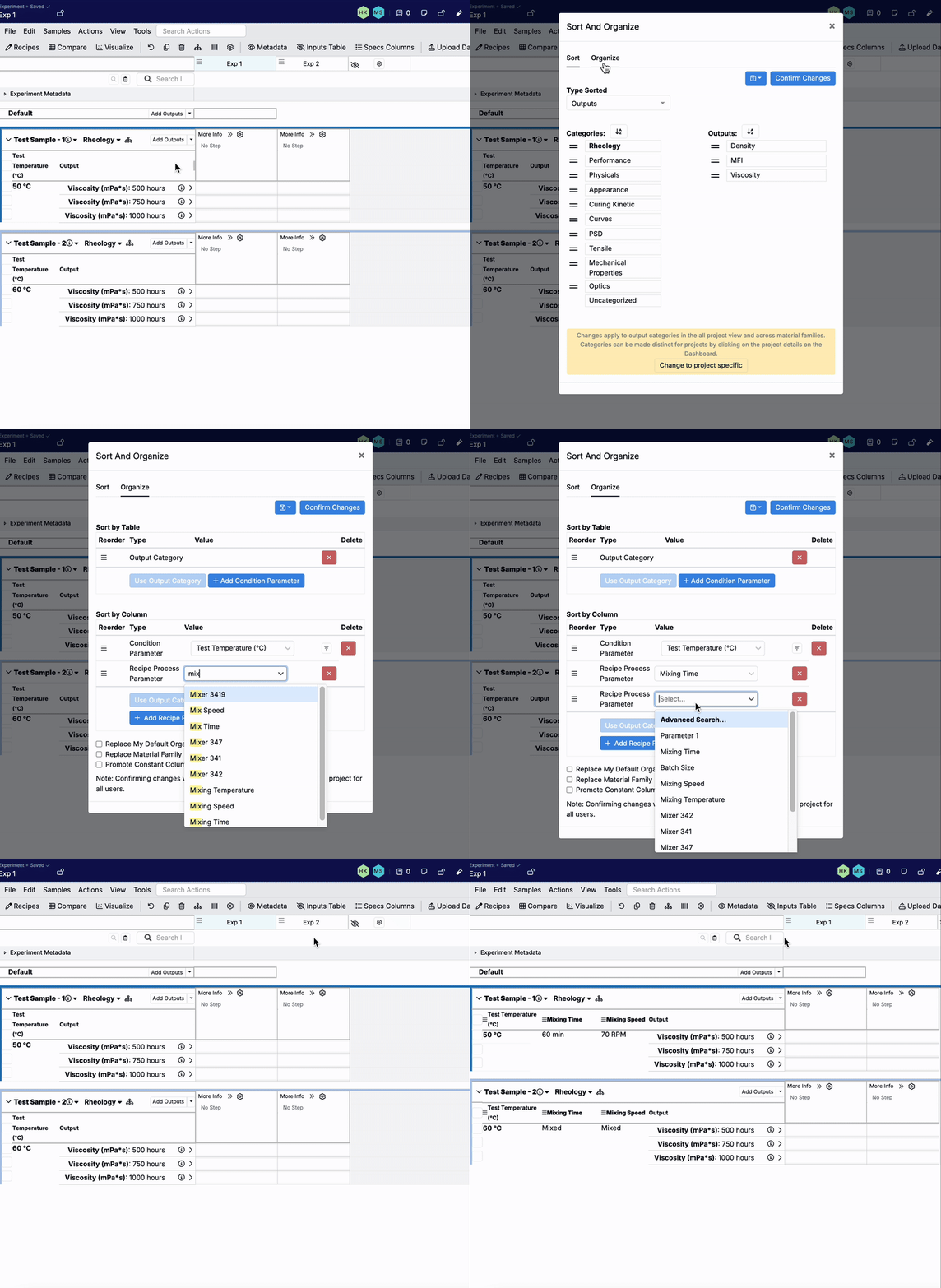
How to Display Test Sample Parameters as Columns
To display sample inputs as columns on the Enter Measurements page:
- Open the Sort and Organize modal.
- Within the modal, access the Organize tab.
- Under Sort by Column, click + Add Recipe Parameter Column.
- Select the process parameter(s) to display.
- Click Confirm Changes to apply.
How Column Values Are Displayed
- Unlike condition parameter columns, process parameter columns are not editable.
- When process parameters are added as columns, each test sample will display either a single value or the label “Mixed”, depending on how the experiments within that sample are configured:
- If all experiments within a test sample have the same value for a given parameter, that value will be shown (e.g. Test Sample 1 in the screenshot below)
- If the experiments have different values for the same parameter, the column will display “Mixed” (e.g. Test Sample 2 in the screenshot below)

Test sample process parameters displayed as columns