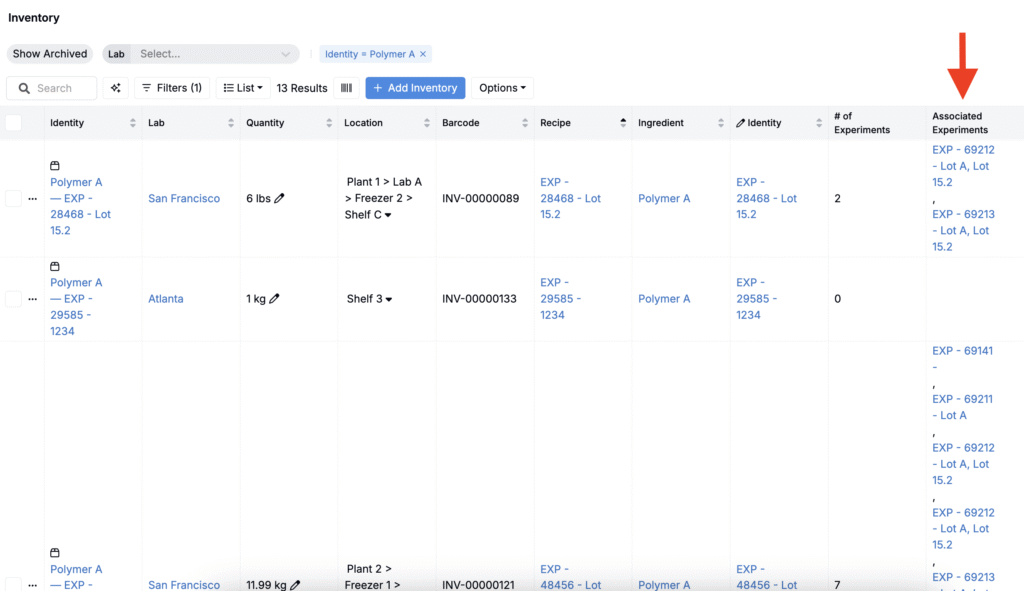
Users can configure the Inventory listing page in Uncountable by adding two types of columns that show how inventory items are used in experiments. This article walks through how to configure both column types using Reverse Relation columns.
Adding a “# of Experiments” Column
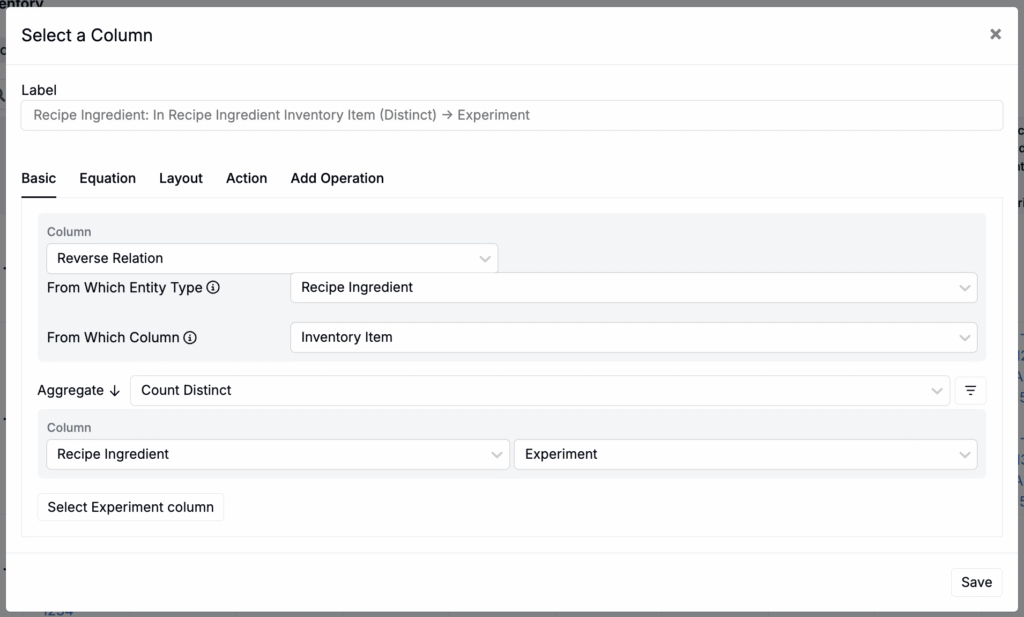
This column type can be used to show the number of experiments that use an inventory item. To configure:
- On the Inventory listing page, click List > Set Columns.
- In the modal, click + Add Column and select Reverse Relation as the column type.
- Set From Which Entity to
Recipe Ingredient. - Set From Which Column to
Inventory Item. - In the field selection that follows, choose a
Recipe Ingredient + Experimentcolumn. - Set Aggregate to
Count Distinct. Using Count Distinct avoids double-counting when an item appears in multiple inputs within the same experiment.
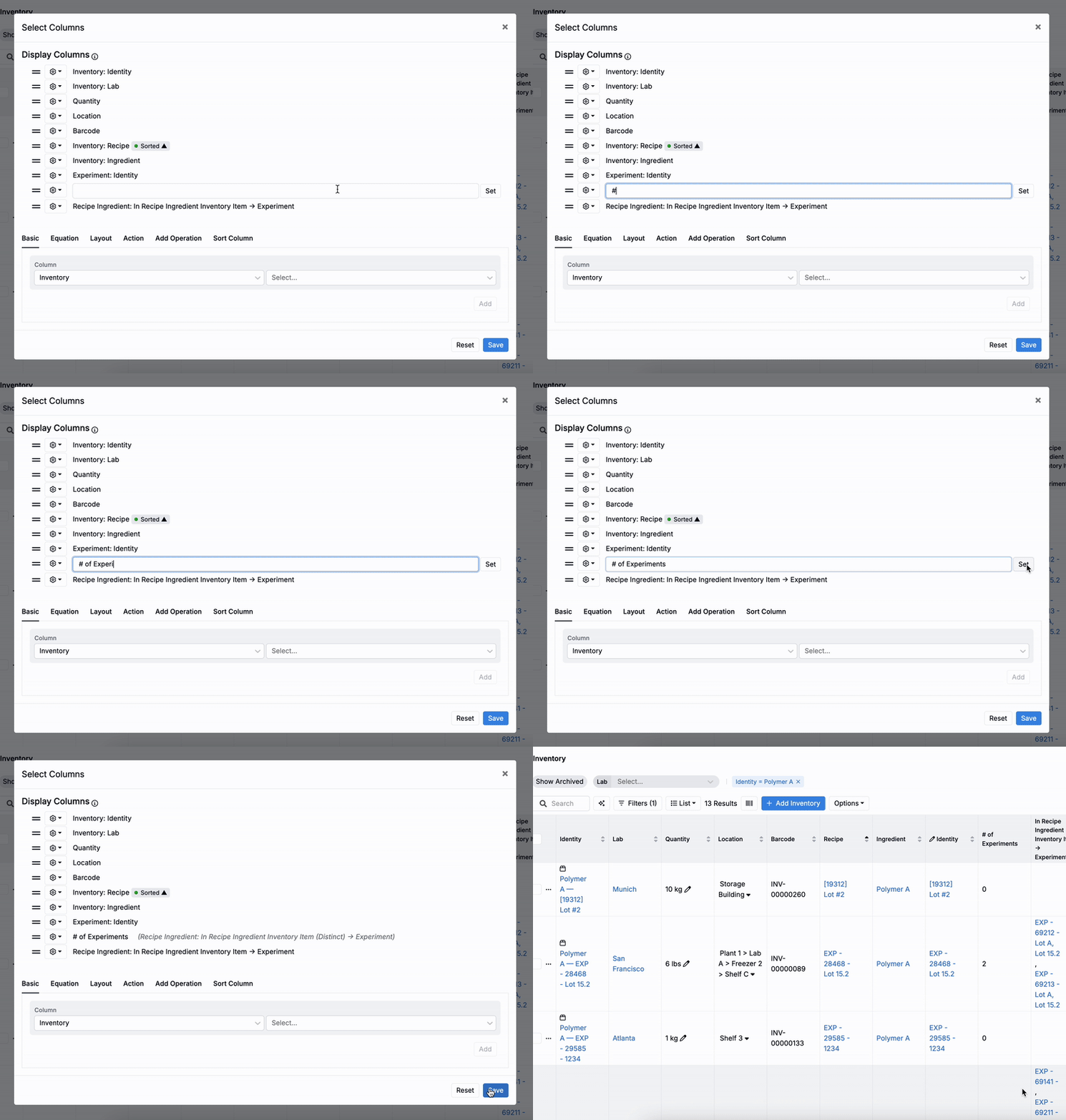
From the Select Column modal, you can then rename your reverse relation column by:
- Clicking the pencil icon associated with the column.
- Adding a new custom name (e.g. # of Experiments).
- Clicking Set next to the name.
- Clicking Save at the bottom of the modal.
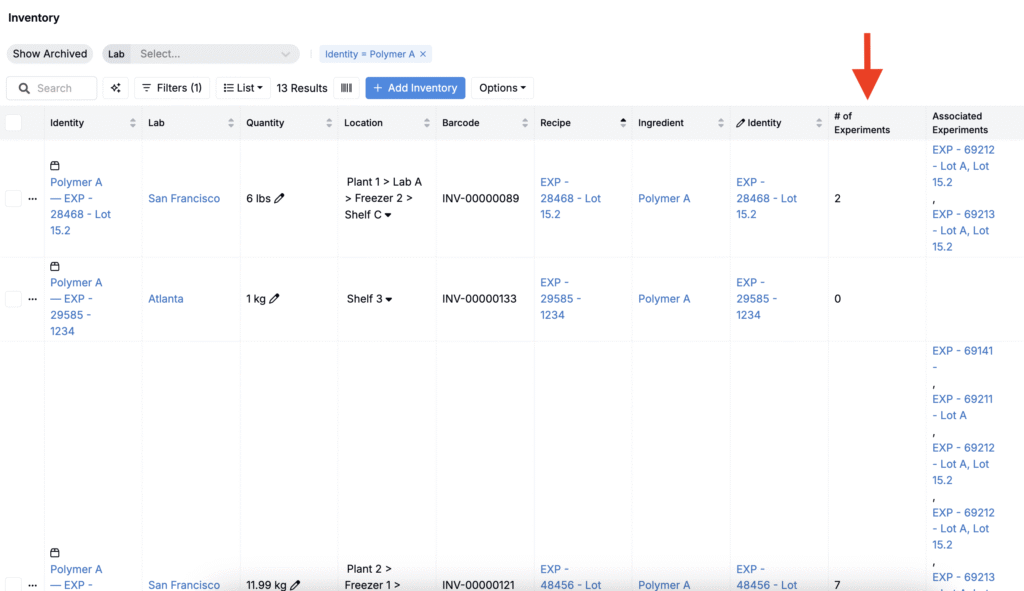
Once saved, the column will be displayed on the listing, giving you a count of only the unique experiments in which a given inventory item is used.
Adding an “Associated Experiments” Column
This column shows the names and links to all experiments that use each inventory item. To configure:
- On the Inventory listing page, click List > Set Columns.
- In the modal, click + Add Column and select Reverse Relation as the column type.
- Set From Which Entity to
Recipe Ingredient. - Set From Which Column to
Inventory Item. - In the field selection that follows, choose a
Recipe Ingredient + Experimentcolumn. - Set Aggregate to
Collect.

From the Select Column modal, rename your reverse relation column by:
- Clicking the pencil icon associated with the column.
- Adding a new custom name (e.g. Associated Experiments).
- Clicking Set next to the name.
- Clicking Save at the bottom of the modal.
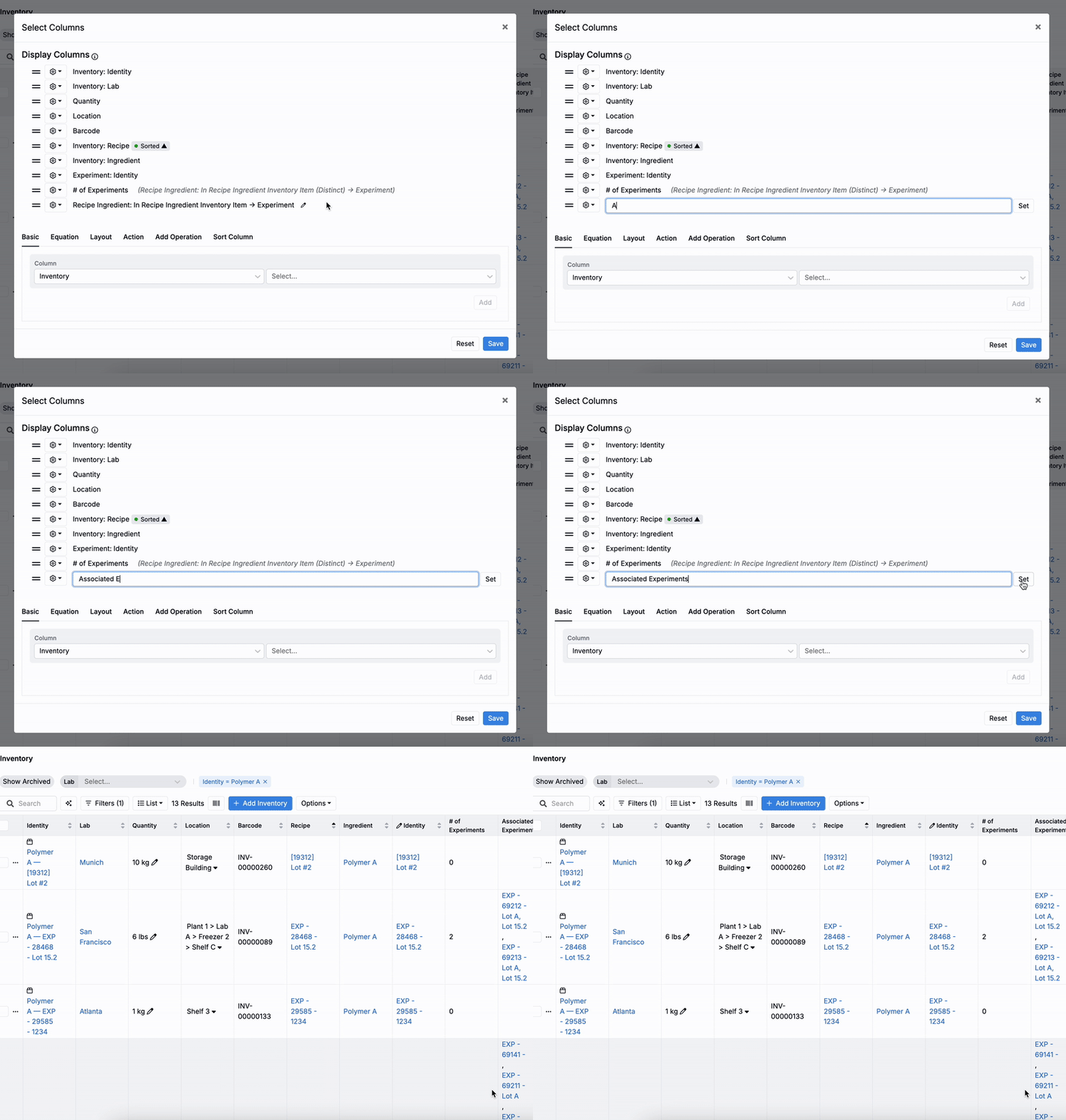
Once saved, the column will be displayed on the listing, giving you quick access to each recipe where each inventory item is used.