
When using the Ingredients Importer to import Lot information, you have the option to include Lot metadata and outputs. However, this importer does not support importing outputs with condition parameters.
When you need to bulk import lots that include metadata and outputs with condition parameters, you can use Uncountable’s importers in two stages:
- Import lot information with the Ingredients Importer. This creates the lots and any associated metadata.
- After those lots exist as recipes, add outputs and their condition parameters with the Formulation Importer.
Importing Lot Information
Step 1 — Access the Importer
- Navigate to any project dashboard.
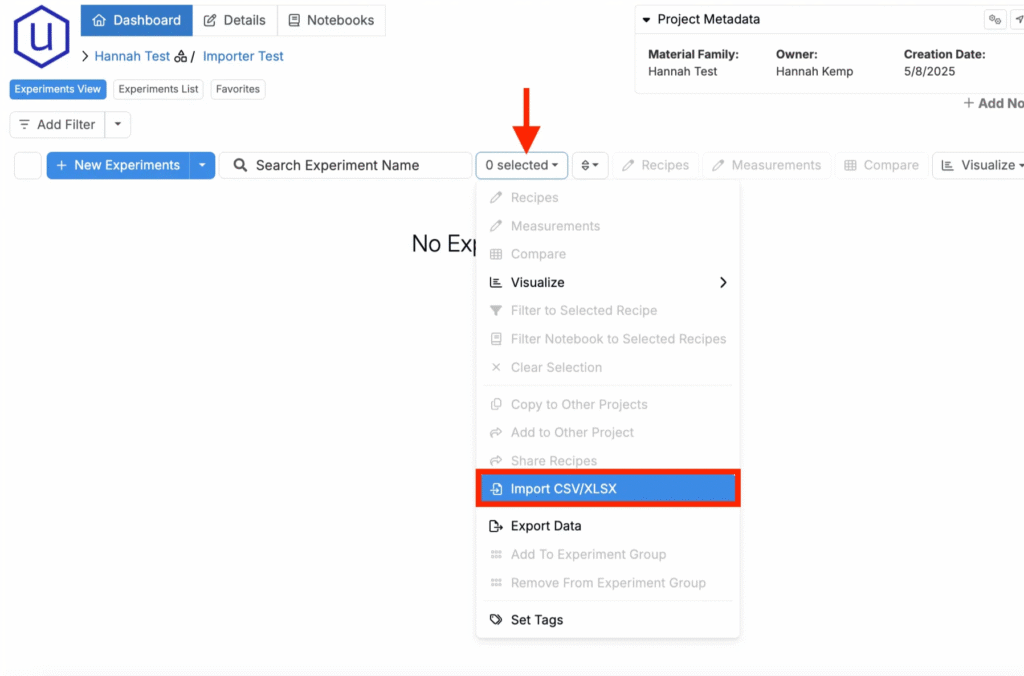
- Access the selection menu and click Import CSV/XLSX.
Step 2 — Select Import Type
At the top of the page, select Ingredient Upload.

Step 3 — Prepare Your Spreadsheet
For Uncountable to process your upload, your spreadsheet must follow a specific template. Start from the sample and configure accordingly.
- Download the template: Ingredients Importer Template (Ingredients)
When configuring your spreadsheet, be sure to include a Lots tab with the following:
- Rows for each ingredient.
- A column matching each ingredient to a Lot Name.
- Columns for all desired recipe metadata fields and outputs without conditions.

Step 4 — Upload, Review, and Submit
Once your spreadsheet is ready, drag and drop it to the Ingredients Importer. Before submitting, use the review page to ensure that your import is complete and correct.
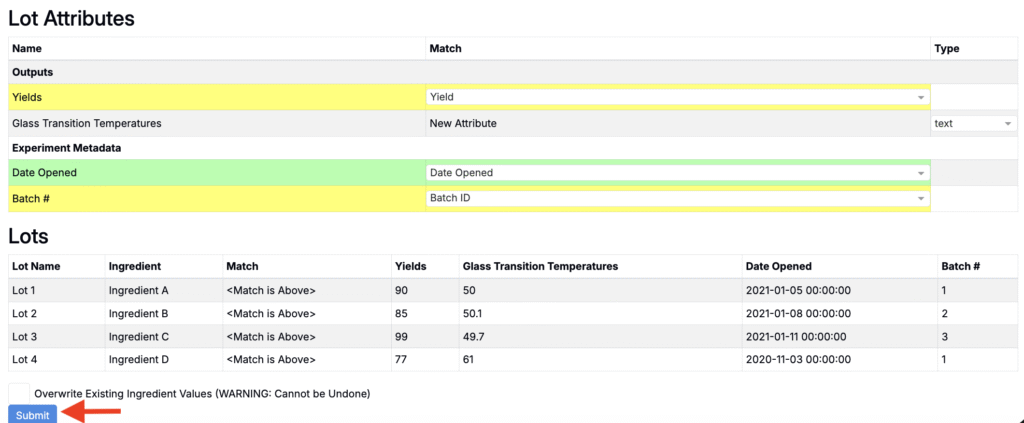
To learn more about importing Lots, refer to Importing Ingredients, Process Parameters, and Lots.
Importing Lot Outputs with Condition Parameters
Step 1 — Access the Importer
- Navigate to any project dashboard.
- Access the selection menu and click Import CSV/XLSX.

Step 2 — Select Import Type
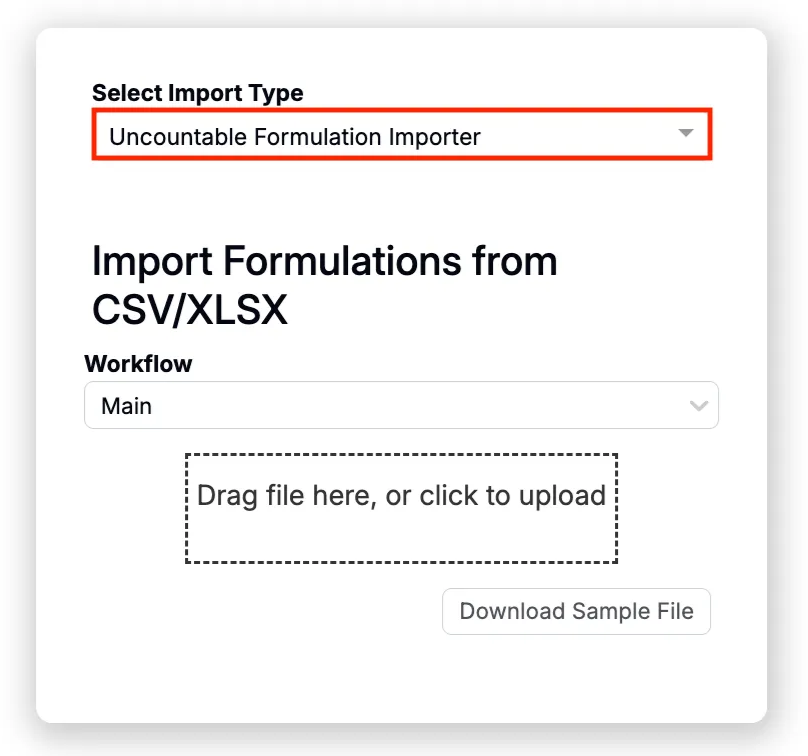
At the top of the page, select the Uncountable Formulation Importer.
Step 3 — Prepare Your Spreadsheet
For Uncountable to process your upload, your spreadsheet must follow a specific template. Start from the sample and configure accordingly.
- Download the template: Formulation Importer Template
When configuring your spreadsheet, be sure to include the following:
- Columns matching to Lot names of Lot imported in the first step.
- Rows for all desired Lot outputs.
- Columns for condition parameters on those Lot outputs.

Step 4 — Upload, Review, and Submit
Once your spreadsheet is ready, drag and drop it to the Formulation Importer. Before submitting, use the review page to ensure that your import is complete and correct.
To learn more about importing recipe/lot data, refer to Importing Formulations.
Unit Conversion Error
If you receive the error “Please disable all unit conversions before import,” unit conversions are likely enabled. You must disable unit conversions before uploading data.
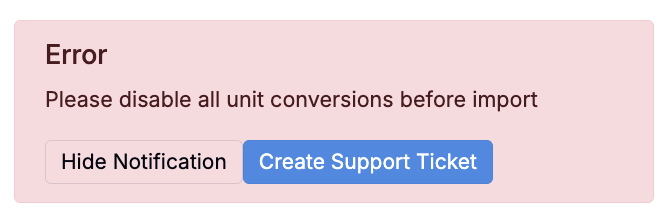
Unit conversions may be enabled in either of these locations:
- User Unit Conversions — On the measurements view of an experiment, search for “Unit Conversion Settings”. On the User Unit Conversion Settings page, remove any User Unit Settings.
- Basis Unit Conversion — On the Manage Material Families page (Company-Wide Settings > Manage Material Families), use the Basis Unit Conversions column to disable any conversions for the current material family.