
In Uncountable, outputs often have default conditions defined—such as a specific test method, temperature, or aging time. These defaults help ensure consistency by automatically applying the same conditions whenever that output is used in analyses or visualizations.
When plotting in Explore Data, the platform first attempts to use these default conditions. If the selected conditions don’t match the available data, you may encounter the following error message: “Output with specified conditions has no data – please look at adjusting conditions.”

Example Scenario
Suppose the Tensile Strength output has default conditions set to Method B and 50 °C:
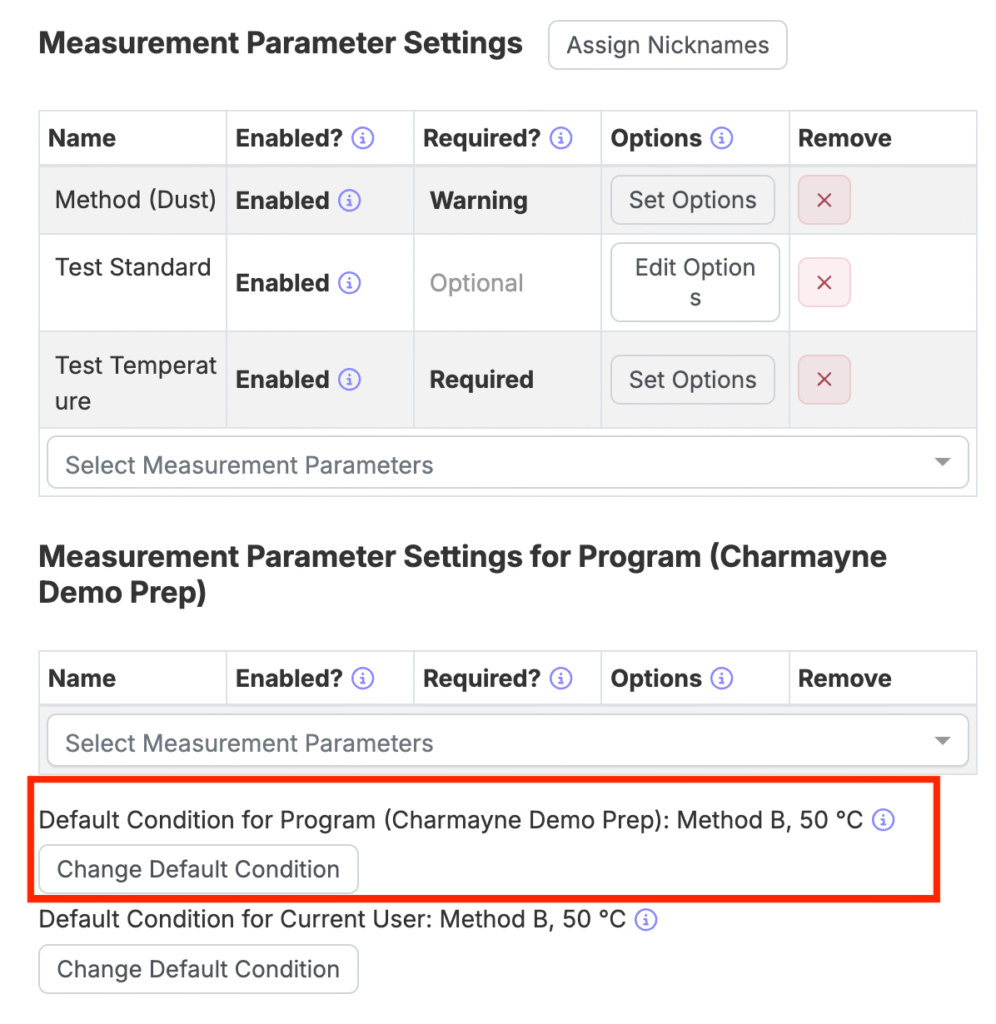
In a recipe, however, you may override these defaults by assigning new conditions—for example, changing to Method C:
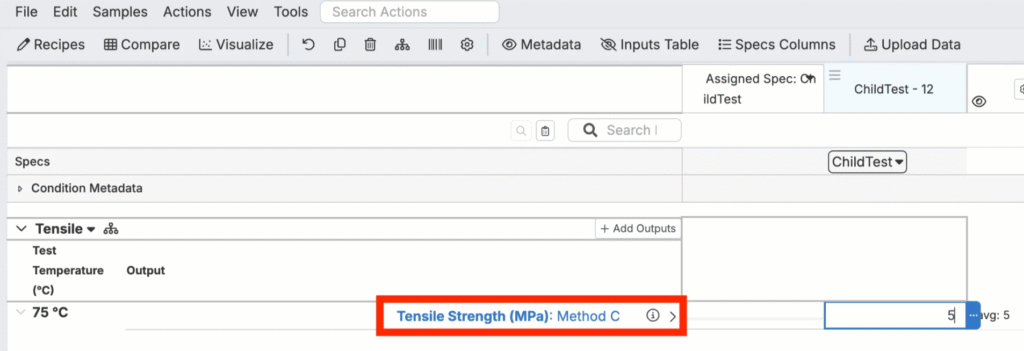
When you attempt to plot Tensile Strength in Explore Data, the system will first look for results under the default (Method B at 50 °C). Since no matching data exists, the plot will fail and trigger the error message.
How to Resolve
To fix this issue:
- Open the output settings for the measurement you want to plot.
- Go to the Conditions tab.
- Adjust the output conditions so they match the conditions actually set on the recipe (e.g., Method C instead of Method B).
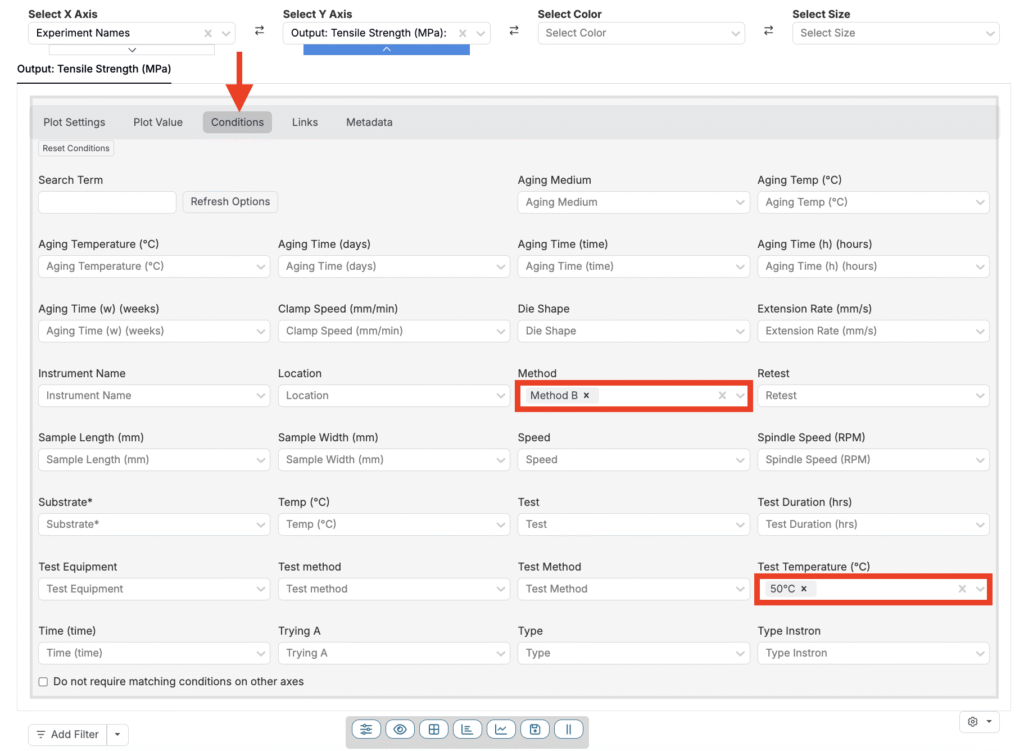
By aligning the plotted output’s conditions with the recipe’s, Explore Data will successfully display the results.